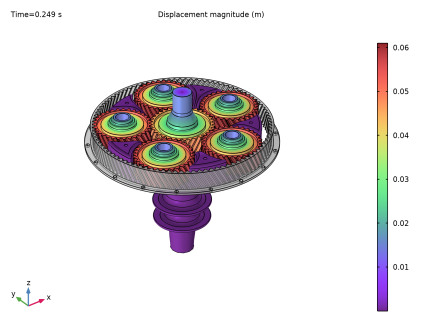
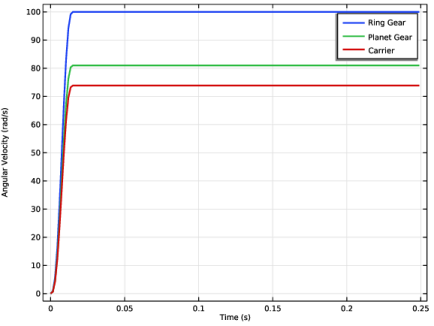
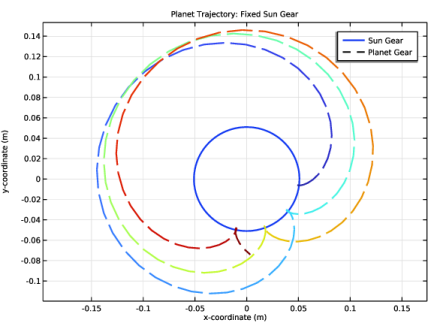
| 
|
|
|
|
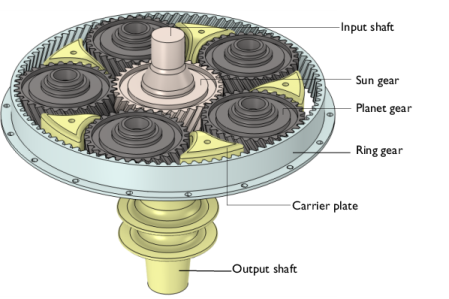
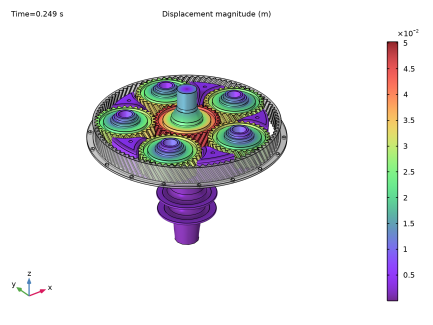
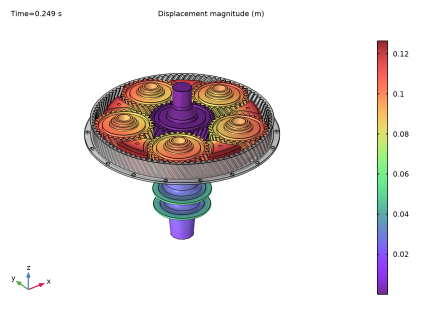
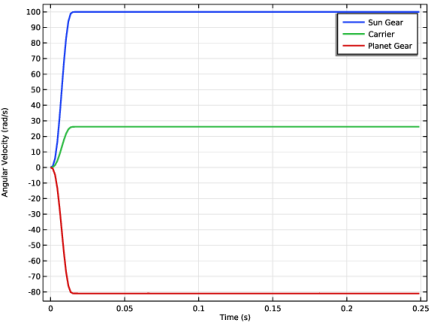
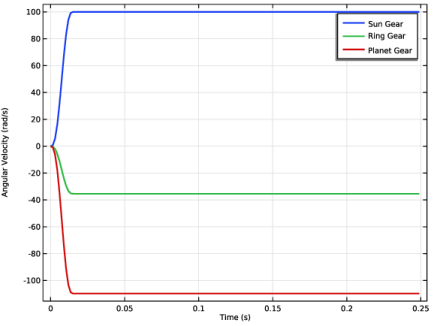
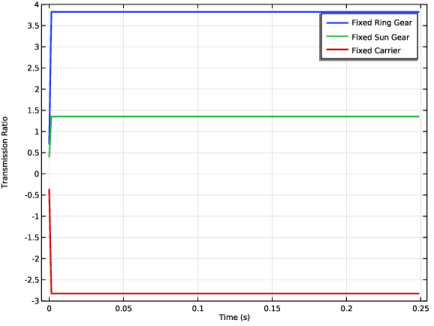
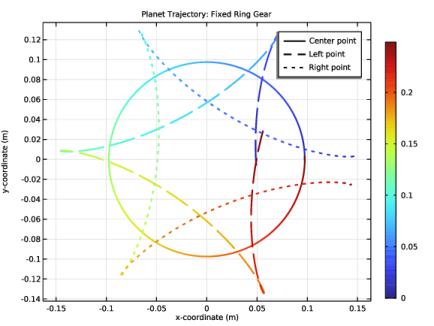
|
1
|
|
2
|
|
3
|
Click Add.
|
|
4
|
Click
 Study. Study. |
|
5
|
|
6
|
Click
 Done. Done. |
|
1
|
|
2
|
|
3
|
Click
 Load from File. Load from File. |
|
4
|
Browse to the model’s Application Libraries folder and double-click the file planetary_gear_train_parameters.txt.
|
|
1
|
In the Model Builder window, expand the Component 1 (comp1) > Geometry 1 node, then click Geometry 1.
|
|
2
|
|
3
|
|
1
|
|
2
|
|
3
|
Click
 Browse. Browse. |
|
4
|
Browse to the model’s Application Libraries folder and double-click the file planetary_gear_train.mphbin.
|
|
5
|
Click
 Import. Import. |
|
1
|
|
2
|
|
3
|
|
4
|
|
1
|
In the Model Builder window, expand the Component 1 (comp1) > Definitions node, then click Identity Boundary Pair 5 (ap5).
|
|
2
|
|
3
|
Drag and drop above Identity Boundary Pair 1 (ap1).
|
|
1
|
|
2
|
|
3
|
Drag and drop below Identity Boundary Pair 5 (ap5).
|
|
1
|
|
2
|
|
3
|
Drag and drop below Identity Boundary Pair 4 (ap4).
|
|
1
|
|
2
|
|
1
|
|
2
|
|
1
|
|
2
|
|
3
|
|
4
|
|
1
|
In the Model Builder window, expand the Component 1 (comp1) > Materials node, then click Component 1 (comp1) > Geometry 1 > Explicit Selection 1 (sel1).
|
|
2
|
|
3
|
Locate the Color section. From the Color list, choose None or — if you are running the cross-platform desktop —Custom. On the cross-platform desktop, click the Color button.
|
|
4
|
Click Define custom colors.
|
|
6
|
Click Add to custom colors.
|
|
7
|
|
8
|
On the object fin, select Domains 1 and 2 only.
|
|
9
|
Click
 Build Selected. Build Selected. |
|
1
|
|
2
|
|
3
|
|
4
|
|
6
|
Click Add to custom colors.
|
|
7
|
|
8
|
On the object fin, select Domain 6 only.
|
|
9
|
Click
 Build Selected. Build Selected. |
|
1
|
|
2
|
|
3
|
|
4
|
|
6
|
Click Add to custom colors.
|
|
7
|
|
8
|
On the object fin, select Domains 4, 5, and 7–9 only.
|
|
9
|
Click
 Build Selected. Build Selected. |
|
1
|
|
2
|
|
3
|
|
4
|
|
6
|
Click Add to custom colors.
|
|
7
|
|
8
|
On the object fin, select Domain 3 only.
|
|
9
|
Click
 Build Selected. Build Selected. |
|
1
|
In the Model Builder window, under Component 1 (comp1) > Geometry 1, Ctrl-click to select Ring Gear (sel1), Sun Gear (sel2), Planet Gears (sel3), and Carrier (sel4).
|
|
2
|
Right-click and choose Group.
|
|
1
|
|
2
|
Go to the Add Material window.
|
|
3
|
|
4
|
Right-click and choose Link in Component 1 (comp1).
|
|
5
|
|
1
|
|
3
|
|
1
|
|
2
|
|
3
|
|
4
|
|
5
|
|
6
|
|
7
|
|
8
|
|
9
|
|
1
|
|
2
|
|
3
|
|
4
|
|
5
|
|
6
|
|
7
|
|
8
|
|
1
|
|
2
|
|
3
|
|
5
|
|
6
|
|
7
|
|
8
|
|
1
|
|
2
|
|
3
|
|
5
|
|
1
|
|
2
|
|
3
|
|
5
|
|
1
|
|
2
|
|
3
|
|
5
|
|
1
|
|
2
|
|
3
|
|
5
|
|
1
|
|
2
|
|
1
|
|
2
|
|
3
|
|
4
|
|
1
|
|
2
|
|
3
|
|
1
|
|
2
|
|
3
|
|
1
|
|
2
|
|
3
|
|
1
|
|
2
|
|
3
|
|
1
|
|
2
|
|
3
|
|
4
|
|
1
|
|
2
|
|
3
|
|
1
|
|
2
|
|
3
|
|
1
|
|
2
|
|
3
|
|
1
|
|
2
|
|
3
|
|
1
|
|
2
|
|
3
|
|
4
|
In the Settings window for Multibody Dynamics, click Physics Node Generation in the upper-right corner of the Automated Model Setup section. From the menu, choose Create Joints.
|
|
1
|
|
2
|
|
1
|
In the Model Builder window, under Component 1 (comp1) > Multibody Dynamics (mbd) > Hinge Joints click Hinge Joint 2.
|
|
2
|
|
1
|
In the Model Builder window, under Component 1 (comp1) > Multibody Dynamics (mbd) > Hinge Joints click Hinge Joint 3.
|
|
2
|
|
1
|
In the Model Builder window, under Component 1 (comp1) > Multibody Dynamics (mbd) > Hinge Joints click Hinge Joint 4.
|
|
2
|
|
1
|
In the Model Builder window, under Component 1 (comp1) > Multibody Dynamics (mbd) > Hinge Joints click Hinge Joint 5.
|
|
2
|
|
1
|
|
2
|
|
3
|
|
4
|
|
5
|
|
1
|
|
2
|
|
3
|
|
1
|
|
2
|
|
3
|
|
4
|
|
1
|
|
2
|
|
3
|
|
1
|
|
2
|
|
1
|
|
2
|
|
3
|
|
4
|
Locate the Physics and Variables Selection section. Select the Modify model configuration for study step checkbox.
|
|
5
|
In the tree, select Component 1 (comp1) > Multibody Dynamics (mbd), Controls spatial frame > Rigid Material: Carrier > Fixed Constraint 1, Component 1 (comp1) > Multibody Dynamics (mbd), Controls spatial frame > Gears > Helical Gear: Sun Gear > Fixed Constraint 1, and Component 1 (comp1) > Multibody Dynamics (mbd), Controls spatial frame > Hinge Joints > Hinge Joint: Ring Gear.
|
|
6
|
Right-click and choose Disable.
|
|
1
|
|
2
|
|
3
|
In the Model Builder window, under Study 1: Fixed Ring Gear > Solver Configurations > Solution 1 (sol1) click Time-Dependent Solver 1.
|
|
4
|
|
5
|
|
6
|
|
1
|
|
2
|
Go to the Add Study window.
|
|
3
|
|
4
|
Click the Add Study button in the window toolbar.
|
|
5
|
|
1
|
|
2
|
|
1
|
|
2
|
|
3
|
In the tree, select Component 1 (comp1) > Multibody Dynamics (mbd), Controls spatial frame > Gears > Helical Gear: Sun Gear > Fixed Constraint 1 and Component 1 (comp1) > Multibody Dynamics (mbd), Controls spatial frame > Hinge Joints > Hinge Joint: Ring Gear.
|
|
4
|
Right-click and choose Enable.
|
|
5
|
In the tree, select Component 1 (comp1) > Multibody Dynamics (mbd), Controls spatial frame > Gears > Helical Gear: Ring Gear > Fixed Constraint 1 and Component 1 (comp1) > Multibody Dynamics (mbd), Controls spatial frame > Hinge Joints > Hinge Joint: Sun Gear.
|
|
6
|
Right-click and choose Disable.
|
|
7
|
|
8
|
|
9
|
Clear the Generate default plots checkbox.
|
|
10
|
|
1
|
|
2
|
Go to the Add Study window.
|
|
3
|
|
4
|
Click the Add Study button in the window toolbar.
|
|
5
|
|
1
|
|
2
|
|
1
|
|
2
|
|
3
|
In the tree, select Component 1 (comp1) > Multibody Dynamics (mbd), Controls spatial frame > Rigid Material: Carrier > Fixed Constraint 1 and Component 1 (comp1) > Multibody Dynamics (mbd), Controls spatial frame > Hinge Joints > Hinge Joint: Ring Gear.
|
|
4
|
Right-click and choose Enable.
|
|
5
|
In the tree, select Component 1 (comp1) > Multibody Dynamics (mbd), Controls spatial frame > Gears > Helical Gear: Ring Gear > Fixed Constraint 1, Component 1 (comp1) > Multibody Dynamics (mbd), Controls spatial frame > Hinge Joints > Hinge Joint: Carrier, and Component 1 (comp1) > Multibody Dynamics (mbd), Controls spatial frame > Hinge Joints > Hinge Joint: Ring Gear > Prescribed Motion 1.
|
|
6
|
Click
 Disable. Disable. |
|
7
|
|
8
|
|
9
|
Clear the Generate default plots checkbox.
|
|
10
|
|
1
|
|
2
|
In the Settings window for 3D Plot Group, type Displacement: Fixed Ring Gear in the Label text field.
|
|
1
|
|
2
|
|
3
|
|
4
|
|
1
|
|
2
|
|
3
|
Click to select the
 Activate Selection toggle button. Activate Selection toggle button. |
|
4
|
Click
 Clear Selection. Clear Selection. |
|
5
|
|
1
|
|
2
|
|
3
|
|
4
|
|
5
|
|
1
|
|
2
|
In the Settings window for 3D Plot Group, type Displacement: Fixed Sun Gear in the Label text field.
|
|
3
|
|
4
|
|
1
|
|
2
|
|
3
|
|
4
|
|
1
|
In the Model Builder window, under Results, Ctrl-click to select Displacement: Fixed Ring Gear, Displacement: Fixed Sun Gear, and Displacement: Fixed Carrier.
|
|
2
|
Right-click and choose Group.
|
|
1
|
|
2
|
|
1
|
|
2
|
|
3
|
|
4
|
Locate the Legends section. Find the Include in automatic mode subsection. Clear the Headers checkbox.
|
|
5
|
Clear the Point checkbox.
|
|
6
|
Clear the Solution checkbox.
|
|
7
|
Select the Description checkbox.
|
|
1
|
|
2
|
In the Settings window for 1D Plot Group, type Angular Velocity: Fixed Ring Gear in the Label text field.
|
|
3
|
|
4
|
Locate the Plot Settings section.
|
|
5
|
|
6
|
Click to expand the Style Configuration section. From the Configuration list, choose Graph Plot Style 1.
|
|
1
|
|
2
|
|
1
|
|
2
|
|
1
|
|
2
|
In the Settings window for 1D Plot Group, type Angular Velocity: Fixed Sun Gear in the Label text field.
|
|
3
|
|
1
|
|
2
|
|
1
|
|
2
|
|
3
|
|
4
|
|
1
|
|
2
|
In the Settings window for 1D Plot Group, type Angular Velocity: Fixed Carrier in the Label text field.
|
|
3
|
|
1
|
|
2
|
|
1
|
|
2
|
|
3
|
|
4
|
|
1
|
In the Model Builder window, under Results, Ctrl-click to select Angular Velocity: Fixed Ring Gear, Angular Velocity: Fixed Sun Gear, and Angular Velocity: Fixed Carrier.
|
|
2
|
Right-click and choose Group.
|
|
1
|
|
2
|
|
1
|
|
2
|
|
3
|
|
4
|
Locate the y-Axis Data section. In the table, enter the following settings:
|
|
1
|
|
2
|
|
3
|
|
4
|
Locate the y-Axis Data section. In the table, enter the following settings:
|
|
1
|
|
2
|
|
3
|
|
4
|
Locate the Plot Settings section.
|
|
5
|
|
6
|
|
7
|
|
1
|
|
2
|
In the Settings window for 1D Plot Group, type Planet Trajectory: Fixed Ring Gear in the Label text field.
|
|
3
|
|
4
|
|
1
|
|
2
|
|
4
|
|
5
|
|
6
|
|
7
|
Click to expand the Legends section. Click Override Settings in Style Configuration in the upper-right corner of the Legends section.
|
|
8
|
|
1
|
|
2
|
|
3
|
|
1
|
|
2
|
|
4
|
|
5
|
|
6
|
|
7
|
|
8
|
Click to expand the Legends section. Click Override Settings in Style Configuration in the upper-right corner of the Legends section.
|
|
9
|
Select the Show legends checkbox.
|
|
10
|
|
12
|
Click to expand the Coloring and Style section. Find the Line style subsection. From the Line list, choose Dashed.
|
|
1
|
|
2
|
|
3
|
|
4
|
|
1
|
In the Model Builder window, under Results > Planet Trajectory: Fixed Ring Gear right-click Point Graph 1 and choose Duplicate.
|
|
2
|
|
3
|
Click to select the
 Activate Selection toggle button. Activate Selection toggle button. |
|
4
|
Click
 Clear Selection. Clear Selection. |
|
6
|
Locate the Coloring and Style section. Find the Line style subsection. From the Line list, choose Dotted.
|
|
7
|
Locate the Legends section. In the table, enter the following settings:
|
|
1
|
|
2
|
|
3
|
Select the Preserve aspect ratio checkbox.
|
|
4
|
|
1
|
|
2
|
In the Settings window for 1D Plot Group, type Planet Trajectory: Fixed Sun Gear in the Label text field.
|
|
3
|
|
1
|
In the Model Builder window, expand the Planet Trajectory: Fixed Sun Gear node, then click Global 1.
|
|
2
|
|
4
|
|
5
|
Locate the Legends section. In the table, enter the following settings:
|
|
1
|
|
2
|
|
1
|
|
2
|
|
1
|
|
2
|
|
1
|
In the Model Builder window, under Results, Ctrl-click to select Planet Trajectory: Fixed Ring Gear and Planet Trajectory: Fixed Sun Gear.
|
|
2
|
Right-click and choose Group.
|
|
1
|
|
2
|
|
3
|
|
1
|
|
2
|
|
3
|
|
1
|
|
2
|
|
3
|