|
|
|
|
•
|
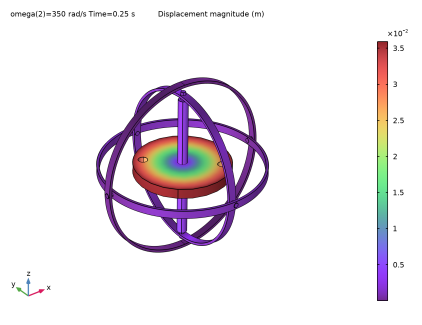
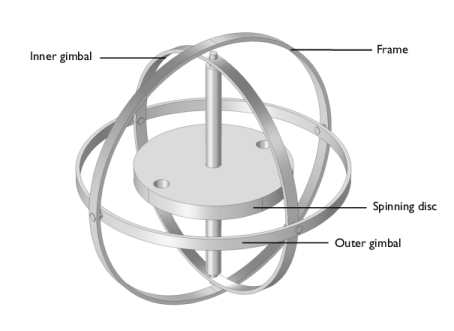
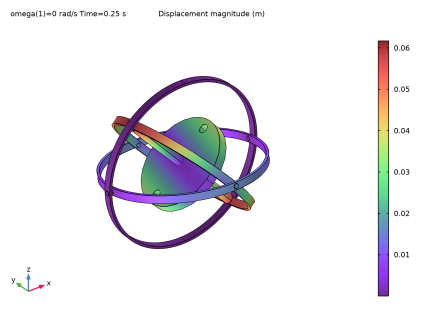
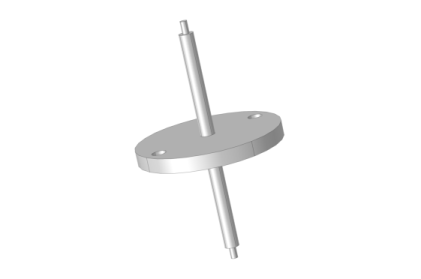
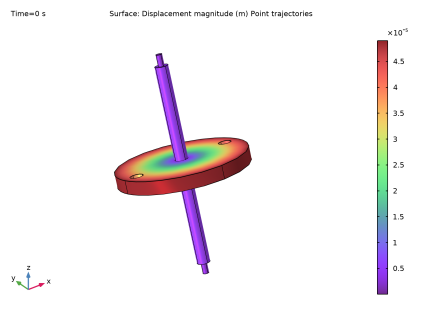
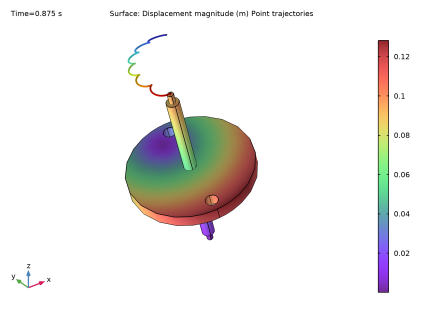
In this model, parts are modeled as rigid elements using Rigid Material nodes as we are only interested in the kinematics of the mechanism. Parts can be modeled as flexible elements using the Linear Elastic Material node if the stresses and deformations in the parts are also of interest.
|
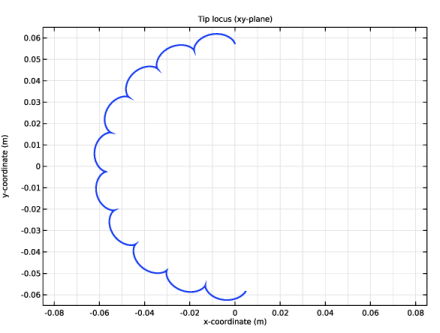
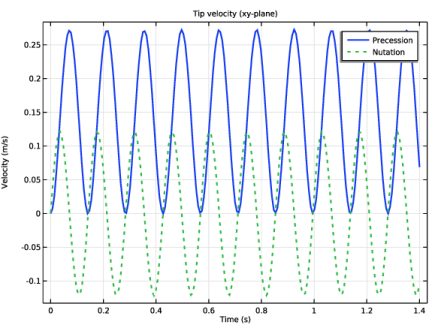
|
1
|
|
2
|
|
3
|
Click Add.
|
|
4
|
Click
 Study. Study. |
|
5
|
|
6
|
Click
 Done. Done. |
|
1
|
|
2
|
|
1
|
|
2
|
|
1
|
|
2
|
|
3
|
Click
 Browse. Browse. |
|
4
|
|
5
|
Click
 Import. Import. |
|
1
|
In the Model Builder window, under Component 1: Gyroscope (comp1) > Geometry 1 click Form Union (fin).
|
|
2
|
|
3
|
|
4
|
Clear the Create pairs checkbox.
|
|
5
|
|
1
|
|
2
|
|
3
|
|
4
|
|
1
|
|
2
|
Go to the Add Material window.
|
|
3
|
|
4
|
Click the Add to Component button in the window toolbar.
|
|
5
|
|
6
|
Click the Add to Component button in the window toolbar.
|
|
7
|
|
1
|
|
2
|
|
1
|
|
2
|
In the Settings window for Prescribed Displacement/Rotation, locate the Prescribed Displacement at Center of Rotation section.
|
|
3
|
Select the Prescribed in x direction checkbox.
|
|
4
|
Select the Prescribed in y direction checkbox.
|
|
5
|
Select the Prescribed in z direction checkbox.
|
|
6
|
|
7
|
Specify the Ω vector as
|
|
8
|
|
1
|
|
2
|
In the Settings window for Rigid Material, type Rigid Material: Outer Gimbal in the Label text field.
|
|
1
|
|
2
|
In the Settings window for Rigid Material, type Rigid Material: Inner Gimbal in the Label text field.
|
|
1
|
|
2
|
In the Settings window for Rigid Material, type Rigid Material: Spinning Disc in the Label text field.
|
|
4
|
|
1
|
|
2
|
|
3
|
Specify the ω vector as
|
|
1
|
In the Model Builder window, under Component 1: Gyroscope (comp1) > Multibody Dynamics (mbd), Ctrl-click to select Rigid Material: Frame, Rigid Material: Outer Gimbal, Rigid Material: Inner Gimbal, and Rigid Material: Spinning Disc.
|
|
2
|
Right-click and choose Group.
|
|
1
|
|
2
|
|
3
|
|
4
|
|
5
|
|
1
|
|
2
|
|
3
|
|
4
|
|
5
|
|
1
|
|
2
|
|
3
|
|
4
|
|
5
|
|
1
|
In the Model Builder window, under Component 1: Gyroscope (comp1) > Multibody Dynamics (mbd), Ctrl-click to select Frame-Outer Gimbal, Outer Gimbal-Inner Gimbal, and Inner Gimbal-Spinning Disc.
|
|
2
|
Right-click and choose Group.
|
|
1
|
|
2
|
|
3
|
|
4
|
|
5
|
Click
 Build All. Build All. |
|
1
|
In the Model Builder window, under Component 1: Gyroscope (comp1) right-click Definitions and choose Variables.
|
|
2
|
|
1
|
|
2
|
|
3
|
Clear the Show grid checkbox.
|
|
1
|
|
2
|
|
1
|
|
2
|
|
3
|
Click
 Add. Add. |
|
1
|
|
2
|
|
3
|
|
1
|
|
2
|
|
3
|
|
4
|
|
5
|
|
6
|
|
1
|
|
2
|
|
3
|
|
4
|
|
5
|
|
6
|
|
1
|
|
2
|
|
3
|
|
4
|
|
1
|
|
2
|
|
3
|
|
4
|
|
5
|
|
1
|
|
2
|
|
3
|
Locate the Data section. From the Dataset list, choose Study 1: Gyroscope/Parametric Solutions 1 (sol2).
|
|
4
|
|
5
|
|
1
|
|
2
|
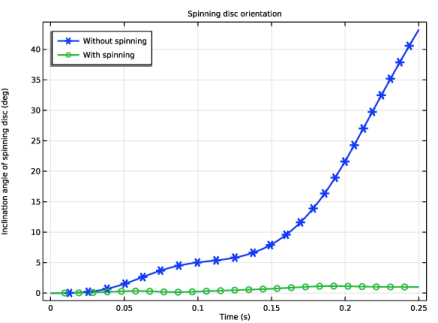
In the Settings window for Global, click Replace Expression in the upper-right corner of the y-Axis Data section. From the menu, choose Component 1: Gyroscope (comp1) > Definitions > Variables > theta - Inclination angle of spinning disc - rad.
|
|
3
|
Locate the y-Axis Data section. In the table, enter the following settings:
|
|
4
|
|
5
|
|
6
|
|
7
|
|
8
|
|
10
|
|
11
|
|
1
|
|
2
|
|
3
|
Click
 Browse. Browse. |
|
4
|
|
5
|
Click
 Import. Import. |
|
1
|
|
2
|
|
3
|
|
4
|
On the object imp1(1), select Domain 1 only.
|
|
5
|
On the object imp1(2), select Domain 1 only.
|
|
6
|
|
7
|
Click
 Build Selected. Build Selected. |
|
1
|
|
2
|
Select the object imp1(3) only.
|
|
3
|
|
4
|
|
5
|
|
6
|
|
7
|
Click
 Build All Objects. Build All Objects. |
|
1
|
|
2
|
|
3
|
|
1
|
|
2
|
Go to the Add Material window.
|
|
3
|
|
4
|
Click the Add to Component button in the window toolbar.
|
|
5
|
|
1
|
|
2
|
Go to the Add Physics window.
|
|
3
|
|
4
|
Find the Physics interfaces in study subsection. In the table, clear the Solve checkbox for Study 1: Gyroscope.
|
|
5
|
Click the Add to Component 2: Spinning Top button in the window toolbar.
|
|
6
|
|
1
|
|
3
|
|
4
|
From the list, choose Locally defined.
|
|
1
|
|
2
|
|
3
|
|
4
|
|
5
|
|
6
|
|
1
|
|
1
|
|
2
|
In the Settings window for Prescribed Displacement/Rotation, locate the Prescribed Displacement at Center of Rotation section.
|
|
3
|
Select the Prescribed in x direction checkbox.
|
|
4
|
Select the Prescribed in y direction checkbox.
|
|
5
|
Select the Prescribed in z direction checkbox.
|
|
6
|
|
7
|
|
1
|
|
1
|
|
2
|
|
3
|
|
4
|
Click
 Build All. Build All. |
|
1
|
In the Model Builder window, under Component 2: Spinning top (comp2) right-click Definitions and choose Variables.
|
|
2
|
|
1
|
|
2
|
|
3
|
Clear the Show grid checkbox.
|
|
1
|
|
2
|
Go to the Add Study window.
|
|
3
|
|
4
|
Find the Physics interfaces in study subsection. In the table, clear the Solve checkbox for Multibody Dynamics (mbd).
|
|
5
|
Click the Add Study button in the window toolbar.
|
|
6
|
|
1
|
|
2
|
|
3
|
|
1
|
|
2
|
|
3
|
|
4
|
|
5
|
|
6
|
|
1
|
|
3
|
|
4
|
|
1
|
|
2
|
|
3
|
|
4
|
|
5
|
|
1
|
|
2
|
|
3
|
|
4
|
|
5
|
|
6
|
|
7
|
|
8
|
|
1
|
|
2
|
|
3
|
|
4
|
|
5
|
|
1
|
|
2
|
|
3
|
|
4
|
|
5
|
|
6
|
|
7
|
|
8
|
|
1
|
|
3
|
|
4
|
|
5
|
|
6
|
|
7
|
|
8
|
|
9
|
|
1
|
|
2
|
|
3
|
Locate the Plot Settings section.
|
|
4
|
|
5
|
|
6
|
|
1
|
|
2
|
In the Settings window for Point Graph, click Replace Expression in the upper-right corner of the y-Axis Data section. From the menu, choose Component 2: Spinning top (comp2) > Definitions > Variables > vp - Precession velocity - m/s.
|
|
3
|
|
4
|
Locate the Coloring and Style section. Find the Line style subsection. From the Line list, choose Cycle.
|
|
5
|
|
6
|
|
1
|
|
2
|
In the Settings window for Point Graph, click Replace Expression in the upper-right corner of the y-Axis Data section. From the menu, choose Component 2: Spinning top (comp2) > Definitions > Variables > vn - Nutation velocity - m/s.
|
|
3
|
Locate the Legends section. In the table, enter the following settings:
|
|
4
|
|
5
|