PDF

Optimization of a Crane Link Mechanism
Introduction
In complex mechanical systems, it can be challenging to find an optimal (or even good enough) solution only through engineering insight or trial-and-error procedures. Using mathematical optimization methods can then be an efficient path to a better design.
In this example, a link mechanism in a crane modeled in the Multibody Dynamics Module is optimized using the Optimization Module. The target is to reduce the cylinder force needed to carry a certain payload in a worst case operating cycle.
This example is a continuation of the model Truck Mounted Crane.
Note: This model requires the Multibody Dynamics Module and the Optimization Module.
Model Definition
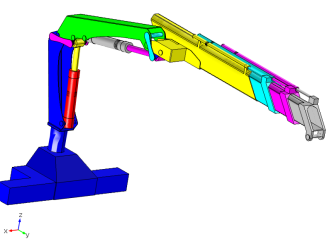
The complete crane geometry is shown in Figure 1.
Figure 1: Crane geometry.
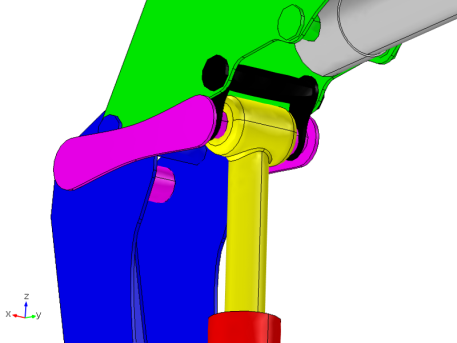
A close-up of the link mechanism used for controlling the inner boom is shown in Figure 2. For more details about the crane model, please refer to the description of the model Truck Mounted Crane.
Figure 2: Close-up of link mechanisms.
A key to the coloring of the parts constituting the link mechanism is given in Table 1.
Operating cycle
The operating cycle is selected so that the moment carried by the link mechanism is as large as possible.
The inner boom is raised from its lowest position, 45° downward slope, to its highest position (vertical) in steps of 15°.
Loads
A payload of 1000 kg at the tip of the crane.
Optimization problem
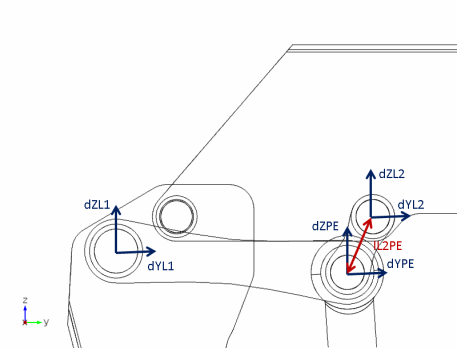
The positions of three axles can be modified, as indicated in Figure 3:
It is also necessary to ensure that the two latter axles do not move more than 10 mm closer to each other than they are in the original configuration to avoid mechanical interference.
Figure 3: The optimization variables (blue) and the constraint (red).
The limits of the shifts on the axle positions are given in Table 2.
Results and Discussion
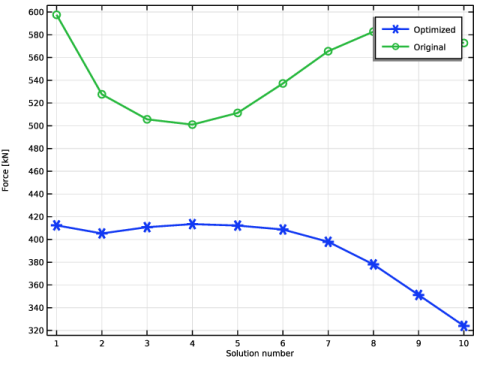
The force in the cylinders controlling the boom are shown in Figure 4. With the new design, it is possible to decrease the force by 31%, from 597 kN to 413 kN. This is a substantial improvement, and depending on the actual purpose of the analysis it can be utilized in two ways:
Figure 4: Variation of the cylinder force during the load cycle.
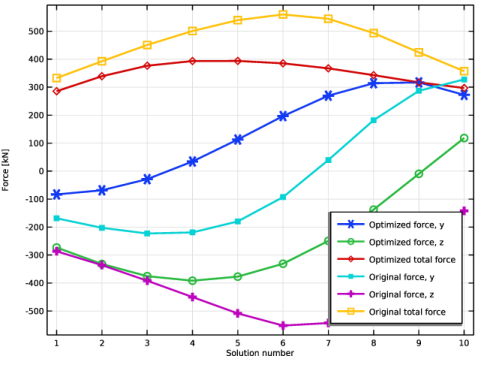
As an example of the effect of the optimization on other parts, the forces on the axle forming the hinge between the base and the boom is shown in Figure 5.
Figure 5: The forces acting on the axle between the base and the boom.
The actual values of the control variables in the optimized state may not be the same when this model is solved on different computers. The reason is that the minimum for the cylinder force can be obtained in different ways. There are multiple solutions which (within a small tolerance) give the same optimal values.
Notes About the COMSOL Implementation
Since all crane parts are rigid bodies, it is not necessary to actually move or deform the links during the optimization. It is sufficient to change the centers of the joints which mathematically represent the axles. This, however, leads to a nonintuitive graphic representation, as the links no longer rotate around the axles in the geometry.
The cylinder and piston are rotated physically in the model, since the direction of the cylinder force must be correct. Visually, the piston may look as if it was pulled out of the cylinder. This is also a graphical artifact, since another cylinder would be chosen if the modified geometry were to be selected for the final design.
In the optimization, the BOBYQA method is used. A gradient free method is suitable, since it is not possible to compute derivatives of the maximum cylinder forces with respect to the optimization parameters.
Application Library path: Multibody_Dynamics_Module/Machinery_and_Robotics/crane_link_optimization
Modeling Instructions
Application Libraries
1
From the File menu, choose Application Libraries.
2
In the Application Libraries window, select Multibody Dynamics Module > Machinery and Robotics > truck_mounted_crane in the tree.
3
Root
Add the parameters needed for parameterizing the link.
Global Definitions
Parameters 1
1
In the Model Builder window, under Global Definitions click Parameters 1.
2
In the Settings window for Parameters, locate the Parameters section.
3
Click  Load from File.
4
Component 1 (comp1)
The cylinder and the piston must have the correct direction in order to get the correct cylinder force.
Geometry 1
Rotate 1 (rot1)
1
In the Model Builder window, expand the Component 1 (comp1) node.
2
Right-click Component 1 (comp1) > Geometry 1 and choose Transforms > Rotate.
3
Select the objects imp1(31) and imp1(32) only.
4
In the Settings window for Rotate, locate the Point on Axis of Rotation section.
5
In the y text field, type YCE.
6
In the z text field, type ZCE.
7
Locate the Rotation section. In the Angle text field, type cylRot.
8
From the Axis type list, choose x-axis.
Multibody Dynamics (mbd)
In the Model Builder window, expand the Component 1 (comp1) > Multibody Dynamics (mbd) node.
Hinge Joints
In the Model Builder window, expand the Component 1 (comp1) > Multibody Dynamics (mbd) > Hinge Joints node.
Hinge Base-Link1
Parameterize the joint centers for the adjustable joints.
1
In the Model Builder window, expand the Component 1 (comp1) > Multibody Dynamics (mbd) > Hinge Joints > Hinge Base-Link1 node, then click Hinge Base-Link1.
2
In the Settings window for Hinge Joint, locate the Center of Joint section.
3
4
Specify the Xc vector as
Hinge Boom1-Link2
1
In the Model Builder window, click Hinge Boom1-Link2.
2
In the Settings window for Hinge Joint, locate the Center of Joint section.
3
4
Specify the Xc vector as
Slot Link1-Link2
1
In the Model Builder window, expand the Component 1 (comp1) > Multibody Dynamics (mbd) > Slot Joints node, then click Slot Link1-Link2.
2
In the Settings window for Slot Joint, locate the Center of Joint section.
3
4
Specify the Xc vector as
Slot Link1-Piston1
1
In the Model Builder window, click Slot Link1-Piston1.
2
In the Settings window for Slot Joint, locate the Center of Joint section.
3
4
Specify the Xc vector as
Global Definitions
Parameters 1
1
In the Model Builder window, under Global Definitions click Parameters 1.
2
In the Settings window for Parameters, locate the Parameters section.
3
Study 1
Change the load cycle to a worst case scenario and compute.
Step 1: Stationary
1
In the Model Builder window, expand the Study 1 node, then click Step 1: Stationary.
2
In the Settings window for Stationary, locate the Study Extensions section.
3
4
5
Click  Delete.
6
In the Model Builder window, expand the Study 1 node.
Solver Configurations
In the Model Builder window, expand the Study 1 > Solver Configurations node.
Solution 1 (sol1)
1
In the Model Builder window, expand the Study 1 > Solver Configurations > Solution 1 (sol1) > Dependent Variables 1 node, then click comp1.mbd_rd_rot.
2
In the Settings window for State, locate the Scaling section.
3
In the Scale text field, type 0.5.
4
In the Model Builder window, click comp1.mbd_jnt_rot.
5
In the Settings window for State, locate the Scaling section.
6
In the Scale text field, type 0.5.
7
In the Model Builder window, click Global Equations 1 (comp1.ODE1).
8
In the Settings window for State, locate the Scaling section.
9
In the Scale text field, type 0.5.
10
In the Model Builder window, click Study 1.
11
In the Settings window for Study, type Study 1: Initial Design in the Label text field.
12
In the Study toolbar, click  Compute.
Results
Extension Cylinder Forces
In the Model Builder window, under Results right-click Extension Cylinder Forces and choose Delete.
Global 1
1
In the Model Builder window, expand the Results > Hinge Forces node, then click Global 1.
2
In the Settings window for Global, locate the y-Axis Data section.
3
4
Click  Delete twice.
5
Global 2
1
Right-click Results > Hinge Forces > Global 1 and choose Duplicate.
2
In the Settings window for Global, locate the Data section.
3
From the Dataset list, choose Study 1: Initial Design/Solution 1 (sol1).
4
Locate the y-Axis Data section. In the table, enter the following settings:
Add Study
1
In the Home toolbar, click  Windows and choose Add Study.
2
Go to the Add Study window.
3
Find the Studies subsection. In the Select Study tree, select Empty Study.
4
Click the Add Study button in the window toolbar.
5
In the Home toolbar, click  Add Study to close the Add Study window.
Study 1: Initial Design
Step 1: Stationary
In the Model Builder window, under Study 1: Initial Design right-click Step 1: Stationary and choose Copy.
Study 2
In the Model Builder window, right-click Study 2 and choose Paste Stationary.
Add the optimization study.
Parameter Optimization
1
In the Study toolbar, click  Optimization and choose Parameter Optimization.
2
In the Settings window for Parameter Optimization, locate the Optimization Solver section.
3
In the Optimality tolerance text field, type 0.1.
Avoid that the optimization loop stops in the case that a state cannot be solved.
4
Click to expand the Solver Settings section. Clear the Stop if error checkbox.
5
Find the Objective settings subsection. From the Objective scaling list, choose None.
6
Locate the Objective Function section. In the table, enter the following settings:
7
From the Solution list, choose Maximum of objectives.
8
Locate the Control Parameters section. Click  Load from File.
9
10
Locate the Constraints section. In the table, enter the following settings:
11
Click to expand the Output section. Select the Plot checkbox.
12
13
In the Model Builder window, click Study 2.
14
In the Settings window for Study, type Study 2: Optimization in the Label text field.
15
Locate the Study Settings section. Clear the Generate default plots checkbox.
16
In the Study toolbar, click  Get Initial Value.
Solver Configurations
In the Model Builder window, expand the Study 2: Optimization > Solver Configurations node.
Solution 2 (sol2)
1
In the Model Builder window, expand the Study 2: Optimization > Solver Configurations > Solution 2 (sol2) > Dependent Variables 1 node, then click Rigid Material Rotations (comp1.mbd_rd_rot).
2
In the Settings window for State, locate the Scaling section.
3
In the Scale text field, type 0.5.
4
In the Model Builder window, click Joint Rotations (comp1.mbd_jnt_rot).
5
In the Settings window for State, locate the Scaling section.
6
In the Scale text field, type 0.5.
7
In the Model Builder window, click Global Equations 1 (comp1.ODE1).
8
In the Settings window for State, locate the Scaling section.
9
From the Method list, choose Manual.
10
In the Scale text field, type 0.5.
Results
Boom Cylinder Forces
1
In the Model Builder window, under Results click Boom Cylinder Forces.
2
In the Settings window for 1D Plot Group, locate the Data section.
3
From the Dataset list, choose Study 2: Optimization/Solution 2 (sol2).
Hinge Forces
1
In the Model Builder window, click Hinge Forces.
2
In the Settings window for 1D Plot Group, locate the Data section.
3
From the Dataset list, choose Study 2: Optimization/Solution 2 (sol2).
Global 1
1
In the Model Builder window, expand the Results > Boom Cylinder Forces node, then click Global 1.
2
In the Settings window for Global, locate the y-Axis Data section.
3
4
Click  Delete.
5
Global 2
1
Right-click Results > Boom Cylinder Forces > Global 1 and choose Duplicate.
2
In the Settings window for Global, locate the Data section.
3
From the Dataset list, choose Study 1: Initial Design/Solution 1 (sol1).
4
Locate the y-Axis Data section. In the table, enter the following settings:
Study 2: Optimization
In the Study toolbar, click  Compute.
Run the optimization.
Results
Boom Cylinder Forces
1
Click the  Zoom Extents button in the Graphics toolbar.
2
In the Boom Cylinder Forces toolbar, click  Plot.
Hinge Forces
1
Click the  Zoom Extents button in the Graphics toolbar.
2
In the Model Builder window, click Hinge Forces.
3
In the Hinge Forces toolbar, click  Plot.