
|
|
|
|
1
|
|
2
|
In the Application Libraries window, select COMSOL Multiphysics > Multiphysics > thermal_actuator_simplified in the tree.
|
|
3
|
Click
 Open. Open. |
|
1
|
|
2
|
|
3
|
|
4
|
|
5
|
Select the Snap to closest boundary checkbox.
|
|
1
|
In the Model Builder window, expand the Domain Point Probe 1 node, then click Point Probe Expression 1 (ppb1).
|
|
2
|
|
3
|
|
1
|
|
2
|
|
3
|
|
4
|
|
1
|
|
2
|
|
3
|
|
4
|
|
1
|
|
2
|
|
3
|
|
4
|
Click
 Build All. Build All. |
|
1
|
|
2
|
Go to the Add Study window.
|
|
3
|
|
4
|
Right-click and choose Add Study.
|
|
5
|
|
1
|
|
2
|
|
3
|
|
4
|
|
5
|
Clear the Generate default plots checkbox.
|
|
6
|
|
1
|
|
2
|
|
3
|
|
1
|
|
2
|
|
4
|
|
1
|
|
2
|
|
3
|
|
1
|
|
2
|
Browse to a suitable folder, enter the filename thermal_actuator_llsimulink.mph, and then click Save.
|
|
1
|
|
2
|
|
3
|
|
4
|
|
7
|
Locate the Outputs section. In the table, enter the following settings:
|
|
8
|
|
9
|
Locate the Image section. Click
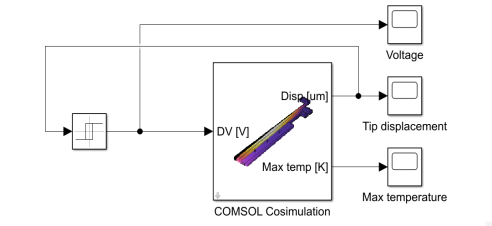
 Set from Graphics WindowThis sets the current temperature plot (if a solution is available) as the thumbnail used for the COMSOL Cosimulation block inside Simulink. Set from Graphics WindowThis sets the current temperature plot (if a solution is available) as the thumbnail used for the COMSOL Cosimulation block inside Simulink. |
|
10
|
Click
 Export. Export. |
|
2
|
In MATLAB enter the command mphapplicationlibraries to start the GUI for viewing models from the LiveLink for Simulink application library.
|
|
2
|


