PDF

Geometric Parameter Optimization of a Bracket
Introduction
In some application fields, there is a strong focus on weight reduction. For example, this is the case in the automotive industry, where every gram has a distinct price tag.
The bracket is used for mounting a heavy component on a vibrating foundation. It is thus important to keep the natural frequency well above the excitation frequency in order to avoid resonances. The bracket is also subjected to shock loads, which can be treated as a static acceleration load. This gives an optimization problem, where results from two different study types must be considered simultaneously.
By using the LiveLink interface for Solid Edge the weight of a mounting bracket is reduced, given an upper bound on the stresses and a lower bound on the first natural frequency. The model demonstrates how to synchronize the geometry between Solid Edge and COMSOL Multiphysics while updating dimensional parameters, and how to perform an optimization study.
Note: This model requires the Optimization Module, the Structural Mechanics Module, and the LiveLink interface for Solid Edge.
Model Definition
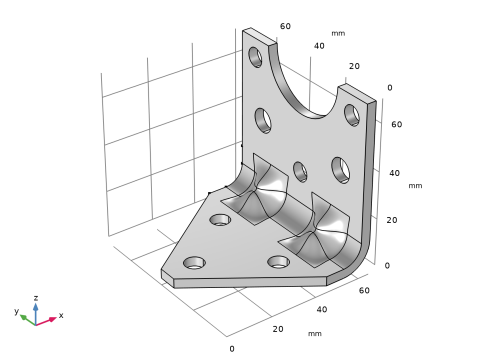
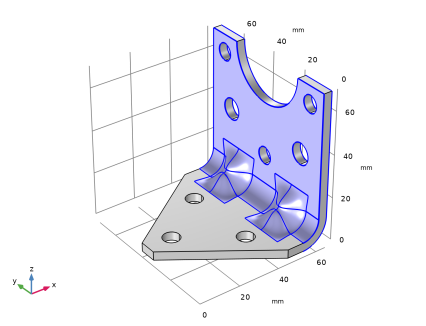
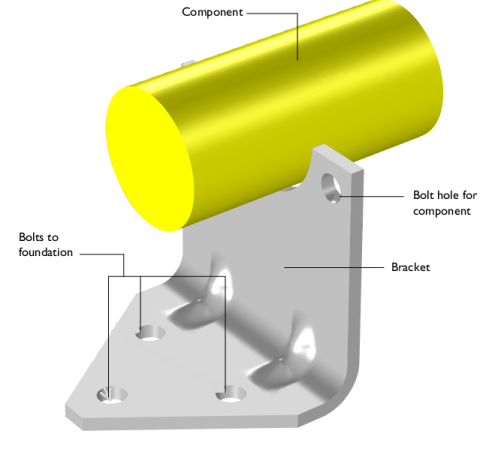
The original bracket together with a sketched mounted component are shown in Figure 1. The bracket is made of steel.
The component, which can be considered as rigid when compared with the bracket, has its center of gravity at the center of the circular cutout in the bracket. The mass is 4.4 kg, the moment of inertia around its longitudinal axis is 7.1·104 kg·m2, and the moment of inertia around the two transverse axes is 9.3·104 kg·m2.
Figure 1: Bracket supporting a heavy component.
The idea is to reduce the weight by drilling holes in the vertical surface of the bracket, and at the same time change the dimensions of the indentations, in order to offset the loss in stiffness.
Optimization Parameters
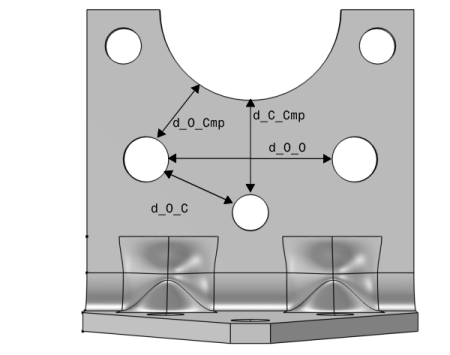
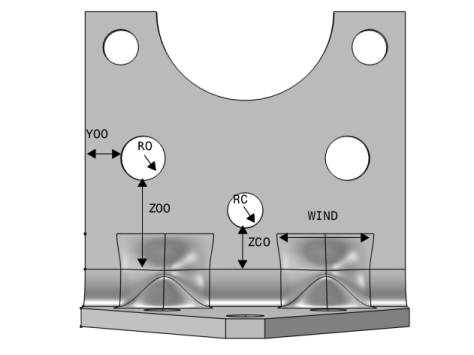
Six geometrical parameters are used in the optimization. They are summarized in Table 1 and shown in Figure 2.
Figure 2: Optimization parameters.
Constraints
When exposed to a peak acceleration of 4g in all three global directions simultaneously, the effective stress is not allowed to exceed 80 MPa anywhere. This criterion is nondifferentiable, because the location of the peak stress can jump from one place to another. A gradient-free optimization algorithm must thus be used.
Figure 3: Geometrical constraints.
The COBYLA solver uses sampling in the control variable space to approximate both the objective function, the constraints, and the control variable bounds. Individual samples may be computed outside the bounds and in violation of the constraints. Therefore, it is important to parameterize the geometry in such a way that it is robust with respect to (small) constraint and bound violations.
Bounds and linear constraints are generally satisfied to high precision at the optimum point returned by the solver, but nonlinear constrains are often slightly violated. The reason is that the solver tends to converge from the outside of the feasible domain and terminates before the constraints are completely satisfied. Tightening the solver tolerances will decrease the constraint violation but is often not worth the computational effort; it is better to specify constraints with a safety margin.
Results and Discussion
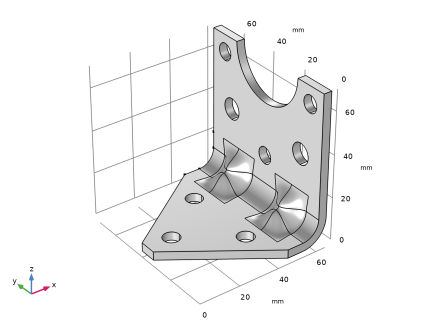
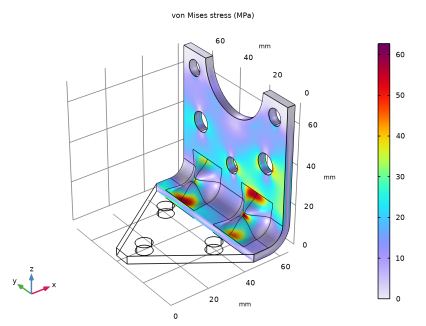
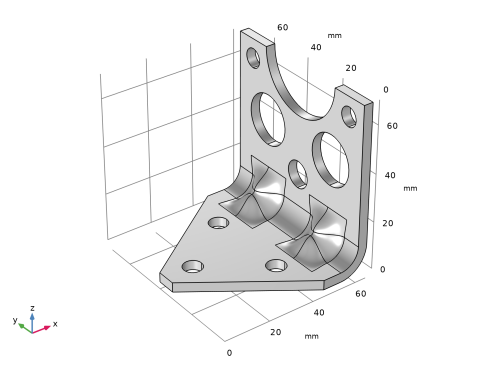
The initial geometry used in the optimization is shown in Figure 4. Three rather small holes have been introduced.
Figure 4: Initial geometry.
The optimal values of the geometrical parameters are shown in Table 2.
Table 2: Optimal values.
17.69
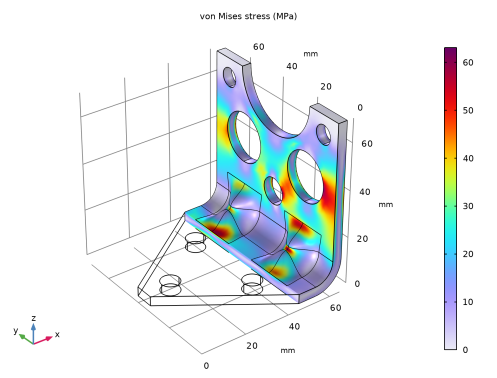
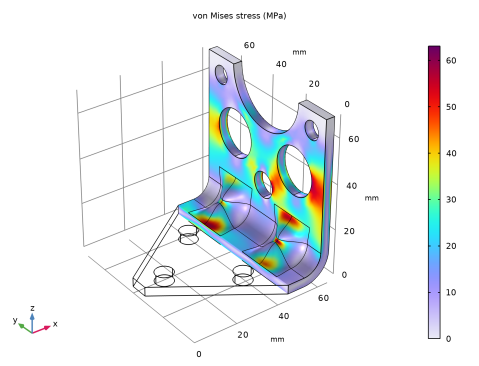
The weight of the optimized bracket is about 181 g, a reduction of 20 g from the original 201 g. The stresses from the shock load on the optimized geometry are shown in Figure 5
Figure 5: Stresses at peak load in the optimized design.
The optimal solution gives three fairly large holes, and the widest possible indentation.
There are several possible arrangements of the holes that give the same weight reduction within a small tolerance. It is therefore possible that the design variables are not always the same at convergence.
Notes About the COMSOL Implementation
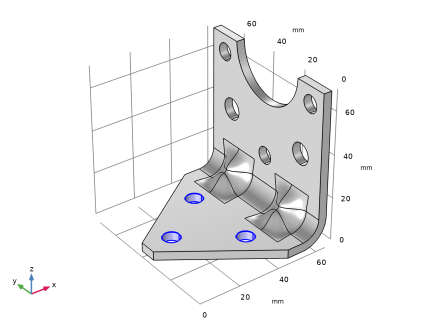
The bracket geometry you are using in this model comes from Solid Edge design. Using LiveLink for Solid Edge you synchronize the geometry and parameters for the dimension of the bracket and the positioning of holes between Solid Edge and COMSOL Multiphysics. In order for this to work you need to have both programs running during modeling, and you need to make sure that the bracket file is the active file in Solid Edge.
The component mounted on the bracket is not modeled in detail. It is replaced by a Rigid Connector having the equivalent inertial properties.
Application Library path: LiveLink_for_Solid_Edge/Tutorials,_LiveLink_Interface/bracket_optimization_llse
Modeling Instructions
1
In Solid Edge open the file bracket_optimization.par located in the model’s Application Library folder.
2
COMSOL Desktop
From the File menu, choose New.
New
In the New window, click  Model Wizard.
Model Wizard
1
In the Model Wizard window, click  3D.
2
In the Select Physics tree, select Structural Mechanics > Solid Mechanics (solid).
3
Click Add.
4
Click  Study.
5
In the Select Study tree, select General Studies > Eigenfrequency.
6
Geometry 1
Make sure that the CAD Import Module kernel is used.
1
In the Model Builder window, under Component 1 (comp1) click Geometry 1.
2
In the Settings window for Geometry, locate the Advanced section.
3
From the Geometry representation list, choose CAD kernel.
LiveLink for Solid Edge 1 (cad1)
1
In the Home toolbar, click  LiveLink and choose LiveLink for Solid Edge.
2
In the Settings window for LiveLink for Solid Edge, locate the Synchronize section.
3
Click Synchronize.
After a few moments the geometry of the bracket appears in the Graphics window.
4
Click to expand the Parameters in CAD Package section. The table contains ten variables, THK, LX, LZ, DCMP, BDIA, RC, ZCO, RO, YOO and ZOO, which are part of the Solid Edge model. In Solid Edge, the Parameter Selection button on the COMSOL Multiphysics tab allows you to select and view variables for synchronization. These variables are retrieved, and appear in the CAD name column of the table. The corresponding entries in the COMSOL name column, LL_THK, LL_LX and so on, are global parameters in the COMSOL model. These are automatically generated during synchronization, and are assigned the values of the linked Solid Edge dimensions. The parameter values are displayed in the COMSOL value column.
Global parameters in a model allow you to parameterize settings and can be controlled by the optimization solver to perform parametric sweeps. Thus, by linking Solid Edge variables to COMSOL global parameters, the optimization solver can automatically update and synchronize the geometry for each new value in a sweep.
5
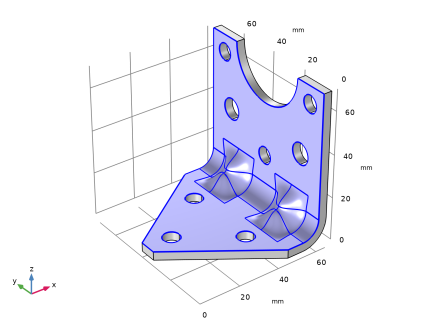
Click to expand the Boundary Selections section. The selections listed here are user defined selections saved in the Solid Edge files for the components that they appear on. In Solid Edge, you can set up selections using the Selections button on the COMSOL Multiphysics tab.
6
In the Home toolbar, click  Build All.
Global Definitions
Parameters 1
1
In the Model Builder window, under Global Definitions click Parameters 1.
The table already contains the automatically generated global parameters that are linked to the Solid Edge variables.
Based on the parameters in the table you can define expressions to constrain the positioning of the holes while optimizing the bracket. Later on you will set up the optimization solver to take into account these geometric constraints. Now, continue with loading the expressions for the geometric constraints and the parameters needed to define the physics. Since the parameter file contains all parameters, including the already synchronized ones, clear the table first to avoid duplicates.
2
In the Settings window for Parameters, locate the Parameters section.
3
Click  Clear Table.
4
Click  Load from File.
5
Add Material
1
In the Materials toolbar, click  Add Material to open the Add Material window.
2
Go to the Add Material window.
3
In the tree, select Built-in > Structural steel.
4
Click the right end of the Add to Component split button in the window toolbar.
5
From the menu, choose Add to Component.
6
In the Materials toolbar, click  Add Material to close the Add Material window.
Solid Mechanics (solid)
Fixed (Bolts)
1
In the Physics toolbar, click  Boundaries and choose Fixed Constraint.
The exact way the bolts clamp the bracket to the foundation is not important for the results in the part being optimized.
2
In the Settings window for Fixed Constraint, type Fixed (Bolts) in the Label text field.
3
Locate the Boundary Selection section. From the Selection list, choose Fixed (Bolts).
Rigid Connector (Mounted component)
1
In the Physics toolbar, click  Boundaries and choose Rigid Connector.
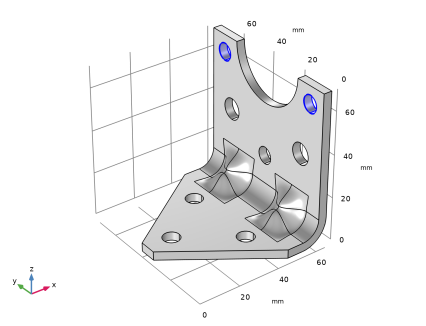
The attached component has a high stiffness, and is bolted to the two upper bolt holes. It is modeled as being rigid, with only mass properties.
2
In the Settings window for Rigid Connector, type Rigid Connector (Mounted component) in the Label text field.
3
Locate the Boundary Selection section. From the Selection list, choose Rigid Connector (Mounted comp).
4
Locate the Center of Rotation section. From the list, choose User defined.
5
Specify the Xc vector as
Mass and Moment of Inertia 1
1
In the Physics toolbar, click  Attributes and choose Mass and Moment of Inertia.
2
In the Settings window for Mass and Moment of Inertia, locate the Mass and Moment of Inertia section.
3
In the m text field, type mCmp.
4
5
Specify the I matrix as
Mesh 1
1
In the Model Builder window, under Component 1 (comp1) click Mesh 1.
2
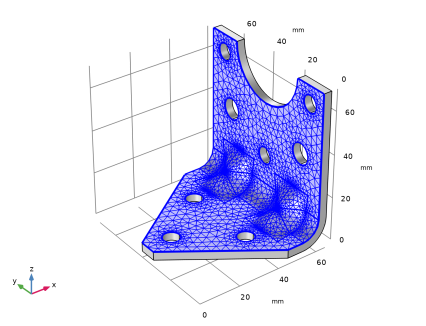
In the Settings window for Mesh, locate the Physics-Controlled Mesh section.
3
From the Element size list, choose Finer.
Free Triangular 1
1
In the Mesh toolbar, click  More Generators and choose Free Triangular.
2
In the Settings window for Free Triangular, locate the Boundary Selection section.
3
From the Selection list, choose Boundary Mesh.
Size 1
1
Right-click Free Triangular 1 and choose Size.
2
In the Settings window for Size, locate the Element Size section.
3
Click the Custom button.
4
Locate the Element Size Parameters section.
5
Select the Minimum element size checkbox. In the associated text field, type 0.2.
6
Select the Curvature factor checkbox. In the associated text field, type 0.38.
7
Click  Build Selected.
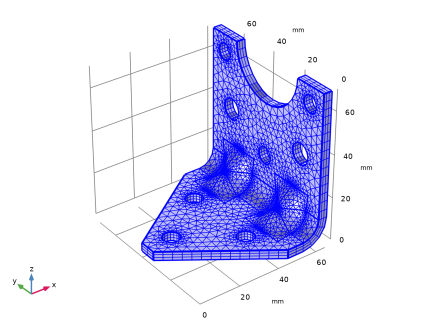
Swept 1
In the Mesh toolbar, click  Swept.
Distribution 1
1
Right-click Swept 1 and choose Distribution.
2
In the Settings window for Distribution, locate the Distribution section.
3
In the Number of elements text field, type 3.
4
Click  Build All.
Eigenfrequency Study
Run an eigenfrequency study on the initial geometry.
1
In the Model Builder window, click Study 1.
2
In the Settings window for Study, type Eigenfrequency Study in the Label text field.
3
In the Study toolbar, click  Compute.
Solid Mechanics (solid)
Add the peak loads, and perform a stationary study.
Body load 4g on bracket
1
In the Physics toolbar, click  Domains and choose Body Load.
2
In the Settings window for Body Load, type Body load 4g on bracket in the Label text field.
3
Locate the Domain Selection section. From the Selection list, choose All domains.
4
Locate the Force section. Specify the fV vector as
Rigid Connector (Mounted component)
In the Model Builder window, click Rigid Connector (Mounted component).
Force 4g on mounted component
1
In the Physics toolbar, click  Attributes and choose Applied Force.
2
In the Settings window for Applied Force, type Force 4g on mounted component in the Label text field.
3
Locate the Applied Force section. Specify the F vector as
Add Study
1
In the Home toolbar, click  Add Study to open the Add Study window.
2
Go to the Add Study window.
3
Find the Studies subsection. In the Select Study tree, select General Studies > Stationary.
4
Click the Add Study button in the window toolbar.
5
In the Home toolbar, click  Add Study to close the Add Study window.
Stationary Study
1
In the Settings window for Study, type Stationary Study in the Label text field.
2
In the Study toolbar, click  Compute.
Definitions
Prepare for the optimization by adding variables for the bracket mass and the maximum stress.
Domain Probe 1 (dom1)
1
In the Definitions toolbar, click  Probes and choose Domain Probe.
2
In the Settings window for Domain Probe, type mass in the Variable name text field.
3
Locate the Probe Type section. From the Type list, choose Integral.
4
Click Replace Expression in the upper-right corner of the Expression section. From the menu, choose Component 1 (comp1) > Solid Mechanics > Material properties > solid.rho - Density - kg/m³.
Boundary Probe 1 (bnd1)
1
In the Definitions toolbar, click  Probes and choose Boundary Probe.
2
In the Settings window for Boundary Probe, type maxStress in the Variable name text field.
3
Locate the Probe Type section. From the Type list, choose Maximum.
The boundaries for which the maximum stress is going to be evaluated are defined as Selections in Solid Edge.
4
Locate the Source Selection section. From the Selection list, choose Maximum Stress.
5
Click Replace Expression in the upper-right corner of the Expression section. From the menu, choose Component 1 (comp1) > Solid Mechanics > Stress > solid.mises - von Mises stress - N/m².
Results
Modify the default stress plot to monitor the geometry and stresses in the optimized region.
Stress in Optimized Region
1
In the Model Builder window, under Results click Stress (solid).
2
In the Settings window for 3D Plot Group, type Stress in Optimized Region in the Label text field.
Volume 1
1
In the Model Builder window, expand the Stress in Optimized Region node, then click Volume 1.
2
In the Settings window for Volume, locate the Expression section.
3
From the Unit list, choose MPa.
Deformation
1
In the Model Builder window, expand the Volume 1 node.
2
Right-click Deformation and choose Delete.
Filter 1
1
Right-click Volume 1 and choose Filter.
2
In the Settings window for Filter, locate the Element Selection section.
3
In the Logical expression for inclusion text field, type x>LL_LX-5*LL_THK.
4
Click the  Zoom Extents button in the Graphics toolbar.
Root
Set up the optimization study.
Add Study
1
In the Home toolbar, click  Add Study to open the Add Study window.
2
Go to the Add Study window.
3
Find the Studies subsection. In the Select Study tree, select Empty Study.
4
Click the Add Study button in the window toolbar.
5
In the Home toolbar, click  Add Study to close the Add Study window.
Optimization Study
In the Settings window for Study, type Optimization Study in the Label text field.
General Optimization
In the Study toolbar, click  Optimization and choose General Optimization.
Eigenfrequency
1
In the Study toolbar, click  More Study Extensions and choose Study Reference.
2
In the Settings window for Study Reference, type Eigenfrequency in the Label text field.
3
Locate the Study Reference section. From the Study reference list, choose Eigenfrequency Study.
Stationary
1
In the Study toolbar, click  More Study Extensions and choose Study Reference.
2
In the Settings window for Study Reference, type Stationary in the Label text field.
3
Locate the Study Reference section. From the Study reference list, choose Stationary Study.
General Optimization
1
In the Model Builder window, click General Optimization.
2
In the Settings window for General Optimization, locate the Optimization Solver section.
3
From the Method list, choose COBYLA.
4
Click to expand the Solver Settings section. Clear the Stop if error checkbox.
5
Find the Constraint settings subsection. Select the Enforce design constraints strictly checkbox.
6
Click Replace Expression in the upper-right corner of the Objective Function section. From the menu, choose Component 1 (comp1) > Definitions > comp1.mass - Domain Probe 1 - kg.
7
Locate the Objective Function section. In the table, enter the following settings:
The first eigenfrequency is to be used in the optimization.
8
From the Solution list, choose Use first.
9
Locate the Control Variables and Parameters section. Click  Load from File.
10
11
Locate the Constraints section. In the table, enter the following settings:
12
Click to expand the Output section. Select the Plot checkbox.
13
If some configurations are not valid, the optimization procedure should still continue. The default is to stop if an error occurs.
Solution 3 (sol3)
1
In the Study toolbar, click  Show Default Solver.
Run the optimization.
2
Click  Compute.
Results
Stress in Optimized Region
1
In the Model Builder window, under Results click Stress in Optimized Region.
Examine the stress distribution in the optimized configuration.
2
In the Stress in Optimized Region toolbar, click  Plot.
On the last line of Global Constraints Table 7 you will find the values of the natural frequency and maximum stress in the optimized configuration, as well as the values of the other constraints.
Objective Table 3
On the last line of Objective Table 3 you will find the optimal set of parameters, and the minimum weight. Note that the value in the Objective column can be colored orange if the solution violates a constraint slightly, but is still accepted within the tolerances.
1
In the Objective Table 3 table, right-click the last row and select Copy Selected Rows to New Parameter Cases.
This last step creates a new parameter case with the optimum parameter values. Next, synchronize the optimum values and rebuild the geometry.
Global Definitions
Parameters 1
1
In the Model Builder window, expand the Global Definitions > Parameters 1 node, then click Parameters 1.
2
In the Settings window for Parameters, click  Case 1.
Geometry 1
1
In the Geometry toolbar, click  Build All.
2
In the Model Builder window, under Component 1 (comp1) click Geometry 1.