|
|
|
|
1
|
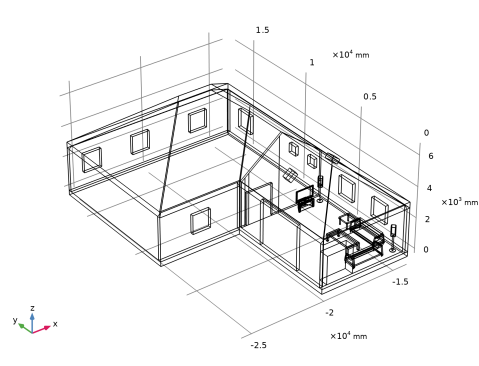
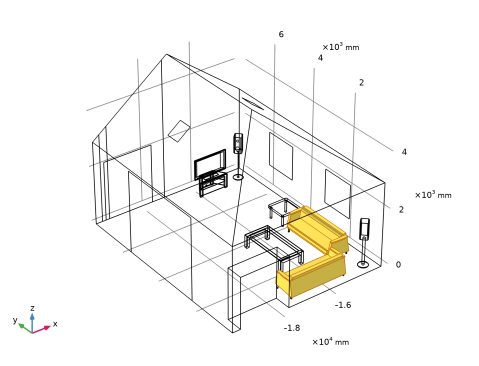
In Revit open the file house_living_room.rvt located in the model’s Application Library folder.
|
|
3
|
|
1
|
|
2
|
In the Select Physics tree, select Acoustics > Pressure Acoustics > Pressure Acoustics, Frequency Domain (acpr).
|
|
3
|
Click Add.
|
|
4
|
Click
 Study. Study. |
|
5
|
|
6
|
Click
 Done. Done. |
|
1
|
|
2
|
|
3
|
|
1
|
|
2
|
|
3
|
Click Synchronize.
|
|
4
|
|
5
|
Click to expand the Object Selections section. The synchronized objects are included in automatically generated selections that we will use for setting up the simulation. Clicking on a selection in the table highlights the corresponding objects in the Graphics window.
|
|
1
|
|
2
|
|
3
|
|
4
|
|
5
|
In the Add dialog, in the Selections to add list, choose Floors:Generic-12", Roofs:Generic-12", Walls:BasicWall:Generic-8", and Walls:BasicWall:Interior-5"Partition(2-hr). To select several selections from the list hold down Ctrl while clicking the selections.
|
|
6
|
Click OK.
|
|
1
|
|
2
|
|
3
|
|
4
|
|
5
|
In the Add dialog, in the Selections to add list, choose Air:Living room 5, Surface:Doors:M_Double-Glass2:1830x2134mm, Surface:Walls:CurtainWall:CurtainWall1, Surface:Windows:M_CasementDblwithTrim:1220x1220mm, Surface:Windows:M_Skylight:0610x0686mm, and Room Bounding Solids.
|
|
6
|
Click OK.
|
|
1
|
|
2
|
|
3
|
|
4
|
|
5
|
In the Add dialog, in the Selections to add list, choose Furniture:FloorstandingSpeaker:FloorstandingSpeaker, Furniture:M_Entertainmentcenter:1830x1830x0610mm, Furniture:M_Sofa-Pensi:2134mm, Furniture:M_Table-Coffee:0915x1830x0457mm, Furniture:M_Table-End:0762x0762mm, Furniture:M_TV-FlatScreen:1270mm, and Furniture:M_TVStand:M_TVStand.
|
|
6
|
Click OK.
|
|
1
|
|
2
|
|
3
|
|
4
|
|
5
|
Click
 Build All Objects. Build All Objects. |
|
1
|
|
2
|
|
3
|
|
4
|
|
5
|
Click
 Build All Objects. Build All Objects. |
|
1
|
|
2
|
|
3
|
|
4
|
|
5
|
Click
 Build Selected. Build Selected. |
|
6
|
|
7
|
|
8
|
|
9
|
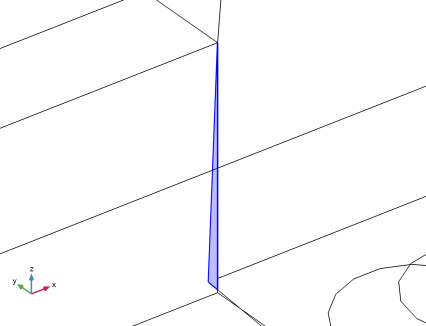
Click Find Sliver Faces.
|
|
10
|
In the list box, select Sliver face 8.
|
|
11
|
|
12
|
Click Delete All.
|
|
13
|
|
14
|
Click
 Delete Spikes. Delete Spikes. |
|
15
|
|
16
|
|
17
|
Click Find Spikes.
|
|
18
|
In the list box, select Spike 8.
|
|
19
|
|
20
|
Click Delete All.
|
|
21
|
|
22
|
Click
 Replace Faces. Replace Faces. |
|
23
|
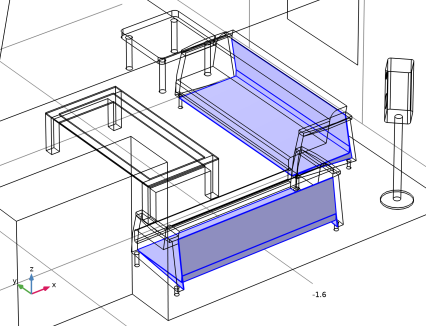
On the object dsp1, select Boundaries 30–33, 156, 189, 195, 196, 265, and 280 only. These are faces on the back and bottom of the couches.
 |
|
24
|
|
25
|
|
26
|
Click Replace Selected.
|
|
1
|
|
2
|
|
3
|
|
4
|
Click
 Add. Add. |
|
5
|
|
6
|
Click OK.
|
|
7
|
|
8
|
|
1
|
|
2
|
|
3
|
|
4
|
|
5
|
|
6
|
Click OK.
|
|
7
|
|
8
|
|
9
|
|
10
|
Click OK.
|
|
1
|
|
2
|
|
3
|
|
4
|
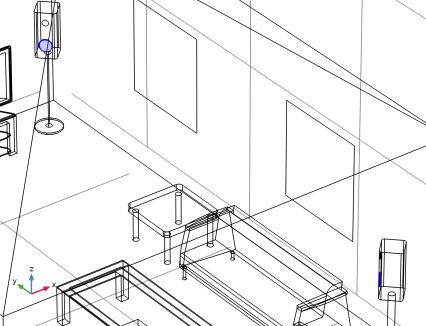
On the object rfa1, select Boundaries 237 and 239 only. These are the boundaries that represent the woofer units of the loudspeakers.
 |
|
1
|
|
2
|
|
3
|
|
4
|
|
5
|
In the Add dialog, in the Selections to add list, choose Roofs:Generic-12", Walls:BasicWall:Generic-8", and Walls:BasicWall:Interior-5"Partition(2-hr).
|
|
6
|
Click OK.
|
|
1
|
|
2
|
|
3
|
|
4
|
|
5
|
In the Add dialog, in the Selections to add list, choose Surface:Doors:M_Double-Glass2:1830x2134mm, Surface:Walls:CurtainWall:CurtainWall1, Surface:Windows:M_CasementDblwithTrim:1220x1220mm, and Surface:Windows:M_Skylight:0610x0686mm.
|
|
6
|
Click OK.
|
|
1
|
|
2
|
|
3
|
|
4
|
|
5
|
In the Add dialog, in the Selections to add list, choose Furniture:M_Entertainmentcenter:1830x1830x0610mm, Furniture:M_Table-Coffee:0915x1830x0457mm, Furniture:M_Table-End:0762x0762mm, and Furniture:M_TVStand:M_TVStand.
|
|
6
|
Click OK.
|
|
7
|
|
8
|
|
9
|
|
10
|
Clear the Automatic detection of small details checkbox.
|
|
1
|
|
2
|
|
3
|
Click
 Load from File. Load from File. |
|
4
|
Browse to the model’s Application Libraries folder and double-click the file living_room_acoustics_parameters.txt.
|
|
1
|
|
2
|
Go to the Add Material window.
|
|
3
|
|
4
|
Click the Add to Component button in the window toolbar.
|
|
5
|
|
1
|
|
2
|
|
3
|
|
4
|
|
1
|
|
2
|
|
3
|
|
4
|
|
1
|
|
2
|
|
3
|
|
4
|
|
5
|
Click
 Build All. Build All. |
|
6
|
|
7
|
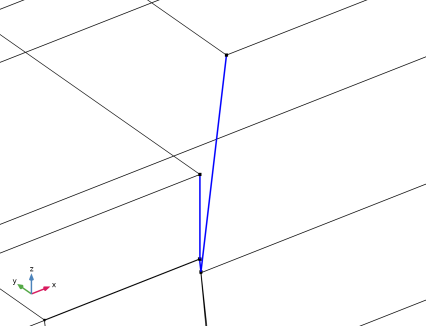
In the Graphics window, click on boundaries 1, 2, 4, 5, 6, 15, 43, and 117 to get a view similar to the figure below.
|
|
8
|
|
1
|
|
2
|
|
1
|
|
2
|
|
3
|
|
1
|
|
2
|
|
3
|
In the Model Builder window, expand the Study 1 Frequency Domain > Solver Configurations > Solution 1 (sol1) > Stationary Solver 1 node.
|
|
4
|
Right-click Study 1 Frequency Domain > Solver Configurations > Solution 1 (sol1) > Stationary Solver 1 > Suggested Iterative Solver (GMRES with GMG) (acpr) and choose Enable.
|
|
5
|
|
1
|
|
2
|
|
3
|
Select the Show maximum and minimum values checkbox.
|
|
1
|
|
2
|
|
1
|
|
2
|
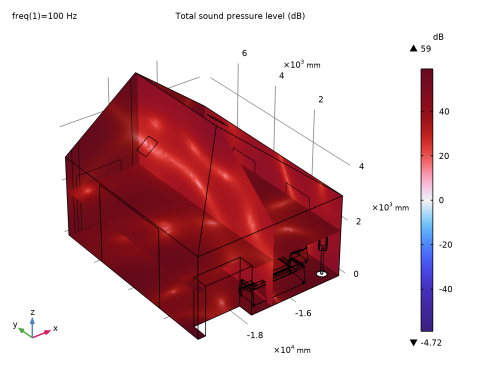
In the Settings window for Multislice, click Replace Expression in the upper-right corner of the Expression section. From the menu, choose Component 1 (comp1) > Pressure Acoustics, Frequency Domain > Pressure and sound pressure level > acpr.Lp_t - Total sound pressure level - dB.
|
|
3
|
Locate the Multiplane Data section. Find the X-planes subsection. From the Entry method list, choose Coordinates.
|
|
4
|
|
5
|
|
6
|
|
7
|
|
8
|
|
9
|
|
1
|
|
2
|
|
1
|
|
2
|
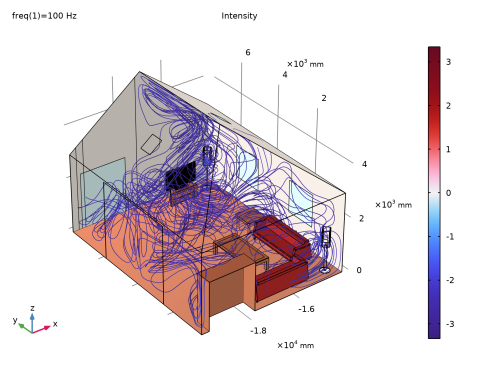
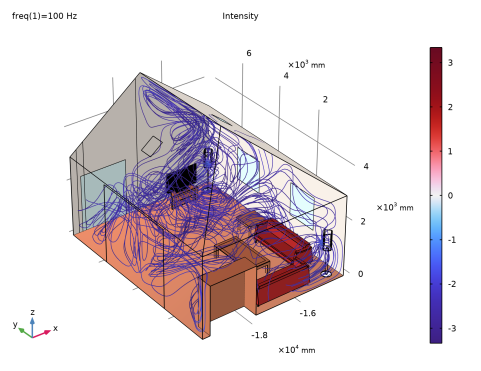
In the Settings window for Streamline, click Replace Expression in the upper-right corner of the Expression section. From the menu, choose Component 1 (comp1) > Pressure Acoustics, Frequency Domain > Intensity > acpr.Ix,acpr.Iy,acpr.Iz - Intensity.
|
|
3
|
|
4
|
|
5
|
Locate the Coloring and Style section. Find the Line style subsection. From the Type list, choose Tube.
|
|
6
|
|
7
|
Select the Radius scale factor checkbox.
|
|
1
|
|
2
|
|
3
|
|
4
|
|
1
|
|
2
|
|
3
|
|
4
|
|
5
|
|
6
|
|
7
|
|
8
|
Click Define custom colors.
|
|
10
|
Click Add to custom colors.
|
|
11
|
|
1
|
|
2
|
|
3
|
|
1
|
|
2
|
|
3
|
Click Define custom colors.
|
|
5
|
Click Add to custom colors.
|
|
6
|
|
1
|
|
2
|
|
3
|
|
1
|
|
2
|
|
3
|
Click Define custom colors.
|
|
5
|
Click Add to custom colors.
|
|
6
|
|
1
|
|
2
|
|
3
|
|
1
|
|
2
|
|
3
|
Click Define custom colors.
|
|
5
|
Click Add to custom colors.
|
|
6
|
|
1
|
|
2
|
|
3
|
|
1
|
|
2
|
|
3
|
Click Define custom colors.
|
|
5
|
Click Add to custom colors.
|
|
6
|
|
1
|
|
2
|
|
3
|
|
1
|
|
2
|
|
3
|
|
1
|
|
2
|
|
3
|
|
1
|
|
2
|
Go to the Add Study window.
|
|
3
|
|
4
|
Click the Add Study button in the window toolbar.
|
|
5
|
|
1
|
|
2
|
|
3
|
|
4
|
|
5
|
|
1
|
|
2
|
|
3
|
In the Model Builder window, expand the Study 2 Eigenfrequency > Solver Configurations > Solution 2 (sol2) > Eigenvalue Solver 1 node.
|
|
4
|
Right-click Study 2 Eigenfrequency > Solver Configurations > Solution 2 (sol2) > Eigenvalue Solver 1 > Suggested Iterative Solver (GMRES with GMG) (acpr) and choose Enable.
|
|
5
|
|
1
|
|
2
|
|
3
|
|
1
|
|
2
|
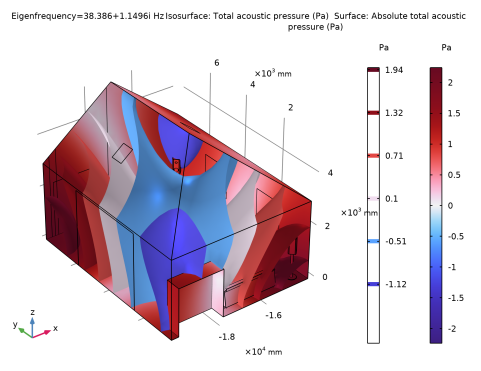
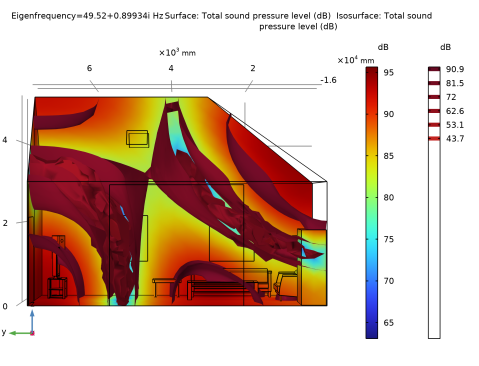
In the Settings window for Isosurface, click Replace Expression in the upper-right corner of the Expression section. From the menu, choose Component 1 (comp1) > Pressure Acoustics, Frequency Domain > Pressure and sound pressure level > acpr.Lp_t - Total sound pressure level - dB.
|
|
3
|
|
4
|
|
5
|
|
6
|
|
7
|
|
1
|
|
2
|
|
3
|
|
1
|
In the Model Builder window, expand the Acoustic Pressure, Isosurfaces (acpr) 1 node, then click Isosurface 1.
|
|
2
|
|
3
|
|
1
|
|
2
|
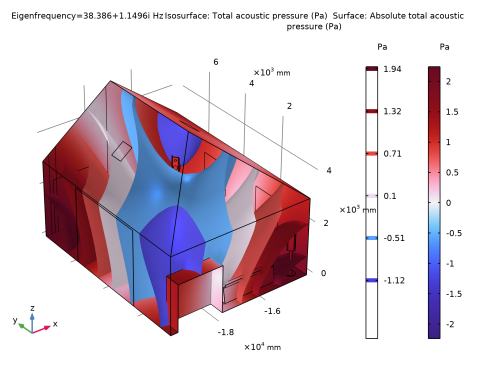
In the Settings window for Surface, click Replace Expression in the upper-right corner of the Expression section. From the menu, choose Component 1 (comp1) > Pressure Acoustics, Frequency Domain > Pressure and sound pressure level > acpr.absp_t - Absolute total acoustic pressure - Pa.
|
|
3
|
|
4
|