

PDF

Geometric Parameter Optimization of a Tuning Fork
Introduction
Tuning forks have traditionally been used for tuning of musical instruments due to their ability to sound a very pure tone at their fundamental eigenfrequency. To design a tuning fork that sounds the note A, 440 Hz, you first compute the fundamental eigenfrequency and eigenmode for a design with a prong length estimated from theory. Then you use geometric parameter optimization to fine tune the prong size so that the fundamental eigenfrequency corresponds to 440 Hz.
Model Definition
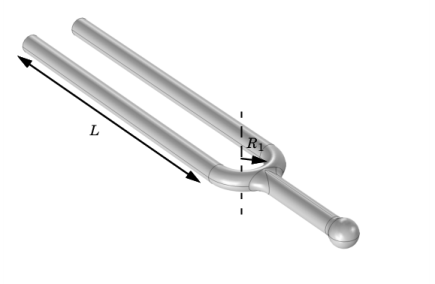
The model geometry is shown in Figure 1. The fundamental frequency of the fork is determined by the length of the prongs, the cross-sectional geometry of the prongs, and the material properties of the fork.
Figure 1: Tuning fork geometry.
The following formula gives a theoretical estimation for the fundamental frequency of a tuning fork with cylindrical cross section of the prong (Ref. 1):
(1)
where R2 is the radius of the cross section of the prongs, E denotes Young’s modulus, and ρ is the density. The length of the prong can be estimated as
(2)
where R1 the radius of the base, and L is the length of the straight cylindrical part, see Figure 1.
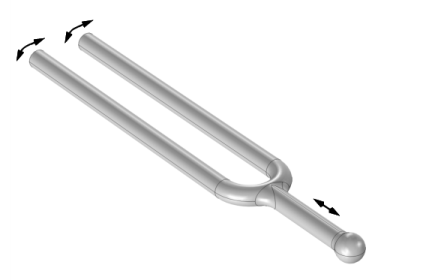
In the fundamental eigenmode, the prongs move apart and together while the handle moves up and down as shown in Figure 2. Thus, the eigenmode is symmetric with a symmetry plane placed between the prongs.
Figure 2: Vibration of the tuning fork in its fundamental eigenmode.
The advantage with the shape of the fundamental eigenmode is that the relative displacements in the handle are very small, which makes it possible to hold the fork without damping the vibration. This also allows to make use of the theoretical estimation for the frequency Equation 1 which is based on the solution for a cantilever beam representing each prong.
The parameters used in the model are: R= 7.5 mm and R2 = 2.5 mm. The fork material is Steel AISI 4340, for which = 205 GPa and ρ = 7850 kg/m3.
For the frequency f = 440 Hz, Equation 1 and Equation 2 give the length of the prong cylindrical part as L = 7.8 cm. This presents an underestimation because the part of the prong near the base has larger bending stiffness compared to that for a straight cantilever beam.
Results and Discussion
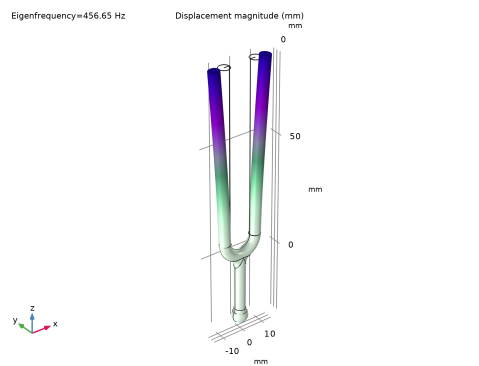
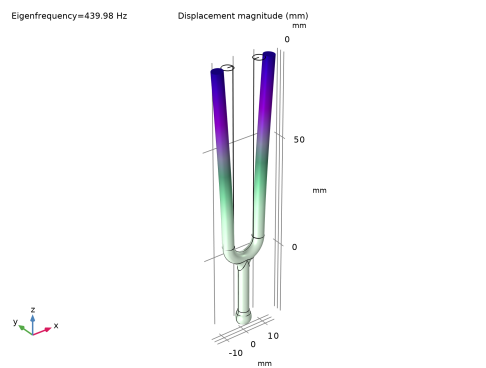
For the prong length of L = 78 mm the simulation results in an eigenfrequency of 457 Hz. This number is higher than expected, since Equation 1 and Equation 2 underestimate the prong length due to the higher stiffness at the base compared to a straight cantilever beam.
Figure 3 shows the mode shape plot for the prong length optimized for the fundamental eigenfrequency of 440 Hz. The optimized length is 79.65 mm, which, as expected, is longer than the from theory estimated 78 mm.
Figure 3: Frequency and mode shape of the fundamental eigenmode for the optimized tuning fork.
Notes About the COMSOL Implementation
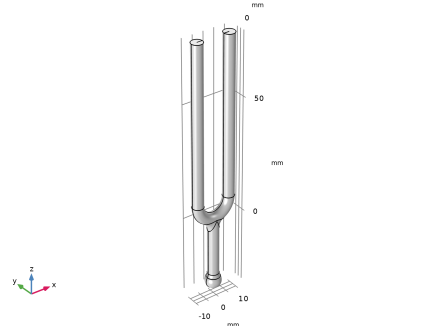
The tuning fork geometry you are using in this model comes from an AutoCAD . Using LiveLink for AutoCAD you synchronize the geometry and the parameter for the tuning fork prong length between AutoCAD and COMSOL Multiphysics. In order for this to work you need to have both programs running during modeling, and you need to make sure that the tuning fork file is the active file in AutoCAD.
Reference
1. Tuning fork, en.wikipedia.org/wiki/Tuning_fork
Application Library path: LiveLink_for_AutoCAD/Tutorials,_LiveLink_Interface/tuning_fork_llac
Modeling Instructions
1
In AutoCAD open the file tuning_fork.dwg located in the model’s Application Library folder.
2
COMSOL Desktop
From the File menu, choose New.
New
In the New window, click  Model Wizard.
Model Wizard
1
In the Model Wizard window, click  3D.
2
In the Select Physics tree, select Structural Mechanics > Solid Mechanics (solid).
3
Click Add.
4
Click  Study.
5
In the Select Study tree, select General Studies > Eigenfrequency.
6
Geometry 1
Make sure that the CAD Import Module kernel is used.
1
In the Model Builder window, under Component 1 (comp1) click Geometry 1.
2
In the Settings window for Geometry, locate the Advanced section.
3
From the Geometry representation list, choose CAD kernel.
LiveLink for AutoCAD 1 (cad1)
1
In the Home toolbar, click  LiveLink and choose LiveLink for AutoCAD.
2
In the Settings window for LiveLink for AutoCAD, locate the Synchronize section.
3
Click Synchronize.
After a few moments the geometry of the tuning fork appears in the Graphics window.
4
Click to expand the Parameters in CAD Package section. The dimensional parameter for the prong length, L in the AutoCAD file, has been linked to COMSOL Multiphysics and is therefore synchronized with the geometry. To manage linked parameters, you can click Parameter Selection on the COMSOL Multiphysics tab in AutoCAD. The global parameter, LL_L, is automatically generated in the COMSOL Multiphysics model during synchronization to enable parametric sweeps and optimization of the geometry.
Global Definitions
Parameters 1
1
In the Model Builder window, under Global Definitions click Parameters 1.
2
In the Settings window for Parameters, locate the Parameters section.
3
Geometry 1
LiveLink for AutoCAD 1 (cad1)
1
In the Model Builder window, under Component 1 (comp1) > Geometry 1 click LiveLink for AutoCAD 1 (cad1).
2
In the Settings window for LiveLink for AutoCAD, locate the Synchronize section.
3
Click Synchronize.
Knit to Solid 1 (knit1)
Next you will generate a solid object from the synchronized surface objects. In AutoCAD the geometry has been drawn as surface objects in order to maintain associativity while changing the dimensional parameter.
In the Geometry toolbar, click  Defeaturing and Repair and choose Knit to Solid.
Selection List
1
In the Home toolbar, click  Windows and choose Selection List.
2
Go to the Selection List window.
3
In the Objects tree, select LiveLink for AutoCAD 1 > cad1(2) (surface), LiveLink for AutoCAD 1 > cad1(3) (surface), LiveLink for AutoCAD 1 > cad1(4) (surface), LiveLink for AutoCAD 1 > cad1(5) (surface), LiveLink for AutoCAD 1 > cad1(6) (surface), and LiveLink for AutoCAD 1 > cad1(7) (surface).
4
Click the Add to Active Selection for Knit to Solid 1 (knit1) button in the window toolbar.
Geometry 1
1
In the Model Builder window, click Knit to Solid 1 (knit1).
2
In the Model Builder window, click Knit to Solid 1 (knit1).
3
In the Settings window for Knit to Solid, click  Build Selected.
Add Material
1
In the Materials toolbar, click  Add Material to open the Add Material window.
2
Go to the Add Material window.
3
In the tree, select Built-in > Steel AISI 4340.
4
Click the right end of the Add to Component split button in the window toolbar.
5
From the menu, choose Add to Component.
6
In the Materials toolbar, click  Add Material to close the Add Material window.
Study 1
Step 1: Eigenfrequency
Set up the study to search for the fundamental eigenfrequency.
1
In the Settings window for Eigenfrequency, locate the Study Settings section.
2
Select the Desired number of eigenfrequencies checkbox. In the associated text field, type 1.
3
In the Search for eigenfrequencies around shift text field, type 440[Hz].
4
In the Study toolbar, click  Compute.
Results
Mode Shape (solid)
After the computation is finished a plot similar to the one below appears.
Study 1
Continue with setting up the optimization.
General Optimization
1
In the Study toolbar, click  Optimization and choose General Optimization.
2
In the Settings window for General Optimization, locate the Optimization Solver section.
3
From the Method list, choose BOBYQA.
4
Locate the Objective Function section. In the table, enter the following settings:
5
Locate the Control Variables and Parameters section. Click  Add.
6
7
In the Study toolbar, click  Compute.
Results
Mode Shape (solid)
After the optimization is finished a plot similar to Figure 3 is displayed. You can read the value of the eigenfrequency from the plot. Continue with displaying the value of the optimized prong length parameter in a table.
Global Evaluation 1
1
In the Results toolbar, click  Global Evaluation.
2
In the Settings window for Global Evaluation, click Replace Expression in the upper-right corner of the Expressions section. From the menu, choose Solver > Control parameters > LL_L - Control parameter LL_L - m.
3
Click  Evaluate.
Geometry 1
LiveLink for AutoCAD 1 (cad1)
1
In the Model Builder window, under Component 1 (comp1) > Geometry 1 click LiveLink for AutoCAD 1 (cad1).
2
In the Settings window for LiveLink for AutoCAD, locate the Parameters in CAD Package section.
3
Click Update Parameters from CAD in the upper-right corner of the section.
Form Union (fin)
In the Geometry toolbar, click  Build All.