PDF

Convective Cooling of a Pot-Core Inductor
Introduction
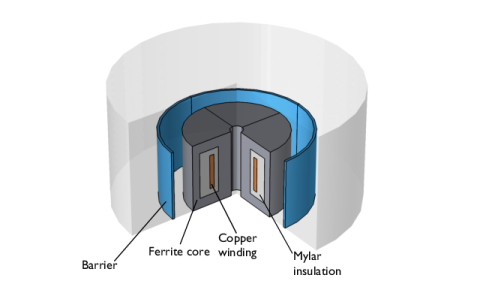
The inductor is a common component in a variety of different electrical devices. Its usage ranges from power transformation to measurement systems. In small devices with many components, such as in laptop computers, heat generation can be a problem and has to be accounted for in the design. This application describes the heat transfer in a pot-core inductor that is cooled by convective cooling.
Figure 1: 3D view of the model geometry.
A varying current in the copper induces a magnetic field that is strengthened by the ferrite core. Heat is generated in the core and the winding due to resistive heating.
This tutorial does not include the resistive heating due to induced currents, but instead assumes that a specific amount of heat is generated uniformly in the core and in the copper.
The component is cooled by air that enters from the top of the geometry and exits through the center and the lower part of the outer boundary.
Results
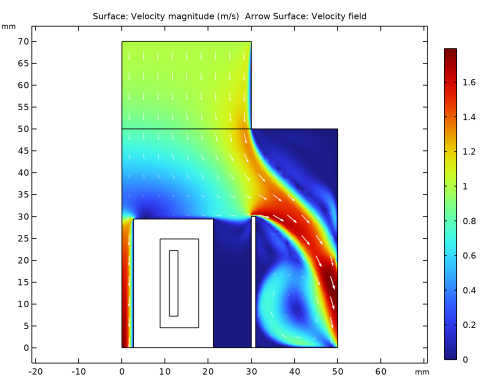
Figure 2 shows the velocity distribution together with an arrow plot of the same field. The arrow plot reveals that the airflow between the barrier and the ferrite core is very close to zero. Note also the recirculation zone at the bottom right.
Figure 2: Magnitude and arrow plot of the velocity field.
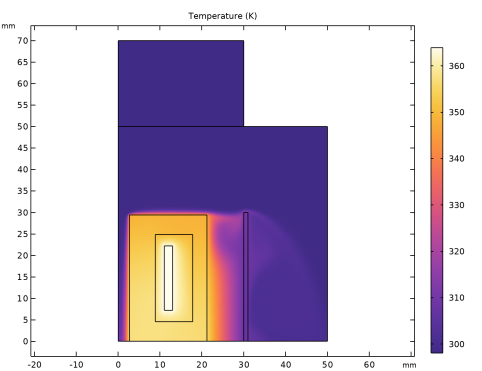
The temperature distribution is shown in Figure 3. The temperature reaches a maximum in the copper winding where most of the heat is generated. It is clear that the airflow has a cooling effect on the temperature although this effect is not optimal.
Figure 3: Temperature distribution.
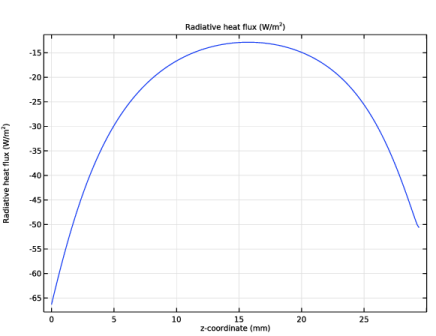
Figure 4: Cross-sectional plot of the net radiative flux.
In the overall heat balance, radiation is responsible for about 10% of the total heat loss at steady state. The plot in Figure 4 shows a cross-sectional plot of the net radiative flux along the inner, vertical, boundary of the central hole (see Figure 1). Note that away from the open ends, the emitted and reflected radiation is almost balanced by the incident energy, so even if the temperature and radiation levels are high, the net flux is small in this region. The main part of the radiative losses instead originates from the outside of the inductor.
Notes About the COMSOL Implementation
To set up the model, use the Conjugate Heat Transfer predefined multiphysics coupling of the Heat Transfer Module. To provide cooling for the component, air enters the domain at the top of the geometry at the speed of 1 m/s. To include the airflow, the model uses the Weakly Compressible Navier–Stokes equation. The viscosity and density of air and hence the airflow depend on the temperature; on the other hand, the temperature distribution depends on the flow around the component. This means that this multiphysics model has to be solved simultaneously. In this axisymmetric model, some of the surfaces are exposed to heat radiation from other surfaces, which means that surface-to-surface radiation must be accounted for.
Application Library path: Heat_Transfer_Module/Power_Electronics_and_Electronic_Cooling/potcore_inductor
Modeling Instructions
From the File menu, choose New.
New
In the New window, click  Model Wizard.
Model Wizard
1
In the Model Wizard window, click  2D Axisymmetric.
2
In the Select Physics tree, select Heat Transfer > Conjugate Heat Transfer > Laminar Flow.
3
Click Add.
4
In the Select Physics tree, select Heat Transfer > Radiation > Surface-to-Surface Radiation (rad).
5
Click Add.
6
Click  Study.
7
In the Select Study tree, select General Studies > Stationary.
8
Global Definitions
Parameters 1
1
In the Model Builder window, under Global Definitions click Parameters 1.
2
In the Settings window for Parameters, locate the Parameters section.
3
Geometry 1
1
In the Model Builder window, under Component 1 (comp1) click Geometry 1.
2
In the Settings window for Geometry, locate the Units section.
3
From the Length unit list, choose mm.
Rectangle 1 (r1)
1
In the Geometry toolbar, click  Rectangle.
2
In the Settings window for Rectangle, locate the Size and Shape section.
3
In the Width text field, type 50.
4
In the Height text field, type 50.
5
Click  Build Selected.
Rectangle 2 (r2)
1
In the Geometry toolbar, click  Rectangle.
2
In the Settings window for Rectangle, locate the Size and Shape section.
3
In the Width text field, type 30.
4
In the Height text field, type 20.
5
Locate the Position section. In the z text field, type 50.
6
Click  Build Selected.
Rectangle 3 (r3)
1
In the Geometry toolbar, click  Rectangle.
2
In the Settings window for Rectangle, locate the Size and Shape section.
3
In the Width text field, type 18.5.
4
In the Height text field, type 29.4.
5
Locate the Position section. In the r text field, type 2.7.
6
Click  Build Selected.
Rectangle 4 (r4)
1
In the Geometry toolbar, click  Rectangle.
2
In the Settings window for Rectangle, locate the Size and Shape section.
3
In the Width text field, type 8.95.
4
In the Height text field, type 20.3.
5
Locate the Position section. In the r text field, type 8.85.
6
In the z text field, type 4.55.
7
Click  Build Selected.
Rectangle 5 (r5)
1
In the Geometry toolbar, click  Rectangle.
2
In the Settings window for Rectangle, locate the Size and Shape section.
3
In the Width text field, type 2.
4
In the Height text field, type 15.
5
Locate the Position section. In the r text field, type 11.
6
In the z text field, type 7.2.
7
Click  Build Selected.
Rectangle 6 (r6)
1
In the Geometry toolbar, click  Rectangle.
2
In the Settings window for Rectangle, locate the Size and Shape section.
3
In the Height text field, type 30.
4
Locate the Position section. In the r text field, type 30.
5
Click  Build Selected.
Point 1 (pt1)
1
In the Geometry toolbar, click  Point.
2
In the Settings window for Point, locate the Point section.
3
In the r text field, type 50.
4
In the z text field, type 20.
5
In the Geometry toolbar, click  Build All.
6
Click the  Zoom Extents button in the Graphics toolbar.
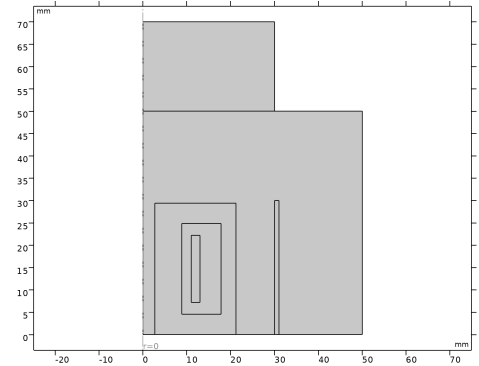
This completes the geometry modeling stage. The geometry should now look like that in the figure below.
Definitions
Ambient Properties 1 (ampr1)
1
In the Physics toolbar, click  Shared Properties and choose Ambient Properties.
2
In the Settings window for Ambient Properties, locate the Ambient Conditions section.
3
In the Tamb text field, type 25[degC].
Laminar Flow (spf)
1
In the Model Builder window, under Component 1 (comp1) click Laminar Flow (spf).
2
3
In the Settings window for Laminar Flow, locate the Domain Selection section.
4
Click  Create Selection.
5
In the Create Selection dialog, type Air in the Selection name text field.
6
Heat Transfer in Solids and Fluids (ht)
Fluid 1
1
In the Model Builder window, under Component 1 (comp1) > Heat Transfer in Solids and Fluids (ht) click Fluid 1.
2
In the Settings window for Fluid, locate the Domain Selection section.
3
From the Selection list, choose Air.
Materials
Now proceed to setting up the material properties.
Add Material
1
In the Materials toolbar, click  Add Material to open the Add Material window.
2
Go to the Add Material window.
3
In the tree, select Built-in > Air.
4
Click the Add to Component button in the window toolbar.
Materials
Air (mat1)
By default, the first material you add apply on all domains. Keep this setting and add other materials that override the material properties for selected domains.
Ferrite
1
In the Materials toolbar, click  Blank Material.
2
In the Settings window for Material, type Ferrite in the Label text field.
3
4
Locate the Material Contents section. In the table, enter the following settings:
Mylar
1
In the Materials toolbar, click  Blank Material.
2
In the Settings window for Material, type Mylar in the Label text field.
3
4
Locate the Material Contents section. In the table, enter the following settings:
Quartz
1
In the Materials toolbar, click  Blank Material.
2
In the Settings window for Material, type Quartz in the Label text field.
3
4
Locate the Material Contents section. In the table, enter the following settings:
Add Material
1
Go to the Add Material window.
2
In the tree, select Built-in > Copper.
3
Click the Add to Component button in the window toolbar.
4
In the Materials toolbar, click  Add Material to close the Add Material window.
Materials
Copper (mat5)
Select Domain 5 only.
Ferrite (Boundary)
1
In the Materials toolbar, click  Blank Material.
2
In the Settings window for Material, type Ferrite (Boundary) in the Label text field.
3
Locate the Geometric Entity Selection section. From the Geometric entity level list, choose Boundary.
4
5
Locate the Material Contents section. In the table, enter the following settings:
Quartz (Boundary)
1
In the Materials toolbar, click  Blank Material.
2
In the Settings window for Material, type Quartz (Boundary) in the Label text field.
3
Locate the Geometric Entity Selection section. From the Geometric entity level list, choose Boundary.
4
5
Locate the Material Contents section. In the table, enter the following settings:
Heat Transfer in Solids and Fluids (ht)
Temperature 1
1
In the Physics toolbar, click  Boundaries and choose Temperature.
2
3
In the Settings window for Temperature, locate the Temperature section.
4
From the T0 list, choose Ambient temperature (ampr1).
Inflow 1
1
In the Physics toolbar, click  Boundaries and choose Inflow.
2
3
In the Settings window for Inflow, locate the Upstream Properties section.
4
From the Tustr list, choose Ambient temperature (ampr1).
Outflow 1
1
In the Physics toolbar, click  Boundaries and choose Outflow.
2
Heat Source 1
1
In the Physics toolbar, click  Domains and choose Heat Source.
2
3
In the Settings window for Heat Source, locate the Heat Source section.
4
In the Q0 text field, type Q_copper.
Heat Source 2
1
In the Physics toolbar, click  Domains and choose Heat Source.
2
3
In the Settings window for Heat Source, locate the Heat Source section.
4
In the Q0 text field, type Q_core.
Laminar Flow (spf)
Inlet 1
1
In the Physics toolbar, click  Boundaries and choose Inlet.
2
3
In the Settings window for Inlet, locate the Velocity section.
4
In the U0 text field, type 1[m/s].
Outlet 1
1
In the Physics toolbar, click  Boundaries and choose Outlet.
2
Surface-to-Surface Radiation (rad)
1
In the Model Builder window, under Component 1 (comp1) click Surface-to-Surface Radiation (rad).
2
Diffuse Surface 1
1
In the Model Builder window, under Component 1 (comp1) > Surface-to-Surface Radiation (rad) click Diffuse Surface 1.
2
In the Settings window for Diffuse Surface, locate the Ambient section.
3
From the Tamb list, choose Ambient temperature (ampr1).
Add Multiphysics
1
In the Physics toolbar, click  Add Multiphysics to open the Add Multiphysics window.
2
Go to the Add Multiphysics window.
3
In the tree, select No Predefined Multiphysics Available for the Selected Physics Interfaces.
4
Find the Select the physics interfaces you want to couple subsection. In the table, clear the Couple checkbox for Laminar Flow (spf).
5
In the tree, select Heat Transfer > Radiation > Heat Transfer with Surface-to-Surface Radiation.
6
Click the Add to Component button in the window toolbar.
7
In the Physics toolbar, click  Add Multiphysics to close the Add Multiphysics window.
When the Heat Transfer with Surface-to-Surface Radiation is added the default domain opacity is set to From heat transfer interface which means that the solid domains are opaque by default while the fluid domains are transparent by default. You can override these default settings by adding one or multiple Opacity node(s) under the Surface-to-Surface Radiation interface.
Mesh 1
Use a finer physics-controlled mesh to improve the fluid flow resolution.
1
In the Settings window for Mesh, locate the Physics-Controlled Mesh section.
2
From the Element size list, choose Finer.
3
Click  Build All.
Study 1
In the Study toolbar, click  Compute.
Results
Temperature (ht)
The first default plot shows the temperature distribution in the simulation domain (Figure 3).
Velocity (spf)
This default plot displays the velocity magnitude in a 2D slice of the axisymmetric geometry. Reproduce the plot in Figure 2 with the following steps.
1
In the Model Builder window, click Velocity (spf).
Arrow Surface 1
1
In the Velocity (spf) toolbar, click  Arrow Surface.
2
In the Settings window for Arrow Surface, click Replace Expression in the upper-right corner of the Expression section. From the menu, choose Component 1 (comp1) > Laminar Flow > Velocity and pressure > u,w - Velocity field.
3
Locate the Coloring and Style section. From the Color list, choose White.
4
In the Velocity (spf) toolbar, click  Plot.
Create a cross-sectional plot of the net radiative flux as in Figure 4 with the following steps:
Radiative Heat Flux
1
In the Results toolbar, click  1D Plot Group.
2
In the Settings window for 1D Plot Group, type Radiative Heat Flux in the Label text field.
Line Graph 1
1
In the Radiative Heat Flux toolbar, click  Line Graph.
2
3
In the Settings window for Line Graph, click Replace Expression in the upper-right corner of the y-Axis Data section. From the menu, choose Component 1 (comp1) > Surface-to-Surface Radiation > Radiative heat flux > rad.rflux - Radiative heat flux - W/m².
4
Click Replace Expression in the upper-right corner of the x-Axis Data section. From the menu, choose Component 1 (comp1) > Geometry > Coordinate > z - z-coordinate.
5
In the Radiative Heat Flux toolbar, click  Plot.
Finally, display the temperature and velocity together in 3D as in the model thumbnail picture by using two partial revolutions of the 2D axisymmetric dataset.
Revolution 2D
1
In the Model Builder window, expand the Results > Datasets node, then click Revolution 2D.
2
In the Settings window for Revolution 2D, click to expand the Revolution Layers section.
3
In the Start angle text field, type 30.
4
In the Revolution angle text field, type 120.
Revolution 2D 2
1
In the Results toolbar, click  More Datasets and choose Revolution 2D.
2
In the Settings window for Revolution 2D, locate the Revolution Layers section.
3
In the Start angle text field, type -75.
4
In the Revolution angle text field, type 105.
Result Templates
1
In the Results toolbar, click  Result Templates to open the Result Templates window.
2
Go to the Result Templates window.
3
In the tree, select Study 1/Solution 1 (sol1) > Heat Transfer in Solids and Fluids > Temperature (ht).
4
Click the Add Result Template button in the window toolbar.
5
In the Results toolbar, click  Result Templates to close the Result Templates window.
Results
Volume 2
1
In the Model Builder window, expand the Temperature (ht) 1 node.
2
Right-click Results > Temperature (ht) 1 > Volume 1 and choose Duplicate.
Temperature and velocity 3D
1
In the Settings window for 3D Plot Group, type Temperature and velocity 3D in the Label text field.
2
Locate the Color Legend section. Select the Show units checkbox.
Volume 1
1
In the Model Builder window, click Volume 1.
2
In the Settings window for Volume, locate the Expression section.
3
In the Expression text field, type spf.U.
4
Locate the Data section. From the Dataset list, choose Revolution 2D 2.
5
Locate the Coloring and Style section. From the Color table list, choose Rainbow.
6
In the Temperature and velocity 3D toolbar, click  Plot.