







PDF

Microwave Heating of a Cancer Tumor
Introduction
Electromagnetic heating appears in a wide range of engineering problems and is ideally suited for modeling in COMSOL Multiphysics because of its multiphysics capabilities. This example comes from the area of hyperthermic oncology and it models the electromagnetic field coupled to the bioheat equation. The modeling issues and techniques are generally applicable to any problem involving electromagnetic heating.
In hyperthermic oncology, cancer is treated by applying localized heating to the tumor tissue, often in combination with chemotherapy or radiotherapy. Some of the challenges associated with the selective heating of deep-seated tumors without damaging surrounding tissue are:
Among possible heating techniques, RF and microwave heating have attracted much attention from clinical researchers. Microwave coagulation therapy is one such technique where a thin microwave antenna is inserted into the tumor. The microwaves heat up the tumor, producing a coagulated region where the cancer cells are killed.
This model computes the temperature field, the radiation field, and the specific absorption rate (SAR) — defined as the ratio of absorbed heat power and tissue density — in liver tissue when using a thin coaxial slot antenna for microwave coagulation therapy. It closely follows the analysis found in Ref. 1. It computes the temperature distribution in the tissue using the bioheat equation.
Note: This model requires the RF Module and the Heat Transfer Module.
Model Definition
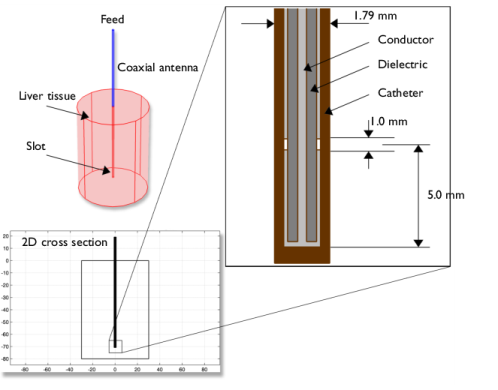
Figure 1 shows the antenna geometry. It consists of a thin coaxial cable with a ring-shaped slot measuring 1 mm cut on the outer conductor 5 mm from the short-circuited tip. For hygienic purposes, the antenna is enclosed in a sleeve (catheter) made of PTFE (polytetrafluoroethylene). The following tables give the relevant geometrical dimensions and material data. The antenna operates at 2.45 GHz, a frequency widely used in microwave coagulation therapy.
Figure 1: Antenna geometry for microwave coagulation therapy. A coaxial cable with a ring-shaped slot cut on the outer conductor is short-circuited at the tip. A plastic catheter surrounds the antenna.
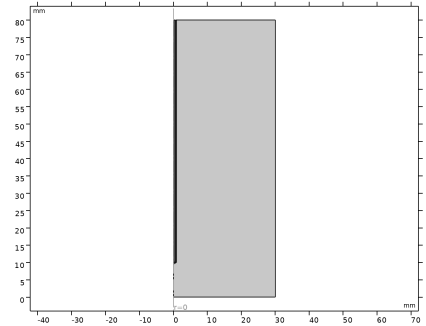
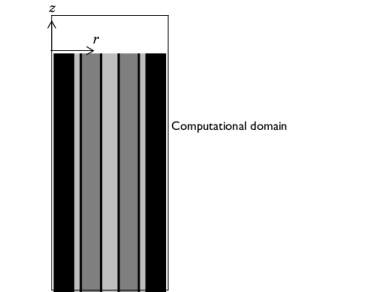
The model takes advantage of the problem’s rotational symmetry, which allows modeling in 2D using cylindrical coordinates as indicated in Figure 2. When modeling in 2D, you can select a fine mesh and achieve excellent accuracy. The model uses a frequency-domain problem formulation with the complex-valued azimuthal component of the magnetic field as the unknown.
Figure 2: The computational domain appears as a rectangle in the rz-plane.
The radial and axial extent of the computational domain is in reality larger than indicated in Figure 2. This problem does not model the interior of the metallic conductors, and it models metallic parts using boundary conditions, setting the tangential component of the electric field to zero.
Domain and Boundary Equations — Electromagnetics
An electromagnetic wave propagating in a coaxial cable is characterized by transverse electromagnetic fields (TEM). Assuming time-harmonic fields with complex amplitudes containing the phase information, the appropriate equations are
where z is the direction of propagation, and r, φ, and z are cylindrical coordinates centered on the axis of the coaxial cable. Pav is the time-averaged power flow in the cable, Z is the wave impedance in the dielectric of the cable, while rinner and router are the dielectric’s inner and outer radii, respectively. Further, ω denotes the angular frequency. The propagation constant, k, relates to the wavelength in the medium, λ, as
In the tissue, the electric field also has a finite axial component whereas the magnetic field is purely in the azimuthal direction. Thus, you can model the antenna using an axisymmetric transverse magnetic (TM) formulation. The wave equation then becomes scalar in Hφ: 
The boundary conditions for the metallic surfaces are
The feed point is modeled using a port boundary condition with a power level set to 10 W. This is essentially a first-order low-reflecting boundary condition with an input field Hφ0: 
where
for an input power of Pav deduced from the time-average power flow.
The antenna radiates into the tissue where a damped wave propagates. Because you can discretize only a finite region, you must truncate the geometry some distance from the antenna using a similar absorbing boundary condition without excitation. Apply this boundary condition to all exterior boundaries.
Domain and Boundary Equations — Heat Transfer
The bioheat equation describes the time-dependent heat transfer problem as
where k is the liver’s thermal conductivity (W/(m·K)), ρb represents the blood density (kg/m3), Cb is the blood’s specific heat capacity (J/(kg·K)), ωb denotes the blood perfusion rate (1/s), and Tb is the arterial blood temperature (K). Further, Qmet is the heat source from metabolism, and Qext is an external heat source, both measured in W/m3.
The initial temperature equals Tb in all domains.
This model neglects the heat source from metabolism. The external heat source is equal to the resistive heat generated by the electromagnetic field:
The model assumes that the blood perfusion rate is ωb = 0.0036 s1, and that the blood enters the liver at the body temperature Tb = 37°C and is heated to a temperature, T. The blood’s specific heat capacity is Cb = 3639 J/(kg·K).
For a more realistic model, you might consider letting ωb be a function of the temperature. At least for external body parts such as hands and feet, it is evident that a temperature increase results in an increased blood flow.
This example models the heat transfer problem only in the liver domain. Where this domain is truncated, it uses insulation, that is
In addition to the heat transfer equation, this model computes the tissue damage integral. This gives an idea about the degree of tissue injury α during the process, based on the Arrhenius equation
where A is the frequency factor (s1) and ΔE is the activation energy for irreversible damage reaction (J/mol). These two parameters are dependent on the type of tissue. The fraction of necrotic tissue, θd, is then expressed by
Results and Discussion
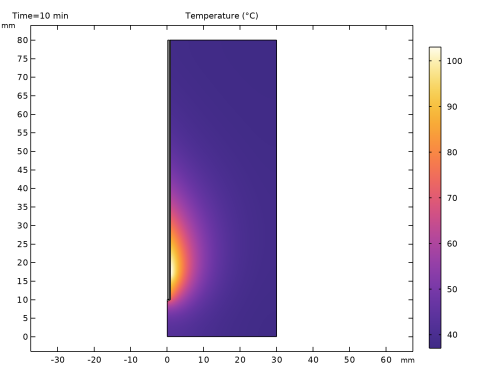
Figure 3 shows the resulting steady-state temperature distribution in the liver tissue for an input microwave power of 10 W. The temperature is highest near the antenna. It then decreases with distance from the antenna and reaches 37°C closer to the outer boundaries of the computational domain. The perfusion of relatively cold blood seems to limit the extent of the area that is heated.
Figure 3: Temperature in the liver tissue.
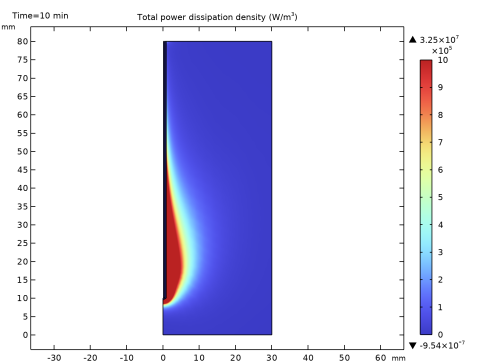
Figure 4 shows the distribution of the microwave heat source. Clearly the temperature field follows the heat source distribution quite well. That is, near the antenna the heat source is strong, which leads to high temperatures, while far from the antenna, the heat source is weaker and the blood manages to keep the tissue at normal body temperature.
Figure 4: The computed microwave heat-source density takes on its highest values near the tip and the slot. The scale is cut off at 1 W/cm3.
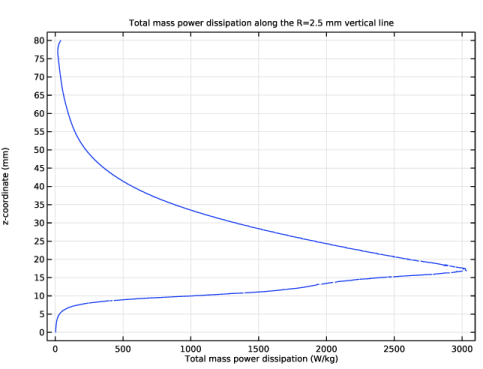
Figure 5 plots the specific absorption rate (SAR) along a line parallel to the antenna and at a distance of 2.5 mm from the antenna axis. The results are in good agreement with those found in Ref. 1.
Figure 5: SAR in W/kg along a line parallel to the antenna and at a distance 2.5 mm from the antenna axis. The tip of the antenna is located at 70 mm, and the slot is at 65 mm.
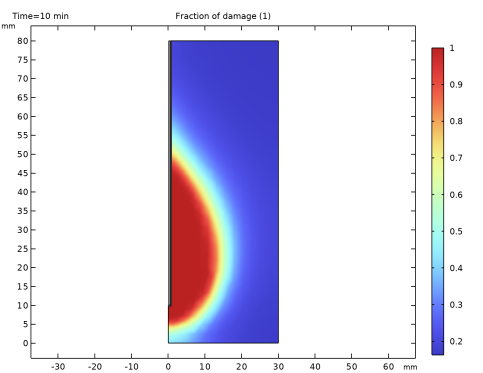
You can visualize the fraction of necrotic tissue in the surface plot of Figure 6.
Figure 6: Fraction of necrotic tissue.
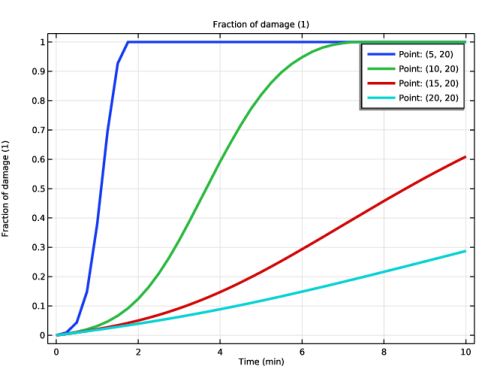
Figure 7 shows the fraction of necrotic tissue at four different point of the domain. Observe that necrosis happens faster near the antenna.
Figure 7: Fraction of necrotic tissue at four points of the domain.
Reference
1. K. Saito, T. Taniguchi, H. Yoshimura, and K. Ito, “Estimation of SAR Distribution of a Tip-Split Array Applicator for Microwave Coagulation Therapy Using the Finite Element Method,” IEICE Trans. Electronics, vol. E84-C, no. 7, pp. 948–954, 2001.
Application Library path: Heat_Transfer_Module/Medical_Technology/microwave_cancer_therapy
Modeling Instructions
From the File menu, choose New.
New
In the New window, click  Model Wizard.
Model Wizard
1
In the Model Wizard window, click  2D Axisymmetric.
2
In the Select Physics tree, select Radio Frequency > Electromagnetic Waves, Frequency Domain (emw).
3
Click Add.
4
In the Select Physics tree, select Heat Transfer > Bioheat Transfer (ht).
5
Click Add.
Do not add the study right now, as it will be easier to define it once the multiphysics coupling has been added.
6
Multiphysics
Electromagnetic Heating 1 (emh1)
1
In the Physics toolbar, click  Multiphysics Couplings and choose Domain > Electromagnetic Heating.
This brings the heat created by the electromagnetic waves to the heat transfer simulation.
Now add a Frequency-Transient, One-Way Electromagnetic Heating study sequence that first adds a Frequency Domain study for the electromagnetic part and then adds a Time Dependent study for the heat transfer part.
Add Study
1
In the Home toolbar, click  Add Study to open the Add Study window.
2
Go to the Add Study window.
3
Find the Studies subsection. In the Select Study tree, select Preset Studies for Selected Multiphysics > Frequency–Transient, One-Way Electromagnetic Heating.
4
Click the Add Study button in the window toolbar.
5
In the Home toolbar, click  Add Study to close the Add Study window.
Geometry 1
The geometry sequence for the model is available in a file. If you want to create it from scratch by yourself, you can follow the instructions in the Geometry Modeling Instructions section. Otherwise, insert the geometry sequence as follows:
1
In the Geometry toolbar, click Insert Sequence and choose Insert Sequence.
2
3
In the Geometry toolbar, click  Build All.
4
Click the  Zoom Extents button in the Graphics toolbar.
5
In the Model Builder window, under Component 1 (comp1) click Geometry 1.
You should now see the geometry shown above.
Global Definitions
Parameters 1
The relevant material properties and other model data are provided in a text file.
1
In the Model Builder window, under Global Definitions click Parameters 1.
2
In the Settings window for Parameters, locate the Parameters section.
3
Click  Load from File.
4
Add Material
1
In the Materials toolbar, click  Add Material to open the Add Material window.
2
Go to the Add Material window.
3
In the tree, select Bioheat > Liver (human).
4
Click the Add to Component button in the window toolbar.
Materials
Liver (human) (mat1)
1
2
In the Settings window for Material, locate the Material Contents section.
3
The remaining materials take part only in the RF simulation, making any definitions of their thermal properties redundant.
Catheter
1
In the Materials toolbar, click  Blank Material.
2
In the Settings window for Material, type Catheter in the Label text field.
3
Locate the Geometric Entity Selection section. From the Selection list, choose Catheter.
4
Locate the Material Contents section. In the table, enter the following settings:
Dielectric
1
In the Materials toolbar, click  Blank Material.
2
In the Settings window for Material, type Dielectric in the Label text field.
3
Locate the Geometric Entity Selection section. From the Selection list, choose Dielectric.
4
Locate the Material Contents section. In the table, enter the following settings:
Add Material
1
Go to the Add Material window.
2
In the tree, select Built-in > Air.
3
Click the Add to Component button in the window toolbar.
4
In the Materials toolbar, click  Add Material to close the Add Material window.
Materials
Air (mat4)
1
In the Settings window for Material, locate the Geometric Entity Selection section.
2
From the Selection list, choose Air.
Electromagnetic Waves, Frequency Domain (emw)
Port 1
1
In the Physics toolbar, click  Boundaries and choose Port.
2
3
In the Settings window for Port, locate the Port Properties section.
4
From the Type of port list, choose Coaxial.
5
In the Pin text field, type P_in.
Scattering Boundary Condition 1
1
In the Physics toolbar, click  Boundaries and choose Scattering Boundary Condition.
2
Bioheat Transfer (ht)
1
In the Model Builder window, under Component 1 (comp1) click Bioheat Transfer (ht).
2
In the Settings window for Bioheat Transfer, locate the Domain Selection section.
3
Click  Clear Selection.
The bioheat equation applies only in the liver tissue.
4
Biological Tissue 1
In the Model Builder window, under Component 1 (comp1) > Bioheat Transfer (ht) click Biological Tissue 1.
Thermal Damage 1
1
In the Physics toolbar, click  Attributes and choose Thermal Damage.
2
In the Settings window for Thermal Damage, locate the Damaged Tissue section.
3
From the Transformation model list, choose Arrhenius kinetics.
Bioheat 1
1
In the Model Builder window, click Bioheat 1.
2
In the Settings window for Bioheat, locate the Bioheat section.
3
In the Tb text field, type T_blood.
4
In the ρb text field, type rho_blood.
5
In the Cp,b text field, type Cp_blood.
6
In the ωb text field, type omega_blood.
You have now supplied all the parameters needed for the heat removal by the blood perfusion.
Initial Values 1
1
In the Model Builder window, under Component 1 (comp1) > Bioheat Transfer (ht) click Initial Values 1.
2
In the Settings window for Initial Values, locate the Initial Values section.
3
In the T text field, type T_blood.
Mesh 1
Free Triangular 1
In the Mesh toolbar, click  Free Triangular.
Size
1
In the Model Builder window, click Size.
2
In the Settings window for Size, locate the Element Size section.
3
Click the Custom button.
4
Locate the Element Size Parameters section. In the Maximum element size text field, type 3[mm].
Size 1
1
In the Model Builder window, right-click Free Triangular 1 and choose Size.
2
In the Settings window for Size, locate the Geometric Entity Selection section.
3
From the Geometric entity level list, choose Domain.
4
From the Selection list, choose Dielectric.
5
Locate the Element Size section. Click the Custom button.
6
Locate the Element Size Parameters section.
7
Select the Maximum element size checkbox. In the associated text field, type 0.15[mm].
8
Click  Build All.
The mesh is now reasonably fine everywhere, and especially fine in the coaxial cable, where the wave is created.
Study 1
Step 1: Frequency Domain
1
In the Model Builder window, under Study 1 click Step 1: Frequency Domain.
2
In the Settings window for Frequency Domain, locate the Study Settings section.
3
In the Frequencies text field, type f.
Step 2: Time Dependent
1
In the Model Builder window, click Step 2: Time Dependent.
2
In the Settings window for Time Dependent, locate the Study Settings section.
3
From the Time unit list, choose min.
4
In the Output times text field, type range(0,15[s],10).
5
In the Study toolbar, click  Compute.
Results
Electric Field (emw)
You have now solved the model first for the electromagnetic wave distribution, then for the temperature distribution resulting from the electromagnetic heating. Such a sequential solution is faster and consumes less memory than a fully coupled analysis, but works only if the material properties do not depend on the temperature.
Surface 1
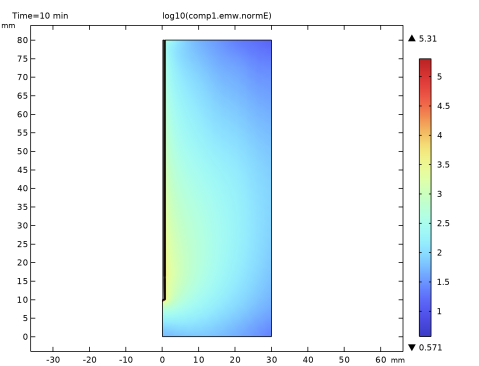
The default plot shows the distribution of the electric field norm. The range is dominated by the locally very high values in and in the near vicinity of the coaxial cable. One way to get a more useful picture is to plot the logarithm of the field.
1
In the Model Builder window, expand the Electric Field (emw) node, then click Surface 1.
2
In the Settings window for Surface, locate the Expression section.
3
In the Expression text field, type log10(comp1.emw.normE).
4
In the Electric Field (emw) toolbar, click  Plot.
5
Click the  Zoom Extents button in the Graphics toolbar.
The local heating power density is an important result of this model. As it is proportional to the electric field squared, this entity is also going to have a very uneven distribution. Manually specifying the range is another option to keep the plot readable.
1
Click Replace Expression in the upper-right corner of the Expression section. From the menu, choose Component 1 (comp1) > Electromagnetic Waves, Frequency Domain > Heating and losses > emw.Qh - Total power dissipation density - W/m³.
2
In the Electric Field (emw) toolbar, click  Plot.
3
Click to expand the Range section. Select the Manual color range checkbox.
4
In the Maximum text field, type 1e6.
5
In the Electric Field (emw) toolbar, click  Plot.
6
Click the  Zoom Extents button in the Graphics toolbar.
Any values greater than 1 MW/m3 are now displayed as red.
If you divide the power loss density with the density of the liver tissue, you get the SAR. Try plotting this on a vertical line some distance away from the antenna. Take the liver density to be the same as that of blood.
Total Power Dissipation Density (emw)
1
In the Model Builder window, under Results click Electric Field (emw).
2
In the Settings window for 2D Plot Group, type Total Power Dissipation Density (emw) in the Label text field.
Change the unit of the temperature results to degrees Celsius.
Preferred Units 1
1
In the Results toolbar, click  Configurations and choose Preferred Units.
2
In the Settings window for Preferred Units, locate the Units section.
3
Click  Add Physical Quantity.
4
In the Physical Quantity dialog, select General > Temperature (K) in the tree.
5
6
In the Settings window for Preferred Units, locate the Units section.
7
8
Click  Apply.
Set up the default plot group for the surface plot of the temperature in the tissue (Figure 3).
Temperature, 2D
1
In the Model Builder window, under Results click Temperature (ht).
2
In the Settings window for 2D Plot Group, type Temperature, 2D in the Label text field.
Surface 1
1
In the Model Builder window, expand the Temperature, 2D node, then click Surface 1.
2
In the Settings window for Surface, click Replace Expression in the upper-right corner of the Expression section. From the menu, choose Component 1 (comp1) > Bioheat Transfer > Temperature > T - Temperature - K.
3
In the Temperature, 2D toolbar, click  Plot.
4
Click the  Zoom Extents button in the Graphics toolbar.
Cut Line 2D 1
1
In the Results toolbar, click  Cut Line 2D.
2
In the Settings window for Cut Line 2D, locate the Line Data section.
3
In row Point 1, set R to 2.5, and z to 80.
4
In row Point 2, set R to 2.5.
Qh/rho vs. Height
1
In the Results toolbar, click  1D Plot Group.
2
In the Settings window for 1D Plot Group, type Qh/rho vs. Height in the Label text field.
3
Locate the Data section. From the Dataset list, choose Cut Line 2D 1.
4
From the Time selection list, choose Last.
5
Click to expand the Title section. From the Title type list, choose Manual.
6
In the Title text area, type Total mass power dissipation along the R=2.5 mm vertical line.
Line Graph 1
1
In the Qh/rho vs. Height toolbar, click  Line Graph.
2
In the Settings window for Line Graph, locate the y-Axis Data section.
3
In the Expression text field, type z.
4
Locate the x-Axis Data section. From the Parameter list, choose Expression.
5
In the Expression text field, type emw.Qh/rho_blood.
6
Select the Description checkbox. In the associated text field, type Total mass power dissipation.
7
In the Qh/rho vs. Height toolbar, click  Plot.
8
Click the  Zoom Extents button in the Graphics toolbar.
The plot you just created should look like Figure 5.
Result Templates
1
In the Results toolbar, click  Result Templates to open the Result Templates window.
2
Go to the Result Templates window.
3
In the tree, select Study 1/Solution 1 (sol1) > Bioheat Transfer > Temperature (ht).
4
Click the Add Result Template button in the window toolbar.
5
In the Results toolbar, click  Result Templates to close the Result Templates window.
Results
Temperature (ht) 1
To evaluate the total deposited power, integrate the power loss in the liver domain.
Surface Integration 1
1
In the Results toolbar, click  More Derived Values and choose Integration > Surface Integration.
2
In the Settings window for Surface Integration, locate the Data section.
3
From the Time selection list, choose Last.
4
5
Click Replace Expression in the upper-right corner of the Expressions section. From the menu, choose Component 1 (comp1) > Electromagnetic Waves, Frequency Domain > Heating and losses > emw.Qh - Total power dissipation density - W/m³.
6
Click  Evaluate.
Table 2
1
Go to the Table 2 window.
As shown in the table, the tissue absorbs most of the 10 W input power.
Results
Damaged Tissue, 2D
1
In the Results toolbar, click  2D Plot Group.
Generate a plot to show the fraction of necrotic tissue in 2D.
2
In the Settings window for 2D Plot Group, type Damaged Tissue, 2D in the Label text field.
Surface 1
1
In the Damaged Tissue, 2D toolbar, click  Surface.
2
In the Settings window for Surface, click Replace Expression in the upper-right corner of the Expression section. From the menu, choose Component 1 (comp1) > Bioheat Transfer > Irreversible transformation > ht.theta_d - Fraction of damage - 1.
3
Click to expand the Quality section. From the Evaluation settings list, choose Manual.
4
From the Resolution list, choose No refinement.
5
In the Damaged Tissue, 2D toolbar, click  Plot.
Cut Point 2D 1
1
In the Results toolbar, click  Cut Point 2D.
2
In the Settings window for Cut Point 2D, locate the Point Data section.
3
In the R text field, type range(5,5,20).
4
In the Z text field, type 20.
5
Temperature, 1D
1
In the Results toolbar, click  1D Plot Group.
2
In the Settings window for 1D Plot Group, type Temperature, 1D in the Label text field.
3
Locate the Data section. From the Dataset list, choose Cut Point 2D 1.
4
Locate the Legend section. From the Position list, choose Upper left.
Point Graph 1
1
In the Temperature, 1D toolbar, click  Point Graph.
2
In the Settings window for Point Graph, click Replace Expression in the upper-right corner of the y-Axis Data section. From the menu, choose Component 1 (comp1) > Bioheat Transfer > Temperature > T - Temperature - K.
3
Click to expand the Coloring and Style section. From the Width list, choose 3.
4
Click to expand the Legends section. Select the Show legends checkbox.
5
Find the Prefix and suffix subsection. In the Prefix text field, type Point: .
6
In the Temperature, 1D toolbar, click  Plot.
Damaged Tissue, 1D
1
In the Results toolbar, click  1D Plot Group.
2
In the Settings window for 1D Plot Group, type Damaged Tissue, 1D in the Label text field.
3
Locate the Data section. From the Dataset list, choose Cut Point 2D 1.
Point Graph 1
1
In the Damaged Tissue, 1D toolbar, click  Point Graph.
2
In the Settings window for Point Graph, click Replace Expression in the upper-right corner of the y-Axis Data section. From the menu, choose Component 1 (comp1) > Bioheat Transfer > Irreversible transformation > ht.theta_d - Fraction of damage - 1.
3
Locate the Coloring and Style section. From the Width list, choose 3.
4
Locate the Legends section. Select the Show legends checkbox.
5
Find the Prefix and suffix subsection. In the Prefix text field, type Point: .
6
In the Damaged Tissue, 1D toolbar, click  Plot.
Geometry Modeling Instructions
If you want to create the geometry by yourself, follow these steps.
Geometry 1
1
In the Model Builder window, under Component 1 (comp1) click Geometry 1.
2
In the Settings window for Geometry, locate the Units section.
3
From the Length unit list, choose mm.
Rectangle 1 (r1)
1
In the Geometry toolbar, click  Rectangle.
2
In the Settings window for Rectangle, locate the Size and Shape section.
3
In the Width text field, type 30.
4
In the Height text field, type 80.
Rectangle 2 (r2)
1
In the Geometry toolbar, click  Rectangle.
2
In the Settings window for Rectangle, locate the Size and Shape section.
3
In the Width text field, type 0.595.
4
In the Height text field, type 70.
5
Locate the Position section. In the z text field, type 10.
Dielectric
1
In the Geometry toolbar, click  Rectangle.
2
In the Settings window for Rectangle, type Dielectric in the Label text field.
3
Locate the Size and Shape section. In the Width text field, type 0.335.
4
In the Height text field, type 69.9.
5
Locate the Position section. In the r text field, type 0.135.
6
In the z text field, type 10.1.
7
Locate the Selections of Resulting Entities section. Select the Resulting objects selection checkbox.
Rectangle 4 (r4)
1
In the Geometry toolbar, click  Rectangle.
2
In the Settings window for Rectangle, locate the Size and Shape section.
3
In the Width text field, type 0.895.
4
In the Height text field, type 70.
5
Locate the Position section. In the z text field, type 10.
Air
1
In the Geometry toolbar, click  Rectangle.
2
In the Settings window for Rectangle, type Air in the Label text field.
3
Locate the Size and Shape section. In the Width text field, type 0.125.
4
Locate the Position section. In the r text field, type 0.47.
5
In the z text field, type 15.5.
6
Locate the Selections of Resulting Entities section. Select the Resulting objects selection checkbox.
Polygon 1 (pol1)
1
In the Geometry toolbar, click  Polygon.
2
In the Settings window for Polygon, locate the Coordinates section.
3
From the Data source list, choose Vectors.
4
In the r text field, type 0 0.895 0.895 0 0 0.
5
In the z text field, type 10 10 10 9.5 9.5 10.
Catheter
1
In the Geometry toolbar, click  Booleans and Partitions and choose Union.
2
In the Settings window for Union, type Catheter in the Label text field.
3
Select the objects pol1 and r4 only.
4
Locate the Union section. Clear the Keep interior boundaries checkbox.
5
Locate the Selections of Resulting Entities section. Select the Resulting objects selection checkbox.
Difference 1 (dif1)
1
In the Geometry toolbar, click  Booleans and Partitions and choose Difference.
2
Select the objects r1 and uni1 only.
3
In the Settings window for Difference, locate the Difference section.
4
Click to select the  Activate Selection toggle button for Objects to subtract.
5