
PDF

Free Convection in a Light Bulb
Introduction
This application simulates the nonisothermal flow of argon gas inside a light bulb. The purpose of the model is to show the coupling between energy transport — through conduction, radiation, and convection — and momentum transport induced by density variations in the argon gas.
All three forms of heat transfer are taken into account. First, you have conduction, when a 60 W filament is heated thus transferring heat from the heat source to the light bulb. Then there is convection, which drives a flow inside the bulb transferring the heat from the filament throughout the bulb via the movement of fluids (in this case, argon gas). Finally, there is the radiation portion of the problem, and in this case that includes surface-to-surface and surface-to-ambient radiation. The Heat Transfer Module includes both of these types of radiation, so that you can account for shading and reflections between radiating surfaces, as well as ambient radiation that can be fixed or given by an arbitrary function. The light bulb physics involves both heat transfer and gas flow, which makes this a multiphysics problem and not “just” a heat transfer example.
Note: This application requires the Heat Transfer Module and the Material Library.
Model Definition
A light bulb contains a tungsten filament that is resistively heated when a current is conducted through it. At temperatures around 2000 K the filament starts to emit visible light. To prevent the tungsten wire from burning up, the bulb is filled with a gas, usually argon. The heat generated in the filament is transported to the surroundings through radiation, convection, and conduction. As the gas heats up, density and pressure changes induce a flow inside the bulb.
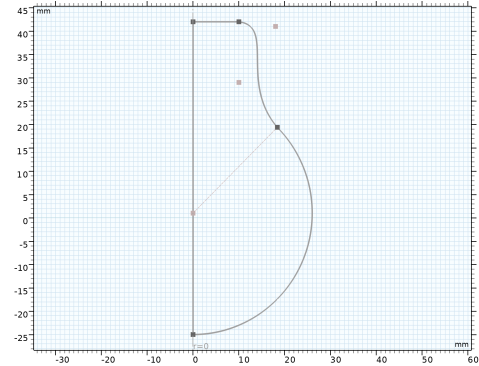
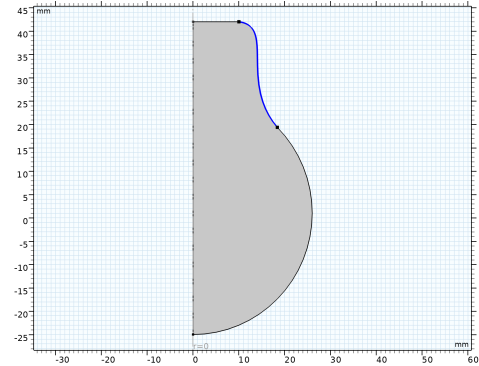
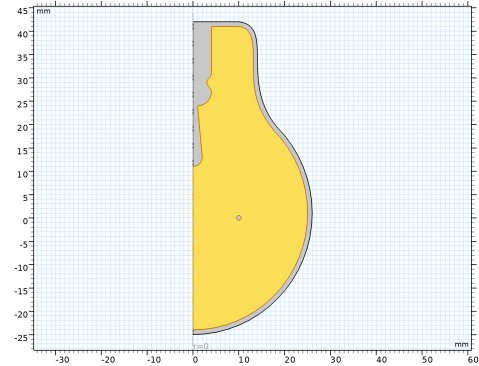
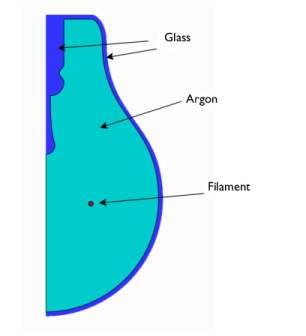
Figure 1 shows a cross section of the axially symmetric model geometry.
Figure 1: The model geometry.
The filament is approximated with a solid torus, an approximation that implies neglecting any internal effects inside the filament wire.
The equations governing the nonisothermal flow are the Navier–Stokes equations with the gravity forces (see Gravity in the COMSOL Multiphysics Reference Manual). The density is given by the ideal gas law
where M denotes the molar weight (kg/mol), R the universal gas constant (J/(mol·K)), and T the temperature (K).
The convective and conductive heat transfer are modeled using the heat transfer interface and account for the total light bulb power equal to 60 W.
Boundary Conditions
At the bulb’s inner surfaces, radiation is described by surface-to-surface radiation. This means that the mutual irradiation from the surfaces that can be seen from a particular surface and radiation to the surroundings are accounted for. At the outer surfaces of the bulb, radiation is described by surface-to-ambient radiation, which means that there is no reflected radiation from the surroundings (blackbody radiation).
The top part of the bulb, where the bulb is mounted on the cap, is insulated:
Results
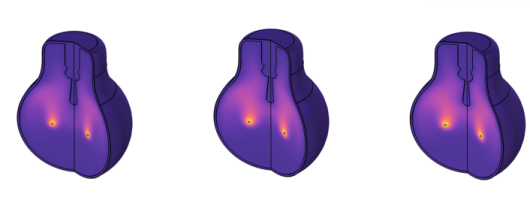
The heating inside the bulb has a long and a short time scale from t = 0, when the light is turned on. The shorter scale captures the heating of the filament and the gas close to it. The following series of pictures shows the temperature distribution inside the bulb at t = 2, 6, and 10 s.
Figure 2: Temperature distribution at t = 2, 6, and 10 s. The color ranges differ between the plots.
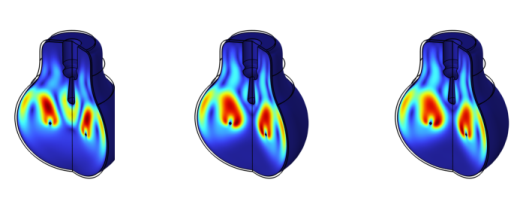
When the temperature changes, the density of the gas changes, inducing a gas flow inside the bulb. The following series of pictures shows the velocity field inside the bulb after 2, 6, and 10 s.
Figure 3: Velocity field after 2, 6, and 10 s. The color ranges differ between the plots.
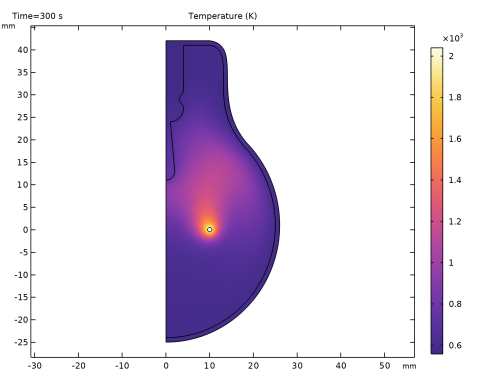
On the longer time scale, the glass on the bulb’s outer side heats up. The following plot shows the temperature distribution in the bulb after 5 minutes.
Figure 4: Temperature distribution after 5 minutes.
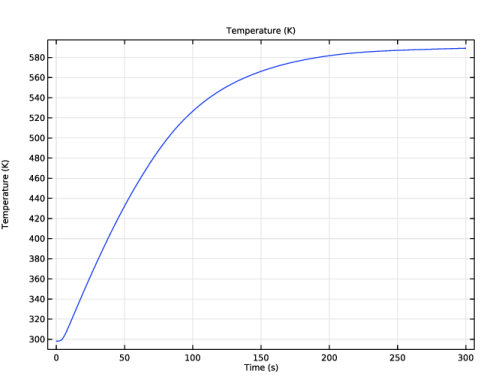
Figure 5 shows the temperature distribution at a point on the boundary of the bulb at the same vertical level as the filament. This plot shows the slow heating of the bulb. After 5 minutes, the bulb has reached a steady-state temperature of approximately 589 K.
Figure 5: Temperature distribution at a point on the boundary of the bulb at the same vertical level as the filament.
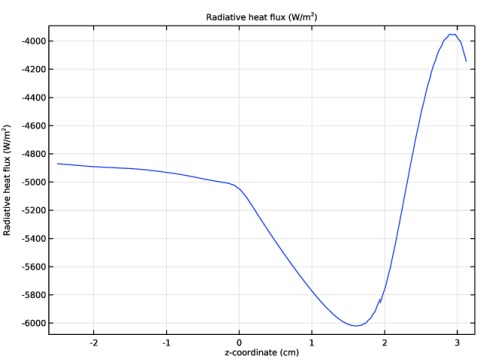
Heat is transported from the boundary of the bulb through both convective heat flux and radiation. The net radiative heat flux leaving the bulb at t = 300 s is plotted in Figure 6, as function of the z-coordinate. The top boundaries of the bulb where the bulb is mounted on the cap are excluded from this plot. The distinct bump in the curve occurs around z = 1.5 cm, above the filament.
Figure 6: The net radiative heat flux leaving the bulb.
Notes About the COMSOL Implementation
To set up the model, use the Conjugate Heat Transfer predefined multiphysics coupling of the Heat Transfer Module. The model uses a material from the Material Library to accurately account for temperature-dependent properties over a wide range. The model setup is straightforward and also shows how to create your own material to treat argon as an ideal gas. When working with surface-to-surface radiation in COMSOL, fluid domains are considered as transparent and solid domains as opaque by default, which are the expected properties for this model. The assumption that the glass on the bulb is opaque might seem odd, but it is valid because glass is almost opaque to heat radiation but transparent to radiation in the visible spectrum.
Application Library path: Heat_Transfer_Module/Thermal_Radiation/light_bulb
Modeling Instructions
From the File menu, choose New.
New
In the New window, click  Model Wizard.
Model Wizard
1
In the Model Wizard window, click  2D Axisymmetric.
2
In the Select Physics tree, select Heat Transfer > Conjugate Heat Transfer > Laminar Flow.
3
Click Add.
4
In the Select Physics tree, select Heat Transfer > Radiation > Surface-to-Surface Radiation (rad).
5
Click Add.
6
Click  Study.
7
In the Select Study tree, select General Studies > Time Dependent.
8
Definitions
Ambient Properties 1 (ampr1)
1
In the Physics toolbar, click  Shared Properties and choose Ambient Properties.
2
In the Settings window for Ambient Properties, locate the Ambient Conditions section.
3
In the Tamb text field, type 25[degC].
Geometry 1
The geometry sequence for the model is available in a file. If you want to create it from scratch yourself, you can follow the tutorial under applications/COMSOL_Multiphysics/Geometry_Tutorials. Otherwise, insert the geometry sequence as follows:
1
In the Geometry toolbar, click Insert Sequence and choose Insert Sequence.
2
3
In the Geometry toolbar, click  Build All.
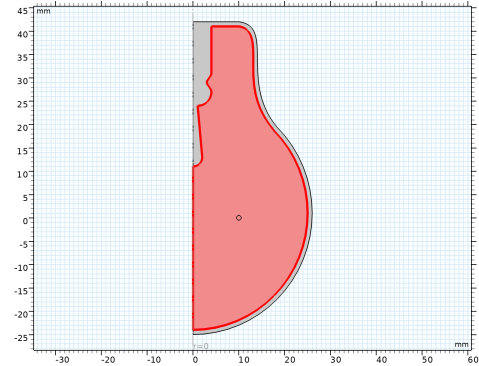
The imported sequence contains all required selections in addition to the actual geometry. Selections facilitate the work of assigning materials, setting boundary conditions, and plot the results.
4
Click the  Zoom Extents button in the Graphics toolbar.
You should now see the geometry shown in Figure 1.
Global Definitions
Parameters 1
1
In the Model Builder window, under Global Definitions click Parameters 1.
2
In the Settings window for Parameters, locate the Parameters section.
3
Add Material
1
In the Materials toolbar, click  Add Material to open the Add Material window.
2
Go to the Add Material window.
3
In the tree, select Material Library > Elements > Tungsten > Tungsten [solid] > Tungsten [solid,Ho et al.].
4
Right-click and choose Add to Component 1 (comp1).
Materials
Tungsten [solid,Ho et al.] (mat1)
1
In the Model Builder window, under Component 1 (comp1) > Materials click Tungsten [solid,Ho et al.] (mat1).
2
In the Settings window for Material, locate the Geometric Entity Selection section.
3
From the Selection list, choose Tungsten.
To apply the surface emissivity for tungsten as a material property, you also need to define tungsten as the material for the filament surface.
Add Material
1
Go to the Add Material window.
2
In the tree, select Material Library > Elements > Tungsten > Tungsten [solid] > Tungsten [solid,Ho et al.].
3
Click the Add to Component button in the window toolbar.
4
In the Materials toolbar, click  Add Material to close the Add Material window.
Materials
Tungsten [solid,Ho et al.] 1 (mat2)
1
In the Settings window for Material, locate the Geometric Entity Selection section.
2
From the Geometric entity level list, choose Boundary.
3
From the Selection list, choose Tungsten.
Glass
1
In the Materials toolbar, click  Blank Material.
2
In the Settings window for Material, type Glass in the Label text field.
3
Locate the Geometric Entity Selection section. From the Selection list, choose Glass.
4
Locate the Material Contents section. In the table, enter the following settings:
Now, set up the physics to let COMSOL Multiphysics flag what properties you need to specify manually.
Laminar Flow (spf)
As the flow is driven by buoyancy, gravity matters.
1
In the Model Builder window, under Component 1 (comp1) click Laminar Flow (spf).
2
In the Settings window for Laminar Flow, locate the Physical Model section.
3
Select the Include gravity checkbox.
Since the density variation is not small, the flow cannot be regarded as incompressible. Therefore set the flow to be compressible.
4
From the Compressibility list, choose Compressible flow (Ma<0.3).
5
Locate the Domain Selection section. From the Selection list, choose Argon.
Define the pressure reference level in the interface properties.
6
Locate the Physical Model section. In the pref text field, type p0.
Heat Transfer in Solids and Fluids (ht)
Fluid 1
1
In the Model Builder window, under Component 1 (comp1) > Heat Transfer in Solids and Fluids (ht) click Fluid 1.
2
In the Settings window for Fluid, locate the Domain Selection section.
3
From the Selection list, choose Argon.
Initial Values 1
1
In the Model Builder window, click Initial Values 1.
2
In the Settings window for Initial Values, locate the Initial Values section.
3
From the T list, choose Ambient temperature (ampr1).
Heat Source 1
1
In the Physics toolbar, click  Domains and choose Heat Source.
2
In the Settings window for Heat Source, locate the Domain Selection section.
3
From the Selection list, choose Tungsten.
4
Locate the Heat Source section. From the Heat source list, choose Heat rate.
5
In the P0 text field, type Qf.
Heat Flux 1
1
In the Physics toolbar, click  Boundaries and choose Heat Flux.
2
In the Settings window for Heat Flux, locate the Boundary Selection section.
3
From the Selection list, choose Exterior Radiation.
4
Locate the Heat Flux section. From the Flux type list, choose Convective heat flux.
5
In the h text field, type h0.
6
From the Text list, choose Ambient temperature (ampr1).
Surface-to-Surface Radiation (rad)
1
In the Model Builder window, under Component 1 (comp1) click Surface-to-Surface Radiation (rad).
2
In the Settings window for Surface-to-Surface Radiation, locate the Boundary Selection section.
3
From the Selection list, choose Radiation.
Diffuse Surface 1
1
In the Model Builder window, under Component 1 (comp1) > Surface-to-Surface Radiation (rad) click Diffuse Surface 1.
2
In the Settings window for Diffuse Surface, locate the Ambient section.
3
From the Tamb list, choose Ambient temperature (ampr1).
By default, the radiation direction is controlled by the opacity of the domains. The solid parts are automatically defined as opaque while the fluid parts are transparent. You can change this setting using the Opacity feature in the Surface-to-Surface Radiation interface. For this model, the default settings apply.
Add Multiphysics
1
In the Physics toolbar, click  Add Multiphysics to open the Add Multiphysics window.
2
Go to the Add Multiphysics window.
3
Find the Select the physics interfaces you want to couple subsection. In the table, clear the Couple checkbox for Laminar Flow (spf).
4
In the tree, select Heat Transfer > Radiation > Heat Transfer with Surface-to-Surface Radiation.
5
Click the Add to Component button in the window toolbar.
6
In the Physics toolbar, click  Add Multiphysics to close the Add Multiphysics window.
Materials
Glass (Boundaries)
1
In the Materials toolbar, click  Blank Material.
2
In the Settings window for Material, type Glass (Boundaries) in the Label text field.
3
Locate the Geometric Entity Selection section. From the Geometric entity level list, choose Boundary.
4
From the Selection list, choose Glass Boundaries.
5
Locate the Material Contents section. In the table, enter the following settings:
Add Material
1
In the Materials toolbar, click  Add Material to open the Add Material window.
2
Go to the Add Material window.
3
In the tree, select Material Library > Elements > Argon > Argon [gas] > Argon [gas,at 101 kPa (14.7 psi)].
4
Click the Add to Component button in the window toolbar.
5
In the Materials toolbar, click  Add Material to close the Add Material window.
Materials
Argon [gas,at 101 kPa (14.7 psi)] (mat5)
1
In the Settings window for Material, locate the Geometric Entity Selection section.
2
From the Selection list, choose Argon.
As you can see, COMSOL Multiphysics warns about required properties that have not been defined yet. Define these as follows.
3
Locate the Material Contents section. In the table, enter the following settings:
Mesh 1
1
In the Model Builder window, under Component 1 (comp1) click Mesh 1.
2
In the Settings window for Mesh, locate the Physics-Controlled Mesh section.
3
From the Element size list, choose Fine.
4
Click  Build All.
Study 1
Step 1: Time Dependent
1
In the Model Builder window, under Study 1 click Step 1: Time Dependent.
2
In the Settings window for Time Dependent, locate the Study Settings section.
3
In the Output times text field, type range(0,0.1,1) range(1.5,0.5,20) range(21,3,300).
4
In the Study toolbar, click  Compute.
Results
Temperature (ht)
The first default plot shows the temperature on a 2D slice at the end of the simulation interval (Figure 4). You can add a predefined 3D version of the temperature plot and change the displayed time. Compare the resulting series of plots with those in Figure 2.
1
Click the  Zoom Extents button in the Graphics toolbar.
Result Templates
1
In the Results toolbar, click  Result Templates to open the Result Templates window.
2
Go to the Result Templates window.
3
In the tree, select Study 1/Solution 1 (sol1) > Heat Transfer in Solids and Fluids > Temperature (ht).
4
Click the Add Result Template button in the window toolbar.
5
In the Results toolbar, click  Result Templates to close the Result Templates window.
Results
Temperature (ht) 1
1
In the Settings window for 3D Plot Group, locate the Data section.
2
From the Time (s) list, choose 2.
3
In the Temperature (ht) 1 toolbar, click  Plot.
Compare with the left panel in Figure 2.
4
From the Time (s) list, choose 6.
5
In the Temperature (ht) 1 toolbar, click  Plot.
Compare with the middle panel in Figure 2.
6
From the Time (s) list, choose 10.
7
In the Temperature (ht) 1 toolbar, click  Plot.
Compare with the right panel in Figure 2.
Pressure (spf)
This default plot shows the pressure field in a surface plot. Change the unit to kPa and the color table type as follows.
Surface 1
1
In the Model Builder window, expand the Pressure (spf) node, then click Surface 1.
2
In the Settings window for Surface, locate the Expression section.
3
From the Unit list, choose kPa.
4
Locate the Coloring and Style section. From the Color table type list, choose Continuous.
5
In the Pressure (spf) toolbar, click  Plot.
Velocity, 3D (spf)
This default plot shows the velocity magnitude in a 3D plot, obtained by a revolution of the 2D axisymmetric dataset, at the end of the simulation interval. Now proceed to reproduce the velocity field plots in Figure 3.
Surface
Because the velocity magnitude is a quadratic expression in the basic velocity variables it looks less smooth than the temperature plot. You can easily remedy the situation by adjusting the Quality settings.
1
In the Model Builder window, expand the Velocity, 3D (spf) node, then click Surface.
2
In the Settings window for Surface, click to expand the Quality section.
3
From the Resolution list, choose Fine.
4
In the Velocity, 3D (spf) toolbar, click  Plot. This ensures that the resolution is sufficient.
Velocity, 3D (spf)
1
In the Model Builder window, click Velocity, 3D (spf).
2
In the Settings window for 3D Plot Group, locate the Data section.
3
From the Time (s) list, choose 2.
4
In the Velocity, 3D (spf) toolbar, click  Plot.
Compare with the left panel in Figure 3.
5
From the Time (s) list, choose 6.
6
In the Velocity, 3D (spf) toolbar, click  Plot.
Compare with the middle panel in Figure 3.
7
From the Time (s) list, choose 10.
8
In the Velocity, 3D (spf) toolbar, click  Plot.
Compare with the right panel in Figure 3.
To visualize the heating of the bulb surface with time by plotting the temperature at a point at the same vertical level as the filament, follow the steps below.
Cut Point 2D 1
1
In the Results toolbar, click  Cut Point 2D.
2
In the Settings window for Cut Point 2D, locate the Point Data section.
3
In the r text field, type 26.
4
In the z text field, type 1.
Temperature vs. Time
1
In the Results toolbar, click  1D Plot Group.
2
In the Settings window for 1D Plot Group, type Temperature vs. Time in the Label text field.
Point Graph 1
1
Right-click Temperature vs. Time and choose Point Graph.
2
In the Settings window for Point Graph, locate the Data section.
3
From the Dataset list, choose Cut Point 2D 1.
4
Click Replace Expression in the upper-right corner of the y-Axis Data section. From the menu, choose Component 1 (comp1) > Heat Transfer in Solids and Fluids > Temperature > T - Temperature - K.
5
In the Temperature vs. Time toolbar, click  Plot.
Finally, study the radiative heat flux from the bulb. First plot the radiative heat flux versus the vertical coordinate, z.
Radiative Heat Flux Along z-Coordinate
1
In the Results toolbar, click  1D Plot Group.
2
In the Settings window for 1D Plot Group, type Radiative Heat Flux Along z-Coordinate in the Label text field.
3
Locate the Data section. From the Time selection list, choose Last.
Line Graph 1
1
In the Radiative Heat Flux Along z-Coordinate toolbar, click  Line Graph.
2
In the Settings window for Line Graph, locate the Selection section.
3
From the Selection list, choose Exterior Radiation.
4
Click Replace Expression in the upper-right corner of the y-Axis Data section. From the menu, choose Component 1 (comp1) > Surface-to-Surface Radiation > Radiative heat flux > rad.rflux - Radiative heat flux - W/m².
5
Click Replace Expression in the upper-right corner of the x-Axis Data section. From the menu, choose Component 1 (comp1) > Geometry > Coordinate > z - z-coordinate.
6
Locate the x-Axis Data section. From the Unit list, choose cm.
7
In the Radiative Heat Flux Along z-Coordinate toolbar, click  Plot.
You can readily compute the total radiative heat flux from the bulb at steady state as follows.
Line Integration 1
1
In the Results toolbar, click  More Derived Values and choose Integration > Line Integration.
2
In the Settings window for Line Integration, locate the Data section.
3
From the Time selection list, choose Last.
4
Locate the Selection section. From the Selection list, choose Exterior Radiation.
5
Click Replace Expression in the upper-right corner of the Expressions section. From the menu, choose Component 1 (comp1) > Surface-to-Surface Radiation > Radiative heat flux > rad.rflux - Radiative heat flux - W/m².
6
Click  Evaluate.
Table 1
1
Go to the Table 1 window.
The result should be close to 44 W.
Geometry Modeling Instructions
From the File menu, choose New.
New
In the New window, click  Blank Model.
Add Component
In the Home toolbar, click  Add Component and choose 2D Axisymmetric.
Geometry 1
1
In the Settings window for Geometry, locate the Units section.
2
From the Length unit list, choose mm.
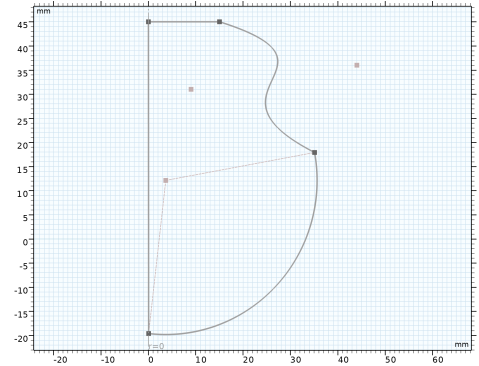
Begin by drawing a rough outline of the bulb. Do not worry about getting it exactly right as you will adjust it later.
The dimensions of the light bulb are larger than the default zoom level in the Graphics window. Adjusting the shape is easier if the original sketch is drawn closer to the final size.
3
Composite Curve 1 (cc1)
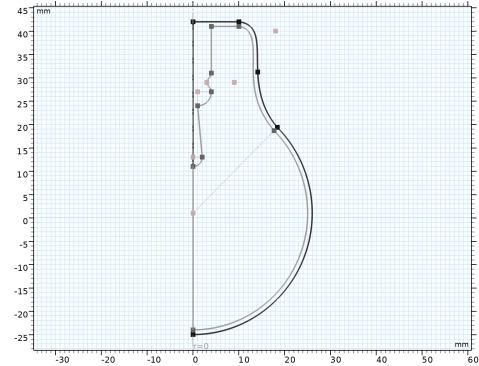
Draw a shape similar to the figure below, starting from the top left corner and continuing clockwise.
Dark gray elements indicate geometrical objects, whereas light gray entities represent control points for higher-order polygons or center points of circular arcs.
1
In the Sketch toolbar, click Polygon, then in the Graphics window place the first vertex by clicking on the centerline close to the top of the canvas.
2
3
4
5
To switch drawing a circular arc, right-click in the Graphics window, and from the context menu choose Circular Arc, then choose Start, Center, Angle.
6
7
8
When done, the Composite Curve 1 node is added to the geometry sequence. This node contains the polygon, cubic Bézier, and circular arc features that you have drawn. Note that the two adjacent straight segments are automatically combined into one feature.
Composite Curve 1 (cc1)
Next, adjust the features inside Composite Curve 1 to obtain the outer shape of the light bulb.
Polygon 1 (pol1)
1
In the Model Builder window, expand the Component 1 (comp1) > Geometry 1 > Composite Curve 1 (cc1) node, then click Polygon 1 (pol1).
2
In the Settings window for Polygon, locate the Coordinates section.
3
When editing the coordinates of the features in a Composite Curve, the adjacent features are automatically updated to keep the start and end points of adjacent edges coincident.
Cubic Bézier 1 (cb1)
1
In the Model Builder window, click Cubic Bézier 1 (cb1).
2
3
Circular Arc 1 (ca1)
1
In the Model Builder window, click Circular Arc 1 (ca1).
2
In the Settings window for Circular Arc, locate the Center section.
3
In the r text field, type 0.
4
In the z text field, type 1.
5
Locate the Radius section. In the Radius text field, type 26.
6
Locate the Angles section. In the Start angle text field, type 45.
7
In the End angle text field, type -90.
8
Click  Build All Objects.
Composite Curve 1 (cc1)
1
In the Model Builder window, click Composite Curve 1 (cc1).
2
In the Settings window for Composite Curve, locate the Selections of Resulting Entities section.
3
Select the Resulting objects selection checkbox.
4
From the Show in physics list, choose Off. With this setting the selection is available only as input for features in the geometry sequence. This way you can keep only the relevant selections in the list of selections when you are defining, for example, physics and mesh features.
Partition Edges 1 (pare1)
1
In the Geometry toolbar, click  Booleans and Partitions and choose Partition Edges.
2
On the object cc1, select Boundary 3 only.
The partitioning operations can be useful in many cases. Here, we are partitioning the selected edge to create segments that reflect that a portion of the upper boundaries of the bulb is covered by a cap.
3
In the Settings window for Partition Edges, click  Build Selected.
Composite Curve 2 (cc2)
Continue with creating the interior boundaries. Draw a rough outline by starting again from the top left corner, then continuing clockwise.
1
In the Model Builder window, expand the Component 1 (comp1) > Geometry 1 > Composite Curve 2 (cc2) node, then click Polygon 1 (pol1).
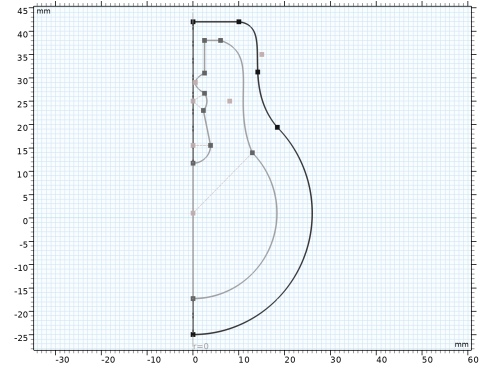
2
In the Sketch toolbar, click  Sketch.
Use the drawing tools in the following order:
3
Right-click in the Graphics window and select Polygon. Start to draw an edge perpendicular to the rotation axis. Its first vertex is located inward from the start vertex of the outer shape.
4
Continue with a Cubic Bézier polygon. Try to follow the outer shape.
5
Add a Circular Arc that ends on the centerline.
6
Draw a Polygon up along the centerline to about halfway up the geometry.
7
Continue with a Circular Arc that curves away from the centerline.
8
Use the Polygon tool to draw an edge that tilts toward the centerline.
9
Draw another Circular Arc that curves away from then back toward the centerline. The start and end vertices can be aligned vertically.
10
Switch to an Interpolation Curve to create a curved segment that first curves toward the centerline then away. Use the Interpolation Points option to define the curve, and add one interpolation point. Try to align the start and end vertices vertically.
11
Continue with editing the features inside Composite Curve 2.
12
In the Settings window for Polygon, locate the Coordinates section.
13
Cubic Bézier 1 (cb1)
1
In the Model Builder window, click Cubic Bézier 1 (cb1).
2
3
4
In the Settings window for Cubic Bézier, locate the Weights section.
5
In the 2 text field, type 3/4.
Circular Arc 1 (ca1)
1
In the Model Builder window, click Circular Arc 1 (ca1).
2
In the Settings window for Circular Arc, locate the Center section.
3
In the r text field, type 0.
4
Locate the Radius section. In the Radius text field, type 25.
5
Locate the Angles section. In the Start angle text field, type 45.
Polygon 2 (pol2)
1
In the Model Builder window, click Polygon 2 (pol2).
2
In the Settings window for Polygon, locate the Coordinates section.
3
Circular Arc 2 (ca2)
1
In the Model Builder window, click Circular Arc 2 (ca2).
2
In the Settings window for Circular Arc, locate the Center section.
3
In the r text field, type 0.
4
In the z text field, type 13.
5
Locate the Radius section. In the Radius text field, type 2.
6
Locate the Angles section. In the Start angle text field, type 270.
Polygon 3 (pol3)
1
In the Model Builder window, click Polygon 3 (pol3).
2
In the Settings window for Polygon, locate the Coordinates section.
3
Circular Arc 3 (ca3)
1
In the Model Builder window, click Circular Arc 3 (ca3).
2
In the Settings window for Circular Arc, locate the Center section.
3
In the r text field, type 1.
4
In the z text field, type 27.
5
Locate the Radius section. In the Radius text field, type 3.
6
Locate the Angles section. In the Start angle text field, type -90.
7
In the End angle text field, type 0.
Interpolation Curve 1 (ic1)
1
In the Model Builder window, click Interpolation Curve 1 (ic1).
2
In the Settings window for Interpolation Curve, locate the Interpolation Points section.
3
The tangent of the curve at the starting point and endpoint follows the z direction.
4
Locate the End Conditions section. From the Condition at starting point list, choose Tangent direction.
5
In the r text field, type 0.
6
In the z text field, type 1.
7
From the Condition at endpoint list, choose Tangent direction.
8
In the r text field, type 0.
9
In the z text field, type 1.
Composite Curve 2 (cc2)
1
In the Model Builder window, click Composite Curve 2 (cc2).
2
In the Settings window for Composite Curve, click  Build Selected.
3
Click the  Zoom Extents button in the Graphics toolbar.
4
Locate the Selections of Resulting Entities section. Select the Resulting objects selection checkbox.
5
From the Show in physics list, choose Off.
Tungsten
Add the next feature from the Geometry toolbar. This allows you to enter the parameters for size and shape directly in the feature.
1
In the Geometry toolbar, click  Circle.
2
In the Settings window for Circle, type Tungsten in the Label text field.
3
Locate the Size and Shape section. In the Radius text field, type 0.5.
4
Locate the Position section. In the r text field, type 10.
5
Locate the Selections of Resulting Entities section. Select the Resulting objects selection checkbox.
6
From the Show in physics list, choose All levels.
7
Click  Build Selected.
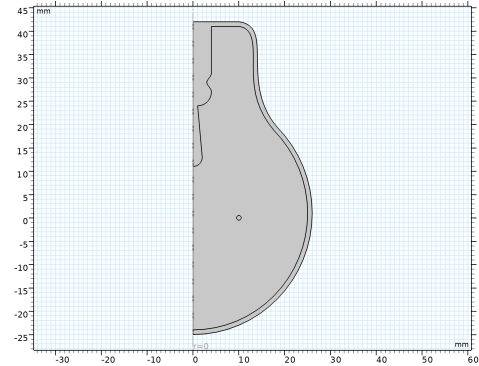
The geometry is finished, but before continuing we can leave Sketch mode, and inspect the geometry using the Selection List window.
8
In the Sketch toolbar, click  Sketch.
Selection List
1
In the Geometry toolbar, click  Selection List to open the Selection List window.
2
Go to the Selection List window.
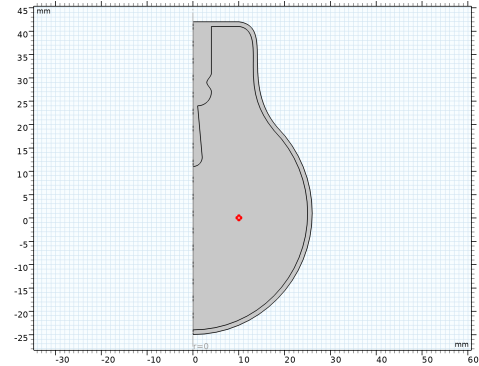
Here you can view a list of geometric objects and entities, and named selections, that exist in the geometry at the current build state for the selected entity level. The list on the top contains objects and entities, and the one at the bottom displays the named selections.
Continue with examining the three objects that comprise the geometry.
3
In the Object selections tree, select Composite Curve 1.
4
In the Object selections tree, select Composite Curve 2.
5
In the Object selections tree, select Tungsten.
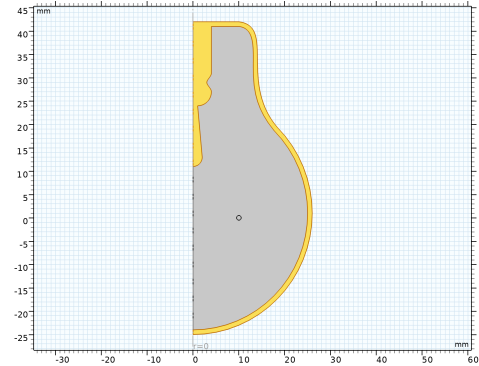
The domains for the glass, and the argon gas, and the tungsten filament result after a geometric Boolean operations of these three objects. Namely, the domain for the glass is the difference of the Composite Curve 1 and Composite Curve 2 objects, and the domain for the argon gas is the difference of the Composite Curve 2 and tungsten objects.
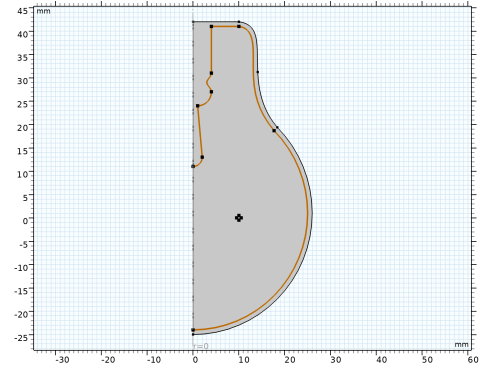
Fortunately, COMSOL Multiphysics automatically computes these domains in the Form Union operation, which is at the end of the geometry sequence, and creates the union of all geometry objects that exist in the sequence while preserving interior boundaries to separate domains.
Geometry 1
Form Union (fin)
1
In the Model Builder window, under Component 1 (comp1) > Geometry 1 click Form Union (fin).
2
In the Settings window for Form Union/Assembly, click  Build Selected.
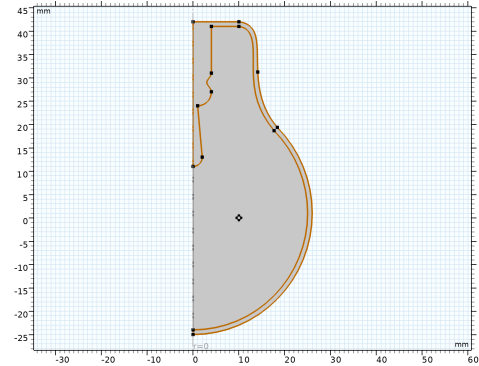
After Form Union, only one object is displayed in the upper list of the Selection List window. This finalized geometry is divided into domains along the boundaries of the initial objects.
3
In the Graphics window toolbar, clicknext to  Select Objects, then choose Select Domains.
4
In the following sections we will set up named selections that you can use when defining the physics settings.
Glass
1
In the Geometry toolbar, click  Selections and choose Difference Selection.
2
In the Settings window for Difference Selection, type Glass in the Label text field.
3
Locate the Input Entities section. Click the  Add button for Selections to add.
4
In the Add dialog, select Composite Curve 1 in the Selections to add list.
5
6
In the Settings window for Difference Selection, locate the Input Entities section.
7
Click the  Add button for Selections to subtract.
8
In the Add dialog, select Composite Curve 2 in the Selections to subtract list.
9
Now that you have a selection for the glass domain, use an Adjacent Selection feature to obtain its boundaries.
Glass Boundaries
1
In the Geometry toolbar, click  Selections and choose Adjacent Selection.
2
In the Settings window for Adjacent Selection, type Glass Boundaries in the Label text field.
3
Locate the Input Entities section. Click  Add.
4
In the Add dialog, select Glass in the Input selections list.
5
Argon
1
In the Geometry toolbar, click  Selections and choose Difference Selection.
2
In the Settings window for Difference Selection, type Argon in the Label text field.
3
Locate the Input Entities section. Click the  Add button for Selections to add.
4
In the Add dialog, select Composite Curve 2 in the Selections to add list.
5
6
In the Settings window for Difference Selection, locate the Input Entities section.
7
Click the  Add button for Selections to subtract.
8
In the Add dialog, select Tungsten in the Selections to subtract list.
9
Interior Radiation
1
In the Geometry toolbar, click  Selections and choose Difference Selection.
Combine previously defined selections to get the boundaries for the interior radiation.
2
In the Settings window for Difference Selection, type Interior Radiation in the Label text field.
3
Locate the Geometric Entity Level section. From the Level list, choose Boundary.
4
Locate the Input Entities section. Click the  Add button for Selections to add.
5
In the Add dialog, in the Selections to add list, choose Tungsten and Glass Boundaries.
6
7
In the Settings window for Difference Selection, locate the Input Entities section.
8
Click the  Add button for Selections to subtract.
9
In the Add dialog, select Composite Curve 1 in the Selections to subtract list.
10
Exterior Radiation
1
In the Geometry toolbar, click  Selections and choose Explicit Selection.
2
In the Settings window for Explicit Selection, type Exterior Radiation in the Label text field.
3
Locate the Entities to Select section. From the Geometric entity level list, choose Boundary.
4
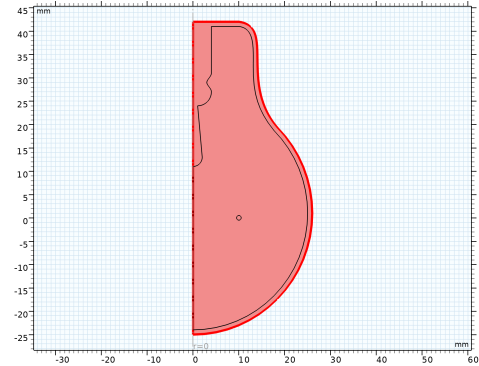
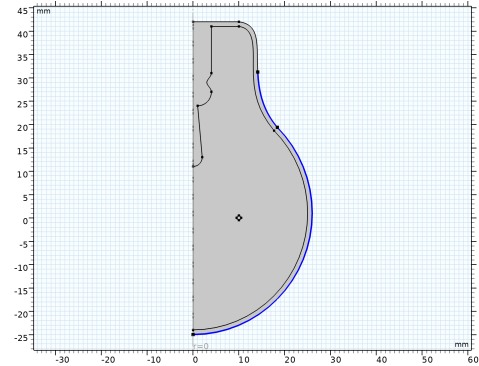
On the object fin, select Boundaries 14 and 15 only.
Radiation
1
In the Geometry toolbar, click  Selections and choose Union Selection.
2
Click in the Graphics window and then press Ctrl+D to clear all objects.
3
In the Settings window for Union Selection, type Radiation in the Label text field.
4
Locate the Geometric Entity Level section. From the Level list, choose Boundary.
5
Locate the Input Entities section. Click  Add.
6
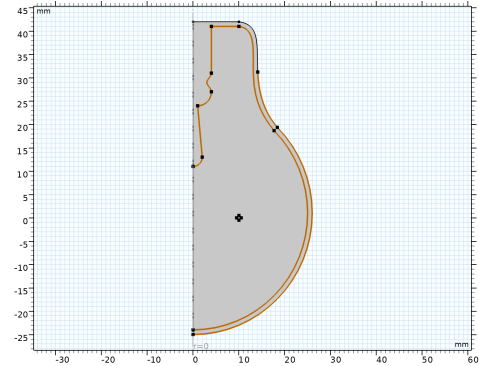
In the Add dialog, in the Selections to add list, choose Interior Radiation and Exterior Radiation.
7
8
In the Settings window for Union Selection, click  Build Selected.