
|
|
|


|
1
|
|
2
|
|
3
|
Click Add.
|
|
4
|
Click
 Study. Study. |
|
5
|
|
6
|
Click
 Done. Done. |
|
1
|
|
2
|
|
3
|
|
4
|
Click
 Browse. Browse. |
|
5
|
Browse to the model’s Application Libraries folder and double-click the file fire_effects_multiple_layers_Tref.txt.
|
|
6
|
Click
 Import. Import. |
|
7
|
|
8
|
|
9
|
|
10
|
In the Argument table, enter the following settings:
|
|
1
|
|
2
|
|
3
|
|
4
|
Click to expand the Layers section. In the table, enter the following settings:
|
|
5
|
Click
 Build All Objects. Build All Objects. |
|
6
|
Select the Layers to the left checkbox.
|
|
7
|
Select the Layers to the right checkbox.
|
|
8
|
Select the Layers on top checkbox.
|
|
9
|
Click
 Build All Objects. Build All Objects. |
|
1
|
In the Model Builder window, under Component 1 (comp1) right-click Materials and choose Blank Material.
|
|
2
|
|
1
|
|
2
|
Right-click Component 1 (comp1) > Materials > Steel (mat1) > Basic (def) and choose Functions > Piecewise.
|
|
3
|
|
4
|
|
5
|
|
6
|
Find the Intervals subsection. In the table, enter the following settings:
|
|
7
|
|
8
|
|
9
|
Click
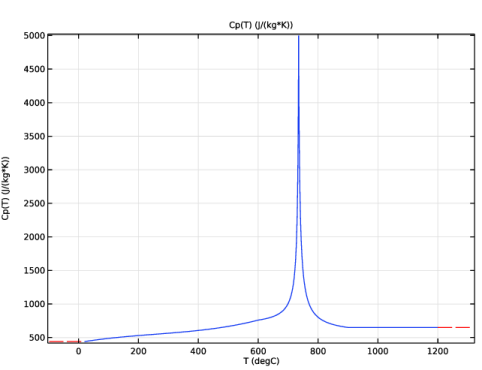
 Plot. Plot. |
|
1
|
|
2
|
|
3
|
|
4
|
|
5
|
Find the Intervals subsection. In the table, enter the following settings:
|
|
6
|
|
7
|
|
1
|
|
2
|
|
1
|
|
3
|
|
4
|
Locate the Material Contents section. In the table, enter the following settings:
|
|
1
|
|
2
|
|
3
|
|
1
|
In the Model Builder window, under Component 1 (comp1) > Heat Transfer in Solids (ht) click Initial Values 1.
|
|
2
|
|
3
|
|
1
|
|
2
|
|
3
|
|
4
|
|
5
|
|
6
|
|
7
|
|
1
|
|
2
|
|
3
|
Click
 Paste Selection. Paste Selection. |
|
4
|
In the Paste Selection dialog, Press Shift+V on your keyboard.
|
|
5
|
Make sure all outer boundaries are in the Boundary Selection list.
|
|
6
|
click OK.
|
|
7
|
In the Settings window for Surface-to-Ambient Radiation, locate the Surface-to-Ambient Radiation section.
|
|
8
|
|
9
|
|
1
|
|
2
|
|
3
|
|
4
|
|
1
|
|
2
|
|
3
|
|
1
|
|
2
|
|
3
|
Click the Custom button.
|
|
4
|
Locate the Element Size Parameters section.
|
|
5
|
|
6
|
Click
 Build All. Build All. |
|
1
|
|
2
|
|
3
|
|
4
|
|
1
|
|
2
|
|
3
|
|
4
|
|
5
|
|
6
|
Click
 Run. Run. |
|
1
|
|
2
|
|
3
|
Click
 Add Physical Quantity. Add Physical Quantity. |
|
4
|
|
5
|
Click OK.
|
|
6
|
|
8
|
Click
 Apply. Apply. |
|
1
|
|
2
|
|
1
|
|
2
|
|
3
|
|
4
|
|
1
|
|
2
|
|
3
|
|
4
|
Locate the Expressions section. In the table, enter the following settings:
|
|
5
|
Click
 Evaluate. Evaluate. |
|
1
|
Go to the Table 1 window.
|
|
2
|
Click the Table Graph button in the window toolbar.
|
|
1
|
|
2
|
Select the Show legends checkbox.
|
|
3
|
|
1
|
|
2
|
|
3
|
|
4
|
Locate the Plot Settings section.
|
|
5
|
|
6
|
|
1
|
|
2
|
|
3
|
|
4
|
|
5
|
|
6
|
Locate the Expressions section. In the table, enter the following settings:
|
|
7
|
Click
 Evaluate. Evaluate. |
|
1
|
|
2
|


 next to