PDF

Action on Structures Exposed to Fire
— Thermal Stress in a Beam
Introduction
This is the 7th verification example from (Ref. 1) which is part of the European Standard EN-1991-1-2:2010-12, Eurocode 1: Actions on structures - Part 1-2: General actions - Actions on structures exposed to fire. It describes the nonlinear mechanical behavior of a beam that is exposed to a temperature gradient.
Model Definition
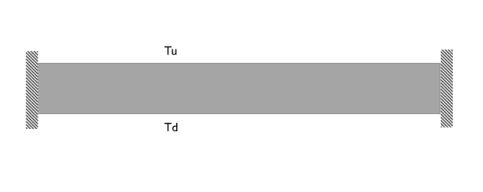
The modeled geometry is a beam with a cross section of 100 mm² and a length of 1 m (Figure 1).
Figure 1: Model setup.
The material properties are given in Ref. 2. The thermal strain function dL depends linearly on the temperature. The stress-strain relationship is a nonlinear function depending on the temperature and strain. Hence, this model is a strongly coupled multiphysics model coupling heat transfer and solid mechanics.
The beam is fixed at the ends. In order to avoid unrealistic stress concentrations when working with a 3D solid model, the beam theory fixed constraint should be interpreted as being constrained in the normal direction, but free to expand in the transverse directions. Rigid body motion is avoided by using relevant prescribed displacements at two points.
In addition the upper and lower surfaces are exposed to different temperatures on upside (Tu) and downside (Td). In the first case Tu = Td = 120°C and in the second case Tu = 20°C, Td = 220°C.
Results and Discussion
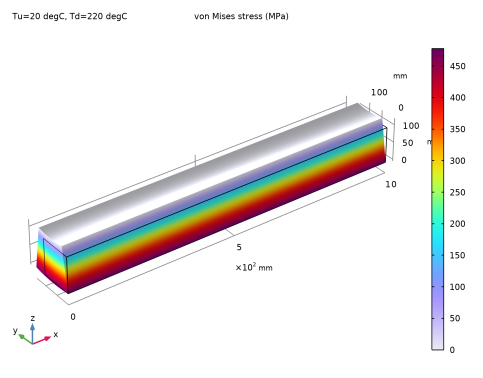
The resulting stress distribution for the second case is shown in Figure 2.
Figure 2: Stress distribution for Tu = 20°C and Td = 220°C.
To validate the results, the third principal stress is compared to the reference values (Table 1). In both cases, the error is below the maximum allowed error of 5%.
Table 1: Results.
Tu=20°C, Td=220°C
References
1. DIN EN 1991-1-2/NA, National Annex - Nationally determined parameters - Eurocode 1: Actions on structures - Part 1-2: General actions - Actions on structures exposed to fire.
2. DIN EN 1993-1-2 Eurocode 3: Design of steel structures - Part 1-2: General rules - Structural fire design; German version EN 1993-1-2:2005 + AC:2009.
Application Library path: Heat_Transfer_Module/Verification_Examples/fire_effects_beam
Modeling Instructions
From the File menu, choose New.
New
In the New window, click  Model Wizard.
Model Wizard
1
In the Model Wizard window, click  3D.
2
In the Select Physics tree, select Structural Mechanics > Thermal–Structure Interaction > Thermal Stress, Solid.
3
Click Add.
4
Click  Study.
5
In the Select Study tree, select General Studies > Stationary.
6
Global Definitions
Parameters 1
Define parameters for the temperatures on the up- and downside of the beam.
1
In the Model Builder window, under Global Definitions click Parameters 1.
2
In the Settings window for Parameters, locate the Parameters section.
3
Geometry 1
1
In the Model Builder window, under Component 1 (comp1) click Geometry 1.
2
In the Settings window for Geometry, locate the Units section.
3
From the Length unit list, choose mm.
Block 1 (blk1)
1
In the Geometry toolbar, click  Block.
2
In the Settings window for Block, locate the Size and Shape section.
3
In the Width text field, type 1000.
4
In the Depth text field, type 100.
5
In the Height text field, type 100.
6
Click  Build All Objects.
Materials
Add a new material for steel. You will define the material properties later, after the physics is set up.
Steel
1
In the Model Builder window, under Component 1 (comp1) right-click Materials and choose Blank Material.
2
In the Settings window for Material, type Steel in the Label text field.
Solid Mechanics (solid)
Nonlinear Elastic Material 1
1
In the Physics toolbar, click  Domains and choose Nonlinear Elastic Material.
2
3
In the Settings window for Nonlinear Elastic Material, locate the Nonlinear Elastic Material section.
4
From the Material model list, choose Uniaxial data.
Roller 1
1
In the Physics toolbar, click  Boundaries and choose Roller.
2
Fixed Constraint 1
1
In the Physics toolbar, click  Points and choose Fixed Constraint.
2
Prescribed Displacement 1
1
In the Physics toolbar, click  Points and choose Prescribed Displacement.
2
3
In the Settings window for Prescribed Displacement, locate the Prescribed Displacement section.
4
From the Displacement in z direction list, choose Prescribed.
Heat Transfer in Solids (ht)
Temperature 1
1
In the Physics toolbar, click  Boundaries and choose Temperature.
2
3
In the Settings window for Temperature, locate the Temperature section.
4
In the T0 text field, type Tu.
Temperature 2
1
In the Physics toolbar, click  Boundaries and choose Temperature.
2
3
In the Settings window for Temperature, locate the Temperature section.
4
In the T0 text field, type Td.
Multiphysics
Thermal Expansion 1 (te1)
1
In the Model Builder window, under Component 1 (comp1) > Multiphysics click Thermal Expansion 1 (te1).
2
In the Settings window for Thermal Expansion, locate the Thermal Expansion Properties section.
3
From the Input type list, choose Thermal strain.
Now, define the missing material properties. After the physics is set up, the software notices which material properties are necessary to solve the model.
Materials
Steel (mat1)
1
In the Model Builder window, under Component 1 (comp1) > Materials click Steel (mat1).
2
In the Settings window for Material, locate the Material Contents section.
3
The uniaxial nonlinear elastic data are given in Ref. 2. Here, load the data as interpolation function into the material properties. The function depends on the temperature and the strain.
4
In the Model Builder window, expand the Steel (mat1) node, then click Nonlinear elastic material (NonlinearElasticMaterial).
5
In the Settings window for Nonlinear Elastic Material, locate the Model Inputs section.
6
Click  Select Quantity.
7
In the Physical Quantity dialog, type eax in the text field.
8
In the tree, select Solid Mechanics > Elastic uniaxial strain (1).
9
Interpolation 1 (int1)
1
In the Home toolbar, click  Functions and choose Global > Interpolation.
2
In the Settings window for Interpolation, locate the Definition section.
3
From the Data source list, choose File.
4
Click  Browse.
5
6
Click  Import.
7
Locate the Data Column Settings section. In the table, click to select the cell at row number 1 and column number 1.
8
In the Unit text field, type K.
9
10
In the Unit text field, type 1.
11
12
In the Name text field, type sigma_ax.
13
In the Unit text field, type N/m^2.
Define the functions for k(T), Cp(T), and dL(T) in the next steps.
Piecewise 1 (pw1)
1
In the Home toolbar, click  Functions and choose Global > Piecewise.
2
In the Settings window for Piecewise, type k in the Function name text field.
3
Locate the Definition section. In the Argument text field, type T.
4
Find the Intervals subsection. In the table, enter the following settings:
5
Locate the Units section. In the Arguments text field, type degC.
6
In the Function text field, type W/(m*K).
Piecewise 2 (pw2)
1
In the Home toolbar, click  Functions and choose Global > Piecewise.
2
In the Settings window for Piecewise, type Cp in the Function name text field.
3
Locate the Definition section. In the Argument text field, type T.
4
Find the Intervals subsection. In the table, enter the following settings:
5
Locate the Units section. In the Arguments text field, type degC.
6
In the Function text field, type J/(kg*K).
Piecewise 1 (pw1)
1
In the Home toolbar, click  Functions and choose Global > Piecewise.
2
In the Settings window for Piecewise, type dL in the Function name text field.
3
Locate the Definition section. In the Argument text field, type T.
4
Find the Intervals subsection. In the table, enter the following settings:
5
Locate the Units section. In the Arguments text field, type degC.
Mesh 1
Create a swept mesh.
Mapped 1
1
In the Mesh toolbar, click  More Generators and choose Mapped.
2
Distribution 1
1
Right-click Mapped 1 and choose Distribution.
2
Swept 1
1
In the Mesh toolbar, click  Swept.
2
In the Settings window for Swept, click  Build All.
Study 1
Parametric Sweep
1
In the Study toolbar, click  Parametric Sweep.
2
In the Settings window for Parametric Sweep, locate the Study Settings section.
3
4
5
6
In the Study toolbar, click  Compute.
Results
Volume 1
1
In the Model Builder window, expand the Stress (solid) node, then click Volume 1.
2
In the Settings window for Volume, locate the Expression section.
3
From the Unit list, choose MPa.
4
In the Stress (solid) toolbar, click  Plot.
5
Click the  Zoom Extents button in the Graphics toolbar.
Surface Average 1
1
In the Results toolbar, click  More Derived Values and choose Average > Surface Average.
2
3
In the Settings window for Surface Average, click Replace Expression in the upper-right corner of the Expressions section. From the menu, choose Component 1 (comp1) > Solid Mechanics > Stress > Principal stresses > solid.sp3Gp - Third principal stress - N/m².
4
Locate the Expressions section. In the table, enter the following settings:
5
Click  Evaluate.
Table 1
1
Go to the Table 1 window.
Compare with Table 1.