PDF

Silica Glass Block Coated with a Copper Layer
Introduction
This application demonstrates how to use the Thin Layer feature of the Heat Transfer interface.
Model Definition
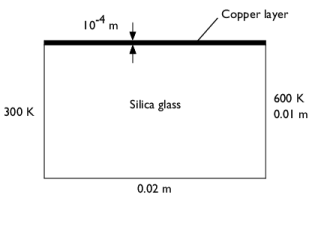
This example constructs a 2D time-dependent model of a silica glass block that is coated with a thin copper layer. Figure 1 shows the model geometry and boundary conditions.
Figure 1: Model geometry for a silica block with a copper layer.
The model sets the initial temperature to 300 K. The following table shows the thermal properties for silica glass and copper:
ρ
Cp
The thermal conductivity of copper is much higher than that for silica glass. Given this fact and that the copper layer is thin, it is possible to model the layer with the Thin Layer feature. Using this feature you do not need to resolve the thin layer with an extremely fine mesh, which would require a significantly longer computation time.
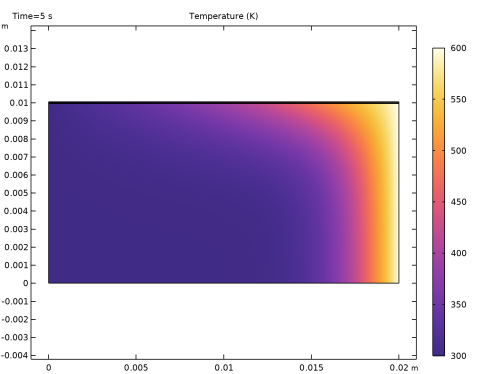
In a second model version, you compare the results using the Thin Layer feature with a setup where the copper layer has been meshed instead. This model produces the same results, but requires a denser mesh and longer computation time.
Results
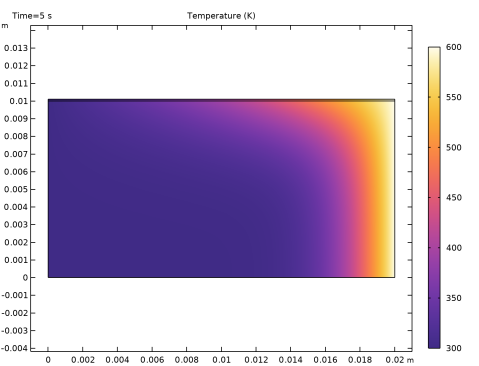
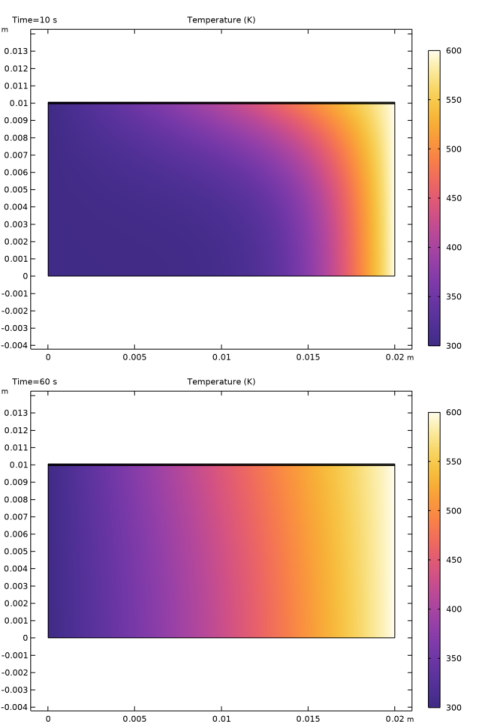
Figure 2 shows the temperature field after 5 s, 10 s, and 60 s. The results show that the temperature rise is faster in the copper layer than in the silica glass. After 60 s the temperature field has almost reached steady state, and the temperature field varies linearly between the two vertical boundaries.
Figure 2: Temperature field after 5, 10, and 60 seconds.
Application Library path: Heat_Transfer_Module/Tutorials,_Thin_Structure/copper_layer
Modeling Instructions — Thin Layer
From the File menu, choose New.
New
In the New window, click  Model Wizard.
Model Wizard
1
In the Model Wizard window, click  2D.
2
In the Select Physics tree, select Heat Transfer > Heat Transfer in Solids (ht).
3
Click Add.
4
Click  Study.
5
In the Select Study tree, select General Studies > Time Dependent.
6
Geometry 1
Rectangle 1 (r1)
1
In the Geometry toolbar, click  Rectangle.
2
In the Settings window for Rectangle, locate the Size and Shape section.
3
In the Width text field, type 0.02[m].
4
In the Height text field, type 0.01[m].
Form Union (fin)
1
In the Geometry toolbar, click  Build All.
2
Click the  Zoom Extents button in the Graphics toolbar.
Add Material
1
In the Materials toolbar, click  Add Material to open the Add Material window.
2
Go to the Add Material window.
3
In the tree, select Built-in > Silica glass.
4
Click the Add to Component button in the window toolbar.
5
In the tree, select Built-in > Copper.
6
Click the Add to Component button in the window toolbar.
7
In the Materials toolbar, click  Add Material to close the Add Material window.
Materials
Copper (mat2)
1
In the Settings window for Material, locate the Geometric Entity Selection section.
2
From the Geometric entity level list, choose Boundary.
3
Heat Transfer in Solids (ht)
Temperature 1
1
In the Physics toolbar, click  Boundaries and choose Temperature.
2
3
In the Settings window for Temperature, locate the Temperature section.
4
In the T0 text field, type 300[K].
Temperature 2
1
In the Physics toolbar, click  Boundaries and choose Temperature.
2
3
In the Settings window for Temperature, locate the Temperature section.
4
In the T0 text field, type 600[K].
Thin Layer 1
1
In the Physics toolbar, click  Boundaries and choose Thin Layer.
2
3
In the Settings window for Thin Layer, locate the Layer Model section.
4
From the Layer type list, choose Thermally thin approximation.
Initial Values 1
1
In the Model Builder window, click Initial Values 1.
2
In the Settings window for Initial Values, locate the Initial Values section.
3
In the T text field, type 300[K].
Materials
Copper (mat2)
1
In the Model Builder window, under Component 1 (comp1) > Materials click Copper (mat2).
2
In the Settings window for Material, locate the Material Contents section.
3
Mesh 1
In the Model Builder window, under Component 1 (comp1) right-click Mesh 1 and choose Build All.
Study 1
Step 1: Time Dependent
1
In the Model Builder window, under Study 1 click Step 1: Time Dependent.
2
In the Settings window for Time Dependent, locate the Study Settings section.
3
Click  Range.
4
In the Range dialog, type 5 in the Step text field.
5
In the Stop text field, type 60.
6
Click Replace.
The default solver is accurate enough to get good results in terms of temperature. Tightening the tolerance improves the results in terms of energy balance, which you can check with the quantity ht.energyBalance.
7
In the Settings window for Time Dependent, locate the Study Settings section.
8
From the Tolerance list, choose User controlled.
9
In the Relative tolerance text field, type 1e-5.
10
In the Study toolbar, click  Compute.
Results
Layered Shell
1
In the Model Builder window, expand the Results > Temperature (ht) node, then click Layered Shell.
2
In the Settings window for Surface, click to expand the Title section.
Temperature (ht)
1
Click the  Zoom Extents button in the Graphics toolbar.
The first default plot shows the temperature at the end of the simulated time interval, that is, at t = 60 s. Compare with the last plot of the series in Figure 2.
Reproduce the corresponding plots for t = 5 s and t = 10 s:
2
In the Model Builder window, click Temperature (ht).
3
In the Settings window for 2D Plot Group, locate the Data section.
4
From the Time (s) list, choose 5.
5
In the Temperature (ht) toolbar, click  Plot.
6
From the Time (s) list, choose 10.
7
In the Temperature (ht) toolbar, click  Plot.
Meshed Copper Layer
Now, set up the second model version.
Add Component
In the Model Builder window, right-click the root node and choose Add Component > 2D.
Add Physics
1
In the Home toolbar, click  Add Physics to open the Add Physics window.
2
Go to the Add Physics window.
3
In the tree, select Heat Transfer > Heat Transfer in Solids (ht).
4
Find the Physics interfaces in study subsection. In the table, clear the Solve checkbox for Study 1.
5
Click the Add to Component 2 button in the window toolbar.
6
In the Home toolbar, click  Add Physics to close the Add Physics window.
Add Study
1
In the Home toolbar, click  Add Study to open the Add Study window.
2
Go to the Add Study window.
3
Find the Studies subsection. In the Select Study tree, select General Studies > Time Dependent.
4
Find the Physics interfaces in study subsection. In the table, clear the Solve checkbox for Heat Transfer in Solids (ht).
5
Click the Add Study button in the window toolbar.
6
In the Home toolbar, click  Add Study to close the Add Study window.
Geometry 2
This geometry adds a domain for the layer.
Rectangle 1 (r1)
1
In the Geometry toolbar, click  Rectangle.
2
In the Settings window for Rectangle, locate the Size and Shape section.
3
In the Width text field, type 0.02[m].
4
In the Height text field, type 0.01[m].
Rectangle 2 (r2)
1
In the Geometry toolbar, click  Rectangle.
2
In the Settings window for Rectangle, locate the Size and Shape section.
3
In the Width text field, type 0.02[m].
4
In the Height text field, type 1e-4[m].
5
Locate the Position section. In the y text field, type 0.01[m].
Form Union (fin)
1
In the Geometry toolbar, click  Build All.
2
Click the  Zoom Extents button in the Graphics toolbar.
Add Material
1
In the Materials toolbar, click  Add Material to open the Add Material window.
2
Go to the Add Material window.
3
In the tree, select Built-in > Silica glass.
4
Click the Add to Component button in the window toolbar.
5
In the tree, select Built-in > Copper.
6
Click the Add to Component button in the window toolbar.
7
In the Materials toolbar, click  Add Material to close the Add Material window.
Materials
Silica glass (mat3)
Select Domain 1 only.
Copper (mat4)
1
In the Model Builder window, click Copper (mat4).
2
Heat Transfer in Solids 2 (ht2)
Temperature 1
1
In the Physics toolbar, click  Boundaries and choose Temperature.
2
3
In the Settings window for Temperature, locate the Temperature section.
4
In the T0 text field, type 300[K].
Temperature 2
1
In the Physics toolbar, click  Boundaries and choose Temperature.
2
3
In the Settings window for Temperature, locate the Temperature section.
4
In the T0 text field, type 600[K].
Initial Values 1
1
In the Model Builder window, click Initial Values 1.
2
In the Settings window for Initial Values, locate the Initial Values section.
3
In the T2 text field, type 300[K].
Mesh 2
In the Model Builder window, under Component 2 (comp2) right-click Mesh 2 and choose Build All.
Study 2
Step 1: Time Dependent
1
In the Model Builder window, under Study 2 click Step 1: Time Dependent.
2
In the Settings window for Time Dependent, locate the Study Settings section.
3
Click  Range.
4
In the Range dialog, type 5 in the Step text field.
5
In the Stop text field, type 60.
6
Click Replace.
Tighten the tolerance to improve the results in terms of energy balance.
7
In the Settings window for Time Dependent, locate the Study Settings section.
8
From the Tolerance list, choose User controlled.
9
In the Relative tolerance text field, type 1e-5.
10
In the Study toolbar, click  Compute.
Results
Look at the solution for t = 5 s.
Temperature (ht2)
1
In the Model Builder window, under Results click Temperature (ht2).
2
In the Settings window for 2D Plot Group, locate the Data section.
3
From the Time (s) list, choose 5.
4
In the Temperature (ht2) toolbar, click  Plot.
5
Click the  Zoom Extents button in the Graphics toolbar.