
PDF

Air-Cooled Battery Energy Storage System
Introduction
This model investigates the thermal behavior of a battery energy storage system (BESS) designed to store electrical energy using batteries for later use. Such systems typically include cooling devices to regulate the temperature of battery modules, ensuring optimal battery performance. Analyzing the cooling system involves solving a conjugate heat transfer problem, which accounts for turbulent forced convection within the BESS.
Model Definition
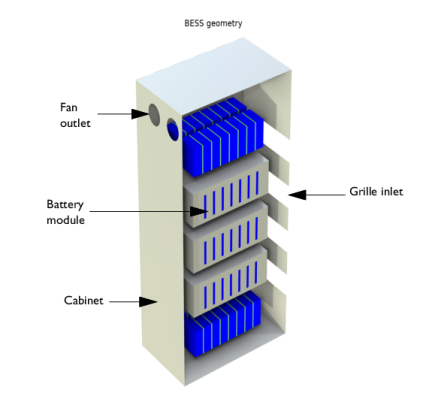
In this example, the BESS model consists of the cabinet containing ten battery modules, each of which comprises sixteen battery units. Four extracting fans generate airflow within the cabinet to cool internal battery modules with the fresh air supplied through four wired gauzes, or grilles at ambient temperature. Additionally, every battery module has its own extracting fan, which enhances forced convection inside the module enclosure. Air enters each module enclosure through a perforated plate and side openings. The battery units act as heat sources, each generating 12 W of heat power. Symmetry reduces the modeling geometry of the BESS to half its size, as shown in Figure 1.
Figure 1: The modeling geometry of the BESS is reduced to half its size due to symmetry.
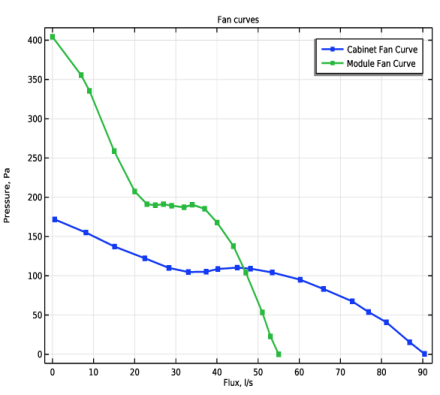
The air extracted by a fan is influenced by the static pressure, which is the pressure difference between each side of the fan. This information is typically provided by fan manufacturers as a curve representing the volume flow rate as a function of static pressure. Figure 2 shows such curves used for the cabinet and module fans.
Figure 2: Static pressure curves of the cabinet and module fans.
The ambient air temperature is 20°C. The inlet wired gauze solidity is 0.5, and the wire diameter is 1 mm. The solidity of the module perforated plate is 0.36, and its refraction coefficient is 1. The cabinet and modules enclosures are made of aluminum with the wall thickness of 2 mm. The solid blocks separating the battery units in the modules are made of acrylic plastic. Table 1 summarizes the effective thermal properties of the battery units used in this model.
ktl
ρeff
Cp,eff
Modeling Considerations
The flow is simulated using the Algebraic yPlus turbulence model. It is less sensitive to mesh resolution compared to transport-equation models like Spalart–Allmaras or the k-ε model, and does not require the use of wall functions.
The Algebraic yPlus turbulence model is consistent with no-slip boundary condition. To enforce the low-Reynolds-number formulation of the Algebraic yPlus model, the Wall Treatment setting of the Turbulent Flow, Algebraic yPlus (spf) interface is set to Low Re.
To apply no-slip boundary conditions on the interior boundaries representing the module walls, the Interior Wall feature is used.
The inlet air temperature is set to ambient, as the air is assumed to come from outside the cabinet. The inlet boundaries are configured using multiple Grill boundary features, which account for head loss caused by air entering the cabinet enclosure through the wire gauze. The perforated plates at the inlets of the battery modules are simulated using Screen boundary features.
COMSOL Multiphysics provides a dedicated boundary condition for modeling fan behavior. The outlet boundaries are configured using Fan boundary features with provided static pressure curve data. For the module fans located inside the computational domain, the Interior Fan features are used.
Note that Grill, Screen, Fan, and Interior Fan features are not intended for use on disjoint boundaries; therefore, a separate feature is applied to each boundary.
For modeling the heat transfer in cabinet and module walls, it is strongly recommended to use the Thin Layer boundary feature, which is specifically designed for thin geometries and significantly reduces the number of degrees of freedom in the model.
The heat transfer in the battery units is modeled using the tailored Battery Layers feature. It allows to specify the density, heat capacity, and anisotropic thermal conductivity of each unit.
A convective heat flux boundary condition is applied to the top and side surfaces of the cabinet, correlating the inward heat flux, q, with the temperature difference between the wall and the surrounding atmosphere:
Here, h represents the heat transfer coefficient. The Heat Transfer Module includes a library of heat transfer coefficient functions, which can be easily accessed via the Heat Flux boundary feature.
Beside the symmetry plane, all remaining exterior boundaries are thermally insulated walls.
Results and Discussion
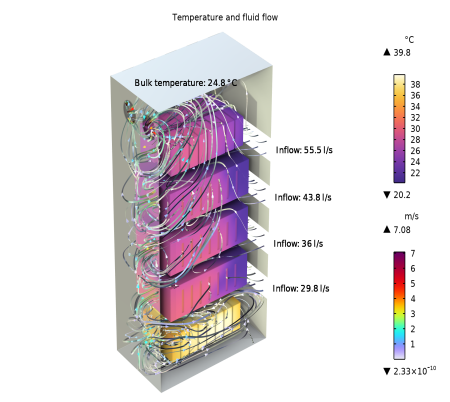
The most interesting aspect of this simulation is to locate which components are subject to overheating. Figure 3 clearly shows that the temperature distribution is not homogeneous.
Figure 3: Temperature and fluid flow inside the BESS cabinet.
The maximum temperature is about 40°C and is located at one of the bottom battery units. The maximum air velocity is about 7 m/s at the suction side of the cabinet fans.
Figure 3 clearly shows that the volumetric flow is unevenly distributed between the cabinet inlets. The top cabinet grille receives more air, while the flow rate decreases further down. The top inlet is closest to the outlet fans, and the flow resistance is lowest over this inlet and through the cabinet.
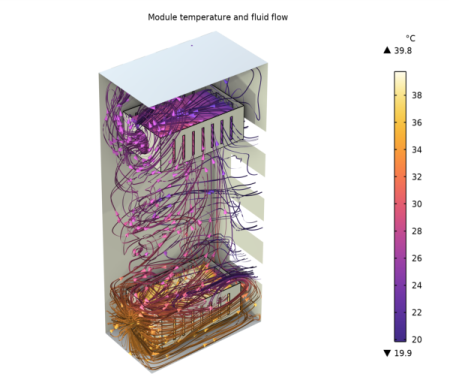
The uneven flow distribution results in the battery modules at the bottom receiving the least cooling, leading to the highest temperatures in this area. Additionally, poor cooling of the bottom module is caused by hot air recirculation inside the cabinet enclosure. The heated air extracted by the bottom module fan is partially sucked back through the module’s side openings, as shown in Figure 4.
Figure 4: Temperature distribution around the top and bottom battery modules.
Notes About the COMSOL Implementation
A value of –1 m/s is specified for the initial value of the u-component of the velocity field. Although this value does not approximate the actual flow field, it provides a good reference for the velocity scale and direction, and improve the convergence.
To save computational time, a one-way coupling approach is used in this model. This approach is applicable when the temperature dependence of the fluid’s physical properties can be neglected. In such cases, the fluid-flow equations can be solved independently.
To set up the one-way coupled nonisothermal flow model, the tailored Stationary, One-Way with Initialization NITF preset study is selected. Note that the one-way coupled approach is only suitable when the temperature differences in the model are not significant, and variations in air density and viscosity are negligible. Otherwise, a fully coupled approach should be used, and gravity effects must be taken into account. For more details, refer to the Heat Transfer Module User’s Guide.
Application Library path: Heat_Transfer_Module/Power_Electronics_and_Electronic_Cooling/air_cooled_bess
Modeling Instructions
From the File menu, choose New.
New
In the New window, click  Model Wizard.
Model Wizard
1
In the Model Wizard window, click  3D.
2
In the Select Physics tree, select Fluid Flow > Nonisothermal Flow > Turbulent Flow > Turbulent Flow, Algebraic yPlus.
3
Click Add.
4
Click  Study.
5
In the Select Study tree, select Preset Studies for Selected Multiphysics > Stationary, One-Way with Initialization NITF.
6
Geometry 1
Note that the Geometry representation must be set to COMSOL kernel to fit with the numbering of the boundaries used in these instructions.
The model geometry is available as a parameterized geometry sequence in a separate MPH-file. If you want to create it from scratch yourself, you can follow the instructions in the Geometry Modeling Instructions. Otherwise, insert the geometry sequence as follows:
1
In the Geometry toolbar, click Insert Sequence and choose Insert Sequence.
2
The application’s Application Library folder is shown in the Application Library path section immediately before the current section. Note that the path given there is relative to the COMSOL Application Library root.
3
In the Geometry toolbar, click  Build All.
Next, load parameter definitions and material properties.
4
In the Model Builder window, collapse the Geometry 1 node.
Definitions
Change the view settings to improve the rendering of 3D plots.
1
In the Model Builder window, expand the Component 1 (comp1) > Definitions node.
View 1
1
In the Model Builder window, expand the Component 1 (comp1) > Definitions > View 1 node, then click View 1.
2
In the Settings window for View, locate the View section.
3
Clear the Show grid checkbox.
4
Clear the Show axis orientation checkbox.
5
Click to expand the Visual Effects section. Select the Ambient occlusion checkbox.
6
Set the Shadow strength value to 0.7.
7
In the Shadow strength text field, type 0.75.
8
Select the Direct shadows checkbox.
9
In the Shadow softness text field, type 0.2.
10
In the Shadow strength text field, type 0.25.
11
From the Quality preset list, choose High quality.
12
Click to expand the Environment section. From the Environment map list, choose Outdoor.
Headlight 4
In the View 1 toolbar, click  Headlight.
Global Definitions
Geometry Parameters
1
In the Model Builder window, under Global Definitions click Parameters 1.
2
In the Settings window for Parameters, type Geometry Parameters in the Label text field.
Model Parameters
1
In the Home toolbar, click  Parameters and choose Add > Parameters.
2
In the Settings window for Parameters, type Model Parameters in the Label text field.
3
Locate the Parameters section. Click  Load from File.
4
Definitions
Add a node for the ambient properties in the model. The default temperature value is 293.15 K. It is possible to edit the ambient temperature value or to define it using the meteorological data, which gives access to climate data from more than 8600 stations in the world.
Ambient Properties 1 (ampr1)
1
In the Physics toolbar, click  Shared Properties and choose Ambient Properties.
2
In the Settings window for Ambient Properties, locate the Ambient Conditions section.
3
In the Tamb text field, type T_amb.
Materials
Next, add materials.
Add Material
1
In the Materials toolbar, click  Add Material to open the Add Material window.
2
Go to the Add Material window.
3
In the tree, select Built-in > Air.
4
Click the Add to Component button in the window toolbar.
Materials
Air (mat1)
1
In the Settings window for Material, locate the Geometric Entity Selection section.
2
From the Selection list, choose Air.
Add Material
1
Go to the Add Material window.
2
In the tree, select Built-in > Acrylic plastic.
3
Click the Add to Component button in the window toolbar.
Materials
Acrylic plastic (mat2)
1
In the Settings window for Material, locate the Geometric Entity Selection section.
2
From the Selection list, choose Gaps.
Add Material
1
Go to the Add Material window.
2
In the tree, select Built-in > Aluminum.
3
Click the Add to Component button in the window toolbar.
4
In the Materials toolbar, click  Add Material to close the Add Material window.
Materials
Aluminum (mat3)
1
Click the  Wireframe Rendering button in the Graphics toolbar to see the interior walls selection in the next steps.
2
In the Settings window for Material, locate the Geometric Entity Selection section.
3
From the Geometric entity level list, choose Boundary.
4
From the Selection list, choose All Aluminum Walls.
Turbulent Flow, Algebraic yPlus (spf)
Now set up the fluid flow simulation. Start by specifying a selection for the fluid domain and setting up the model parameters.
1
In the Model Builder window, under Component 1 (comp1) click Turbulent Flow, Algebraic yPlus (spf).
2
In the Settings window for Turbulent Flow, Algebraic yPlus, locate the Domain Selection section.
3
From the Selection list, choose Air.
4
Locate the Turbulence section. From the Wall treatment list, choose Low Re.
Initial Values 1
1
In the Model Builder window, under Component 1 (comp1) > Turbulent Flow, Algebraic yPlus (spf) click Initial Values 1.
2
In the Settings window for Initial Values, locate the Initial Values section.
3
Specify the u vector as
Interior Wall 1
1
In the Physics toolbar, click  Boundaries and choose Interior Wall.
2
In the Settings window for Interior Wall, locate the Boundary Selection section.
3
From the Selection list, choose Module Walls.
Symmetry 1
1
In the Physics toolbar, click  Boundaries and choose Symmetry.
2
In the Settings window for Symmetry, locate the Boundary Selection section.
3
From the Selection list, choose Symmetry.
Fan 1
1
In the Physics toolbar, click  Boundaries and choose Fan.
2
3
In the Settings window for Fan, locate the Flow Direction section.
4
From the Flow direction list, choose Outlet.
5
Locate the Parameters section. From the Flow condition list, choose Static pressure curve, data.
6
Locate the Static Pressure Curve Data section. Click  Load from File.
7
8
Locate the Units section. From the Flux list, choose dm^3/s.
Fan 2
1
Right-click Fan 1 and choose Duplicate.
2
In the Settings window for Fan, locate the Boundary Selection section.
3
Click  Clear Selection.
4
Fan 1, Fan 2
1
In the Model Builder window, under Component 1 (comp1) > Turbulent Flow, Algebraic yPlus (spf), Ctrl-click to select Fan 1 and Fan 2.
2
Cabinet Fans
In the Settings window for Group, type Cabinet Fans in the Label text field.
Grille 1
1
In the Physics toolbar, click  Boundaries and choose Grille.
2
3
In the Settings window for Grille, locate the Parameters section.
4
From the Flow condition list, choose Grille type.
Grille 2
1
Right-click Grille 1 and choose Duplicate.
2
In the Settings window for Grille, locate the Boundary Selection section.
3
Click  Clear Selection.
4
Grille 3
1
Right-click Grille 2 and choose Duplicate.
2
In the Settings window for Grille, locate the Boundary Selection section.
3
Click  Clear Selection.
4
Grille 4
1
Right-click Grille 3 and choose Duplicate.
2
In the Settings window for Grille, locate the Boundary Selection section.
3
Click  Clear Selection.
4
Grille 1, Grille 2, Grille 3, Grille 4
1
In the Model Builder window, under Component 1 (comp1) > Turbulent Flow, Algebraic yPlus (spf), Ctrl-click to select Grille 1, Grille 2, Grille 3, and Grille 4.
2
Cabinet Grilles
In the Settings window for Group, type Cabinet Grilles in the Label text field.
Interior Fan 1
1
In the Physics toolbar, click  Boundaries and choose Interior Fan.
2
3
In the Settings window for Interior Fan, locate the Parameters section.
4
From the Flow condition list, choose Static pressure curve, data.
5
Locate the Static Pressure Curve Data section. Click  Load from File.
6
7
Locate the Units section. From the Flux list, choose dm^3/s.
Interior Fan 2
1
Right-click Interior Fan 1 and choose Duplicate.
2
In the Settings window for Interior Fan, locate the Boundary Selection section.
3
Click  Clear Selection.
4
Interior Fan 3
1
Right-click Interior Fan 2 and choose Duplicate.
2
In the Settings window for Interior Fan, locate the Boundary Selection section.
3
Click  Clear Selection.
4
Interior Fan 4
1
Right-click Interior Fan 3 and choose Duplicate.
2
In the Settings window for Interior Fan, locate the Boundary Selection section.
3
Click  Clear Selection.
4
Interior Fan 5
1
Right-click Interior Fan 4 and choose Duplicate.
2
In the Settings window for Interior Fan, locate the Boundary Selection section.
3
Click  Clear Selection.
4
Interior Fan 1, Interior Fan 2, Interior Fan 3, Interior Fan 4, Interior Fan 5
1
In the Model Builder window, under Component 1 (comp1) > Turbulent Flow, Algebraic yPlus (spf), Ctrl-click to select Interior Fan 1, Interior Fan 2, Interior Fan 3, Interior Fan 4, and Interior Fan 5.
2
Module Fans
In the Settings window for Group, type Module Fans in the Label text field.
Screen 1
1
In the Physics toolbar, click  Boundaries and choose Screen.
2
3
In the Settings window for Screen, locate the Screen Type section.
4
From the Screen type list, choose Perforated plate.
5
Locate the Parameters section. In the σs text field, type sigma.
6
From the Refraction list, choose User defined. In the η text field, type 1.
Screen 2
1
Right-click Screen 1 and choose Duplicate.
2
In the Settings window for Screen, locate the Boundary Selection section.
3
Click  Clear Selection.
4
Screen 3
1
Right-click Screen 2 and choose Duplicate.
2
In the Settings window for Screen, locate the Boundary Selection section.
3
Click  Clear Selection.
4
Screen 4
1
Right-click Screen 3 and choose Duplicate.
2
In the Settings window for Screen, locate the Boundary Selection section.
3
Click  Clear Selection.
4
Screen 5
1
Right-click Screen 4 and choose Duplicate.
2
In the Settings window for Screen, locate the Boundary Selection section.
3
Click  Clear Selection.
4
Screen 1, Screen 2, Screen 3, Screen 4, Screen 5
1
In the Model Builder window, under Component 1 (comp1) > Turbulent Flow, Algebraic yPlus (spf), Ctrl-click to select Screen 1, Screen 2, Screen 3, Screen 4, and Screen 5.
2
Module Screens
In the Settings window for Group, type Module Screens in the Label text field.
Turbulent Flow, Algebraic yPlus (spf)
In the Model Builder window, collapse the Component 1 (comp1) > Turbulent Flow, Algebraic yPlus (spf) node.
Heat Transfer in Fluids (ht)
Initial Values 1
1
In the Model Builder window, under Component 1 (comp1) > Heat Transfer in Fluids (ht) click Initial Values 1.
2
In the Settings window for Initial Values, locate the Initial Values section.
3
From the T list, choose Ambient temperature (ampr1).
Solid 1
1
In the Physics toolbar, click  Domains and choose Solid.
2
In the Settings window for Solid, locate the Domain Selection section.
3
From the Selection list, choose Gaps.
Now define thermal properties of the battery units.
Battery Layers 1
1
In the Physics toolbar, click  Domains and choose Battery Layers.
2
In the Settings window for Battery Layers, locate the Domain Selection section.
3
From the Selection list, choose Cells.
4
Locate the Battery Layers section. In the ktl text field, type k_tl.
5
In the kil text field, type k_il.
6
In the ρeff text field, type rho_eff.
7
In the Cp,eff text field, type Cp_eff.
Next, use the Q0 parameter to define the heat source in the battery units.
Heat Source 1
1
In the Physics toolbar, click  Domains and choose Heat Source.
2
In the Settings window for Heat Source, locate the Domain Selection section.
3
From the Selection list, choose Cells.
4
Locate the Heat Source section. In the Q0 text field, type Q0.
Inflow 1
1
In the Physics toolbar, click  Boundaries and choose Inflow.
2
In the Settings window for Inflow, locate the Boundary Selection section.
3
From the Selection list, choose Cabinet Grills (Work Plane 3).
4
Locate the Upstream Properties section. From the Tustr list, choose Ambient temperature (ampr1).
The ambient temperature is defined in the Ambient Properties node under Shared Properties.
Outflow 1
1
In the Physics toolbar, click  Boundaries and choose Outflow.
2
In the Settings window for Outflow, locate the Boundary Selection section.
3
From the Selection list, choose Cabinet Fans (Work Plane 3).
Heat Flux 1
1
In the Physics toolbar, click  Boundaries and choose Heat Flux.
2
In the Settings window for Heat Flux, locate the Boundary Selection section.
3
From the Selection list, choose Cabinet Side Walls.
4
Locate the Heat Flux section. From the Flux type list, choose Convective heat flux.
5
From the Heat transfer coefficient list, choose External natural convection.
6
In the L text field, type H_cabinet.
7
From the pA list, choose Ambient absolute pressure (ampr1).
8
From the Text list, choose Ambient temperature (ampr1).
Heat Flux 2
1
In the Physics toolbar, click  Boundaries and choose Heat Flux.
2
In the Settings window for Heat Flux, locate the Boundary Selection section.
3
From the Selection list, choose Cabinet Top.
4
Locate the Heat Flux section. From the Flux type list, choose Convective heat flux.
5
From the Heat transfer coefficient list, choose External natural convection.
6
From the list, choose Horizontal plate, upside.
7
In the L text field, type L_cabinet*W_cabinet/(2*(L_cabinet+W_cabinet)).
8
From the pA list, choose Ambient absolute pressure (ampr1).
9
From the Text list, choose Ambient temperature (ampr1).
Symmetry 1
1
In the Physics toolbar, click  Boundaries and choose Symmetry.
2
In the Settings window for Symmetry, locate the Boundary Selection section.
3
From the Selection list, choose Symmetry.
Thin Layer 1
1
In the Physics toolbar, click  Boundaries and choose Thin Layer.
2
In the Settings window for Thin Layer, locate the Boundary Selection section.
3
From the Selection list, choose All Aluminum Walls.
4
Locate the Layer Model section. From the Layer type list, choose General.
Initial Values 1a
1
In the Model Builder window, click Initial Values 1a.
2
In the Settings window for Initial Values, locate the Initial Values section.
3
From the T list, choose Ambient temperature (ampr1).
Materials
Aluminum (mat3)
1
In the Model Builder window, under Component 1 (comp1) > Materials click Aluminum (mat3).
2
In the Settings window for Material, locate the Material Contents section.
3
Now create the mesh. Use manual settings to create a proper mesh for this model.
Mesh 1
Free Tetrahedral 1
1
In the Mesh toolbar, click  Free Tetrahedral.
2
In the Settings window for Free Tetrahedral, locate the Domain Selection section.
3
From the Geometric entity level list, choose Domain.
4
From the Selection list, choose Battery Module.
Size 1
1
Right-click Free Tetrahedral 1 and choose Size.
2
In the Settings window for Size, locate the Element Size section.
3
From the Calibrate for list, choose Fluid dynamics.
Size 2
1
In the Model Builder window, right-click Free Tetrahedral 1 and choose Size.
2
In the Settings window for Size, locate the Geometric Entity Selection section.
3
From the Geometric entity level list, choose Boundary.
4
From the Selection list, choose Module Fan (Work Plane 1).
5
Locate the Element Size section. From the Calibrate for list, choose Fluid dynamics.
6
From the Predefined list, choose Finer.
Free Tetrahedral 2
In the Mesh toolbar, click  Free Tetrahedral.
Size 1
1
Right-click Free Tetrahedral 2 and choose Size.
2
In the Settings window for Size, locate the Geometric Entity Selection section.
3
From the Geometric entity level list, choose Boundary.
4
From the Selection list, choose Cabinet Selection.
5
Locate the Element Size section. From the Calibrate for list, choose Fluid dynamics.
6
From the Predefined list, choose Fine.
Size 2
1
In the Model Builder window, right-click Free Tetrahedral 2 and choose Size.
2
In the Settings window for Size, locate the Geometric Entity Selection section.
3
From the Geometric entity level list, choose Boundary.
4
From the Selection list, choose Cabinet Fans (Work Plane 3).
5
Locate the Element Size section. From the Calibrate for list, choose Fluid dynamics.
6
From the Predefined list, choose Extra fine.
Boundary Layers 1
1
In the Mesh toolbar, click  Boundary Layers.
2
In the Settings window for Boundary Layers, locate the Geometric Entity Selection section.
3
From the Geometric entity level list, choose Domain.
4
From the Selection list, choose Air.
5
Click to expand the Corner Settings section. From the Handling of sharp edges list, choose Trimming.
Boundary Layer Properties
1
In the Model Builder window, click Boundary Layer Properties.
2
In the Settings window for Boundary Layer Properties, locate the Boundary Selection section.
3
From the Selection list, choose All Walls.
4
Locate the Layers section. In the Number of layers text field, type 3.
5
In the Thickness adjustment factor text field, type 0.05.
6
Click  Build All.
Study 1
1
In the Model Builder window, click Study 1.
2
In the Settings window for Study, locate the Study Settings section.
3
Clear the Generate default plots checkbox.
4
In the Study toolbar, click  Compute.
Results
Preferred Units 1
1
In the Model Builder window, expand the Results node.
2
Right-click Results and choose Preferred Units.
3
In the Settings window for Preferred Units, locate the Units section.
4
Click  Add Physical Quantity.
5
In the Physical Quantity dialog, type temperature in the text field.
6
In the tree, select General > Temperature (K).
7
8
In the Settings window for Preferred Units, locate the Units section.
9
Layered Material 1
1
In the Model Builder window, expand the Results > Datasets node.
2
Right-click Results > Datasets and choose More Datasets > Layered Material.
Selection
1
In the Results toolbar, click  Attributes and choose Selection.
2
In the Settings window for Selection, locate the Geometric Entity Selection section.
3
From the Geometric entity level list, choose Boundary.
4
From the Selection list, choose Middle Modules.
Cut Plane 1
1
In the Results toolbar, click  Cut Plane.
2
In the Settings window for Cut Plane, locate the Plane Data section.
3
From the Plane list, choose xy-planes.
4
In the z-coordinate text field, type Gap_bottom_modules+H_module/2.
Cabinet Fan Curve
1
In the Results toolbar, click  Table.
2
In the Settings window for Table, type Cabinet Fan Curve in the Label text field.
3
Locate the Data section. Click  Import.
4
5
Locate the Column Headers section. In the table, enter the following settings:
Module Fan Curve
1
In the Results toolbar, click  Table.
2
In the Settings window for Table, type Module Fan Curve in the Label text field.
3
Locate the Data section. Click  Import.
4
5
Locate the Column Headers section. In the table, enter the following settings:
Fan Curves
1
In the Results toolbar, click  1D Plot Group.
2
In the Settings window for 1D Plot Group, type Fan Curves in the Label text field.
3
Click to expand the Title section. From the Title type list, choose Manual.
4
In the Title text area, type Fan curves.
Cabinet Fan Curve
1
Right-click Fan Curves and choose Table Graph.
2
In the Settings window for Table Graph, type Cabinet Fan Curve in the Label text field.
3
Locate the Coloring and Style section. From the Width list, choose 2.
4
Find the Line markers subsection. From the Marker list, choose Point.
5
Click to expand the Legends section. Find the Include subsection. Select the Label checkbox.
6
Clear the Headers checkbox.
7
Select the Show legends checkbox.
Module Fan Curve
1
Right-click Cabinet Fan Curve and choose Duplicate.
2
In the Settings window for Table Graph, type Module Fan Curve in the Label text field.
3
Locate the Data section. From the Table list, choose Module Fan Curve.
4
In the Fan Curves toolbar, click  Plot.
BESS Geometry
1
In the Results toolbar, click  3D Plot Group.
2
In the Settings window for 3D Plot Group, type BESS Geometry in the Label text field.
3
Click to expand the Title section. From the Title type list, choose Manual.
4
In the Title text area, type BESS geometry.
5
Locate the Plot Settings section. Clear the Plot dataset edges checkbox.
Surface 1
1
Right-click BESS Geometry and choose Surface.
2
In the Settings window for Surface, locate the Expression section.
3
In the Expression text field, type 1.
Material Appearance 1
1
Right-click Surface 1 and choose Material Appearance.
2
In the Settings window for Material Appearance, locate the Appearance section.
3
From the Material list, choose Aluminum (mat3).
Selection 1
1
In the Model Builder window, right-click Surface 1 and choose Selection.
2
In the Settings window for Selection, locate the Selection section.
3
From the Selection list, choose Cabinet Walls.
Surface 2
Right-click Surface 1 and choose Duplicate.
Selection 1
1
In the Model Builder window, expand the Surface 2 node, then click Selection 1.
2
In the Settings window for Selection, locate the Selection section.
3
From the Selection list, choose Middle Modules.
Surface 3
1
In the Model Builder window, right-click BESS Geometry and choose Surface.
2
In the Settings window for Surface, locate the Expression section.
3
In the Expression text field, type 1.
Material Appearance 1
1
Right-click Surface 3 and choose Material Appearance.
2
In the Settings window for Material Appearance, locate the Appearance section.
3
From the Material list, choose Acrylic plastic (mat2).
Surface 4
1
In the Model Builder window, right-click BESS Geometry and choose Surface.
2
In the Settings window for Surface, locate the Expression section.
3
In the Expression text field, type 1.
4
Locate the Coloring and Style section. From the Coloring list, choose Uniform.
5
From the Color list, choose Blue.
Selection 1
1
Right-click Surface 4 and choose Selection.
2
In the Settings window for Selection, locate the Selection section.
3
From the Selection list, choose Cells.
4
In the BESS Geometry toolbar, click  Plot.
Results
BESS Geometry
In the Model Builder window, collapse the Results > BESS Geometry node.
Result Templates
1
In the Results toolbar, click  Result Templates to open the Result Templates window.
2
Go to the Result Templates window.
3
In the tree, select Study 1/Solution 1 (sol1) > Turbulent Flow, Algebraic yPlus > Wall Resolution (spf).
4
Click the Add Result Template button in the window toolbar.
5
In the Results toolbar, click  Result Templates to close the Result Templates window.
Results
Wall Resolution (spf)
1
In the Settings window for 3D Plot Group, locate the Title section.
2
From the Title type list, choose Manual.
3
In the Title text area, type Wall resolution in viscous units.
4
Locate the Plot Settings section. Clear the Plot dataset edges checkbox.
5
In the Wall Resolution (spf) toolbar, click  Plot.
Surface 1
1
In the Model Builder window, expand the Wall Resolution (spf) node, then click Surface 1.
2
In the Settings window for Surface, locate the Coloring and Style section.
3
From the Color table list, choose Prism.
Temperature and Fluid Flow
1
In the Results toolbar, click  3D Plot Group.
2
In the Settings window for 3D Plot Group, type Temperature and Fluid Flow in the Label text field.
3
Locate the Title section. From the Title type list, choose Manual.
4
In the Title text area, type Temperature and fluid flow.
5
Locate the Plot Settings section. Clear the Plot dataset edges checkbox.
6
Locate the Color Legend section. Select the Show maximum and minimum values checkbox.
7
Select the Show units checkbox.
8
From the Position list, choose Right double.
Volume 1
1
Right-click Temperature and Fluid Flow and choose Volume.
2
In the Settings window for Volume, locate the Expression section.
3
In the Expression text field, type T.
4
Locate the Coloring and Style section. From the Color table list, choose HeatCameraLight.
Selection 1
1
Right-click Volume 1 and choose Selection.
2
In the Settings window for Selection, locate the Selection section.
3
From the Selection list, choose Cells.
Volume 2
1
In the Model Builder window, right-click Temperature and Fluid Flow and choose Volume.
2
In the Settings window for Volume, locate the Data section.
3
From the Dataset list, choose Layered Material 1.
4
Locate the Expression section. In the Expression text field, type T.
5
Click to expand the Inherit Style section. From the Plot list, choose Volume 1.
Temperature and Fluid Flow
Click the  Zoom Extents button in the Graphics toolbar.
Streamline 1
1
Right-click Temperature and Fluid Flow and choose Streamline.
2
In the Settings window for Streamline, locate the Streamline Positioning section.
3
In the Number text field, type 30.
4
Locate the Selection section. From the Selection list, choose Cabinet Grills (Work Plane 3).
5
Locate the Coloring and Style section. Find the Line style subsection. From the Type list, choose Ribbon.
6
In the Width expression text field, type 1[mm].
7
Select the Width scale factor checkbox. In the associated text field, type 5.
8
Find the Point style subsection. From the Type list, choose Arrow.
9
Select the Scale factor checkbox. In the associated text field, type 0.02.
Color Expression 1
1
Right-click Streamline 1 and choose Color Expression.
2
In the Settings window for Color Expression, locate the Coloring and Style section.
3
From the Color table list, choose Prism.
4
From the Color table transformation list, choose Nonlinear.
5
In the Color calibration parameter text field, type -0.7.
Material Appearance 1
1
In the Model Builder window, right-click Streamline 1 and choose Material Appearance.
2
In the Settings window for Material Appearance, locate the Appearance section.
3
From the Appearance list, choose Custom.
4
From the Material type list, choose Plastic (shiny).
5
Locate the Color section. Select the Use the plot’s color checkbox.
Streamline 2
1
Right-click Streamline 1 and choose Duplicate.
2
In the Settings window for Streamline, locate the Selection section.
3
From the Selection list, choose Module Grill (Work Plane 1).
4
Click to expand the Inherit Style section. From the Plot list, choose Streamline 1.
Surface 1
1
In the Model Builder window, right-click Temperature and Fluid Flow and choose Surface.
2
In the Settings window for Surface, locate the Expression section.
3
In the Expression text field, type 1.
Material Appearance 1
1
Right-click Surface 1 and choose Material Appearance.
2
In the Settings window for Material Appearance, locate the Appearance section.
3
From the Material list, choose Aluminum (mat3).
Selection 1
1
In the Model Builder window, right-click Surface 1 and choose Selection.
2
In the Settings window for Selection, locate the Selection section.
3
From the Selection list, choose Cabinet Frontside Walls.
Surface 2
Right-click Surface 1 and choose Duplicate.
Selection 1
1
In the Model Builder window, expand the Surface 2 node, then click Selection 1.
2
In the Settings window for Selection, locate the Selection section.
3
From the Selection list, choose Cabinet Backside.
Transparency 1
1
In the Model Builder window, right-click Surface 2 and choose Transparency.
2
In the Settings window for Transparency, locate the Transparency section.
3
Find the Transparency subsection. Set the Transparency value to 0.7.
Annotation 1
1
In the Model Builder window, right-click Temperature and Fluid Flow and choose Annotation.
2
In the Settings window for Annotation, locate the Annotation section.
3
In the Text text field, type Bulk temperature: eval(ht.ofl1.Tave,°C,3) °C.
4
Locate the Position section. In the y text field, type W_cabinet/2-W_cabinet/(Ny_cabinet_fans+1).
5
In the z text field, type H_cabinet-0.1*R_fan_cabinet.
6
Locate the Coloring and Style section. Clear the Show point checkbox.
7
From the Anchor point list, choose Lower left.
8
In the Temperature and Fluid Flow toolbar, click  Plot.
Annotation 2
1
Right-click Temperature and Fluid Flow and choose Annotation.
2
In the Settings window for Annotation, locate the Annotation section.
3
In the Text text field, type Inflow: eval(abs(spf.grille4.volumeFlowRate),l/s, 3) l/s.
4
Locate the Position section. In the x text field, type L_cabinet.
5
In the y text field, type 0.
6
In the z text field, type Gap_bottom_modules+H_module+Gap_z_modules/2.
7
Locate the Coloring and Style section. Clear the Show point checkbox.
8
From the Anchor point list, choose Middle left.
9
In the Temperature and Fluid Flow toolbar, click  Plot.
Annotation 3
1
Right-click Annotation 2 and choose Duplicate.
2
In the Settings window for Annotation, locate the Annotation section.
3
In the Text text field, type Inflow: eval(abs(spf.grille3.volumeFlowRate),l/s, 3) l/s.
4
Locate the Position section. In the z text field, type Gap_bottom_modules+2*H_module+1.5*Gap_z_modules.
5
In the Temperature and Fluid Flow toolbar, click  Plot.
Annotation 4
1
Right-click Annotation 3 and choose Duplicate.
2
In the Settings window for Annotation, locate the Annotation section.
3
In the Text text field, type Inflow: eval(abs(spf.grille2.volumeFlowRate),l/s, 3) l/s.
4
Locate the Position section. In the z text field, type Gap_bottom_modules+3*H_module+2.5*Gap_z_modules.
5
In the Temperature and Fluid Flow toolbar, click  Plot.
Annotation 5
1
Right-click Annotation 4 and choose Duplicate.
2
In the Settings window for Annotation, locate the Annotation section.
3
In the Text text field, type Inflow: eval(abs(spf.grille1.volumeFlowRate),l/s, 3) l/s.
4
Locate the Position section. In the z text field, type Gap_bottom_modules+4*H_module+3.5*Gap_z_modules.
5
In the Temperature and Fluid Flow toolbar, click  Plot.
Results
Temperature and Fluid Flow
In the Model Builder window, collapse the Results > Temperature and Fluid Flow node.
Module Temperature and Fluid Flow
1
In the Results toolbar, click  3D Plot Group.
2
In the Settings window for 3D Plot Group, type Module Temperature and Fluid Flow in the Label text field.
3
Locate the Title section. From the Title type list, choose Manual.
4
In the Title text area, type Module temperature and fluid flow.
5
Locate the Plot Settings section. Clear the Plot dataset edges checkbox.
6
Locate the Color Legend section. Select the Show maximum and minimum values checkbox.
7
Select the Show units checkbox.
Volume 1
1
Right-click Module Temperature and Fluid Flow and choose Volume.
2
In the Settings window for Volume, locate the Expression section.
3
In the Expression text field, type T.
4
Locate the Coloring and Style section. From the Color table list, choose HeatCameraLight.
Selection 1
1
Right-click Volume 1 and choose Selection.
2
In the Settings window for Selection, locate the Selection section.
3
From the Selection list, choose Bottom Cells.
Surface 1
1
In the Model Builder window, right-click Module Temperature and Fluid Flow and choose Surface.
2
In the Settings window for Surface, locate the Expression section.
3
In the Expression text field, type 1.
Material Appearance 1
1
Right-click Surface 1 and choose Material Appearance.
2
In the Settings window for Material Appearance, locate the Appearance section.
3
From the Material list, choose Aluminum (mat3).
Selection 1
1
In the Model Builder window, right-click Surface 1 and choose Selection.
2
In the Settings window for Selection, locate the Selection section.
3
From the Selection list, choose Bottom Module.
Surface 2
Right-click Surface 1 and choose Duplicate.
Selection 1
1
In the Model Builder window, expand the Surface 2 node, then click Selection 1.
2
In the Settings window for Selection, locate the Selection section.
3
From the Selection list, choose Cabinet Frontside Walls.
4
In the Module Temperature and Fluid Flow toolbar, click  Plot.
Streamline 1
1
In the Model Builder window, right-click Module Temperature and Fluid Flow and choose Streamline.
2
In the Settings window for Streamline, locate the Streamline Positioning section.
3
In the Number text field, type 40.
4
Locate the Selection section. From the Selection list, choose Bottom Module Openings.
5
Locate the Coloring and Style section. Find the Line style subsection. From the Type list, choose Ribbon.
6
In the Width expression text field, type 1[mm].
7
Select the Width scale factor checkbox. In the associated text field, type 3.
8
Find the Point style subsection. From the Type list, choose Arrow.
9
Select the Scale factor checkbox. In the associated text field, type 0.02.
10
Locate the Inherit Style section. From the Plot list, choose Volume 1.
Color Expression 1
1
Right-click Streamline 1 and choose Color Expression.
2
In the Settings window for Color Expression, locate the Expression section.
3
In the Expression text field, type T.
2D Plot Group 6
In the Home toolbar, click  Add Plot Group and choose 2D Plot Group.
Line 1
1
In the Model Builder window, right-click Module Temperature and Fluid Flow and choose Line.
2
In the Settings window for Line, locate the Expression section.
3
In the Expression text field, type 1.
4
Locate the Coloring and Style section. From the Coloring list, choose Uniform.
5
From the Color list, choose Black.
Selection 1
1
Right-click Line 1 and choose Selection.
2
In the Settings window for Selection, locate the Selection section.
3
From the Geometric entity level list, choose Boundary.
4
From the Selection list, choose Bottom Module.
5
In the Module Temperature and Fluid Flow toolbar, click  Plot.
Volume 2
1
In the Model Builder window, under Results > Module Temperature and Fluid Flow right-click Volume 1 and choose Duplicate.
2
In the Settings window for Volume, click to expand the Inherit Style section.
3
From the Plot list, choose Volume 1.
Selection 1
1
In the Model Builder window, expand the Volume 2 node, then click Selection 1.
2
In the Settings window for Selection, locate the Selection section.
3
From the Selection list, choose Top Cells.
Surface 3
In the Model Builder window, under Results > Module Temperature and Fluid Flow right-click Surface 1 and choose Duplicate.
Selection 1
1
In the Model Builder window, expand the Surface 3 node, then click Selection 1.
2
In the Settings window for Selection, locate the Selection section.
3
From the Selection list, choose Top Module.
Line 2
In the Model Builder window, under Results > Module Temperature and Fluid Flow right-click Line 1 and choose Duplicate.
Selection 1
1
In the Model Builder window, expand the Line 2 node, then click Selection 1.
2
In the Settings window for Selection, locate the Selection section.
3
From the Selection list, choose Top Module.
Streamline 2
1
In the Model Builder window, under Results > Module Temperature and Fluid Flow right-click Streamline 1 and choose Duplicate.
2
In the Model Builder window, click Streamline 2.
3
In the Settings window for Streamline, locate the Selection section.
4
From the Selection list, choose Top Module Openings.
5
In the Module Temperature and Fluid Flow toolbar, click  Plot.
Cross Section of the Bottom Module
1
In the Model Builder window, under Results click 2D Plot Group 6.
2
In the Settings window for 2D Plot Group, type Cross Section of the Bottom Module in the Label text field.
3
Click to expand the Title section. From the Title type list, choose Manual.
4
In the Title text area, type Temperature and velocity field at cross section of the bottom module.
5
Locate the Color Legend section. Select the Show maximum and minimum values checkbox.
6
Select the Show units checkbox.
7
From the Position list, choose Right double.
Surface 1
1
Right-click Cross Section of the Bottom Module and choose Surface.
2
In the Settings window for Surface, locate the Expression section.
3
In the Expression text field, type T.
4
Locate the Coloring and Style section. From the Color table list, choose HeatCameraLight.
Arrow Surface 1
1
Right-click Cross Section of the Bottom Module and choose Arrow Surface.
2
In the Settings window for Arrow Surface, locate the Arrow Positioning section.
3
Find the x grid points subsection. In the Points text field, type 30.
4
Find the y grid points subsection. In the Points text field, type 30.
5
Locate the Coloring and Style section. From the Arrow length list, choose Normalized.
Color Expression 1
1
Right-click Arrow Surface 1 and choose Color Expression.
2
In the Settings window for Color Expression, locate the Coloring and Style section.
3
From the Color table list, choose Prism.
4
From the Color table transformation list, choose Nonlinear.
5
In the Color calibration parameter text field, type -0.7.
6
In the Cross Section of the Bottom Module toolbar, click  Plot.
Geometry Modeling Instructions
Follow these steps to create the geometry for the air cooled BESS model.
From the File menu, choose New.
New
In the New window, click  Blank Model.
Add Component
In the Home toolbar, click  Add Component and choose 3D.
Global Definitions
Parameters 1
1
In the Model Builder window, under Global Definitions click Parameters 1.
2
In the Settings window for Parameters, locate the Parameters section.
3
Click  Load from File.
4
Geometry 1
Block 1 (blk1)
1
In the Geometry toolbar, click  Block.
2
In the Settings window for Block, locate the Size and Shape section.
3
In the Width text field, type L_module.
4
In the Depth text field, type W_module.
5
In the Height text field, type H_module.
6
Click  Build Selected.
Work Plane 1 (wp1)
1
In the Geometry toolbar, click  Work Plane.
2
In the Settings window for Work Plane, locate the Plane Definition section.
3
From the Plane type list, choose Face parallel.
4
On the object blk1, select Boundary 2 only.
5
Locate the Unite Objects section. Clear the Unite objects checkbox.
6
Locate the Selections of Resulting Entities section. Find the Selections from plane geometry subsection. Select the Show in physics checkbox.
Work Plane 1 (wp1) > Plane Geometry
In the Model Builder window, click Plane Geometry.
Module Grill
1
In the Work Plane toolbar, click  Rectangle.
2
In the Settings window for Rectangle, type Module Grill in the Label text field.
3
Locate the Size and Shape section. In the Width text field, type W_screen.
4
In the Height text field, type H_screen.
5
Locate the Position section. From the Base list, choose Center.
6
Locate the Selections of Resulting Entities section. Select the Resulting objects selection checkbox.
7
From the Show in 3D list, choose All levels.
Module Fan
1
In the Work Plane toolbar, click  Circle.
2
In the Settings window for Circle, type Module Fan in the Label text field.
3
Locate the Size and Shape section. In the Radius text field, type R_fan_module.
4
Locate the Selections of Resulting Entities section. Select the Resulting objects selection checkbox.
Geometry 1
Work Plane 1 (wp1)
1
In the Model Builder window, collapse the Component 1 (comp1) > Geometry 1 > Work Plane 1 (wp1) node.
2
In the Model Builder window, click Work Plane 1 (wp1).
3
In the Settings window for Work Plane, click  Build Selected.
Move 1 (mov1)
1
In the Model Builder window, right-click Geometry 1 and choose Transforms > Move.
2
In the Settings window for Move, locate the Input section.
3
From the Input objects list, choose Module Grill (Work Plane 1).
4
Locate the Displacement section. In the x text field, type L_module.
5
Click  Build Selected.
Module Side Openings
1
In the Geometry toolbar, click  Work Plane.
2
In the Settings window for Work Plane, type Module Side Openings in the Label text field.
3
Locate the Plane Definition section. From the Plane type list, choose Face parallel.
4
On the object blk1, select Boundary 3 only.
5
Click to expand the Local Coordinate System section. From the Origin list, choose Vertex projection.
6
On the object blk1, select Point 1 only.
7
In the Rotation text field, type -90.
8
Locate the Selections of Resulting Entities section. Select the Resulting objects selection checkbox.
Module Side Openings (wp2) > Plane Geometry
In the Model Builder window, click Plane Geometry.
Module Side Openings (wp2) > Rectangle 1 (r1)
1
In the Work Plane toolbar, click  Rectangle.
2
In the Settings window for Rectangle, locate the Size and Shape section.
3
In the Width text field, type W_hole.
4
In the Height text field, type H_hole.
5
Locate the Position section. In the xw text field, type (L_module-(L_cell+Gap_x_cells)*(Nx_cells-2)-W_hole)/2.
6
In the yw text field, type Gap_y_hole+W_hole/2.
Module Side Openings (wp2) > Array 1 (arr1)
1
In the Work Plane toolbar, click  Transforms and choose Array.
2
In the Settings window for Array, locate the Input section.
3
From the Input objects list, choose All objects.
4
Locate the Size section. From the Array type list, choose Linear.
5
In the Size text field, type Nx_cells-1.
6
Locate the Displacement section. In the xw text field, type L_cell+Gap_x_cells.
7
Click  Build Selected.
Geometry 1
Module Side Openings (wp2)
1
In the Model Builder window, collapse the Component 1 (comp1) > Geometry 1 > Module Side Openings (wp2) node.
2
In the Model Builder window, click Module Side Openings (wp2).
3
In the Settings window for Work Plane, click  Build Selected.
Copy 1 (copy1)
1
In the Model Builder window, right-click Geometry 1 and choose Transforms > Copy.
2
In the Settings window for Copy, locate the Input section.
3
From the Input objects list, choose Module Side Openings.
4
Clear the Keep input objects checkbox.
5
Locate the Displacement section. In the y text field, type 0 W_module.
6
Click  Build Selected.
Module Housing
1
In the Geometry toolbar, click  Booleans and Partitions and choose Union.
2
In the Settings window for Union, type Module Housing in the Label text field.
3
Locate the Union section. From the Input objects list, choose All objects.
4
Locate the Selections of Resulting Entities section. Select the Resulting objects selection checkbox.
5
Click  Build Selected.
Cells
1
In the Geometry toolbar, click  Block.
2
In the Settings window for Block, type Cells in the Label text field.
3
Locate the Size and Shape section. In the Width text field, type L_cell.
4
In the Depth text field, type W_cell.
5
In the Height text field, type H_cell.
6
Locate the Position section. In the x text field, type (L_module-(L_cell+Gap_x_cells)*Nx_cells+Gap_x_cells)/2.
7
In the y text field, type (W_module-(W_cell+Gap_y_cells)*Ny_cells+Gap_y_cells)/2.
8
Locate the Selections of Resulting Entities section. Select the Resulting objects selection checkbox.
9
From the Show in physics list, choose All levels.
10
Click  Build Selected.
Gaps
1
In the Geometry toolbar, click  Block.
2
In the Settings window for Block, type Gaps in the Label text field.
3
Locate the Size and Shape section. In the Width text field, type Gap_x_cells.
4
In the Depth text field, type W_cell.
5
In the Height text field, type H_cell.
6
Locate the Position section. In the x text field, type (L_module-(L_cell+Gap_x_cells)*Nx_cells+Gap_x_cells)/2+L_cell.
7
In the y text field, type (W_module-(W_cell+Gap_y_cells)*Ny_cells+Gap_y_cells)/2.
8
Locate the Selections of Resulting Entities section. Select the Resulting objects selection checkbox.
9
From the Show in physics list, choose All levels.
10
Click  Build Selected.
Array 1 (arr1)
1
In the Geometry toolbar, click  Transforms and choose Array.
2
In the Settings window for Array, locate the Input section.
3
From the Input objects list, choose Cells.
4
Locate the Size section. In the x size text field, type Nx_cells.
5
In the y size text field, type Ny_cells.
6
Locate the Displacement section. In the x text field, type L_cell+Gap_x_cells.
7
In the y text field, type W_cell+Gap_y_cells.
8
Click  Build Selected.
Array 2 (arr2)
1
Right-click Array 1 (arr1) and choose Duplicate.
2
In the Settings window for Array, locate the Input section.
3
From the Input objects list, choose Gaps.
4
Locate the Size section. In the x size text field, type Nx_cells-1.
5
Click  Build Selected.
Module Walls
1
In the Geometry toolbar, click  Selections and choose Difference Selection.
2
In the Settings window for Difference Selection, type Module Walls in the Label text field.
3
Locate the Geometric Entity Level section. From the Level list, choose Boundary.
4
Locate the Input Entities section. Click the  Add button for Selections to add.
5
In the Add dialog, in the Selections to add list, choose Module Housing, Cells, and Gaps.
6
7
In the Settings window for Difference Selection, locate the Input Entities section.
8
Click the  Add button for Selections to subtract.
9
In the Add dialog, in the Selections to subtract list, choose Module Grill (Work Plane 1), Module Fan (Work Plane 1), and Module Side Openings.
10
Module Aluminum Walls
1
In the Geometry toolbar, click  Selections and choose Difference Selection.
2
In the Settings window for Difference Selection, type Module Aluminum Walls in the Label text field.
3
Locate the Geometric Entity Level section. From the Level list, choose Boundary.
4
Locate the Input Entities section. Click the  Add button for Selections to add.
5
In the Add dialog, select Module Walls in the Selections to add list.
6
7
In the Settings window for Difference Selection, locate the Input Entities section.
8
Click the  Add button for Selections to subtract.
9
In the Add dialog, in the Selections to subtract list, choose Cells and Gaps.
10
11
In the Settings window for Difference Selection, click  Build Selected.
Battery Module
1
In the Geometry toolbar, click  Selections and choose Union Selection.
2
In the Settings window for Union Selection, type Battery Module in the Label text field.
3
Locate the Geometric Entity Level section. From the Level list, choose Object.
4
Locate the Input Entities section. Click  Add.
5
In the Add dialog, in the Selections to add list, choose Module Housing, Cells, and Gaps.
6
7
In the Settings window for Union Selection, click  Build Selected.
Array 1 (arr1), Array 2 (arr2), Battery Module (unisel1), Block 1 (blk1), Cells (blk2), Copy 1 (copy1), Gaps (blk3), Module Aluminum Walls (difsel2), Module Housing (uni1), Module Side Openings (wp2), Module Walls (difsel1), Move 1 (mov1), Work Plane 1 (wp1)
1
In the Model Builder window, under Component 1 (comp1) > Geometry 1, Ctrl-click to select Block 1 (blk1), Work Plane 1 (wp1), Move 1 (mov1), Module Side Openings (wp2), Copy 1 (copy1), Module Housing (uni1), Cells (blk2), Gaps (blk3), Array 1 (arr1), Array 2 (arr2), Module Walls (difsel1), Module Aluminum Walls (difsel2), and Battery Module (unisel1).
2
Battery Module
1
In the Settings window for Group, type Battery Module in the Label text field.
2
Click  Build Selected.
3
In the Model Builder window, collapse the Battery Module node.
Move 2 (mov2)
1
In the Geometry toolbar, click  Transforms and choose Move.
2
In the Settings window for Move, locate the Input section.
3
From the Input objects list, choose Battery Module.
4
Locate the Displacement section. In the x text field, type Gap_front_modules.
5
In the y text field, type Gap_side_modules-W_cabinet/2.
6
In the z text field, type Gap_bottom_modules.
7
Click  Build Selected.
Array 3 (arr3)
1
In the Geometry toolbar, click  Transforms and choose Array.
2
In the Settings window for Array, locate the Input section.
3
From the Input objects list, choose Battery Module.
4
Locate the Size section. In the y size text field, type Ny_modules.
5
In the z size text field, type Nz_modules.
6
Locate the Displacement section. In the y text field, type W_module+Gap_y_modules.
7
In the z text field, type H_module+Gap_z_modules.
8
Click  Build Selected.
9
Click the  Zoom Extents button in the Graphics toolbar.
Cabinet Housing
1
In the Geometry toolbar, click  Block.
2
In the Settings window for Block, type Cabinet Housing in the Label text field.
3
Locate the Size and Shape section. In the Width text field, type L_cabinet.
4
In the Depth text field, type W_cabinet.
5
In the Height text field, type H_cabinet.
6
Locate the Position section. In the y text field, type -W_cabinet/2.
7
Locate the Selections of Resulting Entities section. Select the Resulting objects selection checkbox.
Work Plane 3 (wp3)
1
In the Geometry toolbar, click  Work Plane.
2
In the Settings window for Work Plane, locate the Plane Definition section.
3
From the Plane type list, choose Face parallel.
4
On the object blk4, select Boundary 2 only.
5
Locate the Local Coordinate System section. In the Rotation text field, type 180.
6
Locate the Unite Objects section. Clear the Unite objects checkbox.
7
Locate the Selections of Resulting Entities section. Find the Selections from plane geometry subsection. Select the Show in physics checkbox.
Work Plane 3 (wp3) > Plane Geometry
In the Model Builder window, click Plane Geometry.
Cabinet Grills
1
In the Work Plane toolbar, click  Rectangle.
2
In the Settings window for Rectangle, type Cabinet Grills in the Label text field.
3
Locate the Size and Shape section. In the Width text field, type W_grille.
4
In the Height text field, type H_grille.
5
Locate the Position section. From the Base list, choose Center.
6
In the yw text field, type Gap_bottom_modules+H_module+Gap_z_modules/2-H_cabinet/2.
7
Locate the Selections of Resulting Entities section. Select the Resulting objects selection checkbox.
8
From the Show in 3D list, choose All levels.
Work Plane 3 (wp3) > Array 1 (arr1)
1
In the Work Plane toolbar, click  Transforms and choose Array.
2
In the Settings window for Array, locate the Input section.
3
From the Input objects list, choose Cabinet Grills.
4
Locate the Size section. From the Array type list, choose Linear.
5
In the Size text field, type Nz_modules-1.
6
Locate the Displacement section. In the yw text field, type H_module+Gap_z_modules.
7
Click  Build Selected.
Cabinet Fans
1
In the Work Plane toolbar, click  Circle.
2
In the Settings window for Circle, type Cabinet Fans in the Label text field.
3
Locate the Size and Shape section. In the Radius text field, type R_fan_cabinet.
4
Locate the Position section. In the xw text field, type W_cabinet/(Ny_cabinet_fans+1)-W_cabinet/2.
5
In the yw text field, type H_cabinet/2-2*R_fan_cabinet.
6
Locate the Selections of Resulting Entities section. Select the Resulting objects selection checkbox.
7
From the Show in 3D list, choose All levels.
8
Click  Build Selected.
Work Plane 3 (wp3) > Array 2 (arr2)
1
In the Work Plane toolbar, click  Transforms and choose Array.
2
In the Settings window for Array, locate the Input section.
3
From the Input objects list, choose Cabinet Fans.
4
Locate the Size section. From the Array type list, choose Linear.
5
In the Size text field, type Ny_cabinet_fans.
6
Locate the Displacement section. In the xw text field, type W_cabinet/(Ny_cabinet_fans+1).
7
Click  Build Selected.
Work Plane 3 (wp3)
1
In the Model Builder window, collapse the Component 1 (comp1) > Geometry 1 > Work Plane 3 (wp3) node.
2
In the Model Builder window, click Work Plane 3 (wp3).
3
In the Settings window for Work Plane, click  Build Selected.
Move 3 (mov3)
1
In the Geometry toolbar, click  Transforms and choose Move.
2
In the Settings window for Move, locate the Input section.
3
From the Input objects list, choose Cabinet Grills (Work Plane 3).
4
Locate the Displacement section. In the x text field, type L_cabinet.
5
Click  Build Selected.
Cabinet Selection
1
In the Geometry toolbar, click  Selections and choose Union Selection.
2
In the Settings window for Union Selection, type Cabinet Selection in the Label text field.
3
Locate the Geometric Entity Level section. From the Level list, choose Object.
4
Locate the Input Entities section. Click  Add.
5
In the Add dialog, in the Selections to add list, choose Cabinet Housing, Cabinet Grills (Work Plane 3), and Cabinet Fans (Work Plane 3).
6
Cabinet
1
In the Geometry toolbar, click  Booleans and Partitions and choose Union.
2
In the Settings window for Union, type Cabinet in the Label text field.
3
Locate the Union section. From the Input objects list, choose Cabinet Selection.
4
Locate the Selections of Resulting Entities section. Select the Resulting objects selection checkbox.
5
Click  Build Selected.
BESS
1
In the Geometry toolbar, click  Selections and choose Union Selection.
2
In the Settings window for Union Selection, type BESS in the Label text field.
3
Locate the Geometric Entity Level section. From the Level list, choose Object.
4
Locate the Input Entities section. Click  Add.
5
In the Add dialog, in the Selections to add list, choose Battery Module and Cabinet.
6
7
In the Settings window for Union Selection, click  Build Selected.
Symmetry
1
In the Geometry toolbar, click  Block.
2
In the Settings window for Block, type Symmetry in the Label text field.
3
Locate the Size and Shape section. In the Width text field, type L_cabinet.
4
In the Depth text field, type W_cabinet/2.
5
In the Height text field, type H_cabinet.
6
Locate the Position section. In the y text field, type -W_cabinet/2.
7
Locate the Selections of Resulting Entities section. Select the Resulting objects selection checkbox.
8
From the Show in physics list, choose Boundary selection.
9
Locate the Assigned Attributes section. Select the Construction geometry checkbox.
10
Click  Build Selected.
Difference 1 (dif1)
1
In the Geometry toolbar, click  Booleans and Partitions and choose Difference.
2
In the Settings window for Difference, locate the Difference section.
3
From the Objects to add list, choose BESS.
4
From the Objects to subtract list, choose Symmetry.
5
Click  Build Selected.
Cabinet Walls
1
In the Geometry toolbar, click  Selections and choose Difference Selection.
2
In the Settings window for Difference Selection, type Cabinet Walls in the Label text field.
3
Locate the Geometric Entity Level section. From the Level list, choose Boundary.
4
Locate the Input Entities section. Click the  Add button for Selections to add.
5
In the Add dialog, select Cabinet in the Selections to add list.
6
7
In the Settings window for Difference Selection, locate the Input Entities section.
8
Click the  Add button for Selections to subtract.
9
In the Add dialog, in the Selections to subtract list, choose Cabinet Grills (Work Plane 3) and Cabinet Fans (Work Plane 3).
10
Cabinet Top
1
In the Geometry toolbar, click  Selections and choose Box Selection.
2
In the Settings window for Box Selection, type Cabinet Top in the Label text field.
3
Locate the Geometric Entity Level section. From the Level list, choose Boundary.
4
Locate the Input Entities section. From the Entities list, choose From selections.
5
6
In the Add dialog, select Cabinet Walls in the Selections list.
7
8
In the Settings window for Box Selection, locate the Box Limits section.
9
In the z minimum text field, type 0.99*H_cabinet.
10
Locate the Output Entities section. From the Include entity if list, choose Entity inside box.
Cabinet Bottom
1
In the Geometry toolbar, click  Selections and choose Box Selection.
2
In the Settings window for Box Selection, type Cabinet Bottom in the Label text field.
3
Locate the Geometric Entity Level section. From the Level list, choose Boundary.
4
Locate the Input Entities section. From the Entities list, choose From selections.
5
6
In the Add dialog, select Cabinet Walls in the Selections list.
7
8
In the Settings window for Box Selection, locate the Box Limits section.
9
In the z maximum text field, type 0.01*H_cabinet.
10
Locate the Output Entities section. From the Include entity if list, choose Entity inside box.
Cabinet Side Walls
1
In the Geometry toolbar, click  Selections and choose Difference Selection.
2
In the Settings window for Difference Selection, type Cabinet Side Walls in the Label text field.
3
Locate the Geometric Entity Level section. From the Level list, choose Boundary.
4
Locate the Input Entities section. Click the  Add button for Selections to add.
5
In the Add dialog, select Cabinet Walls in the Selections to add list.
6
7
In the Settings window for Difference Selection, locate the Input Entities section.
8
Click the  Add button for Selections to subtract.
9
In the Add dialog, in the Selections to subtract list, choose Cabinet Top and Cabinet Bottom.
10
All Walls
1
In the Geometry toolbar, click  Selections and choose Union Selection.
2
In the Settings window for Union Selection, type All Walls in the Label text field.
3
Locate the Geometric Entity Level section. From the Level list, choose Boundary.
4
Locate the Input Entities section. Click  Add.
5
In the Add dialog, in the Selections to add list, choose Module Walls and Cabinet Walls.
6
All Aluminum Walls
1
In the Geometry toolbar, click  Selections and choose Union Selection.
2
In the Settings window for Union Selection, type All Aluminum Walls in the Label text field.
3
Locate the Geometric Entity Level section. From the Level list, choose Boundary.
4
Locate the Input Entities section. Click  Add.
5
In the Add dialog, in the Selections to add list, choose Module Aluminum Walls and Cabinet Walls.
6
Air
1
In the Geometry toolbar, click  Selections and choose Difference Selection.
2
In the Settings window for Difference Selection, type Air in the Label text field.
3
Locate the Input Entities section. Click the  Add button for Selections to add.
4
In the Add dialog, select Cabinet in the Selections to add list.
5
6
In the Settings window for Difference Selection, locate the Input Entities section.
7
Click the  Add button for Selections to subtract.
8
In the Add dialog, in the Selections to subtract list, choose Cells and Gaps.
9
Middle Modules
1
In the Geometry toolbar, click  Selections and choose Box Selection.
2
In the Settings window for Box Selection, type Middle Modules in the Label text field.
3
Locate the Geometric Entity Level section. From the Level list, choose Boundary.
4
Locate the Input Entities section. From the Entities list, choose From selections.
5
6
In the Add dialog, select Module Aluminum Walls in the Selections list.
7
8
In the Settings window for Box Selection, locate the Box Limits section.
9
In the z minimum text field, type W_module+Gap_bottom_modules.
10
In the z maximum text field, type H_cabinet-2*H_module-Gap_bottom_modules.
Bottom Module
1
In the Geometry toolbar, click  Selections and choose Box Selection.
2
In the Settings window for Box Selection, type Bottom Module in the Label text field.
3
Locate the Geometric Entity Level section. From the Level list, choose Boundary.
4
Locate the Input Entities section. From the Entities list, choose From selections.
5
6
In the Add dialog, select Module Aluminum Walls in the Selections list.
7
8
In the Settings window for Box Selection, locate the Box Limits section.
9
In the z maximum text field, type 0.99*H_module+Gap_bottom_modules.
Bottom Cells
1
In the Geometry toolbar, click  Selections and choose Box Selection.
2
In the Settings window for Box Selection, type Bottom Cells in the Label text field.
3
Locate the Input Entities section. From the Entities list, choose From selections.
4
5
In the Add dialog, select Cells in the Selections list.
6
7
In the Settings window for Box Selection, locate the Box Limits section.
8
In the z maximum text field, type 0.99*H_module+Gap_bottom_modules.
Bottom Module Openings
1
In the Geometry toolbar, click  Selections and choose Box Selection.
2
In the Settings window for Box Selection, type Bottom Module Openings in the Label text field.
3
Locate the Geometric Entity Level section. From the Level list, choose Boundary.
4
Locate the Input Entities section. From the Entities list, choose From selections.
5
6
In the Add dialog, in the Selections list, choose Module Grill (Work Plane 1) and Module Side Openings.
7
8
In the Settings window for Box Selection, locate the Box Limits section.
9
In the z maximum text field, type 0.99*H_module+Gap_bottom_modules.
Top Module
1
In the Model Builder window, under Component 1 (comp1) > Geometry 1 right-click Bottom Module (boxsel4) and choose Duplicate.
2
In the Settings window for Box Selection, type Top Module in the Label text field.
3
Locate the Box Limits section. In the z minimum text field, type 0.99*(Nz_modules-1)*(H_module+Gap_z_modules)+Gap_bottom_modules.
4
In the z maximum text field, type 0.99*(Nz_modules-1)*(H_module+Gap_z_modules)+Gap_bottom_modules+H_module.
Top Cells
1
In the Model Builder window, under Component 1 (comp1) > Geometry 1 right-click Bottom Cells (boxsel5) and choose Duplicate.
2
In the Settings window for Box Selection, type Top Cells in the Label text field.
3
Locate the Box Limits section. In the z minimum text field, type 0.99*(Nz_modules-1)*(H_module+Gap_z_modules)+Gap_bottom_modules.
4
In the z maximum text field, type 0.99*(Nz_modules-1)*(H_module+Gap_z_modules)+Gap_bottom_modules+H_module.
Top Module Openings
1
In the Model Builder window, under Component 1 (comp1) > Geometry 1 right-click Bottom Module Openings (boxsel6) and choose Duplicate.
2
In the Settings window for Box Selection, type Top Module Openings in the Label text field.
3
Locate the Box Limits section. In the z maximum text field, type 0.99*(Nz_modules-1)*(H_module+Gap_z_modules)+Gap_bottom_modules+H_module.
4
In the z minimum text field, type 0.99*(Nz_modules-1)*(H_module+Gap_z_modules)+Gap_bottom_modules.
Cabinet Backside
1
In the Geometry toolbar, click  Selections and choose Box Selection.
2
In the Settings window for Box Selection, type Cabinet Backside in the Label text field.
3
Locate the Geometric Entity Level section. From the Level list, choose Boundary.
4
Locate the Input Entities section. From the Entities list, choose From selections.
5
6
In the Add dialog, select Cabinet Walls in the Selections list.
7
8
In the Settings window for Box Selection, locate the Box Limits section.
9
In the x maximum text field, type 0.01.
10
Locate the Output Entities section. From the Include entity if list, choose Entity inside box.
Cabinet Frontside Walls
1
In the Geometry toolbar, click  Selections and choose Difference Selection.
2
In the Settings window for Difference Selection, type Cabinet Frontside Walls in the Label text field.
3
Locate the Geometric Entity Level section. From the Level list, choose Boundary.
4
Locate the Input Entities section. Click the  Add button for Selections to add.
5
In the Add dialog, select Cabinet Walls in the Selections to add list.
6
7
In the Settings window for Difference Selection, locate the Input Entities section.
8
Click the  Add button for Selections to subtract.
9
In the Add dialog, select Cabinet Backside in the Selections to subtract list.
10