PDF

Hopper Flow
Introduction
Hoppers are industrial containers that are typically used to store and discharge granular materials. They are typically funnel shaped with a cylindrical top and a conical bottom that contains an outlet that can be used to discharge the stored material when needed at a controlled rate. Hoppers find vast uses in many industries, including agriculture, food processing, manufacturing, mining, and construction. The material discharge from a hopper often exhibits some combination of two flow patterns: mass flow and funnel flow.
Mass-flow patterns are characterized by all the material flowing simultaneously out of the hopper. They also typically follow the first-in first-out pattern, whereby the material at the bottom of the hopper tends to discharge first at a quicker rate before the higher layers. The layers tend not to mix during the discharge and are therefore preferable in industries such as agriculture where the oldest grains tend to be at the bottom of the hopper.
On the other hand, funnel flow patterns are characterized by a discharge where only a portion of the material discharges at any given time. The layers tend to mix during the discharge and it is possible for some material to stick to the walls. These hoppers have the advantage of having a smaller footprint and thus may be preferred in applications where space is a constraint.
The shape of the hopper can have a significant influence on the resulting flow patterns. In this model, two hopper designs are considered. The overall height of the hopper is held constant and the conical angle is varied to alter the shape of the hopper to demonstrate the two flow patterns.
Model Definition
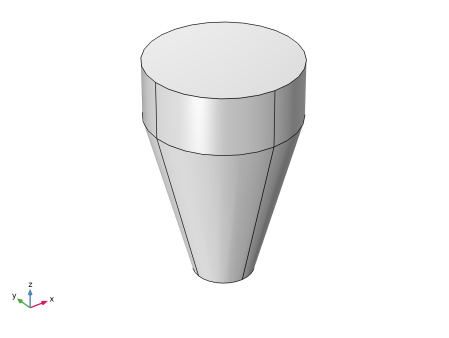
The geometry of a hopper is simple and contains a cylinder attached to a conical compartment at the bottom. The grains enter the hopper through an inlet at the top of the cylinder. When material discharge is desired, the grains can exit through an outlet at the bottom of the cone. The radius of the cylinder in this model is 10 cm, and the smaller radius of the cone (outlet) is 4 cm. The total height of the hopper is set fixed at 30 cm. The overall shape of the hopper is controlled by the conical angle. In this model, two hopper designs are considered with the conical angles of 15 and 75 degrees. The geometry of the hopper with the conical angle of 15 degrees is shown in Figure 1.
For each hopper design, a total of 150 grains, each having a diameter of 10 mm are released at the inlet boundary every 20 ms up to 0.58 s, thus leading to a total of 4500 grains. The grains are allowed to settle under gravity for the first 1.0 s, after which the outlet is opened to allow the discharge of the stored material for a total of 4.0 s.
Figure 1: Model geometry with small conical angle of 15 degrees.
Notes on the COMSOL Implementation
For each hopper design, the model is solved using two studies. In the first study, the grains are released into the hopper using the Inlet feature and are allowed to settle under gravity. In the second study, the degrees of freedom from the first study are used to initialize the grains, and the Outlet feature is used to simulate the material discharge. Once the grains exit the hopper, the grains flow freely in to the void which can severely affect the performance of the simulation. Therefore, a Bounding Box feature is used to remove these grains from the simulation.
The model geometry is parameterized and the shape of the hopper is controlled by the conical angle. Therefore, a Parametric Sweep feature is used to simulate the storage and discharge in both the hopper designs.
Results and Discussion
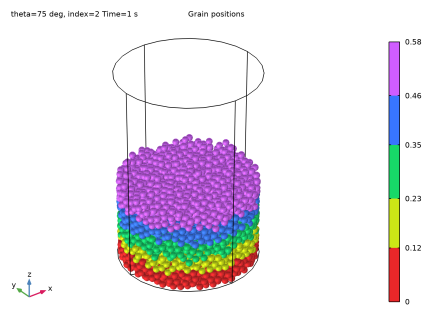
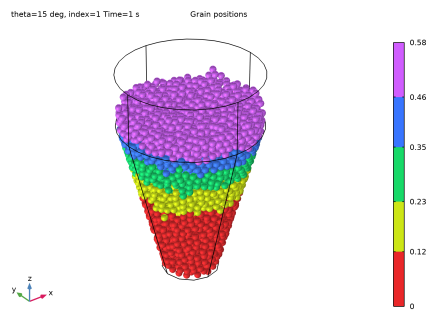
Figure 2 and Figure 3 show the grain positions at the end of the first study for the two hopper designs. The grains are colored by their release time, which allows visualization of the various layers.
Figure 2: Hopper with the small conical angle (15 degrees) filled with grains.
Figure 3: Hopper with the large conical angle (75 degrees) filled with grains.
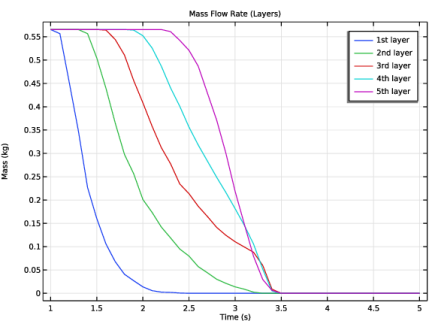
Figure 4: Mass of each layer in the hopper with small conical angle (15 degrees).
Figure 5: Mass of each layer in the hopper with large conical angle (75 degrees).
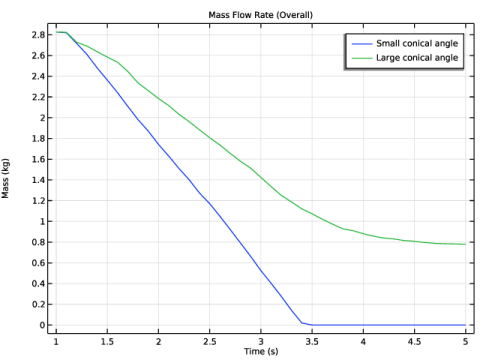
Figure 6: Effect of the hopper design on the overall mass of grains in the hopper.
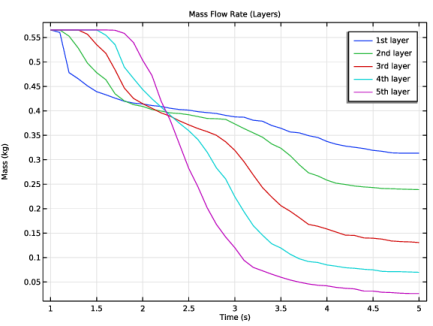
As the material discharges, the mass of each layer remaining in the hopper is plotted in Figure 4 and Figure 5. The overall material is divided into five layers based on their release time, with all the grains released in each interval of 0.12 s belonging to one layer. At the beginning of the discharge, the first layer is situated at the bottom and the fifth layer lies at the top. It is evident that the discharge patterns are very different in the two hoppers.
The discharge in the first hopper (15 degrees) exhibits First-In First-Out behavior whereby each layer discharges based on its height (or age) in the hopper. This is typical of a mass-flow pattern, where the mixing of layers is minimal in the discharge. On the other hand, the second hopper design exhibits a typical funnel-flow pattern, where the layers tend to mix together. It can also be seen that the topmost layer discharges first, while the bottom layer has a very slow discharge rate.
Figure 6 compares the overall mass of all the layers combined remaining in the hopper for the two designs. The hopper with the small conical angle, representing mass flow, clearly has a much larger discharge rate compared to the funnel flow.
Application Library path: Granular_Flow_Module/Flow_and_Material_Characterization/hopper_flow
Modeling Instructions
From the Main Toolbar menu, choose New.
New
In the New window, click  Model Wizard.
Model Wizard
1
In the Model Wizard window, click  3D.
2
In the Select Physics tree, select Fluid Flow > Granular Flow (gran).
3
Click Add.
4
Click  Study.
5
In the Select Study tree, select General Studies > Time Dependent.
6
Global Definitions
Parameters 1
1
In the Model Builder window, under Global Definitions click Parameters 1.
2
In the Settings window for Parameters, locate the Parameters section.
3
Click  Load from File.
4
Geometry 1
Cylinder 1 (cyl1)
1
In the Geometry toolbar, click  Cylinder.
2
In the Settings window for Cylinder, locate the Size and Shape section.
3
In the Radius text field, type R_inl.
4
In the Height text field, type H_cyl.
5
Locate the Position section. In the z text field, type H_cone.
Cone 1 (cone1)
1
In the Geometry toolbar, click  Cone.
2
In the Settings window for Cone, locate the Size and Shape section.
3
In the Bottom radius text field, type R_out.
4
In the Height text field, type H_cone.
5
In the Top radius text field, type R_inl.
Union 1 (uni1)
1
In the Geometry toolbar, click  Booleans and Partitions and choose Union.
2
Click in the Graphics window and then press Ctrl+A to select both objects.
3
In the Settings window for Union, locate the Union section.
4
Clear the Keep interior boundaries checkbox.
Form Union (fin)
1
In the Geometry toolbar, click  Build All.
2
Click the  Show Grid button in the Graphics toolbar.
3
Click the  Zoom Extents button in the Graphics toolbar. The geometry should look like Figure 1.
Materials
Grains
1
In the Materials toolbar, click  Blank Material.
2
In the Settings window for Material, type Grains in the Label text field.
3
Click to expand the Material Properties section. In the Material properties tree, select Basic Properties > Density.
4
Click  Add to Material.
5
In the Material properties tree, select Basic Properties > Poisson’s Ratio.
6
Click  Add to Material.
7
In the Material properties tree, select Basic Properties > Young’s Modulus.
8
Click  Add to Material.
9
Locate the Material Contents section. In the table, enter the following settings:
Walls
1
In the Materials toolbar, click  Blank Material.
2
In the Settings window for Material, type Walls in the Label text field.
3
Locate the Geometric Entity Selection section. From the Geometric entity level list, choose Boundary.
4
From the Selection list, choose All boundaries.
5
Locate the Material Contents section. In the table, enter the following settings:
Granular Flow (gran)
Grain Properties 1
1
In the Model Builder window, under Component 1 (comp1) > Granular Flow (gran) click Grain Properties 1.
2
In the Settings window for Grain Properties, locate the Granular Material Properties section.
3
From the Granular material list, choose Grains (mat1).
4
Locate the Size section. In the dg text field, type dg.
Wall 1
In the Model Builder window, click Wall 1.
Force Accumulator 1
In the Physics toolbar, click  Attributes and choose Force Accumulator.
Contact Between Grains 1
1
In the Model Builder window, under Component 1 (comp1) > Granular Flow (gran) click Contact Between Grains 1.
2
In the Settings window for Contact Between Grains, locate the Contact Properties section.
3
In the en text field, type en.
4
In the et text field, type et.
5
In the μs text field, type mus.
6
In the μr text field, type mur.
7
In the μtw text field, type mutw.
Contact with Walls 1
1
In the Model Builder window, click Contact with Walls 1.
2
In the Settings window for Contact with Walls, locate the Contact Properties section.
3
In the en text field, type en.
4
In the et text field, type et.
5
In the μs text field, type mus.
6
In the μr text field, type mur.
7
In the μtw text field, type mutw.
Inlet 1
1
In the Physics toolbar, click  Boundaries and choose Inlet.
2
3
In the Settings window for Inlet, locate the Release Times section.
4
In the Release times text field, type range(0,rel_freq,29*rel_freq).
5
Locate the Initial Values section. Specify the v0 vector as
6
Locate the Released Grain Properties section. In the table, enter the following settings:
7
Locate the Advanced Settings section. In the Number of release attempts per grain text field, type 50 to increase the chances of all the grains being released at each release time.
Outlet 1
1
In the Physics toolbar, click  Boundaries and choose Outlet.
2
Bounding Box 1
1
In the Physics toolbar, click  Global and choose Bounding Box.
2
In the Settings window for Bounding Box, locate the Settings section.
3
In the x minimum text field, type -R_inl.
4
In the x maximum text field, type R_inl.
5
In the y minimum text field, type -R_inl.
6
In the y maximum text field, type R_inl.
7
In the z minimum text field, type -5*dg.
8
In the z maximum text field, type H_tot*1.05.
Study 1: Filling
1
In the Model Builder window, click Study 1.
2
In the Settings window for Study, type Study 1: Filling in the Label text field.
Step 1: Time Dependent
1
In the Model Builder window, under Study 1: Filling click Step 1: Time Dependent.
2
In the Settings window for Time Dependent, locate the Study Settings section.
3
In the Output times text field, type range(0,rel_freq,t_fill).
4
Locate the Physics and Variables Selection section. Select the Modify model configuration for study step checkbox.
5
In the tree, select Component 1 (comp1) > Granular Flow (gran) > Outlet 1 and Component 1 (comp1) > Granular Flow (gran) > Bounding Box 1.
6
Click  Disable.
Parametric Sweep
1
In the Study toolbar, click  Parametric Sweep.
2
In the Settings window for Parametric Sweep, locate the Study Settings section.
3
4
5
6
7
In the Study toolbar, click  Compute.
Results
Grain Positions: Filling
1
In the Settings window for 3D Plot Group, type Grain Positions: Filling in the Label text field.
2
Locate the Data section. From the Parameter value (theta (deg),index) list, choose 1: theta=15 deg, index=1.
3
In the Model Builder window, expand the Grain Positions: Filling node.
Color Expression 1
1
In the Model Builder window, expand the Results > Grain Positions: Filling > Grain Positions 1 node, then click Color Expression 1.
2
In the Settings window for Color Expression, locate the Expression section.
3
In the Expression text field, type gran.rti.
4
Locate the Coloring and Style section. From the Color table list, choose Cyclic.
5
From the Color table type list, choose Discrete.
6
In the Number of bands text field, type 5. The discrete color table with five bands helps in visualizing the grains in the hopper as five distinct layers.
7
In the Grain Positions: Filling toolbar, click  Plot.
The hopper with the small conical angle filled with grains should resemble Figure 2.
Grain Positions: Filling
1
In the Model Builder window, under Results click Grain Positions: Filling.
2
In the Settings window for 3D Plot Group, locate the Data section.
3
From the Parameter value (theta (deg),index) list, choose 2: theta=75 deg, index=2.
4
In the Grain Positions: Filling toolbar, click  Plot.
The hopper with the large conical angle filled with grains should resemble Figure 3.
Filling
1
In the Grain Positions: Filling toolbar, click  Animation and choose Player.
2
In the Settings window for Animation, type Filling in the Label text field.
3
Locate the Frames section. From the Frame selection list, choose All.
4
Click the  Play button in the Graphics toolbar. This plays the animation for the filling in the hopper with the small conical angle.
5
Locate the Animation Editing section. From the Parameter value (theta (deg),index) list, choose 2: theta=75 deg, index=2.
6
Click the  Play button in the Graphics toolbar. This plays the animation for the filling in the hopper with the large conical angle.
Pressure on The Walls
1
In the Results toolbar, click  3D Plot Group.
2
In the Settings window for 3D Plot Group, type Pressure on The Walls in the Label text field.
3
Locate the Data section. From the Dataset list, choose Grain 1.
4
From the Parameter value (theta (deg),index) list, choose 1: theta=15 deg, index=1.
Surface 1
1
In the Pressure on The Walls toolbar, click  Surface.
2
In the Settings window for Surface, locate the Expression section.
3
In the Expression text field, type gran.wp1.facc1.wf/gran.wp1.facc1.meshVol.
4
Locate the Coloring and Style section. From the Color table list, choose PrismDark.
Pressure on The Walls
1
In the Model Builder window, right-click Filling and choose Duplicate.
2
In the Settings window for Animation, type Pressure on The Walls in the Label text field.
3
Locate the Scene section. From the Subject list, choose Pressure on The Walls.
4
Locate the Animation Editing section. From the Parameter value (theta (deg),index) list, choose 1: theta=15 deg, index=1.
5
Click the  Play button in the Graphics toolbar. This plays the animation of the wall pressures in the hopper with the small conical angle.
6
From the Parameter value (theta (deg),index) list, choose 2: theta=75 deg, index=2.
7
Click the  Play button in the Graphics toolbar. This plays the animation of the wall pressures in the hopper with the large conical angle.
Add Study
1
In the Home toolbar, click  Add Study to open the Add Study window.
2
Go to the Add Study window.
3
Find the Studies subsection. In the Select Study tree, select General Studies > Time Dependent.
4
Click the Add Study button in the window toolbar.
5
In the Home toolbar, click  Add Study to close the Add Study window.
Study 2: Emptying
In the Settings window for Study, type Study 2: Emptying in the Label text field.
Step 1: Time Dependent
1
In the Model Builder window, under Study 2: Emptying click Step 1: Time Dependent.
2
In the Settings window for Time Dependent, locate the Study Settings section.
3
In the Output times text field, type range(t_fill,0.1,t_fill+t_empty).
4
Click to expand the Values of Dependent Variables section. Find the Initial values of variables solved for subsection. From the Settings list, choose User controlled.
5
From the Method list, choose Solution.
6
From the Study list, choose Study 1: Filling, Time Dependent.
7
From the Solution list, choose Parametric Solutions 1 (sol2).
8
From the Use list, choose Manual.
9
In the Index text field, type index.
Parametric Sweep
1
In the Study toolbar, click  Parametric Sweep.
2
In the Settings window for Parametric Sweep, locate the Study Settings section.
3
4
5
6
7
In the Study toolbar, click  Compute.
Results
Grain Positions: Emptying
1
In the Settings window for 3D Plot Group, type Grain Positions: Emptying in the Label text field.
2
Locate the Data section. From the Parameter value (theta (deg),index) list, choose 1: theta=15 deg, index=1.
3
In the Model Builder window, expand the Grain Positions: Emptying node.
Color Expression 1
1
In the Model Builder window, expand the Results > Grain Positions: Emptying > Grain Positions 1 node, then click Color Expression 1.
2
In the Settings window for Color Expression, locate the Expression section.
3
In the Expression text field, type gran.rti.
4
Locate the Coloring and Style section. From the Color table list, choose Cyclic.
5
From the Color table type list, choose Discrete.
6
In the Number of bands text field, type 5.
Grain Positions 1
In the Model Builder window, click Grain Positions 1.
Filter 1
1
In the Grain Positions: Emptying toolbar, click  Filter.
2
In the Settings window for Filter, locate the Grain Selection section.
3
From the Grains to include list, choose Logical expression.
4
In the Logical expression for inclusion text field, type qy>=0.
5
Click the  Go to XZ View button in the Graphics toolbar.
Grain Positions: Emptying
In the Model Builder window, under Results click Grain Positions: Emptying.
Emptying
1
In the Grain Positions: Emptying toolbar, click  Animation and choose Player.
2
In the Settings window for Animation, type Emptying in the Label text field.
3
Locate the Frames section. From the Frame selection list, choose All.
4
Click the  Play button in the Graphics toolbar. This plays the animation for the emptying in the hopper with the small conical angle.
5
Locate the Animation Editing section. From the Parameter value (theta (deg),index) list, choose 2: theta=75 deg, index=2.
6
Click the  Play button in the Graphics toolbar. This plays the animation for the emptying in the hopper with the large conical angle.
Mass Flow Rate (Layers)
1
In the Results toolbar, click  1D Plot Group.
2
In the Settings window for 1D Plot Group, type Mass Flow Rate (Layers) in the Label text field.
3
Locate the Data section. From the Dataset list, choose Grain 2.
4
From the Parameter selection (theta, index) list, choose From list.
5
In the Parameter values (theta (deg),index) list box, select 1: theta=15 deg, index=1.
6
Click to expand the Title section. From the Title type list, choose Label.
7
Locate the Plot Settings section.
8
Select the x-axis label checkbox. In the associated text field, type Time (s).
9
Select the y-axis label checkbox. In the associated text field, type Mass (kg).
Grain 1
1
In the Mass Flow Rate (Layers) toolbar, click  More Plots and choose Grain.
2
In the Settings window for Grain, locate the y-Axis Data section.
3
In the Expression text field, type particleexists*gran.mg.
4
Select the Description checkbox. In the associated text field, type 1st layer.
5
Click to expand the Legends section. Select the Show legends checkbox.
6
Find the Include subsection. Clear the Solution checkbox.
Filter 1
1
In the Mass Flow Rate (Layers) toolbar, click  Filter.
2
In the Settings window for Filter, locate the Grain Selection section.
3
From the Grains to include list, choose Logical expression.
4
In the Logical expression for inclusion text field, type gran.rti>=0 && gran.rti<6*rel_freq.
5
In the Mass Flow Rate (Layers) toolbar, click  Plot.
Grain 2
1
In the Model Builder window, under Results > Mass Flow Rate (Layers) right-click Grain 1 and choose Duplicate.
2
In the Settings window for Grain, locate the y-Axis Data section.
3
In the Description text field, type 2nd layer.
Filter 1
1
In the Model Builder window, expand the Grain 2 node, then click Filter 1.
2
In the Settings window for Filter, locate the Grain Selection section.
3
In the Logical expression for inclusion text field, type gran.rti>=6*rel_freq && gran.rti<12*rel_freq.
Grain 3
1
In the Model Builder window, under Results > Mass Flow Rate (Layers) right-click Grain 2 and choose Duplicate.
2
In the Settings window for Grain, locate the y-Axis Data section.
3
In the Description text field, type 3rd layer.
Filter 1
1
In the Model Builder window, expand the Grain 3 node, then click Filter 1.
2
In the Settings window for Filter, locate the Grain Selection section.
3
In the Logical expression for inclusion text field, type gran.rti>=12*rel_freq && gran.rti<18*rel_freq.
Grain 4
1
In the Model Builder window, under Results > Mass Flow Rate (Layers) right-click Grain 3 and choose Duplicate.
2
In the Settings window for Grain, locate the y-Axis Data section.
3
In the Description text field, type 4th layer.
Filter 1
1
In the Model Builder window, expand the Grain 4 node, then click Filter 1.
2
In the Settings window for Filter, locate the Grain Selection section.
3
In the Logical expression for inclusion text field, type gran.rti>=18*rel_freq && gran.rti<24*rel_freq.
Grain 5
1
In the Model Builder window, under Results > Mass Flow Rate (Layers) right-click Grain 4 and choose Duplicate.
2
In the Settings window for Grain, locate the y-Axis Data section.
3
In the Description text field, type 5th layer.
Filter 1
1
In the Model Builder window, expand the Grain 5 node, then click Filter 1.
2
In the Settings window for Filter, locate the Grain Selection section.
3
In the Logical expression for inclusion text field, type gran.rti>=24*rel_freq && gran.rti<30*rel_freq.
4
In the Mass Flow Rate (Layers) toolbar, click  Plot.
The mass of each layer of grains as a function of time in the hopper with the small conical angle should resemble Figure 4.
Mass Flow Rate (Layers)
1
In the Model Builder window, under Results click Mass Flow Rate (Layers).
2
In the Settings window for 1D Plot Group, locate the Data section.
3
In the Parameter values (theta (deg),index) list box, select 2: theta=75 deg, index=2.
4
In the Mass Flow Rate (Layers) toolbar, click  Plot.
The mass of each layer of grains as a function of time in the hopper with the large conical angle should resemble Figure 5.
Mass Flow Rate (Overall)
1
In the Results toolbar, click  1D Plot Group.
2
In the Settings window for 1D Plot Group, type Mass Flow Rate (Overall) in the Label text field.
3
Locate the Data section. From the Dataset list, choose Grain 2.
4
Locate the Title section. From the Title type list, choose Label.
5
Locate the Plot Settings section.
6
Select the x-axis label checkbox. In the associated text field, type Time (s).
7
Select the y-axis label checkbox. In the associated text field, type Mass (kg).
Grain 1
1
In the Mass Flow Rate (Overall) toolbar, click  More Plots and choose Grain.
2
In the Settings window for Grain, locate the y-Axis Data section.
3
In the Expression text field, type particleexists*gran.mg.
4
Locate the Legends section. Select the Show legends checkbox.
5
From the Legends list, choose Manual.
6
7
In the Mass Flow Rate (Overall) toolbar, click  Plot.
The overall mass of the grains in both the hopper designs should resemble Figure 6.