PDF

Grain Packing
Introduction
Grain packing refers to the process of packaging grains of differing sizes into a container. Several factors, including the grain shape and size as well as contact forces, can influence the packing efficiency. Furthermore, as the grain size reduces to the scale of millimeters and lower, noncontact forces such as adhesion and van der Waals forces can also greatly influence the packing behavior. Therefore, the prediction of the packing efficiency for a given system of granular material is nontrivial.
This model uses the Granular Flow interface to model the packing behavior of spherical grains of five different diameters. The extent of the packing is characterized by the evaluation of the packing fraction. Three contact force models are used to demonstrate the importance of accurately modeling the contact forces in the packing simulations.
Model Definition
The geometry consists of a rectangular box of equal length and width of 0.2 mm and a height of 0.3 mm. A total of 5000 grains are released into the box and the grain diameters are drawn from a normal distribution with a mean of 10 μm and a standard deviation of 2.5 μm. Periodic boundary conditions are applied along the x and y directions to eliminate the wall effects. The grains are allowed to settle under the influence of gravity and the contact forces for a total of 8 ms. The overall kinetic energy of the grains is tracked to ensure that the resultant bed is stable.
The extent of the packing is characterized by the packing efficiency which is defined as the ratio of the total volume in the sample occupied by the grains divided by the total volume of the sample. The sample under consideration in this model is defined consistently with Ref. 1 and is defined as all the grains located between 30% and 70% of the height of the overall packed bed.
Three contact force models are used to study their effect on the packing efficiency of the grains. The three contact force models are:
Notes on the COMSOL Implementation
The model is solved using a single Time Dependent study step. After each study step, the solution is stored and the physics settings are modified before running the study step with a different contact force model
The grains are released into the domain using a Release feature and are allowed to settle under gravity and contact forces. The Periodic Condition feature is used in the x and y directions to eliminate wall effects in those directions.
The grain diameters are drawn from a normal distribution with a given mean and standard deviation. In the Granular Flow module, this is achieved by discretizing the continuous normal distribution into discrete bins. Five bins are chosen in this model to represent the discretized normal distribution. The probability calculations for each bin are evaluated as parameters in a Parameters feature.
The force computations in the Granular Flow interface rely on sophisticated search algorithms to speed up the simulation times. These algorithms can drastically reduce the number of grains or wall elements that each grain needs to check for contact by only checking the grains or wall elements that lie within a certain search radius of each grain. This search radius is by default equal to the grain radius itself. The search radius needs to be expanded when the contact force models include noncontact forces such as adhesive and van der Waals forces. This expansion of the search radius is controlled by the Contact search expansion ratio parameter present in the Grain Properties feature in the Granular Flow Interface. This value can be set to 1.0 for the first contact force model that does not contain any noncontact forces. For the other two contact force models, this value is set to 1.05 to expand the search radius by 5%.
Results and Discussion
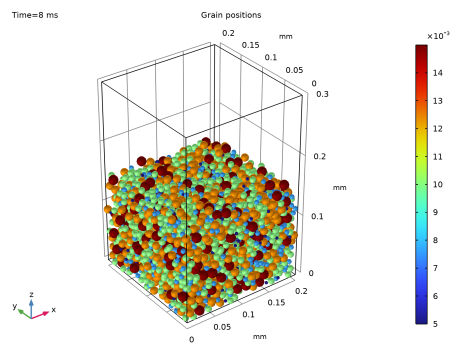
Figure 1 shows the packed grains using the Hertz-MD model. The grains are colored by their diameter. The grains have clearly formed a tightly packed bed.
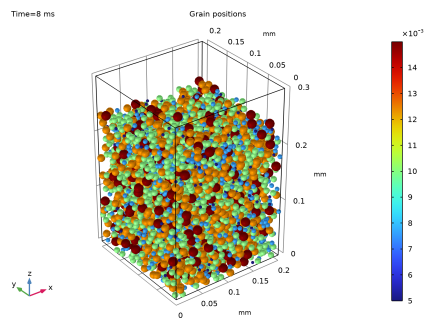
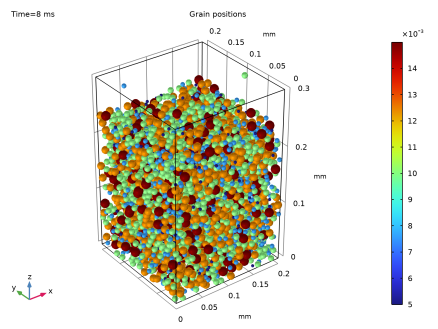
Figure 1: The packed grains using the Hertz–MD model.
The packed grains resulting from the inclusion of the adhesive forces are shown in Figure 2. Figure 3 shows the packed bed resulting from the inclusion of the van der Waals forces. It is evident that the grain packing in these two cases is not as efficient as Figure 1. This is due to the nature of the adhesive forces which can cause grains to be weakly connected to each other even after a collision has taken place.
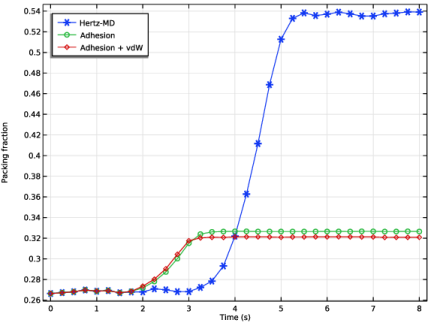
This decrease in packing efficiency is best visualized in Figure 4 where the packing fractions are plotted as a function of time for all three contact force models. The inclusion of the adhesive forces first reduces the packing fraction, and the inclusion of the van der Waals forces further decreases the packing efficiency.
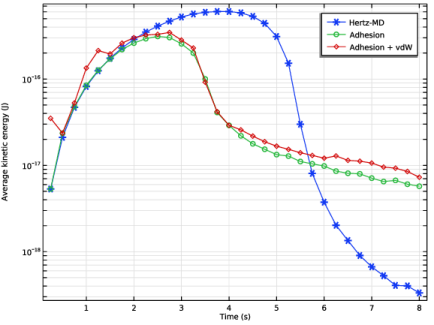
Finally, Figure 5 shows the evolution of the overall kinetic energy of the grains as a function of time for each of the three contact force models. In all cases, the kinetic energy initially increases as a result of the acceleration due to gravity, and then starts reducing as the repeated collisions dissipate the kinetic energies. However the effect of the adhesive forces can be seen in the reduced dissipation rate of the overall kinetic energies.
Figure 2: The packed grains using the Hertz–MD with adhesion model.
Figure 3: The packed grains using the Hertz–MD with adhesion model with van der Waals forces enabled.
Figure 4: Packing fraction as a function of time.
Figure 5: Average kinetic energy of the grains across the three force models.
Reference
1. E.J. Parteli, J. Schmidt, C. Blümel, K.E. Wirth, W. Peukert, and T. Pöschel, “Attractive particle interaction forces and packing density of fine glass powders,” Sci. Rep., vol. 4, no. 6227, 2014; doi.org/10.1038/srep06227.
Application Library path: Granular_Flow_Module/Flow_and_Material_Characterization/grain_packing
Modeling Instructions
From the Main Toolbar menu, choose New.
New
In the New window, click  Model Wizard.
Model Wizard
1
In the Model Wizard window, click  3D.
2
In the Select Physics tree, select Fluid Flow > Granular Flow (gran).
3
Click Add.
4
Click  Study.
5
In the Select Study tree, select General Studies > Time Dependent.
6
Global Definitions
Model Parameters
1
In the Model Builder window, under Global Definitions click Parameters 1.
2
In the Settings window for Parameters, type Model Parameters in the Label text field.
3
Locate the Parameters section. Click  Load from File.
4
Normal Distribution 1 (nd1, nd1_cum, ...)
1
In the Home toolbar, click  Functions and choose Global > Normal Distribution.
2
In the Settings window for Normal Distribution, locate the Parameters section.
3
In the Mean text field, type dMean.
4
In the Standard deviation text field, type delta.
Diameter Distributions
Next, discretize the normal distribution into five bins.
1
In the Home toolbar, click  Parameters and choose Add > Parameters.
2
In the Settings window for Parameters, type Diameter Distributions in the Label text field.
3
Locate the Parameters section. In the table, enter the following settings:
Definitions
Variables 1
1
In the Home toolbar, click  Variables and choose Local Variables.
2
In the Settings window for Variables, locate the Variables section.
3
Geometry 1
1
In the Model Builder window, under Component 1 (comp1) click Geometry 1.
2
In the Settings window for Geometry, locate the Units section.
3
From the Length unit list, choose mm.
Block 1 (blk1)
1
In the Geometry toolbar, click  Block.
2
In the Settings window for Block, locate the Size and Shape section.
3
In the Width text field, type Lx.
4
In the Depth text field, type Ly.
5
In the Height text field, type Lz.
6
Click  Build All Objects.
Materials
Grains
1
In the Materials toolbar, click  Blank Material.
2
In the Settings window for Material, type Grains in the Label text field.
3
Click to expand the Material Properties section. In the Material properties tree, select Basic Properties > Density.
4
Click  Add to Material.
5
In the Material properties tree, select Basic Properties > Poisson’s Ratio.
6
Click  Add to Material.
7
In the Material properties tree, select Basic Properties > Young’s Modulus.
8
Click  Add to Material.
9
Locate the Material Contents section. In the table, enter the following settings:
Walls
1
In the Materials toolbar, click  Blank Material.
2
In the Settings window for Material, type Walls in the Label text field.
3
Locate the Geometric Entity Selection section. From the Geometric entity level list, choose Boundary.
4
From the Selection list, choose All boundaries.
5
Locate the Material Contents section. In the table, enter the following settings:
Granular Flow (gran)
Grain Properties 1
1
In the Model Builder window, under Component 1 (comp1) > Granular Flow (gran) click Grain Properties 1.
2
In the Settings window for Grain Properties, locate the Granular Material Properties section.
3
From the Granular material list, choose Grains (mat1).
4
Locate the Size section. In the dg text field, type d1.
Grain Properties 2
1
In the Physics toolbar, click  Global and choose Grain Properties.
2
In the Settings window for Grain Properties, locate the Granular Material Properties section.
3
From the Granular material list, choose Grains (mat1).
4
Locate the Size section. In the dg text field, type d2.
Grain Properties 3
1
Right-click Grain Properties 2 and choose Duplicate.
2
In the Settings window for Grain Properties, locate the Size section.
3
In the dg text field, type d3.
Grain Properties 4
1
Right-click Grain Properties 3 and choose Duplicate.
2
In the Settings window for Grain Properties, locate the Size section.
3
In the dg text field, type d4.
Grain Properties 5
1
Right-click Grain Properties 4 and choose Duplicate.
2
In the Settings window for Grain Properties, locate the Size section.
3
In the dg text field, type d5.
Contact Between Grains 1
1
In the Model Builder window, click Contact Between Grains 1.
2
In the Settings window for Contact Between Grains, locate the Contact Properties section.
3
In the en text field, type en.
4
In the et text field, type et.
5
In the μs text field, type mu_s.
6
In the μr text field, type mu_r.
7
In the μtw text field, type mu_tw.
Contact with Walls 1
1
In the Model Builder window, click Contact with Walls 1.
2
In the Settings window for Contact with Walls, locate the Contact Properties section.
3
In the en text field, type en.
4
In the et text field, type et.
5
In the μs text field, type mu_s.
6
In the μr text field, type mu_r.
7
In the μtw text field, type mu_tw.
Release 1
1
In the Physics toolbar, click  Domains and choose Release.
2
3
In the Settings window for Release, locate the Released Grain Properties section.
4
From the Distribution of released grain properties list, choose Number fraction.
5
In the N text field, type 5000.
6
Periodic Condition 1
1
In the Physics toolbar, click  Boundaries and choose Periodic Condition.
2
Periodic Condition 2
1
In the Physics toolbar, click  Boundaries and choose Periodic Condition.
2
Study 1: Hertz-MD
1
In the Model Builder window, click Study 1.
2
In the Settings window for Study, type Study 1: Hertz-MD in the Label text field.
Step 1: Time Dependent
1
In the Model Builder window, under Study 1: Hertz-MD click Step 1: Time Dependent.
2
In the Settings window for Time Dependent, locate the Study Settings section.
3
From the Time unit list, choose ms.
4
In the Output times text field, type range(0,0.25,t_fill).
5
In the Study toolbar, click  Compute.
Results
Grain Positions: Hertz-MD
1
In the Settings window for 3D Plot Group, type Grain Positions: Hertz-MD in the Label text field.
2
In the Model Builder window, expand the Grain Positions: Hertz-MD node.
Color Expression 1
1
In the Model Builder window, expand the Results > Grain Positions: Hertz-MD > Grain Positions 1 node, then click Color Expression 1.
2
In the Settings window for Color Expression, locate the Expression section.
3
In the Expression text field, type gran.dg.
4
Click the  Zoom Extents button in the Graphics toolbar.
5
In the Grain Positions: Hertz-MD toolbar, click  Plot.
The plot of the packed grain positions for the Hertz-MD model should resemble Figure 1.
Granular Flow (gran)
1
In the Model Builder window, under Component 1 (comp1) click Granular Flow (gran).
2
In the Settings window for Granular Flow, locate the Force section.
3
From the Contact force model list, choose Hertz–MD with adhesion.
Grain Properties 1
1
In the Model Builder window, under Component 1 (comp1) > Granular Flow (gran) click Grain Properties 1.
2
In the Settings window for Grain Properties, locate the Size section.
3
In the β text field, type 1.05.
4
Locate the Adhesion Properties section. In the γ text field, type gamma.
Grain Properties 2
1
In the Model Builder window, click Grain Properties 2.
2
In the Settings window for Grain Properties, locate the Size section.
3
In the β text field, type 1.05.
4
Locate the Adhesion Properties section. In the γ text field, type gamma.
Grain Properties 3
1
In the Model Builder window, click Grain Properties 3.
2
In the Settings window for Grain Properties, locate the Size section.
3
In the β text field, type 1.05.
4
Locate the Adhesion Properties section. In the γ text field, type gamma.
Grain Properties 4
1
In the Model Builder window, click Grain Properties 4.
2
In the Settings window for Grain Properties, locate the Size section.
3
In the β text field, type 1.05.
4
Locate the Adhesion Properties section. In the γ text field, type gamma.
Grain Properties 5
1
In the Model Builder window, click Grain Properties 5.
2
In the Settings window for Grain Properties, locate the Size section.
3
In the β text field, type 1.05.
4
Locate the Adhesion Properties section. In the γ text field, type gamma.
Add Study
1
In the Home toolbar, click  Add Study to open the Add Study window.
2
Go to the Add Study window.
3
Find the Studies subsection. In the Select Study tree, select General Studies > Time Dependent.
4
Click the Add Study button in the window toolbar.
5
In the Home toolbar, click  Add Study to close the Add Study window.
Study 2: Adhesion
In the Settings window for Study, type Study 2: Adhesion in the Label text field.
Step 1: Time Dependent
1
In the Model Builder window, under Study 2: Adhesion click Step 1: Time Dependent.
2
In the Settings window for Time Dependent, locate the Study Settings section.
3
From the Time unit list, choose ms.
4
In the Output times text field, type range(0,0.25,t_fill).
5
In the Study toolbar, click  Compute.
Results
Grain Positions: Adhesion
1
In the Settings window for 3D Plot Group, type Grain Positions: Adhesion in the Label text field.
2
In the Model Builder window, expand the Grain Positions: Adhesion node.
Color Expression 1
1
In the Model Builder window, expand the Results > Grain Positions: Adhesion > Grain Positions 1 node, then click Color Expression 1.
2
In the Settings window for Color Expression, locate the Expression section.
3
In the Expression text field, type gran.dg.
4
In the Grain Positions: Adhesion toolbar, click  Plot.
The plot of the packed grain positions for the Adhesion model should resemble Figure 2.
Granular Flow (gran)
1
In the Model Builder window, under Component 1 (comp1) click Granular Flow (gran).
2
In the Settings window for Granular Flow, locate the Force section.
3
Select the Compute van der Waals force checkbox.
Add Study
1
In the Home toolbar, click  Add Study to open the Add Study window.
2
Go to the Add Study window.
3
Find the Studies subsection. In the Select Study tree, select General Studies > Time Dependent.
4
Click the Add Study button in the window toolbar.
5
In the Home toolbar, click  Add Study to close the Add Study window.
Study 2: Adhesion + vdW
In the Settings window for Study, type Study 2: Adhesion + vdW in the Label text field.
Step 1: Time Dependent
1
In the Model Builder window, under Study 2: Adhesion + vdW click Step 1: Time Dependent.
2
In the Settings window for Time Dependent, locate the Study Settings section.
3
From the Time unit list, choose ms.
4
In the Output times text field, type range(0,0.25,t_fill).
5
In the Study toolbar, click  Compute.
Results
Grain Positions: Adhesion + vdW
1
In the Settings window for 3D Plot Group, type Grain Positions: Adhesion + vdW in the Label text field.
2
In the Model Builder window, expand the Grain Positions: Adhesion + vdW node.
Color Expression 1
1
In the Model Builder window, expand the Results > Grain Positions: Adhesion + vdW > Grain Positions 1 node, then click Color Expression 1.
2
In the Settings window for Color Expression, locate the Expression section.
3
In the Expression text field, type gran.dg.
4
In the Grain Positions: Adhesion + vdW toolbar, click  Plot.
The plot of the packed grain positions for the + vdW model should resemble Figure 3.
Packing Fraction
1
In the Results toolbar, click  1D Plot Group.
2
In the Settings window for 1D Plot Group, type Packing Fraction in the Label text field.
3
Locate the Data section. From the Dataset list, choose None.
4
Click to expand the Title section. From the Title type list, choose None.
5
Locate the Plot Settings section.
6
Select the x-axis label checkbox. In the associated text field, type Time (s).
7
Select the y-axis label checkbox. In the associated text field, type Packing fraction.
8
Locate the Legend section. From the Position list, choose Upper left.
Global 1
1
In the Packing Fraction toolbar, click  Global.
2
In the Settings window for Global, locate the Data section.
3
From the Dataset list, choose Grain 1.
4
Locate the y-Axis Data section. In the table, enter the following settings:
5
Click to expand the Coloring and Style section. Find the Line markers subsection. From the Marker list, choose Cycle.
Global 2
1
Right-click Global 1 and choose Duplicate.
2
In the Settings window for Global, locate the Data section.
3
From the Dataset list, choose Grain 2.
4
Locate the y-Axis Data section. In the table, enter the following settings:
Global 3
1
Right-click Global 2 and choose Duplicate.
2
In the Settings window for Global, locate the Data section.
3
From the Dataset list, choose Grain 3.
4
Locate the y-Axis Data section. In the table, enter the following settings:
5
In the Packing Fraction toolbar, click  Plot.
The packing fraction as a function of time for the three force models should resemble Figure 4.
Average Kinetic Energy
1
In the Home toolbar, click  Add Plot Group and choose 1D Plot Group.
2
In the Settings window for 1D Plot Group, type Average Kinetic Energy in the Label text field.
3
Locate the Data section. From the Dataset list, choose None.
4
Locate the Title section. From the Title type list, choose None.
5
Locate the Plot Settings section.
6
Select the x-axis label checkbox. In the associated text field, type Time (s).
7
Select the y-axis label checkbox. In the associated text field, type Average kinetic energy (J).
8
Locate the Axis section. Select the y-axis log scale checkbox.
Global 1
1
In the Average Kinetic Energy toolbar, click  Global.
2
In the Settings window for Global, locate the Data section.
3
From the Dataset list, choose Grain 1.
4
Locate the y-Axis Data section. In the table, enter the following settings:
5
Locate the Coloring and Style section. Find the Line markers subsection. From the Marker list, choose Cycle.
Global 2
1
Right-click Global 1 and choose Duplicate.
2
In the Settings window for Global, locate the Data section.
3
From the Dataset list, choose Grain 2.
4
Locate the y-Axis Data section. In the table, enter the following settings:
Global 3
1
Right-click Global 2 and choose Duplicate.
2
In the Settings window for Global, locate the Data section.
3
From the Dataset list, choose Grain 3.
4
Locate the y-Axis Data section. In the table, enter the following settings:
5
In the Average Kinetic Energy toolbar, click  Plot.
The average kinetic energy of the grains as a function of time for the three force models should resemble Figure 5.