PDF

Wetting and Drying Paths for Partially Saturated Soil with the Extended Barcelona Basic Model
Introduction
Soil wetting and drying experiments under cyclic loading are performed to understand the behavior of partially saturated soils. Mechanical and hydraulic loads, or a combination of both, affect the behavior of partially saturated soils, making their study much more complex than that of fully saturated soils. The Barcelona Basic Model is one of the most popular models used to understand the complex behavior of partially saturated soils.
In this example, the Extended Barcelona Basic model (BBMx) is examined for the cases presented in Ref. 1 and Ref. 2. With a certain choice of material parameters, the BBMx model can predict the soil behavior that qualitatively matches the results presented in the references. The model can also predict the collapse of the soil sample during wetting processes, which is an important case for unsaturated sands and clays.
Model Definition
In this example, a 10 cm cubic soil sample is subjected to isotropic compression and suction. The soil specimen is modeled using the extended Barcelona Basic Model.
Material Properties
The material properties are based on Ref. 1, and are given in Table 1.
ρ
κ
κs
λ
λs
bs
ks
sy
eref0
pref
pc0
Constraints and Loads
Results and Discussion
The results from the wetting (decreasing suction) experiment are given in Figure 1.
Figure 1: Wetting paths: Specific volume as a function of mean stress in an isotropic compression test.
For the wetting path ABDF, from A to B a volumetric elastic expansion happens because of the decrease in suction (0.2 MPa to 0) with constant mean stress. With zero suction, the soil reaches a fully saturated condition and the BBMx model becomes equivalent to a conventional critical state model. The predicted behavior along the path BDF (zero suction and increasing mean stress) is similar to the results predicted by the Modified Cam-Clay model. For the wetting path ACDF, the wetting path CD (reduction in suction) takes place after isotropic compression given by the path AC. At this point, the soil sample has undergone plastic deformations, which causes small net volumetric compression. The elastic volumetric expansion due to a decrease in suction is smaller than the plastic volumetric compression, which causes a net volumetric compression and the collapse of the soil. After collapse, the soil follows the unique path DF for saturated soils. For the wetting path ACEF, after isotropic compression ACE, the wetting path EF takes place at a larger confining mean stress, which causes a larger collapse.
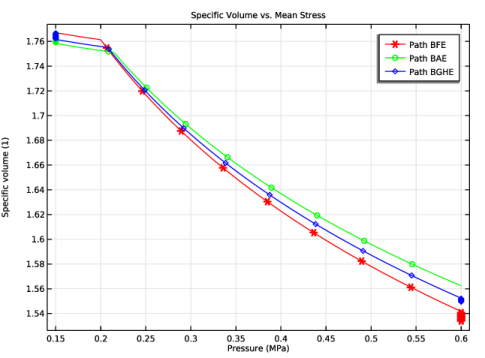
The results from the drying (increasing suction) experiment are given in Figure 2.
Figure 2: Drying paths: Specific volume as a function of mean stress in an isotropic compression test.
For the drying path BFE, from B to F the predicted behavior (zero suction and increasing mean stress) is similar to that predicted by the Modified Cam-Clay model. For the drying path FE (suction increases from 0 to 0.2 MPa) a slight volumetric compression takes place. For the drying path BAE, an initial increase in suction with a constant mean stress (path BA) in the elastic region gives a total volumetric compression. For the drying path BGHE, an initial increase in suction with a constant mean stress (path BG) in the elastic region gives a total volumetric compression. Path GH consists of isotropic compression with constant suction, followed by a drying path HE where the increase in suction while keeping the mean applied stress constant gives a slight volumetric compression (not visible in Figure 2, zoom the graph in the model).
The BBMx model is based on (although not identical to) the one presented in Ref. 2, and differs from the original BBM model in Ref. 1. The results presented here matches qualitatively well with the results presented in Ref. 1 and Ref. 2. The BBMx model is also able to predict soil behavior at cyclic loading including the collapse of the soil during wetting. The behavior of partially saturated soils is sensitive to the material parameters in the BBMx model. The weight parameter, w, and the soil stiffness parameter, m, are important material parameters, which govern the soil behavior in the plastic region. Also, note that the void ratio in the material model is not an initial void ratio but a void ratio at saturation (s = 0) and reference pressure (p = pref).
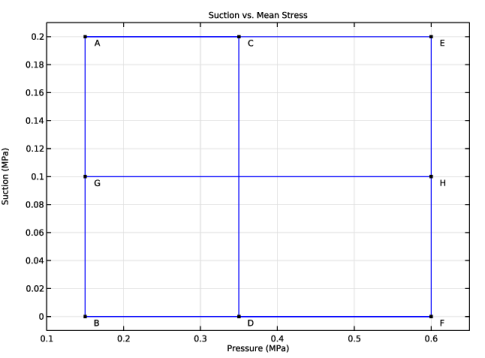
The mechanical (mean stress) and hydraulic (suction) load paths are shown in Figure 3.
Figure 3: Load paths.
Notes About the COMSOL Implementation
For better convergence and a faster computation during isotropic compression, use a Prescribed Displacement instead of a Boundary Load. A parametric displacement in the normal direction is applied on three mutually perpendicular surfaces; this displacement is driven by the interpolation function Pressure through a Global Equation node.
In order to change the initial suction, current suction and the mean stress according to the load paths shown in Figure 3, different study steps are concatenated under the same study, where the initial values for the study step is taken from the previous step. The interpolation functions InitSuction, Suction, and Pressure are used with the parameter para to vary the initial suction, the current suction, and the mean stress. Table 2 indicates the range of the load parameter para for the corresponding load paths. For example, for the wetting path ACDF, para changes from 3 to 4 for the path AC; from 4 to 5 for the path CD, and from 5 to 6 for the path DF in separate stationary study steps.
References
1. E.E. Alonso, A. Gens, and A. Josa, “A constitutive model for partially saturated soils,” Géotechnique, vol. 40, no. 3, pp. 405–430, 1991.
2. D.M.Pedroso and M.M.Farias, “Extended Barcelona Basic Model for unsaturated soils under cyclic loadings,” Comput. Geotech., vol. 38, pp. 731–740, 2011.
Application Library path: Geomechanics_Module/Verification_Examples/wetting_and_drying_of_unsaturated_soil
Modeling Instructions
From the File menu, choose New.
New
In the New window, click  Model Wizard.
Model Wizard
1
In the Model Wizard window, click  3D.
2
In the Select Physics tree, select Structural Mechanics > Solid Mechanics (solid).
3
Click Add.
4
Click  Study.
5
In the Select Study tree, select General Studies > Stationary.
6
Global Definitions
Parameters 1
1
In the Model Builder window, under Global Definitions click Parameters 1.
2
In the Settings window for Parameters, locate the Parameters section.
3
Create interpolation functions for the initial suction, the current suction, and the mean stress. Load the interpolation functions from a file.
Initial Suction Paths
1
In the Home toolbar, click  Functions and choose Global > Interpolation.
2
In the Settings window for Interpolation, locate the Definition section.
3
In the Function name text field, type InitSuction.
4
In the Label text field, type Initial Suction Paths.
5
Locate the Definition section. Click  Load from File.
6
Browse to the model’s Application Libraries folder and double-click the file wetting_and_drying_of_unsaturated_soil_initialsuction_path.txt.
7
Locate the Units section. In the Argument table, enter the following settings:
8
In the Function table, enter the following settings:
Note that to avoid numerical problems, instead of zero suction, a value of 1 Pa is used.
Suction Paths
1
In the Home toolbar, click  Functions and choose Global > Interpolation.
2
In the Settings window for Interpolation, locate the Definition section.
3
In the Function name text field, type Suction.
4
In the Label text field, type Suction Paths.
5
Locate the Definition section. Click  Load from File.
6
Browse to the model’s Application Libraries folder and double-click the file wetting_and_drying_of_unsaturated_soil_suction_path.txt.
7
Locate the Units section. In the Argument table, enter the following settings:
8
In the Function table, enter the following settings:
Mean Stress Paths
1
In the Home toolbar, click  Functions and choose Global > Interpolation.
2
In the Settings window for Interpolation, locate the Definition section.
3
In the Function name text field, type Pressure.
4
In the Label text field, type Mean Stress Paths.
5
Locate the Definition section. Click  Load from File.
6
Browse to the model’s Application Libraries folder and double-click the file wetting_and_drying_of_unsaturated_soil_meanstress_path.txt.
7
Locate the Units section. In the Argument table, enter the following settings:
8
In the Function table, enter the following settings:
Geometry 1
Block 1 (blk1)
1
In the Geometry toolbar, click  Block.
2
In the Settings window for Block, locate the Size and Shape section.
3
In the Width text field, type 10[cm].
4
In the Depth text field, type 10[cm].
5
In the Height text field, type 10[cm].
6
Click  Build Selected.
Create a nonlocal integration coupling with a point selection for use in the Global Equation interface that you will add shortly.
Definitions
Integration 1 (intop1)
1
In the Definitions toolbar, click  Nonlocal Couplings and choose Integration.
2
Click the  Go to Default View button in the Graphics toolbar.
3
In the Settings window for Integration, locate the Source Selection section.
4
From the Geometric entity level list, choose Point.
5
This is the intersection point between the three perpendicular surfaces where the Prescribed Displacement is applied.
Materials
Soil Material
1
In the Model Builder window, under Component 1 (comp1) right-click Materials and choose Blank Material.
2
In the Settings window for Material, type Soil Material in the Label text field.
Solid Mechanics (solid)
Elastoplastic Soil Material 1
1
In the Physics toolbar, click  Domains and choose Elastoplastic Soil Material.
2
3
In the Settings window for Elastoplastic Soil Material, locate the Elastoplastic Soil Material section.
4
From the Material model list, choose Extended Barcelona basic.
5
Find the Parameters subsection. From the C(ν,G) list, choose Shear modulus.
6
From the Γ(θ) list, choose Matsuoka–Nakai.
7
From the e0 list, choose From void ratio at reference pressure and saturation.
8
In the s0 text field, type InitSuction(para).
9
In the s text field, type Suction(para).
10
In the pref text field, type 0.1[MPa].
11
In the pc0 text field, type 0.2[MPa].
Enter the material data given in the model documentation.
Materials
Soil Material (mat1)
1
In the Model Builder window, under Component 1 (comp1) > Materials click Soil Material (mat1).
2
In the Settings window for Material, locate the Material Contents section.
3
Solid Mechanics (solid)
Roller 1
1
In the Physics toolbar, click  Boundaries and choose Roller.
2
Prescribed Displacement 1
1
In the Physics toolbar, click  Boundaries and choose Prescribed Displacement.
2
3
In the Settings window for Prescribed Displacement, locate the Coordinate System Selection section.
4
From the Coordinate system list, choose Boundary System 1 (sys1).
5
Locate the Prescribed Displacement section. From the Displacement in n direction list, choose Prescribed.
6
In the u0n text field, type -disp.
Now add a Global Equation for the normal displacement, so that the mean stress equals the prescribed one. For that, you need to show equation-based contributions.
7
Click the  Show More Options button in the Model Builder toolbar.
8
In the Show More Options dialog, in the tree, select the checkbox for the node Physics > Equation Contributions.
9
Global Equations 1 (ODE1)
1
In the Physics toolbar, click  Global and choose Global Equations.
Multiply the equation by a suitable penalty factor in order to strictly satisfy this criterion. For the current model, 1e5 is an appropriate penalty factor.
2
In the Settings window for Global Equations, locate the Global Equations section.
3
4
Locate the Units section. Click  Select Dependent Variable Quantity.
5
In the Physical Quantity dialog, type disp in the text field.
6
In the tree, select General > Displacement (m).
7
8
In the Settings window for Global Equations, locate the Units section.
9
Click  Select Source Term Quantity.
10
In the Physical Quantity dialog, type pressure in the text field.
11
In the tree, select General > Pressure (Pa).
12
Mesh 1
Mapped 1
1
In the Mesh toolbar, click  More Generators and choose Mapped.
2
Distribution 1
1
Right-click Mapped 1 and choose Distribution.
2
In the Settings window for Distribution, locate the Edge Selection section.
3
From the Selection list, choose All edges.
4
Locate the Distribution section. In the Number of elements text field, type 1.
Swept 1
In the Mesh toolbar, click  Swept.
Distribution 1
1
Right-click Swept 1 and choose Distribution.
2
In the Settings window for Distribution, locate the Distribution section.
3
In the Number of elements text field, type 1.
4
Click  Build All.
Add a separate Study node for each wetting and drying path. In order to change the suction and the mean stress according to the load path, different stationary study steps are used under the same study. The initial values for the subsequent study step is taken from the previous study step.
The interpolation functions Suction and Pressure are used with the para parameter to vary the suction and the mean stress. The appropriate parameter range for each study step is provided in Table 2.
Study: Wetting Path ABDF
1
In the Model Builder window, click Study 1.
2
In the Settings window for Study, type Study: Wetting Path ABDF in the Label text field.
3
Locate the Study Settings section. Clear the Generate default plots checkbox.
Stationary: Path AB
1
In the Model Builder window, under Study: Wetting Path ABDF click Step 1: Stationary.
2
In the Settings window for Stationary, type Stationary: Path AB in the Label text field.
3
Click to expand the Study Extensions section. Select the Auxiliary sweep checkbox.
4
5
6
In the Study toolbar, click  Compute.
Stationary: Path BDF
1
In the Study toolbar, click  Stationary.
2
In the Settings window for Stationary, type Stationary: Path BDF in the Label text field.
3
Click to expand the Values of Dependent Variables section. Find the Initial values of variables solved for subsection. From the Settings list, choose User controlled.
4
From the Method list, choose Solution.
5
From the Study list, choose Study: Wetting Path ABDF, Stationary: Path AB.
6
From the Parameter value (para) list, choose Last.
7
Locate the Study Extensions section. Select the Auxiliary sweep checkbox.
8
9
Step 2: Stationary: Path BDF
Right-click Step 2: Stationary: Path BDF and choose Compute Selected Step.
Results
Cut Point 3D: Path AB
1
In the Model Builder window, expand the Results node.
2
Right-click Results > Datasets and choose Cut Point 3D.
3
In the Settings window for Cut Point 3D, type Cut Point 3D: Path AB in the Label text field.
4
Locate the Point Data section. In the X text field, type 0.05.
5
In the Y text field, type 0.05.
6
In the Z text field, type 0.05.
7
Locate the Data section. From the Dataset list, choose Study: Wetting Path ABDF/Solution Store 1 (sol2).
Cut Point 3D: Path BDF
1
Right-click Cut Point 3D: Path AB and choose Duplicate.
2
In the Settings window for Cut Point 3D, type Cut Point 3D: Path BDF in the Label text field.
3
Locate the Data section. From the Dataset list, choose Study: Wetting Path ABDF/Solution 1 (sol1).
Set default units for result presentation.
Preferred Units 1
1
In the Results toolbar, click  Configurations and choose Preferred Units.
2
In the Settings window for Preferred Units, locate the Units section.
3
Click  Add Physical Quantity.
4
In the Physical Quantity dialog, select Solid Mechanics > Stress tensor (N/m^2) in the tree.
5
6
In the Settings window for Preferred Units, locate the Units section.
7
8
Select the Apply conversions to expressions with the same dimensions checkbox.
9
Click  Apply.
Load Paths
1
In the Results toolbar, click  1D Plot Group.
2
In the Settings window for 1D Plot Group, type Load Paths in the Label text field.
3
Click to expand the Title section. From the Title type list, choose Manual.
4
In the Title text area, type Suction vs. Mean Stress.
5
Locate the Axis section. Select the Manual axis limits checkbox.
6
In the x minimum text field, type 0.1.
7
In the x maximum text field, type 0.65.
8
In the y minimum text field, type -0.01.
9
In the y maximum text field, type 0.21.
Path AB
1
Right-click Load Paths and choose Point Graph.
2
In the Settings window for Point Graph, type Path AB in the Label text field.
3
Locate the Data section. From the Dataset list, choose Cut Point 3D: Path AB.
4
Click Replace Expression in the upper-right corner of the y-Axis Data section. From the menu, choose Component 1 (comp1) > Solid Mechanics > Soil material properties > Extended Barcelona basic > solid.epm1.ss - Suction - Pa.
5
Click Replace Expression in the upper-right corner of the x-Axis Data section. From the menu, choose Component 1 (comp1) > Solid Mechanics > Stress > solid.pmGp - Pressure - N/m².
6
Click to expand the Coloring and Style section. From the Color list, choose Blue.
Path BDF
1
Right-click Path AB and choose Duplicate.
2
In the Settings window for Point Graph, type Path BDF in the Label text field.
3
Locate the Data section. From the Dataset list, choose Cut Point 3D: Path BDF.
Wetting Paths
1
In the Home toolbar, click  Add Plot Group and choose 1D Plot Group.
2
In the Settings window for 1D Plot Group, type Wetting Paths in the Label text field.
3
Locate the Title section. From the Title type list, choose Manual.
4
In the Title text area, type Specific Volume vs. Mean Stress.
Path AB
1
Right-click Wetting Paths and choose Point Graph.
2
In the Settings window for Point Graph, locate the Data section.
3
From the Dataset list, choose Cut Point 3D: Path AB.
4
In the Label text field, type Path AB.
5
Click Replace Expression in the upper-right corner of the y-Axis Data section. From the menu, choose Component 1 (comp1) > Solid Mechanics > Soil material properties > Extended Barcelona basic > solid.epm1.v - Specific volume - 1.
6
Click Replace Expression in the upper-right corner of the x-Axis Data section. From the menu, choose Component 1 (comp1) > Solid Mechanics > Stress > solid.pmGp - Pressure - N/m².
7
Locate the Coloring and Style section. From the Color list, choose Red.
8
Find the Line markers subsection. From the Marker list, choose Asterisk.
9
From the Positioning list, choose Interpolated.
Path BDF
1
Right-click Path AB and choose Duplicate.
2
In the Settings window for Point Graph, locate the Data section.
3
From the Dataset list, choose Cut Point 3D: Path BDF.
4
In the Label text field, type Path BDF.
5
Click to expand the Legends section. Select the Show legends checkbox.
6
From the Legends list, choose Manual.
7
Add Study
1
In the Home toolbar, click  Add Study to open the Add Study window.
2
Go to the Add Study window.
3
Find the Studies subsection. In the Select Study tree, select General Studies > Stationary.
4
Click the Add Study button in the window toolbar.
5
In the Home toolbar, click  Add Study to close the Add Study window.
Study: Wetting Path ACDF
1
In the Settings window for Study, type Study: Wetting Path ACDF in the Label text field.
2
Locate the Study Settings section. Clear the Generate default plots checkbox.
Stationary: Path AC
1
In the Model Builder window, under Study: Wetting Path ACDF click Step 1: Stationary.
2
In the Settings window for Stationary, type Stationary: Path AC in the Label text field.
3
Locate the Study Extensions section. Select the Auxiliary sweep checkbox.
4
5
6
In the Study toolbar, click  Compute.
Stationary: Path CD
1
In the Study toolbar, click  Stationary.
2
In the Settings window for Stationary, type Stationary: Path CD in the Label text field.
3
Locate the Values of Dependent Variables section. Find the Initial values of variables solved for subsection. From the Settings list, choose User controlled.
4
From the Method list, choose Solution.
5
From the Study list, choose Study: Wetting Path ACDF, Stationary: Path AC.
6
From the Parameter value (para) list, choose Last.
7
Locate the Study Extensions section. Select the Auxiliary sweep checkbox.
8
9
Step 2: Stationary: Path CD
Right-click Step 2: Stationary: Path CD and choose Compute Selected Step.
Stationary: Path DF
1
In the Study toolbar, click  Stationary.
2
In the Settings window for Stationary, type Stationary: Path DF in the Label text field.
3
Locate the Values of Dependent Variables section. Find the Initial values of variables solved for subsection. From the Settings list, choose User controlled.
4
From the Method list, choose Solution.
5
From the Study list, choose Study: Wetting Path ACDF, Stationary: Path CD.
6
From the Parameter value (para) list, choose Last.
7
Locate the Study Extensions section. Select the Auxiliary sweep checkbox.
8
9
Step 3: Stationary: Path DF
Right-click Step 3: Stationary: Path DF and choose Compute Selected Step.
Results
Cut Point 3D: Path AC
1
In the Model Builder window, right-click Cut Point 3D: Path AB and choose Duplicate.
2
In the Settings window for Cut Point 3D, type Cut Point 3D: Path AC in the Label text field.
3
Locate the Data section. From the Dataset list, choose Study: Wetting Path ACDF/Solution Store 2 (sol4).
Cut Point 3D: Path CD
1
In the Model Builder window, right-click Cut Point 3D: Path BDF and choose Duplicate.
2
In the Settings window for Cut Point 3D, type Cut Point 3D: Path CD in the Label text field.
3
Locate the Data section. From the Dataset list, choose Study: Wetting Path ACDF/Solution Store 3 (sol5).
Cut Point 3D: Path DF
1
Right-click Cut Point 3D: Path CD and choose Duplicate.
2
In the Settings window for Cut Point 3D, type Cut Point 3D: Path DF in the Label text field.
3
Locate the Data section. From the Dataset list, choose Study: Wetting Path ACDF/Solution 3 (sol3).
Path AC
1
In the Model Builder window, right-click Path AB and choose Duplicate.
2
In the Settings window for Point Graph, type Path AC in the Label text field.
3
Locate the Data section. From the Dataset list, choose Cut Point 3D: Path AC.
Path CD
1
Right-click Path AC and choose Duplicate.
2
In the Settings window for Point Graph, type Path CD in the Label text field.
3
Locate the Data section. From the Dataset list, choose Cut Point 3D: Path CD.
Path DF
1
Right-click Path CD and choose Duplicate.
2
In the Settings window for Point Graph, type Path DF in the Label text field.
3
Locate the Data section. From the Dataset list, choose Cut Point 3D: Path DF.
Path AC
1
In the Model Builder window, right-click Path AB and choose Duplicate.
2
In the Settings window for Point Graph, type Path AC in the Label text field.
3
Locate the Data section. From the Dataset list, choose Cut Point 3D: Path AC.
4
Locate the Coloring and Style section. From the Color list, choose Green.
5
Find the Line markers subsection. From the Marker list, choose Circle.
Path CD
1
Right-click Path AC and choose Duplicate.
2
In the Settings window for Point Graph, type Path CD in the Label text field.
3
Locate the Data section. From the Dataset list, choose Cut Point 3D: Path CD.
Path DF
1
Right-click Path CD and choose Duplicate.
2
In the Settings window for Point Graph, type Path DF in the Label text field.
3
Locate the Data section. From the Dataset list, choose Cut Point 3D: Path DF.
4
Click to collapse the Coloring and Style section. Locate the Legends section. Select the Show legends checkbox.
5
From the Legends list, choose Manual.
6
Add Study
1
In the Home toolbar, click  Add Study to open the Add Study window.
2
Go to the Add Study window.
3
Find the Studies subsection. In the Select Study tree, select General Studies > Stationary.
4
Click the Add Study button in the window toolbar.
5
In the Home toolbar, click  Add Study to close the Add Study window.
Study: Wetting Path ACEF
1
In the Settings window for Study, type Study: Wetting Path ACEF in the Label text field.
2
Locate the Study Settings section. Clear the Generate default plots checkbox.
Stationary: Path ACE
1
In the Model Builder window, under Study: Wetting Path ACEF click Step 1: Stationary.
2
In the Settings window for Stationary, type Stationary: Path ACE in the Label text field.
3
Locate the Study Extensions section. Select the Auxiliary sweep checkbox.
4
5
6
In the Study toolbar, click  Compute.
Stationary: Path EF
1
In the Study toolbar, click  Stationary.
2
In the Settings window for Stationary, type Stationary: Path EF in the Label text field.
3
Locate the Values of Dependent Variables section. Find the Initial values of variables solved for subsection. From the Settings list, choose User controlled.
4
From the Method list, choose Solution.
5
From the Study list, choose Study: Wetting Path ACEF, Stationary: Path ACE.
6
From the Parameter value (para) list, choose Last.
7
Locate the Study Extensions section. Select the Auxiliary sweep checkbox.
8
9
Step 2: Stationary: Path EF
Right-click Step 2: Stationary: Path EF and choose Compute Selected Step.
Results
Cut Point 3D: Path ACE
1
In the Model Builder window, right-click Cut Point 3D: Path AC and choose Duplicate.
2
In the Settings window for Cut Point 3D, type Cut Point 3D: Path ACE in the Label text field.
3
Locate the Data section. From the Dataset list, choose Study: Wetting Path ACEF/Solution Store 4 (sol7).
Cut Point 3D: Path EF
1
Right-click Cut Point 3D: Path ACE and choose Duplicate.
2
In the Settings window for Cut Point 3D, type Cut Point 3D: Path EF in the Label text field.
3
Locate the Data section. From the Dataset list, choose Study: Wetting Path ACEF/Solution 6 (sol6).
Path ACE
1
In the Model Builder window, right-click Path AB and choose Duplicate.
2
In the Settings window for Point Graph, type Path ACE in the Label text field.
3
Locate the Data section. From the Dataset list, choose Cut Point 3D: Path ACE.
Path EF
1
Right-click Path ACE and choose Duplicate.
2
In the Settings window for Point Graph, type Path EF in the Label text field.
3
Locate the Data section. From the Dataset list, choose Cut Point 3D: Path EF.
Load Paths
In the Model Builder window, click Load Paths.
Table Annotation 1
1
In the Load Paths toolbar, click  More Plots and choose Table Annotation.
2
In the Settings window for Table Annotation, locate the Data section.
3
From the Source list, choose Local table.
4
5
In the Load Paths toolbar, click  Plot.
Path ACE
1
In the Model Builder window, right-click Path AB and choose Duplicate.
2
In the Settings window for Point Graph, type Path ACE in the Label text field.
3
Locate the Data section. From the Dataset list, choose Cut Point 3D: Path ACE.
4
Click to expand the Coloring and Style section. From the Color list, choose Blue.
5
Find the Line markers subsection. From the Marker list, choose Diamond.
Path EF
1
In the Model Builder window, right-click Path BDF and choose Duplicate.
2
In the Settings window for Point Graph, type Path EF in the Label text field.
3
Locate the Data section. From the Dataset list, choose Cut Point 3D: Path EF.
4
Locate the Coloring and Style section. From the Color list, choose Blue.
5
Find the Line markers subsection. From the Marker list, choose Diamond.
6
Locate the Legends section. In the table, enter the following settings:
7
In the Wetting Paths toolbar, click  Plot.
Add Study
1
In the Home toolbar, click  Add Study to open the Add Study window.
2
Go to the Add Study window.
3
Find the Studies subsection. In the Select Study tree, select General Studies > Stationary.
4
Click the Add Study button in the window toolbar.
5
In the Home toolbar, click  Add Study to close the Add Study window.
Study: Drying Path BFE
1
In the Settings window for Study, type Study: Drying Path BFE in the Label text field.
2
Locate the Study Settings section. Clear the Generate default plots checkbox.
Stationary: Path BF
1
In the Model Builder window, under Study: Drying Path BFE click Step 1: Stationary.
2
In the Settings window for Stationary, type Stationary: Path BF in the Label text field.
3
Locate the Study Extensions section. Select the Auxiliary sweep checkbox.
4
5
6
In the Study toolbar, click  Compute.
Stationary: Path FE
1
In the Study toolbar, click  Stationary.
2
In the Settings window for Stationary, type Stationary: Path FE in the Label text field.
3
Locate the Values of Dependent Variables section. Find the Initial values of variables solved for subsection. From the Settings list, choose User controlled.
4
From the Method list, choose Solution.
5
From the Study list, choose Study: Drying Path BFE, Stationary: Path BF.
6
From the Parameter value (para) list, choose Last.
7
Locate the Study Extensions section. Select the Auxiliary sweep checkbox.
8
9
Step 2: Stationary: Path FE
Right-click Step 2: Stationary: Path FE and choose Compute Selected Step.
Results
Cut Point 3D: Path BF
1
In the Model Builder window, right-click Cut Point 3D: Path AB and choose Duplicate.
2
In the Settings window for Cut Point 3D, type Cut Point 3D: Path BF in the Label text field.
3
Locate the Data section. From the Dataset list, choose Study: Drying Path BFE/Solution Store 5 (sol9).
Cut Point 3D: Path FE
1
In the Model Builder window, right-click Cut Point 3D: Path BDF and choose Duplicate.
2
In the Settings window for Cut Point 3D, type Cut Point 3D: Path FE in the Label text field.
3
Locate the Data section. From the Dataset list, choose Study: Drying Path BFE/Solution 8 (sol8).
Drying Paths
1
In the Results toolbar, click  1D Plot Group.
2
In the Settings window for 1D Plot Group, type Drying Paths in the Label text field.
3
Locate the Title section. From the Title type list, choose Manual.
4
In the Title text area, type Specific Volume vs. Mean Stress.
Path BF
1
Right-click Drying Paths and choose Point Graph.
2
In the Settings window for Point Graph, type Path BF in the Label text field.
3
Locate the Data section. From the Dataset list, choose Cut Point 3D: Path BF.
4
Click Replace Expression in the upper-right corner of the y-Axis Data section. From the menu, choose Component 1 (comp1) > Solid Mechanics > Soil material properties > Extended Barcelona basic > solid.epm1.v - Specific volume - 1.
5
Click Replace Expression in the upper-right corner of the x-Axis Data section. From the menu, choose Component 1 (comp1) > Solid Mechanics > Stress > solid.pmGp - Pressure - N/m².
6
Locate the Coloring and Style section. From the Color list, choose Red.
7
Find the Line markers subsection. From the Marker list, choose Asterisk.
8
From the Positioning list, choose Interpolated.
Path FE
1
Right-click Path BF and choose Duplicate.
2
In the Settings window for Point Graph, type Path FE in the Label text field.
3
Locate the Data section. From the Dataset list, choose Cut Point 3D: Path FE.
4
Locate the Legends section. Select the Show legends checkbox.
5
From the Legends list, choose Manual.
6
Add Study
1
In the Home toolbar, click  Add Study to open the Add Study window.
2
Go to the Add Study window.
3
Find the Studies subsection. In the Select Study tree, select General Studies > Stationary.
4
Click the Add Study button in the window toolbar.
5
In the Home toolbar, click  Add Study to close the Add Study window.
Study: Drying Path BAE
1
In the Settings window for Study, type Study: Drying Path BAE in the Label text field.
2
Locate the Study Settings section. Clear the Generate default plots checkbox.
Stationary: Path BA
1
In the Model Builder window, under Study: Drying Path BAE click Step 1: Stationary.
2
In the Settings window for Stationary, type Stationary: Path BA in the Label text field.
3
Locate the Study Extensions section. Select the Auxiliary sweep checkbox.
4
5
6
In the Study toolbar, click  Compute.
Stationary: Path AE
1
In the Study toolbar, click  Stationary.
2
In the Settings window for Stationary, type Stationary: Path AE in the Label text field.
3
Locate the Values of Dependent Variables section. Find the Initial values of variables solved for subsection. From the Settings list, choose User controlled.
4
From the Method list, choose Solution.
5
From the Study list, choose Study: Drying Path BAE, Stationary: Path BA.
6
From the Parameter value (para) list, choose Last.
7
Locate the Study Extensions section. Select the Auxiliary sweep checkbox.
8
9
Step 2: Stationary: Path AE
Right-click Step 2: Stationary: Path AE and choose Compute Selected Step.
Results
Cut Point 3D: Path BA
1
In the Model Builder window, right-click Cut Point 3D: Path AB and choose Duplicate.
2
In the Settings window for Cut Point 3D, type Cut Point 3D: Path BA in the Label text field.
3
Locate the Data section. From the Dataset list, choose Study: Drying Path BAE/Solution Store 6 (sol11).
Cut Point 3D: Path AE
1
In the Model Builder window, right-click Cut Point 3D: Path BDF and choose Duplicate.
2
In the Settings window for Cut Point 3D, type Cut Point 3D: Path AE in the Label text field.
3
Locate the Data section. From the Dataset list, choose Study: Drying Path BAE/Solution 10 (sol10).
Path BA
1
In the Model Builder window, right-click Path BF and choose Duplicate.
2
In the Settings window for Point Graph, type Path BA in the Label text field.
3
Locate the Data section. From the Dataset list, choose Cut Point 3D: Path BA.
4
Locate the Coloring and Style section. From the Color list, choose Green.
5
Find the Line markers subsection. From the Marker list, choose Circle.
Path AE
1
In the Model Builder window, right-click Path FE and choose Duplicate.
2
In the Settings window for Point Graph, type Path AE in the Label text field.
3
Locate the Data section. From the Dataset list, choose Cut Point 3D: Path AE.
4
Locate the Coloring and Style section. From the Color list, choose Green.
5
Find the Line markers subsection. From the Marker list, choose Circle.
6
Locate the Legends section. In the table, enter the following settings:
Add Study
1
In the Home toolbar, click  Add Study to open the Add Study window.
2
Go to the Add Study window.
3
Find the Studies subsection. In the Select Study tree, select General Studies > Stationary.
4
Click the Add Study button in the window toolbar.
5
In the Home toolbar, click  Add Study to close the Add Study window.
Study: Drying Path BGHE
1
In the Settings window for Study, type Study: Drying Path BGHE in the Label text field.
2
Locate the Study Settings section. Clear the Generate default plots checkbox.
Stationary: Path BG
1
In the Model Builder window, under Study: Drying Path BGHE click Step 1: Stationary.
2
In the Settings window for Stationary, type Stationary: Path BG in the Label text field.
3
Locate the Study Extensions section. Select the Auxiliary sweep checkbox.
4
5
6
In the Study toolbar, click  Compute.
Stationary: Path GH
1
In the Study toolbar, click  Stationary.
2
In the Settings window for Stationary, type Stationary: Path GH in the Label text field.
3
Locate the Values of Dependent Variables section. Find the Initial values of variables solved for subsection. From the Settings list, choose User controlled.
4
From the Method list, choose Solution.
5
From the Study list, choose Study: Drying Path BGHE, Stationary: Path BG.
6
From the Parameter value (para) list, choose Last.
7
Locate the Study Extensions section. Select the Auxiliary sweep checkbox.
8
9
Step 2: Stationary: Path GH
Right-click Step 2: Stationary: Path GH and choose Compute Selected Step.
Stationary: Path HE
1
In the Study toolbar, click  Stationary.
2
In the Settings window for Stationary, type Stationary: Path HE in the Label text field.
3
Locate the Values of Dependent Variables section. Find the Initial values of variables solved for subsection. From the Settings list, choose User controlled.
4
From the Method list, choose Solution.
5
From the Study list, choose Study: Drying Path BGHE, Stationary: Path GH.
6
From the Parameter value (para) list, choose Last.
7
Locate the Study Extensions section. Select the Auxiliary sweep checkbox.
8
9
Step 3: Stationary: Path HE
Right-click Step 3: Stationary: Path HE and choose Compute Selected Step.
Results
Cut Point 3D: Path BG
1
In the Model Builder window, right-click Cut Point 3D: Path AB and choose Duplicate.
2
In the Settings window for Cut Point 3D, type Cut Point 3D: Path BG in the Label text field.
3
Locate the Data section. From the Dataset list, choose Study: Drying Path BGHE/Solution Store 7 (sol13).
Cut Point 3D: Path GH
1
In the Model Builder window, right-click Cut Point 3D: Path BDF and choose Duplicate.
2
In the Settings window for Cut Point 3D, type Cut Point 3D: Path GH in the Label text field.
3
Locate the Data section. From the Dataset list, choose Study: Drying Path BGHE/Solution Store 8 (sol14).
Cut Point 3D: Path HE
1
Right-click Cut Point 3D: Path GH and choose Duplicate.
2
In the Settings window for Cut Point 3D, type Cut Point 3D: Path HE in the Label text field.
3
Locate the Data section. From the Dataset list, choose Study: Drying Path BGHE/Solution 12 (sol12).
Path BG
1
In the Model Builder window, right-click Path BA and choose Duplicate.
2
In the Settings window for Point Graph, type Path BG in the Label text field.
3
Locate the Data section. From the Dataset list, choose Cut Point 3D: Path BG.
4
Locate the Coloring and Style section. From the Color list, choose Blue.
5
Find the Line markers subsection. From the Marker list, choose Diamond.
Path GH
1
Right-click Path BG and choose Duplicate.
2
In the Settings window for Point Graph, type Path GH in the Label text field.
3
Locate the Data section. From the Dataset list, choose Cut Point 3D: Path GH.
Path HE
1
In the Model Builder window, right-click Path AE and choose Duplicate.
2
In the Settings window for Point Graph, type Path HE in the Label text field.
3
Locate the Data section. From the Dataset list, choose Cut Point 3D: Path HE.
4
Locate the Coloring and Style section. From the Color list, choose Blue.
5
Find the Line markers subsection. From the Marker list, choose Diamond.
6
Locate the Legends section. In the table, enter the following settings:
7
In the Drying Paths toolbar, click  Plot.
Path GH
1
In the Model Builder window, right-click Path EF and choose Duplicate.
2
In the Settings window for Point Graph, type Path GH in the Label text field.
3
Locate the Data section. From the Dataset list, choose Cut Point 3D: Path GH.
4
5
In the Load Paths toolbar, click  Plot.