|
|
|
|
•
|
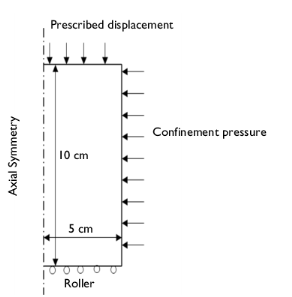
For the triaxial test, a confinement pressure of 300 kPa is applied using the In situ stress option in the External Stress node to model the isotropic compression step. For axial compression, the soil sample is compressed by applying a prescribed displacement on the top boundary. Allow the top boundary to expand freely in the radial direction and apply a roller boundary condition on the bottom boundary.
|




|
1
|
|
2
|
|
3
|
Click Add.
|
|
4
|
Click
 Study. Study. |
|
5
|
|
6
|
Click
 Done. Done. |
|
1
|
|
2
|
|
3
|
Click
 Load from File. Load from File. |
|
4
|
Browse to the model’s Application Libraries folder and double-click the file triaxial_and_oedometer_test_hs_parameters.txt.
|
|
1
|
|
2
|
|
3
|
|
5
|
|
6
|
In the Function table, enter the following settings:
|
|
1
|
In the Model Builder window, under Component 1 (comp1) right-click Definitions and choose Variables.
|
|
2
|
|
1
|
|
2
|
|
3
|
|
4
|
|
5
|
Click
 Build Selected. Build Selected. |
|
6
|
Click
 Build Selected. Build Selected. |
|
7
|
|
1
|
|
2
|
In the Settings window for Elastoplastic Soil Material, type Hardening Soil in the Label text field.
|
|
4
|
Locate the Elastoplastic Soil Material section. From the Material model list, choose Hardening soil.
|
|
5
|
|
6
|
|
7
|
|
1
|
|
2
|
|
3
|
|
4
|
|
1
|
|
1
|
|
3
|
|
4
|
|
5
|
|
1
|
|
1
|
|
3
|
|
4
|
|
5
|
|
1
|
In the Model Builder window, under Component 1 (comp1) > Solid Mechanics (solid), Ctrl-click to select Roller 1 and Prescribed Displacement 1.
|
|
2
|
Right-click and choose Group.
|
|
1
|
In the Model Builder window, under Component 1 (comp1) > Solid Mechanics (solid), Ctrl-click to select Roller 2 and Boundary Load 1.
|
|
2
|
Right-click and choose Group.
|
|
1
|
In the Model Builder window, under Component 1 (comp1) right-click Materials and choose Blank Material.
|
|
2
|
|
3
|
Locate the Material Contents section. In the table, enter the following settings:
|
|
1
|
|
2
|
|
3
|
|
4
|
|
5
|
Click
 Build Selected. Build Selected. |
|
1
|
|
2
|
|
3
|
Clear the Generate default plots checkbox.
|
|
4
|
|
1
|
|
2
|
|
3
|
Select the Modify model configuration for study step checkbox.
|
|
4
|
In the tree, select Component 1 (comp1) > Solid Mechanics (solid) > Hardening Soil > Cap and Cutoff 1 and Component 1 (comp1) > Solid Mechanics (solid) > Oedometer Test.
|
|
5
|
Right-click and choose Disable.
|
|
6
|
|
7
|
Click
 Add. Add. |
|
9
|
|
1
|
|
2
|
Go to the Add Study window.
|
|
3
|
|
4
|
Click the Add Study button in the window toolbar.
|
|
5
|
|
1
|
|
2
|
Clear the Generate default plots checkbox.
|
|
3
|
|
1
|
|
2
|
|
3
|
Select the Modify model configuration for study step checkbox.
|
|
4
|
In the tree, select Component 1 (comp1) > Solid Mechanics (solid) > Hardening Soil > External Stress 1 and Component 1 (comp1) > Solid Mechanics (solid) > Triaxial Test.
|
|
5
|
Right-click and choose Disable.
|
|
6
|
|
7
|
Click
 Add. Add. |
|
9
|
|
1
|
|
2
|
|
3
|
Click
 Add Physical Quantity. Add Physical Quantity. |
|
4
|
|
5
|
Click OK.
|
|
6
|
|
8
|
Click
 Apply. Apply. |
|
1
|
|
2
|
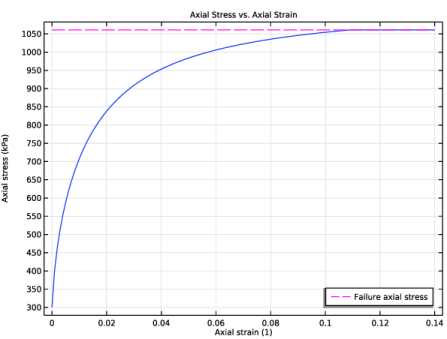
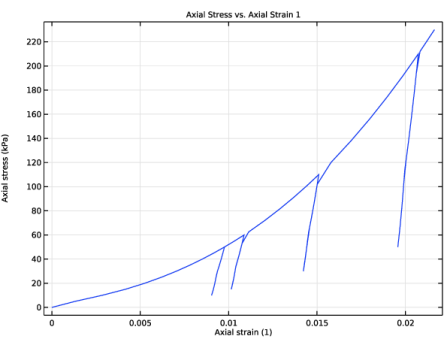
In the Settings window for 1D Plot Group, type Axial Stress vs. Axial Strain in the Label text field.
|
|
3
|
|
4
|
Locate the Plot Settings section.
|
|
5
|
|
6
|
|
7
|
|
1
|
|
3
|
|
4
|
|
5
|
|
6
|
|
1
|
|
2
|
|
3
|
|
4
|
Click to expand the Coloring and Style section. Find the Line style subsection. From the Line list, choose Dashed.
|
|
5
|
|
6
|
|
7
|
|
9
|
|
1
|
|
2
|
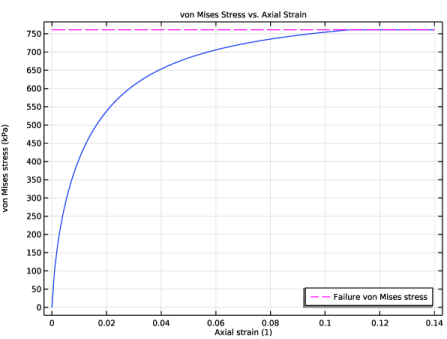
In the Settings window for 1D Plot Group, type von Mises Stress vs. Axial Strain in the Label text field.
|
|
3
|
|
4
|
Locate the Plot Settings section.
|
|
5
|
|
6
|
|
7
|
|
1
|
|
3
|
|
4
|
|
5
|
|
6
|
|
1
|
|
2
|
|
3
|
|
4
|
Locate the Coloring and Style section. Find the Line style subsection. From the Line list, choose Dashed.
|
|
5
|
|
6
|
|
7
|
|
9
|
|
1
|
|
2
|
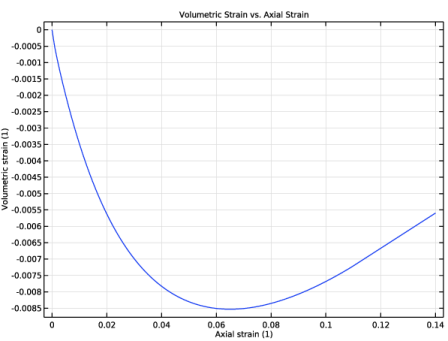
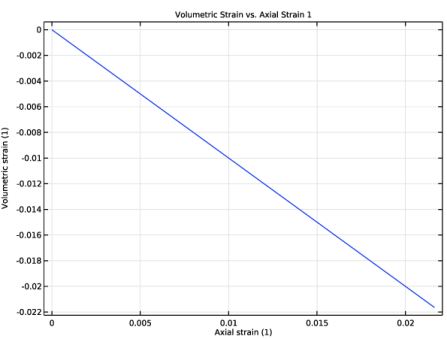
In the Settings window for 1D Plot Group, type Volumetric Strain vs. Axial Strain in the Label text field.
|
|
3
|
|
4
|
Locate the Plot Settings section.
|
|
5
|
|
6
|
|
1
|
|
3
|
|
4
|
|
5
|
|
6
|
|
7
|
|
1
|
|
2
|
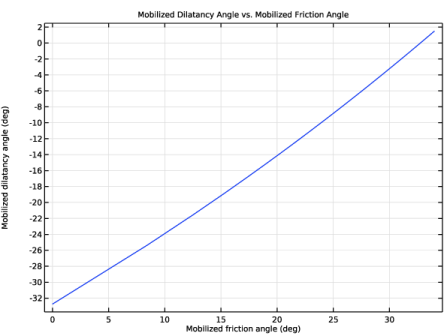
In the Settings window for 1D Plot Group, type Mobilized Dilatancy Angle vs. Mobilized Friction Angle in the Label text field.
|
|
3
|
|
4
|
Locate the Plot Settings section.
|
|
5
|
Select the x-axis label checkbox. In the associated text field, type Mobilized friction angle (deg).
|
|
6
|
Select the y-axis label checkbox. In the associated text field, type Mobilized dilatancy angle (deg).
|
|
7
|
|
1
|
|
3
|
In the Settings window for Point Graph, click Replace Expression in the upper-right corner of the y-Axis Data section. From the menu, choose Component 1 (comp1) > Solid Mechanics > Soil material properties > Hardening soil > solid.epm1.psim - Mobilized dilatancy angle - rad.
|
|
4
|
|
5
|
Click Replace Expression in the upper-right corner of the x-Axis Data section. From the menu, choose Component 1 (comp1) > Solid Mechanics > Soil material properties > Hardening soil > solid.epm1.phim - Mobilized friction angle - rad.
|
|
6
|
|
7
|
|
1
|
|
2
|
|
1
|
|
2
|
|
3
|
|
4
|
|
1
|
|
2
|
|
3
|
|
4
|
|
1
|
In the Model Builder window, under Results, Ctrl-click to select Axial Stress vs. Axial Strain, von Mises Stress vs. Axial Strain, Volumetric Strain vs. Axial Strain, and Mobilized Dilatancy Angle vs. Mobilized Friction Angle.
|
|
2
|
Right-click and choose Group.
|
|
1
|
In the Model Builder window, under Results, Ctrl-click to select Axial Stress vs. Axial Strain 1 and Volumetric Strain vs. Axial Strain 1.
|
|
2
|
Right-click and choose Group.
|