|
|
|
 |
||
|
•
|
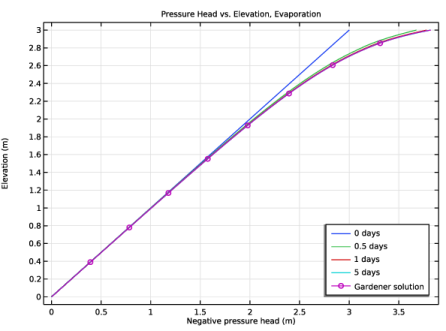
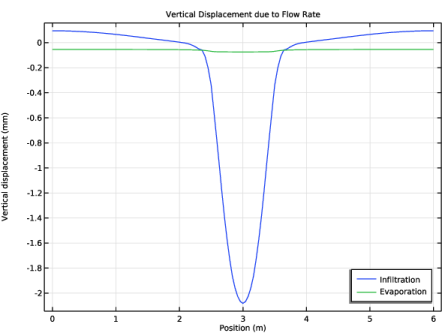
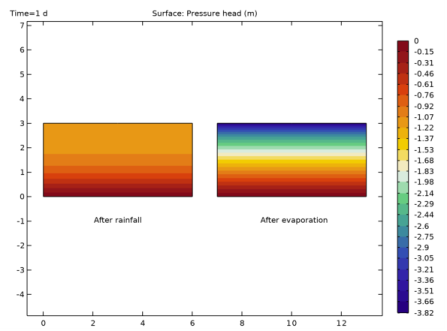
The infiltration and evaporation rates are applied in the Richards’ Equation interface using the Precipitation node. Infiltration is represented by a positive quantity in the Precipitation node, and evaporation by a negative quantity.
|
|
•
|
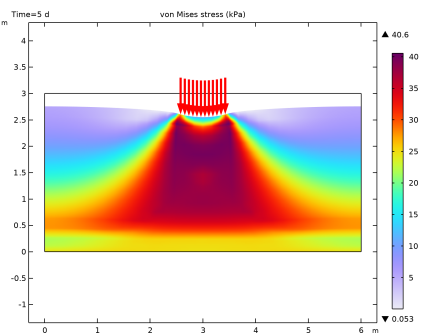
The gravity load is applied using the Gravity node. The pore pressure in the saturated region of the layer is applied using an External Stress node.
|
|
•
|
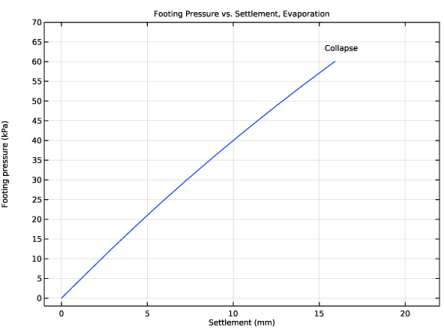
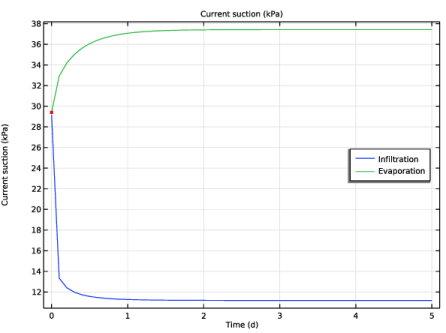
|
1
|
|
2
|
In the Select Physics tree, select Fluid Flow > Porous Media and Subsurface Flow > Richards’ Equation (dl).
|
|
3
|
Right-click and choose Add Physics.
|
|
4
|
|
5
|
Right-click and choose Add Physics.
|
|
6
|
Click
 Study. Study. |
|
7
|
|
8
|
Click
 Done. Done. |
|
1
|
|
2
|
|
3
|
Click
 Load from File. Load from File. |
|
4
|
Browse to the model’s Application Libraries folder and double-click the file settlement_analysis_transient_parameters.txt.
|
|
1
|
|
2
|
|
3
|
|
5
|
|
6
|
In the Function table, enter the following settings:
|
|
1
|
|
2
|
|
3
|
|
4
|
Click
 Load from File. Load from File. |
|
5
|
Browse to the model’s Application Libraries folder and double-click the file settlement_analysis_transient_variables.txt.
|
|
1
|
|
2
|
|
3
|
|
4
|
|
1
|
|
2
|
|
3
|
|
4
|
|
5
|
|
6
|
|
7
|
|
8
|
|
9
|
Click
 Build Selected. Build Selected. |
|
1
|
|
2
|
|
1
|
|
2
|
|
3
|
|
4
|
|
5
|
|
6
|
|
7
|
|
1
|
In the Model Builder window, under Component 1 (comp1) > Richards’ Equation (dl) click Initial Values 1.
|
|
2
|
|
3
|
Click the Hydraulic head button.
|
|
1
|
|
1
|
|
1
|
|
2
|
|
4
|
|
1
|
|
2
|
|
3
|
|
1
|
|
2
|
|
3
|
From the list, choose Quasistatic.
|
|
1
|
|
2
|
In the Settings window for Elastoplastic Soil Material, type Extended Barcelona Basic Model (BBMx) in the Label text field.
|
|
3
|
Locate the Elastoplastic Soil Material section. From the Material model list, choose Extended Barcelona basic.
|
|
4
|
|
5
|
|
6
|
|
7
|
|
8
|
|
9
|
|
1
|
|
2
|
|
3
|
|
4
|
|
5
|
|
6
|
|
1
|
|
2
|
|
3
|
|
4
|
Locate the Homogenized Properties section. In the table, enter the following settings:
|
|
5
|
|
1
|
|
2
|
|
1
|
|
1
|
|
1
|
|
1
|
|
3
|
|
4
|
|
1
|
|
2
|
|
1
|
|
2
|
|
3
|
|
1
|
|
2
|
|
3
|
Select the Modify model configuration for study step checkbox.
|
|
4
|
In the tree, select Component 1 (comp1) > Richards’ Equation (dl) > Infiltration and Component 1 (comp1) > Richards’ Equation (dl) > Evaporation.
|
|
5
|
Right-click and choose Disable.
|
|
6
|
|
7
|
Click
 Add. Add. |
|
9
|
|
1
|
|
2
|
Go to the Result Templates window.
|
|
3
|
In the tree, select Study: Footing Pressure/Solution 1 (sol1) > Richards’ Equation > Pressure (dl) and Study: Footing Pressure/Solution 1 (sol1) > Richards’ Equation > Effective Saturation (dl).
|
|
4
|
Click the Add Result Template button in the window toolbar.
|
|
5
|
In the tree, select Study: Footing Pressure/Solution 1 (sol1) > Solid Mechanics > Stress (solid), Study: Footing Pressure/Solution 1 (sol1) > Solid Mechanics > Volumetric Plastic Strain (solid), Study: Footing Pressure/Solution 1 (sol1) > Solid Mechanics > Void Ratio (solid), and Study: Footing Pressure/Solution 1 (sol1) > Solid Mechanics > Applied Loads (solid).
|
|
6
|
Click the Add Result Template button in the window toolbar.
|
|
7
|
|
1
|
|
2
|
Go to the Add Study window.
|
|
3
|
|
4
|
Right-click and choose Add Study.
|
|
5
|
|
1
|
|
2
|
|
1
|
|
2
|
|
3
|
|
4
|
|
5
|
|
6
|
|
7
|
Locate the Physics and Variables Selection section. Select the Modify model configuration for study step checkbox.
|
|
8
|
|
9
|
Right-click and choose Disable.
|
|
10
|
Click to expand the Values of Dependent Variables section. Find the Initial values of variables solved for subsection. From the Settings list, choose User controlled.
|
|
11
|
|
12
|
|
13
|
|
1
|
|
2
|
|
3
|
In the Model Builder window, expand the Study: Infiltration > Solver Configurations > Solution 2 (sol2) > Time-Dependent Solver 1 node, then click Fully Coupled 1.
|
|
4
|
|
5
|
|
6
|
|
1
|
|
2
|
Go to the Add Study window.
|
|
3
|
|
4
|
Right-click and choose Add Study.
|
|
5
|
|
1
|
|
2
|
|
1
|
|
2
|
|
3
|
|
4
|
|
5
|
|
6
|
|
7
|
Locate the Physics and Variables Selection section. Select the Modify model configuration for study step checkbox.
|
|
8
|
|
9
|
Right-click and choose Disable.
|
|
10
|
Locate the Values of Dependent Variables section. Find the Initial values of variables solved for subsection. From the Settings list, choose User controlled.
|
|
11
|
|
12
|
|
13
|
|
1
|
|
2
|
|
3
|
In the Model Builder window, expand the Study: Evaporation > Solver Configurations > Solution 3 (sol3) > Time-Dependent Solver 1 node, then click Fully Coupled 1.
|
|
4
|
|
5
|
|
6
|
|
1
|
|
2
|
|
3
|
|
4
|
|
5
|
Click to expand the Advanced section. Find the Space variables subsection. Select the Remove elements on the symmetry axis checkbox.
|
|
1
|
|
2
|
|
3
|
|
1
|
|
2
|
|
3
|
|
1
|
|
2
|
|
3
|
|
1
|
|
2
|
|
3
|
|
1
|
|
2
|
|
3
|
|
4
|
|
5
|
|
1
|
|
2
|
|
3
|
|
4
|
|
1
|
|
2
|
|
3
|
|
4
|
|
5
|
|
1
|
|
2
|
In the Settings window for 2D Plot Group, type Degree of Saturation, Infiltration in the Label text field.
|
|
3
|
|
4
|
|
5
|
|
1
|
In the Model Builder window, expand the Degree of Saturation, Infiltration node, then click Surface 1.
|
|
2
|
|
3
|
|
4
|
|
5
|
Click Replace Expression in the upper-right corner of the Expression section. From the menu, choose Component 1 (comp1) > Richards’ Equation > Retention model > dl.Se - Effective saturation - 1.
|
|
1
|
|
2
|
|
3
|
|
4
|
|
1
|
|
2
|
|
3
|
|
4
|
|
1
|
|
2
|
|
3
|
Clear the Show point checkbox.
|
|
4
|
|
5
|
|
1
|
|
2
|
|
1
|
|
2
|
|
3
|
In the Settings window for 2D Plot Group, type Degree of Saturation, Evaporation in the Label text field.
|
|
4
|
|
1
|
In the Model Builder window, expand the Degree of Saturation, Evaporation node, then click Surface 1.
|
|
2
|
|
3
|
|
4
|
|
1
|
|
2
|
|
4
|
|
1
|
|
2
|
|
3
|
Click
 Add Physical Quantity. Add Physical Quantity. |
|
4
|
|
5
|
Click OK.
|
|
6
|
|
8
|
Select the Apply conversions to expressions with the same dimensions checkbox.
|
|
9
|
Click
 Apply. Apply. |
|
1
|
|
2
|
|
3
|
|
4
|
|
1
|
|
2
|
|
3
|
|
1
|
|
2
|
In the Settings window for Arrow Line, click Replace Expression in the upper-right corner of the Expression section. From the menu, choose Component 1 (comp1) > Solid Mechanics > Load > solid.fax,solid.fay - Force per deformed area (spatial frame).
|
|
3
|
|
4
|
|
5
|
|
6
|
Clear the Color checkbox.
|
|
7
|
Clear the Arrow scale factor checkbox.
|
|
8
|
Clear the Color and data range checkbox.
|
|
1
|
|
2
|
|
3
|
|
4
|
|
5
|
Click
 Plot Last. Plot Last. |
|
1
|
|
2
|
|
3
|
|
4
|
|
5
|
|
1
|
|
2
|
|
3
|
|
1
|
|
2
|
|
3
|
|
4
|
|
5
|
|
6
|
|
1
|
|
2
|
|
3
|
|
1
|
|
2
|
|
1
|
|
2
|
|
3
|
|
4
|
|
5
|
|
1
|
|
2
|
|
3
|
|
1
|
|
2
|
|
3
|
|
4
|
|
5
|
|
6
|
|
1
|
|
2
|
|
3
|
|
4
|
|
1
|
|
2
|
Click
 Plot. Plot. |
|
1
|
|
2
|
|
3
|
|
4
|
|
5
|
|
1
|
|
2
|
Drag and drop below Void Ratio (solid).
|
|
3
|
|
4
|
|
5
|
|
1
|
|
3
|
|
4
|
|
5
|
|
6
|
|
1
|
|
2
|
|
3
|
|
4
|
|
5
|
Locate the Legends section. In the table, enter the following settings:
|
|
1
|
|
2
|
|
3
|
|
4
|
|
5
|
|
1
|
|
2
|
|
3
|
|
1
|
|
2
|
|
3
|
|
1
|
|
2
|
|
3
|
|
1
|
|
2
|
|
3
|
|
4
|
|
1
|
|
2
|
Drag and drop below Volume Changes.
|
|
3
|
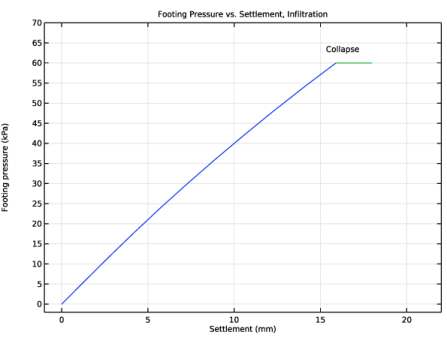
In the Settings window for 1D Plot Group, type Footing Pressure vs. Settlement, Infiltration in the Label text field.
|
|
4
|
|
5
|
Locate the Plot Settings section.
|
|
6
|
|
7
|
|
8
|
|
9
|
|
10
|
|
11
|
|
12
|
|
1
|
|
3
|
|
4
|
|
5
|
|
6
|
|
7
|
|
8
|
|
1
|
|
2
|
|
3
|
|
1
|
In the Model Builder window, right-click Footing Pressure vs. Settlement, Infiltration and choose Annotation.
|
|
2
|
|
3
|
|
4
|
|
5
|
|
6
|
|
7
|
|
1
|
|
2
|
Drag and drop Footing Pressure vs. Settlement, Infiltration 1 below Footing Pressure vs. Settlement, Infiltration.
|
|
3
|
In the Settings window for 1D Plot Group, type Footing Pressure vs. Settlement, Evaporation in the Label text field.
|
|
1
|
In the Model Builder window, expand the Footing Pressure vs. Settlement, Evaporation node, then click Point Graph 2.
|
|
2
|
|
3
|
|
4
|
|
1
|
|
2
|
|
3
|
|
4
|
|
5
|
|
6
|
|
1
|
|
2
|
|
3
|
|
1
|
|
2
|
Drag and drop below Footing Pressure vs. Settlement, Evaporation.
|
|
3
|
|
4
|
|
5
|
|
6
|
|
7
|
|
8
|
Locate the Plot Settings section.
|
|
9
|
|
10
|
|
11
|
|
1
|
|
2
|
|
3
|
|
4
|
|
5
|
|
6
|
|
7
|
|
8
|
|
1
|
|
2
|
|
3
|
|
4
|
|
5
|
Locate the Legends section. In the table, enter the following settings:
|
|
6
|
|
1
|
|
2
|
Drag and drop below Vertical Displacement.
|
|
3
|
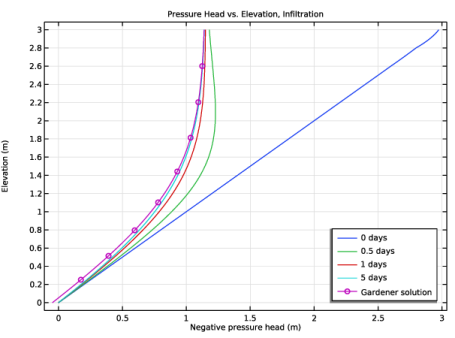
In the Settings window for 1D Plot Group, type Pressure Head vs. Elevation, Infiltration in the Label text field.
|
|
4
|
|
5
|
|
6
|
|
7
|
|
8
|
Locate the Plot Settings section.
|
|
9
|
|
10
|
|
11
|
|
1
|
|
2
|
|
3
|
Click to select the
 Activate Selection toggle button. Activate Selection toggle button. |
|
5
|
|
6
|
|
7
|
|
8
|
|
9
|
|
10
|
|
11
|
|
1
|
In the Model Builder window, right-click Pressure Head vs. Elevation, Infiltration and choose Line Graph.
|
|
2
|
|
3
|
|
4
|
|
6
|
|
7
|
|
8
|
|
9
|
Click to expand the Coloring and Style section. Find the Line markers subsection. From the Marker list, choose Circle.
|
|
10
|
|
11
|
|
12
|
|
14
|
|
1
|
|
2
|
Click
 Plot. Plot. |
|
1
|
|
2
|
Drag and drop Pressure Head vs. Elevation, Infiltration 1 below Pressure Head vs. Elevation, Infiltration.
|
|
3
|
In the Settings window for 1D Plot Group, type Pressure Head vs. Elevation, Evaporation in the Label text field.
|
|
4
|
|
1
|
In the Model Builder window, expand the Pressure Head vs. Elevation, Evaporation node, then click Line Graph 2.
|
|
2
|
|
3
|
|
4
|
|
5
|