PDF

Shallow Foundation on Unsaturated Soil
Introduction
The hydromechanical behavior of unsaturated soil, such as settlement and heave, is an important topic in geotechnical engineering. Settlement and heave largely depends on the saturation and suction in the soil and on the loading conditions. To study these phenomena, this example looks at a shallow foundation resting on an unsaturated soil. The problem setting and geometry is inspired by the example presented in Ref. 1. In order to demonstrate the settlement and heave of the unsaturated soil, the Modified Cam-Clay model (MCC) and Extended Barcelona Basic model (BBMx) are used. Of these two constitutive models, the latter is more suitable to model unsaturated soils since it includes the effect of suction in its constitutive relationship.
Model Definition
In this example, a 10 m wide and 5 m deep soil stratum is studied. A 1 m wide footing is placed on top of the layer, which applies an incrementally increasing footing pressure. Initially, the ground water level is 3 m below surface. This level then defines the phreatic line, under which the soil is saturated and above which it is unsaturated. In order to study the effects of wetting, the ground water level is increased until the soil is fully saturated after the full footing pressure is applied.
Figure 1: Dimensions, boundary conditions, and pressure load for the unsaturated soil.
Soil Properties
The properties of the soil stratum are given in Table 1.
ν
ρs
ρw
μw
κ
κs
λ
λs
bb
kb
sy
e0
pref
pc0
Constraints and Loads
The gravity load is applied using a Gravity node. The pore pressure in the saturated region of the soil sample is applied using an External Stress node.
Results and Discussion
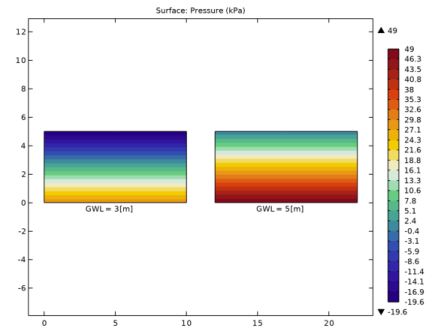
Figure 2 shows the pore pressure at different ground water levels in the soil. Negative values of the pore pressure indicate regions that are unsaturated.
Figure 2: Pore pressure at different ground water levels.
For saturated soils, both the MCC and the BBMx models use the effective stress principle to account for the pore pressure; while for unsaturated soils, the BBMx model accounts for the negative pore pressure by including suction as a model parameter in the yield function and plastic potential. Unlike the BBMx model, suction is not included in the MCC model, which makes it less suitable for modeling unsaturated soils.
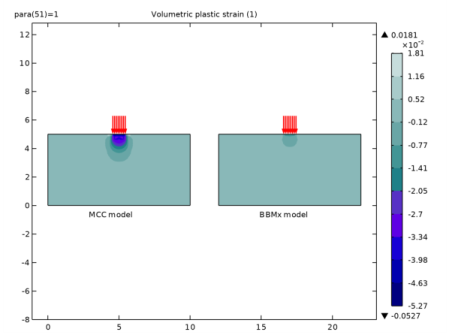
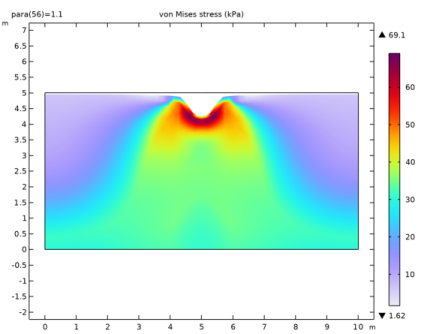
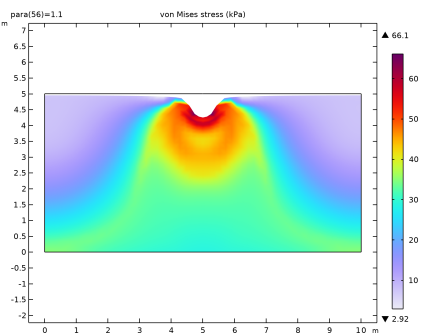
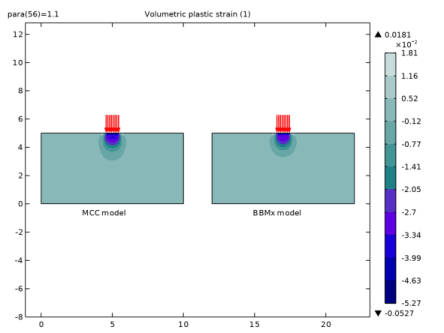
The distribution of volumetric plastic strain obtained with both material models, at a ground water level equal to 3 m, is shown in Figure 3. With the MCC model, a larger region of the soil underneath the footing is subjected to plastic deformation, as compared to the results from the BBMx model. The same observation is made in Ref. 1. However, when the ground water level increases, the reduction in suction results in additional plastic strains with the BBMx model. In contrast, as shown in Figure 4, no significant additional plastic strains are observed when the MCC model is used; negligible changes in plastic strain can, however, be observed due to changes in the effective stress. The distribution of von Mises stress for the fully saturated soil is shown in Figure 5 and Figure 6. It is distinctively different when comparing the two soil models. These results emphasize the importance of including suction as a constitutive parameter in soil models intended for modeling partially saturated soils.
Figure 3: Volumetric plastic strain for a ground water level equal to 3 m.
Figure 4: Volumetric plastic strain for a ground water level equal to 5 m.
Figure 5: Distribution of von Mises stress with the MCC model for a ground water level equal to 5 m.
Figure 6: Distribution of von Mises stress with the BBMx model for a ground water level equal to 5 m.
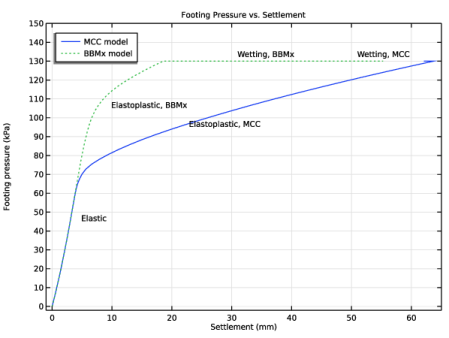
The curve of footing pressure versus settlement is shown in Figure 7. The first stage of the analysis is done at a water level of 3 m, then, the footing pressure is incrementally increased up to 130 kPa. In the elastic regime both models give the same response, but as plastic strains develop, the two models differ significantly. The BBMx model shows smaller settlement as compared to the MCC model; this indicates that if suction is not taken in to account, the settlement is overestimated.
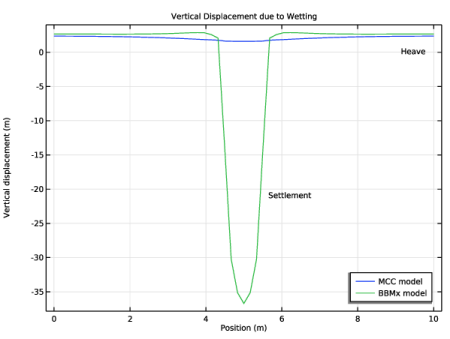
When the ground water level gradually increases to the surface level, the two material models react differently, see Figure 7. The MCC model shows a reduction in the displacement of the footing, while the BBMx model instead shows a large increase in the footing displacement. With the MCC model, the rise in ground water level causes a reduction in effective stress, which gives an overall positive displacement of the soil surface called heave, see Figure 8. Both the footing and the adjacent soil display heaving with the MCC model. With the BBMx model, the footing shows additional settlement due to the reduction in both suction and effective stress. Note that Figure 8 shows the vertical displacement due to wetting only. The behavior shown in Figure 7 and Figure 8 is also reported in Ref. 1. For the BBMx model, the additional footing settlement due to wetting is referred to as soil collapse due to loss of capillary cohesion.
Figure 7: Footing pressure versus settlement.
Figure 8: Vertical displacement of the stratum surface due to wetting.
Notes About the COMSOL Implementation
The model setup neither includes transient phenomena nor the effect that the deformation has on the pore pressure. This means that it would be possible to model this problem without the Richards’ Equation interface by defining the pore pressure in the saturated region using an analytical function. However, the current setup can be easily extended to more complex multiphysics scenarios.
A linear discretization is used for the Solid Mechanics interface to achieve numerical stability for the nonlinear plasticity problem. A dense mesh is used in the domain to maintain good accuracy.
The Cam-Clay family of soil models, like the MCC or BBMx models, do not define any stiffness at zero stress; hence, numerical simulations that use these soil models always prescribe an initial mean stress equal to the reference pressure at zero strain.
Reference
1. A.A. Abed and P.A. Vermeer, “Numerical Simulation of Unsaturated Soil Behavior,” International Journal of Computer Applications in Technology, vol. 34, no. 1, 2009.
Application Library path: Geomechanics_Module/Soil/settlement_analysis
Modeling Instructions
From the File menu, choose New.
New
In the New window, click  Model Wizard.
Model Wizard
1
In the Model Wizard window, click  2D.
2
In the Select Physics tree, select Fluid Flow > Porous Media and Subsurface Flow > Richards’ Equation (dl).
3
4
In the Select Physics tree, select Structural Mechanics > Solid Mechanics (solid).
5
6
Click  Study.
7
In the Select Study tree, select General Studies > Stationary.
8
Geometry 1
Model parameters are available in the appended text file.
Global Definitions
Parameters 1
1
In the Model Builder window, under Global Definitions click Parameters 1.
2
In the Settings window for Parameters, locate the Parameters section.
3
Click  Load from File.
4
Footing Pressure
1
In the Home toolbar, click  Functions and choose Global > Interpolation.
2
In the Settings window for Interpolation, type Footing Pressure in the Label text field.
3
Locate the Definition section. In the Function name text field, type F_P.
4
5
Locate the Units section. In the Argument table, enter the following settings:
6
In the Function table, enter the following settings:
Ground Water Level
1
In the Home toolbar, click  Functions and choose Global > Interpolation.
2
In the Settings window for Interpolation, type Ground Water Level in the Label text field.
3
Locate the Definition section. In the Function name text field, type GWL.
4
5
Locate the Units section. In the Argument table, enter the following settings:
6
In the Function table, enter the following settings:
Initial Suction Profile
1
In the Home toolbar, click  Functions and choose Global > Analytic.
2
In the Settings window for Analytic, type Initial Suction Profile in the Label text field.
3
In the Function name text field, type InitSuction.
4
Locate the Definition section. In the Expression text field, type rhow*g_const*(Y-3)*(Y>=3).
5
In the Arguments text field, type Y.
6
Locate the Units section. In the table, enter the following settings:
7
In the Function text field, type Pa.
8
Locate the Plot Parameters section. In the table, enter the following settings:
Definitions
Variables 1
1
In the Model Builder window, expand the Component 1 (comp1) > Definitions node.
2
Right-click Definitions and choose Variables.
Model variables are available in the appended text file.
3
In the Settings window for Variables, locate the Variables section.
4
Click  Load from File.
5
Create half of the geometry by exploiting symmetry.
Geometry 1
Rectangle 1 (r1)
1
In the Geometry toolbar, click  Rectangle.
2
In the Settings window for Rectangle, locate the Size and Shape section.
3
In the Width text field, type 5.
4
In the Height text field, type 5.
Add a line segment to represent the foundation.
Line Segment 1 (ls1)
1
In the Geometry toolbar, click  More Primitives and choose Line Segment.
2
In the Settings window for Line Segment, locate the Starting Point section.
3
From the Specify list, choose Coordinates.
4
In the x text field, type 4.5.
5
In the y text field, type 5.
6
Locate the Endpoint section. From the Specify list, choose Coordinates.
7
In the x text field, type 5.
8
In the y text field, type 5.
9
Click  Build Selected.
Add points on side boundaries to represent the initial ground water level.
Point 1 (pt1)
1
In the Geometry toolbar, click  Point.
2
In the Settings window for Point, locate the Point section.
3
In the y text field, type 3.
Materials
Add a Porous Material that contains information about the fluid and porous matrix properties together with the structural properties.
Porous Material 1 (pmat1)
In the Model Builder window, under Component 1 (comp1) right-click Materials and choose More Materials > Porous Material.
Continue with setting up the physics. After that, the software automatically detects which material properties are required. First, change the discretization to Linear.
Richards’ Equation (dl)
1
In the Settings window for Richards’ Equation, click to expand the Discretization section.
2
From the Pressure list, choose Linear.
Unsaturated Porous Medium 1
1
In the Model Builder window, under Component 1 (comp1) > Richards’ Equation (dl) click Unsaturated Porous Medium 1.
2
In the Settings window for Unsaturated Porous Medium, locate the Porous Medium section.
3
From the Storage model list, choose User defined.
Porous Matrix 1
1
In the Model Builder window, click Porous Matrix 1.
2
In the Settings window for Porous Matrix, locate the Retention Model section.
3
From the Retention model list, choose User defined. In the Se text field, type Se.
4
In the θl text field, type S_res*phi0+Se*(phi0-S_res*phi0).
5
In the Cm text field, type Cm.
6
In the κr text field, type k_rel.
7
In the θr text field, type S_res*phi0.
Pressure Head 1
1
In the Physics toolbar, click  Boundaries and choose Pressure Head.
2
3
In the Settings window for Pressure Head, locate the Pressure Head section.
4
In the Hp0 text field, type GWL(para)-Y.
Symmetry 1
1
In the Physics toolbar, click  Boundaries and choose Symmetry.
2
Continue with setting up the Solid Mechanics interface. Change the discretization to Linear.
Solid Mechanics (solid)
1
In the Model Builder window, under Component 1 (comp1) click Solid Mechanics (solid).
2
In the Settings window for Solid Mechanics, click to expand the Discretization section.
3
From the Displacement field list, choose Linear.
Modified Cam-Clay Model (MCC)
1
In the Physics toolbar, click  Domains and choose Elastoplastic Soil Material.
2
In the Settings window for Elastoplastic Soil Material, type Modified Cam-Clay Model (MCC) in the Label text field.
3
4
Locate the Elastoplastic Soil Material section. From the Γ(θ) list, choose Matsuoka–Nakai.
5
Find the Parameters subsection. From the M list, choose From material.
6
In the pref text field, type pref.
7
In the pc0 text field, type pc0.
External Stress 1
1
In the Physics toolbar, click  Attributes and choose External Stress.
2
In the Settings window for External Stress, locate the External Stress section.
3
From the Stress input list, choose Pore pressure.
4
In the pA text field, type PorePressure.
5
In the pref text field, type 0.
6
From the αB list, choose User defined. In the associated text field, type 1.
Go to the material node and assign the required material properties.
Materials
Porous Material 1 (pmat1)
1
In the Model Builder window, under Component 1 (comp1) > Materials click Porous Material 1 (pmat1).
2
In the Settings window for Porous Material, locate the Homogenized Properties section.
3
Solid Mechanics (solid)
Extended Barcelona Basic Model (BBMx)
1
In the Physics toolbar, click  Domains and choose Elastoplastic Soil Material.
2
In the Settings window for Elastoplastic Soil Material, type Extended Barcelona Basic Model (BBMx) in the Label text field.
3
Locate the Elastoplastic Soil Material section. From the Material model list, choose Extended Barcelona basic.
4
5
From the Γ(θ) list, choose Matsuoka–Nakai.
6
Find the Parameters subsection. From the M list, choose From material.
7
In the s0 text field, type InitSuction(Y).
8
In the s text field, type Suction.
9
In the pref text field, type pref.
10
In the pc0 text field, type pc0.
External Stress 1
1
In the Physics toolbar, click  Attributes and choose External Stress.
2
In the Settings window for External Stress, locate the External Stress section.
3
From the Stress input list, choose Pore pressure.
4
In the pA text field, type PorePressure.
5
In the pref text field, type 0.
6
From the αB list, choose User defined. In the associated text field, type 1.
Go to the material node and assign the required material properties.
Materials
Porous Material 1 (pmat1)
1
In the Model Builder window, under Component 1 (comp1) > Materials click Porous Material 1 (pmat1).
2
In the Settings window for Porous Material, locate the Homogenized Properties section.
3
4
Locate the Phase-Specific Properties section. Click  Add Required Phase Nodes.
Fluid 1 (pmat1.fluid1)
1
In the Model Builder window, click Fluid 1 (pmat1.fluid1).
2
In the Settings window for Fluid, locate the Material Contents section.
3
Solid Mechanics (solid)
Gravity 1
In the Physics toolbar, click  Global and choose Gravity.
Fixed Constraint 1
1
In the Physics toolbar, click  Boundaries and choose Fixed Constraint.
2
Roller 1
1
In the Physics toolbar, click  Boundaries and choose Roller.
2
Symmetry 1
1
In the Physics toolbar, click  Boundaries and choose Symmetry.
2
Boundary Load 1
1
In the Physics toolbar, click  Boundaries and choose Boundary Load.
2
3
In the Settings window for Boundary Load, locate the Force section.
4
Specify the fA vector as
Mesh 1
Mapped 1
In the Mesh toolbar, click  Mapped.
Size
1
In the Model Builder window, click Size.
2
In the Settings window for Size, locate the Element Size section.
3
From the Predefined list, choose Finer.
Mapped 1
In the Model Builder window, right-click Mapped 1 and choose Build All.
Study: MCC
1
In the Model Builder window, click Study 1.
2
In the Settings window for Study, type Study: MCC in the Label text field.
Step 1: Stationary
1
In the Model Builder window, under Study: MCC click Step 1: Stationary.
2
In the Settings window for Stationary, locate the Study Settings section.
3
From the Tolerance list, choose User controlled.
4
In the Relative tolerance text field, type 0.0001.
5
Locate the Physics and Variables Selection section. Select the Modify model configuration for study step checkbox.
6
In the tree, select Component 1 (comp1) > Solid Mechanics (solid) > Extended Barcelona Basic Model (BBMx).
7
8
Click to expand the Study Extensions section. Select the Auxiliary sweep checkbox.
9
10
11
In the Study toolbar, click  Compute.
Result Templates
1
In the Results toolbar, click  Result Templates to open the Result Templates window.
2
Go to the Result Templates window.
3
In the tree, select Study: MCC/Solution 1 (sol1) > Solid Mechanics > Volumetric Plastic Strain (solid), Study: MCC/Solution 1 (sol1) > Solid Mechanics > Void Ratio (solid), and Study: MCC/Solution 1 (sol1) > Solid Mechanics > Applied Loads (solid).
4
Click the Add Result Template button in the window toolbar.
5
In the Results toolbar, click  Result Templates to close the Result Templates window.
Add Study
1
In the Home toolbar, click  Add Study to open the Add Study window.
2
Go to the Add Study window.
3
Find the Studies subsection. In the Select Study tree, select General Studies > Stationary.
4
5
In the Home toolbar, click  Add Study to close the Add Study window.
Study: BBMx
1
In the Settings window for Study, type Study: BBMx in the Label text field.
2
Locate the Study Settings section. Clear the Generate default plots checkbox.
1
In the Model Builder window, under Study: BBMx click Step 1: Stationary.
2
In the Settings window for Stationary, locate the Study Settings section.
3
From the Tolerance list, choose User controlled.
4
In the Relative tolerance text field, type 0.0001.
5
Locate the Study Extensions section. Select the Auxiliary sweep checkbox.
6
7
Customize the solver settings in order to achieve better convergence.
Solution 2 (sol2)
1
In the Study toolbar, click  Show Default Solver.
2
In the Model Builder window, expand the Solution 2 (sol2) node.
3
In the Model Builder window, expand the Study: BBMx > Solver Configurations > Solution 2 (sol2) > Stationary Solver 1 node, then click Parametric 1.
4
In the Settings window for Parametric, click to expand the Continuation section.
5
Select the Tuning of step size checkbox.
6
In the Minimum step size text field, type 0.0001.
7
In the Study toolbar, click  Compute.
Results
Mirror 2D 1
1
In the Results toolbar, click  More Datasets and choose Mirror 2D.
2
In the Settings window for Mirror 2D, locate the Axis Data section.
3
In row Point 1, set X to 5.
4
In row Point 2, set X to 5.
5
Click to expand the Advanced section. Find the Space variables subsection. Select the Remove elements on the symmetry axis checkbox.
Mirror 2D 2
1
Right-click Mirror 2D 1 and choose Duplicate.
2
In the Settings window for Mirror 2D, locate the Data section.
3
From the Dataset list, choose Study: BBMx/Solution 2 (sol2).
Set default units for result presentation.
Preferred Units 1
1
In the Results toolbar, click  Configurations and choose Preferred Units.
2
In the Settings window for Preferred Units, locate the Units section.
3
Click  Add Physical Quantity.
4
In the Physical Quantity dialog, select Solid Mechanics > Stress tensor (N/m^2) in the tree.
5
6
In the Settings window for Preferred Units, locate the Units section.
7
8
Select the Apply conversions to expressions with the same dimensions checkbox.
9
Click  Apply.
Surface
1
In the Model Builder window, expand the Pressure (dl) node, then click Surface.
2
In the Settings window for Surface, locate the Data section.
3
From the Dataset list, choose Mirror 2D 1.
4
From the Parameter value (para) list, choose 1.
Surface 2
1
Right-click Surface and choose Duplicate.
2
In the Settings window for Surface, locate the Data section.
3
From the Dataset list, choose From parent.
4
Click to expand the Inherit Style section. From the Plot list, choose Surface.
Transformation 1
1
Right-click Surface 2 and choose Transformation.
2
In the Settings window for Transformation, locate the Transformation section.
3
In the X text field, type 12.
4
In the Pressure (dl) toolbar, click  Plot.
Pressure (dl)
In the Model Builder window, under Results click Pressure (dl).
Table Annotation 1
1
In the Pressure (dl) toolbar, click  More Plots and choose Table Annotation.
2
In the Settings window for Table Annotation, locate the Data section.
3
From the Source list, choose Local table.
4
5
Locate the Coloring and Style section. Clear the Show point checkbox.
Pressure (dl)
1
In the Model Builder window, click Pressure (dl).
2
In the Settings window for 2D Plot Group, locate the Data section.
3
From the Dataset list, choose Mirror 2D 1.
4
Click to expand the Title section. Find the Solution subsection. Clear the Solution checkbox.
5
From the Title type list, choose Manual.
6
In the Title text area, type Surface: Pressure (kPa).
7
Locate the Color Legend section. Select the Show maximum and minimum values checkbox.
8
In the Pressure (dl) toolbar, click  Plot.
Degree of Saturation at GWL = 3[m]
1
In the Model Builder window, under Results click Flownet (dl).
2
In the Settings window for 2D Plot Group, type Degree of Saturation at GWL = 3[m] in the Label text field.
3
Locate the Data section. From the Dataset list, choose Mirror 2D 1.
4
From the Parameter value (para) list, choose 1.
5
In the Model Builder window, expand the Degree of Saturation at GWL = 3[m] node.
Contour 1, Streamline 1
1
In the Model Builder window, under Results > Degree of Saturation at GWL = 3[m], Ctrl-click to select Contour 1 and Streamline 1.
2
Surface 1
1
Right-click Degree of Saturation at GWL = 3[m] and choose Surface.
2
In the Settings window for Surface, click Replace Expression in the upper-right corner of the Expression section. From the menu, choose Component 1 (comp1) > Richards’ Equation > Retention model > dl.Se - Effective saturation - 1.
Degree of Saturation at GWL = 3[m]
1
In the Model Builder window, click Degree of Saturation at GWL = 3[m].
2
In the Degree of Saturation at GWL = 3[m] toolbar, click  Plot.
Stress, MCC
1
In the Model Builder window, under Results click Stress (solid).
2
In the Settings window for 2D Plot Group, type Stress, MCC in the Label text field.
3
Locate the Data section. From the Dataset list, choose Mirror 2D 1.
4
Locate the Color Legend section. Select the Show maximum and minimum values checkbox.
Surface 1
1
In the Model Builder window, expand the Stress, MCC node, then click Surface 1.
2
In the Settings window for Surface, click to expand the Quality section.
3
From the Smoothing threshold list, choose None.
4
In the Stress, MCC toolbar, click  Plot.
Stress, BBMx
1
In the Model Builder window, right-click Stress, MCC and choose Duplicate.
2
Drag and drop Stress, MCC 1 below Stress, MCC.
3
In the Settings window for 2D Plot Group, type Stress, BBMx in the Label text field.
4
Locate the Data section. From the Dataset list, choose Mirror 2D 2.
5
In the Stress, BBMx toolbar, click  Plot.
Volumetric Plastic Strain at GWL = 3[m]
1
In the Model Builder window, under Results click Volumetric Plastic Strain (solid).
2
In the Settings window for 2D Plot Group, type Volumetric Plastic Strain at GWL = 3[m] in the Label text field.
3
Locate the Data section. From the Dataset list, choose Mirror 2D 1.
4
From the Parameter value (para) list, choose 1.
5
Locate the Color Legend section. Select the Show maximum and minimum values checkbox.
Surface 1
1
In the Model Builder window, expand the Volumetric Plastic Strain at GWL = 3[m] node, then click Surface 1.
2
In the Settings window for Surface, locate the Coloring and Style section.
3
From the Color table transformation list, choose Reverse.
Surface 2
1
Right-click Results > Volumetric Plastic Strain at GWL = 3[m] > Surface 1 and choose Duplicate.
2
In the Settings window for Surface, locate the Data section.
3
From the Dataset list, choose Mirror 2D 2.
4
From the Parameter value (para) list, choose 1.
5
Click to expand the Title section. From the Title type list, choose None.
6
Locate the Inherit Style section. From the Plot list, choose Surface 1.
Transformation 1
1
Right-click Surface 2 and choose Transformation.
2
In the Settings window for Transformation, locate the Transformation section.
3
In the x text field, type 12.
Volumetric Plastic Strain at GWL = 3[m]
In the Model Builder window, under Results click Volumetric Plastic Strain at GWL = 3[m].
Table Annotation 1
1
In the Volumetric Plastic Strain at GWL = 3[m] toolbar, click  More Plots and choose Table Annotation.
2
In the Settings window for Table Annotation, locate the Data section.
3
From the Source list, choose Local table.
4
5
Locate the Coloring and Style section. Clear the Show point checkbox.
Arrow Line 1
1
Right-click Volumetric Plastic Strain at GWL = 3[m] and choose Arrow Line.
2
In the Settings window for Arrow Line, click Replace Expression in the upper-right corner of the Expression section. From the menu, choose Component 1 (comp1) > Solid Mechanics > Load > solid.fax,solid.fay - Force per deformed area (spatial frame).
3
Click to expand the Title section. From the Title type list, choose None.
4
Locate the Coloring and Style section. From the Arrow base list, choose Head.
Arrow Line 2
Right-click Arrow Line 1 and choose Duplicate.
Transformation 1
1
In the Model Builder window, right-click Arrow Line 2 and choose Transformation.
2
In the Settings window for Transformation, locate the Transformation section.
3
In the x text field, type 12.
Volumetric Plastic Strain at GWL = 3[m]
1
In the Model Builder window, under Results click Volumetric Plastic Strain at GWL = 3[m].
2
In the Volumetric Plastic Strain at GWL = 3[m] toolbar, click  Plot.
Volumetric Plastic Strain at GWL = 5[m]
1
Right-click Volumetric Plastic Strain at GWL = 3[m] and choose Duplicate.
2
Drag and drop Volumetric Plastic Strain at GWL = 3[m] 1 below Volumetric Plastic Strain at GWL = 3[m].
3
In the Settings window for 2D Plot Group, type Volumetric Plastic Strain at GWL = 5[m] in the Label text field.
4
Locate the Data section. From the Parameter value (para) list, choose 1.1.
Surface 2
1
In the Model Builder window, expand the Volumetric Plastic Strain at GWL = 5[m] node, then click Surface 2.
2
In the Settings window for Surface, locate the Data section.
3
From the Parameter value (para) list, choose 1.1.
Volumetric Plastic Strain at GWL = 5[m]
1
In the Model Builder window, click Volumetric Plastic Strain at GWL = 5[m].
2
In the Volumetric Plastic Strain at GWL = 5[m] toolbar, click  Plot.
Void Ratio at GWL = 3[m]
1
In the Model Builder window, under Results click Void Ratio (solid).
2
In the Settings window for 2D Plot Group, type Void Ratio at GWL = 3[m] in the Label text field.
3
Locate the Data section. From the Dataset list, choose Mirror 2D 1.
4
From the Parameter value (para) list, choose 1.
5
Locate the Color Legend section. Select the Show maximum and minimum values checkbox.
Surface 2
1
In the Model Builder window, expand the Void Ratio at GWL = 3[m] node.
2
Right-click Results > Void Ratio at GWL = 3[m] > Surface 1 and choose Duplicate.
3
In the Settings window for Surface, locate the Data section.
4
From the Dataset list, choose Mirror 2D 2.
5
From the Parameter value (para) list, choose 1.
6
Locate the Title section. From the Title type list, choose None.
7
Locate the Inherit Style section. From the Plot list, choose Surface 1.
Transformation 1
1
Right-click Surface 2 and choose Transformation.
2
In the Settings window for Transformation, locate the Transformation section.
3
In the x text field, type 12.
Table Annotation 1
In the Model Builder window, under Results > Volumetric Plastic Strain at GWL = 5[m] right-click Table Annotation 1 and choose Copy.
Table Annotation 1
In the Model Builder window, right-click Void Ratio at GWL = 3[m] and choose Paste Table Annotation.
Void Ratio at GWL = 3[m]
In the Void Ratio at GWL = 3[m] toolbar, click  Plot.
Void Ratio at GWL = 5[m]
1
Right-click Void Ratio at GWL = 3[m] and choose Duplicate.
2
Drag and drop Void Ratio at GWL = 3[m] 1 below Void Ratio at GWL = 3[m].
3
In the Settings window for 2D Plot Group, type Void Ratio at GWL = 5[m] in the Label text field.
4
Click  Plot Last.
Surface 2
1
In the Model Builder window, expand the Void Ratio at GWL = 5[m] node, then click Surface 2.
2
In the Settings window for Surface, click  Plot Last.
In order to plot the characteristic curve of the footing pressure versus settlement, offset the initial deformation due to pore pressure and gravity.
Footing Pressure vs. Settlement
1
In the Results toolbar, click  1D Plot Group.
2
Drag and drop below Void Ratio at GWL = 5[m].
3
In the Settings window for 1D Plot Group, type Footing Pressure vs. Settlement in the Label text field.
4
Click to expand the Title section. From the Title type list, choose Label.
5
Locate the Plot Settings section.
6
Select the x-axis label checkbox. In the associated text field, type Settlement (mm).
7
Select the y-axis label checkbox. In the associated text field, type Footing pressure (kPa).
8
Locate the Axis section. Select the Manual axis limits checkbox.
9
In the x maximum text field, type 65.
10
In the y minimum text field, type -2.
11
In the y maximum text field, type 150.
12
Locate the Legend section. From the Position list, choose Upper left.
Point Graph 1
1
Right-click Footing Pressure vs. Settlement and choose Point Graph.
2
3
In the Settings window for Point Graph, locate the y-Axis Data section.
4
In the Expression text field, type F_P(para).
5
Locate the x-Axis Data section. From the Parameter list, choose Expression.
6
In the Expression text field, type abs(v-withsol('sol1',v,setval(para,0))).
7
From the Unit list, choose mm.
8
Click to expand the Coloring and Style section. From the Width list, choose 1.
9
Click to expand the Legends section. Select the Show legends checkbox.
10
From the Legends list, choose Manual.
11
Point Graph 2
1
Right-click Point Graph 1 and choose Duplicate.
2
In the Settings window for Point Graph, locate the Data section.
3
From the Dataset list, choose Study: BBMx/Solution 2 (sol2).
4
Locate the x-Axis Data section. In the Expression text field, type abs(v-withsol('sol2',v,setval(para,0))).
5
Locate the Coloring and Style section. Find the Line style subsection. From the Line list, choose Dotted.
6
Locate the Legends section. In the table, enter the following settings:
Footing Pressure vs. Settlement
In the Model Builder window, click Footing Pressure vs. Settlement.
Table Annotation 1
1
In the Footing Pressure vs. Settlement toolbar, click  More Plots and choose Table Annotation.
2
In the Settings window for Table Annotation, locate the Data section.
3
From the Source list, choose Local table.
4
5
Locate the Coloring and Style section. Clear the Show point checkbox.
Footing Pressure vs. Settlement
1
In the Model Builder window, click Footing Pressure vs. Settlement.
2
In the Footing Pressure vs. Settlement toolbar, click  Plot.
Cut Line 2D 1
1
In the Results toolbar, click  Cut Line 2D.
2
In the Settings window for Cut Line 2D, locate the Data section.
3
From the Dataset list, choose Mirror 2D 1.
4
Locate the Line Data section. In row Point 2, set x to 10.
5
In row Point 1, set y to 5.
6
In row Point 2, set y to 5.
Cut Line 2D 2
1
Right-click Cut Line 2D 1 and choose Duplicate.
2
In the Settings window for Cut Line 2D, locate the Data section.
3
From the Dataset list, choose Mirror 2D 2.
Vertical Displacement
1
In the Results toolbar, click  1D Plot Group.
2
Drag and drop below Footing Pressure vs. Settlement.
3
In the Settings window for 1D Plot Group, type Vertical Displacement in the Label text field.
4
Locate the Data section. From the Dataset list, choose Cut Line 2D 1.
5
From the Parameter selection (para) list, choose Last.
6
Locate the Title section. From the Title type list, choose Manual.
7
In the Title text area, type Vertical Displacement due to Wetting.
8
Locate the Plot Settings section.
9
Select the x-axis label checkbox. In the associated text field, type Position (m).
10
Select the y-axis label checkbox. In the associated text field, type Vertical displacement (m).
11
Locate the Legend section. From the Position list, choose Lower right.
Line Graph 1
1
Right-click Vertical Displacement and choose Line Graph.
2
In the Settings window for Line Graph, locate the y-Axis Data section.
3
In the Expression text field, type v-withsol('sol1',v,setval(para,1)).
4
From the Unit list, choose mm.
5
Locate the x-Axis Data section. From the Parameter list, choose Expression.
6
In the Expression text field, type cln1x.
7
Click to expand the Legends section. Select the Show legends checkbox.
8
From the Legends list, choose Manual.
9
Line Graph 2
1
Right-click Line Graph 1 and choose Duplicate.
2
In the Settings window for Line Graph, locate the Data section.
3
From the Dataset list, choose Cut Line 2D 2.
4
From the Parameter selection (para) list, choose Last.
5
Locate the y-Axis Data section. In the Expression text field, type v-withsol('sol2',v,setval(para,1)).
6
Locate the Legends section. In the table, enter the following settings:
Vertical Displacement
In the Model Builder window, click Vertical Displacement.
Table Annotation 1
1
In the Vertical Displacement toolbar, click  More Plots and choose Table Annotation.
2
In the Settings window for Table Annotation, locate the Data section.
3
From the Source list, choose Local table.
4
5
Locate the Coloring and Style section. Clear the Show point checkbox.
Vertical Displacement
1
In the Model Builder window, click Vertical Displacement.
2
In the Vertical Displacement toolbar, click  Plot.