|
|
|
|
•
|
 |
||||
|
•
|
|
•
|

|
•
|
In COMSOL Multiphysics, either the void ratio at reference pressure together with the saturation eref0, or the initial void ratio e0 are needed as a material property. For this example, an initial void ratio is provided as an input material property.
|
|
•
|
For the oedometer and triaxial tests, the compression index at current suction is independent of the suction, since suction values are held constant in Ref. 2. To achieve this, the weight parameter is set to zero. In COMSOL Multiphysics, the formula for the compression index at current suction is implemented in a different way, therefore, the weight parameter is set to one in order to achieve the same effect as shown in Ref. 2. In these cases the choice of the soil stiffness parameter does not matter.
|
|
•
|
The yield function and the plastic potential used in COMSOL Multiphysics is different than the expressions given in Ref. 2. The nonassociative parameter for the plastic potential is always set to one in COMSOL Multiphysics as compared to Ref. 2.
|
|
•
|
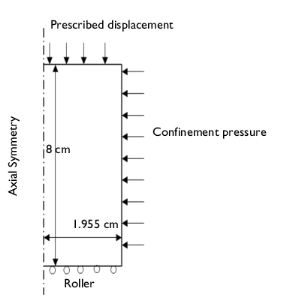
For the oedometer test, an initial stress of −2.97 MPa is applied in the radial and circumferential directions, while −0.18 MPa is applied in the axial direction.
|
|
•
|
Note that the reference pressure pref acts as an initial stress, therefore the values of the diagonal components of the in situ stress tensor defined in the External Stress node are −2.87 MPa, −2.87 MPa, and −0.08 MPa.
|
|
•
|
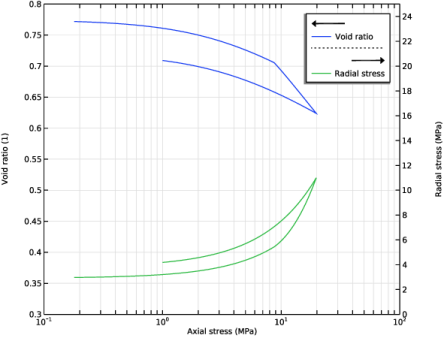
During the loading stage of the oedometer test, the axial compressive stress is increased from 0.18 MPa to 19.77 MPa, and then decreased from 19.77 MPa to 1.00 MPa. Roller boundary conditions are applied on the bottom and side boundaries. The suction value is kept constant throughout the analysis.
|
|
•
|
For the uniaxial swelling test, an initial stress of −2.54 MPa is applied in the radial and circumferential directions, while −8.90 MPa is applied in the axial direction. The reference pressure pref acts as an initial stress, so the values of the diagonal components of the in situ stress tensor in the External Stress node are -2.34 MPa, −2.34 MPa, and −8.70 MPa.
|
|
•
|
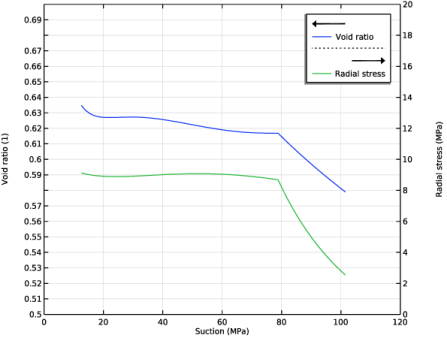
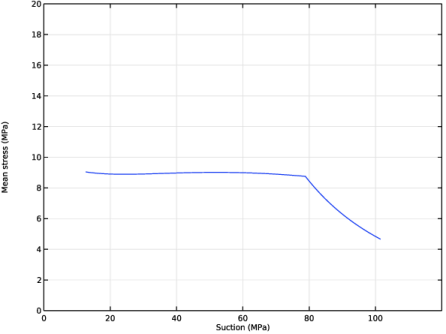
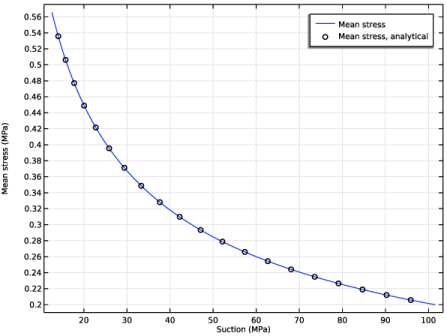
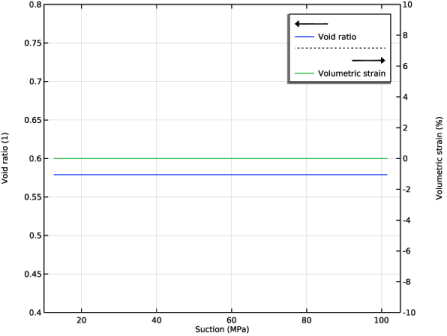
In the loading step of the uniaxial swelling test, the axial compressive stress is maintained constant at −8.90 MPa, while the suction is reduced from 101.5 MPa to 12.6 MPa. Roller boundary conditions are applied on the bottom and side boundaries.
|
|
•
|
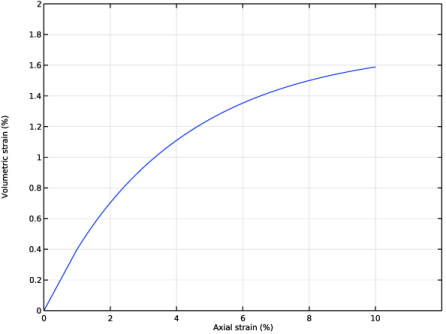
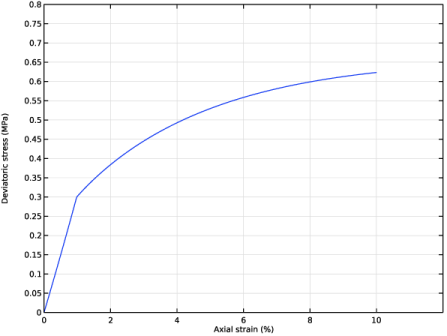
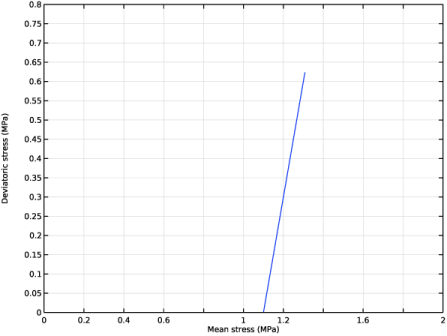
For the triaxial test in isotropic compression, an initial hydrostatic stress of 1.1 MPa is applied. As the reference pressure pref acts as an initial stress, the values of the diagonal components of the in situ stress tensor defined in the External Stress node are −1 MPa.
|
|
•
|



 with
with 
|
1
|
|
2
|
|
3
|
Right-click and choose Add Physics.
|
|
5
|
Click
 Study. Study. |
|
6
|
|
7
|
Click
 Done. Done. |
|
1
|
|
2
|
|
1
|
|
2
|
|
3
|
|
4
|
Browse to the model’s Application Libraries folder and double-click the file mechanical_modeling_of_bentonite_clay_oedometer_parameters.txt.
|
|
5
|
|
6
|
|
7
|
|
8
|
|
9
|
|
10
|
Browse to the model’s Application Libraries folder and double-click the file mechanical_modeling_of_bentonite_clay_uniaxial_swelling_parameters.txt.
|
|
11
|
|
12
|
|
13
|
|
14
|
Browse to the model’s Application Libraries folder and double-click the file mechanical_modeling_of_bentonite_clay_triaxial_parameters.txt.
|
|
15
|
|
16
|
|
17
|
|
18
|
Browse to the model’s Application Libraries folder and double-click the file mechanical_modeling_of_bentonite_clay_constrained_swelling_parameters.txt.
|
|
1
|
|
2
|
|
3
|
|
4
|
|
5
|
Click
 Build Selected. Build Selected. |
|
1
|
|
2
|
In the Settings window for Solid Mechanics, type Solid Mechanics [Oedometer Test] in the Label text field.
|
|
1
|
|
3
|
In the Settings window for Elastoplastic Soil Material, locate the Elastoplastic Soil Material section.
|
|
4
|
|
5
|
|
6
|
|
7
|
|
8
|
|
9
|
|
1
|
|
2
|
|
3
|
|
4
|
From the list, choose Symmetric.
|
|
5
|
|
1
|
|
1
|
|
2
|
|
3
|
|
5
|
|
6
|
In the Function table, enter the following settings:
|
|
1
|
|
3
|
|
4
|
|
5
|
Clear the Compute integral in revolved geometry checkbox.
|
|
1
|
|
3
|
|
4
|
|
5
|
|
6
|
|
7
|
In the Show More Options dialog, in the tree, select the checkbox for the node Physics > Equation Contributions.
|
|
8
|
Click OK.
|
|
1
|
|
2
|
|
4
|
|
5
|
|
6
|
|
7
|
Click OK.
|
|
8
|
|
9
|
Click
 Select Source Term Quantity. Select Source Term Quantity. |
|
10
|
|
11
|
|
12
|
Click OK.
|
|
1
|
|
2
|
|
3
|
|
5
|
|
6
|
In the Function table, enter the following settings:
|
|
1
|
|
2
|
In the Settings window for Solid Mechanics, type Solid Mechanics [Uniaxial Swelling Test] in the Label text field.
|
|
1
|
|
3
|
In the Settings window for Elastoplastic Soil Material, locate the Elastoplastic Soil Material section.
|
|
4
|
|
5
|
|
6
|
|
7
|
|
8
|
|
9
|
|
1
|
|
2
|
|
3
|
|
4
|
From the list, choose Symmetric.
|
|
5
|
|
1
|
|
1
|
|
3
|
|
4
|
|
5
|
|
1
|
|
2
|
|
4
|
|
5
|
|
6
|
|
7
|
Click OK.
|
|
8
|
|
9
|
Click
 Select Source Term Quantity. Select Source Term Quantity. |
|
10
|
|
11
|
|
12
|
Click OK.
|
|
1
|
|
2
|
In the Settings window for Solid Mechanics, type Solid Mechanics [Triaxial Test] in the Label text field.
|
|
1
|
|
3
|
In the Settings window for Elastoplastic Soil Material, locate the Elastoplastic Soil Material section.
|
|
4
|
|
5
|
|
6
|
|
7
|
|
8
|
|
9
|
|
10
|
|
11
|
In the Show More Options dialog, in the tree, select the checkbox for the node Physics > Advanced Physics Options.
|
|
12
|
Click OK.
|
|
13
|
|
14
|
|
15
|
|
1
|
|
2
|
|
3
|
|
4
|
|
1
|
|
1
|
|
3
|
|
4
|
|
5
|
|
1
|
|
2
|
In the Settings window for Solid Mechanics, type Solid Mechanics [Constrained Swelling Test] in the Label text field.
|
|
1
|
|
3
|
In the Settings window for Elastoplastic Soil Material, locate the Elastoplastic Soil Material section.
|
|
4
|
|
5
|
|
6
|
|
7
|
|
8
|
|
9
|
|
1
|
|
1
|
In the Model Builder window, under Component 1 (comp1) right-click Definitions and choose Variables.
|
|
2
|
|
1
|
In the Model Builder window, under Component 1 (comp1) right-click Materials and choose Blank Material.
|
|
2
|
|
3
|
Locate the Material Contents section. In the table, enter the following settings:
|
|
1
|
|
2
|
|
3
|
|
4
|
|
5
|
Click
 Build Selected. Build Selected. |
|
1
|
|
2
|
Go to the Add Study window.
|
|
3
|
|
4
|
Right-click and choose Add Study.
|
|
5
|
|
6
|
Right-click and choose Add Study.
|
|
7
|
|
8
|
Right-click and choose Add Study.
|
|
9
|
|
1
|
|
2
|
|
1
|
|
2
|
|
3
|
Click
 Add. Add. |
|
4
|
|
5
|
Click
 Add. Add. |
|
1
|
|
2
|
|
3
|
In the Solve for column of the table, under Component 1 (comp1), clear the checkboxes for Solid Mechanics [Uniaxial Swelling Test] (solid2), Solid Mechanics [Triaxial Test] (solid3), and Solid Mechanics [Constrained Swelling Test] (solid4).
|
|
4
|
|
5
|
Click
 Add. Add. |
|
1
|
|
2
|
|
3
|
In the Model Builder window, expand the Study [Oedometer Test] > Solver Configurations > Solution 1 (sol1) > Dependent Variables 1 node, then click Global Equations 1 (comp1.ODE1).
|
|
4
|
|
5
|
|
6
|
|
7
|
In the Model Builder window, expand the Study [Oedometer Test] > Solver Configurations > Solution 1 (sol1) > Stationary Solver 1 node, then click Fully Coupled 1.
|
|
8
|
|
9
|
|
10
|
|
11
|
|
1
|
|
2
|
|
3
|
|
1
|
|
2
|
|
3
|
|
4
|
Click
 Add. Add. |
|
1
|
|
2
|
|
3
|
In the Solve for column of the table, under Component 1 (comp1), clear the checkboxes for Solid Mechanics [Oedometer Test] (solid), Solid Mechanics [Triaxial Test] (solid3), and Solid Mechanics [Constrained Swelling Test] (solid4).
|
|
4
|
|
5
|
Click
 Add. Add. |
|
1
|
|
2
|
|
3
|
In the Model Builder window, expand the Study [Uniaxial Swelling Test] > Solver Configurations > Solution 4 (sol4) > Dependent Variables 1 node, then click Global Equations 1 (comp1.ODE2).
|
|
4
|
|
5
|
|
6
|
|
7
|
In the Model Builder window, expand the Study [Uniaxial Swelling Test] > Solver Configurations > Solution 4 (sol4) > Stationary Solver 1 node, then click Fully Coupled 1.
|
|
8
|
|
9
|
|
10
|
|
11
|
|
1
|
|
2
|
|
3
|
|
1
|
|
2
|
|
3
|
|
4
|
Click
 Add. Add. |
|
1
|
|
2
|
|
3
|
In the Solve for column of the table, under Component 1 (comp1), clear the checkboxes for Solid Mechanics [Oedometer Test] (solid), Solid Mechanics [Uniaxial Swelling Test] (solid2), and Solid Mechanics [Constrained Swelling Test] (solid4).
|
|
4
|
|
5
|
Click
 Add. Add. |
|
1
|
|
2
|
|
3
|
In the Model Builder window, expand the Study [Triaxial Test] > Solver Configurations > Solution 7 (sol7) > Stationary Solver 1 node, then click Fully Coupled 1.
|
|
4
|
|
5
|
|
6
|
|
7
|
|
1
|
|
2
|
|
3
|
|
1
|
|
2
|
|
3
|
|
4
|
Click
 Add. Add. |
|
1
|
|
2
|
|
3
|
In the Solve for column of the table, under Component 1 (comp1), clear the checkboxes for Solid Mechanics [Oedometer Test] (solid), Solid Mechanics [Uniaxial Swelling Test] (solid2), and Solid Mechanics [Triaxial Test] (solid3).
|
|
4
|
|
5
|
Click
 Add. Add. |
|
1
|
|
2
|
|
3
|
In the Model Builder window, expand the Study [Constrained Swelling Test] > Solver Configurations > Solution 10 (sol10) > Stationary Solver 1 node, then click Fully Coupled 1.
|
|
4
|
|
5
|
|
6
|
|
1
|
|
2
|
|
3
|
Click
 Add Physical Quantity. Add Physical Quantity. |
|
4
|
|
5
|
Click OK.
|
|
6
|
|
8
|
Select the Apply conversions to expressions with the same dimensions checkbox.
|
|
9
|
Click
 Apply. Apply. |
|
1
|
|
2
|
In the Settings window for 1D Plot Group, type Void Ratio and Radial Stress in the Label text field.
|
|
3
|
|
4
|
|
5
|
|
6
|
|
7
|
|
8
|
|
9
|
|
10
|
|
11
|
|
12
|
|
13
|
|
14
|
Select the x-axis log scale checkbox.
|
|
1
|
|
3
|
|
4
|
|
5
|
|
6
|
|
7
|
|
8
|
|
1
|
|
2
|
|
3
|
|
4
|
|
5
|
Locate the Legends section. In the table, enter the following settings:
|
|
6
|
|
1
|
|
2
|
|
3
|
|
4
|
Locate the Plot Settings section.
|
|
5
|
|
6
|
|
7
|
|
8
|
|
9
|
|
10
|
|
11
|
|
1
|
|
3
|
|
4
|
|
5
|
|
6
|
|
7
|
|
1
|
In the Model Builder window, under Results, Ctrl-click to select Void Ratio and Radial Stress and Stress Path.
|
|
2
|
Right-click and choose Group.
|
|
1
|
|
2
|
In the Settings window for 1D Plot Group, type Void Ratio and Radial Stress 1 in the Label text field.
|
|
3
|
Locate the Data section. From the Dataset list, choose Study [Uniaxial Swelling Test]/Solution 4 (sol4).
|
|
4
|
|
5
|
|
6
|
|
7
|
|
8
|
|
9
|
|
10
|
|
11
|
|
12
|
|
13
|
|
14
|
|
1
|
|
3
|
|
4
|
|
5
|
|
6
|
|
7
|
|
8
|
|
1
|
|
2
|
|
3
|
|
4
|
|
5
|
Locate the Legends section. In the table, enter the following settings:
|
|
6
|
|
1
|
|
2
|
|
3
|
Locate the Data section. From the Dataset list, choose Study [Uniaxial Swelling Test]/Solution 4 (sol4).
|
|
4
|
|
5
|
Locate the Plot Settings section.
|
|
6
|
|
7
|
|
8
|
|
9
|
|
10
|
|
11
|
|
12
|
|
1
|
|
3
|
|
4
|
|
5
|
|
6
|
|
7
|
|
1
|
|
2
|
|
3
|
Locate the Data section. From the Dataset list, choose Study [Uniaxial Swelling Test]/Solution 4 (sol4).
|
|
4
|
|
5
|
Locate the Plot Settings section.
|
|
6
|
|
7
|
|
8
|
|
9
|
|
10
|
|
11
|
|
12
|
|
1
|
|
3
|
|
4
|
|
5
|
|
6
|
|
7
|
|
1
|
In the Model Builder window, under Results, Ctrl-click to select Void Ratio and Radial Stress 1, Mean Stress, and Stress Path 1.
|
|
2
|
Right-click and choose Group.
|
|
1
|
|
2
|
|
3
|
|
4
|
|
5
|
Locate the Plot Settings section.
|
|
6
|
|
7
|
|
8
|
|
9
|
|
10
|
|
11
|
|
12
|
|
1
|
|
3
|
|
4
|
|
5
|
|
6
|
|
7
|
|
8
|
|
9
|
|
1
|
|
2
|
|
3
|
|
4
|
|
5
|
Locate the Plot Settings section.
|
|
6
|
|
7
|
|
8
|
|
9
|
|
10
|
|
11
|
|
12
|
|
1
|
|
3
|
|
4
|
|
5
|
|
6
|
|
7
|
|
8
|
|
1
|
|
2
|
|
3
|
|
4
|
|
5
|
Locate the Plot Settings section.
|
|
6
|
|
7
|
|
8
|
|
9
|
|
10
|
|
11
|
|
12
|
|
1
|
|
3
|
|
4
|
|
5
|
|
6
|
|
7
|
|
1
|
In the Model Builder window, under Results, Ctrl-click to select Volumetric Strain, Deviatoric Stress, and Stress Path 2.
|
|
2
|
Right-click and choose Group.
|
|
1
|
|
2
|
|
3
|
|
4
|
Locate the Data section. From the Dataset list, choose Study [Constrained Swelling Test]/Solution 10 (sol10).
|
|
5
|
Locate the Plot Settings section.
|
|
6
|
|
7
|
|
1
|
|
3
|
|
4
|
|
5
|
|
6
|
|
7
|
Click to expand the Coloring and Style section. Locate the Legends section. Select the Show legends checkbox.
|
|
8
|
|
1
|
|
2
|
|
3
|
|
4
|
Locate the Legends section. In the table, enter the following settings:
|
|
5
|
|
6
|
|
7
|
|
8
|
|
9
|
|
10
|
|
1
|
|
2
|
In the Settings window for 1D Plot Group, type Void Ratio and Volumetric Strain in the Label text field.
|
|
3
|
Locate the Data section. From the Dataset list, choose Study [Constrained Swelling Test]/Solution 10 (sol10).
|
|
4
|
|
5
|
|
6
|
|
7
|
|
8
|
Select the Secondary y-axis label checkbox. In the associated text field, type Volumetric strain (%).
|
|
9
|
|
10
|
|
11
|
|
12
|
|
13
|
|
14
|
|
15
|
|
1
|
|
3
|
|
4
|
|
5
|
|
6
|
|
7
|
|
8
|
|
1
|
|
2
|
|
3
|
|
4
|
|
5
|
|
6
|
Locate the Legends section. In the table, enter the following settings:
|
|
1
|
|
2
|
|
3
|
|
1
|
In the Model Builder window, under Results, Ctrl-click to select Mean Stress 1 and Void Ratio and Volumetric Strain.
|
|
2
|
Right-click and choose Group.
|
 is computed from the slope of the critical state line,