PDF

Isotropic Compression Test for Structured Clays
Introduction
Isotropic compression tests are common in soil testing to characterize the properties of the soil. It is also a common test for verification of new material models as a wide range of experimental data is available. In this example, the Modified Structured Cam-Clay (MSCC) soil model is examined, in particular the relation between the void ratio and the logarithm of the hydrostatic pressure or mean stress for four structured clays is studied.
This is a benchmark example given in the Ref. 1, where authors present experimental data as well as their simulation data. The four clays analyzed are: naturally structured Osaka clay, naturally structured Marl clay, artificially structured Ariake clay, and artificially structured Bangkok clay. Also, different cement contents by weight are considered for the two artificially structured clays.
Model Definition
In this example, a clay sample is placed inside a cylinder 10 cm in diameter and 10 cm in height, see Figure 1. Due to the symmetry, the model is solved in 2D axial symmetry.
Boundary loads are applied on the exterior boundaries to produce isotropic compression conditions.
Figure 1: Dimensions, boundary conditions, and boundary load for the isotropic compression test.
Modified Structured Cam-Clay Material Properties
The common material parameters are density ρ = 2000 kg/m3, reference pressure pref = 1 kPa, and critical effective deviatoric plastic strain εdcp = 0.1.
Material properties like the shear modulus G, slope of critical state line M, compression index for destructured clay λd, swelling index for structured clay κs, void ratio at reference pressure for destructured clay erefd, additional void ratio at initial yielding Δei, plastic potential shape parameter ζ, destructuring index for volumetric deformation dv, destructuring index for shear deformation ds, initial consolidation pressure pc0, and initial structure strength pbi for the four different clays are shown in Table 1, Table 2, and Table 3.
λd
κs
erefd
Δei
ζ
dv
ds
pc0
pbi
Aw = 6%
Aw = 9%
Aw = 18%
λd
κs
erefd
Δei
ζ
dv
ds
pc0
pbi
Aw = 5%
Aw = 10%
Aw = 15%
λd
κs
erefd
Δei
ζ
dv
ds
pc0
pbi
Constraints and Loads
In order to reproduce the numerical and experimental results of Ref. 1, the load is controlled in a parameter continuation sweep.
Results and Discussion
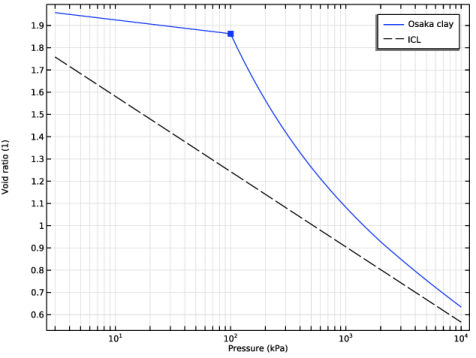
Figure 2 reproduces the characteristic curves showing the Normal Compression Line (NCL) and the Swelling Line (or Initial Loading Line) of Osaka clay. The results match very closely with the numerical results given in Ref. 1. Unlike the case for the Modified Cam-Clay model, the NCL obtained with the MSCC model is not a straight line. The clay behavior is elastic on the initial loading line; on the NCL, the clay deforms elastoplastically. The dashed line is an Intrinsic Compression Line (ICL) for destructured clay, which has a slope defined by the compression index, λd. At p = pref on the normal compression line, the void ratio is e = erefd.
Figure 2: Void ratio as a function of the logarithm of the pressure in an isotropic compression test for Osaka clay.
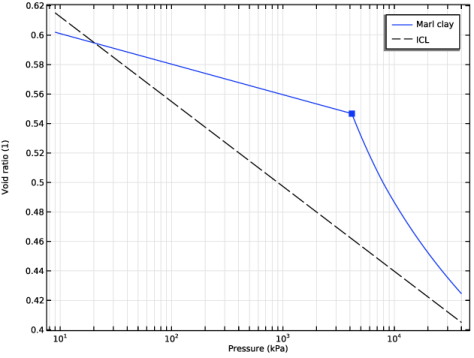
The void ratio versus the logarithm of the pressure characteristics for Marl clay is shown in Figure 3. The results match very closely with numerical results given in Ref. 1. The initial loading line of Marl clay crosses the ICL approximately at p = 20 kPa and e = 0.587 in the reference, and at p = 20.5 kPa and e = 0.594 in the COMSOL Multiphysics solution.
Figure 3: Void ratio as a function of the logarithm of the pressure in an isotropic compression test for Marl clay.
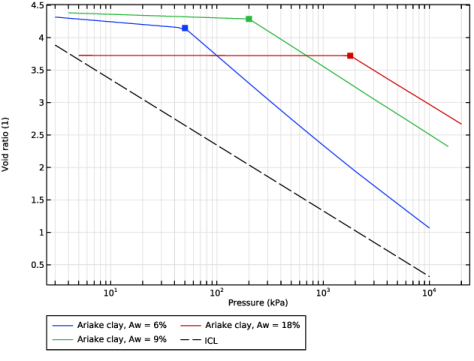
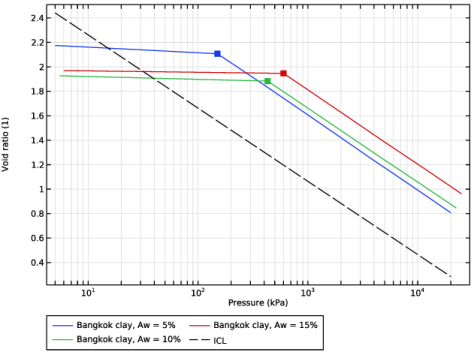
The void ratio versus the logarithm of the pressure characteristics for Ariake clay with different cement contents are shown in Figure 4, replicating a similar behavior as observed in Ref. 1. As the cement content increases, the difference between the ICL of destructured clay and the NCL of structured clay increases drastically, indicating the need for a sophisticated material model like MSCC for structured clays. A similar observation can be noted for Bangkok clay, see Figure 5.
However, for Bangkok clay there is one notable difference between the results presented in Ref. 1 and those obtained in COMSOL Multiphysics. The void ratio in the elastic region (including at initial consolidation pressure) increases in COMSOL Multiphysics when the cement content (Aw) is changed from 10% to 15%, as opposed to the results presented in Ref. 1. In Ref. 1, the void ratio at initial consolidation pressure (erefc0) decreases with an increase in the cement content. However, the results obtained in COMSOL Multiphysics can be verified analytically.
The void ratio at initial consolidation pressure (erefc0) is given by
(1)
Based on material properties given in Table 3, the void ratio at the initial consolidation pressure (erefc0) is 2.1072, 1.8834, and 1.9467 for Bangkok clay with a cement content (Aw) of 5%, 10%, and 15%, respectively. The COMSOL Multiphysics results matches these values at p = pc0 exactly, indicating their correctness.
Figure 4: Void ratio as a function of the logarithm of the pressure in an isotropic compression test for Ariake clay with different cement content.
Figure 5: Void ratio as a function of the logarithm of the pressure in an isotropic compression test for Bangkok clay with different cement content.
Notes About the COMSOL Implementation
Note that the log operator used in the definition of the void ratio is implemented in base “e” and not in base “10”.
Reference
1. J. Suebsuk, S. Horpibulsuk, and M.D. Liu, “Modified Structured Cam Clay: A Generalized Critical State Model for Destructured, Naturally Structured and Artificially Structured Clays,” Computer and Geotechnics, vol. 37, pp. 956–968, 2010.
Application Library path: Geomechanics_Module/Verification_Examples/isotropic_compression_mscc
Modeling Instructions
From the File menu, choose New.
New
In the New window, click  Model Wizard.
Model Wizard
1
In the Model Wizard window, click  2D Axisymmetric.
2
In the Select Physics tree, select Structural Mechanics > Solid Mechanics (solid).
3
Click Add.
4
Click  Study.
5
In the Select Study tree, select General Studies > Stationary.
6
The four different structured clays are analyzed in this model using a parametric switch option. Eight different Parameter Case nodes are created to model the eight different clay materials shown in Table 1, Table 2, and Table 3.
Load the material properties from different text files for each parameter case.
Global Definitions
Clay Material Properties
1
In the Model Builder window, under Global Definitions click Parameters 1.
2
In the Settings window for Parameters, type Clay Material Properties in the Label text field.
3
Locate the Parameters section. Click  Load from File.
4
5
In the Home toolbar, click  Parameter Case.
6
In the Settings window for Case, type Natural Osaka Clay in the Label text field.
7
In the Home toolbar, click  Parameter Case.
8
In the Settings window for Case, locate the Parameters section.
9
Click  Load from File.
10
11
In the Label text field, type Natural Marl Clay.
12
In the Home toolbar, click  Parameter Case.
13
In the Settings window for Case, locate the Parameters section.
14
Click  Load from File.
15
Browse to the model’s Application Libraries folder and double-click the file isotropic_compression_mscc_ariake_Aw6_parameters.txt.
16
In the Label text field, type Cemented Ariake Clay, Aw = 6%.
17
In the Home toolbar, click  Parameter Case.
18
In the Settings window for Case, locate the Parameters section.
19
Click  Load from File.
20
Browse to the model’s Application Libraries folder and double-click the file isotropic_compression_mscc_ariake_Aw9_parameters.txt.
21
In the Label text field, type Cemented Ariake Clay, Aw = 9%.
22
In the Home toolbar, click  Parameter Case.
23
In the Settings window for Case, locate the Parameters section.
24
Click  Load from File.
25
Browse to the model’s Application Libraries folder and double-click the file isotropic_compression_mscc_ariake_Aw18_parameters.txt.
26
In the Label text field, type Cemented Ariake Clay, Aw = 18%.
27
In the Home toolbar, click  Parameter Case.
28
In the Settings window for Case, locate the Parameters section.
29
Click  Load from File.
30
Browse to the model’s Application Libraries folder and double-click the file isotropic_compression_mscc_bangkok_Aw5_parameters.txt.
31
In the Label text field, type Cemented Bangkok Clay, Aw = 5%.
32
In the Home toolbar, click  Parameter Case.
33
In the Settings window for Case, locate the Parameters section.
34
Click  Load from File.
35
Browse to the model’s Application Libraries folder and double-click the file isotropic_compression_mscc_bangkok_Aw10_parameters.txt.
36
In the Label text field, type Cemented Bangkok Clay, Aw = 10%.
37
In the Home toolbar, click  Parameter Case.
38
In the Settings window for Case, locate the Parameters section.
39
Click  Load from File.
40
Browse to the model’s Application Libraries folder and double-click the file isotropic_compression_mscc_bangkok_Aw15_parameters.txt.
41
In the Label text field, type Cemented Bangkok Clay, Aw = 15%.
Parameters 2
1
In the Home toolbar, click  Parameters and choose Add > Parameters.
2
In the Settings window for Parameters, locate the Parameters section.
3
Create an interpolation function to define the boundary load.
Boundary Load
1
In the Home toolbar, click  Functions and choose Global > Interpolation.
2
In the Settings window for Interpolation, type Boundary Load in the Label text field.
3
Locate the Definition section. In the Function name text field, type Pressure.
4
Geometry 1
Rectangle 1 (r1)
1
In the Geometry toolbar, click  Rectangle.
2
In the Settings window for Rectangle, locate the Size and Shape section.
3
In the Width text field, type 5[cm].
4
In the Height text field, type 10[cm].
5
Click  Build Selected.
Materials
Clay Material
1
In the Model Builder window, under Component 1 (comp1) right-click Materials and choose Blank Material.
2
In the Settings window for Material, type Clay Material in the Label text field.
Solid Mechanics (solid)
Elastoplastic Soil Material 1
1
In the Physics toolbar, click  Domains and choose Elastoplastic Soil Material.
2
In the Settings window for Elastoplastic Soil Material, locate the Domain Selection section.
3
From the Selection list, choose All domains.
4
Locate the Elastoplastic Soil Material section. From the Material model list, choose Modified structured Cam-clay.
5
Find the Parameters subsection. From the C(ν,G) list, choose Shear modulus.
6
From the Γ(θ) list, choose Matsuoka–Nakai.
7
From the εfp,dev list, choose User defined. In the associated text field, type 0.1.
8
From the e0 list, choose From void ratio at reference pressure for destructured clay.
9
In the pref text field, type 1[kPa].
10
In the pc0 text field, type Pc0.
To get better convergence, the number of local iterations and tolerance of the plasticity algorithm needs to be adjusted.
11
Click the  Show More Options button in the Model Builder toolbar.
12
In the Show More Options dialog, in the tree, select the checkbox for the node Physics > Advanced Physics Options.
13
14
In the Settings window for Elastoplastic Soil Material, click to expand the Advanced section.
15
From the Local method list, choose Backward Euler.
16
In the Maximum number of local iterations text field, type 50.
17
In the Relative tolerance text field, type 1e-8.
Boundary Load 1
1
In the Physics toolbar, click  Boundaries and choose Boundary Load.
2
3
In the Settings window for Boundary Load, locate the Force section.
4
From the Load type list, choose Pressure.
5
In the p text field, type Pressure(para).
Roller 1
1
In the Physics toolbar, click  Boundaries and choose Roller.
2
Materials
Clay Material (mat1)
1
In the Model Builder window, under Component 1 (comp1) > Materials click Clay Material (mat1).
2
In the Settings window for Material, locate the Material Contents section.
3
Mesh 1
Mapped 1
In the Mesh toolbar, click  Mapped.
Distribution 1
1
Right-click Mapped 1 and choose Distribution.
2
In the Settings window for Distribution, locate the Boundary Selection section.
3
From the Selection list, choose All boundaries.
4
Locate the Distribution section. In the Number of elements text field, type 1.
5
Click  Build Selected.
Add a Parametric Sweep node and choose the Parametric switch option in the study settings.
Study 1
1
In the Model Builder window, click Study 1.
2
In the Settings window for Study, locate the Study Settings section.
3
Clear the Generate default plots checkbox.
Parametric Sweep
1
In the Study toolbar, click  Parametric Sweep.
2
In the Settings window for Parametric Sweep, locate the Study Settings section.
3
From the Sweep type list, choose Parameter switch.
4
Step 1: Stationary
Set up an auxiliary continuation sweep for the para parameter to incrementally increase the boundary load.
1
In the Model Builder window, click Step 1: Stationary.
2
In the Settings window for Stationary, click to expand the Study Extensions section.
3
Select the Auxiliary sweep checkbox.
4
5
6
In the Study toolbar, click  Compute.
Results
Use the following instructions to plot the void ratio versus logarithm of pressure curve for Osaka clay.
Natural Osaka Clay
1
In the Results toolbar, click  1D Plot Group.
2
In the Settings window for 1D Plot Group, type Natural Osaka Clay in the Label text field.
3
Locate the Data section. From the Dataset list, choose Study 1/Parametric Solutions 1 (sol2).
4
From the Clay Material Properties list, choose From list.
5
In the Clay Material Properties list box, select Natural Osaka Clay.
6
Locate the Axis section. Select the x-axis log scale checkbox.
7
Click to expand the Title section. From the Title type list, choose None.
8
Locate the Plot Settings section.
9
Select the x-axis label checkbox. In the associated text field, type Pressure (kPa).
10
Select the y-axis label checkbox. In the associated text field, type Void ratio (1).
Point Graph 1
1
Right-click Natural Osaka Clay and choose Point Graph.
2
3
In the Settings window for Point Graph, click Replace Expression in the upper-right corner of the y-Axis Data section. From the menu, choose Component 1 (comp1) > Solid Mechanics > Soil material properties > Modified structured Cam-clay > solid.epm1.evoid - Void ratio - 1.
4
Click Replace Expression in the upper-right corner of the x-Axis Data section. From the menu, choose Component 1 (comp1) > Solid Mechanics > Stress > solid.pmGp - Pressure - N/m².
5
Locate the x-Axis Data section. From the Unit list, choose kPa.
6
Click to expand the Legends section. Select the Show legends checkbox.
7
From the Legends list, choose Manual.
8
Point Graph 2
1
Right-click Point Graph 1 and choose Duplicate.
2
In the Settings window for Point Graph, locate the y-Axis Data section.
3
In the Expression text field, type solid.epm1.evoidc0.
4
Locate the x-Axis Data section. In the Expression text field, type solid.epm1.pc0.
5
Click to expand the Coloring and Style section. From the Color list, choose Cycle (reset).
6
From the Width list, choose 3.
7
Find the Line markers subsection. From the Marker list, choose Point.
8
Locate the Legends section. Clear the Show legends checkbox.
Use the following instructions to plot the Intrinsic Compression Line (ICL) for destructured clay.
Point Graph 3
1
In the Model Builder window, under Results > Natural Osaka Clay right-click Point Graph 1 and choose Duplicate.
2
In the Settings window for Point Graph, locate the y-Axis Data section.
3
In the Expression text field, type solid.epm1.evoidrefd-solid.epm1.lambdaCompd*log(solid.epm1.pm/solid.epm1.pref).
4
Locate the Coloring and Style section. Find the Line style subsection. From the Line list, choose Dashed.
5
From the Color list, choose From theme.
6
Locate the Legends section. In the table, enter the following settings:
7
In the Natural Osaka Clay toolbar, click  Plot.
Duplicate to plot the void ratio versus logarithm of pressure curve for Marl clay.
Natural Marl Clay
1
In the Model Builder window, right-click Natural Osaka Clay and choose Duplicate.
2
In the Settings window for 1D Plot Group, type Natural Marl Clay in the Label text field.
3
Locate the Data section. In the Clay Material Properties list box, select Natural Marl Clay.
Point Graph 1
1
In the Model Builder window, expand the Natural Marl Clay node, then click Point Graph 1.
2
In the Settings window for Point Graph, locate the Legends section.
3
4
In the Natural Marl Clay toolbar, click  Plot.
Duplicate to plot the void ratio versus logarithm of pressure curve for Ariake clay.
Cemented Ariake Clay
1
In the Model Builder window, right-click Natural Marl Clay and choose Duplicate.
2
In the Settings window for 1D Plot Group, type Cemented Ariake Clay in the Label text field.
3
Locate the Data section. In the Clay Material Properties list, choose Cemented Ariake Clay, Aw = 6%, Cemented Ariake Clay, Aw = 9%, and Cemented Ariake Clay, Aw = 18%.
Point Graph 1
1
In the Model Builder window, expand the Cemented Ariake Clay node, then click Point Graph 1.
2
In the Settings window for Point Graph, locate the Legends section.
3
Point Graph 3
1
In the Model Builder window, click Point Graph 3.
2
In the Settings window for Point Graph, locate the Data section.
3
From the Dataset list, choose Study 1/Parametric Solutions 1 (sol2).
4
From the Clay Material Properties list, choose From list.
5
In the Clay Material Properties list box, select Cemented Ariake Clay, Aw = 6%.
Cemented Ariake Clay
1
In the Model Builder window, click Cemented Ariake Clay.
2
In the Settings window for 1D Plot Group, locate the Legend section.
3
From the Layout list, choose Outside graph axis area.
4
From the Position list, choose Bottom.
5
In the Number of rows text field, type 2.
6
In the Cemented Ariake Clay toolbar, click  Plot.
Duplicate to plot the void ratio versus logarithm of pressure curve for Bangkok clay.
Cemented Bangkok Clay
1
Right-click Cemented Ariake Clay and choose Duplicate.
2
In the Settings window for 1D Plot Group, type Cemented Bangkok Clay in the Label text field.
3
Locate the Data section. In the Clay Material Properties list, choose Cemented Bangkok Clay, Aw = 5%, Cemented Bangkok Clay, Aw = 10%, and Cemented Bangkok Clay, Aw = 15%.
Point Graph 1
1
In the Model Builder window, expand the Cemented Bangkok Clay node, then click Point Graph 1.
2
In the Settings window for Point Graph, locate the Legends section.
3
Point Graph 3
1
In the Model Builder window, click Point Graph 3.
2
In the Settings window for Point Graph, locate the Data section.
3
In the Clay Material Properties list box, select Cemented Bangkok Clay, Aw = 5%.
4
In the Cemented Bangkok Clay toolbar, click  Plot.