PDF

Concrete Beam with Reinforcement Bars
Introduction
Concrete structures almost always contain reinforcement in the shape of steel bars (rebars). In COMSOL Multiphysics, individual rebars can be modeled either by adding a Truss interface to the Solid Mechanics interface used for the concrete or using the Fiber subfeature to model their global effects. The solid mesh for the concrete and the mesh for the rebars can be independent of each other, since the displacements are mapped from within the solid onto the rebars at a certain position.
Model Definition
This example shows how to include steel reinforcement that is much smaller than the geometrical dimensions of the concrete structure. The truss interface is used to model the steel reinforcements instead of a 3D solid. Modeling them as solids would need excessively small elements and would lead to an unnecessarily long solution time.
The geometry of the concrete beam is given in Figure 1.
Figure 1: The concrete beam is 30 cm in width, 20 cm in height, and 4 meters in length. Due to symmetries, only a quarter of the beam is modeled.
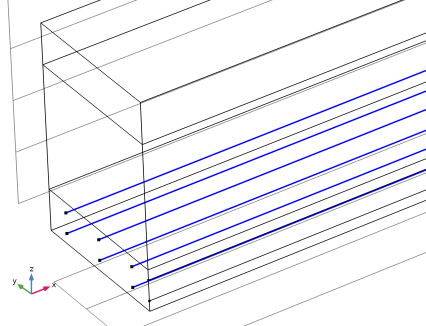
In the example, most dimensions such as height, width, and length of the concrete structure are parameterized. The number of reinforcement layers is also given by a parameter, and the number of rebars per layer is calculated from the spacing in width dimensions and the minimal distance from the lateral faces of the beam. In this example, six steel bars, 10 mm in diameter, are placed in four parallel layers along the concrete beam.
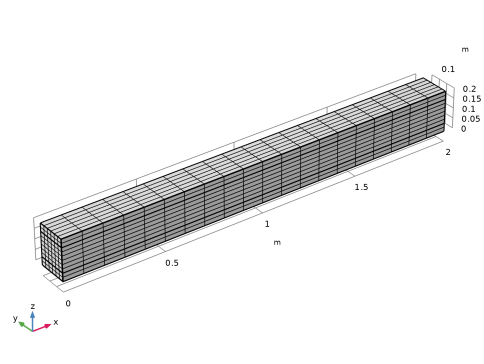
Figure 2: A mapped mesh of 6 by 6 elements is swept through the length of the concrete beam. One hundred elements are used for each reinforcement bar.
The beam is simply supported. Here, this is realized by adding a rigid connector with appropriate constraints to one of the end boundaries.
The beam is subjected to a uniform distributed load on the top. The peak load is 50 kN/m2, which corresponds to a line load of 15 kN/m.
Five different variants of modeling are compared:
Ottosen Model
In the Ottosen model, the following parameters are used:
Parameter a = 1.3
Parameter b = 3.2
Size factor k1 = 11.8
Shape factor k2 = 0.98
With these data, the tensile strength implicitly is about 2 MPa.
Mazars Damage model
The Mazars damage model accounts for the characteristics of concrete in both tension and compression, where it can describe tensile cracking and the typical stress-strain curve of concrete in compression. To better reflect the failure in multiaxial states of compression, the equivalent strain is defined using the Modified Mazars option.
The tensile behavior of the concrete is controlled by the tensile damage evolution law, here set to its default value: Exponential. The tensile strength is set to MPa. Also the fracture energy is needed, Gft = 220 J/m^2. To avoid mesh dependence of the results when tensile cracking is considered, a regularization is needed. The crack band method, which is based on information about the finite-element discretization, is used. Although not necessary, it is recommended to use a linear displacement field when the crack band method is used. In this case, a finer mesh is used to compensate for the low-order shape functions.
The compressive behavior of the concrete is described by the compressive damage evolution law, here set to its default value: Mazars function. This function can describe the highly nonlinear stress-strain curve of concrete in compression. The parameters are set to ε0c =10-4 and Ac = 1.12. Note that the parameter Bc  can be calculated using the default expression, which ensures that the stress-strain curve has a continuous slope.
Results and Discussion
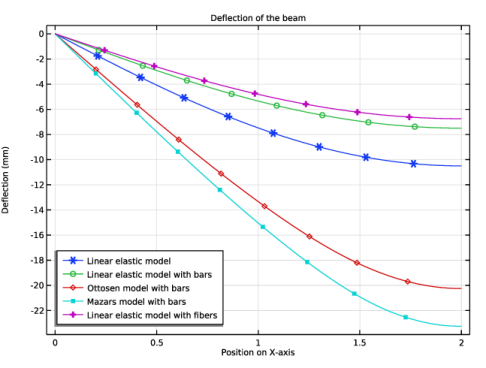
Five different studies were done. In the first study, the concrete beam is modeled as an isotropic elastic material without reinforcement. The second study adds the rebars, and the third study includes the effect of plastic deformation in the concrete, modeled using the Ottosen criterion. The fourth study uses a damage model according to Mazars’ theory. The fifth study uses the same setup as the second study but replace the rebars with a continuous fiber distribution. Figure 3 shows the comparison for the vertical displacement of the five studies.
Figure 3: Deflection along the top surface of the beam due to the external load.
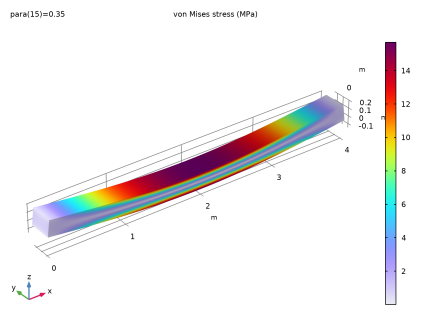
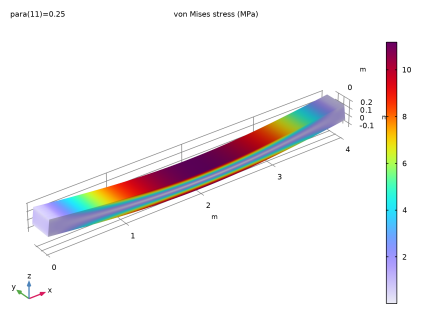
The simulations show how force is transferred from the concrete beam to its steel rebars. Figure 4 shows equivalent stresses in the linear elastic model without reinforcement and Figure 5 and Figure 6 show the stress distribution in the reinforced linear elastic concrete with the rebars and the fibers respectively. The stress level in the concrete is lowered when the rebars are added.
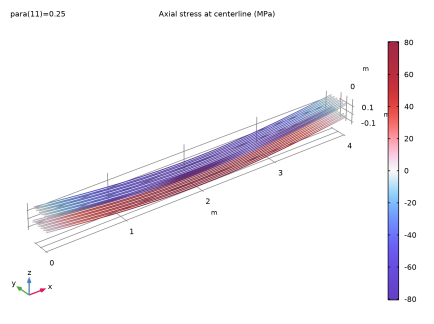
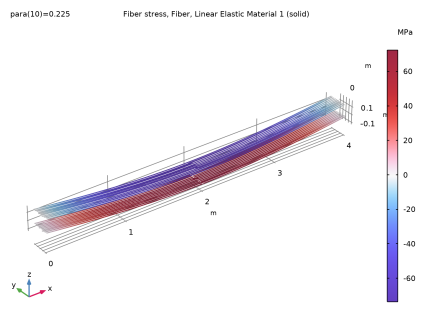
Figure 8 and Figure 9 show axial stresses in the rebars and fibers respectively. Although the fibers are modeled as linear elastic material, they provide the same results as the elastoplastic rebars because no plastic deformation occurs.
Figure 4: von Mises stress in a linear elastic beam.
Figure 5: von Mises stress in a linear elastic beam after adding the reinforcement bars.
Figure 6: von Mises stress in a linear elastic beam after adding the fibers.
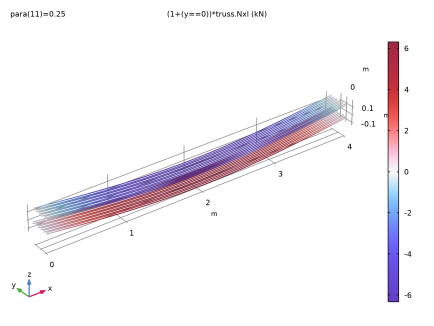
Figure 7: Axial force in the reinforcements bars. An extra multiplier is used on the bars in the symmetry plane in order to get the total force.
Figure 8: Axial stress in the steel rebars.
Figure 9: Axial stress in the steel fibers.
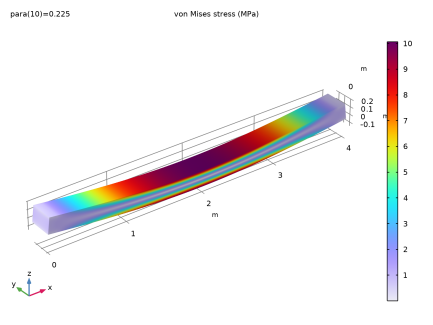
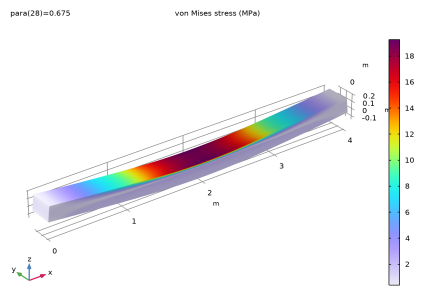
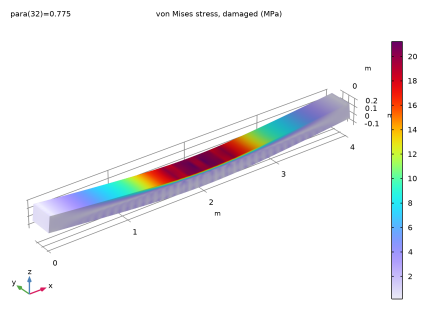
Figure 10 shows the von Mises stress in the concrete beam with Ottosen criterion, while Figure 11 shows the von Mises stress in the concrete with Mazars damage model. For these two models, the stress is of the same order of magnitude and the peak stress is located at similar locations.
Figure 10: von Mises stress in the reinforced beam after adding the Ottosen criterion for the concrete.
Figure 11: Von Mises stress in reinforced beams when using Mazars damage for the concrete.
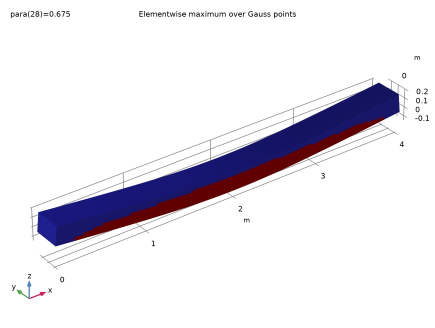
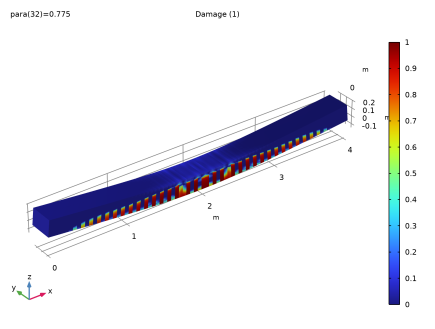
Comparing Figure 12 and Figure 13, the plastic region in the Ottosen model can be seen to be similar to the damaged region of Mazars damage model.
Figure 12: Plastic region in concrete with Ottosen model.
Figure 13: Damaged region in concrete with Mazars damage model.
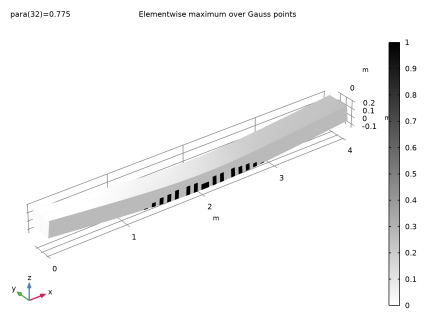
Figure 14 gives a visualization of the crack distribution in the Mazars damage model. Here, and in Figure 13, an artifact can be seen in the center of the beam. It is an effect of the symmetry assumption, and the plot actually is created by mirroring the results from half the model. If the full model had been analyzed, the crack pattern would be slightly different.
Figure 14: Locations of cracks in the Mazars damage model.
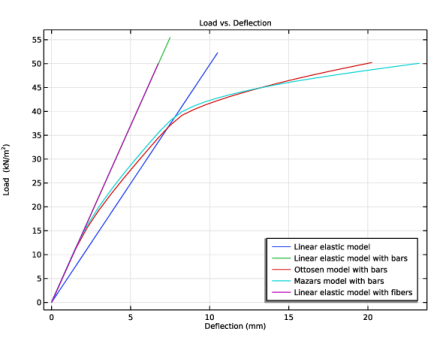
The load curves in Figure 15 show that the beams with the Ottosen and Mazars models have the same behavior, with damage starting when the load reaches about 20 kN/m2. The rebars start to yield slightly below 40 kN/m2.
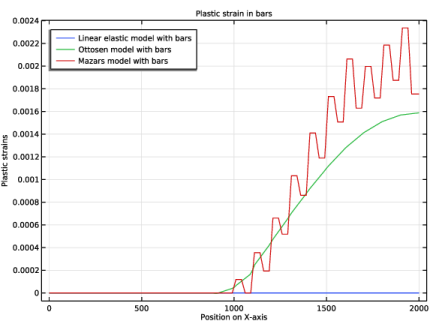
In Figure 16, the plastic strain in the rebars is compared between the models. In the damage model, there is a jump between solid elements which are considered cracked or not. In the case of a pure elastic model for the concrete, the rebars never reach the yield stress.
Figure 15: Load versus deflection for each concrete beam model.
Figure 16: Comparison of plastic strains along one of the rebars.
Notes About the COMSOL Implementation
Since steel reinforcement bars are relatively thin compared to concrete structures, it is assumed that they are only capable of transmitting axial forces. The bending stiffness of each bar does not contribute much to the overall total bending stiffness of the section, therefore the reinforcement bars are modeled with truss elements instead of beam elements.
In civil engineering, it is also common practice that the rebars are pretensioned, but this effect is not included in the example. However, it can easily be incorporated by adding initial strain in the trusses.
In this example, the concrete is “glued” to the steel rebars, so bonding effects are not included.
The connection technique used in this example works well as long as the total stiffness of the rebars is smaller than the stiffness contribution from the concrete. Also, the size of the solid elements should be significantly larger than the physical volume occupied by the rebars passing through them. A very refined mesh would actually show stresses in the solids that increase without bounds where the rebars are attached.
In many cases, the rebars are so close to each other that modeling them individually is not a feasible strategy. In that case, you can consider them as thin, usually orthotropic, sheets. Instead of a Truss interface, you then use a Membrane interface. The modeling technique is similar in other respects. If no plastic deformation occurs in the rebars, then another option is to consider them as an additional axial stress distributed all over the domain. This last option has been used in the last study and it was obtained through the Fiber feature. The Young’s modulus used in the Fiber feature is the sum of the rebars and the beam one. This is done to obtain results comparable with the Truss interface method which simply adds the rebars stiffness to the concrete instead of replacing it in the area effectively occupied by them.
In all studies, the load is implicitly prescribed using an extra variable measuring the deflection. This is necessary only for the case with the Mazars damage model. It is usually difficult to obtain convergence in damage models under pure load control. A Global Equation node is used to define this auxiliary variable.
Reference
1. W.F. Chen, Plasticity in Reinforced Concrete, McGraw Hill, 1982.
Application Library path: Geomechanics_Module/Concrete/concrete_beam
Modeling Instructions
From the File menu, choose New.
New
In the New window, click  Model Wizard.
Model Wizard
1
In the Model Wizard window, click  3D.
2
In the Select Physics tree, select Structural Mechanics > Solid Mechanics (solid).
3
Click Add.
4
In the Select Physics tree, select Structural Mechanics > Truss (truss).
5
Click Add.
6
Click  Study.
7
In the Select Study tree, select General Studies > Stationary.
8
Global Definitions
Parameters 1
1
In the Model Builder window, under Global Definitions click Parameters 1.
2
In the Settings window for Parameters, locate the Parameters section.
3
Click  Load from File.
4
Geometry 1
Block 1 (blk1)
1
In the Geometry toolbar, click  Block.
2
In the Settings window for Block, locate the Size and Shape section.
3
In the Width text field, type length/2.
4
In the Depth text field, type width/2.
5
In the Height text field, type height.
Subdivide the beam in three domains to easily select the regions where the Fiber feature should be active.
6
Click to expand the Layers section. In the table, enter the following settings:
Line Segment 1 (ls1)
1
In the Geometry toolbar, click  More Primitives and choose Line Segment.
2
In the Settings window for Line Segment, locate the Starting Point section.
3
From the Specify list, choose Coordinates.
4
Locate the Endpoint section. From the Specify list, choose Coordinates.
5
In the x text field, type length/2.
6
Locate the Starting Point section. In the y text field, type (bars_across_width-1)/2*width_spacing.
7
Locate the Endpoint section. In the y text field, type (bars_across_width-1)/2*width_spacing.
8
Locate the Starting Point section. In the z text field, type layer_spacing_first.
9
Locate the Endpoint section. In the z text field, type layer_spacing_first.
10
Locate the Selections of Resulting Entities section. Find the Cumulative selection subsection. Click New.
11
In the New Cumulative Selection dialog, type Bars Inside Domain in the Name text field.
12
Array 1 (arr1)
1
In the Geometry toolbar, click  Transforms and choose Array.
2
In the Settings window for Array, locate the Input section.
3
From the Input objects list, choose Bars Inside Domain.
4
Locate the Size section. In the y size text field, type floor(bars_across_width/2).
5
Locate the Displacement section. In the y text field, type -width_spacing.
Line Segment 2 (ls2)
1
In the Geometry toolbar, click  More Primitives and choose Line Segment.
2
In the Settings window for Line Segment, locate the Starting Point section.
3
From the Specify list, choose Coordinates.
4
Locate the Endpoint section. From the Specify list, choose Coordinates.
5
In the x text field, type length/2.
6
Locate the Starting Point section. In the z text field, type layer_spacing_first.
7
Locate the Endpoint section. In the z text field, type layer_spacing_first.
8
Locate the Selections of Resulting Entities section. Find the Cumulative selection subsection. Click New.
9
In the New Cumulative Selection dialog, type Bars on Symmetry Plane in the Name text field.
10
Array 2 (arr2)
1
In the Geometry toolbar, click  Transforms and choose Array.
2
Select the objects arr1(1,1,1), arr1(1,2,1), arr1(1,3,1), and ls2 only.
3
In the Settings window for Array, locate the Size section.
4
In the z size text field, type bar_layers.
5
Locate the Displacement section. In the z text field, type layer_spacing.
Mirror 1 (mir1)
1
In the Geometry toolbar, click  Transforms and choose Mirror.
2
3
In the Settings window for Mirror, locate the Point on Plane of Reflection section.
4
In the z text field, type height/2.
5
Click  Build All Objects.
6
Locate the Input section. Select the Keep input objects checkbox.
7
Click  Build All Objects.
Form Union (fin)
1
In the Model Builder window, under Component 1 (comp1) > Geometry 1 click Form Union (fin).
2
In the Settings window for Form Union/Assembly, locate the Form Union/Assembly section.
3
From the Action list, choose Form an assembly.
4
Clear the Create pairs checkbox.
Line Segment 2 (ls2)
Bars in the symmetry plane must be created only in case of odd number of bars. Add an if condition to the creation of the first bar.
If 1 (if1)
1
In the Geometry toolbar, click  Programming and choose Add Before Selected > If.
2
In the Settings window for If, locate the If section.
3
In the Condition text field, type mod(bars_across_width,2)==1.
End If 1 (endif1)
1
In the Geometry toolbar, click  Programming and choose Add After Selected > End If.
2
In the Settings window for End If, click  Build All Objects.
Definitions
Bars
1
In the Definitions toolbar, click  Union.
2
In the Settings window for Union, type Bars in the Label text field.
3
Locate the Geometric Entity Level section. From the Level list, choose Edge.
4
Locate the Input Entities section. Under Selections to add, click  Add.
5
In the Add dialog, in the Selections to add list, choose Bars Inside Domain and Bars on Symmetry Plane.
6
Deflection
1
In the Definitions toolbar, click  Nonlocal Couplings and choose Integration.
2
In the Settings window for Integration, locate the Source Selection section.
3
From the Geometric entity level list, choose Point.
4
In the Label text field, type Deflection.
5
6
Locate the Advanced section. From the Frame list, choose Material  (X, Y, Z).
Solid Mechanics (solid)
Linear Elastic Material 1
To model the failure of the material, add a material model to the Solid Mechanics interface.
1
In the Model Builder window, under Component 1 (comp1) > Solid Mechanics (solid) click Linear Elastic Material 1.
Concrete 1
1
In the Physics toolbar, click  Attributes and choose Concrete.
2
In the Settings window for Concrete, locate the Concrete Model section.
3
From the Yield function list, choose Ottosen.
Symmetry 1
1
In the Physics toolbar, click  Boundaries and choose Symmetry.
2
Rigid Connector 1
1
In the Physics toolbar, click  Boundaries and choose Rigid Connector.
2
3
In the Settings window for Rigid Connector, locate the Prescribed Displacement at Center of Rotation section.
4
Select the Prescribed in y direction checkbox.
5
Select the Prescribed in z direction checkbox.
6
Locate the Prescribed Rotation section. From the By list, choose Constrained rotation.
7
Select the Constrain rotation around x-axis checkbox.
8
Select the Constrain rotation around z-axis checkbox.
The applied load is controlled through the deflection of the midsurface.
Boundary Load 1
1
In the Physics toolbar, click  Boundaries and choose Boundary Load.
2
3
In the Settings window for Boundary Load, locate the Force section.
4
Specify the fA vector as
5
Click the  Show More Options button in the Model Builder toolbar.
6
In the Show More Options dialog, in the tree, select the checkbox for the node Physics > Equation Contributions.
7
Global Equations 1 (ODE1)
1
In the Physics toolbar, click  Global and choose Global Equations.
2
In the Settings window for Global Equations, locate the Global Equations section.
3
4
Locate the Units section. Click  Select Dependent Variable Quantity.
5
In the Physical Quantity dialog, type face in the text field.
6
In the tree, select Solid Mechanics > Face load (N/m^2).
7
8
In the Settings window for Global Equations, locate the Units section.
9
Click  Select Source Term Quantity.
10
In the Physical Quantity dialog, type displ in the text field.
11
In the tree, select General > Displacement (m).
12
Truss (truss)
1
In the Model Builder window, under Component 1 (comp1) click Truss (truss).
2
In the Settings window for Truss, locate the Edge Selection section.
3
From the Selection list, choose Bars.
Change the discretization for the truss elements to match the solid.
Click to expand the Discretization section. From the Displacement field list, choose Quadratic.
Linear Elastic Material 1
In the Model Builder window, under Component 1 (comp1) > Truss (truss) click Linear Elastic Material 1.
Plasticity 1
In the Physics toolbar, click  Attributes and choose Plasticity.
Cross-Section Data 1
The bars in the midplane should only use half of the true area.
1
In the Model Builder window, under Component 1 (comp1) > Truss (truss) click Cross-Section Data 1.
2
In the Settings window for Cross-Section Data, locate the Cross-Section Definition section.
3
In the A text field, type pi*(diam_bar/2)^2*(0.5+0.5*Y>0.1[mm]).
Add an Embedded Reinforcement multiphysics coupling to connect the bars with the solid domain.
Multiphysics
Embedded Reinforcement 1 (ere1)
1
In the Physics toolbar, click  Multiphysics Couplings and choose Global > Embedded Reinforcement.
2
In the Settings window for Embedded Reinforcement, locate the Edge Selection, Embedded Structure section.
3
From the Selection list, choose Bars Inside Domain.
Add Material
1
In the Materials toolbar, click  Add Material to open the Add Material window.
2
Go to the Add Material window.
3
In the tree, select Built-in > Concrete.
4
Click the Add to Component button in the window toolbar.
5
In the tree, select Built-in > Structural steel.
6
Click the Add to Component button in the window toolbar.
7
In the Materials toolbar, click  Add Material to close the Add Material window.
Materials
Concrete (mat1)
1
In the Settings window for Material, locate the Material Contents section.
2
Structural steel (mat2)
1
In the Model Builder window, click Structural steel (mat2).
2
In the Settings window for Material, locate the Geometric Entity Selection section.
3
From the Geometric entity level list, choose Edge.
4
From the Selection list, choose Bars.
5
Locate the Material Contents section. In the table, enter the following settings:
Mesh 1
Edge 1
1
In the Mesh toolbar, click  More Generators and choose Edge.
2
In the Settings window for Edge, locate the Edge Selection section.
3
From the Selection list, choose Bars.
Distribution 1
1
Right-click Edge 1 and choose Distribution.
2
In the Settings window for Distribution, locate the Distribution section.
3
In the Number of elements text field, type 20*mesh_par.
Mapped 1
1
In the Mesh toolbar, click  More Generators and choose Mapped.
2
Distribution 1
1
Right-click Mapped 1 and choose Distribution.
2
3
In the Settings window for Distribution, locate the Distribution section.
4
In the Number of elements text field, type 6*mesh_par.
Distribution 2
1
In the Model Builder window, right-click Mapped 1 and choose Distribution.
2
3
In the Settings window for Distribution, locate the Distribution section.
4
In the Number of elements text field, type 2*mesh_par.
Swept 1
In the Mesh toolbar, click  Swept.
Distribution 1
1
Right-click Swept 1 and choose Distribution.
2
In the Settings window for Distribution, locate the Distribution section.
3
In the Number of elements text field, type 20*mesh_par.
4
In the Model Builder window, right-click Mesh 1 and choose Build All.
5
Click the  Go to Default View button in the Graphics toolbar.
The mesh should look like the one in Figure 2.
Without Bars
The first study solves only the linear elastic problem in the concrete beam without the reinforcement bars.
1
In the Model Builder window, click Study 1.
2
In the Settings window for Study, type Without Bars in the Label text field.
Step 1: Stationary
1
In the Model Builder window, under Without Bars click Step 1: Stationary.
2
In the Settings window for Stationary, locate the Physics and Variables Selection section.
3
Select the Modify model configuration for study step checkbox.
4
In the tree, select Component 1 (comp1) > Solid Mechanics (solid) > Linear Elastic Material 1 > Concrete 1.
5
6
In the tree, select Component 1 (comp1) > Truss (truss).
7
Click  Disable in Model.
8
In the tree, select Component 1 (comp1) > Multiphysics > Embedded Reinforcement 1 (ere1).
9
Click  Disable in Model.
10
Click to expand the Study Extensions section. Select the Auxiliary sweep checkbox.
11
12
Solution 1 (sol1)
1
In the Study toolbar, click  Show Default Solver.
2
In the Model Builder window, expand the Solution 1 (sol1) node.
3
In the Model Builder window, expand the Without Bars > Solver Configurations > Solution 1 (sol1) > Stationary Solver 1 node.
4
Right-click Without Bars > Solver Configurations > Solution 1 (sol1) > Stationary Solver 1 > Parametric 1 and choose Stop Condition.
5
In the Settings window for Stop Condition, locate the Stop Expressions section.
6
7
8
Locate the Output at Stop section. From the Add solution list, choose Step after stop.
9
Clear the Add information checkbox.
10
In the Study toolbar, click  Compute.
Results
Mirror 3D 1
Add two mirror datasets to plot the entire beam.
1
In the Model Builder window, expand the Results > Datasets node.
2
Right-click Results > Datasets and choose More 3D Datasets > Mirror 3D.
3
In the Settings window for Mirror 3D, locate the Plane Data section.
4
From the Plane list, choose ZX-planes.
Mirror 3D 2
1
In the Results toolbar, click  More Datasets and choose Mirror 3D.
2
In the Settings window for Mirror 3D, locate the Data section.
3
From the Dataset list, choose Mirror 3D 1.
4
Locate the Plane Data section. In the x-coordinate text field, type length/2.
Set default units for result presentation.
Preferred Units 1
1
In the Results toolbar, click  Configurations and choose Preferred Units.
2
In the Settings window for Preferred Units, locate the Units section.
3
Click  Add Physical Quantity.
4
In the Physical Quantity dialog, select Solid Mechanics > Stress tensor (N/m^2) in the tree.
5
6
In the Settings window for Preferred Units, locate the Units section.
7
8
Click  Apply.
Stress 1
1
In the Model Builder window, under Results click Stress (solid).
2
In the Settings window for 3D Plot Group, type Stress 1 in the Label text field.
3
Locate the Data section. From the Dataset list, choose Mirror 3D 2.
4
Locate the Plot Settings section. Clear the Plot dataset edges checkbox.
Volume 1
1
In the Model Builder window, expand the Stress 1 node, then click Volume 1.
2
In the Stress 1 toolbar, click  Plot.
3
Click the  Go to Default View button in the Graphics toolbar.
Before adding a second study, put the first plot group in a separate group.
Stress 1
In the Model Builder window, right-click Stress 1 and choose Group.
Without Bars
In the Settings window for Group, type Without Bars in the Label text field.
Add Study
Add a second study to solve the model with the reinforcement bars.
1
In the Home toolbar, click  Add Study to open the Add Study window.
2
Go to the Add Study window.
3
Find the Studies subsection. In the Select Study tree, select General Studies > Stationary.
4
Click the Add Study button in the window toolbar.
5
In the Home toolbar, click  Add Study to close the Add Study window.
Study 2
Step 1: Stationary
1
In the Settings window for Stationary, locate the Physics and Variables Selection section.
2
Select the Modify model configuration for study step checkbox.
3
In the tree, select Component 1 (comp1) > Solid Mechanics (solid) > Linear Elastic Material 1 > Concrete 1.
4
Click  Disable.
5
Locate the Study Extensions section. Select the Auxiliary sweep checkbox.
6
7
Solution 2 (sol2)
1
In the Study toolbar, click  Show Default Solver.
2
In the Model Builder window, expand the Solution 2 (sol2) node.
3
In the Model Builder window, expand the Study 2 > Solver Configurations > Solution 2 (sol2) > Stationary Solver 1 node.
4
Right-click Study 2 > Solver Configurations > Solution 2 (sol2) > Stationary Solver 1 > Parametric 1 and choose Stop Condition.
5
In the Settings window for Stop Condition, locate the Stop Expressions section.
6
7
8
Locate the Output at Stop section. From the Add solution list, choose Step after stop.
9
Clear the Add information checkbox.
10
In the Model Builder window, click Study 2.
11
In the Settings window for Study, type With Bars in the Label text field.
12
In the Study toolbar, click  Compute.
Results
Mirror 3D 3
1
In the Results toolbar, click  More Datasets and choose Mirror 3D.
2
In the Settings window for Mirror 3D, locate the Data section.
3
From the Dataset list, choose With Bars/Solution 2 (sol2).
4
Locate the Plane Data section. From the Plane list, choose ZX-planes.
5
In the Y-coordinate text field, type -1e-10.
Mirror 3D 4
1
In the Results toolbar, click  More Datasets and choose Mirror 3D.
2
In the Settings window for Mirror 3D, locate the Data section.
3
From the Dataset list, choose Mirror 3D 3.
4
Locate the Plane Data section. In the x-coordinate text field, type length/2.
Stress 2
The first default plot shows the von Mises stress, Figure 5. This result can be compared to the result without reinforcement bars, Figure 4.
1
In the Model Builder window, under Results click Stress (solid).
2
In the Settings window for 3D Plot Group, type Stress 2 in the Label text field.
3
Locate the Data section. From the Dataset list, choose Mirror 3D 4.
4
Locate the Plot Settings section. Clear the Plot dataset edges checkbox.
Volume 1
1
In the Model Builder window, expand the Stress 2 node, then click Volume 1.
2
In the Stress 2 toolbar, click  Plot.
3
Click the  Zoom Extents button in the Graphics toolbar.
Stress in Bars 2
The second default plot shows the axial stress in the bars, Figure 8.
1
In the Model Builder window, under Results click Stress (truss).
2
In the Settings window for 3D Plot Group, type Stress in Bars 2 in the Label text field.
3
Locate the Data section. From the Dataset list, choose Mirror 3D 4.
4
Locate the Plot Settings section. Clear the Plot dataset edges checkbox.
Line 1
1
In the Model Builder window, expand the Stress in Bars 2 node, then click Line 1.
2
In the Settings window for Line, locate the Expression section.
3
In the Expression text field, type truss.sn.
4
Locate the Coloring and Style section. From the Color table list, choose WaveLight.
5
In the Stress in Bars 2 toolbar, click  Plot.
6
Click the  Go to Default View button in the Graphics toolbar.
Add a plot that shows the force in all bars, Figure 7.
Result Templates
1
In the Results toolbar, click  Result Templates to open the Result Templates window.
2
Go to the Result Templates window.
3
In the tree, select With Bars/Solution 2 (sol2) > Truss > Force (truss).
4
Click the Add Result Template button in the window toolbar.
5
In the Results toolbar, click  Result Templates to close the Result Templates window.
Results
Force in Bars 2
1
In the Settings window for 3D Plot Group, type Force in Bars 2 in the Label text field.
2
Locate the Data section. From the Dataset list, choose Mirror 3D 4.
3
Locate the Plot Settings section. Clear the Plot dataset edges checkbox.
Line 1
The force in the rebars in the midplane must be multiplied by 2.
1
In the Model Builder window, expand the Force in Bars 2 node, then click Line 1.
2
In the Settings window for Line, locate the Expression section.
3
In the Expression text field, type (1+(y==0))*truss.Nxl.
4
In the Unit field, type kN.
5
Locate the Coloring and Style section. From the Color table list, choose WaveLight.
6
In the Force in Bars 2 toolbar, click  Plot.
7
Click the  Go to Default View button in the Graphics toolbar.
Force in Bars 2, Stress 2, Stress in Bars 2
1
In the Model Builder window, under Results, Ctrl-click to select Stress 2, Stress in Bars 2, and Force in Bars 2.
2
With Bars
In the Settings window for Group, type With Bars in the Label text field.
Add Study
Add a third study to solve the model with concrete plasticity and reinforcement bars.
1
In the Home toolbar, click  Add Study to open the Add Study window.
2
Go to the Add Study window.
3
Find the Studies subsection. In the Select Study tree, select General Studies > Stationary.
4
Click the Add Study button in the window toolbar.
5
In the Home toolbar, click  Add Study to close the Add Study window.
Study 3
Step 1: Stationary
1
In the Settings window for Stationary, locate the Study Extensions section.
2
Select the Auxiliary sweep checkbox.
3
4
5
In the Model Builder window, click Study 3.
6
In the Settings window for Study, locate the Study Settings section.
7
Clear the Generate default plots checkbox.
Solution 3 (sol3)
1
In the Study toolbar, click  Show Default Solver.
2
In the Model Builder window, expand the Solution 3 (sol3) node.
3
In the Model Builder window, expand the Study 3 > Solver Configurations > Solution 3 (sol3) > Stationary Solver 1 node, then click Parametric 1.
4
In the Settings window for Parametric, click to expand the Continuation section.
5
From the Predictor list, choose Constant to improve the convergence for the elastoplastic case.
6
Right-click Study 3 > Solver Configurations > Solution 3 (sol3) > Stationary Solver 1 > Parametric 1 and choose Stop Condition.
7
In the Settings window for Stop Condition, locate the Stop Expressions section.
8
9
10
Locate the Output at Stop section. From the Add solution list, choose Step after stop.
11
Clear the Add information checkbox.
12
In the Model Builder window, click Study 3.
13
In the Settings window for Study, type With Bars and Ottosen in the Label text field.
14
In the Study toolbar, click  Compute.
Results
Mirror 3D 5
1
In the Results toolbar, click  More Datasets and choose Mirror 3D.
2
In the Settings window for Mirror 3D, locate the Data section.
3
From the Dataset list, choose With Bars and Ottosen/Solution 3 (sol3).
4
Locate the Plane Data section. From the Plane list, choose ZX-planes.
5
In the Y-coordinate text field, type -1e-10.
Mirror 3D 6
1
In the Results toolbar, click  More Datasets and choose Mirror 3D.
2
In the Settings window for Mirror 3D, locate the Data section.
3
From the Dataset list, choose Mirror 3D 5.
4
Locate the Plane Data section. In the x-coordinate text field, type length/2.
Duplicate the plots from the previous study to compare results with or without the failure behavior.
With Bars and Ottosen
1
In the Model Builder window, right-click With Bars and choose Duplicate.
2
In the Settings window for Group, type With Bars and Ottosen in the Label text field.
Stress 3
1
In the Model Builder window, expand the With Bars and Ottosen node, then click Stress 2.1.
2
In the Settings window for 3D Plot Group, type Stress 3 in the Label text field.
3
Locate the Data section. From the Dataset list, choose Mirror 3D 6.
4
Click  Plot Last.
5
Click the  Zoom Extents button in the Graphics toolbar.
Stress in Bars 3
1
In the Model Builder window, under Results > With Bars and Ottosen click Stress in Bars 2.1.
2
In the Settings window for 3D Plot Group, type Stress in Bars 3 in the Label text field.
3
Locate the Data section. From the Dataset list, choose Mirror 3D 6.
4
Click  Plot Last.
Force in Bars 3
1
In the Model Builder window, click Force in Bars 2.1.
2
In the Settings window for 3D Plot Group, locate the Data section.
3
From the Dataset list, choose Mirror 3D 6.
4
In the Label text field, type Force in Bars 3.
5
Click  Plot Last.
Add a plot group to visualize the plastic zone like in Figure 12.
Plastic Region
1
In the Results toolbar, click  3D Plot Group.
2
In the Settings window for 3D Plot Group, locate the Data section.
3
From the Dataset list, choose Mirror 3D 6.
4
In the Label text field, type Plastic Region.
Surface 1
1
Right-click Plastic Region and choose Surface.
2
In the Settings window for Surface, locate the Expression section.
3
In the Expression text field, type solid.elemgpmax(solid.epe>0).
4
Locate the Coloring and Style section. Clear the Color legend checkbox.
5
Click to expand the Quality section. From the Evaluation settings list, choose Manual.
6
From the Smoothing list, choose None.
Deformation 1
Right-click Surface 1 and choose Deformation.
Plastic Region
1
In the Settings window for 3D Plot Group, click to expand the Title section.
2
Locate the Plot Settings section. Clear the Plot dataset edges checkbox.
3
Click  Plot Last.
4
Click the  Go to Default View button in the Graphics toolbar.
Solid Mechanics (solid)
To model the failure of the material using a damage model, some additional features and properties are added.
Linear Elastic Material 1
In the Model Builder window, under Component 1 (comp1) > Solid Mechanics (solid) click Linear Elastic Material 1.
Concrete 2
1
In the Physics toolbar, click  Attributes and choose Concrete.
2
In the Settings window for Concrete, locate the Concrete Model section.
3
From the Material model list, choose Mazars damage.
4
From the εeq list, choose Modified Mazars.
5
Find the Compressive damage evolution subsection. In the ε0c text field, type 1e-4.
6
In the Ac text field, type 1.12.
7
Click the  Show More Options button in the Model Builder toolbar.
8
In the Show More Options dialog, in the tree, select the checkbox for the node Physics > Advanced Physics Options.
9
Discretization, Linear
1
In the Physics toolbar, click  Global and choose Discretization.
For the crack band method, linear shape order for the displacements is preferred.
2
In the Settings window for Discretization, type Discretization, Linear in the Label text field.
3
Locate the Discretization section. From the Displacement field list, choose Linear.
Truss (truss)
Discretization, Linear
1
In the Physics toolbar, click  Global and choose Discretization.
2
In the Settings window for Discretization, type Discretization, Linear in the Label text field.
Materials
Concrete (mat1)
1
In the Model Builder window, under Component 1 (comp1) > Materials click Concrete (mat1).
2
In the Settings window for Material, locate the Material Contents section.
3
Add Study
Add a fourth study to solve the model with Mazars damage model and reinforcement bars.
1
In the Home toolbar, click  Add Study to open the Add Study window.
2
Go to the Add Study window.
3
Find the Studies subsection. In the Select Study tree, select General Studies > Stationary.
4
Click the Add Study button in the window toolbar.
5
In the Home toolbar, click  Add Study to close the Add Study window.
Since a linear shape order is used for the displacements, the number of elements is increased by a factor 2 using the mesh_par parameter.
Study 4
Parametric Sweep
1
In the Study toolbar, click  Parametric Sweep.
2
In the Settings window for Parametric Sweep, locate the Study Settings section.
3
4
Step 1: Stationary
1
In the Model Builder window, click Step 1: Stationary.
2
In the Settings window for Stationary, locate the Physics and Variables Selection section.
3
Select the Modify model configuration for study step checkbox.
4
In the tree, select Component 1 (comp1) > Solid Mechanics (solid).
5
From the Discretization list, choose Discretization, Linear.
6
In the tree, select Component 1 (comp1) > Truss (truss).
7
From the Discretization list, choose Discretization, Linear.
8
Locate the Study Extensions section. Select the Auxiliary sweep checkbox.
9
10
11
In the Model Builder window, click Study 4.
12
In the Settings window for Study, locate the Study Settings section.
13
Clear the Generate default plots checkbox.
Solution 4 (sol4)
1
In the Study toolbar, click  Show Default Solver.
2
In the Model Builder window, expand the Solution 4 (sol4) node.
3
In the Model Builder window, expand the Study 4 > Solver Configurations > Solution 4 (sol4) > Stationary Solver 1 node.
4
Right-click Study 4 > Solver Configurations > Solution 4 (sol4) > Stationary Solver 1 > Parametric 1 and choose Stop Condition.
5
In the Settings window for Stop Condition, locate the Stop Expressions section.
6
7
8
Locate the Output at Stop section. From the Add solution list, choose Step after stop.
9
Clear the Add information checkbox.
10
In the Model Builder window, click Study 4.
11
In the Settings window for Study, type With Bars and Damage in the Label text field.
12
In the Study toolbar, click  Compute.
Results
Mirror 3D 7
1
In the Results toolbar, click  More Datasets and choose Mirror 3D.
2
In the Settings window for Mirror 3D, locate the Data section.
3
From the Dataset list, choose With Bars and Damage/Solution 4 (sol4).
4
Locate the Plane Data section. From the Plane list, choose ZX-planes.
5
In the Y-coordinate text field, type -1e-10.
Mirror 3D 8
1
In the Results toolbar, click  More Datasets and choose Mirror 3D.
2
In the Settings window for Mirror 3D, locate the Data section.
3
From the Dataset list, choose Mirror 3D 7.
4
Locate the Plane Data section. In the x-coordinate text field, type length/2.
With Bars and Damage
1
In the Model Builder window, right-click With Bars and choose Duplicate.
2
In the Settings window for Group, type With Bars and Damage in the Label text field.
Stress 4
1
In the Model Builder window, expand the With Bars and Damage node, then click Stress 2.1.
2
In the Settings window for 3D Plot Group, type Stress 4 in the Label text field.
3
Locate the Data section. From the Dataset list, choose Mirror 3D 8.
Change the plot variable to show the damaged stress measure (Figure 11).
Volume 1
1
In the Model Builder window, expand the Stress 4 node, then click Volume 1.
2
In the Settings window for Volume, locate the Expression section.
3
In the Expression text field, type solid.misesdGp.
4
Click  Plot Last.
5
Click the  Zoom Extents button in the Graphics toolbar.
Stress in Bars 4
1
In the Model Builder window, under Results > With Bars and Damage click Stress in Bars 2.1.
2
In the Settings window for 3D Plot Group, type Stress in Bars 4 in the Label text field.
3
Locate the Data section. From the Dataset list, choose Mirror 3D 8.
4
Click  Plot Last.
Force in Bars 4
1
In the Model Builder window, click Force in Bars 2.1.
2
In the Settings window for 3D Plot Group, locate the Data section.
3
From the Dataset list, choose Mirror 3D 8.
4
In the Label text field, type Force in Bars 4.
5
Click  Plot Last.
Add a plot group to visualize the damage and reproduce Figure 13.
Damage
1
In the Results toolbar, click  3D Plot Group.
2
In the Settings window for 3D Plot Group, locate the Data section.
3
From the Dataset list, choose Mirror 3D 8.
4
In the Label text field, type Damage.
Surface 1
1
Right-click Damage and choose Surface.
2
In the Settings window for Surface, locate the Expression section.
3
In the Expression text field, type solid.dmgGp.
4
Locate the Quality section. From the Evaluation settings list, choose Manual.
5
From the Resolution list, choose No refinement.
6
From the Smoothing list, choose None.
Deformation 1
Right-click Surface 1 and choose Deformation.
Damage
1
In the Settings window for 3D Plot Group, locate the Plot Settings section.
2
Clear the Plot dataset edges checkbox.
3
Click  Plot Last.
4
Click the  Go to Default View button in the Graphics toolbar.
Add an additional plot group to visualize the active cracks and reproduce Figure 14.
Cracks
1
In the Results toolbar, click  3D Plot Group.
2
In the Settings window for 3D Plot Group, locate the Data section.
3
From the Dataset list, choose Mirror 3D 8.
4
In the Label text field, type Cracks.
Surface 1
1
Right-click Cracks and choose Surface.
2
In the Settings window for Surface, click Replace Expression in the upper-right corner of the Expression section. From the menu, choose Component 1 (comp1) > Solid Mechanics > Damage > solid.eeqGp - Equivalent strain - 1.
3
Locate the Expression section. In the Expression text field, type solid.elemgpmax(solid.eeq>2e-3).
4
Locate the Coloring and Style section. From the Color table list, choose GrayScale.
5
From the Color table transformation list, choose Reverse.
6
Locate the Quality section. From the Evaluation settings list, choose Manual.
7
From the Resolution list, choose No refinement.
8
From the Smoothing list, choose None.
Deformation 1
Right-click Surface 1 and choose Deformation.
Cracks
1
In the Settings window for 3D Plot Group, locate the Plot Settings section.
2
Clear the Plot dataset edges checkbox.
3
Click  Plot Last.
4
Click the  Go to Default View button in the Graphics toolbar.
Solid Mechanics (solid)
Add a fifth study to solve the linear elastic model using fibers instead of the Truss interface.
Linear Elastic Material 1
In the Model Builder window, under Component 1 (comp1) > Solid Mechanics (solid) click Linear Elastic Material 1.
Fiber 1
1
In the Physics toolbar, click  Attributes and choose Fiber.
Apply fibers only on the top and bottom layer of the beam. The fiber are made of steel.
2
In the Settings window for Fiber, locate the Domain Selection section.
3
4
Click  Remove from Selection.
5
6
Locate the Fiber Model section. From the Material list, choose Structural steel (mat2).
7
Locate the Distribution and Orientation section. In the vfiber text field, type v_reinforcement.
The Embedded Reinforcement multiphysics coupling used to connect the bars with the solid domain does not replace the stiffness of the concrete with the trusses’ one in the overlapping region. This implies that the actual stiffness of the bar and concrete are summed. Modify the Young’s modulus as the sum of the steel and concrete Young’s modulus.
8
Locate the Fiber Model section. From the Efiber list, choose User defined. In the associated text field, type mat1.Enu.E+mat2.Enu.E.
Add Study
1
In the Home toolbar, click  Add Study to open the Add Study window.
2
Go to the Add Study window.
3
Find the Studies subsection. In the Select Study tree, select General Studies > Stationary.
4
Find the Physics interfaces in study subsection. In the table, clear the Solve checkbox for Truss (truss).
5
Find the Multiphysics couplings in study subsection. In the table, clear the Solve checkbox for Embedded Reinforcement 1 (ere1).
6
Click the Add Study button in the window toolbar.
7
In the Home toolbar, click  Add Study to close the Add Study window.
Study 5
Step 1: Stationary
1
In the Settings window for Stationary, locate the Physics and Variables Selection section.
2
Select the Modify model configuration for study step checkbox.
3
In the tree, select Component 1 (comp1) > Solid Mechanics (solid) > Linear Elastic Material 1 > Concrete 2.
4
Click  Disable.
5
In the tree, select Component 1 (comp1) > Solid Mechanics (solid) > Linear Elastic Material 1 > Concrete 1.
6
Click  Disable.
7
Locate the Study Extensions section. Select the Auxiliary sweep checkbox.
8
9
Solution 7 (sol7)
1
In the Study toolbar, click  Show Default Solver.
2
In the Model Builder window, expand the Solution 7 (sol7) node.
3
In the Model Builder window, expand the Study 5 > Solver Configurations > Solution 7 (sol7) > Stationary Solver 1 node.
4
Right-click Study 5 > Solver Configurations > Solution 7 (sol7) > Stationary Solver 1 > Parametric 1 and choose Stop Condition.
5
In the Settings window for Stop Condition, locate the Stop Expressions section.
6
7
8
Locate the Output at Stop section. From the Add solution list, choose Step after stop.
9
Clear the Add information checkbox.
10
In the Model Builder window, click Study 5.
11
In the Settings window for Study, type With Fibers in the Label text field.
12
In the Study toolbar, click  Compute.
Results
Mirror 3D 9
1
In the Model Builder window, under Results > Datasets right-click Mirror 3D 1 and choose Duplicate.
2
In the Settings window for Mirror 3D, locate the Data section.
3
From the Dataset list, choose With Fibers/Solution 7 (sol7).
Mirror 3D 10
1
In the Model Builder window, under Results > Datasets right-click Mirror 3D 2 and choose Duplicate.
2
In the Settings window for Mirror 3D, locate the Data section.
3
From the Dataset list, choose Mirror 3D 9.
Stress 5
Modify the default plots to compare the result with reinforcement bars.
1
In the Model Builder window, under Results click Stress (solid).
2
In the Settings window for 3D Plot Group, type Stress 5 in the Label text field.
3
Locate the Plot Settings section. Clear the Plot dataset edges checkbox.
4
Locate the Data section. From the Dataset list, choose Mirror 3D 10.
5
In the Model Builder window, expand the Stress 5 node.
Volume 1
1
In the Model Builder window, expand the Results > Stress 5 > Volume 1 node, then click Volume 1.
2
In the Stress 5 toolbar, click  Plot.
Add a plot to display the stress in the embedded fibers.
Result Templates
1
In the Results toolbar, click  Result Templates to open the Result Templates window.
2
Go to the Result Templates window.
3
In the tree, select With Fibers/Solution 7 (sol7) > Solid Mechanics > Fibers (solid) > Fiber, Linear Elastic Material 1 (solid).
4
Click the Add Result Template button in the window toolbar.
5
In the Results toolbar, click  Result Templates to close the Result Templates window.
Results
Stress in Fibers
1
In the Settings window for 3D Plot Group, type Stress in Fibers in the Label text field.
2
Locate the Data section. From the Dataset list, choose Mirror 3D 10.
3
Locate the Plot Settings section. Clear the Plot dataset edges checkbox.
4
Locate the Title section. In the Parameter indicator text field, type para(10)=0.225.
Deformation 1
1
In the Model Builder window, expand the Stress in Fibers node.
2
Right-click Fiber 1 and choose Deformation.
Fiber 1
1
In the Settings window for Streamline, locate the Streamline Positioning section.
2
In the Density level text field, type 13.
3
Locate the Coloring and Style section. Find the Line style subsection.
4
Select the Radius scale factor checkbox. In the associated text field, type diam_bar/2.
Color Expression
1
In the Model Builder window, click Color Expression.
2
In the Settings window for Color Expression, locate the Coloring and Style section.
3
From the Color table list, choose WaveLight.
4
In the Stress in Fibers toolbar, click  Plot.
Stress 5, Stress in Fibers
1
In the Model Builder window, under Results, Ctrl-click to select Stress 5 and Stress in Fibers.
2
With Fibers
In the Settings window for Group, type With Fibers in the Label text field.
To compare the deflection of the beam for the five models like in Figure 3, proceed as follows.
Deflection
1
In the Results toolbar, click  1D Plot Group.
2
In the Settings window for 1D Plot Group, type Deflection in the Label text field.
3
Locate the Data section. From the Parameter selection (para) list, choose Last.
4
Click to expand the Title section. From the Title type list, choose Manual.
5
In the Title text area, type Deflection of the beam.
6
Locate the Plot Settings section.
7
Select the x-axis label checkbox. In the associated text field, type Position on X-axis.
8
Select the y-axis label checkbox. In the associated text field, type Deflection (mm).
9
Locate the Legend section. From the Position list, choose Lower left.
Line Graph 1
1
Right-click Deflection and choose Line Graph.
2
In the Settings window for Line Graph, locate the Data section.
3
From the Dataset list, choose Without Bars/Solution 1 (sol1).
4
From the Parameter selection (para) list, choose Last.
5
6
Locate the y-Axis Data section. From the Unit list, choose mm.
7
Click Replace Expression in the upper-right corner of the y-Axis Data section. From the menu, choose Component 1 (comp1) > Solid Mechanics > Displacement > Displacement field - m > w - Displacement field, Z-component.
8
Locate the x-Axis Data section. From the Parameter list, choose Expression.
9
In the Expression text field, type X.
10
Click to expand the Coloring and Style section. Find the Line markers subsection. From the Marker list, choose Cycle.
11
From the Positioning list, choose Interpolated.
12
Click to expand the Legends section. Select the Show legends checkbox.
13
From the Legends list, choose Manual.
14
Line Graph 2
1
Right-click Line Graph 1 and choose Duplicate.
2
In the Settings window for Line Graph, locate the Data section.
3
From the Dataset list, choose With Bars/Solution 2 (sol2).
4
Locate the Legends section. In the table, enter the following settings:
Line Graph 3
1
In the Model Builder window, under Results > Deflection right-click Line Graph 1 and choose Duplicate.
2
In the Settings window for Line Graph, locate the Data section.
3
From the Dataset list, choose With Bars and Ottosen/Solution 3 (sol3).
4
Locate the Legends section. In the table, enter the following settings:
Line Graph 4
1
Right-click Line Graph 1 and choose Duplicate.
2
In the Settings window for Line Graph, locate the Data section.
3
From the Dataset list, choose With Bars and Damage/Solution 4 (sol4).
4
Locate the Legends section. In the table, enter the following settings:
Line Graph 5
1
Right-click Line Graph 1 and choose Duplicate.
2
In the Settings window for Line Graph, locate the Data section.
3
From the Dataset list, choose With Fibers/Solution 7 (sol7).
4
Locate the Legends section. In the table, enter the following settings:
5
Locate the Coloring and Style section. Find the Line markers subsection. Set the Number value to 7.
6
In the Deflection toolbar, click  Plot.
7
Click the  Zoom Extents button in the Graphics toolbar.
To compare the plastic strains in one reinforcement bar in studies 2 to 4, proceed as follows.
Plastic Strains
1
In the Results toolbar, click  1D Plot Group.
2
In the Settings window for 1D Plot Group, type Plastic Strains in the Label text field.
3
Locate the Data section. From the Parameter selection (para) list, choose Last.
4
Locate the Title section. From the Title type list, choose Manual.
5
In the Title text area, type Plastic strain in bars.
6
Locate the Plot Settings section.
7
Select the x-axis label checkbox. In the associated text field, type Position on X-axis.
8
Select the y-axis label checkbox. In the associated text field, type Plastic strains.
9
Locate the Legend section. From the Position list, choose Upper left.
Line Graph 1
1
Right-click Plastic Strains and choose Line Graph.
2
In the Settings window for Line Graph, locate the Data section.
3
From the Dataset list, choose With Bars/Solution 2 (sol2).
4
From the Parameter selection (para) list, choose Last.
5
Click the  Wireframe Rendering button in the Graphics toolbar.
6
7
Click the  Wireframe Rendering button in the Graphics toolbar.
8
Click Replace Expression in the upper-right corner of the y-Axis Data section. From the menu, choose Component 1 (comp1) > Truss > Strain > truss.epnGp - Plastic axial strain - 1.
9
Locate the x-Axis Data section. From the Parameter list, choose Expression.
10
In the Expression text field, type X.
11
From the Unit list, choose mm.
12
Locate the Legends section. Select the Show legends checkbox.
13
From the Legends list, choose Manual.
14
Line Graph 2
1
Right-click Line Graph 1 and choose Duplicate.
2
In the Settings window for Line Graph, locate the Data section.
3
From the Dataset list, choose With Bars and Ottosen/Solution 3 (sol3).
4
Locate the Legends section. In the table, enter the following settings:
Line Graph 3
1
In the Model Builder window, under Results > Plastic Strains right-click Line Graph 1 and choose Duplicate.
2
In the Settings window for Line Graph, locate the Data section.
3
From the Dataset list, choose With Bars and Damage/Solution 4 (sol4).
4
Locate the Legends section. In the table, enter the following settings:
5
In the Plastic Strains toolbar, click  Plot.
6
Click the  Zoom Extents button in the Graphics toolbar.
To compare the load versus deflection curves of the five models (Figure 15), proceed as follows.
Load vs. Deflection
1
In the Results toolbar, click  1D Plot Group.
2
In the Settings window for 1D Plot Group, type Load vs. Deflection in the Label text field.
3
Locate the Title section. From the Title type list, choose Manual.
4
In the Title text area, type Load vs. Deflection.
5
Locate the Plot Settings section.
6
Select the x-axis label checkbox. In the associated text field, type Deflection (mm).
7
Select the y-axis label checkbox. In the associated text field, type Load (kN/m<sup>2</sup>).
8
Locate the Legend section. From the Position list, choose Lower right.
Global 1
1
Right-click Load vs. Deflection and choose Global.
2
In the Settings window for Global, locate the Data section.
3
From the Dataset list, choose Without Bars/Solution 1 (sol1).
4
Locate the y-Axis Data section. In the table, enter the following settings:
5
Locate the x-Axis Data section. From the Parameter list, choose Expression.
6
In the Expression text field, type -intop1(w).
7
From the Unit list, choose mm.
8
Click to expand the Coloring and Style section.
Global 2
1
Right-click Global 1 and choose Duplicate.
2
In the Settings window for Global, locate the Data section.
3
From the Dataset list, choose With Bars/Solution 2 (sol2).
4
Locate the y-Axis Data section. In the table, enter the following settings:
Global 3
1
In the Model Builder window, under Results > Load vs. Deflection right-click Global 1 and choose Duplicate.
2
In the Settings window for Global, locate the Data section.
3
From the Dataset list, choose With Bars and Ottosen/Solution 3 (sol3).
4
Locate the y-Axis Data section. In the table, enter the following settings:
Global 4
1
Right-click Global 1 and choose Duplicate.
2
In the Settings window for Global, locate the Data section.
3
From the Dataset list, choose With Bars and Damage/Solution 4 (sol4).
4
Locate the y-Axis Data section. In the table, enter the following settings:
Global 5
1
Right-click Global 1 and choose Duplicate.
2
In the Settings window for Global, locate the Data section.
3
From the Dataset list, choose With Fibers/Solution 7 (sol7).
4
Locate the y-Axis Data section. In the table, enter the following settings:
5
In the Load vs. Deflection toolbar, click  Plot.
6
Click the  Zoom Extents button in the Graphics toolbar.
Disable Mazars damage in the first three studies and the fibers in the first four studies to make them still runnable.
Without Bars
Step 1: Stationary
1
In the Model Builder window, under Without Bars click Step 1: Stationary.
2
In the Settings window for Stationary, locate the Physics and Variables Selection section.
3
In the tree, select Component 1 (comp1) > Solid Mechanics (solid) > Linear Elastic Material 1 > Concrete 2.
4
Click  Disable.
5
In the tree, select Component 1 (comp1) > Solid Mechanics (solid) > Linear Elastic Material 1 > Fiber 1.
6
Click  Disable.
With Bars
1
In the Model Builder window, under With Bars click Step 1: Stationary.
2
In the Settings window for Stationary, locate the Physics and Variables Selection section.
3
In the tree, select Component 1 (comp1) > Solid Mechanics (solid) > Linear Elastic Material 1 > Concrete 2.
4
Click  Disable.
5
In the tree, select Component 1 (comp1) > Solid Mechanics (solid) > Linear Elastic Material 1 > Fiber 1.
6
Click  Disable.
With Bars and Ottosen
1
In the Model Builder window, under With Bars and Ottosen click Step 1: Stationary.
2
In the Settings window for Stationary, locate the Physics and Variables Selection section.
3
Select the Modify model configuration for study step checkbox.
4
In the tree, select Component 1 (comp1) > Solid Mechanics (solid) > Linear Elastic Material 1 > Concrete 2.
5
Click  Disable.
6
In the tree, select Component 1 (comp1) > Solid Mechanics (solid) > Linear Elastic Material 1 > Fiber 1.
7
Click  Disable.
With Bars and Damage
1
In the Model Builder window, under With Bars and Damage click Step 1: Stationary.
2
In the Settings window for Stationary, locate the Physics and Variables Selection section.
3
In the tree, select Component 1 (comp1) > Solid Mechanics (solid) > Linear Elastic Material 1 > Fiber 1.
4
Click  Disable.