|
|
|



|
1
|
|
2
|
|
3
|
Click Add.
|
|
4
|
In the Select Physics tree, select Fluid Flow > Porous Media and Subsurface Flow > Free and Porous Media Flow, Brinkman (fp).
|
|
5
|
Click Add.
|
|
6
|
|
7
|
In the Velocity field components table, enter the following settings:
|
|
8
|
|
9
|
Click Add.
|
|
10
|
|
11
|
In the Velocity field components table, enter the following settings:
|
|
12
|
|
13
|
|
14
|
Click Add.
|
|
15
|
Click
 Study. Study. |
|
16
|
In the Select Study tree, select Preset Studies for Selected Physics Interfaces > Hydrogen Fuel Cell > Stationary with Initialization.
|
|
17
|
Click
 Done. Done. |
|
1
|
|
2
|
|
3
|
Click
 Load from File. Load from File. |
|
4
|
Browse to the model’s Application Libraries folder and double-click the file sofc_nh3_parameters.txt.
|
|
1
|
|
1
|
|
2
|
|
3
|
|
4
|
|
5
|
|
6
|
Click to expand the Layers section. In the table, enter the following settings:
|
|
7
|
|
1
|
|
2
|
|
3
|
|
4
|
|
5
|
|
6
|
|
7
|
|
1
|
|
2
|
|
3
|
|
4
|
|
5
|
|
6
|
|
7
|
Click
 Build All Objects. Build All Objects. |
|
8
|
|
1
|
|
2
|
|
3
|
Click
 Load from File. Load from File. |
|
4
|
Browse to the model’s Application Libraries folder and double-click the file sofc_nh3_variables.txt.
|
|
1
|
|
1
|
Go to the Select System window.
|
|
2
|
Click the Next button in the window toolbar.
|
|
1
|
Go to the Select Species window.
|
|
2
|
|
3
|
Click
 Add Selected. Add Selected. |
|
4
|
Click the Next button in the window toolbar.
|
|
1
|
Go to the Select Thermodynamic Model window.
|
|
2
|
Click the Finish button in the window toolbar.
|
|
1
|
Go to the Select Properties window.
|
|
2
|
In the list, choose Enthalpy of formation (J/mol), Entropy of formation (J/(K*mol)), Fuller diffusion volume (cm^3), Heat capacity (Cp) (J/(K*mol)), Molar mass (g/mol), Normal boiling-point temperature (K), Thermal conductivity (W/(m*K)), and Viscosity (Pa*s).
|
|
3
|
Click
 Add Selected. Add Selected. |
|
4
|
Click the Next button in the window toolbar.
|
|
1
|
Go to the Select Phase window.
|
|
2
|
Click the Next button in the window toolbar.
|
|
1
|
Go to the Select Species window.
|
|
2
|
In the list box, select ammonia.
|
|
3
|
Click
 Add Selected. Add Selected. |
|
4
|
Click the Next button in the window toolbar.
|
|
1
|
Go to the Species Property Overview window.
|
|
2
|
Click the Finish button in the window toolbar.
|
|
1
|
|
2
|
|
4
|
Click
 Remove from Selection. Remove from Selection. |
|
7
|
Click
 Remove from Selection. Remove from Selection. |
|
9
|
|
10
|
Select the Auxiliary species checkbox.
|
|
11
|
Click to expand the Electrode Reaction Settings section. Find the Built-in thermodynamic expressions subsection. In the TRHE text field, type T_in.
|
|
12
|
|
1
|
|
1
|
|
3
|
In the Settings window for H2 Gas Diffusion Electrode, locate the Effective Electrolyte Charge Transport section.
|
|
4
|
|
5
|
Locate the Gas Transport section. From the Effective diffusivity correction list, choose Tortuosity.
|
|
6
|
|
7
|
|
8
|
Select the Include pore-wall interaction checkbox.
|
|
9
|
|
1
|
|
2
|
In the Settings window for H2 Gas Diffusion Electrode Reaction, locate the Electrode Kinetics section.
|
|
3
|
|
4
|
|
1
|
|
3
|
In the Settings window for O2 Gas Diffusion Electrode, locate the Effective Electrolyte Charge Transport section.
|
|
4
|
|
5
|
Locate the Gas Transport section. From the Effective diffusivity correction list, choose Tortuosity.
|
|
6
|
|
7
|
|
8
|
Select the Include pore-wall interaction checkbox.
|
|
9
|
|
1
|
|
2
|
In the Settings window for O2 Gas Diffusion Electrode Reaction, locate the Electrode Kinetics section.
|
|
3
|
|
4
|
|
5
|
|
1
|
|
1
|
|
1
|
|
1
|
|
1
|
|
1
|
|
3
|
|
4
|
|
1
|
In the Model Builder window, under Component 1 (comp1) > Hydrogen Fuel Cell (fc) click H2 Gas Phase 1.
|
|
2
|
|
3
|
|
4
|
|
5
|
|
6
|
|
7
|
|
8
|
|
9
|
|
10
|
|
1
|
|
2
|
|
3
|
|
4
|
|
5
|
|
1
|
|
2
|
|
3
|
|
4
|
Click OK.
|
|
5
|
|
1
|
|
3
|
|
4
|
|
5
|
|
6
|
|
7
|
|
1
|
|
3
|
|
4
|
Clear the Stoichiometric feed checkbox.
|
|
5
|
|
6
|
|
7
|
|
8
|
|
9
|
|
1
|
|
1
|
|
2
|
|
3
|
|
1
|
|
3
|
|
4
|
|
5
|
|
1
|
|
1
|
In the Model Builder window, under Component 1 (comp1) click Free and Porous Media Flow, Brinkman (fp).
|
|
2
|
In the Settings window for Free and Porous Media Flow, Brinkman, type Free and Porous Media Flow, Brinkman - H2 side in the Label text field.
|
|
3
|
|
5
|
Locate the Physical Model section. From the Compressibility list, choose Compressible flow (Ma<0.3).
|
|
1
|
|
1
|
|
2
|
|
3
|
|
4
|
|
1
|
|
3
|
|
4
|
From the list, choose Mass flow.
|
|
5
|
|
1
|
|
1
|
In the Model Builder window, under Component 1 (comp1) click Free and Porous Media Flow, Brinkman 2 (fp2).
|
|
2
|
In the Settings window for Free and Porous Media Flow, Brinkman, type Free and Porous Media Flow, Brinkman - O2 Side in the Label text field.
|
|
3
|
|
5
|
Locate the Physical Model section. From the Compressibility list, choose Compressible flow (Ma<0.3).
|
|
1
|
|
1
|
|
2
|
|
3
|
|
4
|
|
1
|
|
3
|
|
4
|
From the list, choose Mass flow.
|
|
5
|
|
1
|
|
1
|
In the Model Builder window, under Component 1 (comp1) click Heat Transfer in Solids and Fluids (ht).
|
|
2
|
|
3
|
|
1
|
In the Model Builder window, under Component 1 (comp1) > Heat Transfer in Solids and Fluids (ht) click Solid 1.
|
|
2
|
|
1
|
In the Model Builder window, under Component 1 (comp1) > Heat Transfer in Solids and Fluids (ht) click Fluid 1.
|
|
2
|
|
4
|
Locate the Heat Conduction, Fluid section. From the k list, choose Thermal conductivity, gas phase (fc).
|
|
5
|
|
6
|
|
7
|
|
1
|
|
2
|
|
3
|
|
1
|
|
2
|
|
1
|
|
2
|
|
3
|
|
4
|
|
5
|
|
1
|
|
2
|
|
3
|
|
4
|
Locate the Heat Conduction, Porous Matrix section. From the kb list, choose User defined. In the associated text field, type ka.
|
|
5
|
Locate the Thermodynamics, Porous Matrix section. From the ρb list, choose User defined. From the Cp,b list, choose User defined.
|
|
1
|
|
2
|
|
1
|
|
2
|
|
3
|
|
4
|
|
5
|
|
1
|
|
2
|
|
3
|
|
4
|
Locate the Heat Conduction, Porous Matrix section. From the kb list, choose User defined. In the associated text field, type kc.
|
|
5
|
Locate the Thermodynamics, Porous Matrix section. From the ρb list, choose User defined. From the Cp,b list, choose User defined.
|
|
1
|
|
2
|
|
4
|
Locate the Heat Conduction, Solid section. From the k list, choose User defined. In the associated text field, type km.
|
|
5
|
Locate the Thermodynamics, Solid section. From the ρ list, choose User defined. From the Cp list, choose User defined.
|
|
1
|
|
3
|
|
4
|
|
1
|
|
1
|
|
1
|
|
2
|
|
3
|
 Multiphysics Couplings and choose Domain > Reacting Flow, H2 Gas Phase.
|
1
|
In the Physics toolbar, click
 Multiphysics Couplings and choose Domain > Reacting Flow, O2 Gas Phase. Multiphysics Couplings and choose Domain > Reacting Flow, O2 Gas Phase. |
|
2
|
|
3
|
|
1
|
|
2
|
|
3
|
|
4
|
Click to expand the Table and Window Settings section. From the Output table list, choose New table.
|
|
5
|
Click
 Add Plot Window. Add Plot Window. |
|
1
|
|
2
|
|
3
|
Click
 Clear Selection. Clear Selection. |
|
5
|
|
6
|
Click to expand the Table and Window Settings section. From the Output table list, choose New table.
|
|
7
|
|
1
|
|
2
|
Go to the Add Material window.
|
|
3
|
In the tree, select Fuel Cell and Electrolyzer > Solid Oxides > Yttria-Stabilized Zirconia, 8YSZ, (ZrO2)0.92-(Y2O3)0.08.
|
|
4
|
Click the Add to Component button in the window toolbar.
|
|
1
|
|
2
|
Click
 Clear Selection. Clear Selection. |
|
1
|
Go to the Add Material window.
|
|
2
|
|
3
|
Click the Add to Component button in the window toolbar.
|
|
4
|
|
1
|
|
3
|
|
4
|
|
5
|
|
6
|
|
7
|
Select the Reverse direction checkbox.
|
|
1
|
|
3
|
|
4
|
|
1
|
|
3
|
|
4
|
|
5
|
|
6
|
|
7
|
Select the Symmetric distribution checkbox.
|
|
1
|
|
3
|
|
4
|
|
1
|
|
3
|
|
4
|
|
5
|
|
6
|
|
7
|
|
1
|
|
3
|
|
4
|
|
5
|
|
6
|
|
7
|
|
8
|
Select the Symmetric distribution checkbox.
|
|
1
|
|
3
|
|
4
|
|
1
|
|
2
|
|
3
|
|
1
|
|
2
|
|
3
|
|
1
|
|
2
|
In the Settings window for Stationary, type Stationary - Flow Initialization in the Label text field.
|
|
3
|
Locate the Physics and Variables Selection section. In the Solve for column of the table, under Component 1 (comp1), clear the checkboxes for Hydrogen Fuel Cell (fc) and Heat Transfer in Solids and Fluids (ht).
|
|
4
|
In the Solve for column of the table, under Component 1 (comp1) > Multiphysics, clear the checkboxes for Electrochemical Heating 1 (ech1), Nonisothermal Flow 1 (nitf1), and Nonisothermal Flow 2 (nitf2).
|
|
1
|
|
2
|
|
3
|
|
4
|
Click
 Add. Add. |
|
1
|
|
2
|
|
3
|
In the Model Builder window, expand the Study 1 > Solver Configurations > Solution 1 (sol1) > Stationary Solver 3 node.
|
|
4
|
Right-click Study 1 > Solver Configurations > Solution 1 (sol1) > Stationary Solver 3 and choose Fully Coupled.
|
|
5
|
|
6
|
|
7
|
|
8
|
|
1
|
In the Model Builder window, expand the Results > Probe Plot Group 1 node, then click Probe Plot Group 1.
|
|
2
|
|
3
|
Locate the Plot Settings section.
|
|
4
|
Select the x-axis label checkbox. In the associated text field, type Average cell current density (A/cm<sup>2</sup>).
|
|
5
|
Select the Two y-axes checkbox.
|
|
6
|
|
7
|
Select the Secondary y-axis label checkbox. In the associated text field, type Outlet temperature, hydrogen side (K).
|
|
9
|
|
1
|
|
2
|
|
3
|
|
1
|
|
2
|
|
3
|
|
1
|
|
2
|
|
1
|
|
2
|
|
3
|
|
1
|
|
2
|
|
3
|
|
4
|
|
5
|
|
6
|
|
7
|
|
8
|
|
1
|
|
2
|
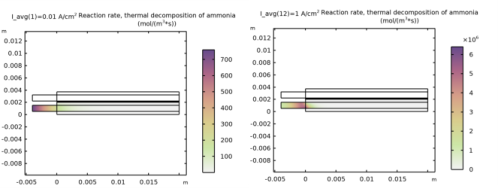
In the Settings window for 2D Plot Group, type Ammonia Decomposition Reaction Rate in the Label text field.
|
|
1
|
|
2
|
|
3
|
|
4
|
|
1
|
|
2
|
|
3
|
|
4
|
|
5
|
|
1
|
In the Model Builder window, expand the Results > Mole Fraction, aux (fc) node, then click Surface 1.
|
|
2
|
|
3
|
|
1
|
In the Model Builder window, expand the Results > Mole Fraction, aux (fc) node, then click Streamline 1.
|
|
2
|
|
3
|
|
4
|
|
5
|
|
6
|
|
7
|
|
8
|
|
1
|
|
2
|
|
3
|
|
1
|
|
2
|
|
3
|
|
4
|
|
5
|
Locate the Coloring and Style section. Find the Point style subsection. In the Scale factor text field, type 0.6.
|
|
6
|
|
1
|
In the Model Builder window, expand the Electrode Potential with Respect to Ground (fc) node, then click Surface 1.
|
|
2
|
|
3
|
|
1
|
|
2
|
|
3
|
|
1
|
In the Model Builder window, expand the Results > Mole Fraction, H2 (fc) node, then click Surface 1.
|
|
2
|
|
3
|
|
1
|
|
2
|
|
3
|
|
4
|
|
5
|
Locate the Coloring and Style section. Find the Point style subsection. From the Color list, choose Cyan.
|
|
1
|
In the Model Builder window, expand the Results > Mole Fraction, O2 (fc) node, then click Surface 1.
|
|
2
|
|
3
|
|
1
|
|
2
|
|
3
|
|
4
|
|
5
|
Locate the Coloring and Style section. Find the Point style subsection. From the Color list, choose Cyan.
|
|
1
|
In the Model Builder window, expand the Results > Mole Fraction, H2O (fc) node, then click Surface 1.
|
|
2
|
|
3
|
|
1
|
|
2
|
|
3
|
|
4
|
|
5
|
Locate the Coloring and Style section. Find the Point style subsection. From the Color list, choose Cyan.
|
|
1
|
In the Model Builder window, expand the Results > Mole Fraction, N2 (fc) node, then click Surface 1.
|
|
2
|
|
3
|
|
1
|
|
2
|
|
3
|
|
4
|
|
5
|
Locate the Coloring and Style section. Find the Point style subsection. From the Color list, choose Cyan.
|