PDF

Ohmic and Activation Losses in a Polymer Electrolyte Membrane Water Electrolyzer Cell
Introduction
In a polymer electrolyte membrane water electrolyzer cell, hydrogen and oxygen gas is produced by electrolysis. The hydrogen and oxygen compartments are separated by a polymer membrane, which also acts as electrolyte.
This introductory tutorial computes the ohmic and activation losses in a membrane–electrode assembly (MEA) in a polymer–electrolyte membrane water electrolyzer. The model geometry is in 1D and comprises two porous transport layers (PTLs) and one membrane domain.
The exterior boundaries of the hydrogen and oxygen PTLs are assumed to be at equilibrium with fully humidified gas streams, and gas diffusion is assumed to be fast. Hence no mass transport or momentum transfer is included in the model.
Model Definition
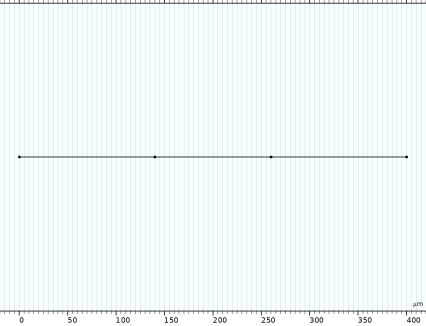
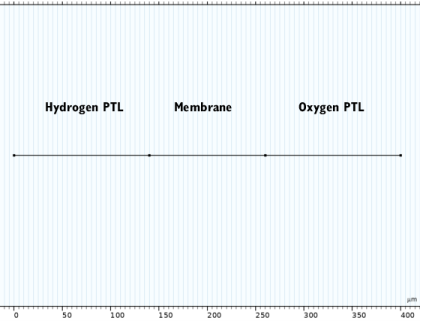
Figure 1: Model geometry.
Figure 1 shows the model geometry. The geometry consists of two PTLs (140 μm thick each) and one membrane (120 μm thick) domain.
The conductivity of the Nafion® electrolyte is added from the Fuel Cell and Electrolyzer Material Library.
The model is setup using the Water Electrolyzer interface. The electrodes are assumed to be very thin and are hence modeled as internal boundary conditions at the membrane–PTL boundaries, using Butler–Volmer kinetics. Ohmic losses are included in the electrode and electrolyte phases are included in the PTLs and Membrane, respectively. Any effects due to gas phase mass transport limitations are neglected (this is also known as a secondary current distribution model). The model is isothermal.
The equilibrium potentials of the electrode reactions are defined using the built-in thermodynamic functions, defining the oxygen and hydrogen gas streams to be at 100% relative humidity at the operating cell temperature (80°C) and pressure (1 atm)
The model is solved using an Auxiliary Sweep, sweeping the stationary cell voltage from 1.4 V to 2.2 V.
Results and Discussion
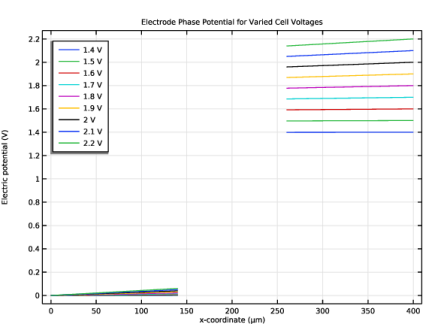
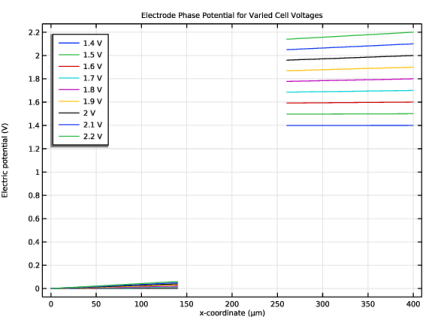
Figure 2 shows the electric potential in the electrode phase of the PTLs at varied cell voltages. As the cell voltages increases, increasing potential gradients are observed in the cell. At the highest cell voltage, the potential drop in each PTL is about 60 mV.
Figure 2: Electrode phase potential at varied cell voltages.
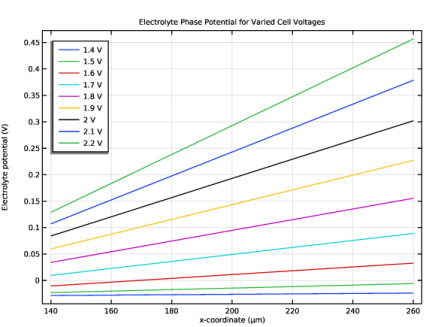
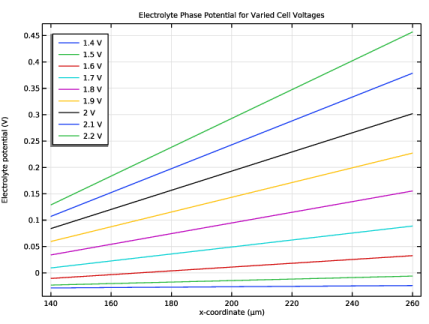
Figure 3 shows the corresponding electrolyte phase potentials. Also here, increased potential gradients are observed with the increasing cell voltage, with a maximum voltage drop of about 325 mV at the highest cell voltage.
Figure 3: Electrolyte phase potential at varied cell voltages.
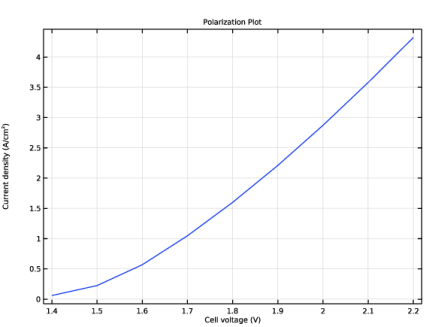
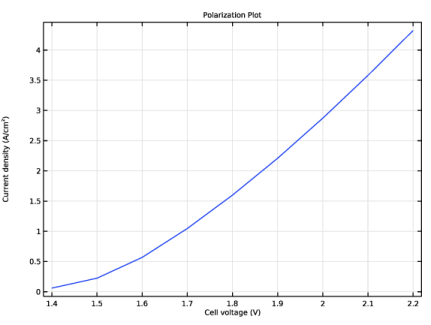
Figure 4 shows a polarization plot of the cell. As the cell voltage is increased, the current increases exponentially at first, with a transition to a linear behavior with respect to the cell voltage at higher voltages. This behavior can be ascribed to the exponential Butler–Volmer kinetics dominating cell polarization at low current densities, in combination with the cell membrane resistance significantly impacting the cell polarization at higher cell current densities.
Figure 4: Polarization plot.
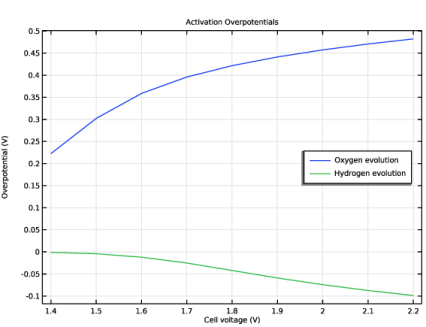
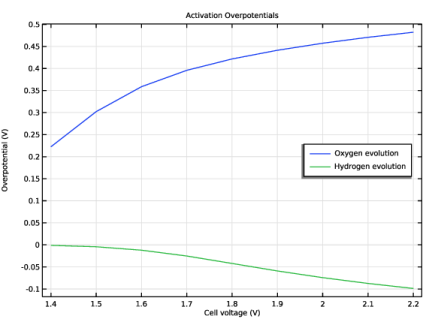
Finally, Figure 5 depicts the activation overpotentials of the individual electrode reactions. The oxygen evolution reaction, being a more sluggish reaction, exhibits an about five times larger potential loss at the highest cell voltage than the hydrogen evolution reaction.
Figure 5: Activation overpotentials.
Application Library path: Fuel_Cell_and_Electrolyzer_Module/Electrolyzers/pemwe_1d
Modeling Instructions
From the File menu, choose New.
New
In the New window, click  Model Wizard.
Model Wizard
1
In the Model Wizard window, click  1D.
2
In the Select Physics tree, select Electrochemistry > Water Electrolyzers > Proton Exchange Membrane (we).
3
Click Add.
4
Click  Study.
5
In the Select Study tree, select Preset Studies for Selected Physics Interfaces > Stationary with Initialization.
6
Global Definitions
Parameters 1
Add the model parameters from a text file as follows:
1
In the Model Builder window, under Global Definitions click Parameters 1.
2
In the Settings window for Parameters, locate the Parameters section.
3
Click  Load from File.
4
Geometry 1
The model geometry consists of three domains: the hydrogen-side porous transport layer (PTL), the membrane, and the oxygen-side PTL.
1
In the Model Builder window, under Component 1 (comp1) click Geometry 1.
2
In the Settings window for Geometry, locate the Units section.
3
From the Length unit list, choose µm.
Interval 1 (i1)
1
Right-click Component 1 (comp1) > Geometry 1 and choose Interval.
2
In the Settings window for Interval, locate the Interval section.
3
From the Specify list, choose Interval lengths.
4
5
Click  Build All Objects.
Materials
Add the polymer electrolyte material from the material library. The material added will be used by the Electrolyte Phase node to define the conductivity of the electrolyte.
Add Material
1
In the Materials toolbar, click  Add Material to open the Add Material window.
2
Go to the Add Material window.
3
In the tree, select Fuel Cell and Electrolyzer > Polymer Electrolytes > Nafion®, EW 1100, Liquid Equilibrated, Protonated.
4
Right-click and choose Add to Component 1 (comp1).
5
In the Materials toolbar, click  Add Material to close the Add Material window.
6
In the Materials toolbar, click  Add Material to open the Add Material window.
Materials
Nafion®, EW 1100, Liquid Equilibrated, Protonated (mat1)
Select Domain 2 only.
Water Electrolyzer (we)
Now start defining the actual physics of the model. Begin by turning off diffusion in the gas phase mixtures as follows:
1
In the Model Builder window, under Component 1 (comp1) click Water Electrolyzer (we).
2
In the Settings window for Water Electrolyzer, locate the H2 Gas Mixture section.
3
Find the Transport mechanisms subsection. Clear the Include gas phase diffusion checkbox.
4
Locate the O2 Gas Mixture section. Clear the Include gas phase diffusion checkbox.
H2 Gas Diffusion Layer 1
Add nodes for the different components of the electrolyzer and assign them to the different domains. This will define what phases are active where.
1
In the Physics toolbar, click  Domains and choose H2 Gas Diffusion Layer.
2
3
In the Settings window for H2 Gas Diffusion Layer, locate the Electrode Charge Transport section.
4
In the σs text field, type sigmas_ptl.
O2 Gas Diffusion Layer 1
1
In the Physics toolbar, click  Domains and choose O2 Gas Diffusion Layer.
2
3
In the Settings window for O2 Gas Diffusion Layer, locate the Electrode Charge Transport section.
4
In the σs text field, type sigmas_ptl.
Membrane 1
1
In the Physics toolbar, click  Domains and choose Membrane.
2
Thin H2 Gas Diffusion Electrode 1
Now add the electrodes, and the modify some of the corresponding default electrode reaction settings as follows:
1
In the Physics toolbar, click  Boundaries and choose Thin H2 Gas Diffusion Electrode.
2
3
In the Settings window for Thin H2 Gas Diffusion Electrode, locate the Electrode Thickness section.
4
In the dgde text field, type d_H2_electrode.
Thin H2 Gas Diffusion Electrode Reaction 1
1
In the Model Builder window, click Thin H2 Gas Diffusion Electrode Reaction 1.
2
In the Settings window for Thin H2 Gas Diffusion Electrode Reaction, locate the Electrode Kinetics section.
3
In the i0,ref(T) text field, type i0_ref_H2.
4
Locate the Active Specific Surface Area section. In the av text field, type Av_H2_electrode.
Note that the reference equilibrium potential of the electrode reaction in the Equilibrium Potential section is set to Built in by default. Keep this setting as is. This will compute the equilibrium potential automatically based on the settings of the gas phase nodes, which will be specified later.
Thin O2 Gas Diffusion Electrode 1
1
In the Physics toolbar, click  Boundaries and choose Thin O2 Gas Diffusion Electrode.
2
3
In the Settings window for Thin O2 Gas Diffusion Electrode, locate the Electrode Thickness section.
4
In the dgde text field, type d_O2_electrode.
Thin O2 Gas Diffusion Electrode Reaction 1
1
In the Model Builder window, click Thin O2 Gas Diffusion Electrode Reaction 1.
2
In the Settings window for Thin O2 Gas Diffusion Electrode Reaction, locate the Electrode Kinetics section.
3
In the i0,ref(T) text field, type i0_ref_O2.
4
Locate the Active Specific Surface Area section. In the av text field, type Av_O2_electrode.
Electronic Conducting Phase 1
As external boundary conditions to the model you will make use of a Ground and an Electric Potential node.
In the Model Builder window, under Component 1 (comp1) > Water Electrolyzer (we) click Electronic Conducting Phase 1.
Electric Ground 1
1
In the Physics toolbar, click  Attributes and choose Electric Ground.
2
Electronic Conducting Phase 1
In the Model Builder window, click Electronic Conducting Phase 1.
Electric Potential 1
1
In the Physics toolbar, click  Attributes and choose Electric Potential.
2
3
In the Settings window for Electric Potential, locate the Electric Potential section.
4
In the ϕs,bnd text field, type E_cell.
H2 Gas Phase 1
Now specify the gas mixtures in each gas compartment. As mentioned earlier, this will impact how the Built-in equilibrium potentials of the electrode reactions are defined.
1
In the Model Builder window, under Component 1 (comp1) > Water Electrolyzer (we) click H2 Gas Phase 1.
2
In the Settings window for H2 Gas Phase, locate the Composition section.
3
From the Mixture specification list, choose Humidified mixture.
4
In the Thum text field, type T.
5
In the pA,hum text field, type p_cell.
O2 Gas Phase 1
1
In the Model Builder window, click O2 Gas Phase 1.
2
In the Settings window for O2 Gas Phase, locate the Composition section.
3
From the Mixture specification list, choose Humidified mixture.
4
In the Thum text field, type T.
5
In the pA,hum text field, type p_cell.
Global Definitions
Default Model Inputs
The Default Model Inputs node allows you to set a common pressure and temperature for all physics nodes of the model.
1
In the Model Builder window, under Global Definitions click Default Model Inputs.
2
In the Settings window for Default Model Inputs, locate the Browse Model Inputs section.
3
In the tree, select General > Pressure (Pa) - minput.pA.
4
Find the Expression for remaining selection subsection. In the Pressure text field, type p_cell.
5
In the tree, select General > Temperature (K) - minput.T.
6
In the Temperature text field, type T.
Study 1
Step 2: Stationary
The model is now ready for solving. Solve for a range of cell voltages by using an Auxiliary Sweep as follows:
1
In the Model Builder window, under Study 1 click Step 2: Stationary.
2
In the Settings window for Stationary, click to expand the Study Extensions section.
3
Select the Auxiliary sweep checkbox.
4
5
6
Click  Range.
7
In the Range dialog, type 1.4 in the Start text field.
8
In the Step text field, type 0.1.
9
In the Stop text field, type 2.2.
10
Click Replace.
11
In the Study toolbar, click  Compute.
Results
Electrode Phase Potential for Varied Cell Voltages
Inspect and modify some of the default plots as follows:
1
In the Settings window for 1D Plot Group, type Electrode Phase Potential for Varied Cell Voltages in the Label text field.
2
Click to expand the Title section. From the Title type list, choose Label.
3
Locate the Legend section. From the Position list, choose Upper left.
Line Graph 1
1
In the Model Builder window, expand the Electrode Phase Potential for Varied Cell Voltages node, then click Line Graph 1.
2
In the Settings window for Line Graph, click to expand the Legends section.
3
Select the Show legends checkbox.
4
In the Electrode Phase Potential for Varied Cell Voltages toolbar, click  Plot.
Electrolyte Phase Potential for Varied Cell Voltages
1
In the Model Builder window, under Results click Electrolyte Potential (we).
2
In the Settings window for 1D Plot Group, type Electrolyte Phase Potential for Varied Cell Voltages in the Label text field.
3
Locate the Title section. From the Title type list, choose Label.
4
Locate the Legend section. From the Position list, choose Upper left.
Line Graph 1
1
In the Model Builder window, expand the Electrolyte Phase Potential for Varied Cell Voltages node, then click Line Graph 1.
2
In the Settings window for Line Graph, locate the Legends section.
3
Select the Show legends checkbox.
4
In the Electrolyte Phase Potential for Varied Cell Voltages toolbar, click  Plot.
Polarization Plot
Now add a user-defined polarization plot by following these steps:
1
In the Results toolbar, click  1D Plot Group.
2
In the Settings window for 1D Plot Group, type Polarization Plot in the Label text field.
Point Graph 1
1
Right-click Polarization Plot and choose Point Graph.
2
3
In the Settings window for Point Graph, click Replace Expression in the upper-right corner of the y-Axis Data section. From the menu, choose Component 1 (comp1) > Water Electrolyzer > we.nIs - Normal electrode current density - A/m².
4
Locate the y-Axis Data section. In the Expression text field, type -we.nIs.
5
In the Unit field, type A/cm^2.
Polarization Plot
1
In the Model Builder window, click Polarization Plot.
2
In the Settings window for 1D Plot Group, locate the Title section.
3
From the Title type list, choose Label.
4
Locate the Plot Settings section.
5
Select the x-axis label checkbox. In the associated text field, type Cell voltage (V).
6
Select the y-axis label checkbox. In the associated text field, type Current density (A/cm<sup>2</sup>).
7
In the Polarization Plot toolbar, click  Plot.
Activation Overpotentials
Add a final plot for evaluating the activation overpotentials in each electrode:
1
In the Results toolbar, click  1D Plot Group.
2
In the Settings window for 1D Plot Group, type Activation Overpotentials in the Label text field.
Point Graph 1
1
Right-click Activation Overpotentials and choose Point Graph.
2
3
In the Settings window for Point Graph, click Replace Expression in the upper-right corner of the y-Axis Data section. From the menu, choose Component 1 (comp1) > Water Electrolyzer > Electrode kinetics > we.eta_to2gder1 - Overpotential - V.
4
Click to expand the Legends section. Select the Show legends checkbox.
5
From the Legends list, choose Manual.
6
Point Graph 2
1
In the Model Builder window, right-click Activation Overpotentials and choose Point Graph.
2
3
In the Settings window for Point Graph, click Replace Expression in the upper-right corner of the y-Axis Data section. From the menu, choose Component 1 (comp1) > Water Electrolyzer > Electrode kinetics > we.eta_th2gder1 - Overpotential - V.
4
Locate the Legends section. Select the Show legends checkbox.
5
From the Legends list, choose Manual.
6
Activation Overpotentials
1
In the Model Builder window, click Activation Overpotentials.
2
In the Settings window for 1D Plot Group, locate the Title section.
3
From the Title type list, choose Label.
4
Locate the Plot Settings section.
5
Select the x-axis label checkbox. In the associated text field, type Cell voltage (V).
6
Locate the Legend section. From the Position list, choose Middle right.
7
In the Activation Overpotentials toolbar, click  Plot.