|
|
|
|
•
|
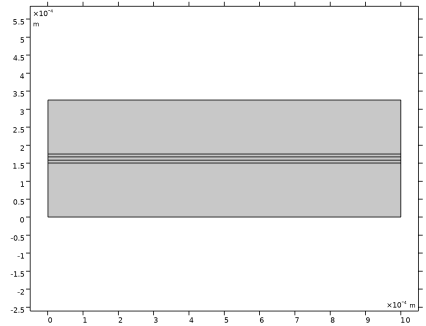
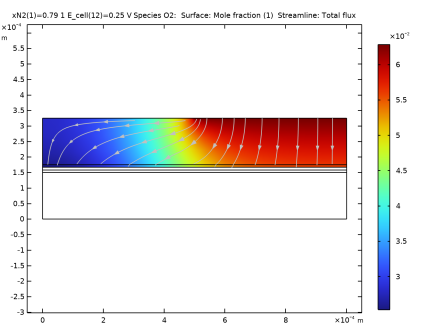
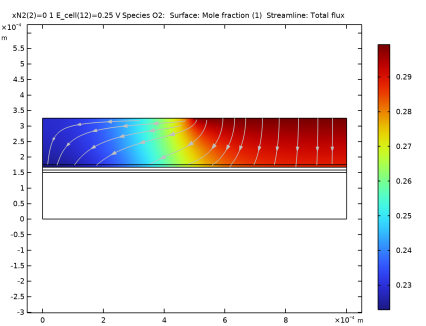
Gas diffusion and convection of the O2/N2/H2O mixture on the oxygen side of the cell in the corresponding GDL and the catalytic layer. (For this cell configuration, hydrogen transport will be fast and it is assumed the partial pressure gradients on the hydrogen side are negligible.)
|
|
A/m2
|
|
A/m2
|
|
1
|
|
2
|
In the Select Physics tree, select Electrochemistry > Hydrogen Fuel Cells > Proton Exchange Membrane (fc).
|
|
3
|
Click Add.
|
|
4
|
Click
 Study. Study. |
|
5
|
|
6
|
Click
 Done. Done. |
|
1
|
|
2
|
|
3
|
Click
 Load from File. Load from File. |
|
4
|
Browse to the model’s Application Libraries folder and double-click the file pemfc_parameter_estimation_parameters.txt.
|
|
1
|
|
2
|
|
3
|
|
4
|
|
5
|
Locate the Selections of Resulting Entities section. Select the Resulting objects selection checkbox.
|
|
6
|
Click
 Build Selected. Build Selected. |
|
1
|
|
2
|
|
3
|
|
4
|
|
5
|
|
6
|
Locate the Selections of Resulting Entities section. Select the Resulting objects selection checkbox.
|
|
7
|
Click
 Build Selected. Build Selected. |
|
1
|
|
2
|
|
3
|
|
4
|
|
5
|
|
6
|
Locate the Selections of Resulting Entities section. Select the Resulting objects selection checkbox.
|
|
7
|
Click
 Build Selected. Build Selected. |
|
1
|
|
2
|
|
3
|
|
4
|
|
5
|
|
6
|
Locate the Selections of Resulting Entities section. Select the Resulting objects selection checkbox.
|
|
7
|
Click
 Build Selected. Build Selected. |
|
1
|
|
2
|
|
3
|
|
4
|
|
5
|
|
6
|
Locate the Selections of Resulting Entities section. Select the Resulting objects selection checkbox.
|
|
7
|
Click
 Build Selected. Build Selected. |
|
1
|
|
2
|
|
3
|
|
4
|
Click
 Build Selected. Build Selected. |
|
1
|
|
2
|
|
3
|
|
4
|
Click
 Build Selected. Build Selected. |
|
5
|
|
6
|
|
1
|
In the Model Builder window, under Component 1 (comp1) right-click Definitions and choose Variables.
|
|
2
|
|
3
|
Click
 Load from File. Load from File. |
|
4
|
Browse to the model’s Application Libraries folder and double-click the file pemfc_parameter_estimation_variables.txt.
|
|
1
|
|
2
|
|
3
|
|
1
|
|
2
|
|
3
|
Select the Show geometry labels checkbox.
|
|
1
|
|
1
|
|
2
|
|
3
|
|
4
|
|
5
|
Click to expand the Electrolyte and Membrane Transport section. Find the Crossover species subsection. Select the H2 checkbox.
|
|
1
|
|
2
|
|
3
|
|
4
|
|
5
|
Locate the Effective Electrolyte Charge Transport section. From the Effective conductivity correction list, choose User defined. In the fl text field, type 1.
|
|
1
|
|
2
|
In the Settings window for H2 Gas Diffusion Electrode Reaction, locate the Electrode Kinetics section.
|
|
3
|
|
4
|
|
1
|
|
2
|
|
3
|
|
4
|
|
5
|
Locate the Effective Electrolyte Charge Transport section. From the Effective conductivity correction list, choose User defined. In the fl text field, type 1.
|
|
6
|
|
7
|
|
1
|
|
2
|
In the Settings window for O2 Gas Diffusion Electrode Reaction, locate the Electrode Kinetics section.
|
|
3
|
|
4
|
|
5
|
Select the Limiting current density checkbox.
|
|
6
|
|
7
|
|
1
|
|
2
|
|
3
|
|
4
|
|
5
|
|
1
|
|
2
|
|
3
|
|
4
|
|
5
|
|
6
|
|
7
|
|
1
|
|
2
|
|
3
|
|
4
|
Locate the Hydrogen Crossover section. From the ΨH2 list, choose User defined. In the associated text field, type perm_H2.
|
|
1
|
|
2
|
|
3
|
|
1
|
|
3
|
|
4
|
|
1
|
|
1
|
|
3
|
|
4
|
|
1
|
|
1
|
|
2
|
|
3
|
|
4
|
|
1
|
In the Model Builder window, under Component 1 (comp1) > Hydrogen Fuel Cell (fc) click H2 Gas Phase 1.
|
|
2
|
|
3
|
|
4
|
|
5
|
|
1
|
In the Model Builder window, under Component 1 (comp1) > Hydrogen Fuel Cell (fc) > O2 Gas Phase 1 click Initial Values 1.
|
|
2
|
|
3
|
|
4
|
|
5
|
|
1
|
|
3
|
|
4
|
|
5
|
|
6
|
|
7
|
|
8
|
|
1
|
|
2
|
|
3
|
|
4
|
|
1
|
|
2
|
|
3
|
From the list, choose User-controlled mesh.
|
|
4
|
|
1
|
|
2
|
|
3
|
|
1
|
|
3
|
|
4
|
|
5
|
|
6
|
Select the Reverse direction checkbox.
|
|
1
|
|
3
|
|
4
|
|
1
|
|
1
|
|
2
|
|
3
|
|
5
|
|
6
|
Click
 Build All. Build All. |
|
1
|
|
2
|
|
3
|
Click
 Add. Add. |
|
6
|
|
1
|
|
2
|
|
3
|
Select the Auxiliary sweep checkbox.
|
|
4
|
Click
 Add. Add. |
|
6
|
|
1
|
|
2
|
|
3
|
|
4
|
|
5
|
|
6
|
|
1
|
|
2
|
|
3
|
|
4
|
|
1
|
|
2
|
|
4
|
Click Replace Expression in the upper-right corner of the x-Axis Data section. From the menu, choose Component 1 (comp1) > Definitions > Variables > I_cell_avg - Cell-averaged current density - A/m².
|
|
5
|
|
6
|
|
1
|
|
2
|
|
3
|
|
4
|
|
1
|
|
2
|
|
3
|
|
4
|
Browse to the model’s Application Libraries folder and double-click the file pemfc_parameter_estimation_air_data.csv.
|
|
1
|
|
2
|
|
3
|
|
4
|
Browse to the model’s Application Libraries folder and double-click the file pemfc_parameter_estimation_o2_data.csv.
|
|
1
|
|
2
|
|
3
|
Select the x-axis label checkbox.
|
|
4
|
Select the y-axis label checkbox.
|
|
1
|
|
2
|
|
3
|
|
4
|
|
5
|
|
1
|
|
2
|
|
3
|
|
4
|
|
5
|
|
1
|
|
2
|
In the Settings window for Least-Squares Objective, type Global Least-Squares Objective - Air in the Label text field.
|
|
3
|
|
4
|
Locate the Data Column Settings section. In the table, enter the following settings:
|
|
5
|
|
6
|
|
8
|
|
9
|
|
10
|
|
1
|
|
2
|
In the Settings window for Least-Squares Objective, type Global Least-Squares Objective - Oxygen in the Label text field.
|
|
3
|
Locate the Experimental Data section. From the Result table list, choose Table 2 - O2 Polarization Data.
|
|
4
|
Locate the Experimental Conditions section. In the table, enter the following settings:
|
|
1
|
|
2
|
Go to the Add Study window.
|
|
3
|
|
4
|
Click the Add Study button in the window toolbar.
|
|
5
|
|
1
|
|
2
|
|
3
|
Click
 Add. Add. |
|
5
|
Click
 Add. Add. |
|
7
|
Click
 Add. Add. |
|
9
|
Click
 Add. Add. |
|
11
|
Locate the Parameter Estimation Method section. From the Least-squares time/parameter list method list, choose Use only least-squares data points.
|
|
1
|
|
2
|
|
3
|
Select the Auxiliary sweep checkbox.
|
|
4
|
|
5
|
|
6
|
|
1
|
|
2
|
|
3
|
|
4
|
|
5
|
|
6
|
|
7
|
Clear the Generate default plots checkbox.
|
|
8
|
|
1
|
|
2
|
|
3
|
|
4
|
|
1
|
In the Model Builder window, expand the Electrode Potential with Respect to Ground (fc) node, then click Surface 1.
|
|
2
|
|
3
|
|
1
|
|
2
|
|
3
|
|
4
|
|
1
|
In the Model Builder window, expand the Results > Electrolyte Potential (fc) > Arrow Surface 1 node, then click Arrow Surface 1.
|
|
2
|
|
3
|
|
1
|
In the Model Builder window, expand the Results > Electrode Potential with Respect to Ground (fc) 1 node, then click Arrow Surface 1.
|
|
2
|
|
3
|
|
4
|
|
1
|
In the Model Builder window, expand the Results > Electrolyte Potential (fc) 1 > Arrow Surface 1 node, then click Arrow Surface 1.
|
|
2
|
|
3
|