PDF

Ohmic Losses and Temperature Distribution in a Passive PEM Fuel Cell
Introduction
In small PEM (proton exchange membrane) fuel cell systems (in the sub-100 W range), no active devices for cooling or air transport are normally used. This design is chosen to minimize parasitic power losses from pumps and fans and to reduce the system complexity, size, and cost. The reactants at the cathode are therefore transported by passive convection/diffusion. Also, the heat dissipation occurs by passive transport mechanisms to the surrounding environment.
When designing the air side of a passive fuel cell the goal is to ensure an even current density and heat profile over the cell for various surrounding temperatures and current loads.
The holes in the cathode cover plate should typically be large in order to provide good reactant transport to the electrode, but the hole-to-solid material ratio may not be too large since the structural rigidity and electron conductivity of the plate also have to be maintained. Large air holes also cause high local ohmic losses in the gas diffusion layer.
Model Definition
This example models the current density and heat profile over a passive PEM fuel cell. Mass transport limitations are not accounted for in this model.
The cell is mounted on a printed circuit board (PCB) using a thin film of copper as current collector. Hydrogen inlet holes are made in the copper film. The cathode cover plate is made of steel with larger air inlet holes.
The modeled cell is assumed to be the last unit in a large array of serially connected cells, where the connection to the previous cell is made along the long side of the anode current collector. The cathode current collector short side is used as the positive current terminal of the whole stacked array.
The electrochemical currents are modeled with the Hydrogen Fuel Cell interface and the heat transport is modeled with the Heat Transfer interface, along with the Electrochemical Heating multiphysics coupling node for coupling the heat sources and temperature.
Since the gas diffusion electrodes (GDEs) are very thin in relation to the whole cell, and since mass transport is not accounted for, the GDEs are modeled as planar surfaces (using the Thin H2 Gas Diffusion Electrode and Thin O2 Gas Diffusion Electrode nodes, respectively) between the respective gas diffusion layers (GDLs) and the polymer membrane. Two electrode reactions are used, hydrogen reduction at the anode and oxygen reduction at the cathode. The reference equilibrium potentials and thermoneutral potentials are automatically calculated when the default built-in options are used.
Heat is produced by the electrochemical reactions and joule heating due to the electrical currents. The PCB has low heat conductivity and hence all heat produced dissipates from the cathode cover plate by convective cooling and surface-to-ambient radiation. The heat transfer coefficient used to model the convective cooling depends heavily on the surrounding environment, here a value of 50 W/(m2·K) is used. This value is higher than what is normally used for free convection cooling with gases, but may be motivated from the fact that extra convection is induced by the mass transfer processes in the cathode electrode.
All produced water is assumed to leave the system in gas phase, therefore the value used for the equilibrium potential for the oxygen reduction reaction and the entropy value are based on gaseous water. In this way the cooling effect due to vaporizing water is accounted for in the heat sources of the electrochemical reactions.
Results and Discussion
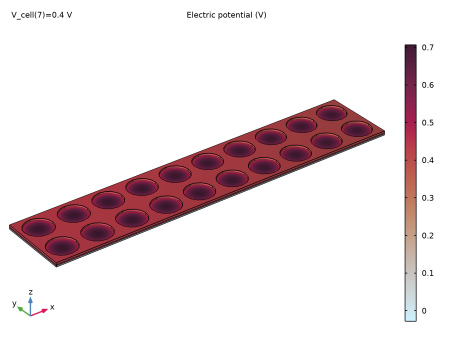
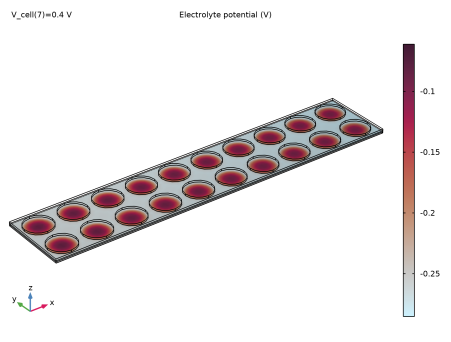
Figure 1 shows the electronic potential of the cell for a simulated cell voltage of 0.4 V.
Figure 1: Electronic potential on the surface of the cell.
The potential drop from the center of the air holes to the cover plate is substantial, whereas the potential drop along the cell in the x direction, resulting from using the short side of the cell as current terminal, is small.
Figure 2 shows the ionic potential of the polymer membrane surface. The cathode air holes have a large impact on the potential profile, the effect of the smaller anode hydrogen inlet holes is less pronounced.
Figure 2: Ionic potential of the polymer membrane surface.
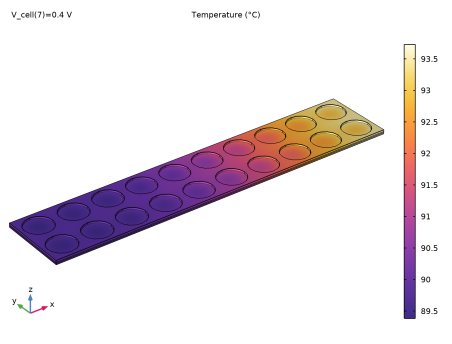
Figure 3 shows the temperature of the whole cell. The cell is warmer toward the cathode current terminal.
Figure 3: Cell surface temperature.
.
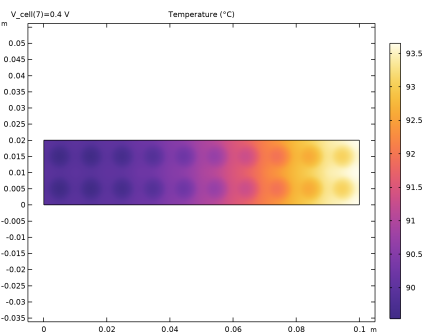
Figure 4: Temperature in the center of the membrane.
Figure 4 shows the temperature profile in the center of the membrane. The membrane temperature is very similar to the temperature of the cathode cover plate in Figure 3.
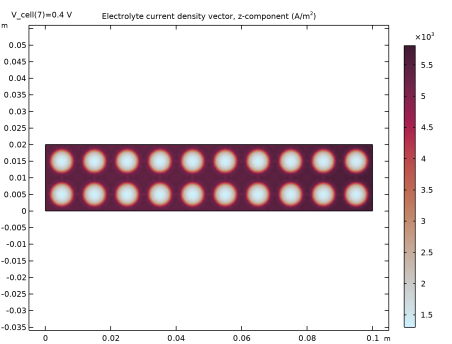
Figure 5 shows the ionic current vector in the z direction in the center of the membrane. The current density in the parts of the membrane facing the center of the cathode air inlet holes are much lower than other parts of the membrane. It is also seen that the current density is slightly higher toward the current terminal. This is due to higher potential losses on the steel cover plate on the cathode than on the copper film on the anode. The higher current density toward the cathode current terminal generates more heat, which explains the higher temperature toward the cathode current terminal in Figure 4 and Figure 5.
Figure 5: Ionic current density in the center of the membrane (z direction).
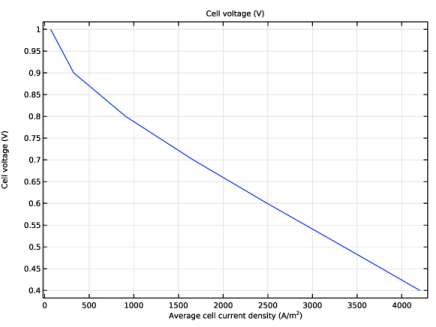
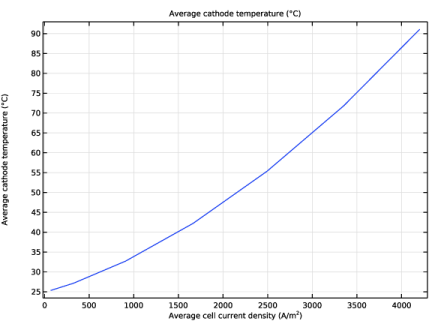
Figure 6 shows the polarization plot and Figure 7 the cathode average temperature dependence on the average cell current density.
Figure 6: Polarization plot.
Figure 7: Cathode average temperature dependence on average cell current density.
Notes About the COMSOL Implementation
The geometry is set up using an assembly of two different parts with an identity pair coupling between the anode current collector and anode GDL domains. The reason for this is to be able to use swept meshes in the normal direction to the cell surface. The identity pair and the corresponding Continuity boundary condition nodes in the physics interfaces are added automatically by default.
Application Library path: Fuel_Cell_and_Electrolyzer_Module/Fuel_Cells/passive_pem
Modeling Instructions
From the File menu, choose New.
New
In the New window, click  Model Wizard.
Model Wizard
1
In the Model Wizard window, click  3D.
2
In the Select Physics tree, select Electrochemistry > Hydrogen Fuel Cells > Proton Exchange Membrane (fc).
3
Click Add.
4
In the Select Physics tree, select Heat Transfer > Heat Transfer in Solids (ht).
5
Click Add.
6
Click  Study.
7
In the Select Study tree, select General Studies > Stationary.
8
Geometry 1
The model geometry is available as a parameterized geometry sequence in a separate MPH file. If you want to build it from scratch, follow the instructions in the section Appendix — Geometry Modeling Instructions. Otherwise load it from file with the following steps.
1
In the Geometry toolbar, click Insert Sequence and choose Insert Sequence.
2
3
In the Geometry toolbar, click  Build All.
4
In the Model Builder window, under Component 1 (comp1) click Geometry 1.
Definitions
Now create selections of the geometry. You will use them later when setting up the physics.
Anode Current Collector
1
In the Definitions toolbar, click  Explicit.
2
In the Settings window for Explicit, type Anode Current Collector in the Label text field.
3
Cathode Current Collector
1
In the Definitions toolbar, click  Explicit.
2
In the Settings window for Explicit, type Cathode Current Collector in the Label text field.
3
GDLs
1
In the Definitions toolbar, click  Explicit.
2
In the Settings window for Explicit, type GDLs in the Label text field.
3
Membrane
1
In the Definitions toolbar, click  Explicit.
2
In the Settings window for Explicit, type Membrane in the Label text field.
3
Cathode - Air Boundary
1
In the Definitions toolbar, click  Explicit.
2
In the Settings window for Explicit, type Cathode - Air Boundary in the Label text field.
3
Locate the Input Entities section. From the Geometric entity level list, choose Boundary.
4
Anode Current Terminal
1
In the Definitions toolbar, click  Explicit.
2
In the Settings window for Explicit, type Anode Current Terminal in the Label text field.
3
Locate the Input Entities section. From the Geometric entity level list, choose Boundary.
4
Cathode Current Terminal
1
In the Definitions toolbar, click  Explicit.
2
In the Settings window for Explicit, type Cathode Current Terminal in the Label text field.
3
Locate the Input Entities section. From the Geometric entity level list, choose Boundary.
4
Anode GDE
1
In the Definitions toolbar, click  Explicit.
2
In the Settings window for Explicit, type Anode GDE in the Label text field.
3
Locate the Input Entities section. From the Geometric entity level list, choose Boundary.
4
Cathode GDE
1
In the Definitions toolbar, click  Explicit.
2
In the Settings window for Explicit, type Cathode GDE in the Label text field.
3
Locate the Input Entities section. From the Geometric entity level list, choose Boundary.
4
Anode GDL
1
In the Definitions toolbar, click  Explicit.
2
In the Settings window for Explicit, type Anode GDL in the Label text field.
3
Cathode GDL
1
In the Definitions toolbar, click  Explicit.
2
In the Settings window for Explicit, type Cathode GDL in the Label text field.
3
Current Collectors
1
In the Definitions toolbar, click  Explicit.
2
In the Settings window for Explicit, type Current Collectors in the Label text field.
3
Global Definitions
Load some additional model parameters from a text file.
Parameters 1
1
In the Model Builder window, under Global Definitions click Parameters 1.
2
In the Settings window for Parameters, locate the Parameters section.
3
Click  Load from File.
4
Hydrogen Fuel Cell (fc)
Now set up the physics for the current distribution model (without mass transport effects). The gas stream at the anode side is assumed to be 100% hydrogen, whereas the default species of H2O and N2 are included in the cathode gas stream. Start by assigning the current collector and GDL domains (You will specify the material parameter values under the Materials branch later).
1
In the Model Builder window, under Component 1 (comp1) click Hydrogen Fuel Cell (fc).
2
In the Settings window for Hydrogen Fuel Cell, locate the H2 Gas Mixture section.
3
Clear the H2O checkbox.
4
Locate the O2 Gas Mixture section. Find the Transport mechanisms subsection. Clear the Include gas phase diffusion checkbox.
Current Collector 1
1
In the Physics toolbar, click  Domains and choose Current Collector.
2
In the Settings window for Current Collector, locate the Domain Selection section.
3
From the Selection list, choose Current Collectors.
4
Locate the Electrode Charge Transport section. From the σs list, choose From material.
H2 Gas Diffusion Layer 1
1
In the Physics toolbar, click  Domains and choose H2 Gas Diffusion Layer.
2
In the Settings window for H2 Gas Diffusion Layer, locate the Domain Selection section.
3
From the Selection list, choose Anode GDL.
4
Locate the Electrode Charge Transport section. From the σs list, choose From material.
O2 Gas Diffusion Layer 1
1
In the Physics toolbar, click  Domains and choose O2 Gas Diffusion Layer.
2
In the Settings window for O2 Gas Diffusion Layer, locate the Domain Selection section.
3
From the Selection list, choose Cathode GDL.
4
Locate the Electrode Charge Transport section. From the σs list, choose From material.
Membrane 1
1
In the Physics toolbar, click  Domains and choose Membrane.
2
In the Settings window for Membrane, locate the Domain Selection section.
3
From the Selection list, choose Membrane.
Thin H2 Gas Diffusion Electrode 1
Now set up the thin GDEs along with the electrochemical reactions. Note that the reference equilibrium potential and the thermoneutral voltage are calculated automatically when the default Built in option is used.
1
In the Physics toolbar, click  Boundaries and choose Thin H2 Gas Diffusion Electrode.
2
In the Settings window for Thin H2 Gas Diffusion Electrode, locate the Boundary Selection section.
3
From the Selection list, choose Anode GDE.
4
Locate the Electrode Thickness section. In the dgde text field, type d_gde.
Thin H2 Gas Diffusion Electrode Reaction 1
1
In the Model Builder window, click Thin H2 Gas Diffusion Electrode Reaction 1.
2
In the Settings window for Thin H2 Gas Diffusion Electrode Reaction, locate the Electrode Kinetics section.
3
In the i0,ref(T) text field, type i0_refa.
4
Locate the Active Specific Surface Area section. In the av text field, type Av.
Thin O2 Gas Diffusion Electrode 1
1
In the Physics toolbar, click  Boundaries and choose Thin O2 Gas Diffusion Electrode.
2
In the Settings window for Thin O2 Gas Diffusion Electrode, locate the Boundary Selection section.
3
From the Selection list, choose Cathode GDE.
4
Locate the Electrode Thickness section. In the dgde text field, type d_gde.
Thin O2 Gas Diffusion Electrode Reaction 1
1
In the Model Builder window, click Thin O2 Gas Diffusion Electrode Reaction 1.
2
In the Settings window for Thin O2 Gas Diffusion Electrode Reaction, locate the Electrode Kinetics section.
3
In the i0,ref(T) text field, type i0_refc.
4
Locate the Active Specific Surface Area section. In the av text field, type Av.
O2 Gas Phase 1
Set up the composition of the O2 gas mixture in the O2 Gas Phase node.
1
In the Model Builder window, under Component 1 (comp1) > Hydrogen Fuel Cell (fc) click O2 Gas Phase 1.
2
In the Settings window for O2 Gas Phase, locate the Composition section.
3
From the Mixture specification list, choose Humidified air.
4
In the RHhum text field, type RH_amb.
5
In the Thum text field, type T_amb.
Initial Values 1
Provide initial values to facilitate numerical convergence.
1
In the Model Builder window, under Component 1 (comp1) > Hydrogen Fuel Cell (fc) > Electrolyte Phase 1 click Initial Values 1.
2
In the Settings window for Initial Values, locate the Initial Values section.
3
In the ϕl text field, type -0.1[V].
Electronic Conducting Phase 1
In the Model Builder window, under Component 1 (comp1) > Hydrogen Fuel Cell (fc) click Electronic Conducting Phase 1.
Initial Values 2
1
In the Physics toolbar, click  Attributes and choose Initial Values.
2
In the Settings window for Initial Values, locate the Domain Selection section.
3
Click  Clear Selection.
4
Click  Paste Selection.
5
In the Paste Selection dialog, type 4,5 in the Selection text field.
6
7
In the Settings window for Initial Values, locate the Initial Values section.
8
In the ϕs text field, type V_cell.
Electronic Conducting Phase 1
Complete the model for the electrochemical currents by grounding the anode current collector, and setting the cathode steel plate to the cell potential.
In the Model Builder window, click Electronic Conducting Phase 1.
Electric Ground 1
1
In the Physics toolbar, click  Attributes and choose Electric Ground.
2
In the Settings window for Electric Ground, locate the Boundary Selection section.
3
From the Selection list, choose Anode Current Terminal.
Electronic Conducting Phase 1
In the Model Builder window, click Electronic Conducting Phase 1.
Electric Potential 1
1
In the Physics toolbar, click  Attributes and choose Electric Potential.
2
In the Settings window for Electric Potential, locate the Boundary Selection section.
3
From the Selection list, choose Cathode Current Terminal.
4
Locate the Electric Potential section. In the ϕs,bnd text field, type V_cell.
Heat Transfer in Solids (ht)
Now set up the model for the heat transport. (You specify all material parameters later). Model the heat lost by convective cooling by using a Heat Flux boundary condition.
1
In the Model Builder window, under Component 1 (comp1) click Heat Transfer in Solids (ht).
Heat Flux 1
1
In the Physics toolbar, click  Boundaries and choose Heat Flux.
2
In the Settings window for Heat Flux, locate the Boundary Selection section.
3
From the Selection list, choose Cathode - Air Boundary.
4
The boundary selection is easiest to make by first choosing the predefined Cathode-Air Boundary, and then adding the top surface of the cathode cover plate.
5
Locate the Heat Flux section. From the Flux type list, choose Convective heat flux.
6
In the h text field, type htc.
7
In the Text text field, type T_amb.
Surface-to-Ambient Radiation 1
Include Surface-to-Ambient Radiation nodes for the two different surfaces on the cathode side. The emissivity is higher for the carbon GDL than the steel plate.
1
In the Physics toolbar, click  Boundaries and choose Surface-to-Ambient Radiation.
2
In the Settings window for Surface-to-Ambient Radiation, locate the Boundary Selection section.
3
From the Selection list, choose Cathode - Air Boundary.
4
Locate the Surface-to-Ambient Radiation section. From the ε list, choose User defined. In the associated text field, type 0.8.
5
In the Tamb text field, type T_amb.
Surface-to-Ambient Radiation 2
1
In the Physics toolbar, click  Boundaries and choose Surface-to-Ambient Radiation.
2
3
In the Settings window for Surface-to-Ambient Radiation, locate the Surface-to-Ambient Radiation section.
4
From the ε list, choose User defined. In the associated text field, type 0.3.
5
In the Tamb text field, type T_amb.
Multiphysics
Heat will be generated in the domains due to ohmic heating, and on the thin GDEs due to activation losses. Create these heat sources by coupling the Heat Transfer interface to the Hydrogen Fuel Cell interface, using the Electrochemical Heating multiphysics feature. Note that this feature also couples the temperature between the interfaces.
Electrochemical Heating 1 (ech1)
In the Physics toolbar, click  Multiphysics Couplings and choose Domain > Electrochemical Heating.
Materials
This model will use some materials from the built-in library, start by importing these.
Add Material
1
In the Materials toolbar, click  Add Material to open the Add Material window.
2
Go to the Add Material window.
3
In the tree, select Built-in > Copper.
4
Click the Add to Component button in the window toolbar.
5
In the tree, select Built-in > Steel AISI 4340.
6
Click the Add to Component button in the window toolbar.
7
In the Materials toolbar, click  Add Material to close the Add Material window.
Materials
Copper (mat1)
1
In the Settings window for Material, locate the Geometric Entity Selection section.
2
From the Selection list, choose Anode Current Collector.
Steel AISI 4340 (mat2)
1
In the Model Builder window, click Steel AISI 4340 (mat2).
2
In the Settings window for Material, locate the Geometric Entity Selection section.
3
From the Selection list, choose Cathode Current Collector.
Set up the required material parameter values for the membrane and GDL manually (The density and heat capacity are actually not needed for this model since this is a stationary heat problem, but they are added here for convenience if one would like to do a time-dependent study).
GDLs
1
In the Model Builder window, right-click Materials and choose Blank Material.
2
In the Settings window for Material, locate the Geometric Entity Selection section.
3
From the Selection list, choose GDLs.
4
Locate the Material Contents section. In the table, enter the following settings:
5
In the Label text field, type GDLs.
Membrane
1
Right-click Materials and choose Blank Material.
2
In the Settings window for Material, type Membrane in the Label text field.
3
Locate the Geometric Entity Selection section. From the Selection list, choose Membrane.
4
Locate the Material Contents section. In the table, enter the following settings:
Mesh 1
Build the mesh by meshing the top and bottom surfaces for each part, respectively, and then sweeping in the z direction.
Free Triangular 1
1
In the Mesh toolbar, click  More Generators and choose Free Triangular.
2
Size
1
In the Model Builder window, click Size.
2
In the Settings window for Size, locate the Element Size section.
3
Click the Custom button.
4
Locate the Element Size Parameters section. In the Maximum element size text field, type 1.5e-3.
5
In the Minimum element size text field, type 1e-3.
Swept 1
1
In the Mesh toolbar, click  Swept.
2
In the Settings window for Swept, locate the Domain Selection section.
3
From the Geometric entity level list, choose Domain.
4
From the Selection list, choose Cathode Current Collector.
Distribution 1
1
Right-click Swept 1 and choose Distribution.
2
In the Settings window for Distribution, locate the Distribution section.
3
In the Number of elements text field, type 2.
Swept 1
In the Model Builder window, right-click Swept 1 and choose Build Selected.
Free Triangular 2
1
In the Mesh toolbar, click  More Generators and choose Free Triangular.
2
In the Settings window for Free Triangular, locate the Boundary Selection section.
3
From the Selection list, choose Cathode - Air Boundary.
4
Click  Build Selected.
Free Triangular 3
1
In the Mesh toolbar, click  More Generators and choose Free Triangular.
2
Size 1
1
Right-click Free Triangular 3 and choose Size.
2
In the Settings window for Size, locate the Element Size section.
3
Click the Custom button.
4
Locate the Element Size Parameters section.
5
Select the Maximum element size checkbox. In the associated text field, type 0.9e-3.
6
Select the Minimum element size checkbox. In the associated text field, type 0.6e-3.
7
Click  Build Selected.
Swept 2
In the Mesh toolbar, click  Swept.
Distribution 1
1
Right-click Swept 2 and choose Distribution.
2
In the Settings window for Distribution, locate the Distribution section.
3
In the Number of elements text field, type 2.
Swept 2
1
In the Model Builder window, right-click Swept 2 and choose Build All.
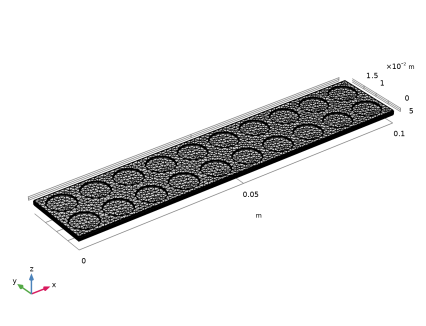
The finalized mesh should now look as follows:
Definitions
Add two probes for calculating the average current density at the anode and temperature at the cathode.
Average Cell Current Density Probe
1
In the Definitions toolbar, click  Probes and choose Boundary Probe.
2
In the Settings window for Boundary Probe, type Average Cell Current Density Probe in the Label text field.
3
In the Variable name text field, type I_cell.
4
Locate the Source Selection section. From the Selection list, choose Anode GDE.
5
Click Replace Expression in the upper-right corner of the Expression section. From the menu, choose Component 1 (comp1) > Hydrogen Fuel Cell > Electrode kinetics > fc.iloc_th2gder1 - Local current density - A/m².
6
Locate the Expression section. In the Expression text field, type fc.iloc_th2gder1*Av*d_gde.
Average Cell Temperature Probe
1
In the Definitions toolbar, click  Probes and choose Boundary Probe.
2
In the Settings window for Boundary Probe, type Average Cell Temperature Probe in the Label text field.
3
In the Variable name text field, type T_avg.
4
Locate the Source Selection section. From the Selection list, choose Cathode GDE.
5
Locate the Expression section. In the Expression text field, type T.
Study 1
Step 1: Stationary
Use an auxiliary sweep with continuation to solve for a range of different cell voltages.
1
In the Model Builder window, under Study 1 click Step 1: Stationary.
2
In the Settings window for Stationary, click to expand the Study Extensions section.
3
Select the Auxiliary sweep checkbox.
4
5
Solution 1 (sol1)
1
In the Study toolbar, click  Show Default Solver.
2
In the Model Builder window, expand the Solution 1 (sol1) node, then click Dependent Variables 1.
3
In the Settings window for Dependent Variables, locate the Scaling section.
4
From the Method list, choose Initial-value based.
5
In the Model Builder window, expand the Study 1 > Solver Configurations > Solution 1 (sol1) > Stationary Solver 1 > Segregated 1 node, then click Hydrogen Fuel Cell.
6
In the Settings window for Segregated Step, click to expand the Method and Termination section.
7
From the Jacobian update list, choose On first iteration.
8
In the Model Builder window, click Study 1.
9
In the Settings window for Study, locate the Study Settings section.
10
Clear the Generate default plots checkbox.
11
In the Study toolbar, click  Compute.
Results
Set default units for result presentation.
Preferred Units 1
1
In the Results toolbar, click  Configurations and choose Preferred Units.
2
In the Settings window for Preferred Units, locate the Units section.
3
Click  Add Physical Quantity.
4
In the Physical Quantity dialog, select General > Temperature (K) in the tree.
5
6
In the Settings window for Preferred Units, locate the Units section.
7
8
Select the Apply conversions to expressions with the same dimensions checkbox.
9
In the Model Builder window, click Preferred Units 1.
10
Click  Apply.
Follow the steps in this section to reproduce the figures in the Results and Discussion section.
Electric Potential
1
In the Results toolbar, click  3D Plot Group.
2
In the Settings window for 3D Plot Group, type Electric Potential in the Label text field.
Surface 1
1
Right-click Electric Potential and choose Surface.
2
In the Settings window for Surface, locate the Expression section.
3
In the Expression text field, type fc.phis.
4
Locate the Coloring and Style section. From the Color table list, choose MetasepiaBlue.
5
In the Electric Potential toolbar, click  Plot.
Electrolyte Potential
1
In the Results toolbar, click  3D Plot Group.
2
In the Settings window for 3D Plot Group, type Electrolyte Potential in the Label text field.
Surface 1
1
Right-click Electrolyte Potential and choose Surface.
2
In the Settings window for Surface, locate the Coloring and Style section.
3
From the Color table list, choose MetasepiaBlue.
4
In the Electrolyte Potential toolbar, click  Plot.
Surface Temperature
1
In the Results toolbar, click  3D Plot Group.
2
In the Settings window for 3D Plot Group, type Surface Temperature in the Label text field.
Surface 1
1
Right-click Surface Temperature and choose Surface.
2
In the Settings window for Surface, locate the Expression section.
3
In the Expression text field, type T.
4
Locate the Coloring and Style section. From the Color table list, choose HeatCameraLight.
5
In the Surface Temperature toolbar, click  Plot.
Cut Plane 1
1
In the Results toolbar, click  Cut Plane.
2
In the Settings window for Cut Plane, locate the Plane Data section.
3
From the Plane list, choose XY-planes.
4
In the Z-coordinate text field, type H_film+H_GDL+H_membrane/2.
5
Membrane Temperature
1
In the Results toolbar, click  2D Plot Group.
2
In the Settings window for 2D Plot Group, type Membrane Temperature in the Label text field.
Surface 1
1
Right-click Membrane Temperature and choose Surface.
2
In the Settings window for Surface, locate the Data section.
3
From the Dataset list, choose Cut Plane 1.
4
Locate the Expression section. In the Expression text field, type T.
5
Locate the Coloring and Style section. From the Color table list, choose HeatCameraLight.
6
In the Membrane Temperature toolbar, click  Plot.
Membrane Current Density
1
In the Results toolbar, click  2D Plot Group.
2
In the Settings window for 2D Plot Group, type Membrane Current Density in the Label text field.
Surface 1
1
Right-click Membrane Current Density and choose Surface.
2
In the Settings window for Surface, locate the Data section.
3
From the Dataset list, choose Cut Plane 1.
4
Click Replace Expression in the upper-right corner of the Expression section. From the menu, choose Component 1 (comp1) > Hydrogen Fuel Cell > Electrolyte current density vector - A/m² > fc.Ilz - Electrolyte current density vector, z-component.
5
Locate the Coloring and Style section. From the Color table list, choose MetasepiaBlue.
6
In the Membrane Current Density toolbar, click  Plot.
Polarization Plot
1
In the Results toolbar, click  1D Plot Group.
2
In the Settings window for 1D Plot Group, type Polarization Plot in the Label text field.
3
Locate the Plot Settings section.
4
Select the x-axis label checkbox. In the associated text field, type Average cell current density (A/m<sup>2</sup>).
Global 1
1
Right-click Polarization Plot and choose Global.
2
In the Settings window for Global, locate the y-Axis Data section.
3
4
Locate the x-Axis Data section. From the Parameter list, choose Expression.
5
In the Expression text field, type I_cell.
6
Click to expand the Legends section. Clear the Show legends checkbox.
7
In the Polarization Plot toolbar, click  Plot.
Temperature vs. Current Density
1
In the Results toolbar, click  1D Plot Group.
2
In the Settings window for 1D Plot Group, type Temperature vs. Current Density in the Label text field.
3
Locate the Plot Settings section.
4
Select the x-axis label checkbox. In the associated text field, type Average cell current density (A/m<sup>2</sup>).
Global 1
1
Right-click Temperature vs. Current Density and choose Global.
2
In the Settings window for Global, locate the y-Axis Data section.
3
4
Locate the x-Axis Data section. From the Parameter list, choose Expression.
5
In the Expression text field, type I_cell.
6
Locate the Legends section. Clear the Show legends checkbox.
7
In the Temperature vs. Current Density toolbar, click  Plot.
Appendix — Geometry Modeling Instructions
Add Component
In the Home toolbar, click  Add Component and choose 3D.
Global Definitions
First define the geometry parameters.
Parameters 1
1
In the Model Builder window, under Global Definitions click Parameters 1.
2
In the Settings window for Parameters, locate the Parameters section.
3
Geometry 1
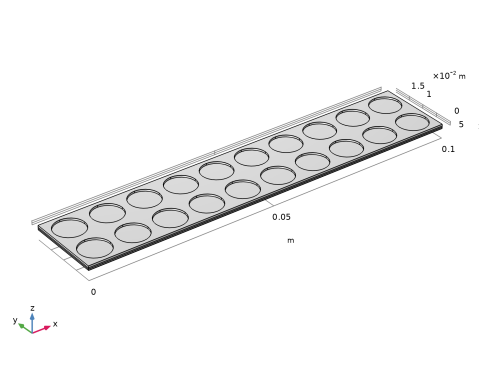
The geometry is based on blocks, with arrays of cylinders to create the holes in the top steel plate and bottom copper film. Use a boolean difference operation to create the two parts that form the final assembly.
Block 1 (blk1)
1
In the Geometry toolbar, click  Block.
2
In the Settings window for Block, locate the Size and Shape section.
3
In the Width text field, type L.
4
In the Depth text field, type D.
5
In the Height text field, type H_film.
Cylinder 1 (cyl1)
1
In the Geometry toolbar, click  Cylinder.
2
In the Settings window for Cylinder, locate the Size and Shape section.
3
In the Radius text field, type r_film.
4
In the Height text field, type H_film.
5
Locate the Position section. In the x text field, type 1[cm].
6
In the y text field, type 1[cm].
7
Click  Build Selected.
Array 1 (arr1)
1
In the Geometry toolbar, click  Transforms and choose Array.
2
3
In the Settings window for Array, locate the Size section.
4
In the x size text field, type 5.
5
Locate the Displacement section. In the x text field, type 2e-2.
6
Click  Build Selected.
Difference 1 (dif1)
1
In the Geometry toolbar, click  Booleans and Partitions and choose Difference.
2
Click the  Go to XY View button in the Graphics toolbar.
3
Select the object blk1 only, to add it to the Objects to add list.
4
In the Settings window for Difference, locate the Difference section.
5
Click to select the  Activate Selection toggle button for Objects to subtract.
6
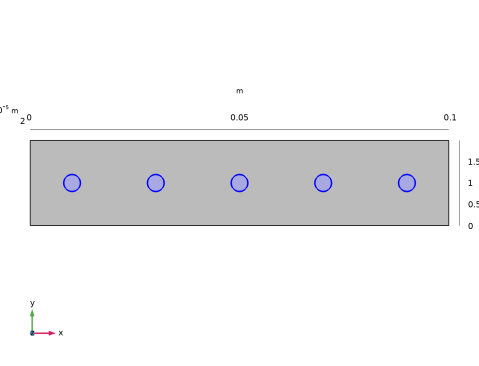
Click and drag in the Graphics window to enclose and high-light all five cylinders, then right-click to confirm the selection.
7
Click  Build Selected.
8
Click the  Go to Default View button in the Graphics toolbar.
Block 2 (blk2)
1
In the Geometry toolbar, click  Block.
2
In the Settings window for Block, locate the Size and Shape section.
3
In the Width text field, type L.
4
In the Depth text field, type D.
5
In the Height text field, type H_GDL.
6
Locate the Position section. In the z text field, type H_film.
7
Click  Build Selected.
Block 3 (blk3)
1
In the Geometry toolbar, click  Block.
2
In the Settings window for Block, locate the Size and Shape section.
3
In the Width text field, type L.
4
In the Depth text field, type D.
5
In the Height text field, type H_membrane.
6
Locate the Position section. In the z text field, type H_film+H_GDL.
7
Click  Build Selected.
Block 4 (blk4)
1
In the Geometry toolbar, click  Block.
2
In the Settings window for Block, locate the Size and Shape section.
3
In the Width text field, type L.
4
In the Depth text field, type D.
5
In the Height text field, type H_GDL.
6
Locate the Position section. In the z text field, type H_film+H_GDL+H_membrane.
7
Click  Build Selected.
Block 5 (blk5)
1
In the Geometry toolbar, click  Block.
2
In the Settings window for Block, locate the Size and Shape section.
3
In the Width text field, type L.
4
In the Depth text field, type D.
5
In the Height text field, type H_plate.
6
Locate the Position section. In the z text field, type H_film+H_GDL+H_membrane+H_GDL.
7
Click  Build Selected.
Cylinder 2 (cyl2)
1
In the Geometry toolbar, click  Cylinder.
2
In the Settings window for Cylinder, locate the Size and Shape section.
3
In the Radius text field, type r_plate.
4
In the Height text field, type H_plate.
5
Locate the Position section. In the x text field, type 5e-3.
6
In the y text field, type 5e-3.
7
In the z text field, type H_film+H_GDL+H_membrane+H_GDL.
8
Click  Build Selected.
Array 2 (arr2)
1
In the Geometry toolbar, click  Transforms and choose Array.
2
3
In the Settings window for Array, locate the Size section.
4
In the x size text field, type 10.
5
In the y size text field, type 2.
6
Locate the Displacement section. In the x text field, type 1e-2.
7
In the y text field, type 1e-2.
8
Click  Build Selected.
Difference 2 (dif2)
1
In the Geometry toolbar, click  Booleans and Partitions and choose Difference.
2
Click the  Go to XY View button in the Graphics toolbar.
3
Select the objects blk2, blk3, blk4, and blk5 only, to add them to the Objects to add list.
4
In the Settings window for Difference, locate the Difference section.
5
Click to select the  Activate Selection toggle button for Objects to subtract.
6
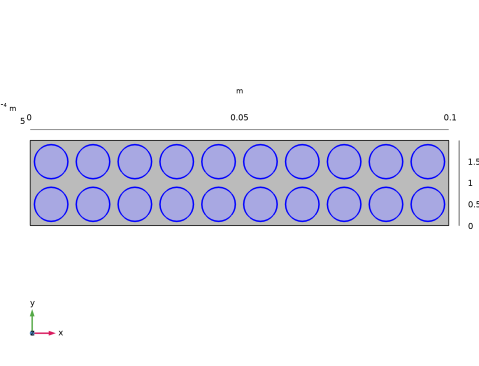
Click and drag in the Graphics window to enclose and high-light the 20 cylinders, then right-click to confirm the selection.
7
Click  Build Selected.
8
Click the  Go to Default View button in the Graphics toolbar.
Form Union (fin)
1
In the Model Builder window, under Component 1 (comp1) > Geometry 1 click Form Union (fin).
2
In the Settings window for Form Union/Assembly, locate the Form Union/Assembly section.
3
From the Action list, choose Form an assembly.
4
Click  Build Selected.
The model geometry is now complete.