|
|
|
|
•
|
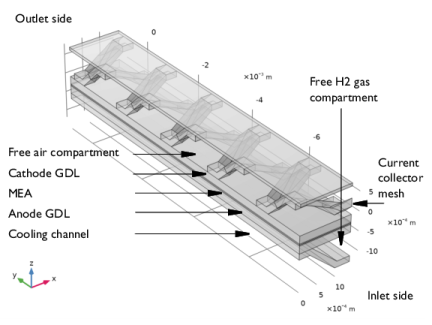
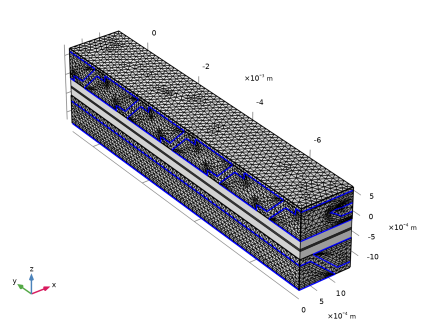
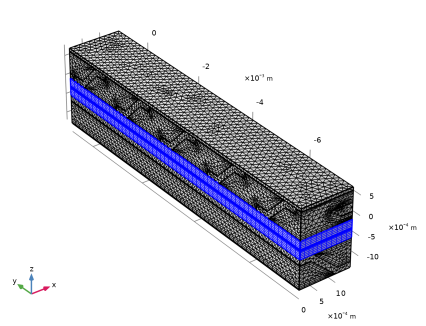
The charge and species balances, reaction and gas phase thermodynamics and the electrochemical reactions are all defined by the use of a Hydrogen Fuel Cell (fc) interface. This interface also includes water permeation and electroosmotic drag through the membrane.
|
|
•
|
The convective flow and pressure of the gas phases in the free gas compartments and the gas diffusion layers (GDLs) are defined by two Free and Porous Media (fp) interfaces, one for each gas mixture. These physics interfaces solve for the Navier-Stokes equations in the free gas domains, and the Brinkman equations in the GDLs.
|
|
•
|
The convective flow and pressure of the liquid cooling fluid is defined using a Laminar Flow (spf) interface. This interface solves for the Navier–Stokes equations.
|
|
•
|
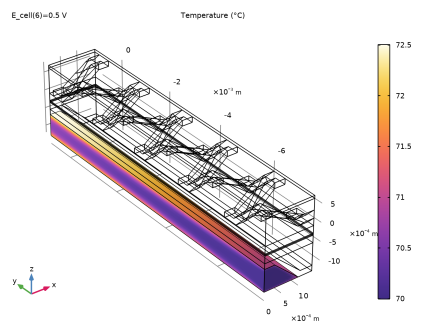
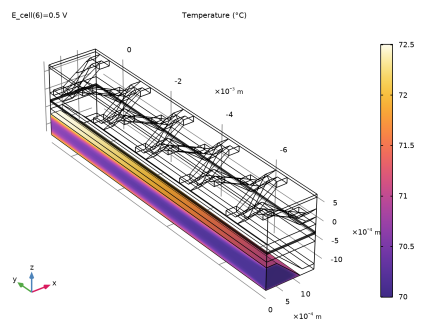
The heat transfer and temperature of the cell is defined and solved for by the use of a Heat Transfer (ht) interface
|
|
•
|
The Reacting Flow nodes, one for each gas phase, applies the convective velocities and pressures of the fp interfaces into the species transport equations and electrochemical reaction kinetics expressions of the fc interface. These coupling nodes also set the density and dynamic viscosity in the fp interfaces to the variables calculated by the fc interface.
|
|
•
|
The Electrochemical Heating node applies the heat sources stemming from the electrochemical reactions and ohmic (joule) heating calculated by the fc interface into the ht interface. The node also sets the temperature in all fc domains to that of the ht interface
|
|
•
|
The Nonisothermal Flow nodes, one for each fluid flow interface, couples the velocity field in the fp and spf interfaces to the fluid domains of the ht interfaces. The node also sets the temperature in all fp and spf domains to that of the ht interface
|
|
•
|
Step 1: Current Distribution Initialization. This study step solves for the potential variables of the fc interface only, for a cell potential of 1 V.
|
|
•
|
|
•
|
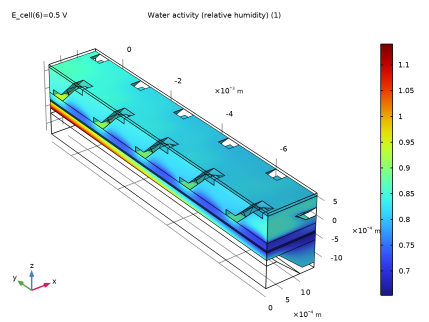
Step 5: Stationary - All Physics Except Laminar Flow. This study step starts solving for the full problem at a cell potential of 1 V, ramping it down to 0.5 V by the use of an Auxiliary Sweep. Since the properties of the cooling fluid are not assumed to be affected by changes in temperature, the spf interface is excluded from solving in this study step.
|
|
1
|
|
2
|
In the Select Physics tree, select Electrochemistry > Hydrogen Fuel Cells > Proton Exchange Membrane (fc).
|
|
3
|
Click Add.
|
|
4
|
In the Select Physics tree, select Fluid Flow > Porous Media and Subsurface Flow > Free and Porous Media Flow, Brinkman (fp).
|
|
5
|
Click Add.
|
|
6
|
|
7
|
In the Velocity field components table, enter the following settings:
|
|
8
|
|
9
|
Click Add.
|
|
10
|
|
11
|
In the Velocity field components table, enter the following settings:
|
|
12
|
|
13
|
|
14
|
Click Add.
|
|
15
|
|
16
|
Click Add.
|
|
17
|
|
18
|
In the Velocity field components table, enter the following settings:
|
|
19
|
|
20
|
Click
 Study. Study. |
|
21
|
Click
 Done. Done. |
|
1
|
|
2
|
|
3
|
|
4
|
|
5
|
Browse to the model’s Application Libraries folder and double-click the file nonisothermal_pem_fuel_cell_geom_sequence.mph.
|
|
6
|
|
1
|
|
2
|
|
1
|
|
2
|
|
3
|
|
4
|
Browse to the model’s Application Libraries folder and double-click the file nonisothermal_pem_fuel_cell_physics_parameters.txt.
|
|
1
|
|
2
|
|
3
|
|
4
|
Click to expand the Electrolyte and Membrane Transport section. Select the Electroosmotic water drag checkbox.
|
|
1
|
|
2
|
Go to the Add Material window.
|
|
3
|
|
4
|
Right-click and choose Add to Component 1 (comp1).
|
|
5
|
|
6
|
Right-click and choose Add to Component 1 (comp1).
|
|
7
|
In the tree, select Fuel Cell and Electrolyzer > Polymer Electrolytes > Nafion®, EW 1100, Vapor Equilibrated, Protonated.
|
|
8
|
Right-click and choose Add to Component 1 (comp1).
|
|
9
|
|
1
|
|
2
|
|
1
|
|
2
|
|
3
|
|
1
|
|
2
|
|
3
|
|
1
|
|
2
|
|
3
|
|
1
|
|
2
|
|
3
|
|
1
|
|
2
|
In the Settings window for Water Absorption-Desorption, H2 Side, locate the Absorption–Desorption Condition section.
|
|
3
|
|
1
|
|
2
|
In the Settings window for Water Absorption-Desorption, O2 Side, locate the Absorption–Desorption Condition section.
|
|
3
|
|
1
|
|
2
|
|
3
|
|
1
|
|
2
|
|
3
|
|
4
|
|
5
|
|
6
|
|
1
|
|
2
|
|
3
|
|
1
|
|
2
|
|
3
|
|
4
|
|
5
|
|
6
|
|
1
|
|
2
|
|
3
|
|
4
|
|
1
|
|
2
|
|
3
|
|
1
|
|
2
|
|
3
|
|
4
|
|
1
|
|
2
|
In the Settings window for Internal Electrode Contact Resistance, locate the Boundary Selection section.
|
|
3
|
|
4
|
|
1
|
In the Model Builder window, expand the Component 1 (comp1) > Hydrogen Fuel Cell (fc) > H2 Gas Phase 1 node, then click Initial Values 1.
|
|
2
|
|
3
|
|
4
|
|
5
|
|
1
|
|
2
|
|
3
|
|
4
|
Locate the Inlet Flow Type section. From the Inlet flow type list, choose Mixture composition constraint.
|
|
1
|
|
2
|
|
3
|
|
1
|
In the Model Builder window, expand the Component 1 (comp1) > Hydrogen Fuel Cell (fc) > O2 Gas Phase 1 node, then click Initial Values 1.
|
|
2
|
|
3
|
|
4
|
|
5
|
|
1
|
|
2
|
|
3
|
|
4
|
Locate the Inlet Flow Type section. From the Inlet flow type list, choose Mixture composition constraint.
|
|
1
|
|
2
|
|
3
|
|
1
|
|
2
|
|
3
|
|
4
|
|
1
|
|
2
|
In the Settings window for Thin H2 Gas Diffusion Electrode Reaction, locate the Electrode Kinetics section.
|
|
3
|
|
4
|
|
1
|
|
2
|
|
3
|
|
4
|
|
1
|
|
2
|
In the Settings window for Thin O2 Gas Diffusion Electrode Reaction, locate the Electrode Kinetics section.
|
|
3
|
|
4
|
|
5
|
|
1
|
In the Model Builder window, under Component 1 (comp1) click Free and Porous Media Flow, Brinkman (fp).
|
|
2
|
In the Settings window for Free and Porous Media Flow, Brinkman, type Free and Porous Media Flow - Anode in the Label text field.
|
|
3
|
|
4
|
Locate the Physical Model section. From the Compressibility list, choose Compressible flow (Ma<0.3).
|
 Multiphysics Couplings and choose Domain > Reacting Flow, H2 Gas Phase.
|
1
|
|
2
|
|
3
|
|
1
|
|
2
|
|
3
|
|
4
|
|
1
|
|
2
|
|
3
|
From the list, choose Fully developed flow.
|
|
4
|
|
5
|
|
1
|
|
2
|
|
3
|
|
1
|
|
2
|
|
3
|
|
4
|
|
1
|
|
2
|
|
3
|
|
1
|
In the Model Builder window, under Component 1 (comp1) click Free and Porous Media Flow, Brinkman 2 (fp2).
|
|
2
|
In the Settings window for Free and Porous Media Flow, Brinkman, type Free and Porous Media Flow - Cathode in the Label text field.
|
|
3
|
|
4
|
Locate the Physical Model section. From the Compressibility list, choose Compressible flow (Ma<0.3).
|
|
1
|
In the Physics toolbar, click
 Multiphysics Couplings and choose Domain > Reacting Flow, O2 Gas Phase. Multiphysics Couplings and choose Domain > Reacting Flow, O2 Gas Phase. |
|
2
|
|
3
|
|
1
|
|
2
|
|
3
|
|
1
|
|
2
|
|
3
|
|
4
|
|
1
|
|
2
|
|
3
|
|
4
|
|
5
|
|
1
|
|
2
|
|
3
|
|
1
|
|
2
|
|
3
|
|
4
|
|
1
|
|
2
|
|
3
|
|
1
|
In the Model Builder window, under Component 1 (comp1) > Heat Transfer in Solids and Fluids (ht) click Fluid 1.
|
|
2
|
|
3
|
|
4
|
Locate the Heat Conduction, Fluid section. From the k list, choose Thermal conductivity, gas phase (fc).
|
|
5
|
|
6
|
|
7
|
|
8
|
|
1
|
|
2
|
|
3
|
|
4
|
Locate the Heat Conduction, Fluid section. From the k list, choose Thermal conductivity, gas phase (fc).
|
|
5
|
|
6
|
|
7
|
|
8
|
|
1
|
|
2
|
|
3
|
|
1
|
|
2
|
|
3
|
|
4
|
Locate the Heat Conduction, Solid section. From the k list, choose User defined. From the list, choose Diagonal.
|
|
5
|
Specify the k matrix as
|
|
6
|
Locate the Thermodynamics, Solid section. From the ρ list, choose User defined. From the Cp list, choose User defined.
|
|
1
|
|
2
|
|
3
|
|
4
|
|
5
|
Locate the Thermodynamics, Solid section. From the ρ list, choose User defined. From the Cp list, choose User defined.
|
|
1
|
|
2
|
|
3
|
|
4
|
|
1
|
|
2
|
|
3
|
|
1
|
|
2
|
|
3
|
|
1
|
|
2
|
|
3
|
|
1
|
|
2
|
|
3
|
|
1
|
|
2
|
|
3
|
|
4
|
|
5
|
|
1
|
|
2
|
|
3
|
|
1
|
|
2
|
|
3
|
|
1
|
|
2
|
In the Settings window for Nonisothermal Flow, type Nonisothermal Flow - Anode Gas in the Label text field.
|
|
1
|
|
2
|
In the Settings window for Nonisothermal Flow, type Nonisothermal Flow - Cathode Gas in the Label text field.
|
|
3
|
Locate the Coupled Interfaces section. From the Fluid flow list, choose Free and Porous Media Flow - Cathode (fp2).
|
|
1
|
|
2
|
In the Settings window for Nonisothermal Flow, type Nonisothermal Flow - Cooling Fluid in the Label text field.
|
|
3
|
|
1
|
In the Model Builder window, under Component 1 (comp1) click Heat Transfer in Solids and Fluids (ht).
|
|
2
|
|
3
|
|
1
|
|
2
|
|
3
|
|
4
|
|
5
|
|
6
|
Click OK.
|
|
7
|
|
1
|
|
2
|
|
3
|
|
4
|
|
5
|
Click OK.
|
|
1
|
|
2
|
|
3
|
|
4
|
|
5
|
|
6
|
Click OK.
|
|
7
|
|
8
|
|
9
|
In the Add dialog, in the Selections to subtract list, choose Cathode Gas Inlet, Cathode Gas Outlet, Anode Gas Inlet, Anode Gas Outlet, Cooling Inlet, Cooling Outlet, and Right and Left Symmetry Boundaries.
|
|
10
|
Click OK.
|
|
1
|
|
2
|
|
3
|
|
4
|
|
5
|
Click OK.
|
|
1
|
|
2
|
|
3
|
|
4
|
|
5
|
Click OK.
|
|
1
|
|
2
|
|
3
|
|
4
|
|
5
|
|
6
|
Locate the Element Size Parameters section.
|
|
7
|
|
1
|
|
2
|
|
3
|
|
4
|
|
5
|
|
1
|
|
2
|
|
3
|
|
4
|
|
1
|
|
2
|
|
3
|
Click the Custom button.
|
|
4
|
|
5
|
|
6
|
|
1
|
|
2
|
|
3
|
|
4
|
|
5
|
Click to expand the Corner Settings section. From the Handling of sharp edges list, choose Trimming.
|
|
1
|
|
2
|
|
3
|
|
4
|
|
5
|
|
6
|
|
7
|
|
1
|
|
2
|
|
3
|
|
4
|
|
1
|
|
2
|
|
1
|
|
2
|
Go to the Add Study window.
|
|
3
|
Find the Studies subsection. In the Select Study tree, select Preset Studies for Selected Physics Interfaces > Hydrogen Fuel Cell > Stationary with Initialization.
|
|
4
|
Right-click and choose Add Study.
|
|
5
|
|
1
|
|
2
|
Locate the Physics and Variables Selection section. In the Solve for column of the table, under Component 1 (comp1), clear the checkboxes for Hydrogen Fuel Cell (fc), Free and Porous Media Flow - Cathode (fp2), Heat Transfer in Solids and Fluids (ht), and Laminar Flow (spf).
|
|
3
|
In the Solve for column of the table, under Component 1 (comp1) > Multiphysics, clear the checkbox for Reacting Flow, O2 Gas Phase 1 (rfo1).
|
|
1
|
|
2
|
|
3
|
Locate the Physics and Variables Selection section. In the Solve for column of the table, under Component 1 (comp1), clear the checkboxes for Hydrogen Fuel Cell (fc), Free and Porous Media Flow - Anode (fp), Heat Transfer in Solids and Fluids (ht), and Laminar Flow (spf).
|
|
4
|
In the Solve for column of the table, under Component 1 (comp1) > Multiphysics, clear the checkbox for Reacting Flow, H2 Gas Phase 1 (rfh1).
|
|
1
|
|
2
|
|
3
|
Locate the Physics and Variables Selection section. In the Solve for column of the table, under Component 1 (comp1), clear the checkboxes for Hydrogen Fuel Cell (fc), Free and Porous Media Flow - Anode (fp), Free and Porous Media Flow - Cathode (fp2), and Heat Transfer in Solids and Fluids (ht).
|
|
4
|
In the Solve for column of the table, under Component 1 (comp1) > Multiphysics, clear the checkboxes for Reacting Flow, H2 Gas Phase 1 (rfh1) and Reacting Flow, O2 Gas Phase 1 (rfo1).
|
|
1
|
|
2
|
In the Settings window for Stationary, type Stationary - All Physics Except Laminar Flow in the Label text field.
|
|
3
|
Locate the Physics and Variables Selection section. In the Solve for column of the table, under Component 1 (comp1), clear the checkbox for Laminar Flow (spf).
|
|
4
|
|
5
|
Click
 Add. Add. |
|
1
|
|
2
|
|
3
|
In the Model Builder window, expand the Study 1 > Solver Configurations > Solution 1 (sol1) > Stationary Solver 5 node, then click Segregated 1.
|
|
4
|
|
5
|
|
6
|
In the Model Builder window, expand the Study 1 > Solver Configurations > Solution 1 (sol1) > Stationary Solver 5 > Segregated 1 node, then click Velocity Ua, Pressure Pa.
|
|
7
|
|
8
|
|
9
|
In the Model Builder window, under Study 1 > Solver Configurations > Solution 1 (sol1) > Stationary Solver 5 > Segregated 1 click Temperature.
|
|
10
|
|
11
|
|
12
|
In the Model Builder window, under Study 1 > Solver Configurations > Solution 1 (sol1) > Stationary Solver 5 > Segregated 1 click Velocity Uc, Pressure Pc.
|
|
13
|
|
14
|
|
15
|
|
1
|
In the Model Builder window, under Study 1 click Step 5: Stationary - All Physics Except Laminar Flow.
|
|
2
|
|
3
|
Select the Plot checkbox.
|
|
5
|
|
1
|
|
2
|
|
3
|
Click
 Add Physical Quantity. Add Physical Quantity. |
|
4
|
|
5
|
Click OK.
|
|
6
|
|
8
|
|
9
|
Click
 Apply. Apply. |
|
1
|
|
2
|
|
1
|
|
2
|
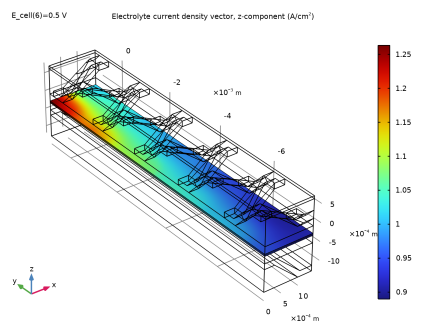
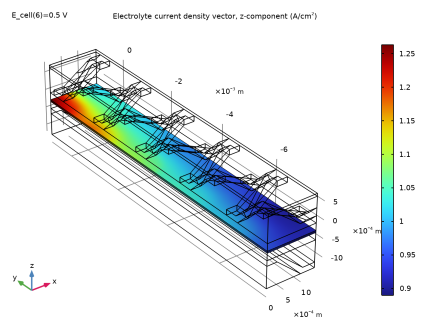
In the Settings window for Surface, click Replace Expression in the upper-right corner of the Expression section. From the menu, choose Component 1 (comp1) > Hydrogen Fuel Cell > Electrolyte current density vector - A/m² > fc.Ilz - Electrolyte current density vector, z-component.
|
|
3
|
|
4
|
|
1
|
|
2
|
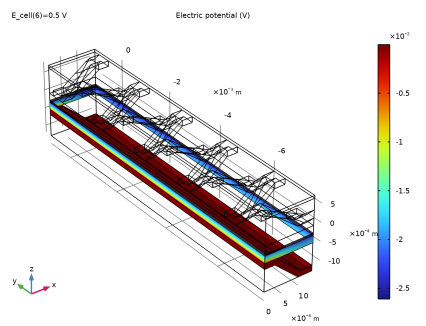
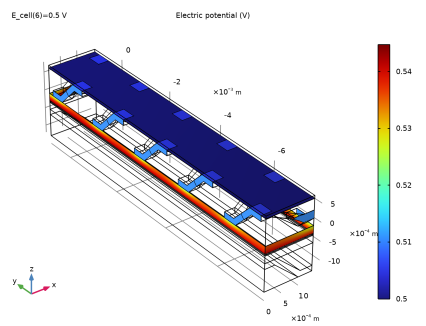
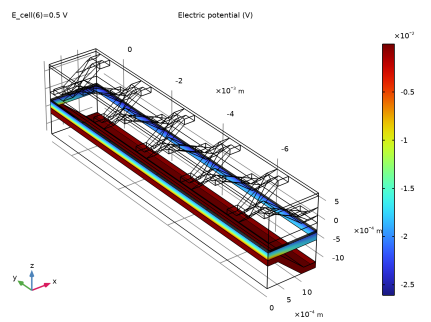
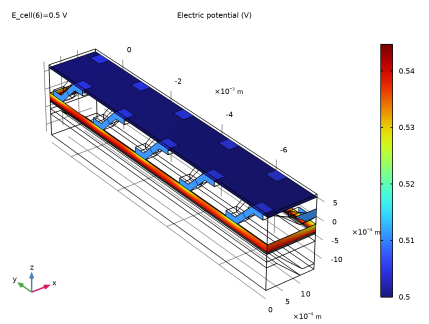
In the Settings window for 3D Plot Group, type Electrode Phase Potential, Anode Side in the Label text field.
|
|
3
|
|
4
|
|
1
|
|
2
|
In the Settings window for Surface, click Replace Expression in the upper-right corner of the Expression section. From the menu, choose Component 1 (comp1) > Hydrogen Fuel Cell > fc.phis - Electric potential - V.
|
|
3
|
|
1
|
In the Model Builder window, right-click Electrode Phase Potential, Anode Side and choose Duplicate.
|
|
2
|
In the Settings window for 3D Plot Group, type Electrode Phase Potential, Cathode in the Label text field.
|
|
3
|
|
4
|
|
1
|
|
2
|
|
3
|
Clear the Plot dataset edges checkbox.
|
|
1
|
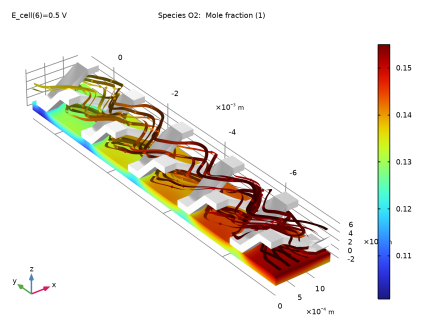
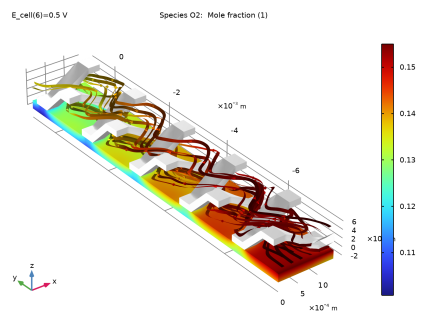
In the Model Builder window, expand the Mole Fraction, O2, Streamline (fc) node, then click Streamline 1.
|
|
2
|
|
3
|
|
4
|
|
5
|
|
6
|
|
7
|
Locate the Coloring and Style section. Find the Line style subsection. From the Type list, choose Ribbon.
|
|
1
|
|
2
|
|
3
|
|
1
|
|
2
|
In the Settings window for Surface, click Replace Expression in the upper-right corner of the Expression section. From the menu, choose Component 1 (comp1) > Hydrogen Fuel Cell > Species O2 > fc.xO2 - Mole fraction - 1.
|
|
3
|
|
4
|
|
5
|
|
1
|
|
2
|
|
3
|
|
1
|
|
2
|
|
3
|
|
4
|
|
5
|
|
6
|
|
1
|
|
2
|
|
3
|
|
1
|
|
2
|
|
3
|
|
1
|
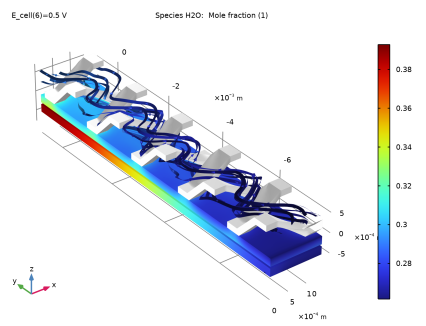
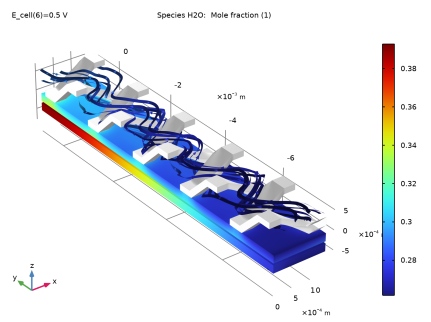
In the Model Builder window, expand the Results > Mole Fraction, H2O, Streamline (fc) node, then click Mole Fraction, H2O, Streamline (fc).
|
|
2
|
|
3
|
Clear the Plot dataset edges checkbox.
|
|
1
|
|
2
|
|
3
|
|
4
|
Locate the Coloring and Style section. Find the Line style subsection. From the Type list, choose Ribbon.
|
|
1
|
|
2
|
|
3
|
|
1
|
|
2
|
In the Settings window for Surface, click Replace Expression in the upper-right corner of the Expression section. From the menu, choose Component 1 (comp1) > Hydrogen Fuel Cell > Species H2O > fc.xH2O - Mole fraction - 1.
|
|
3
|
|
4
|
|
5
|
|
1
|
|
2
|
|
3
|
|
1
|
|
2
|
|
3
|
|
1
|
|
2
|
|
1
|
|
2
|
|
3
|
|
4
|
|
1
|
|
2
|
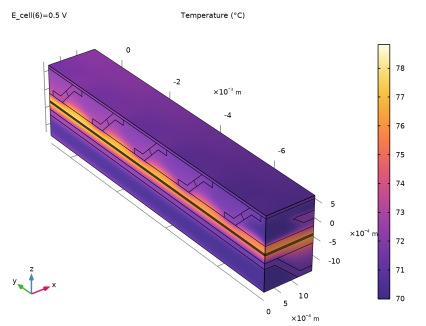
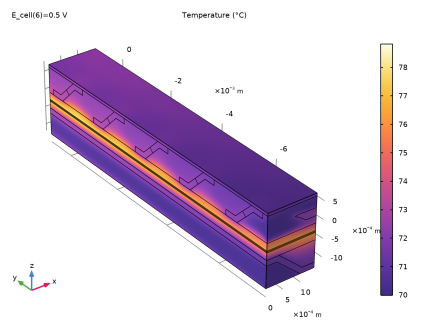
In the Settings window for Volume, click Replace Expression in the upper-right corner of the Expression section. From the menu, choose Component 1 (comp1) > Heat Transfer in Solids and Fluids > Temperature > T - Temperature - K.
|
|
3
|
|
4
|
|
1
|
|
2
|
|
1
|
|
2
|
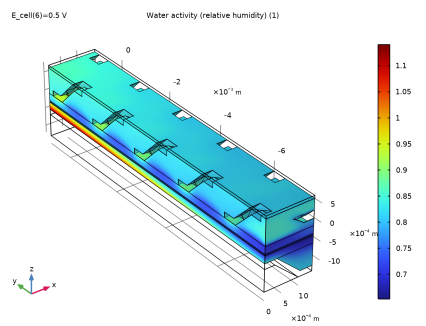
In the Settings window for Surface, click Replace Expression in the upper-right corner of the Expression section. From the menu, choose Component 1 (comp1) > Hydrogen Fuel Cell > fc.aw - Water activity (relative humidity) - 1.
|
|
3
|