
|
|
|


 is the overpotential with respect to the equilibrium potential of the reaction at atmospheric pressures of the reacting gases.

|
1
|
|
2
|
In the Select Physics tree, select Electrochemistry > Hydrogen Fuel Cells > Proton Exchange Membrane (fc).
|
|
3
|
Click Add.
|
|
4
|
In the Select Physics tree, select Fluid Flow > Porous Media and Subsurface Flow > Free and Porous Media Flow, Brinkman (fp).
|
|
5
|
Click Add.
|
|
6
|
|
7
|
In the Velocity field components table, enter the following settings:
|
|
8
|
|
9
|
In the Select Physics tree, select Fluid Flow > Porous Media and Subsurface Flow > Free and Porous Media Flow, Brinkman (fp).
|
|
10
|
Click Add.
|
|
11
|
|
12
|
In the Velocity field components table, enter the following settings:
|
|
13
|
|
14
|
Click
 Study. Study. |
|
15
|
In the Select Study tree, select Preset Studies for Selected Physics Interfaces > Hydrogen Fuel Cell > Stationary with Initialization.
|
|
16
|
Click
 Done. Done. |
|
1
|
|
2
|
|
3
|
Click
 Load from File. Load from File. |
|
4
|
Browse to the model’s Application Libraries folder and double-click the file ht_pem_parameters.txt.
|
|
1
|
|
2
|
|
3
|
|
4
|
|
5
|
|
6
|
|
7
|
Locate the Selections of Resulting Entities section. Select the Resulting objects selection checkbox.
|
|
8
|
Click
 Build Selected. Build Selected. |
|
1
|
|
2
|
|
3
|
|
4
|
|
5
|
|
6
|
|
7
|
Click
 Build Selected. Build Selected. |
|
1
|
|
2
|
|
3
|
|
4
|
|
5
|
Click
 Build Selected. Build Selected. |
|
1
|
|
2
|
|
3
|
|
4
|
|
5
|
Click
 Build Selected. Build Selected. |
|
1
|
|
2
|
|
3
|
|
4
|
|
5
|
|
6
|
Click
 Build Selected. Build Selected. |
|
1
|
|
2
|
|
3
|
|
4
|
Locate the Position section. In the z text field, type H_ch+H_gdl+H_electrode+H_membrane+H_electrode.
|
|
5
|
Click
 Build Selected. Build Selected. |
|
1
|
|
2
|
|
3
|
|
4
|
|
5
|
|
6
|
|
7
|
Click
 Build All Objects. Build All Objects. |
|
1
|
|
2
|
|
3
|
|
1
|
|
2
|
|
3
|
|
1
|
|
2
|
|
3
|
|
1
|
|
2
|
|
3
|
|
1
|
|
2
|
|
3
|
|
4
|
|
5
|
Click OK.
|
|
1
|
|
2
|
|
3
|
|
4
|
In the Add dialog, in the Selections to add list, choose Cathode GDE, Cathode GDL, and Cathode Channel.
|
|
5
|
Click OK.
|
|
1
|
In the Model Builder window, under Component 1 (comp1) click Free and Porous Media Flow, Brinkman (fp).
|
|
2
|
In the Settings window for Free and Porous Media Flow, Brinkman, type Free and Porous Media Flow- Anode in the Label text field.
|
|
3
|
|
1
|
In the Model Builder window, under Component 1 (comp1) click Free and Porous Media Flow, Brinkman 2 (fp2).
|
|
2
|
In the Settings window for Free and Porous Media Flow, Brinkman, type Free and Porous Media Flow - Cathode in the Label text field.
|
|
3
|
 Multiphysics Couplings and choose Domain > Reacting Flow, H2 Gas Phase.
|
1
|
In the Physics toolbar, click
 Multiphysics Couplings and choose Domain > Reacting Flow, O2 Gas Phase. Multiphysics Couplings and choose Domain > Reacting Flow, O2 Gas Phase. |
|
2
|
|
3
|
|
1
|
|
2
|
|
3
|
|
1
|
|
2
|
|
3
|
|
1
|
|
2
|
|
3
|
|
1
|
|
2
|
|
3
|
|
1
|
|
2
|
|
3
|
|
1
|
|
2
|
|
3
|
|
1
|
|
2
|
|
3
|
|
1
|
|
2
|
|
3
|
|
1
|
|
2
|
In the Settings window for H2 Gas Diffusion Electrode, locate the Electrode Charge Transport section.
|
|
3
|
|
4
|
|
5
|
|
1
|
|
2
|
In the Settings window for H2 Gas Diffusion Electrode Reaction, locate the Electrode Kinetics section.
|
|
3
|
|
4
|
|
1
|
In the Model Builder window, under Component 1 (comp1) > Hydrogen Fuel Cell (fc) click H2 Gas Diffusion Layer 1.
|
|
2
|
|
3
|
|
4
|
|
1
|
|
2
|
In the Settings window for O2 Gas Diffusion Electrode, locate the Electrode Charge Transport section.
|
|
3
|
|
4
|
|
5
|
|
1
|
|
2
|
In the Settings window for O2 Gas Diffusion Electrode Reaction, locate the Electrode Kinetics section.
|
|
3
|
|
4
|
|
5
|
|
1
|
In the Model Builder window, under Component 1 (comp1) > Hydrogen Fuel Cell (fc) click O2 Gas Diffusion Layer 1.
|
|
2
|
|
3
|
|
4
|
|
1
|
|
1
|
|
3
|
|
4
|
|
1
|
In the Model Builder window, expand the Component 1 (comp1) > Hydrogen Fuel Cell (fc) > H2 Gas Phase 1 node, then click Initial Values 1.
|
|
2
|
|
3
|
|
4
|
|
1
|
|
2
|
|
3
|
|
4
|
Locate the Inlet Flow Type section. From the Inlet flow type list, choose Mixture composition constraint.
|
|
1
|
|
2
|
|
3
|
|
1
|
In the Model Builder window, expand the Component 1 (comp1) > Hydrogen Fuel Cell (fc) > O2 Gas Phase 1 node, then click Initial Values 1.
|
|
2
|
|
3
|
|
4
|
|
1
|
|
2
|
|
3
|
|
4
|
Locate the Inlet Flow Type section. From the Inlet flow type list, choose Mixture composition constraint.
|
|
1
|
|
2
|
|
3
|
|
1
|
In the Model Builder window, under Component 1 (comp1) click Free and Porous Media Flow- Anode (fp).
|
|
2
|
|
3
|
|
4
|
|
1
|
|
2
|
|
3
|
|
1
|
|
2
|
|
3
|
|
4
|
|
1
|
|
2
|
|
3
|
|
1
|
|
2
|
|
3
|
|
4
|
|
1
|
|
2
|
In the Show More Options dialog, in the tree, select the checkbox for the node Physics > Advanced Physics Options.
|
|
3
|
Click OK.
|
|
4
|
In the Model Builder window, under Component 1 (comp1) > Free and Porous Media Flow- Anode (fp) click Wall 1.
|
|
5
|
|
6
|
|
1
|
|
2
|
|
3
|
|
4
|
|
5
|
|
1
|
|
2
|
|
3
|
|
4
|
|
1
|
|
1
|
In the Model Builder window, under Component 1 (comp1) click Free and Porous Media Flow - Cathode (fp2).
|
|
2
|
|
3
|
|
4
|
|
1
|
|
2
|
|
3
|
|
1
|
|
2
|
|
3
|
|
4
|
|
1
|
|
2
|
|
3
|
|
1
|
|
2
|
|
3
|
|
4
|
|
1
|
In the Model Builder window, under Component 1 (comp1) > Free and Porous Media Flow - Cathode (fp2) click Wall 1.
|
|
2
|
|
3
|
|
1
|
|
1
|
|
2
|
|
3
|
|
4
|
|
5
|
|
1
|
|
2
|
|
3
|
|
4
|
|
1
|
|
2
|
|
3
|
|
4
|
|
1
|
|
1
|
|
2
|
|
3
|
Click the Custom button.
|
|
4
|
Locate the Element Size Parameters section.
|
|
5
|
|
1
|
|
1
|
|
2
|
|
3
|
|
4
|
|
5
|
|
1
|
In the Model Builder window, under Component 1 (comp1) > Mesh 1 right-click Edge 2 and choose Duplicate.
|
|
2
|
|
3
|
Click
 Clear Selection. Clear Selection. |
|
1
|
|
2
|
|
3
|
Select the Reverse direction checkbox.
|
|
1
|
|
1
|
|
2
|
|
3
|
|
1
|
|
1
|
|
2
|
|
3
|
|
1
|
|
1
|
|
2
|
|
3
|
|
1
|
|
1
|
|
2
|
|
3
|
|
4
|
|
5
|
|
6
|
Select the Symmetric distribution checkbox.
|
|
1
|
|
1
|
|
2
|
|
3
|
Click the Custom button.
|
|
4
|
Locate the Element Size Parameters section.
|
|
5
|
|
6
|
Click
 Build Selected. Build Selected. |
|
1
|
|
2
|
|
3
|
|
4
|
|
5
|
Locate the Expression section. In the Expression text field, type fc.iv_h2gder1/((W_ch+W_rib)*L)/1e4.
|
|
1
|
|
2
|
In the Settings window for Current Distribution Initialization, locate the Physics and Variables Selection section.
|
|
3
|
In the Solve for column of the table, under Component 1 (comp1) > Multiphysics, clear the checkboxes for Reacting Flow, H2 Gas Phase 1 (rfh1) and Reacting Flow, O2 Gas Phase 1 (rfo1).
|
|
1
|
In the Study toolbar, click
 More Study Steps and choose Other > Current Distribution Initialization. More Study Steps and choose Other > Current Distribution Initialization. |
|
2
|
Drag and drop below Step 1: Current Distribution Initialization.
|
|
3
|
|
4
|
|
5
|
Locate the Physics and Variables Selection section. In the Solve for column of the table, under Component 1 (comp1) > Multiphysics, clear the checkboxes for Reacting Flow, H2 Gas Phase 1 (rfh1) and Reacting Flow, O2 Gas Phase 1 (rfo1).
|
|
1
|
|
2
|
|
3
|
In the Solve for column of the table, under Component 1 (comp1), clear the checkboxes for Hydrogen Fuel Cell (fc) and Free and Porous Media Flow - Cathode (fp2).
|
|
4
|
In the Solve for column of the table, under Component 1 (comp1) > Multiphysics, clear the checkboxes for Reacting Flow, H2 Gas Phase 1 (rfh1) and Reacting Flow, O2 Gas Phase 1 (rfo1).
|
|
1
|
|
2
|
|
3
|
In the Solve for column of the table, under Component 1 (comp1), clear the checkboxes for Hydrogen Fuel Cell (fc) and Free and Porous Media Flow- Anode (fp).
|
|
4
|
In the Solve for column of the table, under Component 1 (comp1) > Multiphysics, clear the checkboxes for Reacting Flow, H2 Gas Phase 1 (rfh1) and Reacting Flow, O2 Gas Phase 1 (rfo1).
|
|
1
|
|
2
|
|
3
|
Select the Auxiliary sweep checkbox.
|
|
4
|
Click
 Add. Add. |
|
6
|
|
1
|
|
2
|
|
3
|
|
1
|
|
2
|
|
3
|
|
1
|
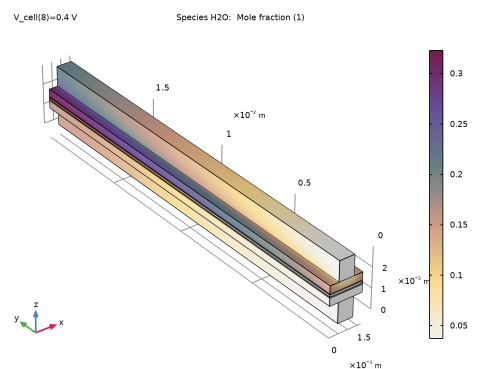
In the Model Builder window, expand the Mole Fraction, H2O, Surface (fc) node, then click Surface 1.
|
|
2
|
|
3
|
|
1
|
In the Model Builder window, expand the Results > Probe Plot Group 1 node, then click Probe Plot Group 1.
|
|
2
|
|
3
|
|
4
|
Locate the Plot Settings section.
|
|
5
|
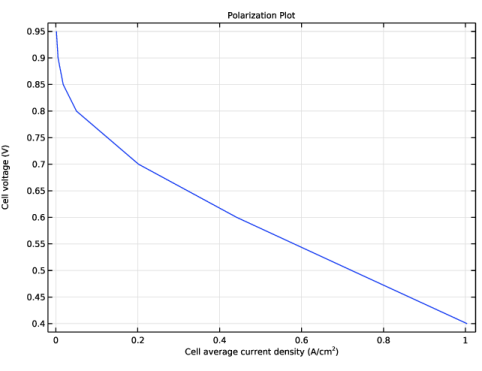
Select the x-axis label checkbox. In the associated text field, type Cell average current density (A/cm<sup>2</sup>).
|
|
6
|
|
7
|
Select the Flip the x- and y-axes checkbox.
|
|
8
|
|
9
|
|
10
|
|
1
|
|
2
|
|
3
|
|
4
|
|
1
|
|
2
|
|
3
|
|
1
|
|
2
|
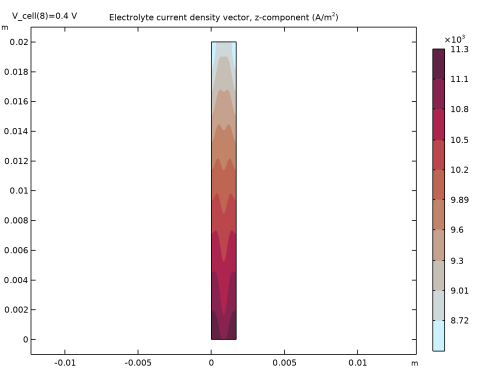
In the Settings window for Surface, click Replace Expression in the upper-right corner of the Expression section. From the menu, choose Component 1 (comp1) > Hydrogen Fuel Cell > Electrolyte current density vector - A/m² > fc.Ilz - Electrolyte current density vector, z-component.
|
|
3
|
|
4
|
|
5
|
|
1
|
In the Model Builder window, expand the Electrode Potential with Respect to Ground (fc) node, then click Multislice 1.
|
|
2
|
|
3
|
|
1
|
|
2
|
|
3
|
|
4
|
|
5
|
|
6
|
|
1
|
In the Model Builder window, under Results, Ctrl-click to select Mole Fraction, N2, Streamline (fc) and Mole Fraction, N2, Surface (fc).
|
|
2
|
Right-click and choose Delete.
|
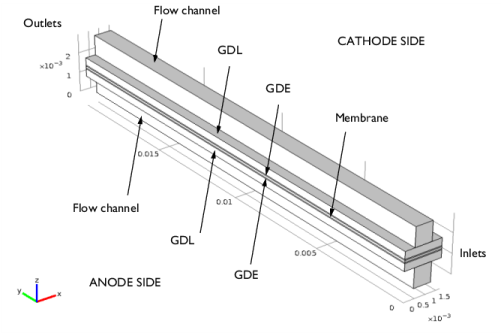
 in the GDLs,
  and
and  in the GDEs, and
  in the membrane. In the GDEs the local current densities depend on the ionic and electronic potentials, but also on local reactant concentrations.


