
PDF

Wheel Rim — Stress Optimization with Fatigue Evaluation
Introduction
This model demonstrates how to improve fatigue properties of a wheel rim using shape optimization. The fatigue properties are not optimized directly. Instead a heuristic methodology is applied where an approximate value of the maximum stress is minimized subject to constraints on the mass and stiffness.
Model Definition
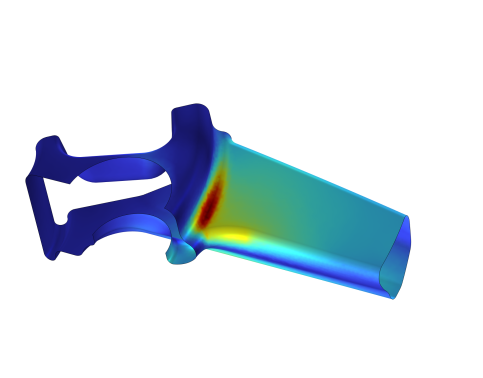
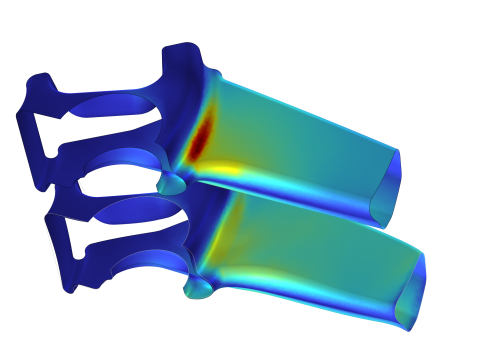
The model is based on the model Fatigue Analysis of a Wheel Rim in the Fatigue Module Application Library. The initial stiffness as well as fatigue properties can thus be evaluated immediately. The fatigue analysis indicates that failure is likely to occur near a small fillet as illustrated in Figure 1.
Figure 1: The initial fatigue properties.
The Free Shape Domain, Free Shape Boundary, and Symmetry/Roller shape optimization features are used to allow modification of the fillet details where the maximum stress occurs. COMSOL does not support optimization of the fatigue properties directly, so a heuristic approach is applied. The method is not guaranteed to improve the fatigue properties and therefore it is critical that these are evaluated before and after optimization. The heuristic approach involves using the p-norm of the von Mises stress as the objective function, φ,
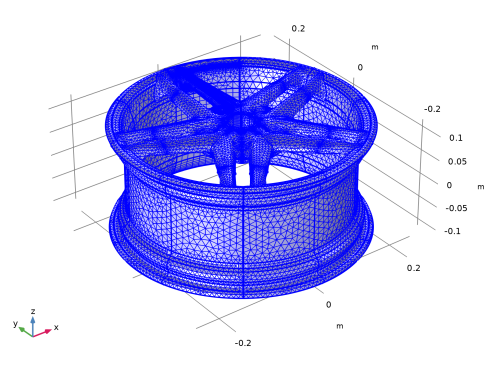
For large values of p the objective is a good approximation of the maximum stress, but too large values can cause numerical problems for the optimization solver, so the model uses p = 20.The objective is scaled with the initial value, so (strictly speaking) the maximum stress, σmax, does not play a role; it only serves to prevent unit warnings. The setup of this objective function is simplified by the use of the P-Norm feature. COMSOL Multiphysics comes with built-in variables for the volume and the stiffness, so it is easy to specify these constraints. The number of optimization iterations is limited to 20 and an iterative solver is used for the structural mechanics to save computation time. The reference model uses a submodeling approach to capture the stresses accurately without having to model the entire wheel in detail for every load cases, but the boundary conditions for the submodel would have to be recomputed in every optimization iteration, which could be done, but for simplicity the optimization model just uses a coarse mesh for the spokes where the stress is not evaluated; see Figure 2.
Figure 2: The mesh is coarse for all but one of the ten spokes.
Finally, the reference model considers six load cases, but only the two worst load cases are considered in the optimization, and one can see that this is sufficient based on the verification analysis which considers all six load cases.
Results and Discussion
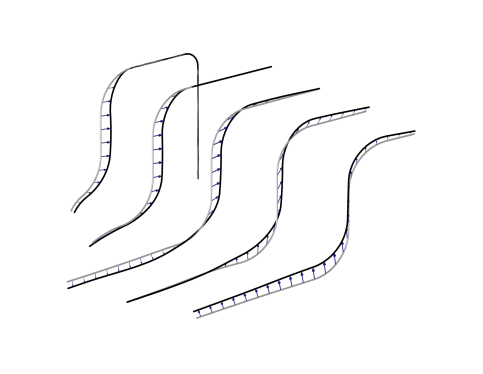
As one might expect the optimization increases the fillet to reduce the maximum stress. This can be seen in Figure 3.
Figure 3: Line slices are plotted for the initial (gray) and optimization geometry (black) indicating that the shape optimization increases the fillet radius at the point of maximum stress.
To verify that the optimization has indeed improved the fatigue properties, a fatigue analysis is performed on the optimized design, and the result can be seen in Figure 4.
Figure 4: The shape optimization has removed the stress concentration at the fillet as compared to the initial design.
Notes About the COMSOL Implementation
When using the MMA optimization solver, note that the (default) globally convergent behavior is disabled. The Fatigue study step zeros the shape optimization variables, so the model uses the withsol operator to plot the fatigue usage in the deformed frame.
Application Library path: Fatigue_Module/Stress_Based/rim_fatigue_optimization
Modeling Instructions
From the File menu, choose New.
New
In the New window, click  Model Wizard.
Model Wizard
1
In the Model Wizard window, click  3D.
2
In the Select Physics tree, select Structural Mechanics > Solid Mechanics (solid).
3
Click Add.
4
In the Select Physics tree, select Structural Mechanics > Fatigue (ftg).
5
Click Add.
6
Click  Study.
7
In the Select Study tree, select General Studies > Stationary.
8
Global Definitions
Parameters 1
1
In the Model Builder window, under Global Definitions click Parameters 1.
2
In the Settings window for Parameters, locate the Parameters section.
3
Geometry 1
Create the geometry. To simplify this step, insert a prepared geometry sequence.
1
In the Geometry toolbar, click Insert Sequence and choose Insert Sequence.
2
3
In the Geometry toolbar, click  Build All.
4
Click the  Zoom Extents button in the Graphics toolbar.
5
In the Model Builder window, under Component 1 (comp1) click Geometry 1.
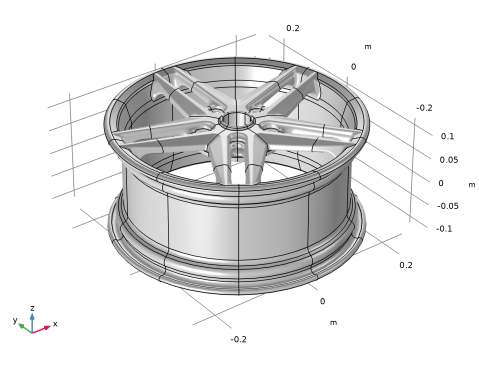
The geometry should now look like that in Figure 1.
Mesh 1
Size 1
1
In the Model Builder window, under Component 1 (comp1) right-click Mesh 1 and choose Size.
2
In the Settings window for Size, locate the Geometric Entity Selection section.
3
From the Geometric entity level list, choose Boundary.
4
From the Selection list, choose Source Critical Fillet Boundary.
5
Click to expand the Element Size Parameters section. Locate the Element Size section. Click the Custom button.
6
Locate the Element Size Parameters section.
7
Select the Maximum element size checkbox. In the associated text field, type 5[mm].
Size
1
In the Model Builder window, click Size.
2
In the Settings window for Size, click to expand the Element Size Parameters section.
3
In the Curvature factor text field, type 0.5.
Size 2
1
In the Model Builder window, right-click Mesh 1 and choose Size.
2
In the Settings window for Size, locate the Geometric Entity Selection section.
3
From the Geometric entity level list, choose Domain.
4
From the Selection list, choose Source Design Domain.
5
Locate the Element Size section. Click the Custom button.
6
Locate the Element Size Parameters section.
7
Select the Maximum element size checkbox. In the associated text field, type 8[mm].
8
Select the Minimum element size checkbox. In the associated text field, type 1[mm].
9
Select the Curvature factor checkbox. In the associated text field, type 0.45.
Edge 1
1
In the Mesh toolbar, click  More Generators and choose Edge.
2
In the Settings window for Edge, locate the Edge Selection section.
3
From the Selection list, choose Mapped Edges.
Size 1
1
Right-click Edge 1 and choose Size.
2
In the Settings window for Size, locate the Element Size section.
3
From the Predefined list, choose Extra fine.
Size 2
1
Right-click Size 1 and choose Duplicate.
2
In the Settings window for Size, locate the Geometric Entity Selection section.
3
From the Selection list, choose Long Mapped Edges.
4
Locate the Element Size section. From the Predefined list, choose Extremely fine.
Mapped 1
1
In the Mesh toolbar, click  More Generators and choose Mapped.
2
In the Settings window for Mapped, locate the Boundary Selection section.
3
From the Selection list, choose Mapped Boundaries.
Size 1
1
Right-click Mapped 1 and choose Size.
2
In the Settings window for Size, locate the Element Size section.
3
From the Predefined list, choose Extra fine.
Size 2
1
Right-click Size 1 and choose Duplicate.
2
In the Settings window for Size, locate the Geometric Entity Selection section.
3
From the Selection list, choose Center Hub Boundaries.
4
Locate the Element Size section. Click the Custom button.
5
Locate the Element Size Parameters section.
6
Select the Maximum element size checkbox. In the associated text field, type 3[mm].
Edge 2
1
In the Mesh toolbar, click  More Generators and choose Edge.
2
In the Settings window for Edge, locate the Edge Selection section.
3
From the Selection list, choose Edges.
Copy Edge 1
1
In the Model Builder window, right-click Mesh 1 and choose Copying Operations > Copy Edge.
2
In the Settings window for Copy Edge, locate the Source Edges section.
3
From the Selection list, choose Spoke Edges Source 0.
4
Locate the Destination Edges section. From the Selection list, choose Spoke Edges Destination 0.
Copy Edge 2
1
Right-click Copy Edge 1 and choose Duplicate.
2
In the Settings window for Copy Edge, locate the Source Edges section.
3
From the Selection list, choose Spoke Edges Source 1.
4
Locate the Destination Edges section. From the Selection list, choose Spoke Edges Destination 1.
Copy Edge 3
1
Right-click Copy Edge 2 and choose Duplicate.
2
In the Settings window for Copy Edge, locate the Source Edges section.
3
From the Selection list, choose Spoke Edges Source 2.
4
Locate the Destination Edges section. From the Selection list, choose Spoke Edges Destination 2.
Copy Edge 4
1
Right-click Copy Edge 3 and choose Duplicate.
2
In the Settings window for Copy Edge, locate the Source Edges section.
3
From the Selection list, choose Spoke Edges Source 1.
4
Locate the Destination Edges section. From the Selection list, choose Spoke Edges Destination 3.
5
Click  Build Selected.
Free Triangular 1
1
In the Mesh toolbar, click  More Generators and choose Free Triangular.
2
In the Settings window for Free Triangular, locate the Boundary Selection section.
3
From the Selection list, choose Unmapped Boundaries.
Size 1
1
Right-click Free Triangular 1 and choose Size.
2
In the Settings window for Size, locate the Element Size section.
3
From the Predefined list, choose Finer.
Size 3
1
In the Model Builder window, right-click Mesh 1 and choose Size.
2
In the Settings window for Size, locate the Geometric Entity Selection section.
3
From the Geometric entity level list, choose Boundary.
4
From the Selection list, choose Holes.
5
Locate the Element Size section. From the Predefined list, choose Fine.
Free Tetrahedral 1
1
In the Mesh toolbar, click  Free Tetrahedral.
2
In the Settings window for Free Tetrahedral, click  Build All.
3
Right-click Free Tetrahedral 1 and choose Plot.
Add Material from Library
In the Home toolbar, click  Windows and choose Add Material from Library.
Add Material
1
Go to the Add Material window.
2
In the tree, select Built-in > Aluminum.
3
Click the Add to Component button in the window toolbar.
4
In the tree, select Built-in > Structural steel.
5
Click the Add to Component button in the window toolbar.
6
In the Home toolbar, click  Add Material to close the Add Material window.
Materials
Material 3 (mat3)
In the Model Builder window, under Component 1 (comp1) right-click Materials and choose Blank Material.
Structural steel (mat2)
1
In the Settings window for Material, locate the Geometric Entity Selection section.
2
From the Geometric entity level list, choose Boundary.
3
From the Selection list, choose Fixed Boundary.
Material 3 (mat3)
1
In the Model Builder window, click Material 3 (mat3).
2
In the Settings window for Material, locate the Geometric Entity Selection section.
3
From the Geometric entity level list, choose Boundary.
4
From the Selection list, choose All boundaries.
5
Click to expand the Material Properties section. In the Material properties tree, select Solid Mechanics > Fatigue Behavior > Stress-Based > Findley > Limit factor (f_Findley).
6
Click  Add to Material.
7
Locate the Material Contents section. In the table, enter the following settings:
8
Right-click Material 3 (mat3) and choose Move Up.
Definitions
Integration 1 (intop1)
1
In the Definitions toolbar, click  Nonlocal Couplings and choose Integration.
2
In the Settings window for Integration, locate the Source Selection section.
3
From the Geometric entity level list, choose Boundary.
4
From the Selection list, choose Bead.
P-norm 1 (pnorm1)
1
In the Definitions toolbar, click  Physics Utilities and choose P-norm.
2
In the Settings window for P-norm, type obj in the Name text field.
3
Locate the Geometric Entity Selection section. From the Geometric entity level list, choose Boundary.
4
From the Selection list, choose Free Shape Boundaries.
5
Click Replace Expression in the upper-right corner of the P-norm section. From the menu, choose Component 1 (comp1) > Solid Mechanics > Stress > comp1.solid.mises - von Mises stress - N/m².
6
Locate the P-norm section. From the p list, choose User defined.
7
In the Norm text field, type pExp.
Analytic 1 (an1)
1
In the Definitions toolbar, click  Analytic.
2
In the Settings window for Analytic, type loadDistr in the Function name text field.
3
Locate the Definition section. In the Expression text field, type (min(abs(atan2(x,y)-z),abs(2*pi+atan2(x,y)-z))<pi/6)*cos(3*(atan2(x,y)-z)).
4
In the Arguments text field, type x,y,z.
5
Locate the Units section. In the Function text field, type Pa.
6
Variables 1
1
In the Model Builder window, right-click Definitions and choose Variables.
2
In the Settings window for Variables, locate the Variables section.
3
Cylindrical System 2 (sys2)
In the Definitions toolbar, click  Coordinate Systems and choose Cylindrical System.
Solid Mechanics (solid)
Spring Foundation 1
1
In the Physics toolbar, click  Boundaries and choose Spring Foundation.
2
In the Settings window for Spring Foundation, locate the Boundary Selection section.
3
From the Selection list, choose Fixed Boundary.
4
Locate the Spring section. From the Spring type list, choose Use material data.
5
In the ds text field, type 1[cm].
Boundary Load 1
1
In the Physics toolbar, click  Boundaries and choose Boundary Load.
2
In the Settings window for Boundary Load, locate the Boundary Selection section.
3
From the Selection list, choose Inflation.
4
Locate the Force section. From the Load type list, choose Pressure.
5
In the p text field, type pInflation.
Boundary Load 2
1
In the Physics toolbar, click  Boundaries and choose Boundary Load.
2
In the Settings window for Boundary Load, locate the Boundary Selection section.
3
From the Selection list, choose Bead.
4
Locate the Coordinate System Selection section. From the Coordinate system list, choose Cylindrical System 2 (sys2).
5
Locate the Force section. Specify the fA vector as
Fatigue (ftg)
Stress-Based 1
1
In the Physics toolbar, click  Boundaries and choose Stress-Based.
2
In the Settings window for Stress-Based, locate the Boundary Selection section.
3
From the Selection list, choose Fatigue Boundaries.
4
Locate the Solution Field section. From the Physics interface list, choose Solid Mechanics (solid).
Study 1
Step 1: Stationary
1
In the Model Builder window, under Study 1 click Step 1: Stationary.
2
In the Settings window for Stationary, locate the Physics and Variables Selection section.
3
In the Solve for column of the table, under Component 1 (comp1), clear the checkbox for Fatigue (ftg).
4
Click to expand the Study Extensions section. Select the Auxiliary sweep checkbox.
5
6
7
From the Run continuation for list, choose No parameter.
Compute the initial stiffness to get a baseline for the optimization.
8
In the Model Builder window, click Study 1.
9
In the Settings window for Study, type Study 1: Initial Design in the Label text field.
10
In the Study toolbar, click  Compute.
Add Study
1
In the Home toolbar, click  Add Study to open the Add Study window.
2
Go to the Add Study window.
3
Find the Studies subsection. In the Select Study tree, select Preset Studies for Selected Physics Interfaces > Fatigue > Fatigue.
4
Click the Add Study button in the window toolbar.
Study 2
Step 1: Fatigue
1
In the Settings window for Fatigue, locate the Values of Dependent Variables section.
2
Find the Values of variables not solved for subsection. From the Settings list, choose User controlled.
3
From the Method list, choose Solution.
4
From the Study list, choose Study 1: Initial Design, Stationary.
5
In the Model Builder window, click Study 2.
6
In the Settings window for Study, type Study 2: Initial Fatigue in the Label text field.
7
In the Study toolbar, click  Compute.
Results
Objective and Constraints
1
In the Results toolbar, click  Evaluation Group.
2
In the Settings window for Evaluation Group, type Objective and Constraints in the Label text field.
Global Evaluation 1
1
Right-click Objective and Constraints and choose Global Evaluation.
2
In the Settings window for Global Evaluation, locate the Expressions section.
3
4
In the Objective and Constraints toolbar, click  Evaluate.
Objective and Constraints
1
Go to the Objective and Constraints window.
The evaluation indicates that the stress concentration is worst for the first two angles, so it may be possible to restrict the optimization to these.
Component 1 (comp1)
Free Shape Domain 1
1
In the Physics toolbar, click  Optimization and choose Shape Optimization.
2
In the Settings window for Free Shape Domain, locate the Domain Selection section.
3
From the Selection list, choose Free Shape Domain.
Free Shape Boundary 1
1
In the Shape Optimization toolbar, click  Free Shape Boundary.
2
In the Settings window for Free Shape Boundary, locate the Boundary Selection section.
3
From the Selection list, choose Free Shape Boundaries.
4
Locate the Control Variable Settings section. In the text field, type 2[mm].
Symmetry/Roller 1
1
In the Shape Optimization toolbar, click  Symmetry/Roller.
2
In the Settings window for Symmetry/Roller, locate the Geometric Entity Selection section.
3
From the Selection list, choose Symmetry Boundaries.
Sector Symmetry 1
1
In the Shape Optimization toolbar, click  Sector Symmetry.
2
In the Settings window for Sector Symmetry, locate the Geometric Entity Selection section.
3
From the Selection list, choose Nondesign Domains.
Add Study
1
Go to the Add Study window.
2
Find the Studies subsection. In the Select Study tree, select General Studies > Stationary.
3
Click the Add Study button in the window toolbar.
4
In the Home toolbar, click  Add Study to close the Add Study window.
Study 3
Step 1: Stationary
1
In the Settings window for Stationary, locate the Physics and Variables Selection section.
2
In the Solve for column of the table, under Component 1 (comp1), clear the checkbox for Fatigue (ftg).
3
Locate the Study Extensions section. Select the Auxiliary sweep checkbox.
4
5
Now verify that the stress concentration is not worse for some of the other angles in the optimized geometry.
Shape Optimization
1
In the Study toolbar, click  Optimization and choose Shape Optimization.
2
In the Settings window for Shape Optimization, locate the Optimization Solver section.
3
In the Move limits text field, type 0.2.
4
In the Maximum number of iterations text field, type 10.
5
Click Add Expression in the upper-right corner of the Objective Function section. From the menu, choose Component 1 (comp1) > Definitions > comp1.obj - P-norm - N/m².
6
Locate the Objective Function section. From the Solution list, choose Maximum of objectives.
7
Find the Objective settings subsection. From the Objective scaling list, choose Initial solution based to scale the objective. Do the same for the constraints.
8
Click Add Expression in the upper-right corner of the Constraints section. From the menu, choose Component 1 (comp1) > Definitions > Free Shape Domain 1 > comp1.fsd1.relVolume - Material volume divided by geometry volume - 1.
9
Locate the Constraints section. In the table, enter the following settings:
Initialize the solution to generate a default plot that can be shown while optimizing.
10
In the Study toolbar, click  Get Initial Value.
11
In the Model Builder window, click Shape Optimization.
12
In the Settings window for Shape Optimization, click to expand the Output section.
13
Select the Plot checkbox.
14
From the Plot group list, choose Shape Optimization.
Solution 3 (sol3)
1
In the Model Builder window, expand the Study 3 > Solver Configurations node.
2
In the Model Builder window, expand the Solution 3 (sol3) node.
3
In the Model Builder window, expand the Study 3 > Solver Configurations > Solution 3 (sol3) > Optimization Solver 1 > Stationary Solver 1 > Segregated 1 node, then click Solid Mechanics.
4
In the Settings window for Segregated Step, locate the General section.
5
From the Linear solver list, choose Suggested Iterative Solver (solid) to reduce the memory consumption.
6
In the Model Builder window, expand the Study 3 > Solver Configurations > Solution 3 (sol3) > Optimization Solver 1 > Stationary Solver 1 > Suggested Iterative Solver (solid) node, then click Multigrid 1.
7
In the Settings window for Multigrid, locate the General section.
8
From the Solver list, choose Smoothed aggregation AMG.
Study 1: Initial Design
Step 1: Stationary
1
In the Model Builder window, under Study 1: Initial Design click Step 1: Stationary.
2
In the Settings window for Stationary, locate the Physics and Variables Selection section.
3
In the Solve for column of the table, under Component 1 (comp1), clear the checkbox for Deformed Geometry.
Study 3: Optimization
1
In the Model Builder window, click Study 3.
2
In the Settings window for Study, type Study 3: Optimization in the Label text field.
3
In the Study toolbar, click  Compute.
Add Study
1
In the Home toolbar, click  Add Study to open the Add Study window.
2
Go to the Add Study window.
3
Find the Studies subsection. In the Select Study tree, select General Studies > Stationary.
4
Find the Physics interfaces in study subsection. In the table, clear the Solve checkbox for Fatigue (ftg).
5
Click the Add Study button in the window toolbar.
Study 4
Step 1: Stationary
1
In the Settings window for Stationary, locate the Physics and Variables Selection section.
2
In the Solve for column of the table, under Component 1 (comp1), clear the checkboxes for Shape Optimization and Deformed Geometry.
3
Click to expand the Values of Dependent Variables section. Find the Values of variables not solved for subsection. From the Settings list, choose User controlled.
4
From the Method list, choose Solution.
5
From the Study list, choose Study 3: Optimization, Stationary.
6
Locate the Study Extensions section. Select the Auxiliary sweep checkbox.
7
8
9
In the Model Builder window, click Study 4.
10
In the Settings window for Study, type Study 4: Verification in the Label text field.
11
Locate the Study Settings section. Clear the Generate default plots checkbox.
12
In the Study toolbar, click  Compute.
Add Study
1
Go to the Add Study window.
2
Find the Studies subsection. In the Select Study tree, select Preset Studies for Selected Physics Interfaces > Fatigue > Fatigue.
3
Find the Physics interfaces in study subsection. In the table, clear the Solve checkbox for Solid Mechanics (solid).
4
Click the Add Study button in the window toolbar.
5
In the Study toolbar, click  Add Study to close the Add Study window.
Study 5
Step 1: Fatigue
1
In the Settings window for Fatigue, locate the Values of Dependent Variables section.
2
Find the Values of variables not solved for subsection. From the Settings list, choose User controlled.
3
From the Method list, choose Solution.
4
From the Study list, choose Study 4: Verification, Stationary.
5
In the Model Builder window, click Study 5.
6
In the Settings window for Study, type Study 5: Optimized Fatigue in the Label text field.
7
In the Study toolbar, click  Compute.
Results
Shape Optimization 1
In the Model Builder window, under Results right-click Shape Optimization 1 and choose Delete.
Global Evaluation 2
1
In the Model Builder window, under Results > Objective and Constraints right-click Global Evaluation 1 and choose Duplicate.
2
In the Settings window for Global Evaluation, locate the Data section.
3
From the Dataset list, choose Study 4: Verification/Solution 4 (sol4).
4
Locate the Expressions section. In the table, enter the following settings:
5
In the Objective and Constraints toolbar, click  Evaluate.
The two first angles still correspond to the worst objectives, and the compliance has not increased for any of the angles, so it was sufficient to consider the first two angles in the optimization.
Fatigue Comparison
1
In the Results toolbar, click  Evaluation Group.
2
In the Settings window for Evaluation Group, type Fatigue Comparison in the Label text field.
3
Locate the Data section. From the Dataset list, choose Study 2: Initial Fatigue/Solution 2 (sol2).
Surface Maximum 1
1
Right-click Fatigue Comparison and choose Maximum > Surface Maximum.
2
In the Settings window for Surface Maximum, locate the Selection section.
3
From the Selection list, choose Free Shape Boundaries.
4
Click Add Expression in the upper-right corner of the Expressions section. From the menu, choose Component 1 (comp1) > Fatigue > ftg.fus - Fatigue usage factor - 1.
Surface Maximum 2
1
Right-click Surface Maximum 1 and choose Duplicate.
2
In the Settings window for Surface Maximum, locate the Data section.
3
From the Dataset list, choose Study 5: Optimized Fatigue/Solution 5 (sol5).
4
In the Fatigue Comparison toolbar, click  Evaluate.
Fatigue Comparison
1
In the Results toolbar, click  3D Plot Group.
2
In the Settings window for 3D Plot Group, type Fatigue Comparison in the Label text field.
3
Locate the Plot Settings section. Clear the Plot dataset edges checkbox.
Surface 1
1
Right-click Fatigue Comparison and choose Surface.
2
In the Settings window for Surface, click Replace Expression in the upper-right corner of the Expression section. From the menu, choose Component 1 (comp1) > Fatigue > ftg.fus - Fatigue usage factor - 1.
3
Locate the Expression section. In the Expression text field, type withsol('sol2',ftg.fus).
Selection 1
1
Right-click Surface 1 and choose Selection.
2
In the Settings window for Selection, locate the Selection section.
3
From the Selection list, choose Free Shape Boundaries.
Line 1
1
In the Model Builder window, right-click Fatigue Comparison and choose Line.
2
In the Settings window for Line, locate the Expression section.
3
In the Expression text field, type 1.
4
Locate the Coloring and Style section. From the Coloring list, choose Uniform.
5
From the Color list, choose Black.
Selection 1
1
Right-click Line 1 and choose Selection.
2
In the Settings window for Selection, locate the Selection section.
3
From the Selection list, choose External Free Shape Edges.
Surface 2
1
In the Model Builder window, under Results > Fatigue Comparison right-click Surface 1 and choose Duplicate.
2
In the Settings window for Surface, locate the Expression section.
3
In the Expression text field, type withsol('sol5',ftg.fus).
4
Click to expand the Inherit Style section. From the Plot list, choose Surface 1.
Transformation 1
1
Right-click Surface 2 and choose Transformation.
2
In the Settings window for Transformation, locate the Transformation section.
3
In the Z text field, type 0.05.
Surface 2
1
In the Model Builder window, click Surface 2.
2
In the Settings window for Surface, locate the Data section.
3
From the Dataset list, choose Study 3: Optimization/Solution 3 (sol3).
Line 2
1
In the Model Builder window, under Results > Fatigue Comparison right-click Line 1 and choose Duplicate.
2
In the Settings window for Line, locate the Data section.
3
From the Dataset list, choose Study 3: Optimization/Solution 3 (sol3).
Transformation 1
In the Model Builder window, under Results > Fatigue Comparison > Surface 2 right-click Transformation 1 and choose Copy.
Transformation 1
In the Model Builder window, right-click Line 2 and choose Paste Transformation.
Line 3
1
Right-click Line 2 and choose Duplicate.
2
In the Model Builder window, click Line 3.
3
In the Settings window for Line, locate the Coloring and Style section.
4
From the Color list, choose Gray.
Deformation 1
1
Right-click Line 3 and choose Deformation.
2
In the Settings window for Deformation, click Replace Expression in the upper-right corner of the Expression section. From the menu, choose Component 1 (comp1) > Frames > Material > material.dX,...,material.dZ - Material mesh displacement (geometry frame).
3
Locate the Expression section. In the X-component text field, type -material.dX.
4
In the Y-component text field, type -material.dY.
5
In the Z-component text field, type -material.dZ.
6
Locate the Scale section.
7
Select the Scale factor checkbox. In the associated text field, type 1.
8
In the Fatigue Comparison toolbar, click  Plot.
STL Export
1
In the Results toolbar, click  3D Plot Group.
2
In the Settings window for 3D Plot Group, type STL Export in the Label text field.
3
Locate the Data section. From the Dataset list, choose Study 3: Optimization/Solution 3 (sol3).
Volume 1
1
Right-click STL Export and choose Volume.
2
In the Settings window for Volume, locate the Expression section.
3
In the Expression text field, type 1.
4
Locate the Coloring and Style section. From the Coloring list, choose Uniform.
5
From the Color list, choose Gray.
6
Click to expand the Quality section. From the Evaluation settings list, choose Manual.
7
From the Smoothing list, choose None.
Filter 1
1
Right-click Volume 1 and choose Filter.
2
In the Settings window for Filter, locate the Element Selection section.
3
In the Logical expression for inclusion text field, type centroid((pi/2-pi/5<atan2(Y,X))*(atan2(Y,X)<pi/2)).
Volume 1
1
In the Model Builder window, click Volume 1.
2
In the STL Export toolbar, click  Plot.
Plot 1
1
Right-click Results > STL Export > Volume 1 and choose Add Plot Data to Export.
2
In the Settings window for Plot, locate the Output section.
3
From the File type list, choose STL binary file (*.stl).
4
In the Filename text field, type rim_fatigue_optimization.stl.
Geometry Modeling Instructions
From the File menu, choose New.
New
In the New window, click  Blank Model.
Global Definitions
Parameters 1
1
In the Model Builder window, under Global Definitions click Parameters 1.
2
In the Settings window for Parameters, locate the Parameters section.
3
Add Component
In the Home toolbar, click  Add Component and choose 3D.
Geometry 1
Import 1 (imp1)
1
In the Model Builder window, expand the Component 1 (comp1) > Geometry 1 node.
2
Right-click Geometry 1 and choose Import.
3
In the Settings window for Import, locate the Source section.
4
From the Source list, choose COMSOL Multiphysics file.
5
Click  Browse.
6
7
Locate the Selections of Resulting Entities section. Select the Resulting objects selection checkbox.
8
Locate the Source section. Click  null.
Work Plane 1 (wp1)
1
In the Geometry toolbar, click  Work Plane.
2
In the Settings window for Work Plane, locate the Plane Definition section.
3
In the z-coordinate text field, type -15[cm].
Work Plane 1 (wp1) > Plane Geometry
In the Model Builder window, click Plane Geometry.
Work Plane 1 (wp1) > Circle 1 (c1)
1
In the Work Plane toolbar, click  Circle.
2
In the Settings window for Circle, locate the Size and Shape section.
3
In the Sector angle text field, type 36.
4
Locate the Rotation Angle section. In the Rotation text field, type 54.
5
Locate the Selections of Resulting Entities section. Select the Resulting objects selection checkbox.
Extrude 1 (ext1)
1
In the Model Builder window, right-click Geometry 1 and choose Extrude.
2
In the Settings window for Extrude, locate the Selections of Resulting Entities section.
3
Select the Resulting objects selection checkbox.
Objects to Intersect
1
In the Geometry toolbar, click  Selections and choose Complement Selection.
2
In the Settings window for Complement Selection, type Objects to Intersect in the Label text field.
3
Locate the Geometric Entity Level section. From the Level list, choose Object.
Intersection 1 (int1)
1
In the Geometry toolbar, click  Booleans and Partitions and choose Intersection.
2
In the Settings window for Intersection, locate the Intersection section.
3
From the Input objects list, choose Objects to Intersect.
Cylinder 1 (cyl1)
1
In the Geometry toolbar, click  Cylinder.
2
In the Settings window for Cylinder, locate the Size and Shape section.
3
In the Radius text field, type 2[cm].
4
In the Height text field, type 1.5[cm].
5
Locate the Position section. In the y text field, type 6.7[cm].
6
In the z text field, type 7[cm].
7
Locate the Selections of Resulting Entities section. Select the Resulting objects selection checkbox.
8
Click  Build Selected.
Cylinder 2 (cyl2)
1
Right-click Cylinder 1 (cyl1) and choose Duplicate.
2
In the Settings window for Cylinder, locate the Size and Shape section.
3
In the Radius text field, type rDesign.
4
In the Height text field, type 1[m].
5
Locate the Position section. In the y text field, type 0.
6
In the z text field, type 0.
7
Click  Build Selected.
Tools Objects
1
In the Geometry toolbar, click  Selections and choose Union Selection.
2
In the Settings window for Union Selection, type Tools Objects in the Label text field.
3
Locate the Geometric Entity Level section. From the Level list, choose Object.
4
Locate the Input Entities section. Click  Add.
5
In the Add dialog, in the Selections to add list, choose Cylinder 1 and Cylinder 2.
6
Partition Objects 1 (par1)
1
In the Geometry toolbar, click  Booleans and Partitions and choose Partition Objects.
2
In the Settings window for Partition Objects, locate the Partition Objects section.
3
From the Objects to partition list, choose Objects to Intersect.
4
Click to select the  Activate Selection toggle button for Tool objects.
5
From the Tool objects list, choose Tools Objects.
6
Click  Build Selected.
Symmetry Boundary 1
1
In the Geometry toolbar, click  Selections and choose Box Selection.
2
In the Settings window for Box Selection, type Symmetry Boundary 1 in the Label text field.
3
Locate the Geometric Entity Level section. From the Level list, choose Boundary.
4
Locate the Box Limits section. In the x maximum text field, type eps.
5
Locate the Output Entities section. From the Include entity if list, choose Entity inside box.
Symmetry Boundary 2
1
In the Geometry toolbar, click  Selections and choose Cylinder Selection.
2
In the Settings window for Cylinder Selection, type Symmetry Boundary 2 in the Label text field.
3
Locate the Geometric Entity Level section. From the Level list, choose Boundary.
4
Locate the Size and Shape section. In the Outer radius text field, type Inf.
5
In the Start angle text field, type 53.
6
In the End angle text field, type 55.
7
Locate the Output Entities section. From the Include entity if list, choose Entity inside cylinder.
Outer Boundaries
1
In the Geometry toolbar, click  Selections and choose Cylinder Selection.
2
In the Settings window for Cylinder Selection, type Outer Boundaries in the Label text field.
3
Locate the Size and Shape section. In the Outer radius text field, type Inf.
4
In the Inner radius text field, type rDesign*0.99.
5
Locate the Output Entities section. From the Include entity if list, choose Entity inside cylinder.
6
Locate the Geometric Entity Level section. From the Level list, choose Boundary.
Inner Boundaries
1
In the Geometry toolbar, click  Selections and choose Cylinder Selection.
2
In the Settings window for Cylinder Selection, type Inner Boundaries in the Label text field.
3
Locate the Geometric Entity Level section. From the Level list, choose Boundary.
4
Locate the Size and Shape section. In the Outer radius text field, type 3.6[cm].
5
Locate the Output Entities section. From the Include entity if list, choose Entity inside cylinder.
Fixed Boundary
1
In the Geometry toolbar, click  Selections and choose Cylinder Selection.
2
In the Settings window for Cylinder Selection, type Fixed Boundary in the Label text field.
3
Locate the Geometric Entity Level section. From the Level list, choose Boundary.
4
Locate the Size and Shape section. In the Outer radius text field, type 1.81[cm].
5
In the Inner radius text field, type 1.09[cm].
6
In the Top distance text field, type 8[cm].
7
Locate the Position section. In the y text field, type 6.7[cm].
8
Locate the Output Entities section. From the Include entity if list, choose Entity inside cylinder.
9
Click  Build Selected.
Nondesign Boundaries 1
1
In the Geometry toolbar, click  Selections and choose Cylinder Selection.
2
In the Settings window for Cylinder Selection, type Nondesign Boundaries 1 in the Label text field.
3
Locate the Geometric Entity Level section. From the Level list, choose Boundary.
4
Locate the Size and Shape section. In the Outer radius text field, type 1.5[cm].
5
Locate the Position section. In the y text field, type 6.7[cm].
6
Click  Build Selected.
Nondesign Boundaries 2
1
Right-click Nondesign Boundaries 1 and choose Duplicate.
2
In the Settings window for Cylinder Selection, type Nondesign Boundaries 2 in the Label text field.
3
Locate the Size and Shape section. In the Outer radius text field, type 2.01[cm].
4
In the Inner radius text field, type 1.79[cm].
5
Locate the Output Entities section. From the Include entity if list, choose Entity inside cylinder.
6
Click  Build Selected.
Critical Fillet Boundary
1
In the Geometry toolbar, click  Selections and choose Cylinder Selection.
2
In the Settings window for Cylinder Selection, type Critical Fillet Boundary in the Label text field.
3
Locate the Geometric Entity Level section. From the Level list, choose Boundary.
4
Locate the Size and Shape section. In the Outer radius text field, type 9.5[cm[.
5
Clear the Inner radius text field.
6
In the Outer radius text field, type 9.5[cm].
7
In the Inner radius text field, type 9.4[cm].
8
In the Top distance text field, type 9[cm].
9
In the Start angle text field, type 70.
10
In the End angle text field, type 80.
Merge Candidates
1
In the Geometry toolbar, click  Selections and choose Cylinder Selection.
2
In the Settings window for Cylinder Selection, type Merge Candidates in the Label text field.
3
Locate the Geometric Entity Level section. From the Level list, choose Boundary.
4
Locate the Size and Shape section. In the Outer radius text field, type Inf.
5
In the Start angle text field, type 70.
6
In the End angle text field, type 91.
7
Locate the Output Entities section. From the Include entity if list, choose Entity inside cylinder.
Mirror 1 (mir1)
1
In the Geometry toolbar, click  Transforms and choose Mirror.
2
In the Settings window for Mirror, locate the Input section.
3
From the Input objects list, choose Import 1.
4
Locate the Normal Vector to Plane of Reflection section. In the x text field, type 1.
5
In the z text field, type 0.
Nonsymmetry Boundaries
1
In the Geometry toolbar, click  Selections and choose Complement Selection.
2
In the Settings window for Complement Selection, type Nonsymmetry Boundaries in the Label text field.
3
Locate the Geometric Entity Level section. From the Level list, choose Boundary.
4
Locate the Input Entities section. Click  Add.
5
In the Add dialog, in the Selections to invert list, choose Symmetry Boundary 1 and Symmetry Boundary 2.
6
Mirror Boundaries
1
In the Geometry toolbar, click  Selections and choose Cylinder Selection.
2
In the Settings window for Cylinder Selection, type Mirror Boundaries in the Label text field.
3
Locate the Geometric Entity Level section. From the Level list, choose Boundary.
4
Locate the Input Entities section. From the Entities list, choose From selections.
5
6
In the Add dialog, select Nonsymmetry Boundaries in the Selections list.
7
8
In the Settings window for Cylinder Selection, locate the Size and Shape section.
9
In the Outer radius text field, type Inf.
10
In the Start angle text field, type 89.
11
Locate the Output Entities section. From the Include entity if list, choose Entity inside cylinder.
Nonmirror Domains
1
In the Geometry toolbar, click  Selections and choose Cylinder Selection.
2
In the Settings window for Cylinder Selection, type Nonmirror Domains in the Label text field.
3
Locate the Size and Shape section. In the Outer radius text field, type 1.01*rDesign.
4
In the End angle text field, type 91.
5
Locate the Output Entities section. From the Include entity if list, choose Entity inside cylinder.
6
Click  Build Selected.
Mirror 1 (mir1)
1
In the Model Builder window, click Mirror 1 (mir1).
2
In the Settings window for Mirror, locate the Input section.
3
Click to select the  Activate Selection toggle button for Input objects.
4
Select the Keep input objects checkbox.
5
Click  Build Selected.
Nonmirror Domains (cylsel10)
1
In the Model Builder window, click Nonmirror Domains (cylsel10).
2
In the Settings window for Cylinder Selection, click  Build Selected.
Mirror Domains
1
Right-click Component 1 (comp1) > Geometry 1 > Nonmirror Domains (cylsel10) and choose Duplicate.
2
In the Settings window for Cylinder Selection, type Mirror Domains in the Label text field.
3
Locate the Size and Shape section. In the Start angle text field, type 89.
4
In the End angle text field, type 360.
Nonmirror Boundaries
1
Right-click Nonmirror Domains (cylsel10) and choose Duplicate.
2
In the Settings window for Cylinder Selection, type Nonmirror Boundaries in the Label text field.
3
Locate the Geometric Entity Level section. From the Level list, choose Boundary.
4
Locate the Input Entities section. From the Entities list, choose From selections.
5
Click Build Preceding State.
6
Locate the Size and Shape section. In the Outer radius text field, type Inf.
7
Locate the Input Entities section. Click  Add.
8
In the Add dialog, select Nonsymmetry Boundaries in the Selections list.
9
Rotate 1 (rot1)
1
In the Geometry toolbar, click  Transforms and choose Rotate.
2
Right-click Rotate 1 (rot1) and choose Move Down.
3
In the Settings window for Rotate, locate the Input section.
4
Click to select the  Activate Selection toggle button for Input objects.
5
From the Input objects list, choose Import 1.
6
Locate the Rotation section. In the Angle text field, type range(72,72,360).
7
Click  Build Selected.
Design Boundaries
1
In the Geometry toolbar, click  Selections and choose Complement Selection.
2
In the Settings window for Complement Selection, type Design Boundaries in the Label text field.
3
Locate the Geometric Entity Level section. From the Level list, choose Boundary.
4
Locate the Input Entities section. Click  Add.
5
In the Add dialog, in the Selections to invert list, choose Cylinder 1, Symmetry Boundary 1, Symmetry Boundary 2, Outer Boundaries, Fixed Boundary, Nondesign Boundaries 1, and Nondesign Boundaries 2.
6
Boundaries to Merge
1
In the Geometry toolbar, click  Selections and choose Difference Selection.
2
In the Settings window for Difference Selection, type Boundaries to Merge in the Label text field.
3
Locate the Geometric Entity Level section. From the Level list, choose Boundary.
4
Locate the Input Entities section. Click the  Add button for Selections to add.
5
In the Add dialog, select Design Boundaries in the Selections to add list.
6
7
In the Settings window for Difference Selection, locate the Input Entities section.
8
Click the  Add button for Selections to subtract.
9
In the Add dialog, in the Selections to subtract list, choose Inner Boundaries and Critical Fillet Boundary.
10
Free Shape Domain
1
In the Geometry toolbar, click  Selections and choose Adjacent Selection.
2
In the Settings window for Adjacent Selection, type Free Shape Domain in the Label text field.
3
Locate the Input Entities section. From the Geometric entity level list, choose Boundary.
4
Locate the Output Entities section. From the Geometric entity level list, choose Adjacent domains.
5
Locate the Input Entities section. Click  Add.
6
In the Add dialog, select Design Boundaries in the Input selections list.
7
Nondesign Domains
1
In the Geometry toolbar, click  Selections and choose Cylinder Selection.
2
In the Settings window for Cylinder Selection, type Nondesign Domains in the Label text field.
3
Locate the Input Entities section. From the Entities list, choose From selections.
4
Locate the Size and Shape section. In the Outer radius text field, type Inf.
5
In the Start angle text field, type 89.
6
In the End angle text field, type 415.
7
Locate the Output Entities section. From the Include entity if list, choose Entity inside cylinder.
8
Locate the Input Entities section. Click  Add.
9
In the Add dialog, select Free Shape Domain in the Selections list.
10
Design Domains
1
Right-click Nondesign Domains and choose Duplicate.
2
In the Settings window for Cylinder Selection, type Design Domains in the Label text field.
3
Locate the Input Entities section. Click Build Preceding State.
4
Locate the Size and Shape section. In the Start angle text field, type 53.
5
In the End angle text field, type 91.
Design Sector Boundaries
1
Right-click Design Domains and choose Duplicate.
2
In the Settings window for Cylinder Selection, type Design Sector Boundaries in the Label text field.
3
Locate the Input Entities section. In the Selections list box, select Free Shape Domain.
4
Click  Delete.
5
From the Entities list, choose All.
6
Locate the Geometric Entity Level section. From the Level list, choose Boundary.
Free Shape Boundaries
1
In the Geometry toolbar, click  Selections and choose Intersection Selection.
2
In the Settings window for Intersection Selection, type Free Shape Boundaries in the Label text field.
3
Locate the Geometric Entity Level section. From the Level list, choose Boundary.
Keep Boundaries
1
In the Geometry toolbar, click  Selections and choose Cylinder Selection.
2
In the Settings window for Cylinder Selection, type Keep Boundaries in the Label text field.
3
Locate the Geometric Entity Level section. From the Level list, choose Boundary.
4
Locate the Size and Shape section. In the Outer radius text field, type 1.2*rDesign.
5
In the Inner radius text field, type 0.99*rDesign.
6
In the Top distance text field, type 0.1.
7
Locate the Output Entities section. From the Include entity if list, choose Entity inside cylinder.
8
Click  Build Selected.
Form Union (fin)
1
In the Model Builder window, click Form Union (fin).
2
In the Settings window for Form Union/Assembly, click  Build Selected.
Form Composite Faces 1 (cmf1)
1
In the Geometry toolbar, click  Virtual Operations and choose Form Composite Faces.
2
In the Settings window for Form Composite Faces, locate the Input section.
3
From the Faces to composite list, choose Boundaries to Merge.
4
Click  Build Selected.
Symmetry Boundaries
1
In the Geometry toolbar, click  Selections and choose Union Selection.
2
In the Settings window for Union Selection, type Symmetry Boundaries in the Label text field.
3
Locate the Geometric Entity Level section. From the Level list, choose Boundary.
4
Locate the Input Entities section. Click  Add.
5
In the Add dialog, in the Selections to add list, choose Symmetry Boundary 1 and Symmetry Boundary 2.
6
Form Composite Faces 2 (cmf2)
1
In the Model Builder window, under Component 1 (comp1) > Geometry 1 right-click Form Composite Faces 1 (cmf1) and choose Duplicate.
2
In the Settings window for Form Composite Faces, locate the Input section.
3
Click to select the  Activate Selection toggle button for Faces to composite.
4
From the Faces to composite list, choose Nondesign Boundaries 2.
5
Click  Build Selected.
Boundaries to Merge 2
1
In the Geometry toolbar, click  Selections and choose Difference Selection.
2
In the Settings window for Difference Selection, type Boundaries to Merge 2 in the Label text field.
3
Locate the Geometric Entity Level section. From the Level list, choose Boundary.
4
Locate the Input Entities section. Click the  Add button for Selections to add.
5
In the Add dialog, select Merge Candidates in the Selections to add list.
6
7
In the Settings window for Difference Selection, locate the Input Entities section.
8
Click the  Add button for Selections to subtract.
9
In the Add dialog, in the Selections to subtract list, choose Fixed Boundary, Design Boundaries, Keep Boundaries, and Symmetry Boundaries.
10
11
In the Settings window for Difference Selection, click  Build Selected.
Form Composite Faces 3 (cmf3)
1
In the Model Builder window, under Component 1 (comp1) > Geometry 1 right-click Form Composite Faces 2 (cmf2) and choose Duplicate.
2
In the Settings window for Form Composite Faces, locate the Input section.
3
From the Faces to composite list, choose Boundaries to Merge 2.
4
Click  Build Selected.
Destination Boundaries
1
In the Geometry toolbar, click  Selections and choose Difference Selection.
2
In the Settings window for Difference Selection, type Destination Boundaries in the Label text field.
3
Locate the Geometric Entity Level section. From the Level list, choose Boundary.
4
Locate the Input Entities section. Click the  Add button for Selections to add.
5
In the Add dialog, select Design Boundaries in the Selections to add list.
6
7
In the Settings window for Difference Selection, locate the Input Entities section.
8
Click the  Add button for Selections to subtract.
9
In the Add dialog, in the Selections to subtract list, choose Free Shape Boundaries and Symmetry Boundaries.
10
11
In the Settings window for Difference Selection, locate the Input Entities section.
12
In the Selections to add list box, select Design Boundaries.
13
In the Selections to subtract list box, select Free Shape Boundaries.
Free Shape Boundaries (intsel1)
1
In the Model Builder window, click Free Shape Boundaries (intsel1).
2
In the Settings window for Intersection Selection, locate the Input Entities section.
3
Click Build Preceding State.
4
5
In the Add dialog, in the Selections to intersect list, choose Design Boundaries and Design Sector Boundaries.
6
Destination Boundaries (difsel3)
1
In the Model Builder window, click Destination Boundaries (difsel3).
2
In the Settings window for Difference Selection, click  Build Selected.
Source Critical Fillet Boundary
1
In the Geometry toolbar, click  Selections and choose Cylinder Selection.
2
In the Settings window for Cylinder Selection, type Source Critical Fillet Boundary in the Label text field.
3
Locate the Geometric Entity Level section. From the Level list, choose Boundary.
4
Locate the Input Entities section. From the Entities list, choose From selections.
5
6
In the Add dialog, select Critical Fillet Boundary in the Selections list.
7
8
In the Settings window for Cylinder Selection, locate the Size and Shape section.
9
In the Outer radius text field, type Inf.
10
In the Start angle text field, type 53.
11
In the End angle text field, type 90.
12
Locate the Output Entities section. From the Include entity if list, choose Entity inside cylinder.
13
Click  Build Selected.
Source Design Domain
1
In the Geometry toolbar, click  Selections and choose Cylinder Selection.
2
In the Settings window for Cylinder Selection, type Source Design Domain in the Label text field.
3
Locate the Size and Shape section. In the Outer radius text field, type 1.01*rDesign.
4
In the Start angle text field, type 51.
5
In the End angle text field, type 91.
6
Locate the Output Entities section. From the Include entity if list, choose Entity inside cylinder.
Source Critical Fillet Boundary (cylsel17)
1
In the Model Builder window, click Source Critical Fillet Boundary (cylsel17).
2
In the Settings window for Cylinder Selection, locate the Size and Shape section.
3
In the End angle text field, type 91.
4
Click  Build Selected.
Source Design Domain (cylsel18)
1
In the Model Builder window, click Source Design Domain (cylsel18).
2
In the Settings window for Cylinder Selection, click  Build Selected.
Fatigue Boundaries
1
In the Geometry toolbar, click  Selections and choose Difference Selection.
2
In the Settings window for Difference Selection, type Fatigue Boundaries in the Label text field.
3
Locate the Geometric Entity Level section. From the Level list, choose Boundary.
4
Locate the Input Entities section. Click the  Add button for Selections to add.
5
In the Add dialog, select Design Sector Boundaries in the Selections to add list.
6
7
In the Settings window for Difference Selection, locate the Input Entities section.
8
Click the  Add button for Selections to subtract.
9
In the Add dialog, in the Selections to subtract list, choose Outer Boundaries and Nondesign Boundaries 1.
10
External Free Shape Edges
1
In the Geometry toolbar, click  Selections and choose Adjacent Selection.
2
In the Settings window for Adjacent Selection, type External Free Shape Edges in the Label text field.
3
Locate the Input Entities section. From the Geometric entity level list, choose Boundary.
4
5
In the Add dialog, select Free Shape Boundaries in the Input selections list.
6
7
In the Settings window for Adjacent Selection, locate the Output Entities section.
8
From the Geometric entity level list, choose Adjacent edges.
Hub Edges YZ
1
In the Geometry toolbar, click  Selections and choose Box Selection.
2
In the Settings window for Box Selection, type Hub Edges YZ in the Label text field.
3
Locate the Geometric Entity Level section. From the Level list, choose Edge.
4
Locate the Box Limits section. In the x minimum text field, type -0.001.
5
In the x maximum text field, type 0.001.
6
In the y maximum text field, type 0.1.
7
Locate the Output Entities section. From the Include entity if list, choose Entity inside box.
8
Locate the Box Limits section. In the y minimum text field, type 0.
Hub Edges 1
1
In the Geometry toolbar, click  Selections and choose Cylinder Selection.
2
In the Settings window for Cylinder Selection, type Hub Edges 1 in the Label text field.
3
Locate the Geometric Entity Level section. From the Level list, choose Edge.
4
Locate the Size and Shape section. In the Outer radius text field, type 0.1.
5
In the Start angle text field, type 53.
6
In the End angle text field, type 55.
7
Locate the Output Entities section. From the Include entity if list, choose Entity inside cylinder.
Unmapped and Mapped Boundaries
1
In the Geometry toolbar, click  Selections and choose Cylinder Selection.
2
In the Settings window for Cylinder Selection, type Unmapped and Mapped Boundaries in the Label text field.
3
Locate the Geometric Entity Level section. From the Level list, choose Boundary.
4
Locate the Size and Shape section. In the Outer radius text field, type 1.5*rDesign.
5
In the Inner radius text field, type 0.9*rDesign.
6
In the Bottom distance text field, type 0.05.
7
In the Start angle text field, type 53.
8
In the End angle text field, type 91.
9
Locate the Output Entities section. From the Include entity if list, choose Entity inside cylinder.
Intersection Input 1
1
In the Geometry toolbar, click  Selections and choose Cylinder Selection.
2
In the Settings window for Cylinder Selection, type Intersection Input 1 in the Label text field.
3
Locate the Geometric Entity Level section. From the Level list, choose Boundary.
4
Locate the Size and Shape section. In the Outer radius text field, type Inf.
5
In the Inner radius text field, type 1.3*rDesign.
6
In the Top distance text field, type 0.11.
7
In the Bottom distance text field, type 0.05.
8
In the Start angle text field, type 88.
9
In the End angle text field, type 89.
Intersection Input 2
1
Right-click Intersection Input 1 and choose Duplicate.
2
In the Settings window for Cylinder Selection, type Intersection Input 2 in the Label text field.
3
Locate the Size and Shape section. In the Start angle text field, type 55.
4
In the End angle text field, type 56.
5
Click  Build Selected.
Mapped Boundaries 2
1
In the Geometry toolbar, click  Selections and choose Intersection Selection.
2
In the Settings window for Intersection Selection, type Mapped Boundaries 2 in the Label text field.
3
Locate the Geometric Entity Level section. From the Level list, choose Boundary.
4
Locate the Input Entities section. Click  Add.
5
In the Add dialog, in the Selections to intersect list, choose Intersection Input 1 and Intersection Input 2.
6
Unmapped Boundaries
1
In the Geometry toolbar, click  Selections and choose Difference Selection.
2
In the Settings window for Difference Selection, type Unmapped Boundaries in the Label text field.
3
Locate the Geometric Entity Level section. From the Level list, choose Boundary.
4
Locate the Input Entities section. Click the  Add button for Selections to add.
5
In the Add dialog, select Unmapped and Mapped Boundaries in the Selections to add list.
6
7
In the Settings window for Difference Selection, locate the Input Entities section.
8
Click the  Add button for Selections to subtract.
9
In the Add dialog, select Mapped Boundaries 2 in the Selections to subtract list.
10
Center Hub Edges
1
In the Geometry toolbar, click  Selections and choose Box Selection.
2
In the Settings window for Box Selection, type Center Hub Edges in the Label text field.
3
Locate the Geometric Entity Level section. From the Level list, choose Edge.
4
Locate the Box Limits section. In the x minimum text field, type -1e-6*rDesign.
5
In the x maximum text field, type 1e-6*rDesign.
6
In the y minimum text field, type 0.
7
In the y maximum text field, type 0.04.
8
Locate the Output Entities section. From the Include entity if list, choose Entity inside box.
Center Rim Edges
1
Right-click Center Hub Edges and choose Duplicate.
2
In the Settings window for Box Selection, type Center Rim Edges in the Label text field.
3
Locate the Box Limits section. In the y minimum text field, type 0.1.
4
In the y maximum text field, type Inf.
5
Click  Build Selected.
Center Rim Boundaries
1
In the Geometry toolbar, click  Selections and choose Box Selection.
2
In the Settings window for Box Selection, type Center Rim Boundaries in the Label text field.
3
Locate the Geometric Entity Level section. From the Level list, choose Boundary.
4
Locate the Box Limits section. In the x minimum text field, type 0.001*rDesign.
5
In the x maximum text field, type 0.002*rDesign.
6
In the y minimum text field, type 0.1.
Center Hub Boundaries
1
In the Geometry toolbar, click  Selections and choose Cylinder Selection.
2
In the Settings window for Cylinder Selection, type Center Hub Boundaries in the Label text field.
3
Locate the Geometric Entity Level section. From the Level list, choose Boundary.
4
Locate the Size and Shape section. In the Outer radius text field, type 0.04.
5
In the Start angle text field, type 53.
6
In the End angle text field, type 91.
7
Locate the Output Entities section. From the Include entity if list, choose Entity inside cylinder.
Mapped Boundaries
1
In the Geometry toolbar, click  Selections and choose Difference Selection.
2
In the Settings window for Difference Selection, type Mapped Boundaries in the Label text field.
3
Locate the Geometric Entity Level section. From the Level list, choose Boundary.
4
Locate the Input Entities section. Click the  Add button for Selections to add.
5
In the Add dialog, in the Selections to add list, choose Center Rim Boundaries and Center Hub Boundaries.
6
7
In the Settings window for Difference Selection, locate the Input Entities section.
8
Click the  Add button for Selections to subtract.
9
In the Add dialog, select Unmapped Boundaries in the Selections to subtract list.
10
Mapped Edges 1
1
In the Geometry toolbar, click  Selections and choose Adjacent Selection.
2
In the Settings window for Adjacent Selection, type Mapped Edges 1 in the Label text field.
3
Locate the Input Entities section. From the Geometric entity level list, choose Boundary.
4
5
In the Add dialog, select Mapped Boundaries 2 in the Input selections list.
6
7
In the Model Builder window, click Mapped Edges 1 (adjsel3).
8
In the Settings window for Adjacent Selection, locate the Output Entities section.
9
From the Geometric entity level list, choose Adjacent edges.
10
Locate the Input Entities section. Click  Add.
11
In the Add dialog, select Mapped Boundaries in the Input selections list.
12
Mapped Edges
1
In the Geometry toolbar, click  Selections and choose Union Selection.
2
In the Settings window for Union Selection, type Mapped Edges in the Label text field.
3
Locate the Geometric Entity Level section. From the Level list, choose Edge.
4
Locate the Input Entities section. Click  Add.
5
In the Add dialog, in the Selections to add list, choose Center Hub Edges and Center Rim Edges.
6
Long Mapped Edges
1
In the Geometry toolbar, click  Selections and choose Box Selection.
2
In the Settings window for Box Selection, type Long Mapped Edges in the Label text field.
3
Locate the Geometric Entity Level section. From the Level list, choose Edge.
4
Locate the Input Entities section. From the Entities list, choose From selections.
5
6
In the Add dialog, select Center Rim Edges in the Selections list.
7
8
In the Settings window for Box Selection, locate the Box Limits section.
9
In the z minimum text field, type 0.
10
In the z maximum text field, type 0.01*rDesign.
11
Click  Build Selected.
Exterior Boundaries
1
In the Geometry toolbar, click  Selections and choose Adjacent Selection.
2
In the Settings window for Adjacent Selection, type Exterior Boundaries in the Label text field.
3
Locate the Input Entities section. Click  Add.
4
In the Add dialog, select Import 1 in the Input selections list.
5
Hole 1
1
In the Geometry toolbar, click  Selections and choose Cylinder Selection.
2
In the Settings window for Cylinder Selection, type Hole 1 in the Label text field.
3
Locate the Geometric Entity Level section. From the Level list, choose Boundary.
4
Locate the Input Entities section. From the Entities list, choose From selections.
5
6
In the Add dialog, select Exterior Boundaries in the Selections list.
7
8
In the Settings window for Cylinder Selection, locate the Size and Shape section.
9
In the Outer radius text field, type 1.5[cm].
10
In the Bottom distance text field, type 0.08.
11
In the Start angle text field, type 91.
12
In the End angle text field, type 169.
13
Locate the Position section. In the x text field, type 6.7[cm]*sin(2*pi/5*0).
14
In the y text field, type 6.7[cm]*cos(2*pi/5*0).
15
Click  Build Selected.
Hole 2
1
Right-click Hole 1 and choose Duplicate.
2
In the Settings window for Cylinder Selection, type Hole 2 in the Label text field.
3
Locate the Size and Shape section. In the Start angle text field, type 0.
4
In the End angle text field, type 360.
5
Locate the Position section. In the x text field, type 6.7[cm]*sin(2*pi/5*1).
6
In the y text field, type 6.7[cm]*cos(2*pi/5*1).
Hole 3
1
Right-click Hole 2 and choose Duplicate.
2
In the Settings window for Cylinder Selection, type Hole 3 in the Label text field.
3
Locate the Position section. In the x text field, type 6.7[cm]*sin(2*pi/5*2).
4
In the y text field, type 6.7[cm]*cos(2*pi/5*2).
Hole 4
1
Right-click Hole 3 and choose Duplicate.
2
In the Settings window for Cylinder Selection, type Hole 4 in the Label text field.
3
Locate the Position section. In the x text field, type 6.7[cm]*sin(2*pi/5*3).
4
In the y text field, type 6.7[cm]*cos(2*pi/5*3).
Hole 5
1
Right-click Hole 4 and choose Duplicate.
2
In the Settings window for Cylinder Selection, type Hole 5 in the Label text field.
3
Locate the Position section. In the x text field, type 6.7[cm]*sin(2*pi/5*4).
4
In the y text field, type 6.7[cm]*cos(2*pi/5*4).
Holes
1
In the Geometry toolbar, click  Selections and choose Union Selection.
2
In the Settings window for Union Selection, type Holes in the Label text field.
3
Locate the Geometric Entity Level section. From the Level list, choose Boundary.
4
Locate the Input Entities section. Click  Add.
5
In the Add dialog, in the Selections to add list, choose Hole 1, Hole 2, Hole 3, Hole 4, and Hole 5.
6
Inflation 1
1
In the Geometry toolbar, click  Selections and choose Cylinder Selection.
2
In the Settings window for Cylinder Selection, type Inflation 1 in the Label text field.
3
Locate the Geometric Entity Level section. From the Level list, choose Boundary.
4
Locate the Size and Shape section. In the Outer radius text field, type 24[cm].
5
In the Inner radius text field, type 23[cm].
6
In the Top distance text field, type -8.8[cm].
7
In the Bottom distance text field, type -11[cm].
8
Locate the Input Entities section. From the Entities list, choose From selections.
9
10
In the Add dialog, select Exterior Boundaries in the Selections list.
11
12
In the Settings window for Cylinder Selection, click  Build Selected.
Inflation 2
1
Right-click Inflation 1 and choose Duplicate.
2
In the Settings window for Cylinder Selection, type Inflation 2 in the Label text field.
3
Locate the Size and Shape section. In the Top distance text field, type 11[cm].
4
In the Bottom distance text field, type 9[cm].
5
Click  Build Selected.
Bead
1
In the Geometry toolbar, click  Selections and choose Union Selection.
2
In the Settings window for Union Selection, type Bead in the Label text field.
3
Locate the Geometric Entity Level section. From the Level list, choose Boundary.
4
Locate the Input Entities section. Click  Add.
5
In the Add dialog, in the Selections to add list, choose Inflation 1 and Inflation 2.
6
Inflation 3
1
In the Geometry toolbar, click  Selections and choose Cylinder Selection.
2
In the Settings window for Cylinder Selection, type Inflation 3 in the Label text field.
3
Locate the Geometric Entity Level section. From the Level list, choose Boundary.
4
Locate the Size and Shape section. In the Outer radius text field, type 25[cm].
5
In the Inner radius text field, type 21.5[cm].
6
In the Top distance text field, type 9.5[cm].
7
In the Bottom distance text field, type -9[cm].
8
Locate the Output Entities section. From the Include entity if list, choose Entity inside cylinder.
9
Locate the Input Entities section. From the Entities list, choose From selections.
10
11
In the Add dialog, select Exterior Boundaries in the Selections list.
12
13
In the Settings window for Cylinder Selection, click  Build Selected.
Inflation
1
In the Geometry toolbar, click  Selections and choose Union Selection.
2
In the Settings window for Union Selection, type Inflation in the Label text field.
3
Locate the Geometric Entity Level section. From the Level list, choose Boundary.
4
Locate the Input Entities section. Click  Add.
5
In the Add dialog, in the Selections to add list, choose Inflation 1, Inflation 2, and Inflation 3.
6
Edges
1
In the Geometry toolbar, click  Selections and choose Difference Selection.
2
In the Settings window for Difference Selection, type Edges in the Label text field.
3
Locate the Geometric Entity Level section. From the Level list, choose Edge.
4
Locate the Input Entities section. Click the  Add button for Selections to add.
5
In the Add dialog, in the Selections to add list, choose External Free Shape Edges, Hub Edges YZ, and Hub Edges 1.
6
7
In the Settings window for Difference Selection, locate the Input Entities section.
8
Click the  Add button for Selections to subtract.
9
In the Add dialog, select Mapped Edges 1 in the Selections to subtract list.
10
11
In the Settings window for Difference Selection, click  Build Selected.
12
In the Model Builder window, under Component 1 (comp1) > Geometry 1 right-click Edges (difsel7) and choose Group.
Mesh
In the Settings window for Group, type Mesh in the Label text field.
Symmetry Edges
1
In the Geometry toolbar, click  Selections and choose Adjacent Selection.
2
In the Settings window for Adjacent Selection, type Symmetry Edges in the Label text field.
3
Locate the Input Entities section. From the Geometric entity level list, choose Boundary.
4
Locate the Output Entities section. From the Geometric entity level list, choose Adjacent edges.
5
Clear the Interior edges checkbox.
6
Locate the Input Entities section. Click  Add.
7
In the Add dialog, in the Input selections list, choose Symmetry Boundary 1 and Symmetry Boundary 2.
8
9
In the Settings window for Adjacent Selection, click  Build Selected.
Partition Edge
1
In the Geometry toolbar, click  Selections and choose Cylinder Selection.
2
In the Settings window for Cylinder Selection, type Partition Edge in the Label text field.
3
Locate the Geometric Entity Level section. From the Level list, choose Edge.
4
Locate the Size and Shape section. In the Outer radius text field, type 1.01*rDesign.
5
In the Inner radius text field, type 0.99*rDesign.
6
Locate the Output Entities section. From the Include entity if list, choose Entity inside cylinder.
7
Click  Build Selected.
Inner Symmetry Edges
1
Right-click Partition Edge and choose Duplicate.
2
In the Settings window for Cylinder Selection, type Inner Symmetry Edges in the Label text field.
3
Locate the Size and Shape section. In the Inner radius text field, type 0.
4
Locate the Input Entities section. From the Entities list, choose From selections.
5
6
In the Add dialog, select Symmetry Edges in the Selections list.
7
8
In the Settings window for Cylinder Selection, click  Build Selected.
Source and Destination Edges
1
In the Geometry toolbar, click  Selections and choose Union Selection.
2
In the Settings window for Union Selection, type Source and Destination Edges in the Label text field.
3
Locate the Geometric Entity Level section. From the Level list, choose Edge.
4
Locate the Input Entities section. Click  Add.
5
In the Add dialog, in the Selections to add list, choose Partition Edge and Inner Symmetry Edges.
6
7
In the Settings window for Union Selection, click  Build Selected.
Spoke Edges Source 0
1
In the Model Builder window, under Component 1 (comp1) > Geometry 1 > Mesh right-click Partition Edge (cylsel32) and choose Duplicate.
2
In the Settings window for Cylinder Selection, type Spoke Edges Source 0 in the Label text field.
3
Locate the Size and Shape section. In the Start angle text field, type 54.
4
In the End angle text field, type 90.
5
Click  Build Selected.
Spoke Edges Destination 0
1
Right-click Spoke Edges Source 0 and choose Duplicate.
2
In the Settings window for Cylinder Selection, type Spoke Edges Destination 0 in the Label text field.
3
Locate the Size and Shape section. In the Start angle text field, type 90.
4
In the End angle text field, type 90+18.
5
Click  Build Selected.
Spoke Edges Source 1
1
In the Model Builder window, under Component 1 (comp1) > Geometry 1 > Mesh right-click Inner Symmetry Edges (cylsel33) and choose Duplicate.
2
In the Settings window for Cylinder Selection, type Spoke Edges Source 1 in the Label text field.
3
Locate the Size and Shape section. In the Start angle text field, type 53.
4
In the End angle text field, type 91+18.
5
Locate the Input Entities section. In the Selections list box, select Symmetry Edges.
6
Click  Delete.
7
8
In the Add dialog, select Source and Destination Edges in the Selections list.
9
10
In the Settings window for Cylinder Selection, click  Build Selected.
Spoke Edges Destination 1
1
Right-click Spoke Edges Source 1 and choose Duplicate.
2
In the Settings window for Cylinder Selection, type Spoke Edges Destination 1 in the Label text field.
3
Locate the Size and Shape section. In the Start angle text field, type 89+36.
4
In the End angle text field, type 91+18+2*36.
5
Click  Build Selected.
Spoke Edges Source 2
1
In the Geometry toolbar, click  Selections and choose Union Selection.
2
In the Settings window for Union Selection, type Spoke Edges Source 2 in the Label text field.
3
Locate the Geometric Entity Level section. From the Level list, choose Edge.
4
Locate the Input Entities section. Click  Add.
5
In the Add dialog, in the Selections to add list, choose Spoke Edges Destination 0, Spoke Edges Source 1, and Spoke Edges Destination 1.
6
7
In the Settings window for Union Selection, click  Build Selected.
Spoke Edges Destination 2
1
In the Model Builder window, under Component 1 (comp1) > Geometry 1 > Mesh right-click Spoke Edges Destination 1 (cylsel37) and choose Duplicate.
2
In the Settings window for Cylinder Selection, type Spoke Edges Destination 2 in the Label text field.
3
Locate the Size and Shape section. In the Start angle text field, type 89+3*36.
4
In the End angle text field, type 91+18+6*36.
5
Click  Build Selected.
Spoke Edges Destination 3
1
Right-click Spoke Edges Destination 2 and choose Duplicate.
2
In the Settings window for Cylinder Selection, type Spoke Edges Destination 3 in the Label text field.
3
Locate the Size and Shape section. In the Start angle text field, type 89+7*36.
4
In the End angle text field, type 91+18+8*36.
5
Click the  Zoom Extents button in the Graphics toolbar.
The model geometry is now complete.