|
|
|
|
•
|
|
•
|
|
-
|
|
-
|
|
-
|
|
-
|
|
1
|
|
2
|
|
3
|
Click Add.
|
|
4
|
Click
 Study. Study. |
|
5
|
|
6
|
Click
 Done. Done. |
|
1
|
|
2
|
|
3
|
|
1
|
|
2
|
|
3
|
|
4
|
|
1
|
|
2
|
|
3
|
|
1
|
|
2
|
Select the object cyl1 only.
|
|
3
|
|
4
|
|
5
|
Select the object cyl2 only.
|
|
6
|
Click
 Build All Objects. Build All Objects. |
|
1
|
|
2
|
|
3
|
|
4
|
|
5
|
|
6
|
|
7
|
|
8
|
Click
 Build All Objects. Build All Objects. |
|
1
|
|
2
|
Select the object dif1 only.
|
|
3
|
|
4
|
|
5
|
Select the object cyl3 only.
|
|
6
|
Click
 Build All Objects. Build All Objects. |
|
1
|
|
2
|
|
3
|
|
4
|
|
5
|
|
6
|
Click
 Build All Objects. Build All Objects. |
|
1
|
|
2
|
Click in the Graphics window and then press Ctrl+A to select both objects.
|
|
3
|
|
4
|
|
1
|
|
2
|
|
3
|
|
4
|
|
5
|
|
6
|
|
7
|
|
8
|
Click
 Build All Objects. Build All Objects. |
|
1
|
|
2
|
Click in the Graphics window and then press Ctrl+A to select both objects.
|
|
3
|
|
4
|
Select the Keep input objects checkbox.
|
|
5
|
Click
 Build All Objects. Build All Objects. |
|
1
|
|
2
|
|
3
|
|
4
|
Select the object cyl4 only.
|
|
1
|
|
2
|
|
1
|
|
2
|
On the object fin, select Domain 2 only.
|
|
3
|
|
1
|
|
1
|
|
2
|
|
1
|
|
3
|
|
4
|
|
1
|
|
2
|
|
3
|
|
4
|
|
1
|
In the Model Builder window, under Component 1 (comp1) right-click Materials and choose Blank Material.
|
|
2
|
|
1
|
|
2
|
|
3
|
|
4
|
From the list, choose User-controlled mesh.
|
|
1
|
|
1
|
|
3
|
|
4
|
|
1
|
|
3
|
|
4
|
|
1
|
|
2
|
|
3
|
|
1
|
|
2
|
|
3
|
|
1
|
In the Model Builder window, under Component 1 (comp1) > Mesh 1 right-click Free Tetrahedral 1 and choose Move Down twice.
|
|
2
|
|
1
|
|
2
|
|
3
|
Select the Auxiliary sweep checkbox.
|
|
4
|
|
6
|
|
7
|
|
8
|
|
1
|
|
2
|
|
3
|
Click
 Add Physical Quantity. Add Physical Quantity. |
|
4
|
|
5
|
Click OK.
|
|
6
|
|
8
|
Click
 Apply. Apply. |
|
1
|
|
2
|
|
1
|
|
2
|
|
3
|
|
4
|
|
5
|
Clear the Scale factor checkbox.
|
|
1
|
|
2
|
|
3
|
|
4
|
|
1
|
|
2
|
|
1
|
|
3
|
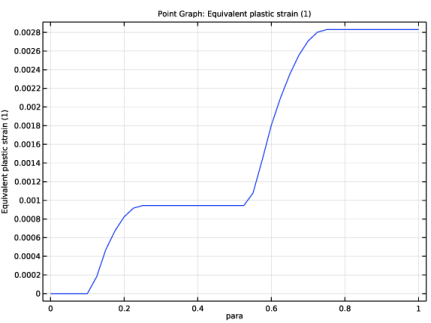
In the Settings window for Point Graph, click Replace Expression in the upper-right corner of the y-Axis Data section. From the menu, choose Component 1 (comp1) > Solid Mechanics > Strain > solid.epeGp - Equivalent plastic strain - 1.
|
|
4
|
|
1
|
|
2
|
|
1
|
|
3
|
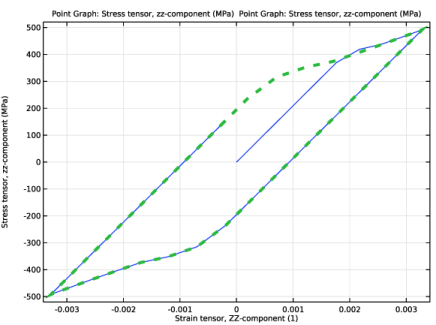
In the Settings window for Point Graph, click Replace Expression in the upper-right corner of the y-Axis Data section. From the menu, choose Component 1 (comp1) > Solid Mechanics > Stress > Stress tensor (spatial frame) - N/m² > solid.sGpzz - Stress tensor, zz-component.
|
|
4
|
Click Replace Expression in the upper-right corner of the x-Axis Data section. From the menu, choose Component 1 (comp1) > Solid Mechanics > Strain > Strain tensor (material and geometry frames) > solid.eZZ - Strain tensor, ZZ-component.
|
|
5
|
|
1
|
|
2
|
Go to the Add Study window.
|
|
3
|
|
4
|
Click the Add Study button in the window toolbar.
|
|
5
|
|
1
|
|
2
|
Select the Auxiliary sweep checkbox.
|
|
3
|
Click
 Add. Add. |
|
5
|
Click to expand the Values of Dependent Variables section. Find the Initial values of variables solved for subsection. From the Settings list, choose User controlled.
|
|
6
|
|
7
|
|
8
|
|
9
|
|
10
|
|
11
|
|
1
|
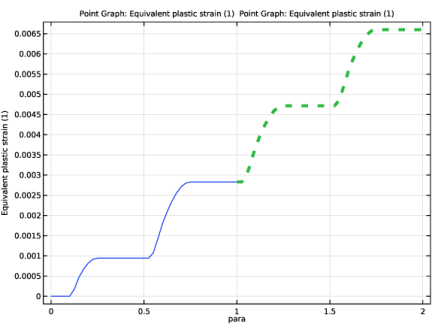
In the Model Builder window, under Results > Plastic Strain right-click Point Graph 1 and choose Duplicate.
|
|
2
|
|
3
|
|
4
|
Click to expand the Coloring and Style section. Find the Line style subsection. From the Line list, choose Dotted.
|
|
5
|
|
6
|
|
1
|
In the Model Builder window, under Results > Stress vs. Strain right-click Point Graph 1 and choose Duplicate.
|
|
2
|
|
3
|
|
4
|
Locate the Coloring and Style section. Find the Line style subsection. From the Line list, choose Dotted.
|
|
5
|
|
6
|
|
1
|
|
2
|
Go to the Add Physics window.
|
|
3
|
|
4
|
Find the Physics interfaces in study subsection. In the table, clear the Solve checkboxes for Study 1 (First Load Cycle) and Study 2 (Steady State Load Cycle).
|
|
5
|
Click the Add to Component 1 button in the window toolbar.
|
|
6
|
|
1
|
|
2
|
|
3
|
|
4
|
|
5
|
Locate the Evaluation Settings section. Find the Critical plane settings subsection. In the Q text field, type 16.
|
|
1
|
In the Model Builder window, under Component 1 (comp1) right-click Materials and choose Blank Material.
|
|
2
|
|
3
|
|
4
|
|
5
|
Locate the Material Contents section. In the table, enter the following settings:
|
|
1
|
|
2
|
Go to the Add Study window.
|
|
3
|
Find the Physics interfaces in study subsection. In the table, clear the Solve checkbox for Solid Mechanics (solid).
|
|
4
|
Find the Studies subsection. In the Select Study tree, select Preset Studies for Selected Physics Interfaces > Fatigue.
|
|
5
|
Click the Add Study button in the window toolbar.
|
|
6
|
|
1
|
|
2
|
Find the Values of variables not solved for subsection. From the Settings list, choose User controlled.
|
|
3
|
|
4
|
|
5
|
|
6
|
|
7
|
|
1
|
|
2
|
|
3
|
|
4
|
|
1
|
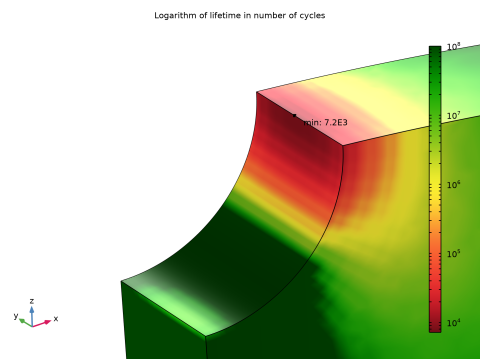
In the Model Builder window, expand the Results > Fatigue Life > Surface 1 node, then click Marker 1.
|
|
2
|
|
3
|
|
4
|