PDF

Bracket — Harmonic Vibration Fatigue
Introduction
A frequency-sweep test, or a sine-sweep test, is sometimes used to experimentally determine the resonance frequencies (natural frequencies) of a structure. The structure is typically mounted on a shaker table, and then subjected a harmonic base excitation at variable frequency. The basic premise of the test is that the sweep is performed sufficiently slowly, so that a stationary state of harmonic vibration is obtained at each frequency. In addition to determining the resonance frequencies of the structure, a frequency-sweep test can be used to ascertain whether the structure will fail during operation, particularly if the operating conditions are such, that the excitation frequencies are in close proximity to the resonance frequencies of the structure. In this example, it is shown how to perform a fatigue analysis of a bracket that undergoes base excitation during a frequency sweep. A prestress resulting from an external load is imposed before the frequency sweep is performed.
Model Definition
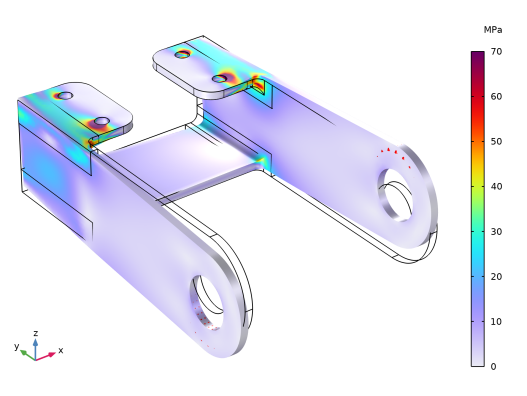
This model is based on the Bracket — Static Analysis model, found in the Structural Mechanics Module Application Library. The bracket is made of steel, and in the original model, it is constrained at the four mounting bolt holes, with static loading applied at the two arms. The static loading is the result of a pin running between the holes, with an actuator mounted on it. Figure 1 shows the stress state in the bracket under this static loading. There are stress concentrations at the mounting bolt holes, as well as at the fillets where the arms join the remaining parts of the bracket. Note that the stress concentrations at the mounting bolt holes are somewhat artificial, as they emanate from the crude approximation of the bolted joints using fixed constraints.
Figure 1: Stress state in the bracket when subjected to the external loading at the two arms.
In this example, we will consider the bolt mounting holes not as fixed, but instead assume that they are attached to a vibrating surrounding, such as a shaker table. We will then emulate a frequency-sweep test using a base excitation (acceleration) of 3.5g, and subsequently perform a fatigue analysis to assess the damage incurred by the frequency sweep. The effect of the prestresses will be included, which has a few consequences. First, the modal basis and the natural frequencies of the bracket are affected. Second, the inclusion of prestresses will affect the fatigue damage, as they add a mean stress state to the pure amplitude stress state resulting from harmonic excitation. Note, however, that from a dynamics point of view, replacing the pin and actuator with boundary loads may be inadequate, as the mass and inertia of these items would in fact affect the natural frequencies of the system. However, for the purpose of illustrating how to model a frequency-sweep test with a prestress, this modeling assumption is acceptable.
The frequency sweep is performed between 100 Hz and 500 Hz, with an increasing frequency, at a constant rate of 0.005 Hz/s. Of particular interest are the junctions (the fillets) between the arms and the remaining structure, as these constitute stress concentrations at which fatigue failure is thought to occur.
The discrete set of excitation frequencies that is used must be chosen carefully. The purpose of the model is to emulate a frequency-sweep test. Several resonance (natural) frequencies exist within the frequency range of the sweep test. As is well known, fatigue is highly stress dependent, so unless excitation at and around relevant resonance frequencies is included, the predicted fatigue damage will be inaccurate. In the model, we initially perform an analysis in which we consider the response at the resonance frequencies alone. This is to understand which resonance frequencies need to be resolved in greater detail during the subsequent frequency-sweep calculation.
The assessment of fatigue is made using the stresses computed in the respective frequency sweeps. The model uses a fatigue-stress measure based on a signed von Mises stress and a load-ratio-dependent S-N curve, fSN(RN); this measure is then used to compute damage according to the Palmgren–Miner theory.
Results and Discussion
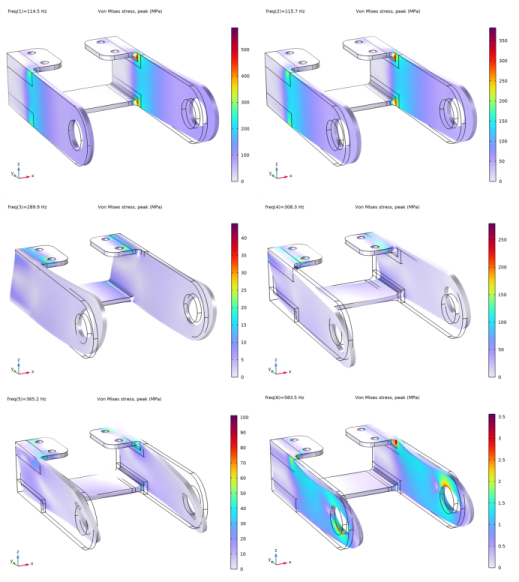
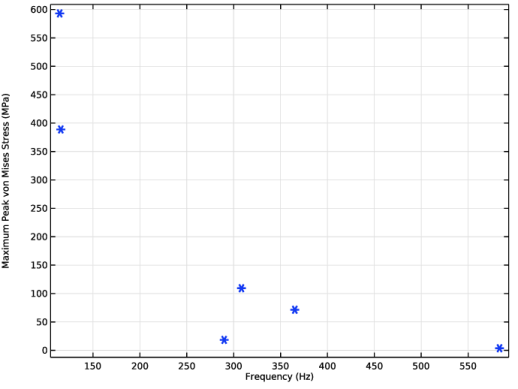
Figure 2 shows the peak von Mises stress in the bracket as it is subjected to harmonic vibration at its six lowest (constrained) resonance frequencies. As mentioned earlier, the main concern is the junctions between the arms and the remaining structure, and the two fillets are of particular interest as they constitute stress concentrations. Figure 3 shows the peak von Mises stress specifically in these areas. We note that the stress levels at the two lowest resonance frequencies are about four times higher, or more, than the stress levels at the higher resonance frequencies. Bearing in mind that fatigue is highly stress dependent, this suggests that we need to resolve the frequency sweep around the two lowest resonance frequencies finely, but in contrast that we do not need to do this for the higher resonance frequencies. The first and second natural frequencies are both about 115 Hz, and the frequency-sweep calculation was therefore performed for the frequency range 100 Hz to 600 Hz, with closely spaced frequencies around 115 Hz.
Figure 2: The peak von Mises stress when the bracket is subjected to harmonic vibration at its first six resonance frequencies.
Figure 3: The peak von Mises stress in the critical regions (fillets) when the bracket is subjected to harmonic vibration at its first six resonance frequencies.
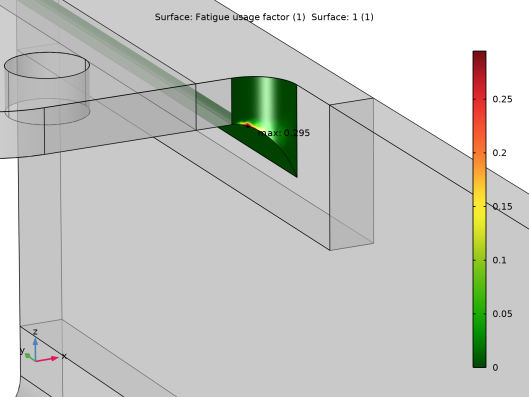
Figure 4 shows the fatigue usage factor resulting from the frequency sweep. The highest (most critical) value is about 0.29, and it represents the fraction of the fatigue life of the bracket spent during the sweep.
Figure 4: The calculated fatigue usage factor resulting from the frequency sweep.
Application Library path: Fatigue_Module/Harmonic_Vibration/bracket_fatigue_harmonic_vibration
Modeling Instructions
Root
In this example you will start from an existing model from the Structural Mechanics Module.
Application Libraries
1
From the File menu, choose Application Libraries.
2
In the Application Libraries window, select Structural Mechanics Module > Tutorials > bracket_static in the tree.
3
Results
Stress (solid)
Click the  Zoom Extents button in the Graphics toolbar.
Solid Mechanics (solid)
In the Model Builder window, expand the Component 1 (comp1) node.
Linear Elastic Material 1
In the Model Builder window, expand the Solid Mechanics (solid) node, then click Linear Elastic Material 1.
Damping 1
1
In the Physics toolbar, click  Attributes and choose Damping.
2
In the Settings window for Damping, locate the Damping Settings section.
3
From the Damping type list, choose Isotropic loss factor.
Boundary Load 1
The default boundary system is in the deformed configuration. This would make the load behave as a follower load when used in a geometrically nonlinear context. Change to a fixed coordinate system.
1
In the Model Builder window, under Component 1 (comp1) > Solid Mechanics (solid) click Boundary Load 1.
2
In the Settings window for Boundary Load, locate the Coordinate System Selection section.
3
Click  Go to Source for Coordinate system.
Definitions
Boundary System 1 (sys1)
1
In the Model Builder window, under Component 1 (comp1) > Definitions click Boundary System 1 (sys1).
2
In the Settings window for Boundary System, locate the Settings section.
3
From the Frame list, choose Reference configuration.
Solid Mechanics (solid)
Base Excitation 1
1
In the Physics toolbar, click  Global and choose Base Excitation.
2
Right-click Base Excitation 1 and choose Harmonic Perturbation.
3
In the Settings window for Base Excitation, locate the Base Excitation section.
4
Specify the ab vector as
Add Study
1
In the Home toolbar, click  Add Study to open the Add Study window.
2
Go to the Add Study window.
3
Find the Studies subsection. In the Select Study tree, select Preset Studies for Selected Physics Interfaces > Eigenfrequency, Prestressed.
4
Click the Add Study button in the window toolbar.
Study 2
Step 2: Eigenfrequency
1
In the Settings window for Eigenfrequency, locate the Physics and Variables Selection section.
2
Select the Modify model configuration for study step checkbox.
3
In the tree, select Component 1 (comp1) > Solid Mechanics (solid), Controls spatial frame > Linear Elastic Material 1 > Damping 1.
4
5
In the Study toolbar, click  Compute.
Add Study
1
Go to the Add Study window.
2
Find the Studies subsection. In the Select Study tree, select More Studies > Frequency Domain, Prestressed, Modal.
3
Click the Add Study button in the window toolbar.
Study 3
1
In the Settings window for Eigenfrequency, locate the Physics and Variables Selection section.
2
Select the Modify model configuration for study step checkbox.
3
First perform a frequency response analysis at the natural frequencies. This is to understand which frequencies must be resolved adequately in the subsequent frequency sweep computation.
Step 3: Frequency Domain, Modal
1
In the Model Builder window, click Step 3: Frequency Domain, Modal.
2
In the Settings window for Frequency Domain, Modal, locate the Study Settings section.
3
In the Frequencies text field, type 114.5 115.7 289.9 308.3 365.2 583.5.
Solution 4 (sol4)
1
In the Study toolbar, click  Show Default Solver.
2
In the Model Builder window, expand the Solution 4 (sol4) node, then click Modal Solver 1.
3
In the Settings window for Modal Solver, click to expand the Values of Linearization Point section.
4
Select the Store linearization point and deviation in output checkbox.
5
In the Study toolbar, click  Compute.
Definitions
Fillets
1
In the Model Builder window, expand the Component 1 (comp1) > Definitions > Selections node.
2
Right-click Component 1 (comp1) > Definitions > Selections and choose Explicit.
3
In the Settings window for Explicit, type Fillets in the Label text field.
4
Locate the Input Entities section. From the Geometric entity level list, choose Boundary.
5
Maximum 1 (maxop1)
1
In the Definitions toolbar, click  Nonlocal Couplings and choose Maximum.
2
In the Settings window for Maximum, locate the Source Selection section.
3
From the Geometric entity level list, choose Boundary.
4
From the Selection list, choose Fillets.
Study 3
In the Study toolbar, click  Update Solution.
Results
Maximum Peak von Mises Stress in Fillets
1
In the Results toolbar, click  1D Plot Group.
2
In the Settings window for 1D Plot Group, locate the Data section.
3
From the Dataset list, choose Study 3/Solution 4 (sol4).
4
In the Label text field, type Maximum Peak von Mises Stress in Fillets.
Global 1
1
Right-click Maximum Peak von Mises Stress in Fillets and choose Global.
2
In the Settings window for Global, locate the y-Axis Data section.
3
4
Click to expand the Coloring and Style section. Find the Line style subsection. From the Line list, choose None.
5
Find the Line markers subsection. From the Marker list, choose Cycle.
6
Click to expand the Legends section. Clear the Show legends checkbox.
7
In the Maximum Peak von Mises Stress in Fillets toolbar, click  Plot.
Add Study
1
Go to the Add Study window.
2
Find the Studies subsection. In the Select Study tree, select More Studies > Frequency Domain, Prestressed, Modal.
3
Click the Add Study button in the window toolbar.
4
In the Home toolbar, click  Add Study to close the Add Study window.
Study 4
Step 2: Eigenfrequency
1
In the Settings window for Eigenfrequency, locate the Physics and Variables Selection section.
2
Select the Modify model configuration for study step checkbox.
3
An investigation of the peak von Mises stress suggests the need to resolve the frequency response around 115 Hz.
Step 3: Frequency Domain, Modal
1
In the Model Builder window, click Step 3: Frequency Domain, Modal.
2
In the Settings window for Frequency Domain, Modal, locate the Study Settings section.
3
In the Frequencies text field, type range(100,5,600) range(0.95,0.0025,1.05)*115.
Solution 7 (sol7)
1
In the Study toolbar, click  Show Default Solver.
2
In the Model Builder window, expand the Solution 7 (sol7) node, then click Modal Solver 1.
3
In the Settings window for Modal Solver, locate the Values of Linearization Point section.
4
Select the Store linearization point and deviation in output checkbox.
5
In the Study toolbar, click  Compute.
Add Physics
1
In the Home toolbar, click  Add Physics to open the Add Physics window.
2
Go to the Add Physics window.
3
In the tree, select Structural Mechanics > Fatigue (ftg).
4
Click the Add to Component 1 button in the window toolbar.
5
In the Home toolbar, click  Add Physics to close the Add Physics window.
Fatigue (ftg)
Harmonic Vibration 1
1
In the Physics toolbar, click  Boundaries and choose Harmonic Vibration.
2
In the Settings window for Harmonic Vibration, locate the Boundary Selection section.
3
From the Selection list, choose Fillets.
4
Locate the Solution Field section. From the Physics interface list, choose Solid Mechanics (solid).
5
Locate the Load History Definition section. From the Frequency history list, choose Linear frequency sweep.
6
Locate the Fatigue Evaluation Parameters section. Find the Direction subsection. From the σ list, choose Signed von Mises.
Global Definitions
Interpolation 1 (int1)
1
In the Home toolbar, click  Functions and choose Global > Interpolation.
2
In the Settings window for Interpolation, locate the Definition section.
3
From the Data source list, choose File.
4
Click  Browse.
5
6
7
Locate the Units section. In the Function table, enter the following settings:
8
In the Argument table, enter the following settings:
Fatigue (ftg)
Harmonic Vibration 1
1
In the Model Builder window, under Component 1 (comp1) > Fatigue (ftg) click Harmonic Vibration 1.
2
In the Settings window for Harmonic Vibration, locate the Fatigue Evaluation Parameters section.
3
Find the Material subsection. From the fSN(R,N) list, choose int1.
Add Study
1
In the Home toolbar, click  Add Study to open the Add Study window.
2
Go to the Add Study window.
3
Find the Studies subsection. In the Select Study tree, select Preset Studies for Selected Physics Interfaces > Fatigue > Fatigue.
4
Click the Add Study button in the window toolbar.
5
In the Home toolbar, click  Add Study to close the Add Study window.
Study 5
Step 1: Fatigue
1
In the Settings window for Fatigue, locate the Values of Dependent Variables section.
2
Find the Values of variables not solved for subsection. From the Settings list, choose User controlled.
3
From the Method list, choose Solution.
4
From the Study list, choose Study 4, Frequency Domain, Modal.
5
In the Study toolbar, click  Compute.