PDF

Two-Dimensional Transient Arc Discharge Simulation
Introduction
This model presents a 2D simulation of transient arc discharge movement along guided copper rails. While accurately modeling transient arcs typically requires a 3D simulation, the 2D approach offers greater efficiency and remains valuable for initial investigations and demonstration purposes.
Model Definition
For more information, see the 3D version model Transient Arc Discharge in Guided Copper Rails.
Results and Discussion
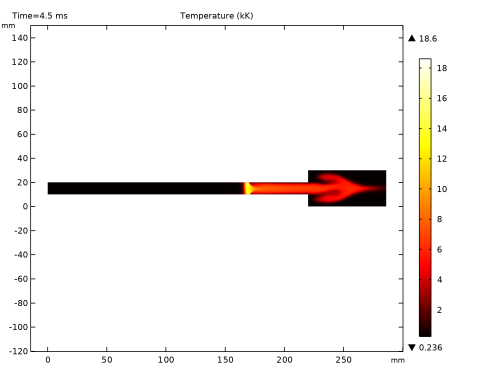
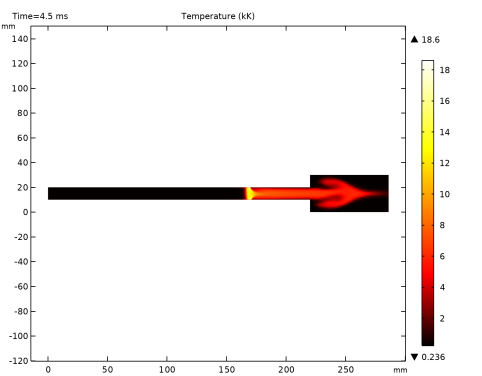
Figure 1 shows the temperature distribution of the electric arc developed at 4.5 ms, where the arc reaches a maximum temperature of 20 kK. Although it is a 2D model, the arc roots at the anode and cathode are clearly distinguishable and closely resemble those observed in a 3D model.
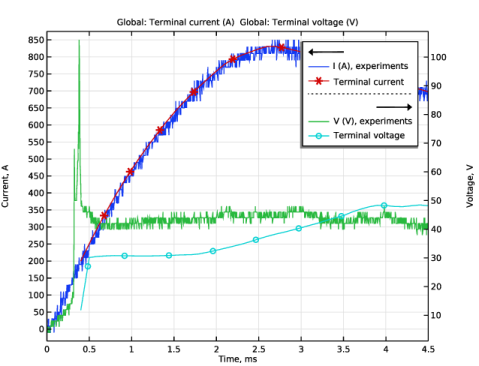
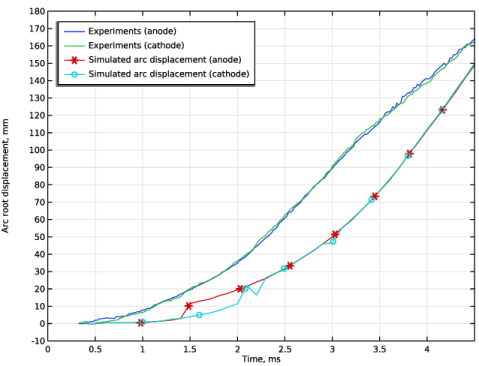
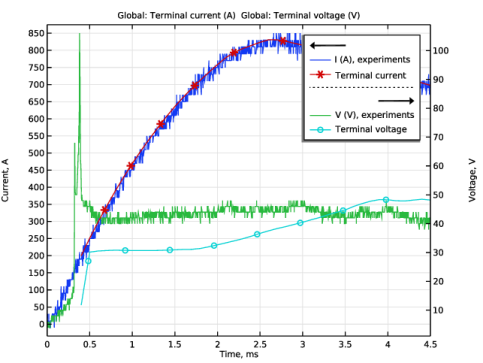
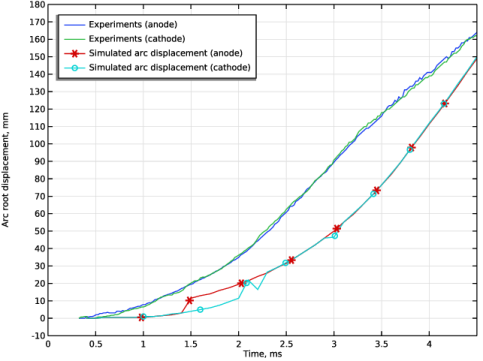
Figure 2 and Figure 3 compare the simulated arc voltage and displacement with experimental results, respectively. While the simulated values show some deviation from the experimental data, they can still be useful for quick preliminary investigations.
Figure 1: LTE arc temperature.
Figure 2: Comparison of the simulated and measured arc voltage.
Figure 3: Comparison of the simulated and measured arc displacement.
Application Library path: Electric_Discharge_Module/Arc_Discharges/transient_arc_2d
Modeling Instructions
From the File menu, choose New.
New
In the New window, click  Model Wizard.
Model Wizard
1
In the Model Wizard window, click  2D.
2
In the Select Physics tree, select Electric Discharge > Arc Discharge.
3
Click Add.
4
Click  Study.
5
In the Select Study tree, select General Studies > Stationary.
6
Global Definitions
Parameters 1
1
In the Model Builder window, under Global Definitions click Parameters 1.
2
In the Settings window for Parameters, locate the Parameters section.
3
Interpolation 1 (int1)
1
In the Home toolbar, click  Functions and choose Global > Interpolation.
2
In the Settings window for Interpolation, locate the Definition section.
3
In the Function name text field, type ic.
4
Click  Load from File.
5
6
Locate the Interpolation and Extrapolation section. From the Interpolation list, choose Piecewise cubic.
7
From the Extrapolation list, choose Linear.
8
Locate the Units section. In the Function table, enter the following settings:
9
In the Argument table, enter the following settings:
Geometry 1
1
In the Model Builder window, under Component 1 (comp1) click Geometry 1.
2
In the Settings window for Geometry, locate the Units section.
3
From the Length unit list, choose mm.
Rectangle 1 (r1)
1
In the Geometry toolbar, click  Rectangle.
2
In the Settings window for Rectangle, locate the Size and Shape section.
3
In the Width text field, type L.
4
In the Height text field, type r0+gap+r0.
5
Click to expand the Layers section. In the table, enter the following settings:
6
Click  Build Selected.
Rectangle 2 (r2)
1
In the Geometry toolbar, click  Rectangle.
2
In the Settings window for Rectangle, locate the Size and Shape section.
3
In the Width text field, type L*0.3.
4
In the Height text field, type r0+gap+r0.
5
Locate the Position section. In the x text field, type L.
Rectangle 3 (r3)
1
In the Geometry toolbar, click  Rectangle.
2
In the Settings window for Rectangle, locate the Size and Shape section.
3
In the Width text field, type L*2.
4
In the Height text field, type (r0+gap+r0)*11.
5
Locate the Position section. In the y text field, type -(r0+gap+r0)*5.
6
In the Geometry toolbar, click  Build All.
7
Click the  Zoom Extents button in the Graphics toolbar.
Magnetic and Electric Fields (mef)
1
In the Model Builder window, under Component 1 (comp1) click Magnetic and Electric Fields (mef).
2
In the Settings window for Magnetic and Electric Fields, locate the Thickness section.
3
In the d text field, type d.
Heat Transfer in Fluids (ht)
1
In the Model Builder window, under Component 1 (comp1) click Heat Transfer in Fluids (ht).
2
In the Settings window for Heat Transfer in Fluids, locate the Physical Model section.
3
In the dz text field, type d.
4
Laminar Flow (spf)
1
In the Model Builder window, under Component 1 (comp1) click Laminar Flow (spf).
2
Definitions
Outflow
1
In the Model Builder window, expand the Component 1 (comp1) > Definitions node.
2
Right-click Definitions and choose Selections > Explicit.
3
In the Settings window for Explicit, locate the Input Entities section.
4
From the Geometric entity level list, choose Boundary.
5
In the Label text field, type Outflow.
6
Magnetic and Electric Fields (mef)
Magnetic Insulation 1
In the Model Builder window, under Component 1 (comp1) > Magnetic and Electric Fields (mef) click Magnetic Insulation 1.
Boundary Terminal 1
1
In the Physics toolbar, click  Attributes and choose Boundary Terminal.
2
3
In the Settings window for Boundary Terminal, locate the Terminal section.
4
In the I0 text field, type ic(t).
Magnetic Insulation 1
In the Model Builder window, click Magnetic Insulation 1.
Electric Insulation 1
1
In the Physics toolbar, click  Attributes and choose Electric Insulation.
2
In the Settings window for Electric Insulation, locate the Boundary Selection section.
3
From the Selection list, choose Outflow.
Gauge Fixing for A-Field 1
In the Physics toolbar, click  Domains and choose Gauge Fixing for A-Field.
Definitions
Variables 1
1
In the Model Builder window, under Component 1 (comp1) right-click Definitions and choose Variables.
2
In the Settings window for Variables, locate the Variables section.
3
Heat Transfer in Fluids (ht)
Initial Values 2
1
In the Physics toolbar, click  Domains and choose Initial Values.
2
3
In the Settings window for Initial Values, locate the Initial Values section.
4
In the T text field, type T0.
Outflow 1
1
In the Physics toolbar, click  Boundaries and choose Outflow.
2
In the Settings window for Outflow, locate the Boundary Selection section.
3
From the Selection list, choose Outflow.
Heat Flux 1
1
In the Physics toolbar, click  Boundaries and choose Heat Flux.
2
Click the  Select Box button in the Graphics toolbar.
3
4
In the Settings window for Heat Flux, locate the Heat Flux section.
5
From the Flux type list, choose Convective heat flux.
6
In the h text field, type 600.
Surface-to-Ambient Radiation 1
1
In the Physics toolbar, click  Boundaries and choose Surface-to-Ambient Radiation.
2
3
In the Settings window for Surface-to-Ambient Radiation, locate the Surface-to-Ambient Radiation section.
4
From the ε list, choose User defined. In the associated text field, type 0.5.
Laminar Flow (spf)
Outlet 1
1
In the Physics toolbar, click  Boundaries and choose Outlet.
2
In the Settings window for Outlet, locate the Boundary Selection section.
3
From the Selection list, choose Outflow.
Multiphysics
Equilibrium Discharge Heat Source 1 (phs1)
1
In the Model Builder window, under Component 1 (comp1) > Multiphysics click Equilibrium Discharge Heat Source 1 (phs1).
2
Add Material
1
In the Materials toolbar, click  Add Material to open the Add Material window.
2
Go to the Add Material window.
3
In the tree, select Equilibrium Discharge > Air (1[atm]).
4
Right-click and choose Add to Component 1 (comp1).
5
In the Materials toolbar, click  Add Material to close the Add Material window.
Materials
Air (1[atm]) (mat1)
Select Domains 1, 3, and 5 only.
Cu
1
In the Model Builder window, right-click Materials and choose Blank Material.
2
In the Settings window for Material, type Cu in the Label text field.
3
4
Locate the Material Contents section. In the table, enter the following settings:
Mesh 1
1
In the Model Builder window, under Component 1 (comp1) click Mesh 1.
2
In the Settings window for Mesh, locate the Physics-Controlled Mesh section.
3
In the table, clear the Use checkboxes for Magnetic and Electric Fields (mef), Heat Transfer in Fluids (ht), Laminar Flow (spf), Equilibrium Discharge Heat Source 1 (phs1), and Magnetohydrodynamics 1 (mhd1).
4
Click  Build All.
5
Locate the Sequence Type section. From the list, choose User-controlled mesh.
Size 1
1
In the Model Builder window, right-click Free Triangular 1 and choose Size.
2
In the Settings window for Size, locate the Geometric Entity Selection section.
3
From the Geometric entity level list, choose Boundary.
4
5
Locate the Element Size section. Click the Custom button.
6
Locate the Element Size Parameters section.
7
Select the Maximum element size checkbox. In the associated text field, type 0.5.
Size 2
1
Right-click Free Triangular 1 and choose Size.
2
In the Settings window for Size, locate the Geometric Entity Selection section.
3
From the Geometric entity level list, choose Domain.
4
5
Locate the Element Size section. Click the Custom button.
6
Locate the Element Size Parameters section.
7
Select the Maximum element size checkbox. In the associated text field, type 0.8.
Size 3
1
Right-click Free Triangular 1 and choose Size.
2
In the Settings window for Size, locate the Geometric Entity Selection section.
3
From the Geometric entity level list, choose Domain.
4
5
Locate the Element Size section. Click the Custom button.
6
Locate the Element Size Parameters section.
7
Select the Maximum element size checkbox. In the associated text field, type 2.
8
Click  Build All.
The simulation will start from the moment the arc is formed. First, a stationary study step is added to compute the initial electromagnetic fields. This is necessary in case the electromagnetic fields are non-zero before the transient analysis.
Study 1
Step 1: Stationary
1
In the Model Builder window, under Study 1 click Step 1: Stationary.
2
In the Settings window for Stationary, locate the Physics and Variables Selection section.
3
In the Solve for column of the table, under Component 1 (comp1), clear the checkboxes for Heat Transfer in Fluids (ht) and Laminar Flow (spf).
Step 2: Time Dependent
1
In the Study toolbar, click  Time Dependent.
2
In the Settings window for Time Dependent, locate the Study Settings section.
3
From the Time unit list, choose ms.
4
In the Output times text field, type range(ts_ms,0.1,4.5).
Solution 1 (sol1)
1
In the Study toolbar, click  Show Default Solver.
2
In the Model Builder window, expand the Solution 1 (sol1) node.
3
In the Model Builder window, under Study 1 > Solver Configurations > Solution 1 (sol1) click Time-Dependent Solver 1.
4
In the Settings window for Time-Dependent Solver, click to expand the Time Stepping section.
5
From the Steps taken by solver list, choose Free.
6
From the Maximum step constraint list, choose Constant.
7
In the Maximum step text field, type 2[us].
8
Right-click Study 1 > Solver Configurations > Solution 1 (sol1) > Time-Dependent Solver 1 and choose Segregated.
9
In the Model Builder window, expand the Study 1 > Solver Configurations > Solution 1 (sol1) > Time-Dependent Solver 1 > Segregated 1 node.
10
Right-click Study 1 > Solver Configurations > Solution 1 (sol1) > Time-Dependent Solver 1 > Segregated 1 and choose Segregated Step.
11
In the Settings window for Segregated Step, locate the General section.
12
In the Variables list, choose Pressure (comp1.p), Temperature (comp1.T), and Velocity Field (comp1.u).
13
Under Variables, click  Delete.
14
Click to expand the Method and Termination section. From the Jacobian update list, choose Once per time step.
15
In the Label text field, type Electromagnetics.
16
In the Model Builder window, under Study 1 > Solver Configurations > Solution 1 (sol1) > Time-Dependent Solver 1 > Segregated 1 click Segregated Step 1.
17
In the Settings window for Segregated Step, locate the General section.
18
Under Variables, click  Add.
19
In the Add dialog, in the Variables list, choose Pressure (comp1.p), Temperature (comp1.T), and Velocity Field (comp1.u).
20
21
In the Settings window for Segregated Step, type Fluid & Heat in the Label text field.
22
Locate the Method and Termination section. In the Damping factor text field, type 0.8.
23
From the Jacobian update list, choose Once per time step.
24
In the Model Builder window, under Study 1 > Solver Configurations > Solution 1 (sol1) > Time-Dependent Solver 1 click Direct (Merged).
25
In the Settings window for Direct, locate the General section.
26
From the Solver list, choose PARDISO.
27
In the Model Builder window, under Study 1 > Solver Configurations > Solution 1 (sol1) > Time-Dependent Solver 1 click Segregated 1.
28
In the Settings window for Segregated, locate the General section.
29
From the Stabilization and acceleration list, choose Anderson acceleration.
30
In the Study toolbar, click  Compute.
Results
Selection 1
1
In the Model Builder window, expand the Temperature (ht) node.
2
Right-click Surface 1 and choose Selection.
3
Surface 1
1
In the Model Builder window, click Surface 1.
2
In the Settings window for Surface, locate the Expression section.
3
From the Unit list, choose kK.
4
Locate the Coloring and Style section. From the Color table list, choose ThermalClassic.
Temperature (ht)
1
In the Model Builder window, click Temperature (ht).
2
In the Settings window for 2D Plot Group, locate the Color Legend section.
3
Select the Show maximum and minimum values checkbox.
4
Locate the Plot Settings section. Clear the Plot dataset edges checkbox.
5
In the Temperature (ht) toolbar, click  Plot.
6
Click the  Zoom Extents button in the Graphics toolbar.
Table 1
1
In the Results toolbar, click  Table.
2
In the Settings window for Table, locate the Data section.
3
Click  Import.
4
Table 2
1
In the Results toolbar, click  Table.
2
In the Settings window for Table, locate the Data section.
3
Click  Import.
4
Current and Voltage
1
In the Results toolbar, click  1D Plot Group.
2
In the Settings window for 1D Plot Group, type Current and Voltage in the Label text field.
3
Locate the Plot Settings section. Select the Two y-axes checkbox.
Table Graph 1
1
Right-click Current and Voltage and choose Table Graph.
2
In the Settings window for Table Graph, locate the Data section.
3
From the Plot columns list, choose Manual.
4
In the Columns list box, select I (A).
5
Click to expand the Legends section. Select the Show legends checkbox.
6
In the Current and Voltage toolbar, click  Plot.
7
From the Legends list, choose Manual.
8
Table Graph 2
1
Right-click Table Graph 1 and choose Duplicate.
2
In the Settings window for Table Graph, locate the Data section.
3
In the Columns list box, select V (V).
4
Locate the y-Axis section. Select the Plot on secondary y-axis checkbox.
5
Locate the Legends section. In the table, enter the following settings:
Global 1
1
In the Model Builder window, right-click Current and Voltage and choose Global.
2
In the Settings window for Global, locate the Data section.
3
From the Dataset list, choose Study 1/Solution 1 (sol1).
4
Locate the y-Axis Data section. In the table, enter the following settings:
5
Click to expand the Coloring and Style section. Find the Line markers subsection. From the Marker list, choose Cycle.
6
From the Positioning list, choose Interpolated.
Global 2
1
Right-click Global 1 and choose Duplicate.
2
In the Settings window for Global, locate the y-Axis Data section.
3
4
Locate the y-Axis section. Select the Plot on secondary y-axis checkbox.
Current and Voltage
1
In the Model Builder window, click Current and Voltage.
2
In the Settings window for 1D Plot Group, locate the Plot Settings section.
3
Select the x-axis label checkbox. In the associated text field, type Time, ms.
4
Select the y-axis label checkbox. In the associated text field, type Current, A.
5
Select the Secondary y-axis label checkbox. In the associated text field, type Voltage, V.
6
Locate the Axis section. Select the Manual axis limits checkbox.
7
In the x minimum text field, type 0.
8
In the x maximum text field, type 4.5.
9
In the Current and Voltage toolbar, click  Plot.
Definitions
Maximum 1 (maxop1)
1
In the Definitions toolbar, click  Nonlocal Couplings and choose Maximum.
2
In the Settings window for Maximum, locate the Source Selection section.
3
From the Geometric entity level list, choose Boundary.
4
Maximum 2 (maxop2)
1
In the Definitions toolbar, click  Nonlocal Couplings and choose Maximum.
2
In the Settings window for Maximum, locate the Source Selection section.
3
From the Geometric entity level list, choose Boundary.
4
Variables 1
1
In the Model Builder window, click Variables 1.
2
In the Settings window for Variables, locate the Variables section.
3
Study 1
In the Study toolbar, click  Update Solution.
Results
Arc Root Displacement
1
In the Results toolbar, click  1D Plot Group.
2
In the Settings window for 1D Plot Group, type Arc Root Displacement in the Label text field.
Table Graph 1
1
Right-click Arc Root Displacement and choose Table Graph.
2
In the Settings window for Table Graph, locate the Data section.
3
From the Table list, choose Table 2.
4
Locate the Legends section. Select the Show legends checkbox.
5
In the Arc Root Displacement toolbar, click  Plot.
6
From the Legends list, choose Manual.
7
Global 1
1
In the Model Builder window, right-click Arc Root Displacement and choose Global.
2
In the Settings window for Global, locate the y-Axis Data section.
3
4
Locate the Coloring and Style section. Find the Line markers subsection. From the Marker list, choose Cycle.
5
From the Positioning list, choose Interpolated.
Arc Root Displacement
1
In the Model Builder window, click Arc Root Displacement.
2
In the Settings window for 1D Plot Group, locate the Legend section.
3
From the Position list, choose Lower right.
4
Locate the Plot Settings section.
5
Select the x-axis label checkbox. In the associated text field, type Time, ms.
6
Select the y-axis label checkbox. In the associated text field, type Arc root displacement, mm.
7
Locate the Axis section. Select the Manual axis limits checkbox.
8
In the x minimum text field, type 0.
9
In the x maximum text field, type 4.5.
10
In the y minimum text field, type -10.
11
In the y maximum text field, type 180.
12
Locate the Legend section. From the Position list, choose Upper left.
13
In the Arc Root Displacement toolbar, click  Plot.