PDF

Positive Streamer Propagation in Transformer Oil
Introduction
This example simulates the propagation of a positive streamer in transformer oil under a lightning impulse voltage. The space charge density and the electric field are obtained. The simulated streamer radius agrees well with the measured values (Ref. 1).
Model Definition
The Electric Discharge interface is used to simulate the streamer discharge in transformer oil. The numerical model is described as follows:
where
e, p, and n denote electrons, positive ions, and negative ions
ni is the number density of the charge carrier (SI unit: 1/m3)
E is the electric field (SI unit: V/m)
zi denotes the carrier charge (SI unit: 1)
μi denotes the carrier mobility (SI unit: m2/(V·s))
wi is the drift velocity in the electric field (SI unit: m/s)
Di is the diffusion coefficient (SI unit: m2/s)
Ri is the reaction rate (SI unit: 1/(m3·s))
τa is the attachment time constant (SI unit: s)
βep is the electron–ion recombination coefficient (SI unit: m3/s)
βpn is the ion–ion recombination coefficient (SI unit: m3/s)
SF is the field ionization (SI unit: 1/(m3·s))
e is the electric charge (SI unit: C)
nioni is the number density of ionizable species (SI unit: 1/m3)
a denotes the molecular separation distance (SI unit: m)
m* denotes the effective electron mass (SI unit: kg)
φΔ and φγ are ionization potential parameters (SI unit: V)
The above transport equations are fully coupled with Poisson’s equation through the electric field and the space charge:
Results and Discussion
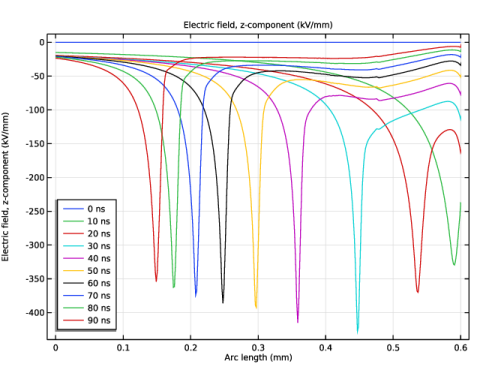
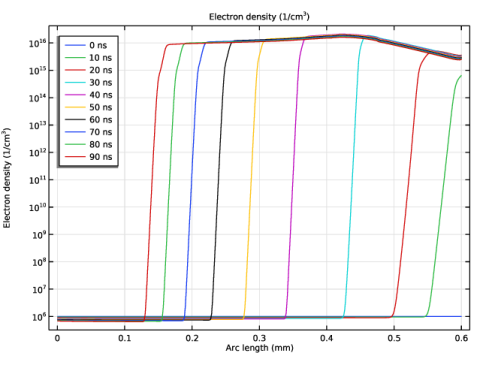
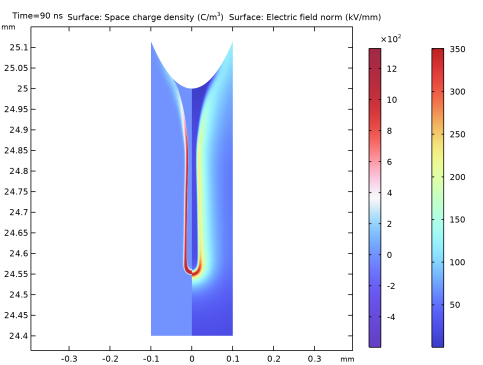
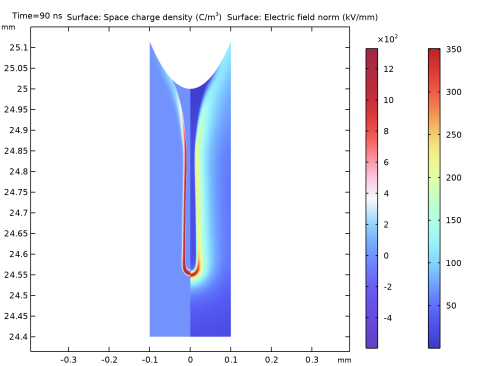
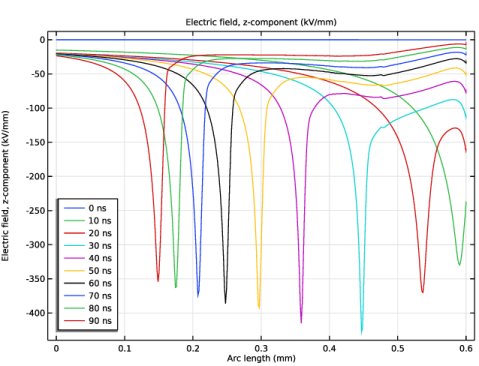
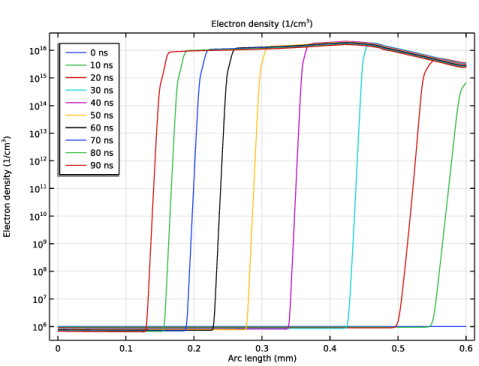
Figure 1 shows the discharge current as a function of time. Figure 2 plots the distribution of different charge carriers density before and during a current pulse. Figure 3 shows the distribution of space charge density and electric field at t = 90 ns.
Figure 1: The axial electric field at t = 0, 10, 20, ..., 90 ns.
Figure 2: The electron number density at t = 0, 10, 20, ..., 90 ns.
Figure 3: The distribution of space charge density and electric field at t = 90 ns.
References
1. J. Jadidian and others, “Stochastic and deterministic causes of streamer branching in liquid dielectrics,” J. Appl. Phys., vol. 114, no. 6, pp. 63301-1–10, 2013.
Application Library path: Electric_Discharge_Module/Liquid_Dielectrics/streamer_in_transformer_oil
Modeling Instructions
From the File menu, choose New.
New
In the New window, click  Model Wizard.
Model Wizard
1
In the Model Wizard window, click  2D Axisymmetric.
2
In the Select Physics tree, select Electric Discharge > Electric Discharge (edis).
3
Click Add.
4
Click  Study.
5
In the Select Study tree, select General Studies > Time Dependent.
6
Geometry 1
1
In the Model Builder window, under Component 1 (comp1) click Geometry 1.
2
In the Settings window for Geometry, locate the Units section.
3
From the Length unit list, choose mm.
Rectangle 1 (r1)
1
In the Geometry toolbar, click  Rectangle.
2
In the Settings window for Rectangle, locate the Size and Shape section.
3
In the Width text field, type 15.
4
In the Height text field, type 30.
5
Click to expand the Layers section. Select the Layers to the left checkbox.
6
Clear the Layers on bottom checkbox.
7
Rectangle 2 (r2)
1
In the Geometry toolbar, click  Rectangle.
2
In the Settings window for Rectangle, locate the Size and Shape section.
3
In the Width text field, type 0.3.
4
In the Height text field, type 3.
5
Locate the Position section. In the z text field, type 27.
Ellipse 1 (e1)
1
In the Geometry toolbar, click  Ellipse.
2
In the Settings window for Ellipse, locate the Size and Shape section.
3
In the a-semiaxis text field, type 0.3.
4
In the b-semiaxis text field, type 2.
5
Locate the Position section. In the z text field, type 27.
Rectangle 3 (r3)
1
In the Geometry toolbar, click  Rectangle.
2
In the Settings window for Rectangle, locate the Size and Shape section.
3
In the Width text field, type 0.1.
4
In the Height text field, type 0.6-1/1000.
5
Locate the Position section. In the z text field, type 24.4.
6
Locate the Layers section. Clear the Layers on bottom checkbox.
7
Select the Layers to the left checkbox.
8
Difference 1 (dif1)
1
In the Geometry toolbar, click  Booleans and Partitions and choose Difference.
2
3
In the Settings window for Difference, locate the Difference section.
4
Click to select the  Activate Selection toggle button for Objects to subtract.
5
Select the objects e1 and r2 only.
6
Click  Build All Objects.
Definitions
Analytic 1 (an1)
1
In the Definitions toolbar, click  Analytic.
2
In the Settings window for Analytic, type Vapp in the Function name text field.
3
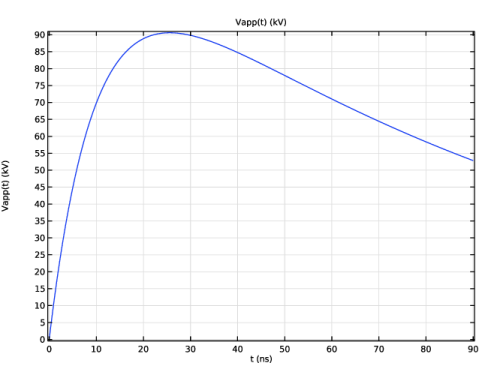
Locate the Definition section. In the Expression text field, type 130*(exp(-t/100)-exp(-t/10)).
4
In the Arguments text field, type t.
5
Locate the Units section. In the Function text field, type kV.
6
7
Locate the Plot Parameters section. In the table, enter the following settings:
8
9
Click the  Zoom Extents button in the Graphics toolbar.
Electric Discharge (edis)
1
Click the  Show More Options button in the Model Builder toolbar.
2
In the Show More Options dialog, select Physics > Stabilization in the tree.
3
4
5
In the Model Builder window, under Component 1 (comp1) click Electric Discharge (edis).
6
In the Settings window for Electric Discharge, locate the Physical Model section.
7
Clear the Gas checkbox.
8
Select the Liquid checkbox.
9
Click to expand the Inconsistent Stabilization section. Select the Isotropic diffusion checkbox.
Add Material
1
In the Materials toolbar, click  Add Material to open the Add Material window.
2
Go to the Add Material window.
3
In the tree, select Electric Discharge > Liquids > Transformer Oil.
4
Right-click and choose Add to Component 1 (comp1).
5
In the Materials toolbar, click  Add Material to close the Add Material window.
Electric Discharge (edis)
Electrode 1
1
In the Physics toolbar, click  Attributes and choose Electrode.
2
3
In the Settings window for Electrode, locate the Terminal section.
4
In the V0 text field, type Vapp(t).
5
Locate the Charge Transport section. From the Boundary condition for positive ions list, choose Number density.
Liquid 1
In the Model Builder window, click Liquid 1.
Electrode 2
1
In the Physics toolbar, click  Attributes and choose Electrode.
2
Click the  Zoom Extents button in the Graphics toolbar.
3
4
In the Settings window for Electrode, locate the Charge Transport section.
5
From the Boundary condition for electrons list, choose Number density.
6
From the Boundary condition for negative ions list, choose Number density.
Mesh 1
Mapped 1
1
In the Mesh toolbar, click  Mapped.
2
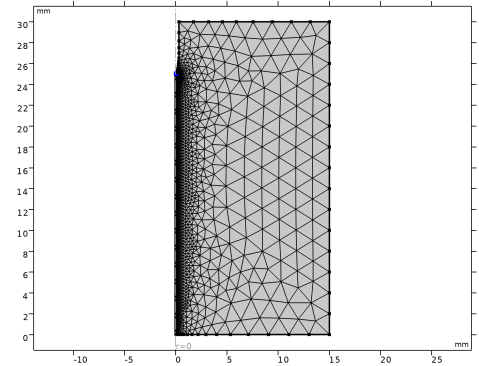
Click the  Zoom Box button in the Graphics toolbar.
3
In the Settings window for Mapped, locate the Domain Selection section.
4
From the Geometric entity level list, choose Domain.
5
Distribution 1
1
Right-click Mapped 1 and choose Distribution.
2
3
In the Settings window for Distribution, locate the Distribution section.
4
From the Distribution type list, choose Predefined.
5
In the Number of elements text field, type 40.
6
Select the Reverse direction checkbox.
7
In the Element ratio text field, type 5.
Distribution 2
1
In the Model Builder window, right-click Mapped 1 and choose Distribution.
2
3
In the Settings window for Distribution, locate the Distribution section.
4
In the Number of elements text field, type 400.
Free Triangular 1
1
In the Mesh toolbar, click  Free Triangular.
2
In the Settings window for Free Triangular, locate the Domain Selection section.
3
From the Geometric entity level list, choose Domain.
4
Size 1
1
Right-click Free Triangular 1 and choose Size.
2
In the Settings window for Size, locate the Element Size section.
3
Click the Custom button.
4
Locate the Element Size Parameters section.
5
Select the Maximum element size checkbox. In the associated text field, type 1/300.
Free Triangular 2
1
In the Mesh toolbar, click  Free Triangular.
2
In the Settings window for Free Triangular, click  Build All.
Boundary Layers 1
In the Mesh toolbar, click  Boundary Layers.
Boundary Layer Properties
1
In the Model Builder window, click Boundary Layer Properties.
2
3
In the Settings window for Boundary Layer Properties, locate the Layers section.
4
In the Number of layers text field, type 3.
5
In the Stretching factor text field, type 1.5.
6
Click  Build All.
7
Click the  Zoom Extents button in the Graphics toolbar.
8
Click the  Zoom Extents button in the Graphics toolbar.
Study 1
Step 1: Time Dependent
1
In the Model Builder window, under Study 1 click Step 1: Time Dependent.
2
In the Settings window for Time Dependent, locate the Study Settings section.
3
From the Time unit list, choose ns.
4
In the Output times text field, type range(0,10,90).
5
In the Model Builder window, click Study 1.
6
In the Settings window for Study, locate the Study Settings section.
7
Clear the Generate default plots checkbox.
Solution 1 (sol1)
1
In the Study toolbar, click  Show Default Solver.
2
In the Model Builder window, expand the Solution 1 (sol1) node.
Setting a maximum timestep variable based on the built-in dielectric relaxation time can help improve both efficiency and accuracy.
3
In the Model Builder window, under Study 1 > Solver Configurations > Solution 1 (sol1) click Time-Dependent Solver 1.
4
In the Settings window for Time-Dependent Solver, click to expand the Time Stepping section.
5
From the Maximum step constraint list, choose Expression.
6
In the Maximum step text field, type min(0.1[ns],comp1.edis.minDRT*0.8).
The PARDISO direct solver is usually a bit faster and leaner on memory than the default direct solver (MUMPS) on this type of model.
7
In the Model Builder window, under Study 1 > Solver Configurations > Solution 1 (sol1) > Time-Dependent Solver 1 click Direct.
8
In the Settings window for Direct, locate the General section.
9
From the Solver list, choose PARDISO.
10
In the Study toolbar, click  Compute.
Results
In the Model Builder window, expand the Results node.
Study 1/Solution 1 (sol1)
In the Model Builder window, expand the Results > Datasets node, then click Study 1/Solution 1 (sol1).
Selection
1
In the Results toolbar, click  Attributes and choose Selection.
2
In the Settings window for Selection, locate the Geometric Entity Selection section.
3
From the Geometric entity level list, choose Domain.
4
Mirror 2D 1
In the Results toolbar, click  More Datasets and choose Mirror 2D.
2D Plot Group 1
In the Results toolbar, click  2D Plot Group.
Surface 1
Right-click 2D Plot Group 1 and choose Surface.
2D Plot Group 1
1
In the Settings window for 2D Plot Group, locate the Plot Settings section.
2
Clear the Plot dataset edges checkbox.
Surface 1
1
In the Model Builder window, click Surface 1.
2
In the Settings window for Surface, locate the Data section.
3
From the Dataset list, choose Mirror 2D 1.
Surface 2
1
In the Model Builder window, right-click 2D Plot Group 1 and choose Surface.
2
In the Settings window for Surface, locate the Expression section.
3
In the Expression text field, type edis.normE.
4
In the Unit field, type kV/mm.
5
In the 2D Plot Group 1 toolbar, click  Plot.
Surface 1
1
In the Model Builder window, click Surface 1.
2
In the Settings window for Surface, locate the Coloring and Style section.
3
From the Color table list, choose WaveLight.
Surface 2
1
In the Model Builder window, click Surface 2.
2
In the Settings window for Surface, locate the Coloring and Style section.
3
From the Color table list, choose RainbowLight.
2D Plot Group 1
1
Click the  Zoom Extents button in the Graphics toolbar.
2
In the Model Builder window, click 2D Plot Group 1.
1D Plot Group 2
1
In the Results toolbar, click  1D Plot Group.
2
In the Settings window for 1D Plot Group, locate the Legend section.
3
From the Position list, choose Lower left.
Line Graph 1
1
Right-click 1D Plot Group 2 and choose Line Graph.
2
3
In the Settings window for Line Graph, locate the y-Axis Data section.
4
In the Expression text field, type edis.Ez.
5
In the Unit field, type kV/mm.
6
Click to expand the Legends section. Select the Show legends checkbox.
7
In the 1D Plot Group 2 toolbar, click  Plot.
1D Plot Group 3
1
In the Model Builder window, under Results right-click 1D Plot Group 2 and choose Duplicate.
2
In the Model Builder window, click 1D Plot Group 3.
3
In the Settings window for 1D Plot Group, locate the Legend section.
4
From the Position list, choose Upper left.
Line Graph 1
1
In the Model Builder window, click Line Graph 1.
2
In the Settings window for Line Graph, locate the y-Axis Data section.
3
In the Expression text field, type edis.n_e.
4
In the Unit field, type 1/cm^3.
5
Click the  y-Axis Log Scale button in the Graphics toolbar.
6
In the 1D Plot Group 3 toolbar, click  Plot.