PDF

Streamers Initialized From Suspended Metal Particles
Introduction
Suspended metal particles are a well-recognized factor in the degradation of high-voltage insulation systems, as they distort the local electric field and promote premature discharge activity. This model simulates streamer initiation from suspended metallic particles, their propagation under high electric fields, and their eventual merging. The model considers the discharge current flowing into the particles, which are assumed to remain at equal potential, thereby enhancing the local electric field distribution. This field intensification lowers the inception voltage and accelerates streamer growth, demonstrating a strong dependence of discharge dynamics on particle position, size, and concentration. The results provide a detailed framework for evaluating particle-induced breakdown mechanisms, with implications for insulation design, condition monitoring, and reliability assessment of high-voltage equipment.
Model Definition
The model uses the Electric Discharge interface, where the built-in charge transport model is expressed as
where
e, p, n denote electrons, positive ions, and negative ions
ni is the number density of the charge carrier (SI unit: 1/m3)
E is the electric field (SI unit: V/m)
zi denotes the carrier charge (SI unit: 1)
μi denotes the carrier mobility (SI unit: m2/(V·s))
wi is the drift velocity in the electric field (SI unit: m/s)
Di is the diffusion coefficient (SI unit: m2/s)
Ri is the reaction rate (SI unit: 1/(m3·s))
α is the ionization coefficient (SI unit: 1/m)
η is the attachment coefficient (SI unit: 1/m)
βep is the electron–ion recombination coefficient (SI unit: m3/s)
βpn is the ion–ion recombination coefficient (SI unit: m3/s)
The above transport equations are fully coupled with Poisson’s equation through the electric field and the space charge:
where e is the elementary charge.
The suspended metal particles are modeled with the Floating Electrode boundary feature, which automatically takes into account the discharge current flowing into the particles and surface charge accumulation at the surfaces. The boundary conditions are expressed as
where Jc is the conducting current density.
Results and Discussion
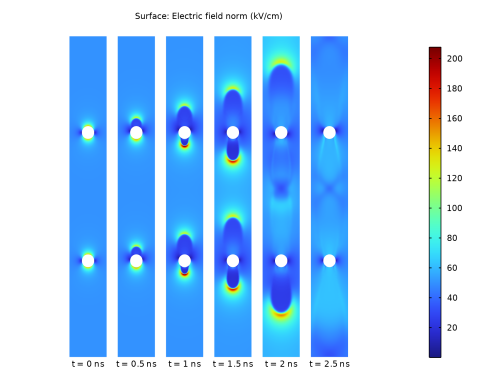
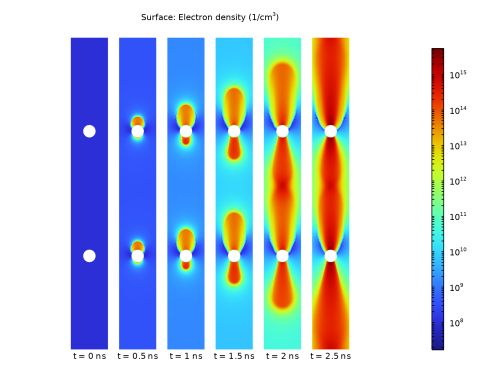
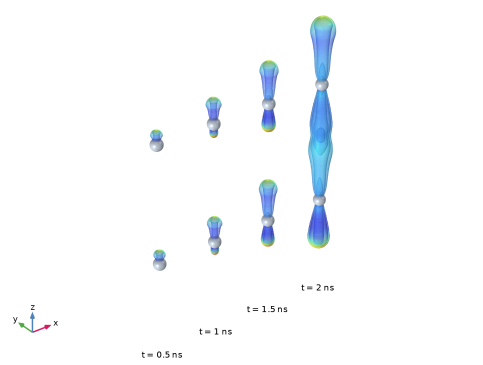
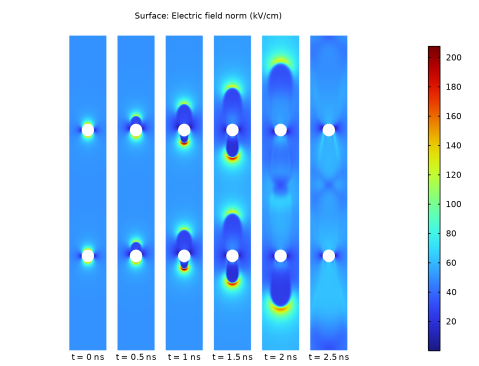
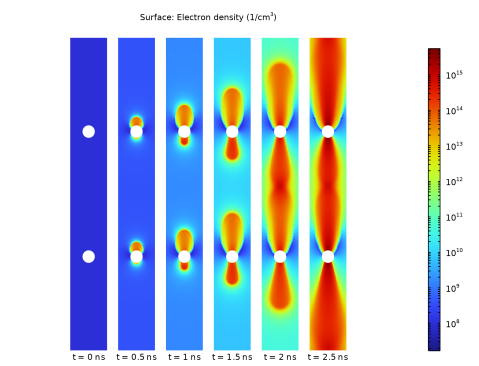
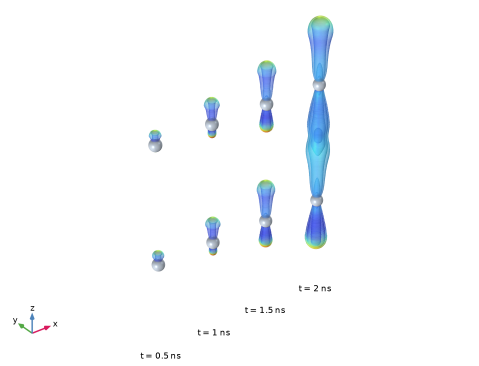
Figure 1 and Figure 2 show the distribution of electric field and electron density, respectively, at different time instants. Figure 3 shows both of them through isosurface plots in color.
Figure 1: Distribution of electric field.
Figure 2: Distribution of electron number density.
Figure 3: 3D plots where the isosurface plots are for electron density and the color indicates the electric field strength.
Application Library path: Electric_Discharge_Module/Streamer_Discharges/streamer_from_metal_particles
Modeling Instructions
From the File menu, choose New.
New
In the New window, click  Model Wizard.
Model Wizard
1
In the Model Wizard window, click  2D Axisymmetric.
2
In the Select Physics tree, select Electric Discharge > Electric Discharge (edis).
3
Click Add.
4
Click  Study.
5
In the Select Study tree, select Preset Studies for Selected Physics Interfaces > Time Dependent with Initialization.
6
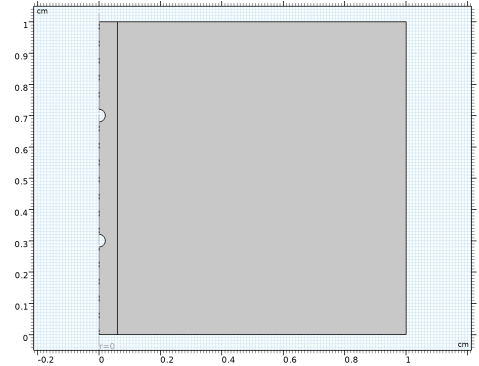
Geometry 1
1
In the Model Builder window, under Component 1 (comp1) click Geometry 1.
2
In the Settings window for Geometry, locate the Units section.
3
From the Length unit list, choose cm.
Global Definitions
Parameters 1
1
In the Model Builder window, under Global Definitions click Parameters 1.
2
In the Settings window for Parameters, locate the Parameters section.
3
Geometry 1
Rectangle 1 (r1)
1
In the Geometry toolbar, click  Rectangle.
2
In the Settings window for Rectangle, click to expand the Layers section.
3
4
Clear the Layers on bottom checkbox.
5
Select the Layers to the left checkbox.
Circle 1 (c1)
1
In the Geometry toolbar, click  Circle.
2
In the Settings window for Circle, locate the Size and Shape section.
3
In the Radius text field, type 0.02.
4
Locate the Position section. In the z text field, type 0.3.
Circle 2 (c2)
1
Right-click Circle 1 (c1) and choose Duplicate.
2
In the Settings window for Circle, locate the Position section.
3
In the z text field, type 0.7.
Difference 1 (dif1)
1
In the Geometry toolbar, click  Booleans and Partitions and choose Difference.
2
3
In the Settings window for Difference, locate the Difference section.
4
Click to select the  Activate Selection toggle button for Objects to subtract.
5
Select the objects c1 and c2 only.
6
Click  Build All Objects.
Add Material from Library
In the Home toolbar, click  Windows and choose Add Material from Library.
Add Material
1
Go to the Add Material window.
2
In the tree, select Electric Discharge > Gases > Air > Air [Morrow and Lowke, 1997].
3
Right-click and choose Add to Component 1 (comp1).
Electric Discharge (edis)
Gas 1
In the Model Builder window, under Component 1 (comp1) > Electric Discharge (edis) click Gas 1.
Electrode 1
1
In the Physics toolbar, click  Attributes and choose Electrode.
2
Gas 1
In the Model Builder window, click Gas 1.
Electrode 2
1
In the Physics toolbar, click  Attributes and choose Electrode.
2
3
In the Settings window for Electrode, locate the Terminal section.
4
In the V0 text field, type V0.
Gas 1
In the Model Builder window, click Gas 1.
Floating Electrode 1
1
In the Physics toolbar, click  Attributes and choose Floating Electrode.
2
Gas 1
In the Model Builder window, click Gas 1.
Floating Electrode 2
1
In the Physics toolbar, click  Attributes and choose Floating Electrode.
2
Initial Values 1
1
In the Model Builder window, click Initial Values 1.
2
In the Settings window for Initial Values, locate the Initial Values section.
3
In the ne text field, type 1e8[1/cm^3].
4
In the nn text field, type 1e8[1/cm^3].
5
In the np text field, type 2e8[1/cm^3].
Mesh 1
1
In the Model Builder window, under Component 1 (comp1) click Mesh 1.
2
In the Settings window for Mesh, locate the Sequence Type section.
3
From the list, choose User-controlled mesh.
Size 1
1
In the Model Builder window, right-click Free Triangular 1 and choose Size.
2
In the Settings window for Size, locate the Geometric Entity Selection section.
3
From the Geometric entity level list, choose Boundary.
4
5
Locate the Element Size section. Click the Custom button.
6
Locate the Element Size Parameters section.
7
Select the Maximum element size checkbox. In the associated text field, type 1/2000.
Size 2
1
Right-click Free Triangular 1 and choose Size.
2
In the Settings window for Size, locate the Geometric Entity Selection section.
3
From the Geometric entity level list, choose Domain.
4
5
Locate the Element Size section. Click the Custom button.
6
Locate the Element Size Parameters section.
7
Select the Maximum element size checkbox. In the associated text field, type 1/100.
8
Select the Maximum element growth rate checkbox. In the associated text field, type 1.1.
Boundary Layers 1
In the Mesh toolbar, click  Boundary Layers.
Boundary Layer Properties
1
In the Model Builder window, click Boundary Layer Properties.
2
3
In the Settings window for Boundary Layer Properties, click  Build All.
Study 1
Step 2: Time Dependent
1
In the Model Builder window, under Study 1 click Step 2: Time Dependent.
2
In the Settings window for Time Dependent, locate the Study Settings section.
3
From the Time unit list, choose ns.
4
In the Output times text field, type range(0,0.5,2.5).
Next, include time steps effect on the consistent stabilization to increase numerical accuracy and stability.
Electric Discharge (edis)
1
Click the  Show More Options button in the Model Builder toolbar.
2
In the Show More Options dialog, select Physics > Stabilization in the tree.
3
4
5
In the Model Builder window, under Component 1 (comp1) click Electric Discharge (edis).
6
In the Settings window for Electric Discharge, click to expand the Consistent Stabilization section.
7
Select the Include time steps effect on stabilization time scale checkbox.
Study 1
Solution 1 (sol1)
1
In the Study toolbar, click  Show Default Solver.
2
In the Model Builder window, expand the Solution 1 (sol1) node, then click Time-Dependent Solver 1.
3
In the Settings window for Time-Dependent Solver, click to expand the Time Stepping section.
4
From the Maximum step constraint list, choose Constant.
5
In the Maximum step text field, type 0.005.
6
In the Model Builder window, click Study 1.
7
In the Settings window for Study, locate the Study Settings section.
8
Clear the Generate default plots checkbox.
9
In the Study toolbar, click  Compute.
Results
Mirror 2D 1
1
In the Model Builder window, expand the Results node.
2
Right-click Results > Datasets and choose More 2D Datasets > Mirror 2D.
Selection
1
In the Results toolbar, click  Attributes and choose Selection.
2
In the Settings window for Selection, locate the Geometric Entity Selection section.
3
From the Geometric entity level list, choose Domain.
4
Electric Fields
1
In the Results toolbar, click  2D Plot Group.
2
In the Settings window for 2D Plot Group, type Electric Fields in the Label text field.
3
Locate the Data section. From the Dataset list, choose Mirror 2D 1.
4
Locate the Plot Settings section. Clear the Plot dataset edges checkbox.
Surface 1
1
Right-click Electric Fields and choose Surface.
2
In the Settings window for Surface, locate the Expression section.
3
In the Expression text field, type edis.normE.
4
In the Unit field, type kV/cm.
Solution Array 1
Right-click Surface 1 and choose Solution Array.
Annotation 1
1
In the Model Builder window, right-click Electric Fields and choose Annotation.
2
In the Settings window for Annotation, locate the Annotation section.
3
In the Text text field, type t = eval(t,ns,3) ns.
4
Locate the Coloring and Style section. Clear the Show point checkbox.
5
From the Anchor point list, choose Upper middle.
Solution Array 1
Right-click Annotation 1 and choose Solution Array.
Annotation 1
Click to expand the Plot Array section. Select the Manual indexing checkbox.
Electric Fields
1
In the Model Builder window, click Electric Fields.
2
In the Settings window for 2D Plot Group, click to expand the Title section.
3
From the Title type list, choose Custom.
4
Find the Solution subsection. Clear the Solution checkbox.
5
Click the  Show Grid button in the Graphics toolbar.
6
Click the  Zoom Extents button in the Graphics toolbar.
Electron Density
1
Right-click Electric Fields and choose Duplicate.
2
In the Settings window for 2D Plot Group, type Electron Density in the Label text field.
Surface 1
1
In the Model Builder window, expand the Electron Density node, then click Surface 1.
2
In the Settings window for Surface, locate the Expression section.
3
In the Expression text field, type edis.n_e.
4
In the Unit field, type 1/cm^3.
5
Locate the Coloring and Style section. From the Scale list, choose Logarithmic.
Revolution 2D 1
In the Results toolbar, click  More Datasets and choose Revolution 2D.
Isosurface 1
1
In the Results toolbar, click  More Datasets and choose Isosurface.
2
In the Settings window for Isosurface, locate the Expression section.
3
In the Expression text field, type edis.n_e.
4
In the Unit field, type 1/cm^3.
5
Locate the Levels section. From the Entry method list, choose Levels.
6
In the Levels text field, type 10^{range(log10(1.0e13),1/2,log10(1.0e15))}.
Revolution 2D 2
In the Model Builder window, under Results > Datasets right-click Revolution 2D 1 and choose Duplicate.
Selection
1
In the Results toolbar, click  Attributes and choose Selection.
2
In the Settings window for Selection, locate the Geometric Entity Selection section.
3
From the Geometric entity level list, choose Boundary.
4
3D Plot Group 3
1
In the Results toolbar, click  3D Plot Group.
2
In the Settings window for 3D Plot Group, locate the Plot Settings section.
3
Clear the Plot dataset edges checkbox.
4
Locate the Color Legend section. Clear the Show legends checkbox.
Surface 1
1
Right-click 3D Plot Group 3 and choose Surface.
2
In the Settings window for Surface, locate the Data section.
3
From the Dataset list, choose Revolution 2D 2.
4
Locate the Expression section. In the Expression text field, type 1.
5
Locate the Coloring and Style section. From the Coloring list, choose Uniform.
6
From the Color list, choose Custom.
7
8
Click Define custom colors.
9
10
Click Add to custom colors.
11
Click Show color palette only or OK on the cross-platform desktop.
Solution Array 1
1
Right-click Surface 1 and choose Solution Array.
2
In the Settings window for Solution Array, locate the Data section.
3
From the Time selection list, choose From list.
4
In the Times (ns) list, choose 0.5, 1, 1.5, and 2.
Surface 2
1
In the Model Builder window, right-click 3D Plot Group 3 and choose Surface.
2
In the Settings window for Surface, locate the Data section.
3
From the Dataset list, choose Isosurface 1.
4
Locate the Expression section. In the Expression text field, type edis.normE.
5
In the Unit field, type kV/cm.
Solution Array 1
1
Right-click Surface 2 and choose Solution Array.
2
In the Settings window for Solution Array, locate the Data section.
3
From the Time selection list, choose From list.
4
In the Times (ns) list, choose 0.5, 1, 1.5, and 2.
Transparency 1
1
In the Model Builder window, right-click Surface 2 and choose Transparency.
2
In the Settings window for Transparency, locate the Transparency section.
3
Find the Fresnel transmittance subsection. Set the Fresnel transmittance value to 0.5.
Surface 1
1
In the Model Builder window, under Results > 3D Plot Group 3 click Surface 1.
2
In the Settings window for Surface, click to expand the Plot Array section.
3
Select the Manual indexing checkbox.
4
Click the  Show Grid button in the Graphics toolbar.
3D Plot Group 3
1
In the Model Builder window, click 3D Plot Group 3.
2
In the Settings window for 3D Plot Group, click to expand the Plot Array section.
3
From the Displacement list, choose Absolute.
4
In the Cell displacement text field, type 0.2.
5
In the 3D Plot Group 3 toolbar, click  Plot.
6
Click to expand the Title section. From the Title type list, choose None.
Annotation 1
1
Right-click 3D Plot Group 3 and choose Annotation.
2
In the Settings window for Annotation, locate the Annotation section.
3
In the Text text field, type t = eval(t,ns,3) ns.
4
Locate the Coloring and Style section. Clear the Show point checkbox.
5
From the Anchor point list, choose Upper middle.
Solution Array 1
1
Right-click Annotation 1 and choose Solution Array.
2
In the Settings window for Solution Array, locate the Data section.
3
From the Time selection list, choose From list.
4
In the Times (ns) list, choose 0.5, 1, 1.5, and 2.
Annotation 1
1
In the Model Builder window, click Annotation 1.
2
In the Settings window for Annotation, click to expand the Plot Array section.
3
Select the Manual indexing checkbox.
3D Plot Group 3
1
Click the  Go to Default View button in the Graphics toolbar.
2
In the Model Builder window, click 3D Plot Group 3.
3
In the 3D Plot Group 3 toolbar, click  Plot.