PDF

Negative Surface Discharge at Gas–Solid Interface
Introduction
Dielectric barrier discharge (DBD) is a type of electrical discharge that occurs between two electrodes separated by an insulating dielectric barrier. This phenomenon is commonly used in various applications, including ozone generation, surface treatment, and plasma medicine. The presence of dielectric materials introduces complexity into the discharge process, affecting the distribution of electric fields and the behavior of charged particles.
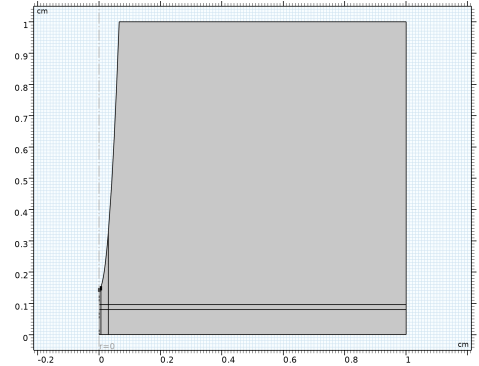
This model simulates a negative dielectric barrier discharge under a point-to-plate electrode configuration. Two solid dielectric layers are inserted into the air gap, which influences the discharge dynamics. By applying a negative voltage of 2.5 kV to the cathode electrode, a corona streamer is initiated, propagating through the gap and generating a current pulse. Negative charge carriers accumulate at the gas-solid interface, subsequently altering the electric field distribution. This process ultimately leads to the formation of a stable negative surface discharge.
The simulation results, including discharge current and surface charge distribution at the gas-solid interface, show excellent agreement with experiments published in Ref. 1. This model provides valuable insights into the complex interactions within dielectric barrier discharges, particularly the influence of dielectric materials on the behavior of the discharge and the resulting electrical characteristics.
Model Definition
The Electric Discharge interface is used to simulate the negative surface discharge. The built-in charge transport model is used:
where
e, p, n denote electrons, positive ions, and negative ions
ni is the number density of the charge carrier (SI unit: 1/m3)
E is the electric field (SI unit: V/m)
zi denotes the carrier charge (SI unit: 1)
μi denotes the carrier mobility (SI unit: m2/(V·s))
wi is the drift velocity in the electric field (SI unit: m/s)
Di is the diffusion coefficient (SI unit: m2/s)
Ri is the reaction rate (SI unit: 1/(m3·s))
α is the ionization coefficient (SI unit: 1/m)
η is the attachment coefficient (SI unit: 1/m)
βep is the electron–ion recombination coefficient (SI unit: m3/s)
βpn is the ion–ion recombination coefficient (SI unit: m3/s)
The above transport equations are fully coupled with Poisson’s equation through the electric field and the space charge:
where e is the elementary charge.
The Gas–Solid interface is modeled with the dedicated Dielectric Interface, Surface Transport feature described in the Electric Discharge Module User’s Guide.
Fast Charging
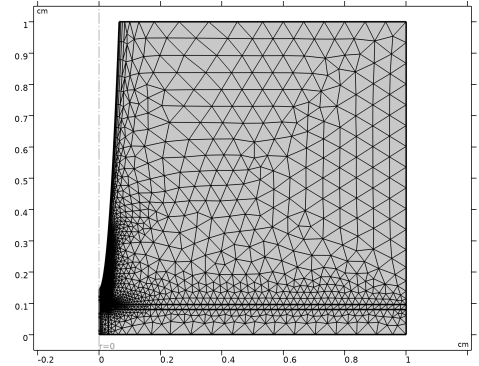
The first study examines the fast surface charging caused by streamer bursts when a high voltage is applied instantaneously. At the negative electrode, surface emission through secondary electron emission is taken into account. To capture the streamer dynamics accurately, a fine mesh around the electrode is required.
Slow Charging
The second study investigates the slow surface charging through glow corona by ramping up the applied voltage. A fixed, low electron density boundary condition is imposed at the electrode surface to represent the seed electrons generated by surface emission. As the discharge is more uniform, a coarser mesh is sufficient.
Results and Discussion
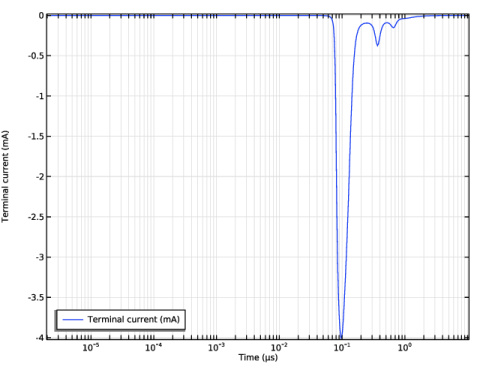
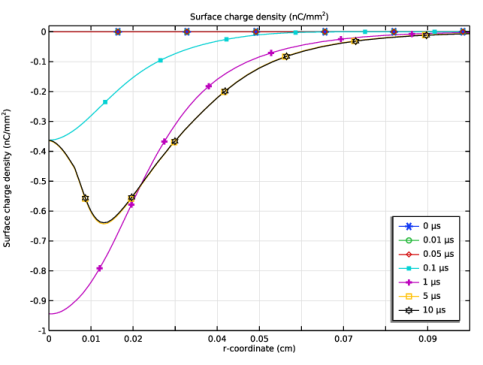
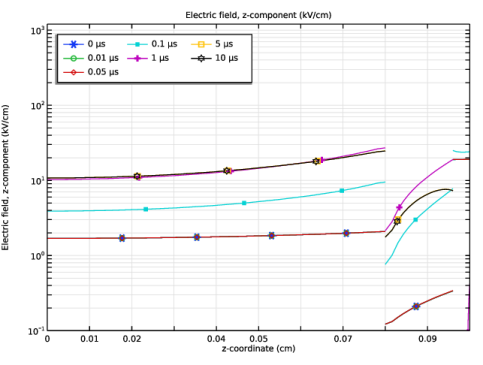
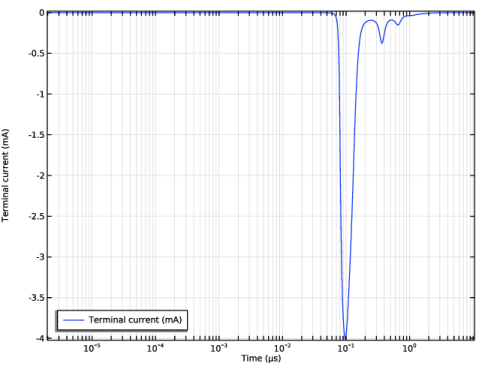
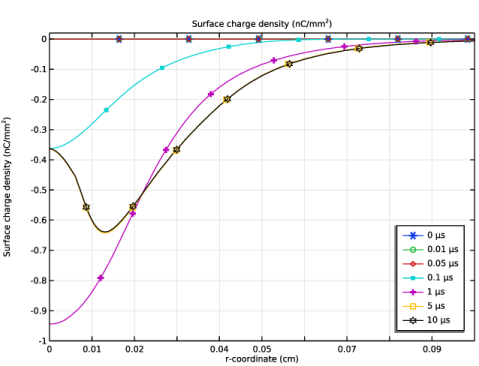
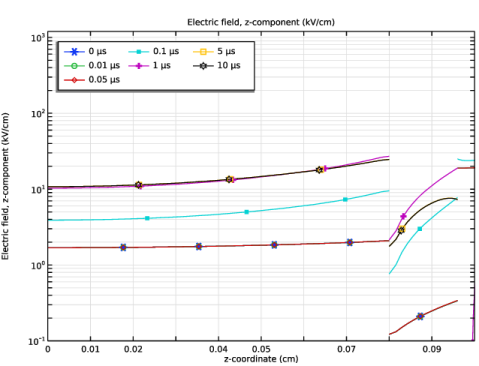
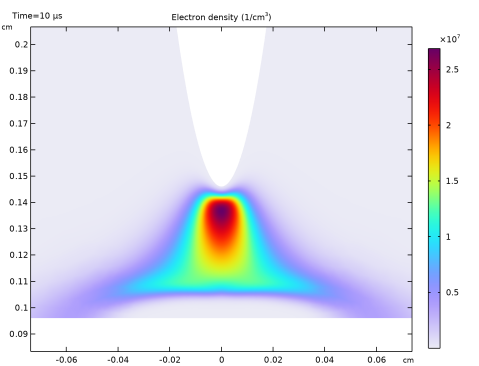
Figure 1 shows the discharge current as a function of time from the first study. There is only one main current pulse due to the charge accumulation effect at the gas–solid interface. Figure 2 shows the radial distribution of the surface charge density at several time instants. The simulated surface charge density is in very good agreement with the experiments published in Ref. 1. Figure 3 plots the corresponding axial electric field at the axis. Note that the electric field is discontinuous due to different material properties.
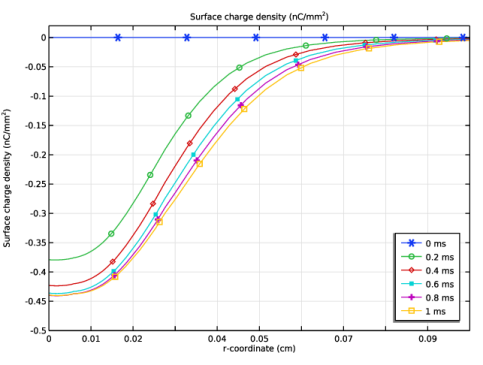
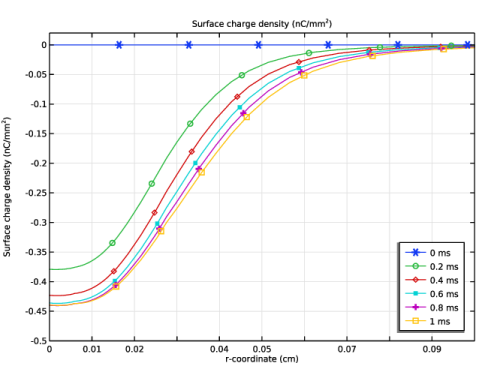
Figure 4 plots the radial distribution of the surface charge density at several time instants from the second study. The surface charge density approaches a steady state after 1 ms.
Figure 1: The discharge current as a function of time.
Figure 2: The radial distributions surface charge density at several time instants of the first study.
Figure 3: The axial electric field at several time instants.
Figure 4: The radial distributions surface charge density at several time instants of the second study.
Reference
1. T. Tran and others, “Numerical modelling of negative discharges in air with experimental validation,” J. Phys. D: Appl. Phys., vol. 44, no. 1, p. 15203, 2010.
Application Library path: Electric_Discharge_Module/Dielectric_Barrier_Discharges/negative_surface_discharge
Modeling Instructions
From the File menu, choose New.
New
In the New window, click  Model Wizard.
Model Wizard
1
In the Model Wizard window, click  2D Axisymmetric.
2
In the Select Physics tree, select Electric Discharge > Electric Discharge (edis).
3
Click Add.
4
Click  Study.
5
In the Select Study tree, select Preset Studies for Selected Physics Interfaces > Time Dependent with Initialization.
6
Global Definitions
Parameters 1
1
In the Model Builder window, under Global Definitions click Parameters 1.
2
In the Settings window for Parameters, locate the Parameters section.
3
Geometry 1
1
In the Model Builder window, under Component 1 (comp1) click Geometry 1.
2
In the Settings window for Geometry, locate the Units section.
3
From the Length unit list, choose cm.
Rectangle 1 (r1)
1
In the Geometry toolbar, click  Rectangle.
2
In the Settings window for Rectangle, click to expand the Layers section.
3
Rectangle 2 (r2)
1
In the Geometry toolbar, click  Rectangle.
2
In the Settings window for Rectangle, locate the Size and Shape section.
3
In the Width text field, type 0.03.
4
Locate the Layers section. Clear the Layers on bottom checkbox.
5
Select the Layers to the left checkbox.
6
7
Click  Build Selected.
Parametric Curve 1 (pc1)
1
In the Geometry toolbar, click  More Primitives and choose Parametric Curve.
2
In the Settings window for Parametric Curve, locate the Parameter section.
3
In the Maximum text field, type 0.2.
4
Locate the Expressions section. In the r text field, type s.
5
In the z text field, type a*(s)^2*1[cm]+gap.
6
Click  Build Selected.
Line Segment 1 (ls1)
1
In the Geometry toolbar, click  More Primitives and choose Line Segment.
2
On the object pc1, select Point 2 only.
3
In the Settings window for Line Segment, locate the Endpoint section.
4
Click to select the  Activate Selection toggle button for End vertex.
5
On the object r1, select Point 4 only.
6
Click  Build Selected.
Line Segment 2 (ls2)
1
In the Geometry toolbar, click  More Primitives and choose Line Segment.
2
On the object ls1, select Point 2 only.
3
In the Settings window for Line Segment, locate the Endpoint section.
4
Click to select the  Activate Selection toggle button for End vertex.
5
On the object pc1, select Point 1 only.
6
Click to clear the  Activate Selection toggle button for End vertex.
7
Click  Build Selected.
Convert to Solid 1 (csol1)
1
In the Geometry toolbar, click  Conversions and choose Convert to Solid.
2
Select the objects ls1, ls2, and pc1 only.
3
In the Settings window for Convert to Solid, click  Build Selected.
Difference 1 (dif1)
1
In the Geometry toolbar, click  Booleans and Partitions and choose Difference.
2
Select the objects r1 and r2 only.
3
In the Settings window for Difference, locate the Difference section.
4
Click to select the  Activate Selection toggle button for Objects to subtract.
5
Parametric Curve 2 (pc2)
1
In the Model Builder window, under Component 1 (comp1) > Geometry 1 right-click Parametric Curve 1 (pc1) and choose Duplicate.
2
In the Settings window for Parametric Curve, locate the Parameter section.
3
In the Maximum text field, type 60[um].
4
Locate the Expressions section. In the z text field, type a*(s)^2*1[cm]/1.2+gap-10[um].
Parametric Curve 3 (pc3)
1
Right-click Parametric Curve 2 (pc2) and choose Duplicate.
2
In the Settings window for Parametric Curve, locate the Expressions section.
3
In the z text field, type a*(s)^2*1[cm]/1.5+gap-60[um].
4
Click  Build All Objects.
5
Click the  Zoom Extents button in the Graphics toolbar.
Electric Discharge (edis)
1
Click the  Show More Options button in the Model Builder toolbar.
2
In the Show More Options dialog, select Physics > Stabilization in the tree.
3
4
5
In the Model Builder window, under Component 1 (comp1) click Electric Discharge (edis).
6
In the Settings window for Electric Discharge, click to expand the Consistent Stabilization section.
7
Clear the Streamline diffusion checkbox.
8
Click to expand the Inconsistent Stabilization section. Select the Isotropic diffusion checkbox.
9
In the δid text field, type 0.15.
10
Locate the Physical Model section. Select the Solid checkbox.
Solid 1
1
In the Model Builder window, under Component 1 (comp1) > Electric Discharge (edis) click Solid 1.
2
3
In the Settings window for Solid, locate the Model Formulation section.
4
From the Material model list, choose Insulator.
Gas 1
1
In the Model Builder window, click Gas 1.
2
In the Settings window for Gas, locate the Transport Properties section.
3
Find the Diffusion subsection. From the Diffusion coefficient list, choose User defined.
4
In the De text field, type 0.18.
5
In the Dp text field, type 0.01.
6
In the Dn text field, type 0.01.
Initial Values 1
1
In the Model Builder window, click Initial Values 1.
2
In the Settings window for Initial Values, locate the Initial Values section.
3
In the ne text field, type 1E5[1/cm^3].
4
In the np text field, type 1E5[1/cm^3].
5
In the nn text field, type 1E5[1/cm^3].
Dielectric Interface, Bulk Transport 1
1
In the Model Builder window, click Dielectric Interface, Bulk Transport 1.
2
In the Settings window for Dielectric Interface, Bulk Transport, locate the Charge Transport section.
3
From the Boundary condition for positive ions list, choose No flux.
Gas 1
In the Model Builder window, click Gas 1.
Electrode 1
1
In the Physics toolbar, click  Attributes and choose Electrode.
2
3
In the Settings window for Electrode, locate the Terminal section.
4
In the V0 text field, type V0.
5
Locate the Charge Transport section. From the Boundary condition for electrons list, choose Surface emission.
6
From the Boundary condition for negative ions list, choose Number density.
7
In the n0,n text field, type 1E5[1/cm^3].
8
Locate the Surface Emission section. Find the Surface emission mechanisms subsection. Select the Secondary electron emission checkbox.
Solid 1
In the Model Builder window, under Component 1 (comp1) > Electric Discharge (edis) click Solid 1.
Electrode 1
1
In the Physics toolbar, click  Attributes and choose Electrode.
2
Add Material
1
In the Materials toolbar, click  Add Material to open the Add Material window.
2
Go to the Add Material window.
3
In the tree, select Electric Discharge > Gases > Air > Air [Kang et al. 2003].
4
Right-click and choose Add to Component 1 (comp1).
5
In the Materials toolbar, click  Add Material to close the Add Material window.
Materials
BSO
1
In the Model Builder window, under Component 1 (comp1) right-click Materials and choose Blank Material.
2
In the Settings window for Material, type BSO in the Label text field.
3
4
Locate the Material Contents section. In the table, enter the following settings:
Glass
1
Right-click Materials and choose Blank Material.
2
3
In the Settings window for Material, type Glass in the Label text field.
4
Locate the Material Contents section. In the table, enter the following settings:
Mesh 1
1
In the Model Builder window, under Component 1 (comp1) click Mesh 1.
2
In the Settings window for Mesh, locate the Sequence Type section.
3
From the list, choose User-controlled mesh.
Mapped 1
1
In the Mesh toolbar, click  Mapped.
2
3
In the Settings window for Mapped, locate the Domain Selection section.
4
From the Geometric entity level list, choose Domain.
5
Distribution 1
1
Right-click Mapped 1 and choose Distribution.
2
3
In the Settings window for Distribution, locate the Distribution section.
4
From the Distribution type list, choose Predefined.
5
In the Number of elements text field, type 150.
6
In the Element ratio text field, type 10.
Distribution 2
1
In the Model Builder window, right-click Mapped 1 and choose Distribution.
2
3
In the Settings window for Distribution, locate the Distribution section.
4
From the Distribution type list, choose Predefined.
5
In the Number of elements text field, type 150.
6
In the Element ratio text field, type 2.
7
Select the Reverse direction checkbox.
Distribution 3
1
Right-click Mapped 1 and choose Distribution.
2
3
In the Settings window for Distribution, locate the Distribution section.
4
From the Distribution type list, choose Predefined.
5
In the Number of elements text field, type 15.
6
In the Element ratio text field, type 10.
7
Select the Reverse direction checkbox.
Size 1
1
In the Model Builder window, right-click Free Triangular 1 and choose Size.
2
In the Settings window for Size, locate the Geometric Entity Selection section.
3
From the Geometric entity level list, choose Domain.
4
5
Locate the Element Size section. Click the Custom button.
6
Locate the Element Size Parameters section.
7
Select the Maximum element size checkbox. In the associated text field, type 1/1000.
8
Select the Maximum element growth rate checkbox. In the associated text field, type 1.1.
Size 2
1
Right-click Free Triangular 1 and choose Size.
2
In the Settings window for Size, locate the Geometric Entity Selection section.
3
From the Geometric entity level list, choose Boundary.
4
5
Locate the Element Size section. Click the Custom button.
6
Locate the Element Size Parameters section.
7
Select the Maximum element size checkbox. In the associated text field, type 1[um].
Distribution 1
1
Right-click Free Triangular 1 and choose Distribution.
2
3
In the Settings window for Distribution, locate the Distribution section.
4
From the Distribution type list, choose Predefined.
5
In the Number of elements text field, type 50.
6
In the Element ratio text field, type 5.
7
Click  Build Selected.
Boundary Layers 1
In the Mesh toolbar, click  Boundary Layers.
Boundary Layer Properties
1
In the Model Builder window, click Boundary Layer Properties.
2
In the Settings window for Boundary Layer Properties, locate the Boundary Selection section.
3
Click  Paste Selection.
4
In the Paste Selection dialog, type 30 31 in the Selection text field.
5
6
In the Settings window for Boundary Layer Properties, locate the Layers section.
7
In the Number of layers text field, type 4.
8
In the Stretching factor text field, type 1.5.
9
In the Model Builder window, right-click Mesh 1 and choose Build All.
10
Click the  Zoom Extents button in the Graphics toolbar.
11
In the Model Builder window, collapse the Mesh 1 node.
Definitions
Global Variable Probe 1 (var1)
1
In the Model Builder window, expand the Component 1 (comp1) > Definitions node.
2
Right-click Definitions and choose Probes > Global Variable Probe.
3
In the Settings window for Global Variable Probe, type i0 in the Variable name text field.
4
Locate the Expression section. In the Expression text field, type edis.I0_0.
5
From the Table and plot unit list, choose mA.
Study 1
Step 2: Time Dependent
1
In the Model Builder window, under Study 1 click Step 2: Time Dependent.
2
In the Settings window for Time Dependent, locate the Study Settings section.
3
From the Time unit list, choose µs.
4
In the Output times text field, type range(0,0.01,0.2) range(1,2,5) 10.
5
Click to expand the Results While Solving section. In the Model Builder window, click Study 1.
6
In the Settings window for Study, locate the Study Settings section.
7
Clear the Generate default plots checkbox.
Solution 1 (sol1)
1
In the Study toolbar, click  Show Default Solver.
2
In the Model Builder window, expand the Solution 1 (sol1) node.
3
In the Model Builder window, expand the Study 1 > Solver Configurations > Solution 1 (sol1) > Time-Dependent Solver 1 node.
4
In the Model Builder window, under Study 1 > Solver Configurations > Solution 1 (sol1) > Time-Dependent Solver 1 click Segregated 1.
5
In the Settings window for Segregated, locate the General section.
6
From the Stabilization and acceleration list, choose Anderson acceleration.
7
In the Model Builder window, under Study 1 > Solver Configurations > Solution 1 (sol1) > Time-Dependent Solver 1 > Segregated 1 click Segregated Step 1.
8
In the Settings window for Segregated Step, click to expand the Method and Termination section.
9
From the Termination technique list, choose Tolerance.
10
In the Model Builder window, under Study 1 > Solver Configurations > Solution 1 (sol1) > Time-Dependent Solver 1 > Segregated 1 click Segregated Step 2.
11
In the Settings window for Segregated Step, locate the Method and Termination section.
12
From the Termination technique list, choose Tolerance.
13
In the Study toolbar, click  Compute.
Results
Discharge Current
1
In the Model Builder window, under Results click Probe Plot Group 1.
2
In the Settings window for 1D Plot Group, type Discharge Current in the Label text field.
3
Locate the Axis section. Select the x-axis log scale checkbox.
4
Locate the Legend section. From the Position list, choose Lower left.
5
In the Discharge Current toolbar, click  Plot.
Surface Charge Density
1
In the Results toolbar, click  1D Plot Group.
2
In the Settings window for 1D Plot Group, type Surface Charge Density in the Label text field.
3
Locate the Data section. From the Time selection list, choose From list.
4
In the Times (µs) list, choose 0, 0.01, 0.05, 0.1, 1, 5, and 10.
5
Locate the Axis section. Select the Manual axis limits checkbox.
6
In the x minimum text field, type 0.
7
In the x maximum text field, type 0.1.
8
In the y maximum text field, type 0.02.
Line Graph 1
Right-click Surface Charge Density and choose Line Graph.
Surface Charge Density
Locate the Legend section. From the Position list, choose Lower right.
Line Graph 1
1
In the Model Builder window, click Line Graph 1.
2
In the Settings window for Line Graph, locate the y-Axis Data section.
3
In the Expression text field, type edis.rhos.
4
In the Unit field, type nC/mm^2.
5
Locate the Selection section. Click to select the  Activate Selection toggle button.
6
Click the  Zoom Box button in the Graphics toolbar.
7
8
Locate the x-Axis Data section. From the Parameter list, choose Expression.
9
In the Expression text field, type r.
10
Click to expand the Coloring and Style section. Find the Line markers subsection. From the Marker list, choose Cycle.
11
From the Positioning list, choose Interpolated.
12
In the Number text field, type 60.
13
Click to expand the Legends section. Select the Show legends checkbox.
Surface Charge Density
1
In the Model Builder window, click Surface Charge Density.
2
In the Surface Charge Density toolbar, click  Plot.
Axial Electric Field
1
Right-click Surface Charge Density and choose Duplicate.
2
In the Settings window for 1D Plot Group, type Axial Electric Field in the Label text field.
3
Locate the Legend section. From the Position list, choose Upper left.
4
In the Number of columns text field, type 3.
Line Graph 1
1
In the Model Builder window, expand the Axial Electric Field node, then click Line Graph 1.
2
In the Settings window for Line Graph, locate the y-Axis Data section.
3
In the Expression text field, type edis.Ez.
4
In the Unit field, type kV/cm.
5
Locate the Selection section. Click to select the  Activate Selection toggle button.
6
Click  Clear Selection.
7
8
Locate the x-Axis Data section. In the Expression text field, type z.
9
Locate the Coloring and Style section. Find the Line markers subsection. In the Number text field, type 8.
Axial Electric Field
1
In the Model Builder window, click Axial Electric Field.
2
In the Settings window for 1D Plot Group, locate the Axis section.
3
In the y minimum text field, type 0.1.
4
In the y maximum text field, type 1200.
5
Click the  y-Axis Log Scale button in the Graphics toolbar.
6
In the Axial Electric Field toolbar, click  Plot.
Mirror 2D 1
1
In the Model Builder window, expand the Results > Datasets node.
2
Right-click Results > Datasets and choose More 2D Datasets > Mirror 2D.
Electron Density
1
In the Results toolbar, click  2D Plot Group.
2
In the Settings window for 2D Plot Group, type Electron Density in the Label text field.
3
Locate the Plot Settings section. Clear the Plot dataset edges checkbox.
Surface 1
1
Right-click Electron Density and choose Surface.
2
In the Settings window for Surface, locate the Expression section.
3
In the Expression text field, type edis.n_e.
4
In the Unit field, type 1/cm^3.
5
Locate the Coloring and Style section. From the Color table list, choose Prism.
Electron Density
1
In the Model Builder window, click Electron Density.
2
In the Settings window for 2D Plot Group, locate the Data section.
3
From the Dataset list, choose Mirror 2D 1.
4
Locate the Plot Settings section. From the View list, choose New view.
5
In the Electron Density toolbar, click  Plot.
6
Click  Go to Source.
Axis
1
In the Model Builder window, expand the View 2D 2 node, then click Axis.
2
In the Settings window for Axis, locate the Axis section.
3
In the x minimum text field, type -0.06.
4
In the x maximum text field, type 0.06.
5
In the y minimum text field, type 0.09.
6
In the y maximum text field, type 0.2.
Electron Density
In the Model Builder window, under Results click Electron Density.
Next, use a different boundary condition to model the slow charging.
Electric Discharge (edis)
In the Model Builder window, under Component 1 (comp1) right-click Electric Discharge (edis) and choose Copy.
Electric Discharge 2 (edis2)
1
In the Model Builder window, right-click Component 1 (comp1) and choose Paste Electric Discharge.
2
In the Messages from Paste dialog, click OK.
Global Definitions
Ramp 1 (rm1)
1
In the Home toolbar, click  Functions and choose Global > Ramp.
2
In the Settings window for Ramp, locate the Parameters section.
3
Select the Cutoff checkbox.
Electric Discharge 2 (edis2)
In the Model Builder window, expand the Component 1 (comp1) > Electric Discharge 2 (edis2) node.
Electrode 1
1
In the Model Builder window, expand the Component 1 (comp1) > Electric Discharge 2 (edis2) > Gas 1 node, then click Electrode 1.
2
In the Settings window for Electrode, locate the Terminal section.
3
In the V0 text field, type V0*rm1(t/10[us]).
4
Locate the Charge Transport section. From the Boundary condition for electrons list, choose Number density.
5
In the n0,e text field, type 1E5[1/cm^3].
Dielectric Interface, Bulk Transport 1
1
In the Model Builder window, click Dielectric Interface, Bulk Transport 1.
2
In the Settings window for Dielectric Interface, Bulk Transport, locate the Charge Transport section.
3
From the Boundary condition for positive ions list, choose No diffusive flux.
Definitions
Global Variable Probe 2 (var2)
1
In the Model Builder window, under Component 1 (comp1) > Definitions right-click Global Variable Probe 1 (i0) and choose Duplicate.
2
In the Settings window for Global Variable Probe, type i02 in the Variable name text field.
3
Locate the Expression section. In the Expression text field, type edis2.I0_0.
4
Click to expand the Table and Window Settings section. Click  Add Table.
5
Click  Add Plot Window.
Study 1, Fast Charging
1
In the Model Builder window, click Study 1.
2
In the Settings window for Study, type Study 1, Fast Charging in the Label text field.
Disable the second Electric Discharge interface in model such that the Study 1 can still be solved. Note that disabling in solver is not enough since the second interface overrides the common model input that is used by the material.
Step 1: Electrostatics Initialization
1
In the Model Builder window, under Study 1, Fast Charging click Step 1: Electrostatics Initialization.
2
In the Settings window for Electrostatics Initialization, locate the Physics and Variables Selection section.
3
Select the Modify model configuration for study step checkbox.
4
In the tree, select Component 1 (comp1) > Electric Discharge 2 (edis2).
5
Right-click and choose Disable in Model.
Step 2: Time Dependent
1
In the Model Builder window, click Step 2: Time Dependent.
2
In the Settings window for Time Dependent, locate the Physics and Variables Selection section.
3
Select the Modify model configuration for study step checkbox.
4
In the tree, select Component 1 (comp1) > Electric Discharge 2 (edis2).
5
Right-click and choose Disable in Model.
6
Locate the Results While Solving section. From the Probes list, choose Manual.
7
In the Probes list box, select Global Variable Probe 2 (i02).
8
Under Probes, click  Delete.
Add Study
1
In the Home toolbar, click  Windows and choose Add Study.
2
Go to the Add Study window.
3
Find the Studies subsection. In the Select Study tree, select Preset Studies for Selected Physics Interfaces > Time Dependent with Initialization.
4
Click the Add Study button in the window toolbar.
Study 2
Step 1: Electrostatics Initialization
1
In the Settings window for Electrostatics Initialization, locate the Physics and Variables Selection section.
2
In the Solve for column of the table, under Component 1 (comp1), clear the checkbox for Electric Discharge (edis).
Step 2: Time Dependent
1
In the Model Builder window, click Step 2: Time Dependent.
2
In the Settings window for Time Dependent, locate the Physics and Variables Selection section.
3
In the Solve for column of the table, under Component 1 (comp1), clear the checkbox for Electric Discharge (edis).
4
Locate the Study Settings section. From the Time unit list, choose ms.
5
In the Output times text field, type range(0,0.2,1).
6
Locate the Results While Solving section. From the Probes list, choose Manual.
7
In the Probes list box, select Global Variable Probe 1 (i0).
8
Under Probes, click  Delete.
The second study does not require a fine mesh. Add a coarse mesh for it.
Mesh 1
In the Model Builder window, under Component 1 (comp1) right-click Mesh 1 and choose Duplicate.
Mesh 2
In the Model Builder window, expand the Mesh 2 node.
Distribution 1
1
In the Model Builder window, expand the Component 1 (comp1) > Meshes > Mesh 2 > Mapped 1 node, then click Distribution 1.
2
In the Settings window for Distribution, locate the Distribution section.
3
In the Number of elements text field, type 30.
Distribution 2
1
In the Model Builder window, click Distribution 2.
2
In the Settings window for Distribution, locate the Distribution section.
3
In the Number of elements text field, type 30.
Size 1
1
In the Model Builder window, expand the Component 1 (comp1) > Meshes > Mesh 2 > Free Triangular 1 node, then click Size 1.
2
In the Settings window for Size, locate the Element Size Parameters section.
3
In the Maximum element size text field, type 1/100.
Size 2
1
In the Model Builder window, expand the Component 1 (comp1) > Meshes > Mesh 2 > Boundary Layers 1 node, then click Component 1 (comp1) > Meshes > Mesh 2 > Free Triangular 1 > Size 2.
2
In the Settings window for Size, locate the Element Size Parameters section.
3
In the Maximum element size text field, type 5[um].
Boundary Layer Properties
1
In the Model Builder window, under Component 1 (comp1) > Meshes > Mesh 2 > Boundary Layers 1 right-click Boundary Layer Properties and choose Build All.
2
Click the  Zoom Extents button in the Graphics toolbar.
Study 2
Step 1: Electrostatics Initialization
1
In the Model Builder window, under Study 2 click Step 1: Electrostatics Initialization.
2
In the Settings window for Electrostatics Initialization, click to expand the Mesh Selection section.
3
Step 2: Time Dependent
1
In the Model Builder window, click Step 2: Time Dependent.
2
In the Settings window for Time Dependent, click to expand the Mesh Selection section.
3
4
In the Model Builder window, click Study 2.
5
In the Settings window for Study, type Study 1, Slow Charging in the Label text field.
6
Locate the Study Settings section. Clear the Generate default plots checkbox.
7
In the Study toolbar, click  Compute.
Results
Surface Charge Density 1
In the Model Builder window, right-click Surface Charge Density and choose Duplicate.
Discharge Current, Slow Charging
In the Settings window for 1D Plot Group, type Discharge Current, Slow Charging in the Label text field.
Surface Charge Density, Slow Charging
1
In the Model Builder window, under Results click Surface Charge Density 1.
2
In the Settings window for 1D Plot Group, type Surface Charge Density, Slow Charging in the Label text field.
3
Locate the Data section. From the Dataset list, choose Study 1, Slow Charging/Solution 3 (sol3).
4
Locate the Axis section. In the y minimum text field, type -0.5.
Line Graph 1
1
In the Model Builder window, expand the Surface Charge Density, Slow Charging node, then click Line Graph 1.
2
In the Settings window for Line Graph, locate the y-Axis Data section.
3
In the Expression text field, type edis2.rhos.
4
In the Surface Charge Density, Slow Charging toolbar, click  Plot.