PDF

Ionic Wind
Introduction
Ionic wind, created by the movement of charged particles in an electric field, can be harnessed for various applications, such as cooling electronic components and enhancing heat dissipation in high-performance devices. The ability to control and optimize ionic wind has significant potential in developing efficient cooling solutions for modern electronics, where managing heat is crucial for maintaining performance and reliability.
This numerical model starts from the library model Current-Voltage Characteristics of a Wire-to-Wire Corona Discharge and adds a fluid flow analysis.
Model Definition
A sequential coupling approach is employed by applying the electrohydrodynamic force generated by the corona discharge as a load on the fluid flow. The built-in variable for the electrohydrodynamic force, edis.F, can be directly accessed from the Volume Force feature in the Laminar Flow interface.
Results and Discussion
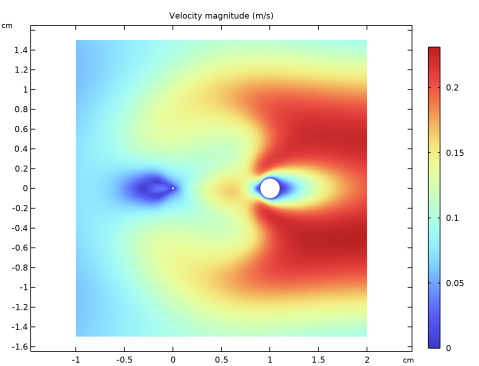
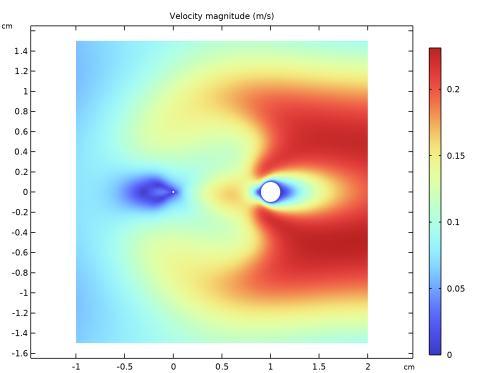
Figure 1 shows the ionic wind velocity driven by the corona discharge.
Figure 1: The ionic wind velocity.
Application Library path: Electric_Discharge_Module/Discharge-Induced_Effects/ionic_wind
Modeling Instructions
Root
Open the corona_discharge_iv_curve model.
Application Libraries
1
From the File menu, choose Application Libraries.
2
In the Application Libraries window, select Electric Discharge Module > Corona Discharges > corona_discharge_iv_curve in the tree.
3
Add Physics
1
In the Home toolbar, click  Add Physics to open the Add Physics window.
2
Go to the Add Physics window.
3
In the tree, select Fluid Flow > Single-Phase Flow > Laminar Flow (spf).
4
Click the Add to Component 1 button in the window toolbar.
5
In the Home toolbar, click  Add Physics to close the Add Physics window.
Laminar Flow (spf)
Fluid Properties 1
1
In the Settings window for Fluid Properties, locate the Fluid Properties section.
2
From the ρ list, choose User defined. In the associated text field, type 1.225[kg/m^3].
3
From the μ list, choose User defined. In the associated text field, type 1e-4[Pa*s].
Volume Force 1
1
In the Physics toolbar, click  Domains and choose Volume Force.
2
In the Settings window for Volume Force, locate the Volume Force section.
3
From the F list, choose Electrohydrodynamic force (edis/gas1).
4
Click in the Graphics window and then press Ctrl+A to select both domains.
Pressure Point Constraint 1
1
In the Physics toolbar, click  Points and choose Pressure Point Constraint.
2
Study 1
Step 2: Stationary
1
In the Model Builder window, expand the Study 1 node, then click Step 2: Stationary.
2
In the Settings window for Stationary, locate the Physics and Variables Selection section.
3
In the Solve for column of the table, under Component 1 (comp1), clear the checkbox for Laminar Flow (spf).
Add Study
1
In the Study toolbar, click  Add Study to open the Add Study window.
2
Go to the Add Study window.
3
Find the Studies subsection. In the Select Study tree, select General Studies > Stationary.
4
Click the Add Study button in the window toolbar.
5
In the Study toolbar, click  Add Study to close the Add Study window.
Study 2
Step 1: Stationary
1
In the Settings window for Stationary, locate the Physics and Variables Selection section.
2
In the Solve for column of the table, under Component 1 (comp1), clear the checkbox for Electric Discharge (edis).
3
Click to expand the Values of Dependent Variables section. Find the Values of variables not solved for subsection. From the Settings list, choose User controlled.
4
From the Method list, choose Solution.
5
From the Study list, choose Study 1, Stationary.
6
From the Parameter value (V0 (V)) list, choose Last.
7
In the Study toolbar, click  Compute.
Results
Surface
1
In the Model Builder window, expand the Velocity (spf) node, then click Surface.
2
In the Settings window for Surface, locate the Coloring and Style section.
3
From the Color table list, choose RainbowLight.
Selection 1
1
Right-click Surface and choose Selection.
2
Velocity (spf)
1
In the Model Builder window, under Results click Velocity (spf).
2
In the Settings window for 2D Plot Group, locate the Plot Settings section.
3
Clear the Plot dataset edges checkbox.
4
In the Velocity (spf) toolbar, click  Plot.
5
Click the  Zoom Extents button in the Graphics toolbar.