PDF

Electrostatic Discharge
Introduction
Electrostatic discharge (ESD) occurs when there is a sudden flow of electricity between two objects with different electrical potentials. This often happens when a charged object, like a human hand, comes into contact with a conductive material, such as metal. The process begins with the accumulation of static charge on the human body, typically due to frictional contact with various materials—like walking across a carpet or rubbing against certain fabrics. The human body can store this static electricity, leading to a significant voltage build-up.
As the charged hand approaches the metal object, the electric field between the two intensifies. Once the hand is close enough, the electric field becomes strong enough to ionize the air molecules between them, creating a conductive path. This allows the accumulated charge to rapidly discharge from the hand to the metal, resulting in a brief, high-current pulse—an ESD event. This discharge equalizes the potential difference between the hand and the metal, often producing a visible spark and potentially damaging sensitive electronic components.
To simulate this complex phenomenon, the model connects the Electrical Discharge interface with the Electrical Circuit interface. The Electrical Discharge interface is used to simulate the ionization and discharge process between the hand and the metal. Meanwhile, the Electrical Circuit interface represents the human body, modeling how it stores and releases the static charge. Together, these interfaces allow for a detailed simulation of how ESD current is generated and how it interacts with electrical circuits.
Model Definition
Field–Circuit Model
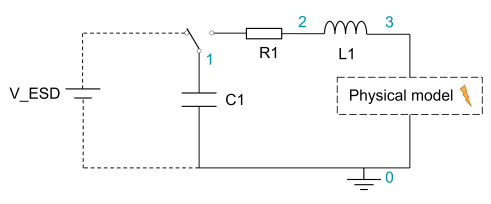
The human body is represented by a typical RLC circuit as shown in Figure 1. In this model, it is assumed that human body is charged to 8 kV and has a resistance, inductance, and capacitance of 300 Ω, 1.5 μH, and 150 pF, respectively. The Electrical Circuit interface is employed to model this circuit. The node names (0, 1, 2, 3) are also labeled in Figure 1. To integrate the circuit with the physical discharge model, the External U vs. I feature is used to establish the connection between the circuit and the discharge simulation.
.
Figure 1: The Field–Circuit Model.
Charge Transport Model
The spark discharge between human finger and metal is modeled using the built-in charge transport model in the Electric Discharge interface.
where
e, p, n denote electrons, positive ions, and negative ions
ni is the number density of the charge carrier (SI unit: 1/m3)
E is the electric field (SI unit: V/m)
zi denotes the carrier charge (SI unit: 1)
μi denotes the carrier mobility (SI unit: m2/(V·s))
wi is the drift velocity in the electric field (SI unit: m/s)
Di is the diffusion coefficient (SI unit: m2/s)
Ri is the reaction rate (SI unit: 1/(m3·s))
α is the ionization coefficient (SI unit: 1/m)
η is the attachment coefficient (SI unit: 1/m)
βep is the electron–ion recombination coefficient (SI unit: m3/s)
βpn is the ion–ion recombination coefficient (SI unit: m3/s)
The above transport equations are fully coupled with Poisson’s equation through the electric field and the space charge:
where e is the elementary charge.
Results and Discussion
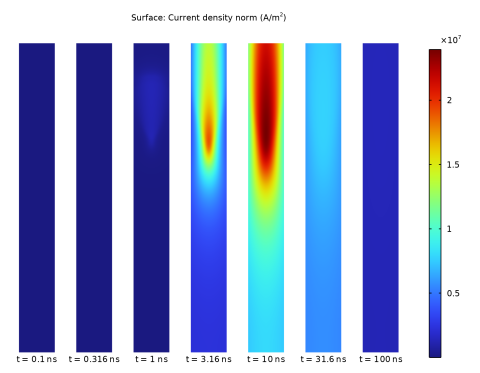
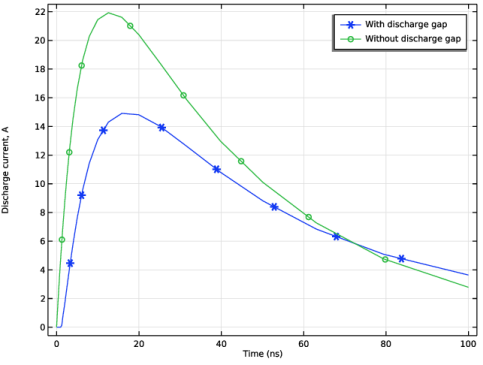
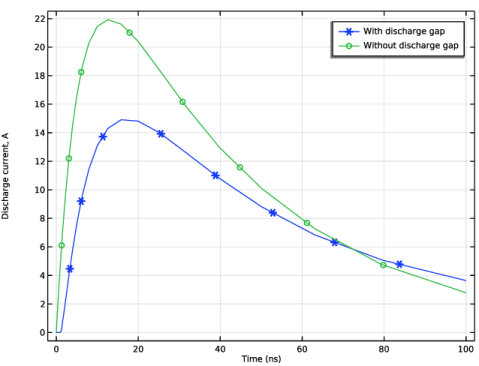
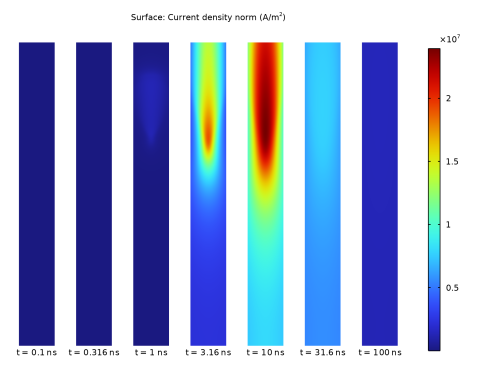
Figure 2 plots the electric current density for several instants during the ESD simulation. Figure 3 compares the ESD current with and without the discharge gap.
Figure 2: Electric current density distribution in the discharge gap.
Figure 3: Simulated ESD current.
Application Library path: Electric_Discharge_Module/Electrostatic_Discharges/esd
Modeling Instructions
From the File menu, choose New.
New
In the New window, click  Model Wizard.
Model Wizard
1
In the Model Wizard window, click  2D Axisymmetric.
2
In the Select Physics tree, select Electric Discharge > Electric Discharge (edis).
3
Click Add.
4
Click  Study.
5
In the Select Study tree, select Preset Studies for Selected Physics Interfaces > Time Dependent with Initialization.
6
Geometry 1
1
In the Model Builder window, under Component 1 (comp1) click Geometry 1.
2
In the Settings window for Geometry, locate the Units section.
3
From the Length unit list, choose mm.
Global Definitions
Parameters 1
1
In the Model Builder window, under Global Definitions click Parameters 1.
2
In the Settings window for Parameters, locate the Parameters section.
3
300[Ω]
Geometry 1
Rectangle 1 (r1)
1
In the Geometry toolbar, click  Rectangle.
2
In the Settings window for Rectangle, click to expand the Layers section.
3
Select the Layers to the left checkbox.
4
Clear the Layers on bottom checkbox.
5
6
Click  Build All Objects.
Add Material from Library
In the Home toolbar, click  Windows and choose Add Material from Library.
Add Material
1
Go to the Add Material window.
2
In the tree, select Electric Discharge > Gases > Air > Air [Kang et al. 2003].
3
Right-click and choose Add to Component 1 (comp1).
Electric Discharge (edis)
Gas 1
In the Model Builder window, under Component 1 (comp1) > Electric Discharge (edis) click Gas 1.
Electrode 1
1
In the Physics toolbar, click  Attributes and choose Electrode.
2
Gas 1
In the Model Builder window, click Gas 1.
Electrode 2
1
In the Physics toolbar, click  Attributes and choose Electrode.
2
3
In the Settings window for Electrode, locate the Terminal section.
4
In the V0 text field, type V_ESD.
Electrode 3
1
Right-click Electrode 2 and choose Duplicate.
2
In the Settings window for Electrode, locate the Terminal section.
3
From the Terminal type list, choose Circuit.
Add Physics
1
In the Home toolbar, click  Windows and choose Add Physics.
2
Go to the Add Physics window.
3
In the tree, select AC/DC > Electrical Circuit (cir).
4
Click the Add to Component 1 button in the window toolbar.
Electrical Circuit (cir)
Capacitor 1 (C1)
1
In the Electrical Circuit toolbar, click  Capacitor.
2
In the Settings window for Capacitor, locate the Node Connections section.
3
4
Locate the Device Parameters section. In the C text field, type C1.
5
In the UC0 text field, type V_ESD.
Resistor 1 (R1)
1
In the Electrical Circuit toolbar, click  Resistor.
2
In the Settings window for Resistor, locate the Node Connections section.
3
4
In the Model Builder window, click Resistor 1 (R1).
5
Locate the Device Parameters section. In the R text field, type R1.
Inductor 1 (L1)
1
In the Electrical Circuit toolbar, click  Inductor.
2
In the Settings window for Inductor, locate the Device Parameters section.
3
In the L text field, type L1.
4
Locate the Node Connections section. In the table, enter the following settings:
5
In the Model Builder window, right-click Electrical Circuit (cir) and choose Copy.
Electrical Circuit 2 (cir2)
1
In the Model Builder window, right-click Component 1 (comp1) and choose Paste Electrical Circuit.
2
In the Messages from Paste dialog, click OK.
Electrical Circuit (cir)
External U vs. I 1 (UvsI1)
1
In the Electrical Circuit toolbar, click  External U vs. I.
2
In the Settings window for External U vs. I, locate the Node Connections section.
3
4
Locate the External Device section. From the I list, choose Terminal current (edis/gas1/ece3).
Electrical Circuit 2 (cir2)
Inductor 1 (L1)
1
In the Model Builder window, expand the Electrical Circuit 2 (cir2) node, then click Inductor 1 (L1).
2
In the Settings window for Inductor, locate the Node Connections section.
3
Definitions
Variables 1
1
In the Model Builder window, expand the Component 1 (comp1) > Definitions node.
2
Right-click Definitions and choose Variables.
3
In the Settings window for Variables, locate the Variables section.
4
Electric Discharge (edis)
Gas 1
1
In the Model Builder window, under Component 1 (comp1) > Electric Discharge (edis) click Gas 1.
2
In the Settings window for Gas, locate the Model Formulation section.
3
From the Charge carriers list, choose Electrons and positive ions.
Initial Values 1
1
In the Model Builder window, click Initial Values 1.
2
In the Settings window for Initial Values, locate the Initial Values section.
3
In the ne text field, type N0.
4
In the np text field, type N0.
Study 1
Step 1: Electrostatics Initialization
1
In the Model Builder window, under Study 1 click Step 1: Electrostatics Initialization.
2
In the Settings window for Electrostatics Initialization, locate the Physics and Variables Selection section.
3
Select the Modify model configuration for study step checkbox.
4
In the tree, select Component 1 (comp1) > Electric Discharge (edis) > Gas 1 > Electrode 3.
5
Step 2: Time Dependent
1
In the Model Builder window, click Step 2: Time Dependent.
2
In the Settings window for Time Dependent, locate the Physics and Variables Selection section.
3
In the Solve for column of the table, under Component 1 (comp1), clear the checkbox for Electrical Circuit 2 (cir2).
Add Study
1
In the Home toolbar, click  Windows and choose Add Study.
2
Go to the Add Study window.
3
Find the Studies subsection. In the Select Study tree, select General Studies > Time Dependent.
4
Click the Add Study button in the window toolbar.
Study 1
1
In the Settings window for Time Dependent, locate the Study Settings section.
2
From the Time unit list, choose ns.
3
In the Output times text field, type 0 10^{range(log10(0.001),1/10,log10(100))}.
Study 2
Step 1: Time Dependent
1
In the Model Builder window, under Study 2 click Step 1: Time Dependent.
2
In the Settings window for Time Dependent, locate the Study Settings section.
3
From the Time unit list, choose ns.
4
In the Output times text field, type 0 10^{range(log10(0.001),1/10,log10(100))}.
Mesh 1
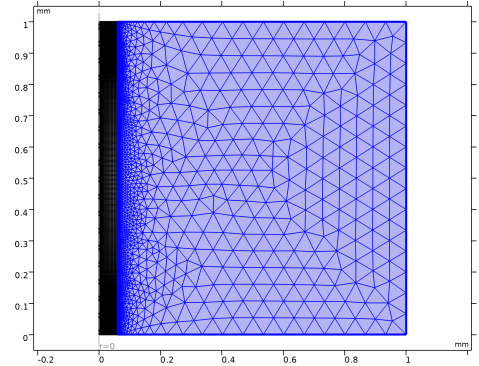
Mapped 1
1
In the Mesh toolbar, click  Mapped.
2
In the Settings window for Mapped, locate the Domain Selection section.
3
From the Geometric entity level list, choose Domain.
4
Distribution 1
1
Right-click Mapped 1 and choose Distribution.
2
In the Settings window for Distribution, locate the Distribution section.
3
From the Distribution type list, choose Predefined.
4
5
In the Number of elements text field, type 20.
6
In the Element ratio text field, type 10.
7
Select the Reverse direction checkbox.
Distribution 2
1
In the Model Builder window, right-click Mapped 1 and choose Distribution.
2
3
In the Settings window for Distribution, locate the Distribution section.
4
From the Distribution type list, choose Predefined.
5
In the Number of elements text field, type 400.
6
In the Element ratio text field, type 5.
7
Select the Symmetric distribution checkbox.
8
Click the  Zoom Extents button in the Graphics toolbar.
Free Triangular 1
1
In the Mesh toolbar, click  Free Triangular.
2
In the Settings window for Free Triangular, click  Build All.
Study 1
1
In the Model Builder window, click Study 1.
2
In the Settings window for Study, locate the Study Settings section.
3
Clear the Generate default plots checkbox.
4
In the Study toolbar, click  Compute.
Study 2
Step 1: Time Dependent
1
In the Model Builder window, under Study 2 click Step 1: Time Dependent.
2
In the Settings window for Time Dependent, locate the Physics and Variables Selection section.
3
In the Solve for column of the table, under Component 1 (comp1), clear the checkboxes for Electric Discharge (edis) and Electrical Circuit (cir).
4
In the Model Builder window, click Study 2.
5
In the Settings window for Study, locate the Study Settings section.
6
Clear the Generate default plots checkbox.
7
In the Study toolbar, click  Compute.
Results
1D Plot Group 1
In the Results toolbar, click  1D Plot Group.
Global 1
1
Right-click 1D Plot Group 1 and choose Global.
2
In the Settings window for Global, locate the y-Axis Data section.
3
4
Click to expand the Coloring and Style section. Find the Line markers subsection. From the Marker list, choose Cycle.
5
From the Positioning list, choose Interpolated.
Global 2
1
In the Model Builder window, right-click 1D Plot Group 1 and choose Global.
2
In the Settings window for Global, locate the Data section.
3
From the Dataset list, choose Study 2/Solution 3 (sol3).
4
Locate the y-Axis Data section. In the table, enter the following settings:
5
Locate the Coloring and Style section. Find the Line markers subsection. From the Marker list, choose Cycle.
6
From the Positioning list, choose Interpolated.
1D Plot Group 1
1
In the Model Builder window, click 1D Plot Group 1.
2
In the Settings window for 1D Plot Group, click to expand the Title section.
3
From the Title type list, choose None.
4
Locate the Plot Settings section.
5
Select the y-axis label checkbox. In the associated text field, type Discharge current, A.
6
In the 1D Plot Group 1 toolbar, click  Plot.
2D Plot Group 2
In the Results toolbar, click  2D Plot Group.
Surface 1
Right-click 2D Plot Group 2 and choose Surface.
Mirror 2D 1
In the Results toolbar, click  More Datasets and choose Mirror 2D.
Selection
1
In the Results toolbar, click  Attributes and choose Selection.
2
In the Settings window for Selection, locate the Geometric Entity Selection section.
3
From the Geometric entity level list, choose Domain.
4
Surface 1
1
In the Model Builder window, under Results > 2D Plot Group 2 click Surface 1.
2
In the Settings window for Surface, locate the Expression section.
3
In the Expression text field, type edis.normJ.
2D Plot Group 2
1
In the Model Builder window, click 2D Plot Group 2.
2
In the Settings window for 2D Plot Group, locate the Data section.
3
From the Dataset list, choose Mirror 2D 1.
4
Locate the Plot Settings section. Clear the Plot dataset edges checkbox.
Solution Array 1
1
In the Model Builder window, right-click Surface 1 and choose Solution Array.
2
In the Settings window for Solution Array, locate the Data section.
3
From the Time selection list, choose Interpolated.
4
In the Times (ns) text field, type 10^{range(log10(0.1),1/2,log10(100))}.
2D Plot Group 2
1
Click the  Show Grid button in the Graphics toolbar.
2
In the Model Builder window, under Results click 2D Plot Group 2.
3
In the Settings window for 2D Plot Group, click to expand the Title section.
4
From the Title type list, choose Custom.
5
Find the Solution subsection. Clear the Solution checkbox.
Annotation 1
1
Right-click 2D Plot Group 2 and choose Annotation.
2
In the Settings window for Annotation, locate the Annotation section.
3
In the Text text field, type t = eval(t,ns,3) ns.
4
Locate the Coloring and Style section. Clear the Show point checkbox.
Solution Array 1
In the Model Builder window, under Results > 2D Plot Group 2 > Surface 1 right-click Solution Array 1 and choose Copy.
Solution Array 1
In the Model Builder window, right-click Annotation 1 and choose Paste Solution Array.
Annotation 1
1
In the Settings window for Annotation, click to expand the Plot Array section.
2
Select the Manual indexing checkbox.
3
Locate the Coloring and Style section. From the Anchor point list, choose Upper middle.
Current Density
1
In the Model Builder window, under Results click 2D Plot Group 2.
2
In the Settings window for 2D Plot Group, type Current Density in the Label text field.
3
Click to expand the Plot Array section. In the Relative padding text field, type 0.6.
4
In the Current Density toolbar, click  Plot.
5
Click the  Zoom Extents button in the Graphics toolbar.