PDF

Double-Headed Streamer in Parallel-Plate Electrodes
Introduction
Streamers are ephemeral, filamentary electric discharges that can form in a nonconductive environment when exposed to a strong electric field. These discharges can achieve a high density of electrons, leading to a concentration of chemically active species relevant in various applications.
Their propagation involves highly nonlinear dynamics characterized by steep density gradients and the presence of high space-charge density in thin layers. At the forefront of the streamer, charge separation generates intense electric fields, driving sharp ionization fronts into the surrounding neutral medium.
In negative streamers (directed toward the anode), ionizing electrons are propelled outward by the space charge, extending the streamer toward the anode. These electrons, often high in energy, can result from drift, diffusion, photoionization, or other mechanisms providing seed electrons ahead of the streamer. Conversely, in positive streamers (directed toward the cathode), the space-charge field accelerates electrons inward, necessitating an ionization mechanism for the production of ionizing electrons.
This case study investigates a double-headed streamer between parallel-plate electrodes. Initially, a cluster of electrons is positioned between two electrodes spaced 1 cm apart, subject to a 52 kV voltage, creating a background electric field of 52 kV/cm. Negative and positive streamers propagate toward the electrodes, exhibiting electric field and electron density consistent with simulation results in Ref. 1.
Model Definition
The model is two-dimensional and describes the transient behavior of an initial electron seed in the presence of a strong electric field. The Electric Discharge interface is used to simulate the streamer propagation. The built-in charge transport model is used:
where
e, p, n denote electrons, positive ions, and negative ions
ni is the number density of the charge carrier (SI unit: 1/m3)
E is the electric field (SI unit: V/m)
zi denotes the carrier charge (SI unit: 1)
μi denotes the carrier mobility (SI unit: m2/(V·s))
wi is the drift velocity in the electric field (SI unit: m/s)
Di is the diffusion coefficient (SI unit: m2/s)
Ri is the reaction rate (SI unit: 1/(m3·s))
α is the ionization coefficient (SI unit: 1/m)
η is the attachment coefficient (SI unit: 1/m)
βep is the electron–ion recombination coefficient (SI unit: m3/s)
βpn is the ion–ion recombination coefficient (SI unit: m3/s)
The above transport equations are fully coupled with Poisson’s equation through the electric field and the space charge:
where e is the elementary charge.
In this model, electrons and positive ions are modeled, while negative ions are neglected.
Results and Discussion
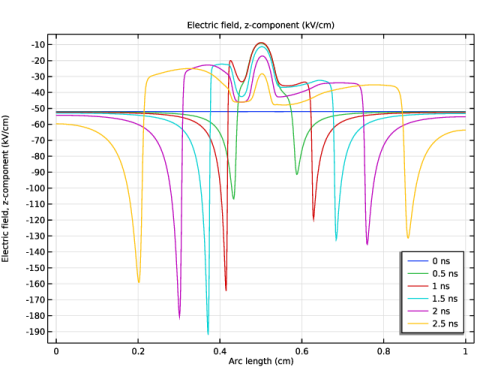
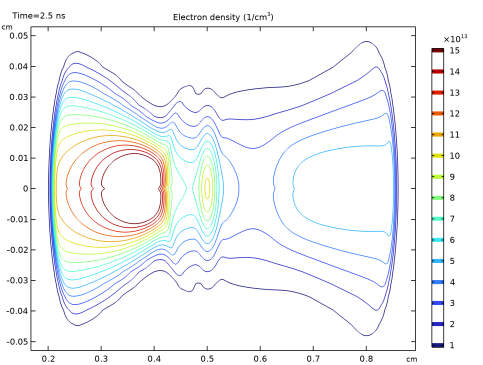
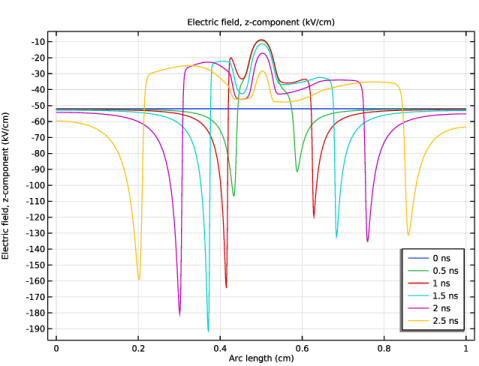
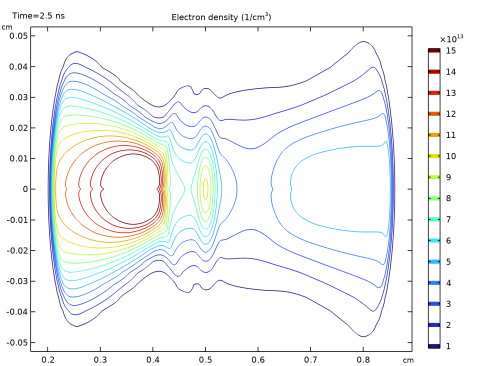
Figure 1 plots the z component of the electric field for several instants during the streamer simulation. Figure 2 shows the electron density distribution at 2.5 ns.
Starting from the center, two streamers develop toward the electrodes. These streamers have different propagation mechanisms that result in different morphologies and propagation speeds. The top streamer is anode directed and develops a negative space-charge density since the electric field pulls electrons ahead of the streamer. The bottom streamer is cathode directed and the electrons are drifting in the opposite direction of the streamer propagation. The propagation of the cathode-directed streamer is only possible because it is given a high enough background electron density. For simulating a positive streamer in a weak field, the photoionization effect has to be taken into account. See the library model Positive Streamer Propagation in a Weak Electric Field for such an example.
Figure 1: Spatial distribution along the axis of symmetry of the z-component of the electric field for several time instants during the streamer propagation. Compare with figure 7 of Ref. 1.
Figure 2: Contours of the electron number density at 2.5 ns. Compare with figure 6 of Ref. 1.
References
1. D. Bessières, J. Paillol, A. Bourdon, P. Segur, and E. Marode, “A new one-dimensional moving mesh method applied to the simulation of streamer discharges,” J. Phys. D: Appl. Phys., vol. 40, pp. 6559–6570, 2007.
Application Library path: Electric_Discharge_Module/Streamer_Discharges/double_headed_streamer
Modeling Instructions
From the File menu, choose New.
New
In the New window, click  Model Wizard.
Model Wizard
1
In the Model Wizard window, click  2D Axisymmetric.
2
In the Select Physics tree, select Electric Discharge > Electric Discharge (edis).
3
Click Add.
4
Click  Study.
5
In the Select Study tree, select Preset Studies for Selected Physics Interfaces > Time Dependent with Initialization.
6
Global Definitions
Parameters 1
1
In the Model Builder window, under Global Definitions click Parameters 1.
2
In the Settings window for Parameters, locate the Parameters section.
3
Definitions
Variables 1
1
In the Model Builder window, under Component 1 (comp1) right-click Definitions and choose Variables.
2
In the Settings window for Variables, locate the Variables section.
3
Geometry 1
1
In the Model Builder window, under Component 1 (comp1) click Geometry 1.
2
In the Settings window for Geometry, locate the Units section.
3
From the Length unit list, choose cm.
Rectangle 1 (r1)
1
In the Geometry toolbar, click  Rectangle.
2
In the Settings window for Rectangle, click to expand the Layers section.
3
Clear the Layers on bottom checkbox.
4
Select the Layers to the left checkbox.
5
Electric Discharge (edis)
Gas 1
1
In the Model Builder window, under Component 1 (comp1) > Electric Discharge (edis) click Gas 1.
2
In the Settings window for Gas, locate the Model Formulation section.
3
From the Charge carriers list, choose Electrons and positive ions.
4
Locate the Transport Properties section. Find the Drift subsection. From the μp list, choose User defined. In the associated text field, type 0.
5
Find the Diffusion subsection. From the Diffusion coefficient list, choose User defined.
6
7
Specify the De matrix as
8
In the Dp text field, type 0.
9
Locate the Reactions section. Find the Recombination subsection. From the βep list, choose User defined.
Electrode 1
1
In the Physics toolbar, click  Attributes and choose Electrode.
2
Gas 1
In the Model Builder window, click Gas 1.
Electrode 2
1
In the Physics toolbar, click  Attributes and choose Electrode.
2
3
In the Settings window for Electrode, locate the Terminal section.
4
In the V0 text field, type V0.
Initial Values 1
1
In the Model Builder window, click Initial Values 1.
2
In the Settings window for Initial Values, locate the Initial Values section.
3
In the ne text field, type N0.
4
In the np text field, type N0.
Add Material
1
In the Materials toolbar, click  Add Material to open the Add Material window.
2
Go to the Add Material window.
3
In the tree, select Electric Discharge > Gases > N2 - Nitrogen.
4
Right-click and choose Add to Component 1 (comp1).
5
In the Materials toolbar, click  Add Material to close the Add Material window.
Mesh 1
Mapped 1
1
In the Mesh toolbar, click  Mapped.
2
In the Settings window for Mapped, locate the Domain Selection section.
3
From the Geometric entity level list, choose Domain.
4
Distribution 1
1
Right-click Mapped 1 and choose Distribution.
2
3
In the Settings window for Distribution, locate the Distribution section.
4
From the Distribution type list, choose Predefined.
5
In the Number of elements text field, type 20.
6
In the Element ratio text field, type 10.
7
Select the Reverse direction checkbox.
Distribution 2
1
In the Model Builder window, right-click Mapped 1 and choose Distribution.
2
3
In the Settings window for Distribution, locate the Distribution section.
4
In the Number of elements text field, type 800.
Free Triangular 1
1
In the Mesh toolbar, click  Free Triangular.
2
In the Settings window for Free Triangular, click  Build All.
3
Click the  Zoom Extents button in the Graphics toolbar.
4
In the Model Builder window, click Mesh 1.
Study 1
Step 2: Time Dependent
1
In the Model Builder window, under Study 1 click Step 2: Time Dependent.
2
In the Settings window for Time Dependent, locate the Study Settings section.
3
From the Time unit list, choose ns.
4
In the Output times text field, type range(0,0.5,2.5).
Solution 1 (sol1)
1
In the Study toolbar, click  Show Default Solver.
2
In the Model Builder window, expand the Solution 1 (sol1) node, then click Time-Dependent Solver 1.
3
In the Settings window for Time-Dependent Solver, click to expand the Time Stepping section.
4
From the Maximum step constraint list, choose Constant.
5
In the Maximum step text field, type 0.01.
6
In the Model Builder window, click Study 1.
7
In the Settings window for Study, locate the Study Settings section.
8
Clear the Generate default plots checkbox.
9
In the Study toolbar, click  Compute.
Results
Electric Field
1
In the Results toolbar, click  1D Plot Group.
2
In the Settings window for 1D Plot Group, type Electric Field in the Label text field.
3
Locate the Legend section. From the Position list, choose Lower right.
Line Graph 1
1
Right-click Electric Field and choose Line Graph.
2
3
In the Settings window for Line Graph, locate the y-Axis Data section.
4
In the Expression text field, type edis.Ez.
5
In the Unit field, type kV/cm.
6
Click to expand the Legends section. Select the Show legends checkbox.
7
In the Electric Field toolbar, click  Plot.
8
Click the  Zoom Extents button in the Graphics toolbar.
2D Plot Group 2
In the Results toolbar, click  2D Plot Group.
Mirror 2D 1
In the Results toolbar, click  More Datasets and choose Mirror 2D.
Electron Density
1
In the Model Builder window, under Results click 2D Plot Group 2.
2
In the Settings window for 2D Plot Group, type Electron Density in the Label text field.
3
Locate the Data section. From the Dataset list, choose Mirror 2D 1.
Contour 1
1
Right-click Electron Density and choose Contour.
2
In the Settings window for Contour, locate the Expression section.
3
In the Expression text field, type edis.n_e.
4
In the Unit field, type 1/cm^3.
5
Locate the Levels section. From the Entry method list, choose Levels.
6
In the Levels text field, type range(1.0e13,1.0e13,1.5e14).
Electron Density
1
In the Model Builder window, click Electron Density.
2
In the Settings window for 2D Plot Group, locate the Plot Settings section.
3
Clear the Plot dataset edges checkbox.
4
From the View list, choose View 1.
5
Click  Go to Source.
Definitions
Axis
1
Click the  Zoom Extents button in the Graphics toolbar.
2
In the Model Builder window, expand the View 1 node, then click Axis.
3
In the Settings window for Axis, locate the Axis section.
4
In the r minimum text field, type 0.
5
In the r maximum text field, type 0.06.
6
In the z minimum text field, type 0.
7
In the z maximum text field, type 1.
8
From the View scale list, choose Automatic.
Results
Transformation 1
1
In the Model Builder window, right-click Contour 1 and choose Transformation.
2
In the Settings window for Transformation, locate the Transformation section.
3
Select the Rotate checkbox.
4
In the Angle text field, type -90.
5
In the Electron Density toolbar, click  Plot.
6
Click the  Zoom Extents button in the Graphics toolbar.