PDF

Charge Transport Dynamics in Polyethylene
Introduction
The study explores charge transport dynamics in polyethylene, a common solid dielectric insulation material. It employs a bipolar charge transport model to calculate the densities of electrons, holes, and their trapped counterparts. The simulation’s outcomes for discharge current and space charge distribution closely match experimental measurements.
Model Definition
The Electric Discharge interface is used to simulate the charge transport in polyethylene. The built-in bipolar transport model is used:
where
e, h, te, and th denote electrons, holes, trapped electrons, and trapped holes
ni is the number density of the charge carrier (SI unit: 1/m3)
E is the electric field (SI unit: V/m)
zi denotes the carrier charge (SI unit: 1)
μi denotes the carrier mobility (SI unit: m2/(V·s))
wi is the drift velocity in the electric field (SI unit: m/s)
Di is the diffusion coefficient (SI unit: m2/s)
Ri is the reaction rate (SI unit: 1/(m3·s))
Ae and Ah are detrapping rate for trapped electrons and trapped holes (SI unit: 1/s)
Be and Bh are trapping rate for electrons and holes (SI unit: 1/s)
νte and νth are attempt-to-escape frequency for trapped electrons and trapped holes (SI unit: 1/s)
φte and φth are detrapping barrier height for trapped electrons and trapped holes (SI unit: V)
n0,te and n0,th are density of deep traps for electrons and holes (SI unit: 1/m3)
kB is the Boltzmann constant (SI unit: J/K)
T is the temperature (SI unit: K)
C0 is the trapped electron–trapped hole recombination coefficient (SI unit: m3/s)
C1 is the electron–trapped hole recombination coefficient (SI unit: m3/s)
C2 is the trapped electron–hole recombination coefficient (SI unit: m3/s)
C3 is the electron–hole recombination coefficient (SI unit: m3/s)
The above transport equations are fully coupled with Poisson’s equation through the electric field and the space charge:
Results and Discussion
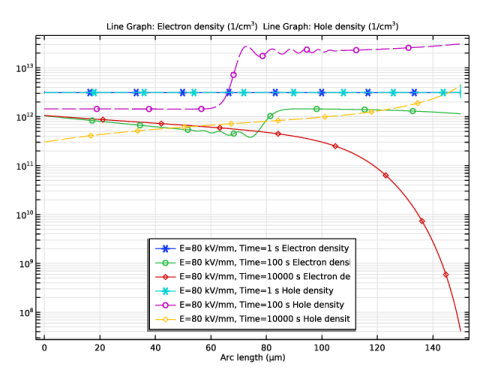
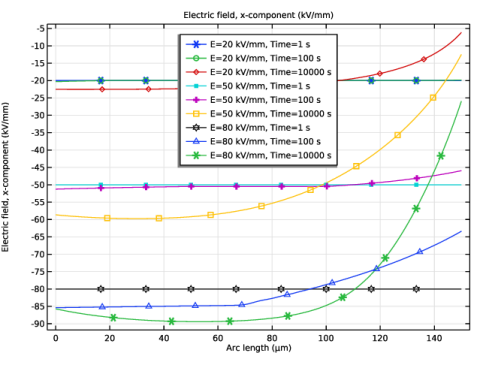
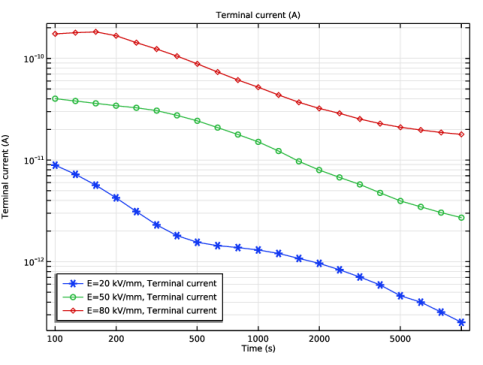
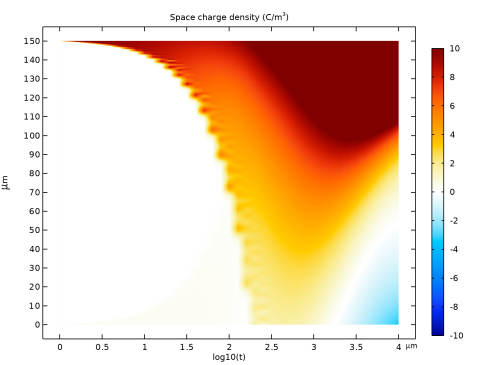
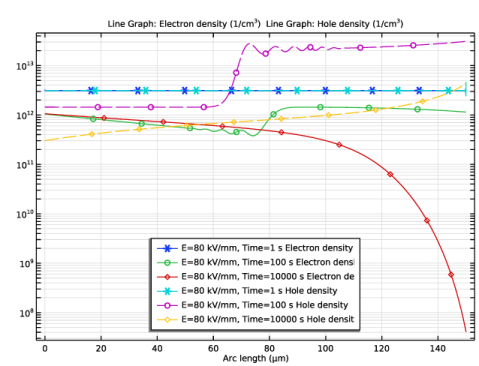
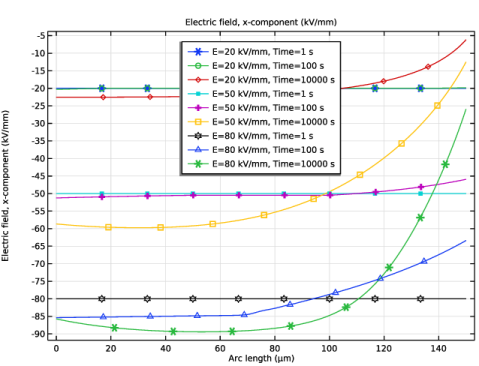
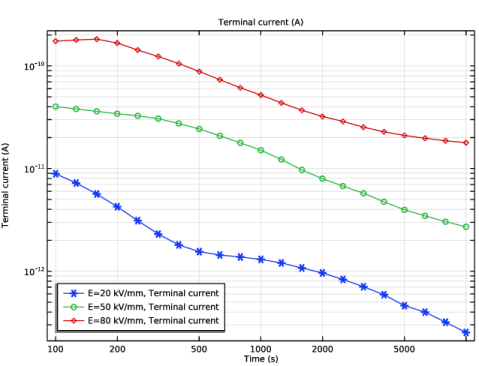
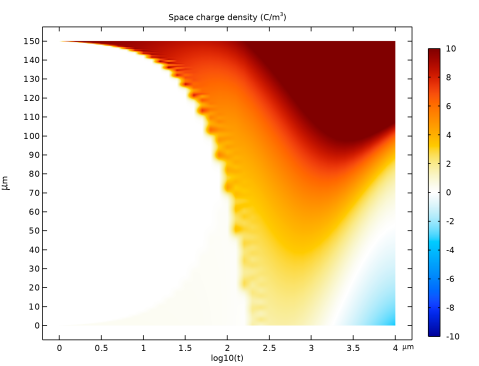
Figure 1 shows the distribution of the number density of electrons and holes at t = 1 s, 100 s, and 10,000 s under a 12 kV DC voltage (initial electric field 80 kV/mm). Figure 2 shows the evolution of the electric field, Figure 3 shows the total discharge current, and Figure 4 shows the dynamics of the space charge density.
Figure 1: Electron and hole number density at t = 1, 100, 10 000 s under 12 kV DC voltage.
Figure 2: The electric field distribution at t = 0, 100, 10 000 s.
Figure 3: The total current as a function of time.
Figure 4: The dynamics of space charge density where the x-axis is time in logarithmic scale and the y-axis is the thickness of the sample.
Application Library path: Electric_Discharge_Module/Solid_Dielectrics/charge_transport_in_polyethylene
Modeling Instructions
From the File menu, choose New.
New
In the New window, click  Model Wizard.
Model Wizard
1
In the Model Wizard window, click  1D.
2
In the Select Physics tree, select Electric Discharge > Electric Discharge (edis).
3
Click Add.
4
Click  Study.
5
In the Select Study tree, select Preset Studies for Selected Physics Interfaces > Time Dependent with Initialization.
6
Global Definitions
Parameters 1
1
In the Model Builder window, under Global Definitions click Parameters 1.
2
In the Settings window for Parameters, locate the Parameters section.
3
Geometry 1
1
In the Model Builder window, expand the Component 1 (comp1) > Geometry 1 node, then click Geometry 1.
2
In the Settings window for Geometry, locate the Units section.
3
From the Length unit list, choose µm.
Interval 1 (i1)
1
Right-click Geometry 1 and choose Interval.
2
In the Settings window for Interval, locate the Interval section.
3
4
Click  Build Selected.
Electric Discharge (edis)
1
In the Model Builder window, under Component 1 (comp1) click Electric Discharge (edis).
2
In the Settings window for Electric Discharge, locate the Physical Model section.
3
Clear the Gas checkbox.
4
Select the Solid checkbox.
5
Click the  Show More Options button in the Model Builder toolbar.
6
In the Show More Options dialog, select Physics > Stabilization in the tree.
7
8
9
In the Settings window for Electric Discharge, click to expand the Inconsistent Stabilization section.
10
Select the Isotropic diffusion checkbox.
11
In the δid text field, type 0.25.
Add Material
1
In the Materials toolbar, click  Add Material to open the Add Material window.
2
Go to the Add Material window.
3
In the tree, select Electric Discharge > Solids > Polyethylene.
4
Right-click and choose Add to Component 1 (comp1).
5
In the Materials toolbar, click  Add Material to close the Add Material window.
Electric Discharge (edis)
Electrode 1
1
In the Physics toolbar, click  Attributes and choose Electrode.
2
Solid 1
In the Model Builder window, click Solid 1.
Electrode 2
1
In the Physics toolbar, click  Attributes and choose Electrode.
2
3
In the Settings window for Electrode, locate the Terminal section.
4
In the V0 text field, type V0.
Initial Values 1
1
In the Model Builder window, click Initial Values 1.
2
In the Settings window for Initial Values, locate the Initial Values section.
3
In the ne text field, type 0.5[C/m^3]/e_const.
4
In the nh text field, type 0.5[C/m^3]/e_const.
Mesh 1
Edge 1
In the Mesh toolbar, click  Edge.
Distribution 1
1
Right-click Edge 1 and choose Distribution.
2
In the Settings window for Distribution, locate the Distribution section.
3
From the Distribution type list, choose Predefined.
4
In the Number of elements text field, type 1000.
5
In the Element ratio text field, type 5.
6
Select the Symmetric distribution checkbox.
7
Click  Build All.
Study 1
Parametric Sweep
1
In the Study toolbar, click  Parametric Sweep.
2
In the Settings window for Parametric Sweep, locate the Study Settings section.
3
4
Step 2: Time Dependent
1
In the Model Builder window, click Step 2: Time Dependent.
2
In the Settings window for Time Dependent, locate the Study Settings section.
3
In the Output times text field, type 10^{range(log10(1),1/10,log10(1e4))}.
4
In the Model Builder window, click Study 1.
5
In the Settings window for Study, locate the Study Settings section.
6
Clear the Generate default plots checkbox.
7
In the Study toolbar, click  Compute.
Results
Charge Carrier Density
1
In the Model Builder window, expand the Results node.
2
Right-click Results and choose 1D Plot Group.
3
In the Settings window for 1D Plot Group, type Charge Carrier Density in the Label text field.
4
Locate the Data section. From the Dataset list, choose Study 1/Parametric Solutions 1 (sol3).
5
From the Parameter selection (E) list, choose Last.
6
From the Time selection list, choose Interpolated.
7
In the Times (s) text field, type 1 1e2 1e4.
8
Locate the Legend section. From the Position list, choose Lower middle.
Line Graph 1
1
Right-click Charge Carrier Density and choose Line Graph.
2
3
In the Settings window for Line Graph, locate the y-Axis Data section.
4
In the Expression text field, type edis.n_e.
5
In the Unit field, type 1/cm^3.
6
Click to expand the Coloring and Style section. Find the Line markers subsection. From the Marker list, choose Cycle.
7
From the Positioning list, choose Interpolated.
8
Click to expand the Legends section. Select the Show legends checkbox.
9
Find the Include subsection. Select the Description checkbox.
Line Graph 2
1
Right-click Line Graph 1 and choose Duplicate.
2
In the Settings window for Line Graph, locate the y-Axis Data section.
3
In the Expression text field, type edis.n_h.
4
Locate the Coloring and Style section. Find the Line style subsection. From the Line list, choose Dashed.
5
Find the Line markers subsection. From the Marker list, choose Cycle (reset).
6
Click the  y-Axis Log Scale button in the Graphics toolbar.
7
In the Charge Carrier Density toolbar, click  Plot.
Electric Field
1
In the Results toolbar, click  1D Plot Group.
2
In the Settings window for 1D Plot Group, type Electric Field in the Label text field.
3
Locate the Legend section. From the Position list, choose Upper middle.
4
Locate the Data section. From the Dataset list, choose Study 1/Parametric Solutions 1 (sol3).
5
From the Time selection list, choose Interpolated.
6
In the Times (s) text field, type 1 1e2 1e4.
Line Graph 1
1
Right-click Electric Field and choose Line Graph.
2
3
In the Settings window for Line Graph, locate the y-Axis Data section.
4
In the Expression text field, type edis.Ex.
5
In the Unit field, type kV/mm.
6
Locate the Coloring and Style section. Find the Line markers subsection. From the Marker list, choose Cycle.
7
From the Positioning list, choose Interpolated.
8
Locate the Legends section. Select the Show legends checkbox.
9
In the Electric Field toolbar, click  Plot.
Discharge Current
1
In the Results toolbar, click  1D Plot Group.
2
In the Settings window for 1D Plot Group, type Discharge Current in the Label text field.
3
Locate the Data section. From the Dataset list, choose Study 1/Parametric Solutions 1 (sol3).
4
From the Time selection list, choose Interpolated.
5
In the Times (s) text field, type 10^{range(log10(100),1/10,log10(1e4))}.
6
Locate the Legend section. From the Position list, choose Lower left.
7
Locate the Axis section. Select the x-axis log scale checkbox.
8
Select the y-axis log scale checkbox.
Global 1
1
Right-click Discharge Current and choose Global.
2
In the Settings window for Global, locate the y-Axis Data section.
3
4
Click to expand the Coloring and Style section. Find the Line markers subsection. From the Marker list, choose Cycle.
5
In the Discharge Current toolbar, click  Plot.
Parametric Extrusion 1D 1
1
In the Model Builder window, expand the Results > Datasets node.
2
Right-click Results > Datasets and choose More Datasets > Parametric Extrusion 1D.
3
In the Settings window for Parametric Extrusion 1D, locate the Data section.
4
From the Dataset list, choose Study 1/Parametric Solutions 1 (sol3).
5
From the Parameter selection (E) list, choose Last.
6
Locate the Settings section. From the Level transformation list, choose Expression.
7
In the Transformation expression text field, type log10(level).
Transformation 2D 1
1
In the Results toolbar, click  More Datasets and choose Transformation 2D.
2
In the Settings window for Transformation 2D, locate the Transformation section.
3
From the Transformation type list, choose General.
4
Find the Base vectors subsection. In row x, set First to 0.
5
In row x, set Second to 1.
6
In row y, set First to 1.
7
In row y, set Second to 0.
Space Charge Density Dynamics
1
In the Results toolbar, click  2D Plot Group.
2
In the Settings window for 2D Plot Group, type Space Charge Density Dynamics in the Label text field.
3
Locate the Data section. From the Dataset list, choose Transformation 2D 1.
4
Locate the Plot Settings section.
5
Select the x-axis label checkbox. In the associated text field, type log10(t).
6
Select the y-axis label checkbox. In the associated text field, type \mu m.
7
Clear the Plot dataset edges checkbox.
Surface 1
1
Right-click Space Charge Density Dynamics and choose Surface.
2
In the Settings window for Surface, click to expand the Range section.
3
Select the Manual color range checkbox.
4
In the Minimum text field, type -10.
5
In the Maximum text field, type 10.
6
Locate the Coloring and Style section. From the Color table list, choose Ranitomeya.
7
In the Space Charge Density Dynamics toolbar, click  Plot.