




PDF

Electroplating of a Printed Circuit Board
Introduction
The printed circuit board (PCB) is the heart of almost any electronic product, carrying the components and copper wires supporting its functionality. This tutorial demonstrates how to simulate copper deposition on a PCB.
This model is also embedded in the Printed Circuit Board Electroplating Designer app, which adds a tailor-made user interface. In the app, functionality from the Optimization Module is also used to optimize various process parameters in order to, for instance, maximize the deposition rate for a given current distribution uniformity target. In the documentation for the app you can also read more about the PCB fabrication process in general.
The PCB pattern in the example is defined by imported ECAD files. The example requires an ECAD Module license.
Model Definition
The model uses the Secondary Current Distribution interface to simulate the current distribution in the deposition cell. Butler-Volmer kinetics is used on both electrode surfaces.
A Total Current boundary condition is used at the anode whereas the cathode is grounded (set to zero electronic potential).
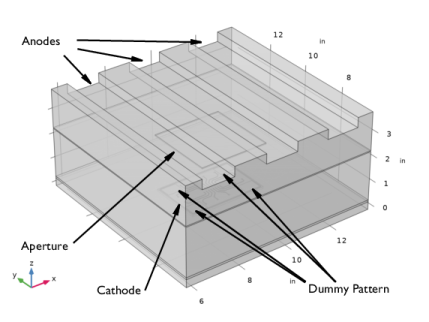
The model geometry is shown in Figure 1. The anodes are a set of stretched blocks at the top of the geometry. The cathode is the PCB pattern located at the center bottom of the cell. An isolating screen with an aperture is placed between the anodes and the cathode to control the current distribution on the PCB. The deposition pattern also contains certain “dummy” parts (current thieves), not used in the final PCB product, that are used in order to make the deposition rate on the PCB more uniform.
Figure 1: The model geometry.
The conductivity of the metal of the anodes and cathode is very high compared to that of the electrolyte and it is assumed that the electric potential in the metal is constant. The variations in the activation overpotential are therefore caused by the potential in the electrolyte at the surface of the electrodes. Under these assumptions, the electrodes are treated as boundaries in the simulations.
The Secondary Current Distribution interface solves for the electrolyte potential, ϕl (V), according to:
where il (A/m2) is the electrolyte current density vector and σl (S/m) is the electrolyte conductivity, which is assumed to be a constant.
The default Insulation condition is used for all boundaries except the anode and cathode surfaces:
where n is the normal vector, pointing out of the domain.
The main electrode reaction on both the anode and the cathode surfaces is the copper deposition/dissolution reaction,
A Butler–Volmer Expression is used to model this reaction; this sets the local current density to
Note that the local current density is positive at the anode surface and negative at the cathode surfaces, depending on the sign of the overpotential, η (V), defined as
(1)
where Eeq (V) is the equilibrium potential of the copper dissolution/deposition reaction and ϕs (V) is the potential of the electronic phase of the electrode.
On both the anode and the cathode the electrolyte current density is set to the local current density of the copper deposition reaction:
(2)
The anode is grounded in the model whereas the cathode electric potential is solved for by an additional equation in order to fulfill a total current condition on the boundary according to
(3)
The model is solved in a stationary study.
When postprocessing the solution the deposition thickness, s (m), at the PCB is calculated according to
(4)
where starget (m) is the target mean deposition thickness for the whole cathode.
The time needed to achieve this thickness, tdep (m), is related to starget according to
(5)
where M is the mean molar mass (63.55 g/mol) and ρ is the density (8960 kg/m3) of the copper atoms and n (=2) is the number of participating electrons.
Results and Discussion
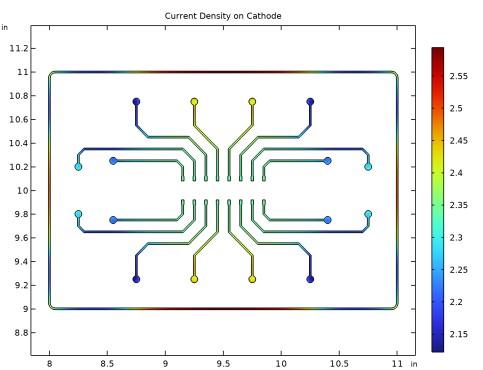
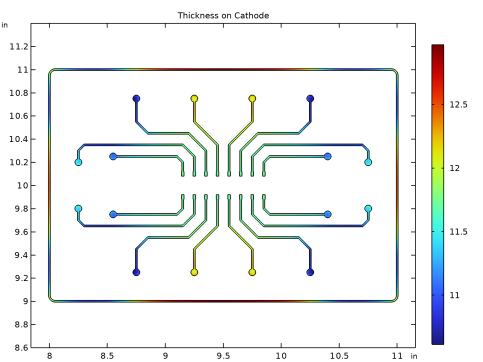
Figure 2 shows the current density on the cathode, excluding the dummy pattern, for an average current density of 2 A/dm2, and Figure 3 shows the corresponding deposited thickness for a target deposition thickness of 10 μm.
Figure 2: Current density at PCB pattern, excluding the dummy pattern (current thief).
Figure 3: Deposition thickness of the PCB pattern for a target thickness of 10 μm.
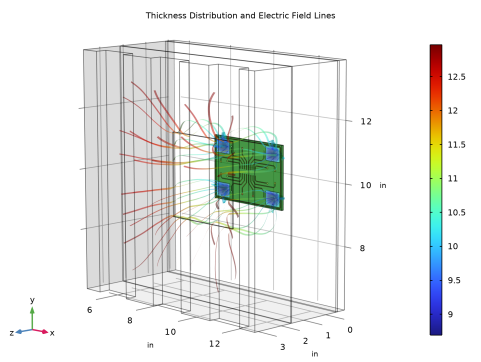
Figure 4 shows the effect of the aperture on the field lines, and the thickness for the whole cathode including the dummy pattern. The deposition thickness is lower than 10 μm for the dummy parts of the PCB.
Figure 4: Field lines and thickness on the cathode, including the dummy pattern.
Application Library path: Electrodeposition_Module/Tutorials/pcb_designer
Modeling Instructions
From the File menu, choose New.
New
In the New window, click  Model Wizard.
Model Wizard
1
In the Model Wizard window, click  3D.
2
In the Select Physics tree, select Electrochemistry > Primary and Secondary Current Distribution > Secondary Current Distribution (cd).
3
Click Add.
4
Click  Study.
5
In the Select Study tree, select General Studies > Stationary.
6
Global Definitions
Load parameters from a file.
Parameters 1
1
In the Model Builder window, under Global Definitions click Parameters 1.
2
In the Settings window for Parameters, locate the Parameters section.
3
Click  Load from File.
4
Geometry 1
This model utilizes a premade geometry file containing a PCB pattern imported from an ECAD file. The model geometry is available as a parameterized geometry sequence in a separate MPH file. If you want to build it from scratch, follow the instructions in the section Appendix — Geometry Modeling Instructions. Otherwise load it from file with the following steps.
1
In the Geometry toolbar, click Insert Sequence and choose Insert Sequence.
2
3
In the Geometry toolbar, click  Build All.
Use the transparency button to see the entire geometry clearly.
4
Click the  Transparency button in the Graphics toolbar.
Create some selections that will be used during model setup.
Electrolyte swept mesh region 2
1
In the Geometry toolbar, click  Selections and choose Box Selection.
2
In the Settings window for Box Selection, type Electrolyte swept mesh region 2 in the Label text field.
3
Locate the Box Limits section. In the z minimum text field, type 0.
4
In the z maximum text field, type 0.
Electrolyte swept mesh regions
1
In the Geometry toolbar, click  Selections and choose Union Selection.
2
In the Settings window for Union Selection, type Electrolyte swept mesh regions in the Label text field.
3
Locate the Input Entities section. Click  Add.
4
In the Add dialog, in the Selections to add list, choose Electrolyte swept mesh region 1 and Electrolyte swept mesh region 2.
5
6
In the Settings window for Union Selection, click  Build Selected.
PCB top dielectric
1
In the Geometry toolbar, click  Selections and choose Adjacent Selection.
2
In the Settings window for Adjacent Selection, type PCB top dielectric in the Label text field.
3
Locate the Input Entities section. Click  Add.
4
In the Add dialog, select Cathode in the Input selections list.
5
6
In the Settings window for Adjacent Selection, locate the Input Entities section.
7
From the Geometric entity level list, choose Boundary.
8
9
In the Add dialog, select Cathode in the Input selections list.
10
11
In the Settings window for Adjacent Selection, click  Build Selected.
PCB top
1
In the Geometry toolbar, click  Selections and choose Union Selection.
2
In the Settings window for Union Selection, type PCB top in the Label text field.
3
Locate the Geometric Entity Level section. From the Level list, choose Boundary.
4
Locate the Input Entities section. Click  Add.
5
In the Add dialog, in the Selections to add list, choose Cathode and PCB top dielectric.
6
7
In the Settings window for Union Selection, click  Build Selected.
PCB without cathode
1
In the Geometry toolbar, click  Selections and choose Difference Selection.
2
In the Settings window for Difference Selection, type PCB without cathode in the Label text field.
3
Locate the Input Entities section. Click the  Add button for Selections to add.
4
In the Add dialog, select PCB in the Selections to add list.
5
6
In the Settings window for Difference Selection, locate the Input Entities section.
7
Click the  Add button for Selections to subtract.
8
In the Add dialog, select Cathode in the Selections to subtract list.
9
10
In the Settings window for Difference Selection, locate the Geometric Entity Level section.
11
From the Level list, choose Boundary.
12
Locate the Input Entities section. Click the  Add button for Selections to add.
13
In the Add dialog, select PCB in the Selections to add list.
14
15
In the Settings window for Difference Selection, locate the Input Entities section.
16
Click the  Add button for Selections to subtract.
17
In the Add dialog, select Cathode in the Selections to subtract list.
18
Disable the analysis of the geometry as the remaining small geometric details are needed.
19
In the Model Builder window, click Geometry 1.
20
In the Settings window for Geometry, locate the Cleanup section.
21
Clear the Automatic detection of small details checkbox.
22
In the Geometry toolbar, click  Build All.
Definitions
Add an integration coupling variable and load variables from a text file.
Integration 1 (intop1)
1
In the Definitions toolbar, click  Nonlocal Couplings and choose Integration.
2
In the Settings window for Integration, locate the Source Selection section.
3
From the Geometric entity level list, choose Boundary.
4
From the Selection list, choose Cathode.
Variables 1
1
In the Model Builder window, right-click Definitions and choose Variables.
2
In the Settings window for Variables, locate the Variables section.
3
Click  Load from File.
4
Materials
Add a material to specify the electrolyte conductivity.
Electrolyte
1
In the Model Builder window, under Component 1 (comp1) right-click Materials and choose Blank Material.
2
In the Settings window for Material, type Electrolyte in the Label text field.
3
Locate the Material Contents section. In the table, enter the following settings:
Secondary Current Distribution (cd)
Define the physics settings in the Secondary Current Distribution interface.
Electrode Surface 1
1
In the Physics toolbar, click  Boundaries and choose Electrode Surface.
2
In the Settings window for Electrode Surface, locate the Boundary Selection section.
3
From the Selection list, choose Cathode.
4
Locate the Electrode Phase Potential Condition section. From the Electrode phase potential condition list, choose Total current.
5
In the Il,total text field, type -ItotCathode.
Electrode Reaction 1
1
In the Model Builder window, click Electrode Reaction 1.
2
In the Settings window for Electrode Reaction, locate the Electrode Kinetics section.
3
From the Kinetics expression type list, choose Butler–Volmer.
4
In the i0 text field, type i0.
5
In the αa text field, type alphaa.
Electrode Surface 2
1
In the Physics toolbar, click  Boundaries and choose Electrode Surface.
2
In the Settings window for Electrode Surface, locate the Boundary Selection section.
3
From the Selection list, choose Anode.
Electrode Reaction 1
1
In the Model Builder window, click Electrode Reaction 1.
2
In the Settings window for Electrode Reaction, locate the Electrode Kinetics section.
3
From the Kinetics expression type list, choose Butler–Volmer.
4
In the i0 text field, type i0.
5
In the αa text field, type alphaa.
Initial Values 1
1
In the Model Builder window, under Component 1 (comp1) > Secondary Current Distribution (cd) click Initial Values 1.
2
In the Settings window for Initial Values, locate the Initial Values section.
3
In the phil text field, type phil_initial.
Mesh 1
Generate the mesh as follows.
Free Triangular 1
In the Mesh toolbar, click  More Generators and choose Free Triangular.
Size
1
In the Model Builder window, click Size.
2
In the Settings window for Size, locate the Element Size section.
3
From the Predefined list, choose Fine.
Free Triangular 1
1
In the Model Builder window, click Free Triangular 1.
2
In the Settings window for Free Triangular, locate the Boundary Selection section.
3
From the Selection list, choose PCB top.
Size 1
1
Right-click Free Triangular 1 and choose Size.
2
In the Settings window for Size, locate the Geometric Entity Selection section.
3
From the Selection list, choose Cathode.
4
Locate the Element Size section. From the Predefined list, choose Extra fine.
Swept 1
1
In the Mesh toolbar, click  Swept.
2
In the Settings window for Swept, locate the Domain Selection section.
3
From the Geometric entity level list, choose Domain.
4
From the Selection list, choose Electrolyte swept mesh regions.
5
Click to expand the Source Faces section. Click  Paste Selection.
6
In the Paste Selection dialog, type 9 in the Selection text field.
7
8
In the Settings window for Swept, locate the Mesh Generation section.
9
From the Elements list, choose Prisms.
Size 1
1
Right-click Swept 1 and choose Size.
2
In the Settings window for Size, locate the Geometric Entity Selection section.
3
From the Geometric entity level list, choose Boundary.
4
Click  Paste Selection.
5
In the Paste Selection dialog, type 9 in the Selection text field.
6
7
In the Settings window for Size, locate the Element Size section.
8
From the Predefined list, choose Finer.
Distribution 1
1
In the Model Builder window, right-click Swept 1 and choose Distribution.
2
In the Settings window for Distribution, locate the Distribution section.
3
In the Number of elements text field, type round((PCBThickness/1.5[mm]>=1)*PCBThickness/1.5[mm]+(PCBThickness/1.5[mm]<1),0).
Distribution 2
1
Right-click Swept 1 and choose Distribution.
2
In the Settings window for Distribution, locate the Domain Selection section.
3
From the Selection list, choose Electrolyte swept mesh region 2.
4
Locate the Distribution section. In the Number of elements text field, type ((PCBOffset-PCBThickness)/2[mm]>=1)*(PCBOffset-PCBThickness)/2[mm]+((PCBOffset-PCBThickness)/2[mm]<1).
Swept 2
1
In the Mesh toolbar, click  Swept.
2
In the Settings window for Swept, locate the Domain Selection section.
3
From the Geometric entity level list, choose Domain.
4
From the Selection list, choose Aperture.
5
Locate the Source Faces section. From the Selection list, choose Aperture source.
6
Locate the Mesh Generation section. From the Elements list, choose Prisms.
Size 1
1
Right-click Swept 2 and choose Size.
2
In the Settings window for Size, locate the Geometric Entity Selection section.
3
From the Geometric entity level list, choose Boundary.
4
From the Selection list, choose Aperture source.
5
Locate the Element Size section. From the Predefined list, choose Finer.
Distribution 1
1
In the Model Builder window, right-click Swept 2 and choose Distribution.
2
In the Settings window for Distribution, locate the Distribution section.
3
In the Number of elements text field, type (ApertureThickness/1.5[mm]>=1)*ApertureThickness/1.5[mm]+(ApertureThickness/1.5[mm]<1).
Free Tetrahedral 1
1
In the Mesh toolbar, click  Free Tetrahedral.
2
In the Model Builder window, right-click Mesh 1 and choose Build All.
Study 1
Step 1: Stationary
1
In the Model Builder window, under Study 1 click Step 1: Stationary.
2
In the Settings window for Stationary, locate the Study Settings section.
3
From the Tolerance list, choose User controlled.
4
In the Relative tolerance text field, type 1e-6.
5
In the Model Builder window, click Study 1.
6
In the Settings window for Study, locate the Study Settings section.
7
Clear the Generate default plots checkbox.
Finally, compute the results.
8
In the Study toolbar, click  Compute.
Results
Create some datasets that will be used during postprocessing.
Cathode
1
In the Model Builder window, expand the Results node.
2
Right-click Results > Datasets and choose Surface.
3
In the Settings window for Surface, type Cathode in the Label text field.
4
Locate the Parameterization section. From the x- and y-axes list, choose Expression.
5
Locate the Selection section. From the Selection list, choose Cathode.
Cathode copper layout
1
In the Results toolbar, click  More Datasets and choose Surface.
2
In the Settings window for Surface, type Cathode copper layout in the Label text field.
3
Locate the Parameterization section. From the x- and y-axes list, choose Expression.
4
Locate the Selection section. From the Selection list, choose PCB copper layout.
PCB without cathode
1
In the Results toolbar, click  More Datasets and choose Surface.
2
In the Settings window for Surface, type PCB without cathode in the Label text field.
3
Locate the Selection section. From the Selection list, choose PCB without cathode.
Walls
1
In the Results toolbar, click  More Datasets and choose Surface.
2
In the Settings window for Surface, type Walls in the Label text field.
3
Locate the Selection section. Click  Paste Selection.
4
In the Paste Selection dialog, type 1-5, 7-8, 11-12 in the Selection text field.
5
Thickness on Cathode
First, plot the thickness on the cathode copper layout.
1
In the Results toolbar, click  2D Plot Group.
2
In the Settings window for 2D Plot Group, type Thickness on Cathode in the Label text field.
3
Locate the Data section. From the Dataset list, choose Cathode copper layout.
Surface 1
1
Right-click Thickness on Cathode and choose Surface.
2
In the Settings window for Surface, click Replace Expression in the upper-right corner of the Expression section. From the menu, choose Component 1 (comp1) > Definitions > Variables > thickness_cathode - Thickness on cathode - m.
3
Locate the Expression section. From the Unit list, choose µm.
Thickness on Cathode
1
In the Model Builder window, click Thickness on Cathode.
2
In the Settings window for 2D Plot Group, click to expand the Title section.
3
From the Title type list, choose Label.
Current Density on Cathode
Next, plot the current density on the cathode copper layout.
1
Right-click Thickness on Cathode and choose Duplicate.
2
In the Model Builder window, click Thickness on Cathode 1.
3
In the Settings window for 2D Plot Group, type Current Density on Cathode in the Label text field.
Surface 1
1
In the Model Builder window, click Surface 1.
2
In the Settings window for Surface, click Replace Expression in the upper-right corner of the Expression section. From the menu, choose Component 1 (comp1) > Secondary Current Distribution > Electrode kinetics > cd.iloc_er1 - Local current density - A/m².
3
Locate the Expression section. In the Expression text field, type -cd.iloc_er1.
4
In the Unit field, type A/dm^2.
5
Select the Description checkbox. In the associated text field, type Current Density on Cathode.
Current Density on Cathode
1
In the Model Builder window, click Current Density on Cathode.
2
In the Current Density on Cathode toolbar, click  Plot.
Thickness Distribution and Electric Field Lines
Next, plot the thickness distribution and the electric field lines.
1
In the Results toolbar, click  3D Plot Group.
2
In the Settings window for 3D Plot Group, type Thickness Distribution and Electric Field Lines in the Label text field.
Surface 1
1
Right-click Thickness Distribution and Electric Field Lines and choose Surface.
2
In the Settings window for Surface, locate the Data section.
3
From the Dataset list, choose Cathode.
4
Locate the Expression section. In the Expression text field, type thickness_cathode.
5
From the Unit list, choose µm.
Surface 2
1
In the Model Builder window, right-click Thickness Distribution and Electric Field Lines and choose Surface.
2
In the Settings window for Surface, locate the Data section.
3
From the Dataset list, choose PCB without cathode.
4
Locate the Coloring and Style section. From the Coloring list, choose Uniform.
5
From the Color list, choose Custom.
6
7
Click Define custom colors.
8
9
Click Add to custom colors.
10
Click Show color palette only or OK on the cross-platform desktop.
Surface 3
1
Right-click Thickness Distribution and Electric Field Lines and choose Surface.
2
In the Settings window for Surface, locate the Data section.
3
From the Dataset list, choose Walls.
4
Locate the Expression section. In the Expression text field, type 1.
5
Locate the Coloring and Style section. From the Coloring list, choose Uniform.
6
From the Color list, choose White.
Streamline 1
1
Right-click Thickness Distribution and Electric Field Lines and choose Streamline.
2
In the Settings window for Streamline, locate the Streamline Positioning section.
3
In the Number text field, type 50.
4
Locate the Selection section. From the Selection list, choose Cathode.
5
Locate the Coloring and Style section. Find the Line style subsection. From the Type list, choose Ribbon.
Color Expression 1
1
Right-click Streamline 1 and choose Color Expression.
2
In the Settings window for Color Expression, locate the Coloring and Style section.
3
Clear the Color legend checkbox.
Thickness Distribution and Electric Field Lines
1
In the Model Builder window, under Results click Thickness Distribution and Electric Field Lines.
2
In the Settings window for 3D Plot Group, click to expand the Title section.
3
From the Title type list, choose Label.
4
In the Thickness Distribution and Electric Field Lines toolbar, click  Plot.
Appendix — Geometry Modeling Instructions
From the File menu, choose New.
New
In the New window, click  Model Wizard.
Model Wizard
1
In the Model Wizard window, click  3D.
2
Global Definitions
Parameters 1
1
In the Model Builder window, under Global Definitions click Parameters 1.
2
In the Settings window for Parameters, locate the Parameters section.
3
Click  Load from File.
4
Geometry 1
1
In the Model Builder window, under Component 1 (comp1) click Geometry 1.
2
In the Settings window for Geometry, locate the Units section.
3
From the Length unit list, choose in.
PCB
1
In the Geometry toolbar, click  Block.
2
In the Settings window for Block, type PCB in the Label text field.
3
Locate the Size and Shape section. In the Width text field, type PCBWidth+2*PCBMargin.
4
In the Depth text field, type PCBHeight+2*PCBMargin.
5
In the Height text field, type PCBThickness.
6
Locate the Position section. In the x text field, type PCBxMin-PCBMargin.
7
In the y text field, type PCByMin-PCBMargin.
8
In the z text field, type PCBOffset-PCBThickness.
9
Locate the Selections of Resulting Entities section. Select the Resulting objects selection checkbox.
10
Click the  Transparency button in the Graphics toolbar.
Work Plane 1 (wp1)
1
In the Geometry toolbar, click  Work Plane.
2
In the Settings window for Work Plane, locate the Plane Definition section.
3
In the z-coordinate text field, type PCBOffset.
4
Locate the Selections of Resulting Entities section. Find the Cumulative selection subsection. Click New.
5
In the New Cumulative Selection dialog, type PCB copper layout in the Name text field.
6
7
In the Settings window for Work Plane, click  Go to Plane Geometry.
Work Plane 1 (wp1) > Import 1 (imp1)
1
In the Home toolbar, click  Import.
2
In the Settings window for Import, locate the Source section.
3
Click  Browse.
4
5
Click  Import.
6
Locate the Layers section. In the table, clear the Import checkbox for Dielectric.
Geometry 1
Work Plane 1 (wp1)
In the Model Builder window, collapse the Component 1 (comp1) > Geometry 1 > Work Plane 1 (wp1) node.
If 1 (if1)
1
In the Model Builder window, right-click Geometry 1 and choose Programming > If + End If.
2
In the Settings window for If, locate the If section.
3
In the Condition text field, type UseDummy.
Work Plane 2 (wp2)
1
In the Geometry toolbar, click  Work Plane.
2
In the Settings window for Work Plane, locate the Plane Definition section.
3
In the z-coordinate text field, type PCBOffset.
4
Locate the Selections of Resulting Entities section. Find the Cumulative selection subsection. Click New.
5
In the New Cumulative Selection dialog, type PCB dummy layout in the Name text field.
6
7
In the Settings window for Work Plane, click  Go to Plane Geometry.
Work Plane 2 (wp2) > Import 1 (imp1)
1
In the Home toolbar, click  Import.
2
In the Settings window for Import, locate the Source section.
3
Click  Browse.
4
5
Click  Import.
6
Locate the Layers section. In the table, clear the Import checkbox for Dielectric.
End If 1 (endif1)
1
In the Model Builder window, under Component 1 (comp1) > Geometry 1 click End If 1 (endif1).
2
In the Settings window for End If, click  Build All Objects.
Cathode
1
In the Model Builder window, right-click Geometry 1 and choose Selections > Union Selection.
2
In the Settings window for Union Selection, type Cathode in the Label text field.
3
Locate the Geometric Entity Level section. From the Level list, choose Object.
4
Locate the Input Entities section. Click  Add.
5
In the Add dialog, in the Selections to add list, choose PCB copper layout and PCB dummy layout.
6
Bath
1
In the Geometry toolbar, click  Block.
2
In the Settings window for Block, type Bath in the Label text field.
3
Locate the Size and Shape section. In the Width text field, type BathWidth.
4
In the Depth text field, type BathHeight.
5
In the Height text field, type BathDepth.
6
Locate the Position section. In the x text field, type PCBxMin-(BathWidth-PCBWidth)/2.
7
In the y text field, type PCByMin-(BathHeight-PCBHeight)/2.
8
Locate the Selections of Resulting Entities section. Select the Resulting objects selection checkbox.
Electrolyte swept mesh region 1
1
In the Geometry toolbar, click  Block.
2
In the Settings window for Block, type Electrolyte swept mesh region 1 in the Label text field.
3
Locate the Size and Shape section. In the Width text field, type BathWidth.
4
In the Depth text field, type BathHeight.
5
In the Height text field, type PCBThickness.
6
Locate the Position section. In the x text field, type PCBxMin-(BathWidth-PCBWidth)/2.
7
In the y text field, type PCByMin-(BathHeight-PCBHeight)/2.
8
In the z text field, type PCBOffset-PCBThickness.
9
Locate the Selections of Resulting Entities section. Select the Resulting objects selection checkbox.
Work Plane 3 (wp3)
1
In the Geometry toolbar, click  Work Plane.
2
In the Settings window for Work Plane, locate the Plane Definition section.
3
From the Plane type list, choose Face parallel.
4
Click the  Zoom Extents button in the Graphics toolbar.
5
On the object blk2, select Boundary 4 only.
6
Click  Go to Plane Geometry.
Work Plane 3 (wp3) > Rectangle 1 (r1)
1
In the Work Plane toolbar, click  Rectangle.
2
In the Settings window for Rectangle, locate the Size and Shape section.
3
In the Width text field, type BathWidth/6.
4
In the Height text field, type BathHeight.
5
Locate the Position section. In the xw text field, type -BathWidth/2+BathWidth/6/2.
6
In the yw text field, type -BathHeight/2.
Work Plane 3 (wp3) > Array 1 (arr1)
1
In the Work Plane toolbar, click  Transforms and choose Array.
2
Click the  Zoom Extents button in the Graphics toolbar.
3
4
In the Model Builder window, click Array 1 (arr1).
5
In the Settings window for Array, locate the Size section.
6
In the xw size text field, type 3.
7
Locate the Displacement section. In the xw text field, type BathWidth/3.
Geometry 1
Work Plane 3 (wp3)
In the Model Builder window, collapse the Component 1 (comp1) > Geometry 1 > Work Plane 3 (wp3) node.
Anode
1
In the Geometry toolbar, click  Extrude.
2
In the Settings window for Extrude, type Anode in the Label text field.
3
Locate the Distances section. In the table, enter the following settings:
4
Select the Reverse direction checkbox.
5
Locate the Selections of Resulting Entities section. Select the Resulting objects selection checkbox.
6
From the Show in physics list, choose Boundary selection.
Difference 1 (dif1)
1
In the Model Builder window, right-click Geometry 1 and choose Booleans and Partitions > Difference.
2
Select the objects blk2 and blk3 only.
3
In the Settings window for Difference, locate the Difference section.
4
Click to select the  Activate Selection toggle button for Objects to subtract.
5
From the Objects to subtract list, choose PCB.
6
Select the objects blk1 and ext1 only.
If 2 (if2)
1
In the Geometry toolbar, click  Programming and choose If + End If.
2
In the Settings window for If, locate the If section.
3
In the Condition text field, type UseAperture.
Work Plane 4 (wp4)
1
In the Geometry toolbar, click  Work Plane.
2
In the Settings window for Work Plane, locate the Plane Definition section.
3
In the z-coordinate text field, type ApertureOffset+PCBOffset.
4
Click  Go to Plane Geometry.
Work Plane 4 (wp4) > Cross Section 1 (cro1)
1
In the Work Plane toolbar, click  Cross Section.
2
In the Settings window for Cross Section, locate the Cross Section section.
3
From the Intersect list, choose Selected objects.
4
From the Objects to intersect list, choose Bath.
Geometry 1
Work Plane 4 (wp4)
1
In the Model Builder window, collapse the Component 1 (comp1) > Geometry 1 > Work Plane 4 (wp4) node.
2
In the Model Builder window, click Work Plane 4 (wp4).
3
In the Settings window for Work Plane, click  Build Selected.
Extrude 2 (ext2)
1
In the Model Builder window, right-click Geometry 1 and choose Extrude.
2
In the Settings window for Extrude, locate the Distances section.
3
4
Click  Build Selected.
Difference 2 (dif2)
1
In the Geometry toolbar, click  Booleans and Partitions and choose Difference.
2
3
In the Settings window for Difference, locate the Difference section.
4
Click to select the  Activate Selection toggle button for Objects to subtract.
5
6
Click  Build Selected.
Aperture source
1
In the Geometry toolbar, click  Work Plane.
2
In the Settings window for Work Plane, type Aperture source in the Label text field.
3
Locate the Plane Definition section. In the z-coordinate text field, type ApertureOffset+PCBOffset.
4
Locate the Selections of Resulting Entities section. Select the Resulting objects selection checkbox.
5
Click  Go to Plane Geometry.
Aperture source (wp5) > Rectangle 1 (r1)
1
In the Work Plane toolbar, click  Rectangle.
2
In the Settings window for Rectangle, locate the Size and Shape section.
3
In the Width text field, type ApertureWidth.
4
In the Height text field, type ApertureHeight.
5
Locate the Position section. In the xw text field, type PCBxMin-(BathWidth-PCBWidth)/2+(BathWidth-ApertureWidth)/2.
6
In the yw text field, type PCByMin-(BathHeight-PCBHeight)/2+(BathHeight-ApertureHeight)/2.
Aperture source (wp5)
1
In the Model Builder window, collapse the Component 1 (comp1) > Geometry 1 > Aperture source (wp5) node.
2
In the Model Builder window, click Aperture source (wp5).
3
In the Settings window for Work Plane, click  Build Selected.
Aperture
1
In the Geometry toolbar, click  Extrude.
2
In the Settings window for Extrude, type Aperture in the Label text field.
3
Locate the Distances section. In the table, enter the following settings:
4
Locate the Selections of Resulting Entities section. Select the Resulting objects selection checkbox.
Form Union (fin)
In the Geometry toolbar, click  Build All.