
|
|
|
 , for an electrode reaction of index m, is defined according to the following equation:









|
1
|
|
2
|
In the Select Physics tree, select Electrochemistry > Primary and Secondary Current Distribution > Secondary Current Distribution (cd).
|
|
3
|
Click Add.
|
|
4
|
Click
 Study. Study. |
|
5
|
In the Select Study tree, select Preset Studies for Selected Physics Interfaces > Time Dependent with Initialization.
|
|
6
|
Click
 Done. Done. |
|
1
|
|
2
|
|
3
|
Click
 Load from File. Load from File. |
|
4
|
Browse to the model’s Application Libraries folder and double-click the file decorative_plating_parameters.txt.
|
|
1
|
|
2
|
Browse to the model’s Application Libraries folder and double-click the file decorative_plating_geom_sequence.mph.
|
|
3
|
|
4
|
|
5
|
|
6
|
|
1
|
In the Model Builder window, under Component 1 (comp1) > Secondary Current Distribution (cd) click Electrolyte 1.
|
|
2
|
|
3
|
|
1
|
|
3
|
In the Settings window for Electrode Surface, click to expand the Dissolving–Depositing Species section.
|
|
4
|
Click
 Add. Add. |
|
1
|
|
2
|
|
3
|
|
4
|
In the Stoichiometric coefficients for dissolving–depositing species: table, enter the following settings:
|
|
5
|
|
6
|
Locate the Electrode Kinetics section. From the Kinetics expression type list, choose Butler–Volmer.
|
|
7
|
|
1
|
In the Model Builder window, under Component 1 (comp1) > Secondary Current Distribution (cd) right-click Electrode Surface 1 and choose Duplicate.
|
|
2
|
|
3
|
|
4
|
Locate the Electrode Phase Potential Condition section. From the Electrode phase potential condition list, choose Average current density.
|
|
5
|
|
1
|
|
2
|
|
3
|
In the Stoichiometric coefficients for dissolving–depositing species: table, enter the following settings:
|
|
1
|
|
2
|
|
3
|
|
4
|
|
1
|
|
2
|
|
3
|
|
4
|
Click
 Build All. Build All. |
|
5
|
|
6
|
|
1
|
|
2
|
|
3
|
|
1
|
|
2
|
|
3
|
|
4
|
|
1
|
|
2
|
|
3
|
|
4
|
|
5
|
|
6
|
|
7
|
|
8
|
|
9
|
Click OK.
|
|
1
|
|
2
|
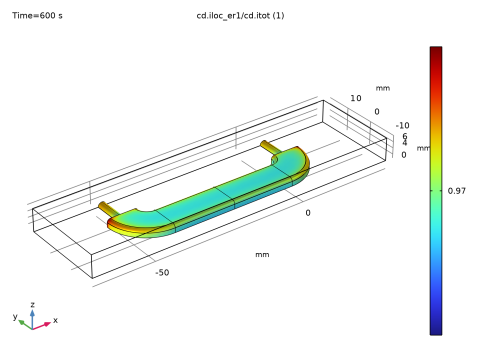
In the Settings window for Surface, click Replace Expression in the upper-right corner of the Expression section. From the menu, choose Component 1 (comp1) > Secondary Current Distribution > Electrode kinetics > cd.iloc_er1 - Local current density - A/m².
|
|
3
|
|
4
|
|
5
|
|
1
|
|
2
|
|
3
|
Click OK.
|
|
1
|
|
2
|
|
1
|
In the Model Builder window, expand the Component 1 (comp1) > Definitions > View 1 node, then click View 1.
|
|
2
|
|
3
|
Select the Wireframe rendering checkbox.
|
|
1
|
|
2
|
|
3
|
|
1
|
|
2
|
|
3
|
|
4
|
|
5
|
|
6
|
|
7
|
|
8
|
|
9
|
Locate the Selections of Resulting Entities section. Select the Resulting objects selection checkbox.
|
|
1
|
|
2
|
|
3
|
|
4
|
|
5
|
|
6
|
|
7
|
|
8
|
|
1
|
|
2
|
|
1
|
|
2
|
|
3
|
|
1
|
|
2
|
|
3
|
|
4
|
|
1
|
|
2
|
|
3
|
|
4
|
|
5
|
|
6
|
|
1
|
|
2
|
On the object r1, select Points 2 and 3 only.
|
|
3
|
|
4
|
|
1
|
In the Model Builder window, expand the Component 1 (comp1) > Geometry 1 > Work Plane 1 (wp1) > View 2 node, then click View 2.
|
|
2
|
On the object r1, select Point 3 only.
|
|
1
|
In the Model Builder window, under Component 1 (comp1) > Geometry 1 > Work Plane 1 (wp1) > Plane Geometry click Fillet 1 (fil1).
|
|
2
|
|
1
|
|
2
|
|
3
|
Clear the Keep original faces checkbox.
|
|
4
|
Click the Angles button.
|
|
5
|
|
6
|
|
7
|
|
8
|
|
9
|
|
10
|
|
11
|
|
12
|
Locate the Selections of Resulting Entities section. Find the Cumulative selection subsection. From the Contribute to list, choose Objects to subtract.
|
|
1
|
|
2
|
|
3
|
|
4
|
|
5
|
|
6
|
In the tree, select cyl1.
|
|
7
|
|
8
|
On the object cyl1, select Boundaries 1–6 only.
|
|
9
|
On the object rev1, select Boundaries 1–8 only.
|
|
10
|
|
11
|
On the object cyl1, select Boundaries 1–6 only.
|
|
12
|
On the object rev1, select Boundaries 1–8 only.
|
|
13
|
In the tree, select cyl1 > 1 (not applicable), cyl1 > 2 (not applicable), cyl1 > 3, cyl1 > 4, cyl1 > 5 (not applicable), and cyl1 > 6 (not applicable).
|
|
14
|
|
15
|
On the object rev1, select Boundaries 1–8 only.
|
|
16
|
In the tree, select rev1 > 1, rev1 > 2 (not applicable), rev1 > 3, rev1 > 4 (not applicable), rev1 > 5, rev1 > 6 (not applicable), and rev1 > 7 (not applicable).
|
|
17
|
|
18
|
On the object rev1, select Boundary 8 only.
|
|
19
|
|
20
|
Locate the Distances section. In the table, enter the following settings:
|
|
21
|
Locate the Selections of Resulting Entities section. Find the Cumulative selection subsection. From the Contribute to list, choose Objects to subtract.
|
|
22
|
Click
 Build Selected. Build Selected. |
|
1
|
|
2
|
|
3
|
|
4
|
Select the Keep input objects checkbox.
|
|
5
|
|
6
|
|
7
|
|
8
|
Locate the Selections of Resulting Entities section. Find the Cumulative selection subsection. From the Contribute to list, choose Objects to subtract.
|
|
1
|
|
2
|
|
3
|
|
4
|
|
1
|
|
2
|
|
3
|
|
4
|
|
5
|
|
6
|
|
7
|
|
8
|
|
9
|


