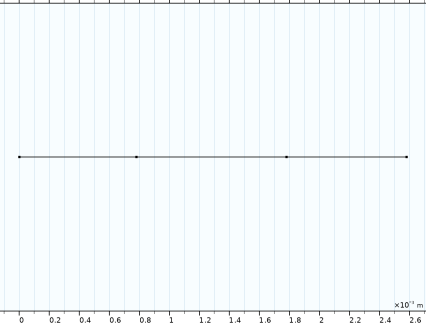
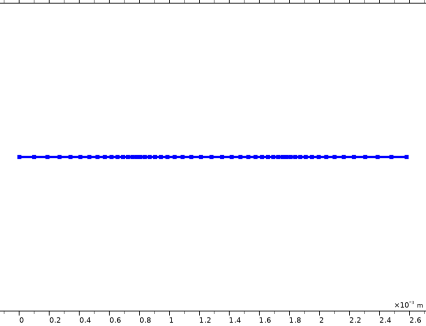
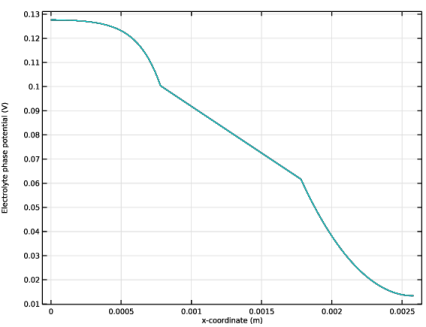
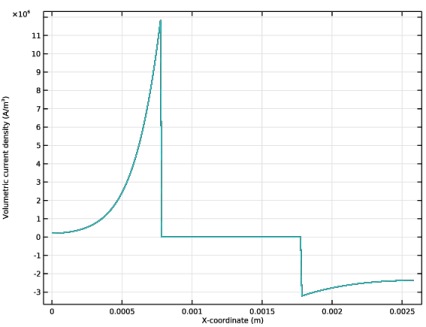
|
|
|


 ,
,

 .
.





|
1
|
|
2
|
|
3
|
Click Add.
|
|
4
|
Click
 Study. Study. |
|
5
|
In the Select Study tree, select Preset Studies for Selected Physics Interfaces > Time Dependent with Initialization.
|
|
6
|
Click
 Done. Done. |
|
1
|
|
2
|
|
3
|
Click
 Load from File. Load from File. |
|
4
|
Browse to the model’s Application Libraries folder and double-click the file molten_carbonate_transport_parameters.txt.
|
|
1
|
|
2
|
|
3
|
|
5
|
|
1
|
In the Model Builder window, under Component 1 (comp1) click Concentrated Electrolyte Transport (cet).
|
|
2
|
|
3
|
Find the Cations subsection. In the table, enter the following settings:
|
|
4
|
Click
 Add. Add. |
|
6
|
Find the Anions subsection. In the table, enter the following settings:
|
|
7
|
Find the Neutral species subsection. Click to select the first row in the table.
|
|
8
|
Click
 Delete. Delete. |
|
1
|
In the Model Builder window, under Component 1 (comp1) > Concentrated Electrolyte Transport (cet) click Reference Electrode 1.
|
|
2
|
|
3
|
|
4
|
|
1
|
|
2
|
|
3
|
|
4
|
|
1
|
|
2
|
|
3
|
|
4
|
|
1
|
In the Model Builder window, under Component 1 (comp1) right-click Definitions and choose Variables.
|
|
2
|
|
3
|
Click
 Load from File. Load from File. |
|
4
|
Browse to the model’s Application Libraries folder and double-click the file molten_carbonate_transport_variables.txt.
|
|
1
|
In the Model Builder window, under Component 1 (comp1) > Concentrated Electrolyte Transport (cet) > Electrolyte 1 click Diffusion Coefficients 1.
|
|
2
|
|
3
|
|
4
|
|
5
|
|
1
|
In the Model Builder window, under Component 1 (comp1) > Concentrated Electrolyte Transport (cet) click Initial Values 1.
|
|
2
|
|
3
|
Find the Electrolyte components subsection. From the Define list, choose Molar proportions, and in the corresponding text fields, type P_Li2CO3 and P_K2CO3, respectively.
|
|
1
|
In the Model Builder window, under Component 1 (comp1) right-click Definitions and choose Variables.
|
|
2
|
In the Settings window for Variables, type Variables 2 (Negative Electrode) in the Label text field.
|
|
3
|
|
5
|
Locate the Variables section. In the table, enter the following settings:
|
|
1
|
|
2
|
|
3
|
|
5
|
Locate the Variables section. In the table, enter the following settings:
|
|
1
|
|
2
|
In the Settings window for Variables, type Variables 4 (Positive Electrode) in the Label text field.
|
|
3
|
|
5
|
Locate the Variables section. In the table, enter the following settings:
|
|
1
|
|
2
|
|
3
|
|
4
|
|
1
|
|
2
|
|
3
|
|
4
|
|
1
|
|
2
|
|
3
|
From the list, choose User-controlled mesh.
|
|
1
|
|
2
|
|
3
|
|
5
|
|
1
|
|
2
|
|
3
|
|
4
|
|
1
|
|
2
|
|
3
|
|
1
|
|
2
|
|
3
|
|
4
|
Locate the Plot Settings section.
|
|
5
|
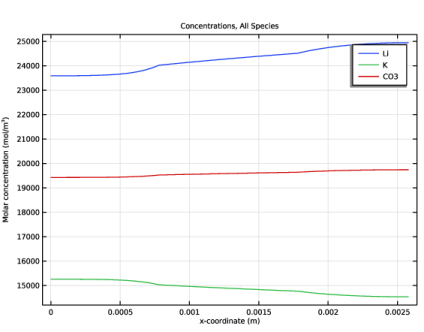
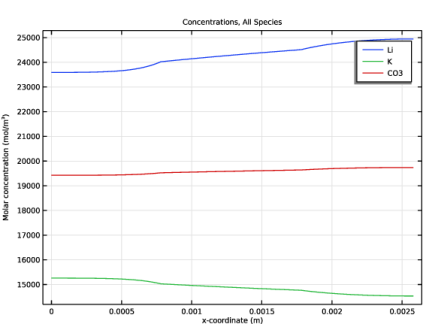
Select the y-axis label checkbox. In the associated text field, type Molar concentration (mol/m<sup>3</sup>).
 |
|
1
|
|
2
|
|
3
|
|
1
|
|
2
|
|
3
|
|
4
|
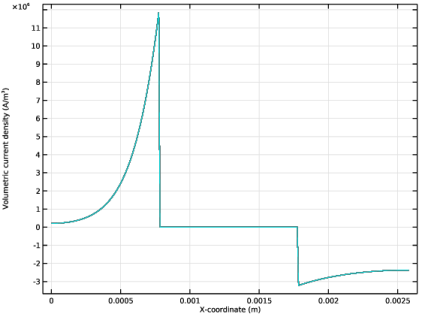
Click Replace Expression in the upper-right corner of the y-Axis Data section. From the menu, choose Component 1 (comp1) > Concentrated Electrolyte Transport > cet.ss1.iv - Volumetric current density - A/m³.
|
|
5
|
|
6
|
|
1
|
|
2
|
|
1
|
|
2
|
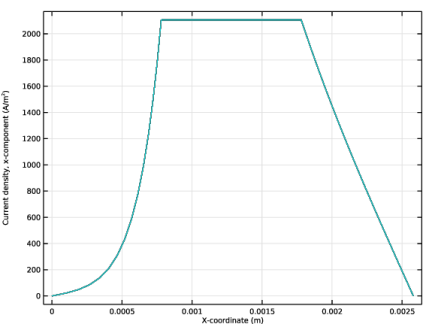
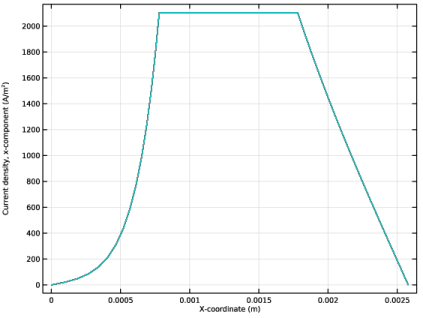
In the Settings window for Line Graph, click Replace Expression in the upper-right corner of the y-Axis Data section. From the menu, choose Component 1 (comp1) > Concentrated Electrolyte Transport > Electrolyte current densities > Current density - A/m² > cet.Ilx - Current density, x-component.
|
|
3
|
|
1
|
|
2
|
|
1
|
|
2
|
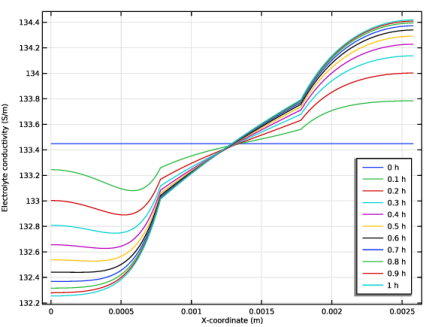
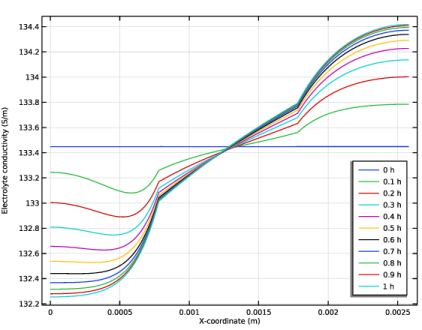
In the Settings window for Line Graph, click Replace Expression in the upper-right corner of the y-Axis Data section. From the menu, choose Component 1 (comp1) > Concentrated Electrolyte Transport > Electrolyte properties > cet.sigmal - Electrolyte conductivity - S/m.
|
|
3
|
|
1
|
|
2
|
|
3
|
|
4
|
|
1
|
|
2
|
|
1
|
|
2
|
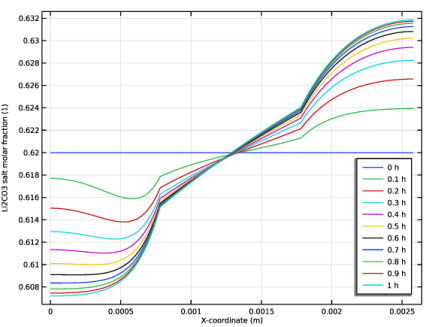
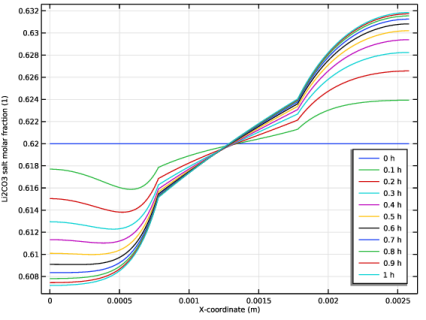
In the Settings window for Line Graph, click Replace Expression in the upper-right corner of the y-Axis Data section. From the menu, choose Component 1 (comp1) > Definitions > Variables > xA - Li2CO3 salt molar fraction - 1.
|
|
3
|