PDF

Importing PCBs — Working with Nets
Introduction
This tutorial series demonstrates how to import printed circuit board (PCB) data from the IPC-2581 file format and generate simulation-ready geometry. Key topics include selecting the import type, handling drill layers, creating simplified 3D components and pads, and previewing file content before importing. The tutorials also show how to remove small details, such as short edges, either through Automatic Geometry Cleanup or by simplifying and repairing geometry during import. Geometry finalization is done using Form Union or Form Assembly, followed by mesh generation with adjusted element sizes to resolve small copper trace features using the Free Tetrahedral and Swept mesh generators.
This tutorial, the third part in the series, covers how to use the 2D Preview to view the contents of the selected board before importing it. It shows how to import only specific nets to work with a simplified geometry, which is particularly helpful for large boards when only a few nets are of interest. It also demonstrates how to partition geometry by applying a bounding box around selected nets, preparing the model for swept meshing.
The first tutorial in the series, Importing PCBs — Generating Shell Traces, shows how to model copper traces as shell geometry, automatically remove small details with Automatic Geometry Cleanup, and use import-generated selections to assign materials.
The second tutorial, Importing PCBs — Creating Component Domains, demonstrates how to import PCBs with extruded copper traces, simplify and repair geometry during import, and create pads for simplified components. The geometry is finalized with Form Assembly and meshed using the Swept operation.
The fourth tutorial, Importing PCBs — Using the Add-In, uses the PCB to Material data add-in to prepare a PCB for thermal expansion simulation by replacing its detailed internal structure with a space-dependent interpolation function for the material properties.
Copper Layers
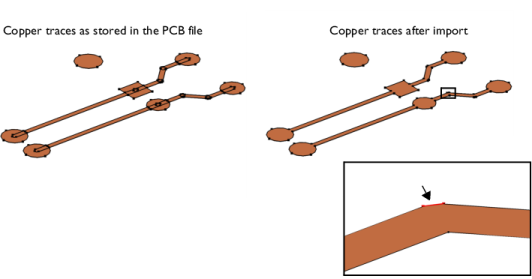
The copper layers in an PCB file contain geometric shapes that when united during import result in the final geometric objects for the copper traces. This is illustrated by the example in the figure below where the copper pads are represented by circles and rectangles and the traces by the elongated rectangles with fully rounded short edges.
During import of the copper layers the individual shapes are united and the interior edges are removed to reduce the complexity of the geometry. The final geometry objects for the copper traces are shown to the right in the figure above. The short edge, which is highlighted above in the magnified section of the copper trace, is the result of two overlapping copper lines.
Edges corresponding to such overlaps can become significantly shorter than the typical line width of the copper, and can be automatically detected and removed before meshing the geometry.
Model Definition
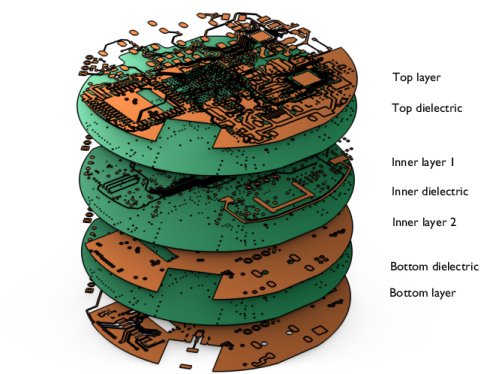
The IPC-2581 file imported in this tutorial contains a PCB with four copper layers connected by vias. During import, geometry objects are generated for the copper and dielectric layers. The objects for the dielectric layers are created according to the shape of the board as defined in the XML file.
This tutorial uses the preview for PCBs to choose specific nets of interest for import. This can significantly reduce the time it takes to import a complex board when it is known in advance that not all traces are needed for the simulation.
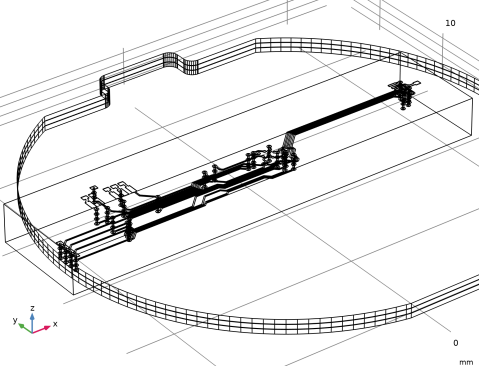
The tutorial also demonstrates how to reduce the board’s geometry to the region surrounding the imported nets.
The PCB featured in this tutorial originates from OtterCastAudioV2, Copyright © 2024 Ottercast, Jana Marie Hemsing, and it is made available under the MIT license.
Reference
1. The Usage of Form Union and Form Assembly
Application Library path: ECAD_Import_Module/Tutorials/pcb_import_nets
Modeling Instructions
From the File menu, choose New.
New
In the New window, click  Model Wizard.
Model Wizard
1
In the Model Wizard window, click  3D.
2
Geometry 1
In the Settings window for Geometry, locate the Advanced section. From the Geometry representation list, if it is visible, choose the COMSOL kernel.
Import 1 (imp1)
1
In the Geometry toolbar, click  Import.
2
In the Settings window for Import, locate the Source section.
3
Click  Browse.
4
5
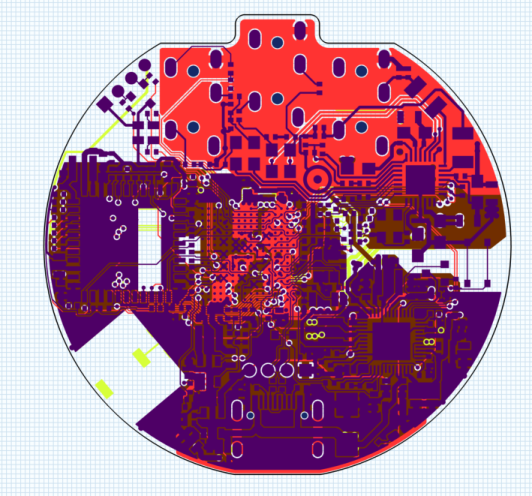
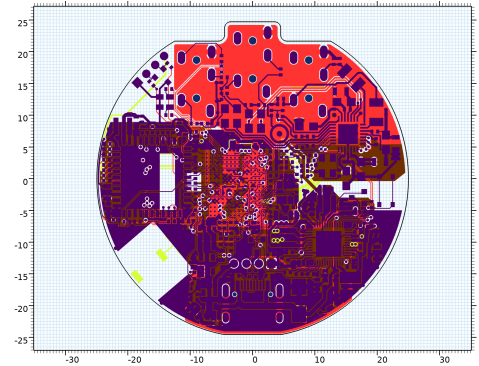
Click  Preview.
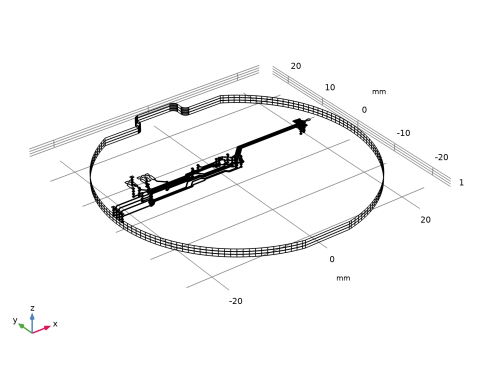
The Graphics window now displays a 2D view of all the layers and nets contained in the PCB file. In the Preview window to the right you can control the import and visibility of the available layers and nets.
6
In the Settings window for Preview, locate the Layers to Import section.
7
In the table, select the checkbox for DRILL:F.CU_B.CU to also import this layer.
8
Locate the Nets to Import section. Click  Import None.
You can select nets to import either from list or from the preview in the Graphics window.
In the following use the text box for filtering the list to find and select the nets: BT_PCM_CLK, BT_PCM_DIN, BT_PCM_DOUT, BT_PCM_SYNC, WL_SDIO_CLK, WL_SDIO_CMD, WL_SDIO_D0, WL_SDIO_D1, WL_SDIO_D2, WL_SDIO_D3.
9
10
Click  Import All.
11
12
Click  Import All.
13
In the Settings window for Import, click to expand the Simplify and Repair section.
14
Select the Eliminate short edges checkbox.
By enabling this setting, we will remove short edges in the geometry by defining a maximum allowed edge length. Any edges shorter than the specified length will be collapsed before the copper layers are extruded.
15
Find the Ignore vertices in layers subsection. In the Maximum edge length text field, type 0.017[mm].
16
Locate the Source section. Click  Import.
To better visualize the imported nets, turn on Wireframe rendering.
17
Click the  Wireframe Rendering button in the Graphics toolbar.
Block 1 (blk1)
Continue now with cutting out the region of the board that contains the imported traces. An efficient way of doing this is to leverage the selections generated by the import to set up a Block primitive as a bounding box for the traces.
1
In the Geometry toolbar, click  Block.
2
In the Settings window for Block, locate the Definition section.
3
From the Defined by list, choose Bounding box (approximate).
4
From the Orientation list, choose Principal axes.
5
Locate the Bounding Box section. From the Selection list, choose F.CU (Import 1).
6
Locate the Margins section. In the Left text field, type 1[mm].
7
In the Right text field, type 1[mm].
8
In the Front text field, type 1[mm].
9
In the Back text field, type 1[mm].
10
In the Bottom text field, type 3[mm].
11
In the Top text field, type 1[mm].
12
Locate the Selections of Resulting Entities section. Select the Resulting objects selection checkbox.
13
From the Show in physics list, choose All levels.
14
Click  Build Selected.
Compose 1 (co1)
The Compose operation can perform the union of the imported objects and the intersection with the created block in one step. An alternative to using Compose is to add separate Union and Intersection features.
1
In the Geometry toolbar, click  Booleans and Partitions and choose Compose.
2
In the Settings window for Compose, locate the Compose section.
3
From the Input objects list, choose All objects.
4
In the Set formula text field, type (imp1.B_CU + imp1.IN1_CU+imp1.IN2_CU+imp1.F_CU+imp1.DIELECTRIC_1+imp1.DIELECTRIC_2+imp1.DIELECTRIC_3)*blk1.
5
Click  Build Selected.
Form Union (fin)
1
In the Model Builder window, click Form Union (fin).
2
In the Settings window for Form Union/Assembly, click  Build Selected.
Mesh 1
1
In the Model Builder window, under Component 1 (comp1) click Mesh 1.
2
In the Settings window for Mesh, locate the Physics-Controlled Mesh section.
3
From the Element size list, choose Extra coarse.
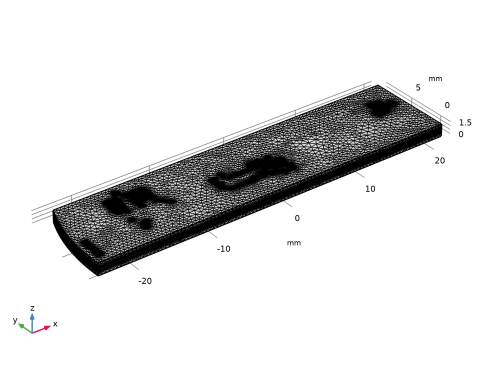
Notice that since we have not added any physics interfaces to the component, the only contributor to the physics-controlled meshing is the Geometric Analysis, Detail Size. This contributor ensures that the mesh size parameters are chosen so that details on the geometry are resolved according to the selected predefined element size setting.
4
Click  Build All.