|
|
|
|
•
|
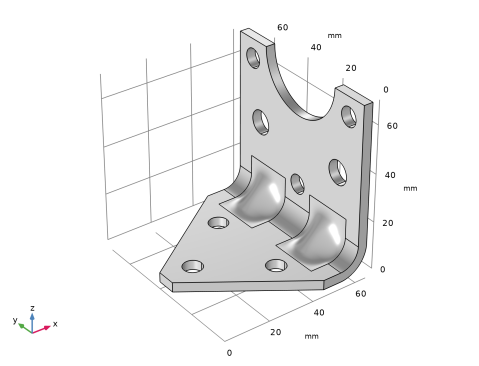
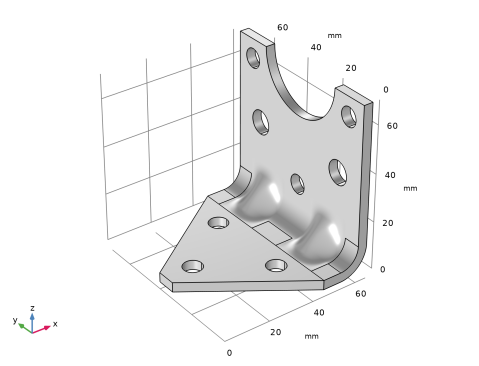
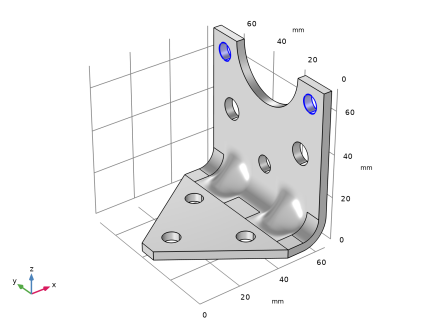
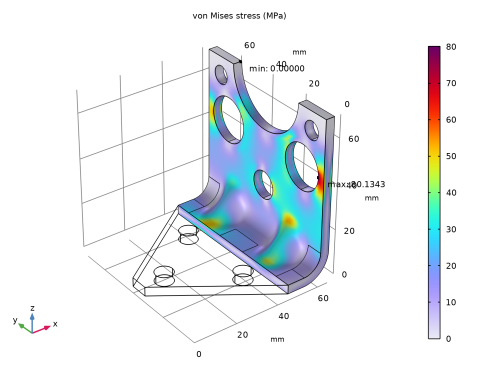
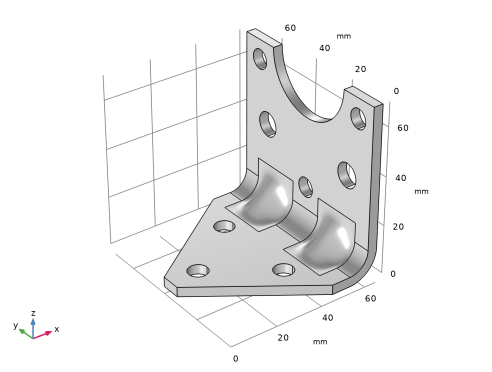
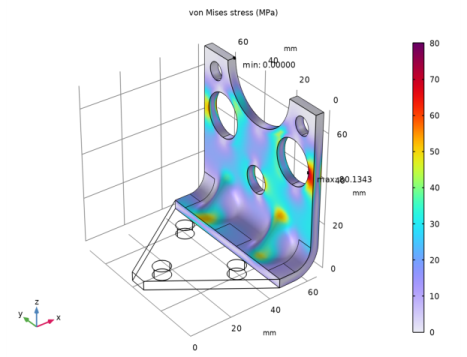
When exposed to a peak acceleration of 4g in all three global directions simultaneously, the effective stress is not allowed to exceed 80 MPa anywhere. This criterion is nondifferentiable because the location of the peak stress can jump from one place to another. A gradient-free optimization algorithm must thus be used.
|
|
1
|
|
2
|
|
3
|
Click Add.
|
|
4
|
Click
 Study. Study. |
|
5
|
|
6
|
Click
 Done. Done. |
|
1
|
|
2
|
|
3
|
Click
 Load from File. Load from File. |
|
4
|
Browse to the model’s Application Libraries folder and double-click the file bracket_import_optimization_dimensions_parameters.txt.
|
|
5
|
|
6
|
|
1
|
|
2
|
|
3
|
|
1
|
|
2
|
|
3
|
Click
 Browse. Browse. |
|
4
|
Browse to the model’s Application Libraries folder and double-click the file bracket_import_optimization_geom.step.
|
|
5
|
|
6
|
|
1
|
|
2
|
|
3
|
|
1
|
|
2
|
|
3
|
|
4
|
|
5
|
|
1
|
|
2
|
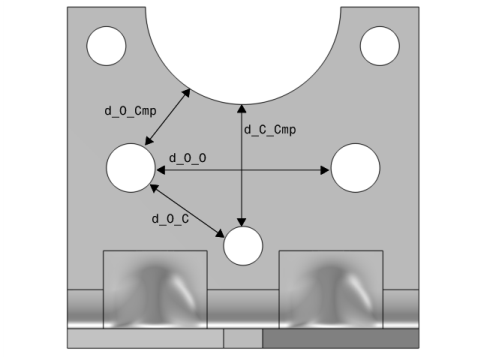
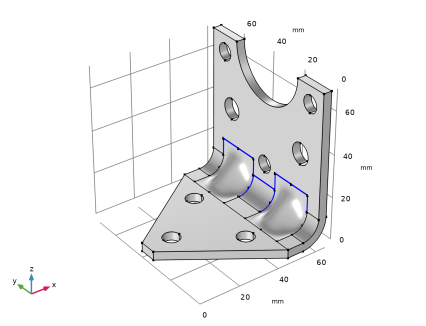
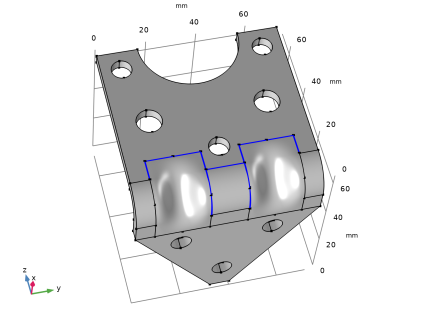
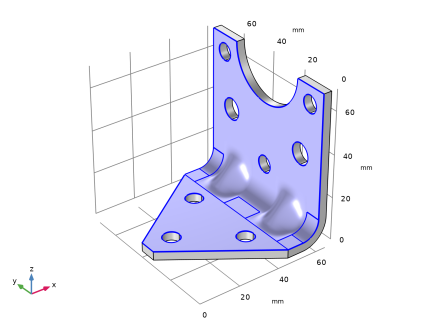
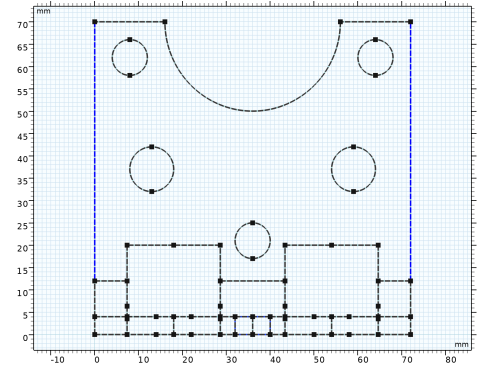
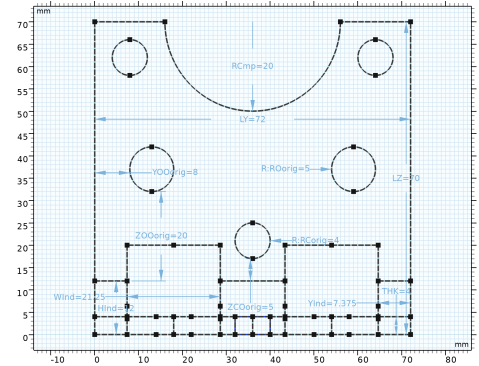
Select the two outer boundaries of the bracket, following the figure below, and apply Distance by clicking on the Graphics window.
 |
|
3
|
In the Settings window for Distance, locate the Dimension Value section. Click to clear the associated Constrain Distance toggle button (lock symbol).
|
|
4
|
Select the Create measuring parameter checkbox.
|
|
5
|
|
6
|
Click
 Build Selected. Build Selected. |
|
1
|
|
2
|
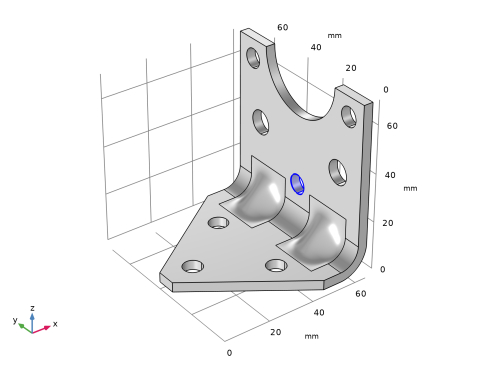
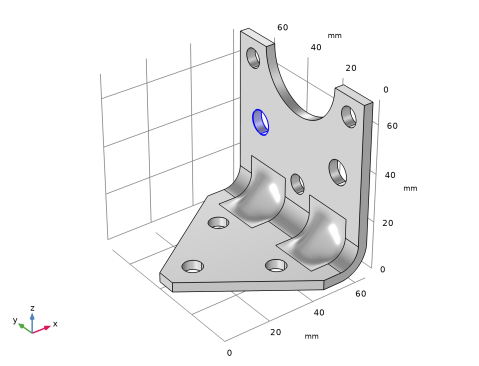
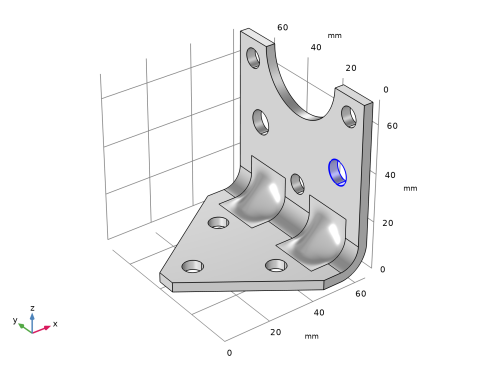
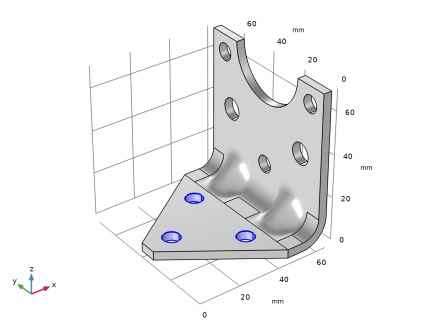
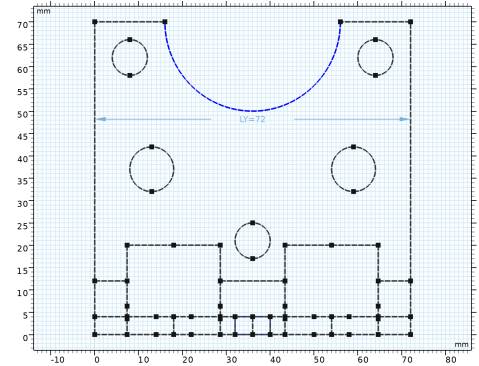
Select the edge of the mounting component hole, following the figure below, and apply Radius by clicking in the Graphics window.
 |
|
3
|
In the Settings window for Radius, locate the Dimension Value section. Click to clear the associated Constrain Radius toggle button (lock symbol).
|
|
4
|
Select the Create measuring parameter checkbox.
|
|
5
|
|
6
|
Click
 Build Selected. Build Selected. |
|
1
|
|
2
|
In the Settings window for Work Plane, type Coordinate System - Central Hole in the Label text field.
|
|
3
|
|
4
|
|
5
|
Click
 Build Selected. Build Selected. |
|
1
|
|
2
|
In the Settings window for Work Plane, type Coordinate System - Outer Hole 1 in the Label text field.
|
|
3
|
|
4
|
|
5
|
Select the Reverse normal direction checkbox.
|
|
6
|
Click
 Build Selected. Build Selected. |
|
1
|
|
2
|
In the Settings window for Work Plane, type Coordinate System - Outer Hole 2 in the Label text field.
|
|
3
|
|
4
|
|
5
|
Click
 Build Selected. Build Selected. |
|
1
|
|
2
|
In the Settings window for Transform Faces, type Z Displacement and Scaling - Central Hole in the Label text field.
|
|
3
|
|
4
|
Locate the Coordinate System section. From the Work plane list, choose Coordinate System - Central Hole.
|
|
5
|
|
6
|
|
7
|
Click
 Build Selected. Build Selected. |
|
1
|
|
2
|
|
3
|
|
4
|
|
5
|
Select the Reverse side checkbox.
|
|
6
|
Click
 Build Selected. Build Selected. |
|
1
|
|
2
|
In the Settings window for Transform Faces, type Displacement - Outer Hole 1 in the Label text field.
|
|
3
|
|
4
|
Locate the Coordinate System section. From the Work plane list, choose Coordinate System - Outer Hole 1.
|
|
5
|
|
6
|
|
7
|
Click
 Build Selected. Build Selected. |
|
1
|
|
2
|
In the Settings window for Transform Faces, type Displacement - Outer Hole 2 in the Label text field.
|
|
3
|
|
4
|
Locate the Coordinate System section. From the Work plane list, choose Coordinate System - Outer Hole 2.
|
|
5
|
|
6
|
|
7
|
Click
 Build Selected. Build Selected. |
|
1
|
|
2
|
|
3
|
|
4
|
|
5
|
|
6
|
Click
 Build Selected. Build Selected. |
|
1
|
|
2
|
Select the object tf3 only.
|
|
3
|
|
4
|
|
5
|
Click
 Build Selected. Build Selected. |
|
1
|
|
2
|
|
3
|
|
1
|
|
2
|
|
3
|
Find the In-plane visualization of 3D geometry subsection. Clear the Coincident entities (blue) checkbox.
|
|
4
|
Clear the Intersection (green) checkbox.
|
|
5
|
Clear the Projection (teal) checkbox.
|
|
1
|
|
2
|
|
3
|
|
4
|
|
1
|
|
2
|
|
3
|
|
1
|
|
2
|
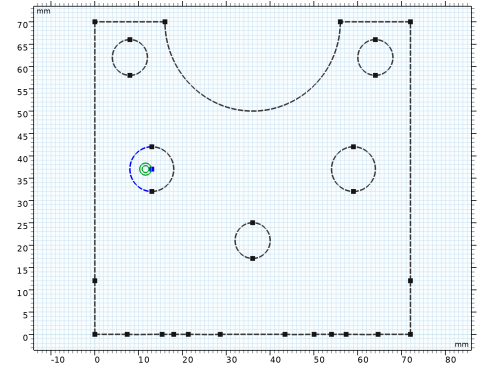
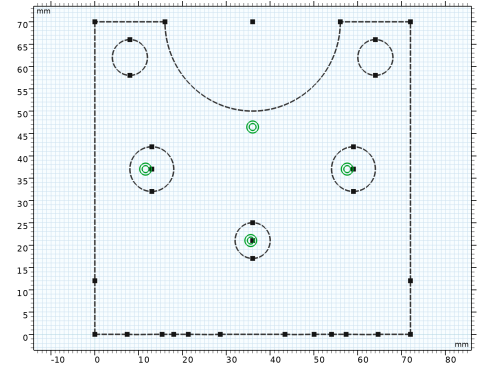
Select one edge of the left outer hole and Point 1 and apply the Concentric constraint by clicking in the Graphics window.
 |
|
1
|
|
2
|
Select the point in the left outer hole and the mounting component and apply Distance by clicking in the Graphics window.
|
|
3
|
In the Settings window for Distance, locate the Dimension Value section. Click to clear the associated Constrain Distance toggle button (lock symbol).
|
|
4
|
Select the Create measuring parameter checkbox.
|
|
5
|
|
1
|
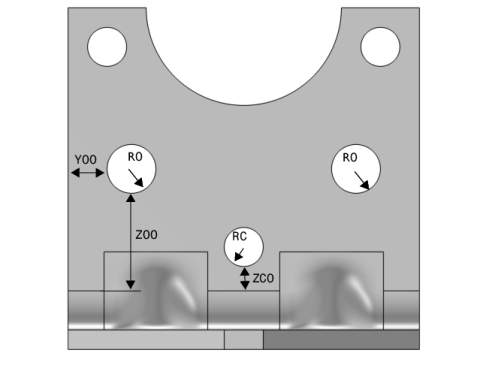
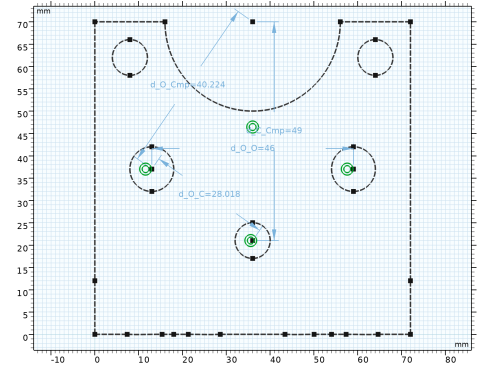
Add three more Distance constraints by following the steps in the section above to create the following dimension parameters.
|
|
1
|
|
2
|
|
3
|
|
4
|
|
5
|
Click
 Build Selected. Build Selected. |
|
1
|
|
2
|
|
3
|
|
4
|
|
5
|
Click
 Build Selected. Build Selected. |
|
1
|
|
2
|
|
3
|
|
4
|
|
5
|
Click
 Build Selected. Build Selected. |
|
1
|
|
2
|
|
3
|
|
4
|
|
5
|
Click
 Build Selected. Build Selected. |
|
1
|
|
2
|
|
3
|
|
4
|
|
5
|
|
6
|
|
7
|
|
8
|
|
9
|
|
10
|
|
11
|
|
12
|
Click OK.
|
|
13
|
|
1
|
|
2
|
|
3
|
|
4
|
|
5
|
|
6
|
|
7
|
|
8
|
|
9
|
|
10
|
Locate the Resulting Selection section. Find the Cumulative selection subsection. From the Contribute to list, choose Ignore Edges Selection.
|
|
11
|
Click
 Build Selected. Build Selected. |
|
1
|
|
2
|
|
3
|
|
4
|
|
5
|
|
6
|
|
7
|
|
8
|
|
9
|
|
10
|
Locate the Resulting Selection section. Find the Cumulative selection subsection. From the Contribute to list, choose Ignore Edges Selection.
|
|
11
|
Click
 Build Selected. Build Selected. |
|
1
|
|
2
|
|
3
|
|
4
|
|
5
|
|
1
|
|
2
|
Go to the Add Material window.
|
|
3
|
|
4
|
Click the Add to Component button in the window toolbar.
|
|
5
|
|
1
|
|
2
|
|
1
|
|
2
|
In the Settings window for Rigid Connector, type Rigid Connector (Mounted component) in the Label text field.
|
|
4
|
|
5
|
|
1
|
|
2
|
In the Settings window for Mass and Moment of Inertia, locate the Mass and Moment of Inertia section.
|
|
3
|
|
4
|
From the list, choose Diagonal.
|
|
5
|
Specify the I matrix as
|
|
1
|
|
1
|
|
2
|
|
3
|
Click
 Clear Selection. Clear Selection. |
|
5
|
|
1
|
|
3
|
|
4
|
|
5
|
|
1
|
|
2
|
|
3
|
|
4
|
|
1
|
|
2
|
|
3
|
|
1
|
|
2
|
|
3
|
|
4
|
|
1
|
|
2
|
In the Settings window for Applied Force, type Force 4g on mounted component in the Label text field.
|
|
3
|
|
1
|
|
2
|
Go to the Add Study window.
|
|
3
|
|
4
|
Click the Add Study button in the window toolbar.
|
|
5
|
|
1
|
|
2
|
|
1
|
|
2
|
|
1
|
|
2
|
|
3
|
|
4
|
Click Replace Expression in the upper-right corner of the Expression section. From the menu, choose Component 1 > Solid Mechanics > Material properties > solid.rho - Density - kg/m³.
|
|
1
|
|
2
|
|
3
|
|
4
|
|
5
|
Click Replace Expression in the upper-right corner of the Expression section. From the menu, choose Component 1 > Solid Mechanics > Stress > solid.mises - von Mises stress - N/m².
|
|
1
|
|
2
|
|
1
|
|
2
|
|
3
|
|
1
|
|
2
|
|
1
|
|
2
|
|
3
|
|
1
|
|
2
|
|
1
|
|
2
|
Go to the Add Study window.
|
|
3
|
|
4
|
Click the Add Study button in the window toolbar.
|
|
5
|
|
1
|
|
2
|
|
3
|
|
1
|
|
2
|
|
3
|
|
1
|
|
2
|
|
3
|
|
4
|
|
5
|
|
6
|
Click Replace Expression in the upper-right corner of the Objective Function section. From the menu, choose Component 1 > Definitions > comp1.mass - Domain Probe 1 - kg.
|
|
7
|
Locate the Objective Function section. In the table, enter the following settings:
|
|
8
|
|
9
|
|
10
|
Browse to the model’s Application Libraries folder and double-click the file bracket_import_optimization_ctrlvars.txt.
|
|
11
|
Locate the Constraints section. In the table, enter the following settings:
|
|
12
|
|
14
|
Select the Copy optimized parameters to a parameter case checkbox.
|
|
1
|
|
2
|
Click
 Compute. Compute. |
|
1
|
|
2
|
|
1
|
|
2
|
|
3
|
|
4
|
|
1
|
|
2
|