|
|
|
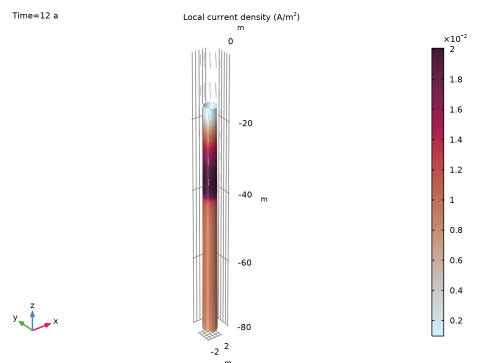
|
1
|
|
2
|
|
3
|
Click Add.
|
|
4
|
Click
 Study. Study. |
|
5
|
|
6
|
Click
 Done. Done. |
|
1
|
|
2
|
|
3
|
Click
 Load from File. Load from File. |
|
4
|
Browse to the model’s Application Libraries folder and double-click the file monopile_parameters.txt.
|
|
1
|
|
2
|
Browse to the model’s Application Libraries folder and double-click the file monopile_geom_sequence.mph.
|
|
3
|
|
4
|
|
5
|
|
6
|
|
7
|
|
8
|
|
9
|
Clear the Automatic detection of small details checkbox.
|
|
1
|
|
2
|
Go to the Add Material window.
|
|
3
|
|
4
|
Right-click and choose Add to Component 1 (comp1).
|
|
5
|
|
1
|
|
2
|
Click
 Clear Selection. Clear Selection. |
|
1
|
|
2
|
|
4
|
Locate the Material Contents section. In the table, enter the following settings:
|
|
1
|
|
2
|
|
3
|
|
4
|
|
1
|
|
2
|
|
3
|
|
4
|
|
5
|
|
6
|
|
7
|
|
1
|
|
2
|
|
3
|
|
4
|
|
5
|
|
1
|
|
2
|
|
3
|
|
4
|
|
1
|
|
2
|
|
3
|
|
4
|
|
5
|
|
6
|
|
7
|
Click OK.
|
|
1
|
|
2
|
|
4
|
Click
 Remove from Selection. Remove from Selection. |
|
1
|
|
2
|
In the Settings window for Protected Metal Surface, type Protected Metal Surface - Coated Steel in the Label text field.
|
|
3
|
|
4
|
|
1
|
|
2
|
In the Settings window for Electrode Surface, type Electrode Surface - Uncoated Steel in the Label text field.
|
|
3
|
|
1
|
|
2
|
In the Settings window for Electrode Reaction, type Electrode Reaction 1 - Steel Oxidation in the Label text field.
|
|
3
|
|
4
|
Locate the Electrode Kinetics section. From the Kinetics expression type list, choose Anodic Tafel equation.
|
|
5
|
|
6
|
|
1
|
|
2
|
In the Settings window for Electrode Reaction, type Electrode Reaction 2 - Oxygen Reduction (Sea) in the Label text field.
|
|
3
|
|
4
|
|
5
|
Locate the Electrode Kinetics section. From the iloc,expr list, choose User defined. In the associated text field, type ilim_O2.
|
|
1
|
|
2
|
In the Settings window for Electrode Reaction, type Electrode Reaction 3 - Oxygen Reduction (Mud) in the Label text field.
|
|
3
|
|
4
|
|
1
|
|
2
|
|
3
|
|
4
|
|
5
|
|
6
|
|
1
|
|
2
|
|
3
|
|
1
|
|
1
|
|
2
|
|
3
|
|
1
|
|
2
|
|
3
|
Click the Custom button.
|
|
4
|
|
5
|
|
1
|
|
2
|
|
3
|
|
4
|
|
5
|
|
6
|
Click the Custom button.
|
|
7
|
Locate the Element Size Parameters section.
|
|
8
|
|
9
|
|
1
|
|
2
|
|
3
|
|
4
|
|
5
|
|
6
|
|
7
|
Clear the Generate default plots checkbox.
|
|
8
|
|
1
|
|
2
|
|
3
|
|
4
|
|
1
|
|
2
|
|
3
|
|
4
|
|
1
|
|
2
|
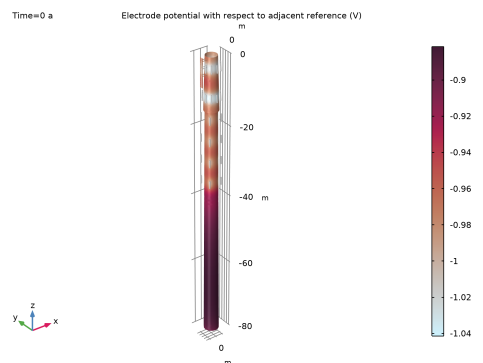
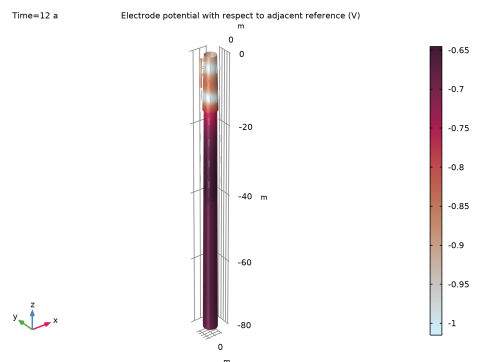
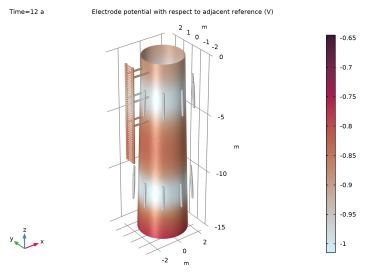
In the Settings window for Surface, click Replace Expression in the upper-right corner of the Expression section. From the menu, choose Component 1 (comp1) > Cathodic Protection > cp.Evsref - Electrode potential with respect to adjacent reference - V.
|
|
3
|
|
4
|
|
1
|
|
2
|
|
3
|
|
4
|
|
5
|
|
6
|
|
7
|
Select the Radius scale factor checkbox.
|
|
8
|
|
9
|
|
1
|
|
2
|
|
3
|
|
4
|
|
5
|
|
6
|
|
7
|
|
1
|
|
2
|
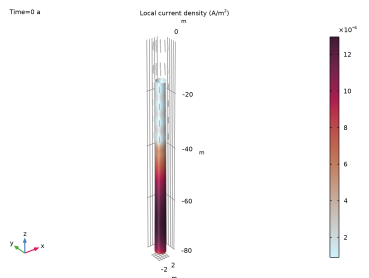
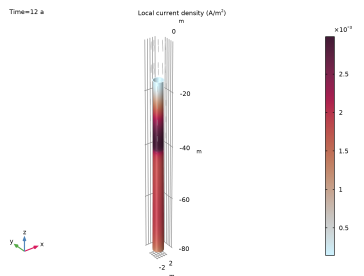
In the Settings window for 3D Plot Group, type Iron Dissolution Current Density in the Label text field.
|
|
1
|
In the Model Builder window, expand the Iron Dissolution Current Density node, then click Surface 1.
|
|
2
|
In the Settings window for Surface, click Replace Expression in the upper-right corner of the Expression section. From the menu, choose Component 1 (comp1) > Cathodic Protection > Electrode kinetics > cp.iloc_er1 - Local current density - A/m².
|
|
1
|
|
2
|
|
3
|
|
4
|
|
5
|
|
6
|
|
1
|
In the Model Builder window, under Component 1 (comp1) > Cathodic Protection (cp) click Electrode Surface - Uncoated Steel.
|
|
2
|
In the Settings window for Electrode Surface, locate the Electrode Phase Potential Condition section.
|
|
3
|
|
4
|
|
1
|
|
2
|
|
1
|
|
2
|
Click
 Done. Done. |
|
1
|
|
2
|
|
3
|
|
4
|
|
5
|
|
6
|
|
7
|
Click
 Build Selected. Build Selected. |
|
8
|
|
1
|
|
2
|
|
3
|
|
4
|
|
5
|
|
6
|
|
7
|
Click
 Build Selected. Build Selected. |
|
1
|
|
2
|
|
3
|
|
4
|
|
1
|
|
2
|
|
3
|
|
4
|
|
5
|
|
6
|
|
7
|
|
8
|
|
1
|
|
2
|
|
3
|
|
4
|
|
5
|
|
6
|
|
7
|
|
8
|
|
9
|
|
10
|
|
1
|
|
2
|
|
3
|
|
1
|
|
2
|
|
3
|
|
4
|
|
5
|
|
6
|
Click
 Build Selected. Build Selected. |
|
1
|
|
2
|
Go to the Selection List window.
|
|
3
|
|
4
|
Click the Add to Active Selection for Sweep 1 (swe1) button in the window toolbar.
|
|
5
|
|
6
|
|
7
|
|
8
|
Go to the Selection List window.
|
|
9
|
|
10
|
Click the Add to Active Selection for Sweep 1 (swe1) button in the window toolbar.
|
|
11
|
|
12
|
Select the Manual control of sweep direction checkbox.
|
|
13
|
Select the Reverse direction checkbox.
|
|
14
|
|
15
|
Click
 Build Selected. Build Selected. |
|
1
|
|
2
|
Select the object swe1 only.
|
|
3
|
|
4
|
|
5
|
Click
 Build Selected. Build Selected. |
|
1
|
|
2
|
|
3
|
|
4
|
|
5
|
|
6
|
Click
 Build Selected. Build Selected. |
|
1
|
|
2
|
|
3
|
|
4
|
|
5
|
|
6
|
|
7
|
|
8
|
|
9
|
Click
 Build Selected. Build Selected. |
|
1
|
Go to the Selection List window.
|
|
2
|
|
3
|
Click the Add to Active Selection for Array 1 (arr1) button in the window toolbar.
|
|
4
|
|
5
|
|
6
|
|
7
|
Click
 Build Selected. Build Selected. |
|
1
|
|
2
|
|
3
|
|
4
|
|
1
|
|
2
|
|
3
|
|
4
|
|
5
|
|
6
|
Click
 Build Selected. Build Selected. |
|
1
|
Go to the Selection List window.
|
|
2
|
|
3
|
Click the Add to Active Selection for Array 1 (arr1) button in the window toolbar.
|
|
4
|
|
5
|
|
6
|
|
7
|
|
8
|
|
9
|
Click
 Build Selected. Build Selected. |
|
10
|
|
1
|
|
2
|
|
4
|
Select the Reverse direction checkbox.
|
|
5
|
Click
 Build Selected. Build Selected. |
|
1
|
Go to the Selection List window.
|
|
2
|
|
3
|
Click the Add to Active Selection for Move 1 (mov1) button in the window toolbar.
|
|
4
|
|
5
|
|
6
|
Click
 Build Selected. Build Selected. |
|
1
|
|
2
|
|
3
|
Clear the Keep interior boundaries checkbox.
|
|
1
|
Go to the Selection List window.
|
|
2
|
In the Objects tree, select cone2 (solid), swe1 (solid), copy1 (solid), cyl1 (solid), Array 1 > arr1(1,1,1) (solid), Array 1 > arr1(1,1,2) (solid), Array 1 > arr1(1,1,3) (solid), Array 1 > arr1(1,1,4) (solid), Array 1 > arr1(1,1,5) (solid), Array 1 > arr1(1,1,6) (solid), Array 1 > arr1(1,1,7) (solid), Array 1 > arr1(1,1,8) (solid), Array 1 > arr1(1,1,9) (solid), Array 1 > arr1(1,1,10) (solid), Array 1 > arr1(1,1,11) (solid), Array 1 > arr1(1,1,12) (solid), Array 1 > arr1(1,1,13) (solid), Array 1 > arr1(1,1,14) (solid), Array 1 > arr1(1,1,15) (solid), Array 1 > arr1(1,1,16) (solid), Array 1 > arr1(1,1,17) (solid), Array 1 > arr1(1,1,18) (solid), Array 1 > arr1(1,1,19) (solid), Array 1 > arr1(1,1,20) (solid), Array 1 > arr1(1,1,21) (solid), Array 1 > arr1(1,1,22) (solid), Array 1 > arr1(1,1,23) (solid), Array 1 > arr1(1,1,24) (solid), Array 1 > arr1(1,1,25) (solid), Array 1 > arr1(1,1,26) (solid), Array 1 > arr1(1,1,27) (solid), Array 1 > arr1(1,1,28) (solid), Array 1 > arr1(1,1,29) (solid), Array 1 > arr1(1,1,30) (solid), Array 1 > arr1(1,1,31) (solid), Array 1 > arr1(1,1,32) (solid), Array 1 > arr1(1,1,33) (solid), Array 1 > arr1(1,1,34) (solid), Array 1 > arr1(1,1,35) (solid), Array 1 > arr1(1,1,36) (solid), Array 1 > arr1(1,1,37) (solid), Array 1 > arr1(1,1,38) (solid), Array 1 > arr1(1,1,39) (solid), Array 1 > arr1(1,1,40) (solid), Array 1 > arr1(1,1,41) (solid), Array 1 > arr1(1,1,42) (solid), Array 1 > arr1(1,1,43) (solid), Array 1 > arr1(1,1,44) (solid), Array 1 > arr1(1,1,45) (solid), Array 1 > arr1(1,1,46) (solid), Array 1 > arr1(1,1,47) (solid), Array 1 > arr1(1,1,48) (solid), Array 1 > arr1(1,1,49) (solid), Array 1 > arr1(1,1,50) (solid), and mov1 (solid).
|
|
3
|
Click the Add to Active Selection for Union 1 (uni1) button in the window toolbar.
|
|
4
|
|
5
|
|
1
|
|
2
|
|
3
|
|
4
|
|
5
|
|
6
|
Click to expand the Layers section. In the table, enter the following settings:
|
|
7
|
Clear the Layers on side checkbox.
|
|
8
|
Select the Layers on bottom checkbox.
|
|
9
|
Click
 Build Selected. Build Selected. |
|
1
|
|
2
|
|
3
|
|
4
|
|
5
|
|
6
|
|
7
|
|
8
|
|
9
|
Click
 Build Selected. Build Selected. |
|
1
|
Go to the Selection List window.
|
|
2
|
|
3
|
Click the Add to Active Selection for Difference 1 (dif1) button in the window toolbar.
|
|
4
|
|
5
|
|
6
|
Go to the Selection List window.
|
|
7
|
|
8
|
Click the Add to Active Selection for Difference 1 (dif1) button in the window toolbar.
|
|
9
|
|
10
|
|
1
|
In the Model Builder window, under Component 1 (comp1) right-click Geometry 1 and choose Delete Entities.
|
|
2
|
|
3
|
|
4
|
On the object dif1, select Domains 4–7 only.
|
|
1
|
|
2
|
|
1
|
|
2
|
|
4
|
Locate the Selections of Resulting Entities section. Find the Cumulative selection subsection. Click New.
|
|
5
|
|
6
|
Click OK.
|
|
1
|
|
2
|
|
3
|
|
4
|
Locate the Rotation section. In the Angle text field, type -range(180/NanodeTp,360/NanodeTp,180-180/NanodeTp).
|
|
5
|
Locate the Selections of Resulting Entities section. Find the Cumulative selection subsection. From the Contribute to list, choose AnodeTp.
|
|
6
|
Click
 Build Selected. Build Selected. |
|
1
|
|
2
|
|
3
|
|
4
|
In the Paste Selection dialog, type rot1(1) rot1(2) rot1(3) rot1(4) rot1(5) in the Selection text field.
|
|
5
|
Click OK.
|
|
6
|
|
7
|
|
8
|
|
9
|
Locate the Selections of Resulting Entities section. Find the Cumulative selection subsection. From the Contribute to list, choose AnodeTp.
|
|
10
|
Click
 Build Selected. Build Selected. |
|
1
|
|
2
|
|
3
|
|
4
|
|
5
|
|
6
|
|
7
|
Locate the Selections of Resulting Entities section. Find the Cumulative selection subsection. Click New.
|
|
8
|
|
9
|
Click OK.
|
|
1
|
|
2
|
|
3
|
|
4
|
|
5
|
|
6
|
Click
 Build Selected. Build Selected. |
|
1
|
|
2
|
|
3
|
|
4
|
In the Paste Selection dialog, type arr2(1,1,1) arr2(1,1,2) arr2(1,1,3) arr2(1,1,4) in the Selection text field.
|
|
5
|
Click OK.
|
|
6
|
|
7
|
|
8
|
|
9
|
Locate the Selections of Resulting Entities section. Find the Cumulative selection subsection. From the Contribute to list, choose AnodeMp.
|
|
10
|
Click
 Build Selected. Build Selected. |
|
1
|
|
2
|
|
3
|
|
4
|
|
5
|
|
6
|
Click OK.
|
|
1
|
|
2
|
|
3
|
|
4
|
In the Paste Selection dialog, type del1 rot1(1) rot1(2) rot1(3) rot1(4) rot1(5) copy2(1) copy2(2) copy2(3) copy2(4) copy2(5) del1 rot1(1) rot1(2) rot1(3) rot1(4) rot1(5) rot2(1) rot2(2) rot2(3) rot2(4) rot2(5) rot2(6) rot2(7) rot2(8) in the Selection text field.
|
|
5
|
Click OK.
|
|
6
|
Click in the Graphics window and then press Ctrl+A to select all objects.
|
|
7
|
|
8
|
|
9
|
Click
 Build Selected. Build Selected. |