PDF

Crevice Corrosion of Iron in an Acetic Acid/Sodium Acetate Solution
Introduction
Mass transport limitations within thin crevices can often result in significant concentration differences between the crevice opening (mouth) and end (tip). As a result of this differences in the local electrochemical environment, corrosion may occur.
This example models crevice corrosion of iron in an acetic acid/sodium acetate solution. The model reproduces the results of Walton (Ref. 1).
Model Definition
The crevice investigated is 10 mm deep and 0.5 mm wide. Due to the high aspect ratio of the crevice a 1D model geometry is used, in which concentration variations along the width of the crevice are neglected.
Due to the absence of a supporting electrolyte the transport of all charged species need to be accounted for. All species are considered to be diluted in water. The Aqueous Electrolyte Transport interface is used to model the electrolyte potential and the transport of the species in the electrolyte. The modeled species, together with their respective diffusion coefficients in water, are listed in Table 1.
D (dm2/s)·107
Fe2+
The modeled electrolyte has a higher viscosity than pure water. Thus, the diffusion coefficients listed in Table 1 are altered to account for this. Furthermore, the mobilities um,i (m2·mol/(J·s)) are calculated using the Nernst–Einstein relation:
The conditions at the mouth of the crevice are set to measured values for the electrolyte potential and to the bulk concentrations. No Flux / Insulation conditions are applied to the crevice tip.
Equilibrium reactions
The following equilibrium reactions occur in the electrolyte:
where K1 through K3 are the equilibrium constants.
These reactions are modeled using the Equilibrium Reaction domain node; one for each reaction. The Equilibrium Reaction nodes solve for one additional degree of freedom each, where the additional degree of freedom represents the local reaction rate required in order to fulfill the equilibrium expression. The equilibrium expressions are based on the reaction stoichiometry and equilibrium constant Kk according to
where ci (mol/m3) is the concentration of species i, ca0 (mol/m3) is the unit activity concentration and vik is the stoichiometric coefficient of species i in reaction k.
The water dissociation equilibrium reaction is built-in for the Aqueous Electrolyte Transport interface.
Electrochemical reactions
Iron dissolution occurs in the crevice according to
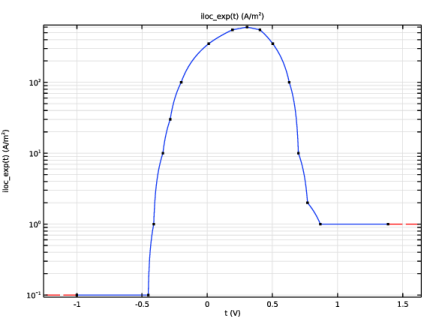
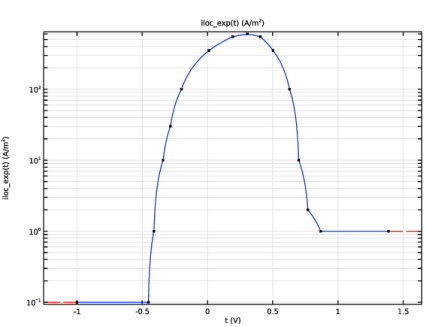
Experimental polarization data available in corrosion material library is used for this reaction according to Figure 1, where the local current density (A/m2) of the reaction is evaluated as
The whole crevice is modeled as a porous electrode (with a single pore), with the specific surface area 2/w (1/m).
Figure 1: Polarization curve (anodic) for iron.
Study settings
The problem is solved using an Auxiliary Sweep on a stationary solver, sweeping the potential in the electrode phase, Vpol = ϕs, from 0.6 V to 0.844 V (SHE). The sweep is needed to ensure that the intended active-to-passive polarization behavior is captured in the simulation, since due to the nonmonotonic shape of the polarization curve the problem may have more than one solution. (When there are multiple roots to a problem, the initial values will determine to which root COMSOL Multiphysics will converge.)
Results and Discussion
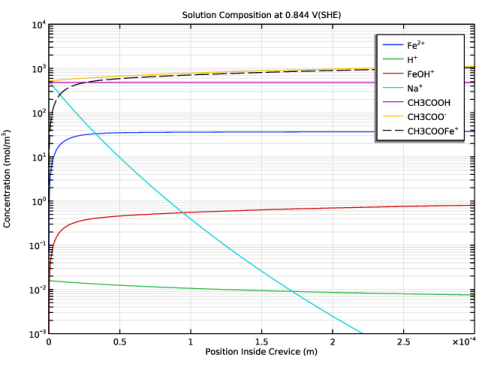
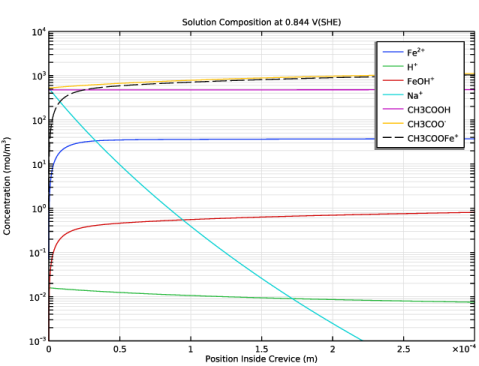
Figure 2 shows the concentration distribution of the different species in the crevice. The sodium concentration is significantly lower in the crevice, compared to the bulk, whereas the iron, which is dissolved in the crevice, and the iron complexes have higher concentrations toward the tip.
Figure 2: Concentration distribution in the crevice at 0.844 V(SHE).
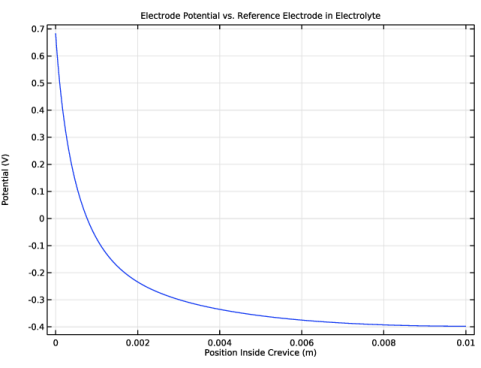
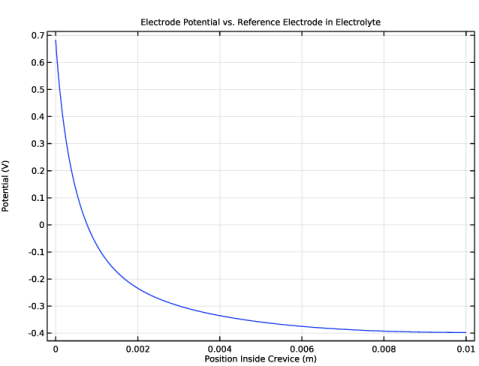
Figure 3 shows the electrode potential of the metal, as compared to a reference electrode placed along the crevice surface in the electrolyte:
Figure 3: Electrode potential vs. reference placed in electrolyte.
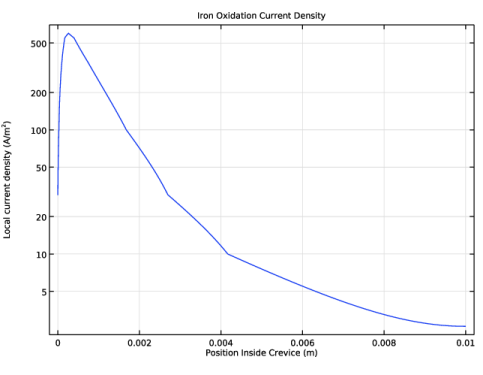
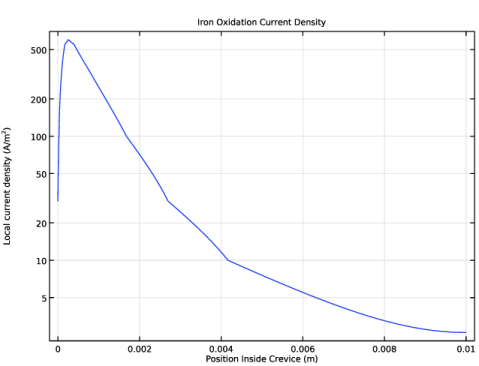
Figure 4 shows the corrosion current density along the crevice. The highest corrosion rate occurs at a crevice depth of about 0.25 mm.
Figure 4: Corrosion current density in crevice.
Reference
1. J.C Walton, “Mathematical Modeling of Mass Transport and Chemical Reaction in Crevice and Pitting Corrosion,” Corrosion Science, vol. 30, no. 8/9, pp. 915–928, 1990.
Application Library path: Corrosion_Module/Crevice_and_Pitting_Corrosion/crevice_corrosion_fe
Modeling Instructions
From the File menu, choose New.
New
In the New window, click  Model Wizard.
Model Wizard
1
In the Model Wizard window, click  1D.
2
In the Select Physics tree, select Electrochemistry > Aqueous Electrolyte Transport (aqt).
3
Click Add.
4
Click  Study.
5
In the Select Study tree, select General Studies > Stationary.
6
Global Definitions
Load the model parameters from a text file.
Parameters 1
1
In the Model Builder window, under Global Definitions click Parameters 1.
2
In the Settings window for Parameters, locate the Parameters section.
3
Click  Load from File.
4
Geometry 1
The geometry consists of a single interval.
Interval 1 (i1)
1
In the Model Builder window, under Component 1 (comp1) right-click Geometry 1 and choose Interval.
2
In the Settings window for Interval, locate the Interval section.
3
4
Click  Build All Objects.
5
Click the  Zoom Extents button in the Graphics toolbar.
Materials
Use the Corrosion material library to set up the material properties for the electrode kinetics at the iron electrode surface.
Add Material
1
In the Materials toolbar, click  Add Material to open the Add Material window.
2
Go to the Add Material window.
3
In the tree, select Corrosion > Elements > Fe in acetic acid/sodium acetate (Anodic).
4
Click the Add to Component button in the window toolbar.
5
In the Materials toolbar, click  Add Material to close the Add Material window.
Materials
Fe in acetic acid/sodium acetate (Anodic) (mat1)
In the Model Builder window, expand the Fe in acetic acid/sodium acetate (Anodic) (mat1) node.
Interpolation 1 (iloc_exp)
1
In the Model Builder window, expand the Component 1 (comp1) > Materials > Fe in acetic acid/sodium acetate (Anodic) (mat1) > Local current density (lcd) node, then click Interpolation 1 (iloc_exp).
2
In the Settings window for Interpolation, click  Plot.
3
In the Function Plot window, click the y-Axis Log Scale button in the window toolbar.
Define which species are present in the aqueous electrolyte.
Aqueous Electrolyte Transport (aqt)
Electrolyte 1
1
In the Model Builder window, under Component 1 (comp1) > Aqueous Electrolyte Transport (aqt) click Electrolyte 1.
2
In the Settings window for Electrolyte, locate the Model Input section.
3
From the T list, choose User defined. In the associated text field, type T.
Fully Dissociated Species - Fe
1
In the Physics toolbar, click  Attributes and choose Fully Dissociated Species.
Define Fe and Na ions in the electrolyte with Fully Dissociated Species nodes.
2
In the Settings window for Fully Dissociated Species, type Fully Dissociated Species - Fe in the Label text field.
3
Locate the Fully Dissociated Species section. In the Species name text field, type Fe.
4
In the z text field, type 2.
5
Locate the Diffusion and Migration section. In the D text field, type DFe.
Electrolyte 1
In the Physics toolbar, click  Attributes and choose Fully Dissociated Species.
Fully Dissociated Species - Na
1
In the Settings window for Fully Dissociated Species, type Fully Dissociated Species - Na in the Label text field.
2
Locate the Fully Dissociated Species section. In the Species name text field, type Na.
3
In the z text field, type 1.
4
Locate the Diffusion and Migration section. In the D text field, type DNa.
Add CH3COOH weak acid as a monoprotic acid using the Weak Acid node.
Electrolyte 1
In the Physics toolbar, click  Attributes and choose Weak Acid.
Weak Acid - CH3COOH
1
In the Settings window for Weak Acid, type Weak Acid - CH3COOH in the Label text field.
2
Locate the Weak Acid section. In the Species name text field, type CH3COOH.
3
In the pKa text field, type -log10(KCH3COOH).
4
Locate the Diffusion and Migration section. In the D text field, type 1.1e-7[dm^2/s]/mu_factor.
Define FeOH and CH3COOFe species forming using Complex Species nodes.
Electrolyte 1
In the Model Builder window, click Electrolyte 1.
Complex Species - FeOH
1
In the Physics toolbar, click  Attributes and choose Complex Species.
2
In the Settings window for Complex Species, type Complex Species - FeOH in the Label text field.
3
Locate the Equilibrium Constant section. In the Keq text field, type KFeOH.
4
Locate the Stoichiometric Coefficients section. Select the Fe checkbox.
5
In the νFe2+ text field, type -1.
6
Select the OH checkbox.
7
In the νOH text field, type -1.
8
Locate the Diffusion section. In the D text field, type DFeOH.
Electrolyte 1
In the Model Builder window, click Electrolyte 1.
Complex Species - CH3COOFe
1
In the Physics toolbar, click  Attributes and choose Complex Species.
2
In the Settings window for Complex Species, type Complex Species - CH3COOFe in the Label text field.
3
Locate the Equilibrium Constant section. In the Keq text field, type KCH3COOFe.
4
Locate the Stoichiometric Coefficients section. Select the Fe checkbox.
5
In the νFe2+ text field, type -1.
6
Select the CH3COOH (-1) checkbox.
7
In the νCH3COO text field, type -1.
8
Locate the Diffusion section. In the D text field, type DCH3COOFe.
Set the initial potential and concentrations. For weak acid, weak base, and ampholyte, only total concentrations are required. In this case that is applicable for CH3COOH.
Initial Values 1
1
In the Model Builder window, under Component 1 (comp1) > Aqueous Electrolyte Transport (aqt) click Initial Values 1.
2
In the Settings window for Initial Values, locate the Electrolyte Potential section.
3
In the ϕl,0 text field, type phil_mouth.
4
Locate the Concentration section. In the cFe,0 text field, type cFe0.
5
In the cNa,0 text field, type cNa0.
6
In the cCH3COOH,0 text field, type cCH3COOH_tot0.
Define the crevice as a highly conductive porous electrode that specifies the polarization potential in the metal phase at the crevice mouth.
Highly Conductive Porous Electrode 1
1
In the Physics toolbar, click  Domains and choose Highly Conductive Porous Electrode.
2
In the Settings window for Highly Conductive Porous Electrode, locate the Domain Selection section.
3
From the Selection list, choose All domains.
Leave the Electrolyte volume fraction as it is (1) to define that the entire domain contains electrolyte solution only.
4
Locate the Effective Transport Parameter Correction section. From the list, choose No correction.
5
Locate the Electrode Phase Potential Condition section. In the ϕs text field, type V_pol.
Porous Electrode Reaction 1
1
In the Model Builder window, expand the Highly Conductive Porous Electrode 1 node, then click Porous Electrode Reaction 1.
2
In the Settings window for Porous Electrode Reaction, locate the Model Input section.
3
From the T list, choose User defined. In the associated text field, type T.
4
Locate the Stoichiometric Coefficients section. In the νFe2+ text field, type -1.
5
Locate the Electrode Kinetics section. From the iloc,expr list, choose From material.
Set the Active Species Surface Area to double the inverse of the crevice width to define the Highly Conductive Porous Electrode as a crevice (or a single pore) with electrode walls.
6
Locate the Active Specific Surface Area section. In the av text field, type 2/w.
At the crevice mouth set an electrolyte and concentrations representing just outside of the crevice. This is done using the Reservoir boundary feature.
Reservoir 1
1
In the Physics toolbar, click  Boundaries and choose Reservoir.
2
3
In the Settings window for Reservoir, locate the Concentration section.
4
In the c0,Fe text field, type cFe0.
5
In the c0,Na text field, type cNa0.
6
In the c0,CH3COOH text field, type cCH3COOH_tot0.
7
Locate the Electrolyte Potential section. From the Potential condition list, choose Potential.
8
In the ϕl,bnd text field, type phil_mouth.
Mesh 1
Build a mesh with a finer resolution at the mouth.
1
In the Model Builder window, under Component 1 (comp1) right-click Mesh 1 and choose Edit Physics-Induced Sequence.
Size
1
In the Model Builder window, under Component 1 (comp1) > Mesh 1 click Size.
2
In the Settings window for Size, locate the Element Size section.
3
Click the Custom button.
4
Locate the Element Size Parameters section. In the Maximum element size text field, type 1e-5.
5
In the Maximum element growth rate text field, type 1.1.
Size 1
1
In the Model Builder window, right-click Edge 1 and choose Size.
2
In the Settings window for Size, locate the Geometric Entity Selection section.
3
From the Geometric entity level list, choose Boundary.
4
5
Locate the Element Size section. Click the Custom button.
6
Locate the Element Size Parameters section.
7
Select the Maximum element size checkbox. In the associated text field, type 1e-7.
Study 1
Use an auxiliary sweep with continuation to gradually increase the polarization potential.
Step 1: Stationary
1
In the Model Builder window, under Study 1 click Step 1: Stationary.
2
In the Settings window for Stationary, click to expand the Study Extensions section.
3
Select the Auxiliary sweep checkbox.
4
5
6
In the Model Builder window, click Study 1.
7
In the Settings window for Study, locate the Study Settings section.
8
Clear the Generate default plots checkbox.
9
In the Study toolbar, click  Compute.
Results
The following steps reproduce the plots from the Results and Discussion section. First create a plot that shows all concentrations.
Solution Composition at 0.844 V(SHE)
1
In the Results toolbar, click  1D Plot Group.
2
In the Settings window for 1D Plot Group, type Solution Composition at 0.844 V(SHE) in the Label text field.
3
Locate the Data section. From the Parameter selection (V_pol) list, choose Last.
4
Click to expand the Title section. From the Title type list, choose Label.
5
Locate the Plot Settings section.
6
Select the x-axis label checkbox. In the associated text field, type Position Inside Crevice (m).
7
Select the y-axis label checkbox. In the associated text field, type Concentration (mol/m<sup>3</sup>).
Line Graph 1
1
Right-click Solution Composition at 0.844 V(SHE) and choose Line Graph.
2
In the Settings window for Line Graph, locate the Selection section.
3
From the Selection list, choose All domains.
4
Click Replace Expression in the upper-right corner of the y-Axis Data section. From the menu, choose Component 1 (comp1) > Aqueous Electrolyte Transport > Fully Dissociated Species - Fe > aqt.c_Fe - Concentration, Fe species - mol/m³.
5
Click to expand the Legends section. Select the Show legends checkbox.
6
From the Legends list, choose Manual.
7
Line Graph 2
1
Right-click Line Graph 1 and choose Duplicate.
2
In the Settings window for Line Graph, click Replace Expression in the upper-right corner of the y-Axis Data section. From the menu, choose Component 1 (comp1) > Aqueous Electrolyte Transport > Electrolyte 1 > aqt.cH - Proton concentration - mol/m³.
3
Locate the Legends section. In the table, enter the following settings:
Line Graph 3
1
Right-click Line Graph 2 and choose Duplicate.
2
In the Settings window for Line Graph, click Replace Expression in the upper-right corner of the y-Axis Data section. From the menu, choose Component 1 (comp1) > Aqueous Electrolyte Transport > Complex Species - FeOH > aqt.el1.coms1.c_comp - Complex species concentration - mol/m³.
3
Locate the Legends section. In the table, enter the following settings:
Line Graph 4
1
Right-click Line Graph 3 and choose Duplicate.
2
In the Settings window for Line Graph, click Replace Expression in the upper-right corner of the y-Axis Data section. From the menu, choose Component 1 (comp1) > Aqueous Electrolyte Transport > Fully Dissociated Species - Na > aqt.c_Na - Concentration, Na species - mol/m³.
3
Locate the Legends section. In the table, enter the following settings:
Line Graph 5
1
Right-click Line Graph 4 and choose Duplicate.
2
In the Settings window for Line Graph, click Replace Expression in the upper-right corner of the y-Axis Data section. From the menu, choose Component 1 (comp1) > Aqueous Electrolyte Transport > Weak Acid - CH3COOH > Dissociated species concentrations - mol/m³ > aqt.c2_CH3COOH - Concentration, species with 0 charge.
3
Locate the Legends section. In the table, enter the following settings:
Line Graph 6
1
Right-click Line Graph 5 and choose Duplicate.
2
In the Settings window for Line Graph, click Replace Expression in the upper-right corner of the y-Axis Data section. From the menu, choose Component 1 (comp1) > Aqueous Electrolyte Transport > Weak Acid - CH3COOH > Dissociated species concentrations - mol/m³ > aqt.c1_CH3COOH - Concentration, species with -1 charge.
3
Locate the Legends section. In the table, enter the following settings:
Line Graph 7
1
Right-click Line Graph 6 and choose Duplicate.
2
In the Settings window for Line Graph, click Replace Expression in the upper-right corner of the y-Axis Data section. From the menu, choose Component 1 (comp1) > Aqueous Electrolyte Transport > Complex Species - CH3COOFe > aqt.el1.coms2.c_comp - Complex species concentration - mol/m³.
3
Locate the Legends section. In the table, enter the following settings:
4
Click to expand the Coloring and Style section. Find the Line style subsection. From the Line list, choose Dashed.
Solution Composition at 0.844 V(SHE)
1
In the Model Builder window, click Solution Composition at 0.844 V(SHE).
2
In the Settings window for 1D Plot Group, locate the Axis section.
3
Select the y-axis log scale checkbox.
4
Select the Manual axis limits checkbox.
5
In the x minimum text field, type 0.
6
In the x maximum text field, type 3e-4.
7
In the y minimum text field, type 1e-3.
8
In the y maximum text field, type 1e4.
9
In the Solution Composition at 0.844 V(SHE) toolbar, click  Plot.
Electrode Potential vs. Reference Electrode in Electrolyte
The following plots the electrode potential versus a reference electrode in electrolyte at varying positions in the crevice.
1
In the Results toolbar, click  1D Plot Group.
2
In the Settings window for 1D Plot Group, type Electrode Potential vs. Reference Electrode in Electrolyte in the Label text field.
3
Locate the Data section. From the Parameter selection (V_pol) list, choose Last.
4
Locate the Title section. From the Title type list, choose Label.
5
Locate the Plot Settings section.
6
Select the x-axis label checkbox. In the associated text field, type Position Inside Crevice (m).
7
Select the y-axis label checkbox. In the associated text field, type Potential (V).
Line Graph 1
1
Right-click Electrode Potential vs. Reference Electrode in Electrolyte and choose Line Graph.
2
3
In the Settings window for Line Graph, locate the y-Axis Data section.
4
In the Expression text field, type V_pol-aqt.phil.
5
In the Electrode Potential vs. Reference Electrode in Electrolyte toolbar, click  Plot.
Iron Oxidation Current Density
The following plots the corrosion current density in the crevice.
1
In the Results toolbar, click  1D Plot Group.
2
In the Settings window for 1D Plot Group, type Iron Oxidation Current Density in the Label text field.
3
Locate the Data section. From the Parameter selection (V_pol) list, choose Last.
4
Locate the Title section. From the Title type list, choose Label.
5
Locate the Axis section. Select the y-axis log scale checkbox.
Line Graph 1
1
Right-click Iron Oxidation Current Density and choose Line Graph.
2
3
In the Settings window for Line Graph, click Replace Expression in the upper-right corner of the y-Axis Data section. From the menu, choose Component 1 (comp1) > Aqueous Electrolyte Transport > Electrode kinetics > aqt.hcpce1.per1.iloc - Local current density - A/m².
4
Locate the x-Axis Data section. From the Parameter list, choose Expression.
5
Click Replace Expression in the upper-right corner of the x-Axis Data section. From the menu, choose Component 1 (comp1) > Geometry > Coordinate > x - x-coordinate.
6
Locate the x-Axis Data section.
7
Select the Description checkbox. In the associated text field, type Position Inside Crevice.
8
In the Iron Oxidation Current Density toolbar, click  Plot.