|
|
|
 |


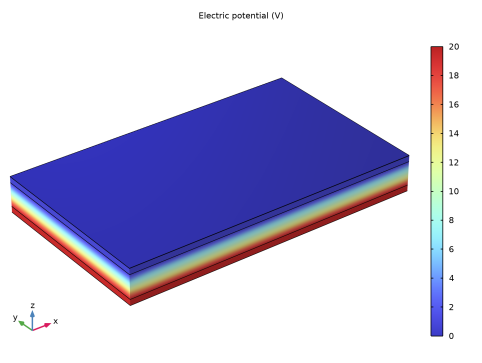
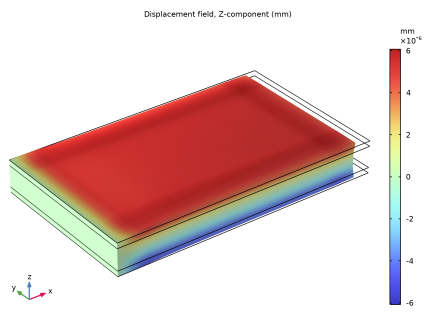
|
•
|
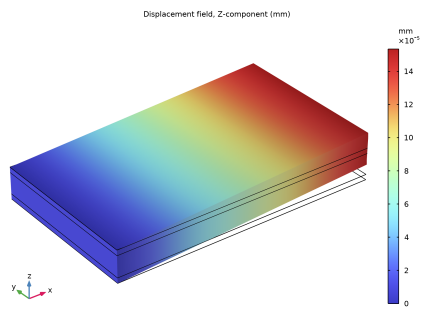
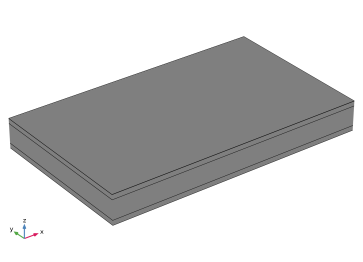
Modeling a composite laminate as a layered shell requires a surface geometry, in general referred to as a base surface, and a Layered Material node which adds an extra dimension (1D) to the base surface geometry in the surface normal direction. You can use the Layered Material functionality to model several layers stacked on top of each other having different thicknesses, material properties, and fiber orientations. You can optionally specify the interface materials between the layers, and control the number of through-thickness mesh elements for each layer.
|
|
•
|
The third direction for the selected coordinate system in the Single Layer Material, Layered Material Link, or Layered Material Stack represents the normal direction of the Layered Shell or Shell physics. This is also the direction in which the layer stacking is interpreted from bottom to top, and therefore, it is crucial to know it during modeling. There are two ways to achieve this:
|
|
-
|
Using physics symbols: Go to the physics settings, find the Physics Symbols section, and select the Enable physics symbols checkbox. Then go to the material feature, for instance, Linear Elastic Material, to see the normal direction represented by green arrows in the geometry.
|
|
-
|
Using result templates: When a solution dataset is available, use the result template Thickness and Orientation to plot the normal direction.
|
|
•
|
The device is modeled in 3D using the predefined multiphysics interface Piezoelectricity, Layered Shell. Two physics interfaces, structural Layered Shell and Electric Currents in Layered Shells, will automatically be added to the model together with a multiphysics coupling feature called Piezoelectric Effect, Layered.
|
|
•
|
The Layered Shell interface will contain a Piezoelectric Material node, where you can select geometry boundary for the base surface, and also select certain layers within the layered material. The Electric Currents in Layered Shells interface will contain a node Piezoelectric Layer, where a similar selection should be made. It is important to have the same selections under both interfaces. All settings for the material properties and orientation can be found under the Piezoelectric Material node within the Layered Shell interface. This includes the structural, dielectric, and coupling properties.
|
|
1
|
|
2
|
In the Select Physics tree, select Structural Mechanics > Electromagnetics–Structure Interaction > Piezoelectricity > Piezoelectricity, Layered Shell.
|
|
3
|
Click Add.
|
|
4
|
Click
 Study. Study. |
|
5
|
|
6
|
Click
 Done. Done. |
|
1
|
|
2
|
|
3
|
|
1
|
|
2
|
|
1
|
|
2
|
|
3
|
|
4
|
|
1
|
|
2
|
Select the object wp1 only.
|
|
3
|
|
4
|
|
5
|
|
6
|
Click
 Build Selected. Build Selected. |
|
7
|
|
1
|
|
2
|
Go to the Add Material window.
|
|
3
|
|
4
|
Right-click and choose Add to Global Materials.
|
|
5
|
|
6
|
Right-click and choose Add to Global Materials.
|
|
7
|
|
1
|
In the Model Builder window, under Global Definitions right-click Materials and choose Layered Material.
|
|
2
|
|
3
|
Click
 Add twice. Add twice. |
|
5
|
Click to expand the Preview Plot Settings section. In the Thickness-to-width ratio text field, type 8/30.
|
|
6
|
Locate the Layer Definition section. Click Layer Cross-Section Preview in the upper-right corner of the section.
|
|
1
|
In the Model Builder window, under Component 1 (comp1) > Electric Currents in Layered Shells (ecis) click Piezoelectric Layer 1.
|
|
2
|
|
3
|
Clear the Use all layers checkbox.
|
|
4
|
|
1
|
In the Model Builder window, under Component 1 (comp1) > Layered Shell (lshell) click Piezoelectric Material 1.
|
|
2
|
In the Settings window for Piezoelectric Material, type Piezoelectric Material (Z Pole Axis) in the Label text field.
|
|
3
|
|
5
|
|
6
|
|
7
|
Locate the Piezoelectric Material Properties section. From the Constitutive relation list, choose Strain–charge form.
|
|
1
|
|
2
|
In the Settings window for Piezoelectric Material, type Piezoelectric Material (X Pole Axis) in the Label text field.
|
|
3
|
|
5
|
Click to expand the Out-of-Plane Material Orientation section. The layered material always operates with a boundary coordinate system on the base surface (laminate system). For such systems, the third base vector direction is always normal to the surface.
|
|
6
|
From the Use laminate coordinate system with list, choose Swapped normal and 1st tangential directions.
|
|
1
|
|
1
|
|
2
|
|
3
|
|
4
|
|
1
|
|
2
|
|
3
|
|
1
|
|
2
|
|
3
|
|
4
|
Click
 Build All. Build All. |
|
1
|
|
2
|
|
3
|
Clear the Generate default plots checkbox.
|
|
4
|
|
1
|
|
2
|
|
1
|
|
2
|
|
3
|
|
1
|
|
2
|
|
3
|
|
1
|
|
2
|
|
3
|
|
4
|
|
5
|
|
6
|
|
1
|
|
2
|
In the Settings window for 3D Plot Group, type Vertical Displacement (Z Pole Axis) in the Label text field.
|
|
3
|
|
4
|
|
1
|
|
2
|
|
3
|
|
4
|
|
1
|
|
2
|
|
3
|
|
1
|
|
2
|
|
3
|
Click
 Clear Selection. Clear Selection. |
|
1
|
|
2
|
In the Settings window for 3D Plot Group, type Vertical Displacement (X Pole Axis) in the Label text field.
|
|
3
|
|
4
|
|
5
|
|
6
|