PDF

Stress and Modal Analysis of a Composite Wheel Rim
Introduction
Nowadays, there is a trend to manufacture wheel rims using composite material instead of aluminum. The primary reason is to reduce the unsprung mass which leads to a faster response time and thus better acceleration, braking and cornering performances. Typically, a carbon fiber composite material is used to manufacture a composite wheel rim.
To understand and improve the design of a composite wheel rim, an example model is built in COMSOL. The example demonstrates the modeling of a wheel rim made up of a carbon–epoxy laminate.
The composite laminate has a different number of plies in different regions of the wheel rim. First, a stress analysis of the wheel rim is performed in which the rim is subjected to the inflation pressure and the tire load. In order to compute the modal response of the wheel rim, a prestressed eigenfrequency analysis is performed in which the rim is subjected to the rotating frame forces.
Model Definition
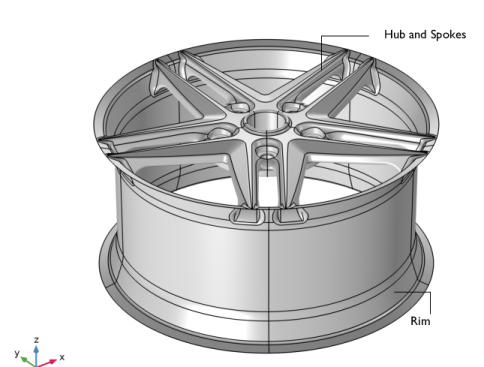
The wheel rim geometry is shown in Figure 1.
Figure 1: Model geometry of a composite wheel rim.
The geometry consists of two main regions which have different laminate stacking sequences:
Stacking Sequence
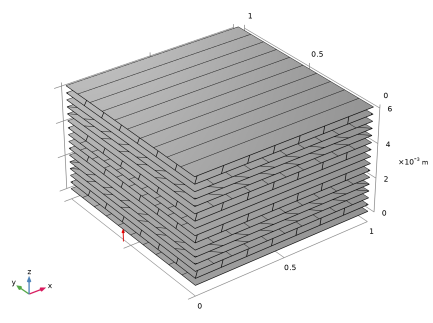
A symmetric ply layup is considered in all the regions. The stacking sequence for the two regions is as follows:
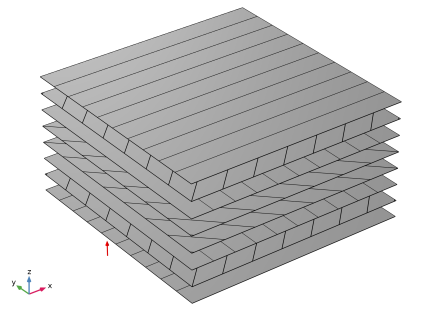
Hub and spokes: [0/45/90/-45]s (Figure 2)
Rim: [[0/45/90/-45]s]2 (Figure 3)
Figure 2: Stacking sequence [0/45/90/-45]s in hub-spoke region.
Each ply is made up of carbon–epoxy material and has a thickness of 0.4 mm.
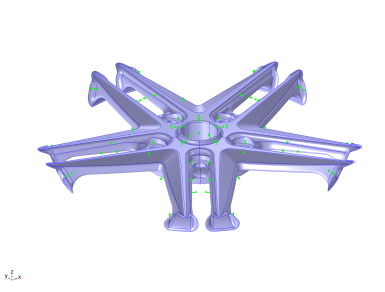
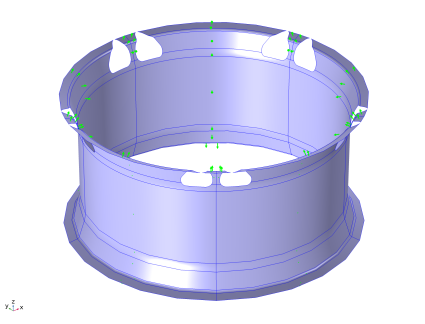
The normal vector orientations for the hub-spoke and rim regions are shown in Figure 4 and Figure 5, respectively. This is the direction in which layer stacking is interpreted from bottom to top. Note that the geometric surface (that is, the meshed boundary) represents the laminate’s top surface. This is defined using the corresponding setting in the Layered Material Link and Layered Material Stack nodes.
Figure 3: Stacking sequence [[0/45/90/-45]s]2 in rim region.
Figure 4: The normal vector on each hub and spokes boundary. This is the direction in which the layer stacking is interpreted from bottom to top.
Figure 5: The normal vector on each rim boundary. This is the direction in which the layer stacking is interpreted from bottom to top.
Material Properties
Each ply is made up of AS4/APC carbon–thermoplastic composite material. The AS4/APC carbon–thermoplastic is a built-in material in the Composites material library. The transversely isotropic material properties (Young’s modulus, shear modulus, and Poisson’s ratio) are given in Table 1.
ρ
{E11, E22}
G12
{υ12, υ23}
Finite Element Mesh
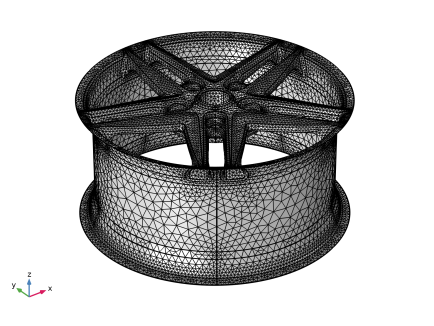
The structure is discretized using a free triangular mesh, as shown in Figure 6.
Figure 6: The finite element mesh for the wheel rim.
Constraints
Loads
Two types of analyses are performed:
Stationary analysis: This analysis is performed for the tire pressure and total load on the wheels. The overpressure is 2 bar = 200 kPa. The total load carried by the wheel corresponds to a weight of 1120 kg. It is applied as a pressure on the rim surfaces where the tire is in contact. Assume that the load distribution in the circumferential direction can be approximated as p = p0cos( 3ϑ ), where ϑ is the angle from the point of contact between the road and the tire. The loaded area thus extends 30° in each direction from the load peak.
Results and Discussion
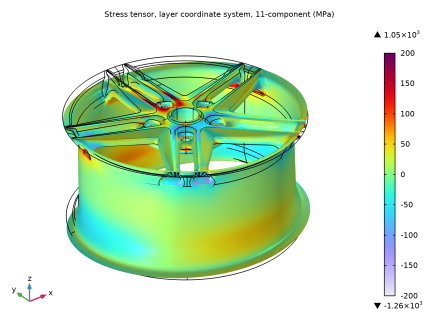
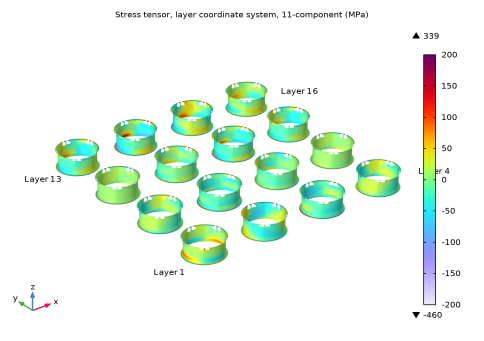
Figure 7 shows the stress in the fiber direction in each layer of the rim and hub-spokes regions under inflation pressure and the tire load. High stresses are present in the spoke where the tire load is acting.
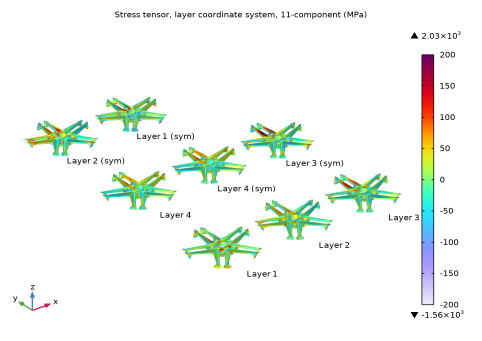
The stress in the fiber direction for each hub-spoke and rim layer is shown in Figure 8 and Figure 9, respectively. High stresses occur in layer 3 (symmetric) of the hub-spoke region and layer 14, 15 of the rim region.
Figure 7: The stress distribution in a composite wheel rim.
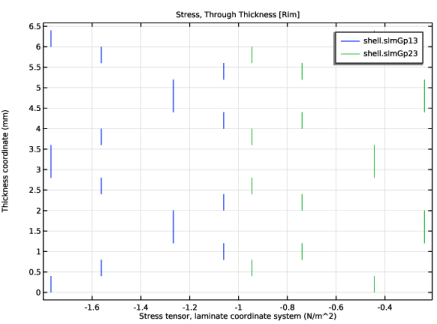
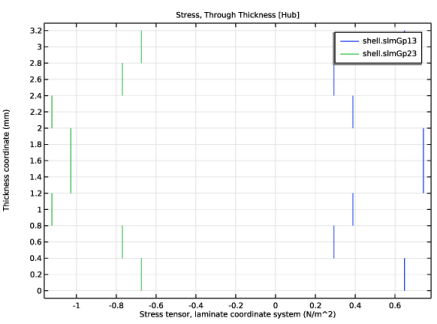
The through-thickness variations of the transverse shear stress in first tangent direction of laminate at two points on the rim and spoke region are shown in Figure 10 and Figure 11, respectively. Each ply exhibits different stress levels depending on the fiber orientation.
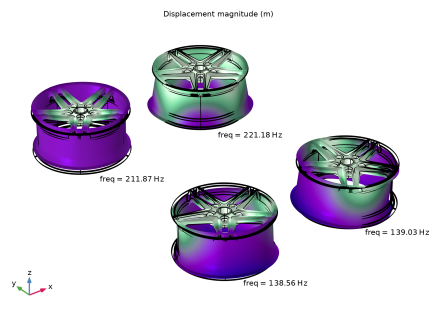
Figure 12 shows the first four eigenmodes of composite wheel rim when the rim is rotating at 3000 rpm. The first natural frequency found for the composite wheel rim corresponds to approximately 8000 rpm. This is much higher compared to the operating range of the wheel and hence the structure is in a safe zone and does not have a critical speed. A rather high natural frequency is obtained because of the high strength-to-weight ratio of the carbon–epoxy composite material.
Figure 8: The stress distribution in each layer of hub and spokes region.
Figure 9: The stress distribution in each layer of rim region.
Figure 10: Through-thickness variation of laminate transverse shear stresses for a point on rim.
Figure 11: Through-thickness variation of laminate transverse shear stresses for a point on hub.
.
Figure 12: First four Eigenfrequency and mode shapes of the composite wheel rim.
Notes About the COMSOL Implementation
Modeling a composite laminate as a layered shell requires a surface geometry, in general referred to as a base surface, and a Layered Material node which adds an extra dimension (1D) to the base surface geometry in the surface normal direction. You can use the Layered Material functionality to model several layers stacked on top of each other having different thicknesses, material properties, and fiber orientations. You can optionally specify the interface materials between the layers, and control the number of through-thickness mesh elements for each layer.
The third direction for the selected coordinate system in the Single Layer Material, Layered Material Link, or Layered Material Stack represents the normal direction of the Layered Shell or Shell physics. This is also the direction in which the layer stacking is interpreted from bottom to top, and therefore, it is crucial to know it during modeling. There are two ways to achieve this:
-
Using physics symbols: Go to the physics settings, find the Physics Symbols section, and select the Enable physics symbols checkbox. Then go to the material feature, for instance, Linear Elastic Material, to see the normal direction represented by green arrows in the geometry.
-
From a constitutive model point of view, you can either use the Layerwise (LW) theory based Layered Shell interface, or the Equivalent Single Layer (ESL) theory based Linear Elastic Material, Layered node in the Shell interface. The laminated composite shell presented in the current model is modeled using a Linear Elastic Material, Layered node in the Shell interface.
The built-in Composites material library contains data for fiber and matrix constituents as well as for unidirectional and bidirectional laminae.
Application Library path: Composite_Materials_Module/Dynamics_and_Vibration/composite_wheel_rim
Modeling Instructions
From the File menu, choose New.
New
In the New window, click  Model Wizard.
Model Wizard
1
In the Model Wizard window, click  3D.
2
In the Select Physics tree, select Structural Mechanics > Shell (shell).
3
Click Add.
4
Click  Study.
5
In the Select Study tree, select General Studies > Stationary.
6
Global Definitions
Parameters 1
1
In the Model Builder window, under Global Definitions click Parameters 1.
2
In the Settings window for Parameters, locate the Parameters section.
3
Click  Load from File.
4
Definitions
Analytic 1 (an1)
1
In the Model Builder window, expand the Component 1 (comp1) > Definitions node.
2
Right-click Definitions and choose Functions > Analytic.
3
In the Settings window for Analytic, type loadDistr in the Function name text field.
4
Locate the Definition section. In the Expression text field, type (abs(atan2(x,y)-z*pi/180)<pi/6)*cos(3*(atan2(x,y)-z*pi/180)).
5
In the Arguments text field, type x, y, z.
6
Locate the Units section. In the table, enter the following settings:
7
In the Function text field, type Pa.
Cylindrical System 2 (sys2)
In the Definitions toolbar, click  Coordinate Systems and choose Cylindrical System.
Geometry 1
Import 1 (imp1)
1
In the Model Builder window, expand the Component 1 (comp1) > Geometry 1 node.
2
Right-click Geometry 1 and choose Import.
3
In the Settings window for Import, locate the Source section.
4
From the Source list, choose COMSOL Multiphysics file.
5
Click  Browse.
6
7
Click  Import.
8
Click  Build Selected.
Rim
1
In the Geometry toolbar, click  Selections and choose Explicit Selection.
2
In the Settings window for Explicit Selection, type Rim in the Label text field.
3
Locate the Entities to Select section. From the Geometric entity level list, choose Boundary.
4
On the object imp1, select Boundaries 11–19, 24, 26, 28, and 34–36 only.
HubAndSpokes
1
In the Geometry toolbar, click  Selections and choose Complement Selection.
2
In the Settings window for Complement Selection, type HubAndSpokes in the Label text field.
3
Locate the Geometric Entity Level section. From the Level list, choose Boundary.
4
Locate the Input Entities section. Click  Add.
5
In the Add dialog, select Rim in the Selections to invert list.
6
TireAttachment
1
In the Geometry toolbar, click  Selections and choose Explicit Selection.
2
In the Settings window for Explicit Selection, type TireAttachment in the Label text field.
3
Locate the Entities to Select section. From the Geometric entity level list, choose Boundary.
4
On the object imp1, select Boundaries 16–19, 24, 26, 35, and 36 only.
FixedToHub
1
In the Geometry toolbar, click  Selections and choose Explicit Selection.
2
In the Settings window for Explicit Selection, locate the Entities to Select section.
3
From the Geometric entity level list, choose Boundary.
4
In the Label text field, type FixedToHub.
5
On the object imp1, select Boundaries 8 and 30 only.
Rotate 1 (rot1)
1
In the Geometry toolbar, click  Transforms and choose Rotate.
2
3
In the Settings window for Rotate, locate the Rotation section.
4
In the Angle text field, type range(0,72,288).
5
Click  Build All Objects.
SprokeRimUnit
1
In the Geometry toolbar, click  Selections and choose Cylinder Selection.
2
In the Settings window for Cylinder Selection, type SprokeRimUnit in the Label text field.
3
Locate the Geometric Entity Level section. From the Level list, choose Boundary.
4
Locate the Size and Shape section. In the Outer radius text field, type inf.
5
In the Start angle text field, type 18.
6
In the End angle text field, type 90.
7
Locate the Output Entities section. From the Include entity if list, choose Entity inside cylinder.
Disable the analysis of the geometry as the remaining small geometric details can be kept.
8
In the Model Builder window, click Geometry 1.
9
In the Settings window for Geometry, locate the Cleanup section.
10
Clear the Automatic detection of small details checkbox.
11
In the Geometry toolbar, click  Build All.
Definitions
Integration 1 (intop1)
1
In the Definitions toolbar, click  Nonlocal Couplings and choose Integration.
2
In the Settings window for Integration, locate the Source Selection section.
3
From the Geometric entity level list, choose Boundary.
4
From the Selection list, choose TireAttachment.
5
Locate the Advanced section. From the Frame list, choose Material  (X, Y, Z).
Global Definitions
COMSOL Multiphysics is equipped with built-in material properties for a number of lamina materials. Select the materials needed from the Composites material folder in the built-in material library.
Add Material
1
In the Materials toolbar, click  Add Material to open the Add Material window.
2
Go to the Add Material window.
3
In the tree, select Composites > Laminae > Unidirectional fiber lamina: AS4/APC2 carbon/PEEK thermoplastic [fiber volume fraction 58%].
4
Right-click and choose Add to Global Materials.
5
In the Materials toolbar, click  Add Material to close the Add Material window.
Global Definitions
Layered Material 1 (lmat1)
The laminate is symmetric. Therefore, it is sufficient to define only a part of it in the Layered Material node; the transformation into the full laminate is performed through the layered material settings in the Layered Material Link and the Layered Material Stack nodes.
1
In the Model Builder window, under Global Definitions right-click Materials and choose Layered Material.
2
In the Settings window for Layered Material, locate the Layer Definition section.
3
4
Click Add three times.
5
The laminate part defined in the Layered Material node can be transformed into a full symmetric laminate using a transform option in the layered material settings.
Materials
Layered Material Link 1 (llmat1)
1
In the Model Builder window, under Component 1 (comp1) right-click Materials and choose Layers > Layered Material Link.
2
In the Settings window for Layered Material Link, locate the Boundary Selection section.
3
From the Selection list, choose HubAndSpokes.
4
Locate the Layered Material Settings section. From the Transform list, choose Symmetric.
5
Locate the Orientation and Position section. From the Position list, choose Top side on boundary.
6
Click to expand the Preview Plot Settings section. In the Thickness-to-width ratio text field, type 0.6.
7
Locate the Layered Material Settings section. Click Layer Stack Preview in the upper-right corner of the section.
Layered Material Stack 1 (stlmat1)
1
Right-click Materials and choose Layers > Layered Material Stack.
2
In the Settings window for Layered Material Stack, locate the Boundary Selection section.
3
From the Selection list, choose Rim.
4
Locate the Layered Material Settings section. From the Transform list, choose Repeated.
5
In the Number of repeats text field, type 2.
6
Locate the Orientation and Position section. From the Position list, choose Top side on boundary.
Layered Material Link 1 (stlmat1.stllmat1)
1
In the Model Builder window, click Layered Material Link 1 (stlmat1.stllmat1).
2
In the Settings window for Layered Material Link, locate the Link Settings section.
3
From the Transform list, choose Symmetric.
Layered Material Stack 1 (stlmat1)
1
In the Model Builder window, click Layered Material Stack 1 (stlmat1).
2
In the Settings window for Layered Material Stack, click to expand the Preview Plot Settings section.
3
In the Thickness-to-width ratio text field, type 0.6.
4
Locate the Layered Material Settings section. Click Layer Stack Preview in the upper-right corner of the section.
Shell (shell)
Linear Elastic Material, Layered 1
1
In the Physics toolbar, click  Boundaries and choose Linear Elastic Material, Layered.
2
In the Settings window for Linear Elastic Material, Layered, locate the Boundary Selection section.
3
From the Selection list, choose All boundaries.
4
Locate the Linear Elastic Material section. From the Material symmetry list, choose Orthotropic.
Fixed Constraint 1
1
In the Physics toolbar, click  Boundaries and choose Fixed Constraint.
2
In the Settings window for Fixed Constraint, locate the Boundary Selection section.
3
From the Selection list, choose FixedToHub.
Face Load 1
1
In the Physics toolbar, click  Boundaries and choose Face Load.
2
In the Settings window for Face Load, locate the Boundary Selection section.
3
From the Selection list, choose Rim.
4
Locate the Through-Thickness Location section. From the list, choose Bottom surface.
5
Locate the Force section. From the Load type list, choose Pressure.
6
In the p text field, type -pInflation.
Face Load 2
1
Right-click Face Load 1 and choose Duplicate.
2
In the Settings window for Face Load, locate the Boundary Selection section.
3
From the Selection list, choose TireAttachment.
4
Locate the Coordinate System Selection section. From the Coordinate system list, choose Cylindrical System 2 (sys2).
5
Locate the Force section. From the Load type list, choose Force per reference area.
6
Specify the fA vector as
7
Click the  Show More Options button in the Model Builder toolbar.
8
In the Show More Options dialog, select Physics > Equation Contributions in the tree.
9
In the tree, select the checkbox for the node Physics > Equation Contributions.
10
Global Equations 1 (ODE1)
1
In the Physics toolbar, click  Global and choose Global Equations.
2
In the Settings window for Global Equations, locate the Global Equations section.
3
4
Locate the Units section. Click  Select Source Term Quantity.
5
In the Physical Quantity dialog, type force in the text field.
6
In the tree, select General > Force (N).
7
Rotating Frame 1
1
In the Physics toolbar, click  Boundaries and choose Rotating Frame.
2
In the Settings window for Rotating Frame, locate the Rotating Frame section.
3
In the ωr text field, type omega.
Mesh 1
1
In the Model Builder window, under Component 1 (comp1) click Mesh 1.
2
In the Settings window for Mesh, locate the Sequence Type section.
3
From the list, choose User-controlled mesh.
Size
1
In the Model Builder window, under Component 1 (comp1) > Mesh 1 click Size.
2
In the Settings window for Size, locate the Element Size Parameters section.
3
In the Maximum element size text field, type 0.07.
4
In the Minimum element size text field, type 0.006.
5
In the Maximum element growth rate text field, type 1.2.
6
Click  Build All.
Study: Static
1
In the Model Builder window, click Study 1.
2
In the Settings window for Study, type Study: Static in the Label text field.
Step 1: Stationary
1
In the Model Builder window, under Study: Static click Step 1: Stationary.
2
In the Settings window for Stationary, locate the Physics and Variables Selection section.
3
Select the Modify model configuration for study step checkbox.
4
In the tree, select Component 1 (comp1) > Shell (shell) > Rotating Frame 1.
5
Click  Disable.
6
In the Study toolbar, click  Compute.
Set default units for result presentation.
Results
Preferred Units 1
1
In the Results toolbar, click  Configurations and choose Preferred Units.
2
In the Settings window for Preferred Units, locate the Units section.
3
Click  Add Physical Quantity.
4
In the Physical Quantity dialog, select Solid Mechanics > Stress tensor (N/m^2) in the tree.
5
6
In the Settings window for Preferred Units, locate the Units section.
7
8
Click  Apply.
Surface 1
1
In the Model Builder window, expand the Stress (shell) node, then click Surface 1.
2
In the Settings window for Surface, locate the Expression section.
3
In the Expression text field, type shell.sllGp11.
4
Click to expand the Range section. Select the Manual color range checkbox.
5
In the Minimum text field, type -200.
6
In the Maximum text field, type 200.
Stress (shell)
1
In the Model Builder window, click Stress (shell).
2
In the Settings window for 3D Plot Group, locate the Color Legend section.
3
Select the Show maximum and minimum values checkbox.
4
In the Stress (shell) toolbar, click  Plot.
Result Templates
1
In the Results toolbar, click  Result Templates to open the Result Templates window.
2
Go to the Result Templates window.
3
In the tree, select Study: Static/Solution 1 (sol1) > Shell > Stress, Slice (shell).
4
Click the Add Result Template button in the window toolbar.
5
In the tree, select Study: Static/Solution 1 (sol1) > Shell > Stress, Through Thickness (shell).
6
Click the Add Result Template button in the window toolbar.
7
In the Results toolbar, click  Result Templates to close the Result Templates window.
Results
Layered Material Slice 1
1
In the Model Builder window, expand the Results > Stress, Slice (shell) node, then click Layered Material Slice 1.
2
In the Settings window for Layered Material Slice, click to expand the Range section.
3
Select the Manual color range checkbox.
4
In the Minimum text field, type -200.
5
In the Maximum text field, type 200.
Stress, Slice (shell)
1
In the Model Builder window, click Stress, Slice (shell).
2
In the Settings window for 3D Plot Group, locate the Color Legend section.
3
Select the Show maximum and minimum values checkbox.
4
In the Stress, Slice (shell) toolbar, click  Plot.
Through Thickness 1
1
In the Model Builder window, expand the Results > Stress, Through Thickness (shell) node, then click Through Thickness 1.
2
In the Settings window for Through Thickness, locate the Selection section.
3
Click to select the  Activate Selection toggle button.
4
Click  Clear Selection.
5
6
Locate the y-Axis Data section. From the Unit list, choose mm.
Through Thickness 2
1
In the Model Builder window, click Through Thickness 2.
2
In the Settings window for Through Thickness, locate the Selection section.
3
Click to select the  Activate Selection toggle button.
4
Click  Clear Selection.
5
6
Locate the y-Axis Data section. From the Unit list, choose mm.
Stress, Through Thickness [Rim]
1
In the Model Builder window, under Results click Stress, Through Thickness (shell).
2
In the Settings window for 1D Plot Group, type Stress, Through Thickness [Rim] in the Label text field.
3
In the Stress, Through Thickness [Rim] toolbar, click  Plot.
Stress, Through Thickness [Rim] 1
Right-click Stress, Through Thickness [Rim] and choose Duplicate.
Through Thickness 1
1
In the Model Builder window, expand the Stress, Through Thickness [Rim] 1 node, then click Through Thickness 1.
2
In the Settings window for Through Thickness, locate the Selection section.
3
Click to select the  Activate Selection toggle button.
4
Click  Clear Selection.
5
Through Thickness 2
1
In the Model Builder window, click Through Thickness 2.
2
In the Settings window for Through Thickness, locate the Selection section.
3
Click to select the  Activate Selection toggle button.
4
Click  Clear Selection.
5
Stress, Through Thickness [Hub]
1
In the Model Builder window, under Results click Stress, Through Thickness [Rim] 1.
2
In the Settings window for 1D Plot Group, type Stress, Through Thickness [Hub] in the Label text field.
3
In the Stress, Through Thickness [Hub] toolbar, click  Plot.
Stress, Slice (Hub and Spokes)
1
In the Model Builder window, right-click Stress, Slice (shell) and choose Duplicate.
2
In the Settings window for 3D Plot Group, type Stress, Slice (Hub and Spokes) in the Label text field.
3
Click to expand the Selection section. From the Geometric entity level list, choose Boundary.
4
From the Selection list, choose HubAndSpokes.
5
Select the Apply to dataset edges checkbox.
6
Locate the Plot Settings section. From the View list, choose New view.
Layered Material Slice 1
1
In the Model Builder window, expand the Stress, Slice (Hub and Spokes) node, then click Layered Material Slice 1.
2
In the Settings window for Layered Material Slice, locate the Through-Thickness Location section.
3
From the Location definition list, choose Layer midplanes.
4
Locate the Layout section. From the Displacement list, choose Rectangular.
5
In the Relative y-separation text field, type 0.15*6.
6
Select the Show descriptions checkbox.
7
In the Relative separation text field, type 0.2*2.
Deformation
1
In the Model Builder window, expand the Layered Material Slice 1 node, then click Deformation.
2
In the Settings window for Deformation, locate the Scale section.
3
Select the Scale factor checkbox. In the associated text field, type 1.
Stress, Slice (Hub and Spokes)
1
In the Model Builder window, under Results click Stress, Slice (Hub and Spokes).
2
In the Settings window for 3D Plot Group, locate the Plot Settings section.
3
Clear the Plot dataset edges checkbox.
4
In the Stress, Slice (Hub and Spokes) toolbar, click  Plot.
Stress, Slice (Rim)
1
Right-click Stress, Slice (Hub and Spokes) and choose Duplicate.
2
In the Settings window for 3D Plot Group, type Stress, Slice (Rim) in the Label text field.
3
Locate the Selection section. From the Selection list, choose Rim.
4
Locate the Plot Settings section. From the View list, choose New view.
5
Click the  Zoom Extents button in the Graphics toolbar.
Layered Material Slice 1
1
In the Model Builder window, expand the Stress, Slice (Rim) node, then click Layered Material Slice 1.
2
In the Settings window for Layered Material Slice, locate the Layout section.
3
In the Relative x-separation text field, type 0.15*4.
4
In the Relative y-separation text field, type 0.15*4.
5
Clear the Show descriptions checkbox.
Table Annotation 1
1
In the Model Builder window, right-click Stress, Slice (Rim) and choose More Plots > Table Annotation.
2
In the Settings window for Table Annotation, locate the Data section.
3
From the Source list, choose Local table.
4
5
Locate the Coloring and Style section. Clear the Show point checkbox.
Stress, Slice (Rim)
1
In the Model Builder window, click Stress, Slice (Rim).
2
In the Stress, Slice (Rim) toolbar, click  Plot.
Add Study
1
In the Home toolbar, click  Add Study to open the Add Study window.
2
Go to the Add Study window.
3
Find the Studies subsection. In the Select Study tree, select General Studies > Stationary.
4
Click the Add Study button in the window toolbar.
5
In the Home toolbar, click  Add Study to close the Add Study window.
Study: Eigenfrequency
In the Settings window for Study, type Study: Eigenfrequency in the Label text field.
Step 1: Stationary
1
In the Model Builder window, under Study: Eigenfrequency click Step 1: Stationary.
2
In the Settings window for Stationary, locate the Physics and Variables Selection section.
3
Select the Modify model configuration for study step checkbox.
4
In the tree, select Component 1 (comp1) > Shell (shell) > Face Load 1, Component 1 (comp1) > Shell (shell) > Face Load 2, and Component 1 (comp1) > Shell (shell) > Global Equations 1 (ODE1).
5
Click  Disable.
Step 2: Eigenfrequency
1
In the Study toolbar, click  More Study Steps and choose Eigenfrequency > Eigenfrequency.
2
In the Settings window for Eigenfrequency, locate the Study Settings section.
3
Select the Include geometric nonlinearity checkbox.
4
In the Study toolbar, click  Compute.
Results
Mode Shape (shell)
1
In the Settings window for 3D Plot Group, click to expand the Title section.
2
From the Title type list, choose Manual.
3
Clear the Parameter indicator text field.
4
Click to expand the Plot Array section. From the Array type list, choose Square.
5
In the Relative row padding text field, type 1.4.
6
In the Relative column padding text field, type 0.5.
Solution Array 1
1
In the Model Builder window, expand the Mode Shape (shell) node.
2
Right-click Surface 1 and choose Solution Array.
3
In the Settings window for Solution Array, locate the Data section.
4
From the Eigenfrequency selection list, choose Manual.
5
In the Eigenfrequency indices (1-6) text field, type range(1,1,4).
6
Locate the Plot Array section. From the Array shape list, choose Square.
Annotation 1
1
In the Model Builder window, right-click Mode Shape (shell) and choose Annotation.
2
In the Settings window for Annotation, locate the Annotation section.
3
In the Text text field, type freq = eval(real(freq),Hz,5) Hz.
4
From the Geometry level list, choose Global.
5
Locate the Coloring and Style section. Clear the Show point checkbox.
6
Locate the Position section. In the y text field, type -0.1.
7
In the z text field, type -0.2.
8
Click to expand the Plot Array section. Select the Manual indexing checkbox.
Solution Array 1
In the Model Builder window, under Results > Mode Shape (shell) > Surface 1 right-click Solution Array 1 and choose Copy.
Solution Array 1
In the Model Builder window, right-click Annotation 1 and choose Paste Solution Array.
Mode Shape (shell)
1
In the Settings window for 3D Plot Group, locate the Plot Settings section.
2
From the View list, choose New view.
3
In the Mode Shape (shell) toolbar, click  Plot.
4
Click the  Zoom Extents button in the Graphics toolbar.
5
Click the  Show Grid button in the Graphics toolbar.
Result Templates
1
In the Results toolbar, click  Result Templates to open the Result Templates window.
2
Go to the Result Templates window.
3
In the tree, select Study: Eigenfrequency/Solution 2 (sol2) > Shell > Shell Geometry (shell).
4
Click the Add Result Template button in the window toolbar.
5
In the Results toolbar, click  Result Templates to close the Result Templates window.
Results
Shell Geometry (shell)
1
In the Settings window for 3D Plot Group, locate the Plot Settings section.
2
From the Color list, choose Black.
3
In the Shell Geometry (shell) toolbar, click  Plot.