PDF

Dome Tweeter with Composite Diaphragm — Eigenfrequency Analysis
Introduction
Fiber composites are widely used in industrial applications. Compared to more traditional metallic engineering materials, fiber composites often have superior specific stiffness and strength properties. Properties like toughness, stiffness, and weight can often be tailored to specific applications such as a diaphragm in loudspeakers.
Analyzing resonances is essential when designing loudspeakers. Resonances can come from various sources in a loudspeaker, the diaphragm being a significant one. Composite diaphragms can shift, dampen, and control the resonance, while also giving breakup symmetry modes which can improve the sound quality considerably.
Modeling individual fibers in every layer in the laminate is unfeasible. A simplified micromechanics model of a composite with specific microstructures is instead used to estimate the homogenized elastic properties of a single layer. In this example, the homogenized materials for two different composites along with a traditional material (titanium) are used in the eigenfrequency analysis of a diaphragm. Two approaches are used to model the diaphragm, namely the Layerwise (LW) theory and the Equivalent Single Layer (ESL) theory.
Model Definition
This model performs the following types of analyses. The model is divided into three parts:
Eigenfrequencies and mode shapes are computed and compared using both theories.
Micromechanics Analysis
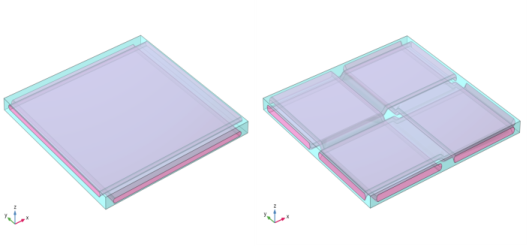
In the first part, a micromechanical analysis of two different repeating unit cells (RUCs) is performed in order to obtain the homogenized material properties. Figure 1 shows the geometries of the RUCs. For both RUCs, the fiber volume fraction is in the range of 0.65–0.72.
Figure 1: Unit cell geometries of a bidirectional noncrimp fiber composite (left) and a bidirectional spread-tow fiber composite (right).
Fiber and Resin Properties
A layer of the laminate is made of AS-4 carbon fiber and epoxy polymer. The carbon fiber is assumed to be transversely isotropic and the epoxy resin is assumed to be isotropic. Both materials are built-in materials in the Composites material library. The fiber and matrix material properties are given in Table 1 and Table 2, respectively.
{E1, E2}
G12
27 GPa
{υ12, υ23}
ρ
1810 kg/m3
υ
ρ
Cell Periodicity
To perform a micromechanical analysis, a Cell Periodicity node in the Solid Mechanics interface is used. The Cell Periodicity node is used to apply periodic boundary conditions to the three pairs of faces of the unit cell.
To extract the homogenized elasticity matrix for a layer, the unit cell needs to be analyzed for six different load cases. The Average Strain periodicity type needs to be selected to obtain the homogenized elasticity matrix. This is automatically done with the help of the action buttons in the Cell Periodicity node, which has three action buttons in the toolbar of the section called Periodicity Type: Create Load Groups and Study, Create Material by Reference, and Create Material by Value. The action button Create Load Groups and Study generates six different load groups and a stationary study with six load cases. The action button Create Material by Reference generates a Global Material with an elasticity matrix corresponding to that of the homogenized material in terms of variables. The action button Create Material by Value generates a Global Material with an elasticity matrix corresponding to that of the homogenized material in terms of numbers after the study computed. The generated global material can be used to define the properties of individual layers in a composite laminate.
Eigenfrequency Analysis
Equivalent Single Layer (ESL) Theory
In the equivalent single layer (ESL) theory, the degrees of freedom are the displacements and rotations on the midplane of the laminate. From a constitutive equation point of view, this theory is similar to 3D shell elasticity. Through-thickness homogenized material properties of the laminate are used. It is therefore computationally less expensive than the layerwise theory. It can be used for the modeling of thin to moderately thick laminates with good accuracy.
Layerwise (LW) Theory
In the layerwise theory, the degrees of freedom are the displacements (u, v, w) available on the reference surface (or modeled surface) as well as in the through-thickness direction. From a constitutive equation point of view, this theory is similar to 3D solid elasticity. The layerwise theory is useful for modeling of thick composite laminates.
Material Properties
The material properties of two composite materials are obtained from the first analysis of the model. The material properties of titanium are presented in Table 3.
υ
ρ
Geometry and Boundary Conditions
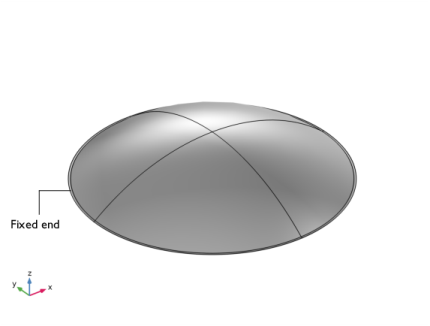
Figure 2 shows the model geometry of a composite diaphragm with a radius of 65 mm and a thickness of 0.1 mm. The outer edges of the diaphragm are fixed.
Figure 2: Geometry of the diaphragm showing boundary conditions.
Results and Discussion
In the first part of this model, a micromechanical analysis is carried out to get the homogenized materials for two composites.
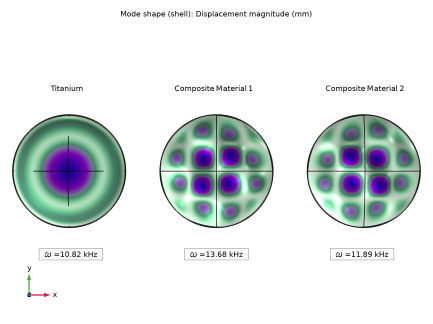
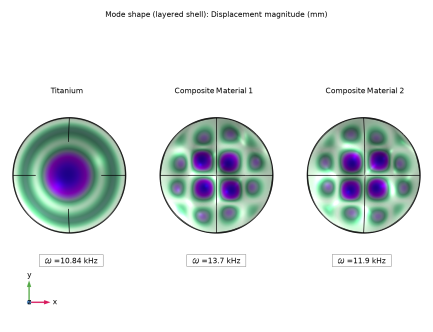
In the second part of the model, six eigenmodes and eigenfrequencies of a diaphragm using titanium, composite material 1, and composite material 2 are presented. The first eigenmode of the diaphragm is of interest as its excitation by the driver frequency will determine the sound quality. The first eigenmode using three different materials with the Shell interface is presented in Figure 3. The first eigenmode of the diaphragm with the Layered Shell interface is presented in Figure 4. From both figures it is clear that the conventional material like titanium produces symmetric eigenmode, while the bidirectional composite materials breaks the symmetry. Furthermore, the eigenfrequencies of the composite materials are almost 10% to 25% higher than the titanium with 66% lower mass.
Figure 3: First mode shape of the diaphragm for titanium, composite material 1, and composite material 2 from left to right. The mode shapes are obtained using a Shell interface.
Figure 4: First mode shape of the diaphragm for titanium, composite material 1, and composite material 2 from left to right. The mode shapes are obtained using a Layered Shell interface.
Table 4 shows the first eigenfrequency with three different materials. The eigenfrequencies obtained using the LW and ESL theories match within 1%.
The mass of a diaphragm using three different materials is shown in Table 5. The composite materials are almost 66% lighter than the titanium.
Notes About the COMSOL Implementation
Modeling a composite laminate as a layered shell requires a surface geometry, in general referred to as a base surface, and a Layered Material node which adds an extra dimension (1D) to the base surface geometry in the surface normal direction. You can use the Layered Material functionality to model several layers stacked on top of each other having different thicknesses, material properties, and fiber orientations. You can optionally specify the interface materials between the layers, and control the number of through-thickness mesh elements for each layer.
The third direction for the selected coordinate system in the Single Layer Material, Layered Material Link, or Layered Material Stack represents the normal direction of the Layered Shell or Shell physics. This is also the direction in which the layer stacking is interpreted from bottom to top, and therefore, it is crucial to know it during modeling. There are two ways to achieve this:
-
Using physics symbols: Go to the physics settings, find the Physics Symbols section, and select the Enable physics symbols checkbox. Then go to the material feature, for instance, Linear Elastic Material, to see the normal direction represented by green arrows in the geometry.
-
In order to run the analysis for various layered materials and compare the results, all the layered materials can be defined using a Switch node in Global Materials. This Switch node can be selected in the Layered Material Link node and a Material Sweep node is added in the study.
You can either use the Layerwise (LW) theory-based Layered Shell interface or the Equivalent Single Layer (ESL) theory-based Linear Elastic Material, Layered node in Shell interface.
The built-in Composites material library contains data for fiber and matrix constituents as well as for unidirectional and bidirectional laminae.
Application Library path: Composite_Materials_Module/Dynamics_and_Vibration/composite_dome_tweeter_eigen
Modeling Instructions
From the File menu, choose New.
New
In the New window, click  Model Wizard.
Model Wizard
1
In the Model Wizard window, click  3D.
2
In the Select Physics tree, select Structural Mechanics > Solid Mechanics (solid).
3
Click Add.
4
In the Select Physics tree, select Structural Mechanics > Solid Mechanics (solid).
5
Click Add.
6
Global Definitions
Parameters 1
1
In the Model Builder window, under Global Definitions click Parameters 1.
2
In the Settings window for Parameters, locate the Parameters section.
3
Modeling Instructions (Micromechanical analysis of the composites)
This section describes how to do a micromechanical analysis of the composites using the Solid Mechanics interface.
Add the geometry of each required repeating unit cell (RUC) from the built-in Part Libraries.
1
In the Model Builder window, right-click Global Definitions and choose Geometry Parts > Part Libraries.
Part Libraries
1
In the Part Libraries window, select COMSOL Multiphysics > Unit Cells and RVEs > Fiber Composites > bidirectional_non_crimp_fiber in the tree.
2
Click  Add to Model.
Geometry Parts
In the Model Builder window, under Global Definitions right-click Geometry Parts and choose Part Libraries.
Part Libraries
1
In the Part Libraries window, select COMSOL Multiphysics > Unit Cells and RVEs > Fiber Composites > bidirectional_spread_tow_fiber in the tree.
2
Click  Add to Model.
Geometry 1
RUC 1: Bidirectional Non-Crimp Fiber Composite
1
In the Geometry toolbar, click  Part Instance and choose Bidirectional Non-Crimp Fiber Composite.
2
In the Settings window for Part Instance, type RUC 1: Bidirectional Non-Crimp Fiber Composite in the Label text field.
3
Locate the Input Parameters section. In the table, enter the following settings:
4
Click  Build Selected.
RUC 2: Bidirectional Spread-Tow Fiber Composite
1
In the Geometry toolbar, click  Part Instance and choose Bidirectional Spread-Tow Fiber Composite.
2
In the Settings window for Part Instance, type RUC 2: Bidirectional Spread-Tow Fiber Composite in the Label text field.
3
Locate the Input Parameters section. In the table, enter the following settings:
4
Locate the Position and Orientation of Output section. Find the Displacement subsection. In the ywi text field, type 2[mm].
5
Click  Build All Objects.
Disable the analysis of the geometry as the remaining small geometric details can be kept.
6
In the Model Builder window, click Geometry 1.
7
In the Settings window for Geometry, locate the Cleanup section.
8
Clear the Automatic detection of small details checkbox.
COMSOL Multiphysics is equipped with built-in material properties for a number of composite constituents. Select the materials needed from the Composites material folder in the built-in material library.
Add Material from Library
In the Home toolbar, click  Windows and choose Add Material from Library.
Add Material
1
Go to the Add Material window.
2
In the tree, select Composites > Fiber Constituents > AS-4 carbon fiber.
3
Right-click and choose Add to Component 1 (comp1).
Materials
AS-4 carbon fiber (mat1)
1
In the Model Builder window, under Component 1 (comp1) > Materials click AS-4 carbon fiber (mat1).
2
In the Settings window for Material, locate the Geometric Entity Selection section.
3
From the Selection list, choose Fiber Strands (RUC 1: Bidirectional Non-Crimp Fiber Composite).
AS-4 carbon fiber 1 (mat2)
1
Right-click Component 1 (comp1) > Materials > AS-4 carbon fiber (mat1) and choose Duplicate.
2
In the Settings window for Material, locate the Geometric Entity Selection section.
3
From the Selection list, choose Fiber Strands (RUC 2: Bidirectional Spread-Tow Fiber Composite).
Add Material
1
Go to the Add Material window.
2
In the tree, select Composites > Matrix Constituents > Epoxy polymer.
3
Right-click and choose Add to Component 1 (comp1).
Materials
Epoxy polymer (mat3)
1
In the Model Builder window, under Component 1 (comp1) > Materials click Epoxy polymer (mat3).
2
In the Settings window for Material, locate the Geometric Entity Selection section.
3
From the Selection list, choose Matrix (RUC 1: Bidirectional Non-Crimp Fiber Composite).
Epoxy polymer 1 (mat4)
1
Right-click Component 1 (comp1) > Materials > Epoxy polymer (mat3) and choose Duplicate.
2
In the Settings window for Material, locate the Geometric Entity Selection section.
3
From the Selection list, choose Matrix (RUC 2: Bidirectional Spread-Tow Fiber Composite).
4
In the Home toolbar, click  Add Material to close the Add Material window.
AS-4 carbon fiber (mat1), Epoxy polymer (mat3)
Right-click and choose Group.
Materials for RUC 1
In the Settings window for Group, type Materials for RUC 1 in the Label text field.
AS-4 carbon fiber 1 (mat2), Epoxy polymer 1 (mat4)
1
In the Model Builder window, under Component 1 (comp1) > Materials, Ctrl-click to select AS-4 carbon fiber 1 (mat2) and Epoxy polymer 1 (mat4).
2
Materials for RUC 2
In the Settings window for Group, type Materials for RUC 2 in the Label text field.
Definitions
Base Vector System 2 (sys2)
1
In the Definitions toolbar, click  Coordinate Systems and choose Base Vector System.
2
In the Settings window for Base Vector System, locate the Base Vectors section.
3
4
Find the Simplifications subsection. Select the Assume orthonormal checkbox.
Solid Mechanics: RUC 1
1
In the Model Builder window, under Component 1 (comp1) click Solid Mechanics (solid).
2
In the Settings window for Solid Mechanics, type Solid Mechanics: RUC 1 in the Label text field.
3
Locate the Domain Selection section. From the Selection list, choose All (RUC 1: Bidirectional Non-Crimp Fiber Composite).
Linear Elastic Material 1
1
In the Model Builder window, under Component 1 (comp1) > Solid Mechanics: RUC 1 (solid) click Linear Elastic Material 1.
2
In the Settings window for Linear Elastic Material, locate the Linear Elastic Material section.
3
From the Material symmetry list, choose Orthotropic.
Linear Elastic Material 2
1
Right-click Component 1 (comp1) > Solid Mechanics: RUC 1 (solid) > Linear Elastic Material 1 and choose Duplicate.
2
In the Settings window for Linear Elastic Material, locate the Domain Selection section.
3
Click  Clear Selection.
4
5
Locate the Coordinate System Selection section. From the Coordinate system list, choose Base Vector System 2 (sys2).
Cell Periodicity 1
1
In the Physics toolbar, click  Domains and choose Cell Periodicity.
2
In the Settings window for Cell Periodicity, locate the Periodicity Settings section.
3
From the Boundary conditions list, choose Average strain.
4
Locate the Effective Properties section. Select the Compute density checkbox.
5
Select the Compute elasticity matrix, standard notation checkbox.
6
Locate the Periodicity Settings section. In the λε text field, type 0.01.
Change the Constraint type to Weak constraints in order to obtain a smooth solution. To do this, activate Advanced Physics Options.
7
Click the  Show More Options button in the Model Builder toolbar.
8
In the Show More Options dialog, select Physics > Advanced Physics Options in the tree.
9
In the tree, select the checkbox for the node Physics > Advanced Physics Options.
10
11
In the Settings window for Cell Periodicity, click to expand the Constraint Settings section.
12
From the Constraint list, choose Weak constraints.
Boundary Pair 1
1
In the Physics toolbar, click  Attributes and choose Boundary Pair.
2
In the Settings window for Boundary Pair, locate the Boundary Selection section.
3
From the Selection list, choose Pair 1 (RUC 1: Bidirectional Non-Crimp Fiber Composite).
4
Right-click Boundary Pair 1 and choose Manual Destination Selection.
5
Locate the Destination Selection section. From the Selection list, choose Pair 1, Destination (RUC 1: Bidirectional Non-Crimp Fiber Composite).
6
Click to expand the Constraint Settings section. From the Constraint list, choose Weak constraints.
Cell Periodicity 1
In the Model Builder window, click Cell Periodicity 1.
Boundary Pair 2
1
In the Physics toolbar, click  Attributes and choose Boundary Pair.
2
In the Settings window for Boundary Pair, locate the Boundary Selection section.
3
From the Selection list, choose Pair 2 (RUC 1: Bidirectional Non-Crimp Fiber Composite).
4
Right-click Boundary Pair 2 and choose Manual Destination Selection.
5
Locate the Destination Selection section. From the Selection list, choose Pair 2, Destination (RUC 1: Bidirectional Non-Crimp Fiber Composite).
6
Locate the Constraint Settings section. From the Constraint list, choose Weak constraints.
Cell Periodicity 1
In the Model Builder window, click Cell Periodicity 1.
Boundary Pair 3
1
In the Physics toolbar, click  Attributes and choose Boundary Pair.
2
In the Settings window for Boundary Pair, locate the Boundary Selection section.
3
From the Selection list, choose Pair 3 (RUC 1: Bidirectional Non-Crimp Fiber Composite).
4
Right-click Boundary Pair 3 and choose Manual Destination Selection.
5
Locate the Destination Selection section. From the Selection list, choose Pair 3, Destination (RUC 1: Bidirectional Non-Crimp Fiber Composite).
6
Locate the Constraint Settings section. From the Constraint list, choose Weak constraints.
In the upper-right corner of the Periodicity type section, you find the buttons Create Load Groups and Study, Create Material by Reference, and Create Material by Value. When the Average strain option is selected for the computation of the density and elasticity matrix, you can automatically generate load groups, a study, and a material by clicking these buttons.
Cell Periodicity 1
1
In the Model Builder window, click Cell Periodicity 1.
2
In the Settings window for Cell Periodicity, click Automated Model Setup in the upper-right corner of the Periodicity Settings section. From the menu, choose Create Load Groups and Study to generate load groups and a study node.
Solid Mechanics: RUC 2
1
In the Model Builder window, under Component 1 (comp1) click Solid Mechanics 2 (solid2).
2
In the Settings window for Solid Mechanics, type Solid Mechanics: RUC 2 in the Label text field.
3
Locate the Domain Selection section. From the Selection list, choose All (RUC 2: Bidirectional Spread-Tow Fiber Composite).
Linear Elastic Material 1
1
In the Model Builder window, under Component 1 (comp1) > Solid Mechanics: RUC 2 (solid2) click Linear Elastic Material 1.
2
In the Settings window for Linear Elastic Material, locate the Linear Elastic Material section.
3
From the Material symmetry list, choose Orthotropic.
Linear Elastic Material 2
1
Right-click Component 1 (comp1) > Solid Mechanics: RUC 2 (solid2) > Linear Elastic Material 1 and choose Duplicate.
2
In the Settings window for Linear Elastic Material, locate the Domain Selection section.
3
Click  Clear Selection.
4
5
Locate the Coordinate System Selection section. From the Coordinate system list, choose Base Vector System 2 (sys2).
Cell Periodicity 1
1
In the Physics toolbar, click  Domains and choose Cell Periodicity.
2
In the Settings window for Cell Periodicity, locate the Periodicity Settings section.
3
From the Boundary conditions list, choose Average strain.
4
Locate the Effective Properties section. Select the Compute density checkbox.
5
Select the Compute elasticity matrix, standard notation checkbox.
6
Locate the Periodicity Settings section. In the λε text field, type 0.01.
7
Locate the Constraint Settings section. From the Constraint list, choose Weak constraints.
Boundary Pair 1
1
In the Physics toolbar, click  Attributes and choose Boundary Pair.
2
In the Settings window for Boundary Pair, locate the Boundary Selection section.
3
From the Selection list, choose Pair 1 (RUC 2: Bidirectional Spread-Tow Fiber Composite).
4
Right-click Boundary Pair 1 and choose Manual Destination Selection.
5
Locate the Destination Selection section. From the Selection list, choose Pair 1, Destination (RUC 2: Bidirectional Spread-Tow Fiber Composite).
6
Locate the Constraint Settings section. From the Constraint list, choose Weak constraints.
Cell Periodicity 1
In the Model Builder window, click Cell Periodicity 1.
Boundary Pair 2
1
In the Physics toolbar, click  Attributes and choose Boundary Pair.
2
In the Settings window for Boundary Pair, locate the Boundary Selection section.
3
From the Selection list, choose Pair 2 (RUC 2: Bidirectional Spread-Tow Fiber Composite).
4
Right-click Boundary Pair 2 and choose Manual Destination Selection.
5
Locate the Destination Selection section. From the Selection list, choose Pair 2, Destination (RUC 2: Bidirectional Spread-Tow Fiber Composite).
6
Locate the Constraint Settings section. From the Constraint list, choose Weak constraints.
Cell Periodicity 1
In the Model Builder window, click Cell Periodicity 1.
Boundary Pair 3
1
In the Physics toolbar, click  Attributes and choose Boundary Pair.
2
In the Settings window for Boundary Pair, locate the Boundary Selection section.
3
From the Selection list, choose Pair 3 (RUC 2: Bidirectional Spread-Tow Fiber Composite).
4
Right-click Boundary Pair 3 and choose Manual Destination Selection.
5
Locate the Destination Selection section. From the Selection list, choose Pair 3, Destination (RUC 2: Bidirectional Spread-Tow Fiber Composite).
6
Locate the Constraint Settings section. From the Constraint list, choose Weak constraints.
Cell Periodicity 1
1
In the Model Builder window, click Cell Periodicity 1.
2
In the Settings window for Cell Periodicity, click Automated Model Setup in the upper-right corner of the Periodicity Settings section. From the menu, choose Create Load Groups and Study to generate load groups and a study node.
Mesh 1
Free Tetrahedral 1
In the Mesh toolbar, click  Free Tetrahedral.
Size
1
In the Model Builder window, click Size.
2
In the Settings window for Size, locate the Element Size section.
3
Click the Custom button.
4
Locate the Element Size Parameters section. In the Maximum element size text field, type 1E-4.
5
In the Minimum element size text field, type 2E-5.
6
In the Resolution of narrow regions text field, type 2.
7
Click  Build All.
Cell Periodicity Study: RUC 1
1
In the Model Builder window, click Cell Periodicity Study.
2
In the Settings window for Study, type Cell Periodicity Study: RUC 1 in the Label text field.
Step 1: Stationary
1
In the Model Builder window, expand the Cell Periodicity Study: RUC 1 node, then click Step 1: Stationary.
2
In the Settings window for Stationary, locate the Physics and Variables Selection section.
3
Select the Modify model configuration for study step checkbox.
4
In the tree, select Component 1 (comp1) > Solid Mechanics: RUC 2 (solid2).
5
Right-click and choose Disable in Model.
Cell Periodicity Study: RUC 2
1
In the Model Builder window, click Cell Periodicity Study 1.
2
In the Settings window for Study, type Cell Periodicity Study: RUC 2 in the Label text field.
1
In the Model Builder window, under Cell Periodicity Study: RUC 2 click Step 1: Stationary.
2
In the Settings window for Stationary, locate the Physics and Variables Selection section.
3
Select the Modify model configuration for study step checkbox.
4
In the tree, select Component 1 (comp1) > Solid Mechanics: RUC 1 (solid).
5
Right-click and choose Disable in Model.
Cell Periodicity Study: RUC 1
In the Study toolbar, click  Compute.
Cell Periodicity Study: RUC 2
Click  Compute.
Results
Stress (solid)
1
In the Model Builder window, under Results click Stress (solid).
2
In the Settings window for 3D Plot Group, click to expand the Selection section.
3
From the Geometric entity level list, choose Domain.
4
From the Selection list, choose All (RUC 1: Bidirectional Non-Crimp Fiber Composite).
5
Select the Apply to dataset edges checkbox.
6
Locate the Plot Settings section. From the View list, choose New view.
7
In the Stress (solid) toolbar, click  Plot.
8
Click the  Zoom Extents button in the Graphics toolbar.
Stress (solid2)
1
In the Model Builder window, click Stress (solid2).
2
In the Settings window for 3D Plot Group, locate the Selection section.
3
From the Geometric entity level list, choose Domain.
4
From the Selection list, choose All (RUC 2: Bidirectional Spread-Tow Fiber Composite).
5
Select the Apply to dataset edges checkbox.
6
Locate the Plot Settings section. From the View list, choose New view.
7
In the Stress (solid2) toolbar, click  Plot.
8
Click the  Zoom Extents button in the Graphics toolbar.
Before you do a macromechanical analysis of the composite structure, create homogenized materials from the Cell Periodicity features.
Solid Mechanics: RUC 1 (solid)
Cell Periodicity 1
1
In the Model Builder window, under Component 1 (comp1) > Solid Mechanics: RUC 1 (solid) click Cell Periodicity 1.
2
In the Settings window for Cell Periodicity, click Automated Model Setup in the upper-right corner of the Periodicity Settings section. From the menu, choose Create Material by Value to generate a global material node with computed density and elastic properties.
Global Definitions
Homogeneous Material: RUC 1
1
In the Model Builder window, expand the Global Definitions > Materials node, then click Homogeneous Material (solidcp1mat).
2
In the Settings window for Material, type Homogeneous Material: RUC 1 in the Label text field.
Solid Mechanics: RUC 2 (solid2)
Cell Periodicity 1
1
In the Model Builder window, under Component 1 (comp1) > Solid Mechanics: RUC 2 (solid2) click Cell Periodicity 1.
2
In the Settings window for Cell Periodicity, click Automated Model Setup in the upper-right corner of the Periodicity Settings section. From the menu, choose Create Material by Value to generate a global material node with computed density and elastic properties.
Global Definitions
Homogeneous Material: RUC 2
1
In the Model Builder window, under Global Definitions > Materials click Homogeneous Material (solid2cp1mat).
2
In the Settings window for Material, type Homogeneous Material: RUC 2 in the Label text field.
Modeling Instructions (Eigenfrequency Analysis of a Diaphragm)
This section describes how to do an eigenfrequency analysis of the diaphragm using the Shell and Layered Shell interfaces based on the homogenized material properties obtained from the previous section.
Add Component
In the Model Builder window, right-click the root node and choose Add Component > 3D.
Geometry 2
1
In the Settings window for Geometry, locate the Units section.
2
From the Length unit list, choose mm.
Work Plane 1 (wp1)
1
In the Geometry toolbar, click  Work Plane.
2
In the Settings window for Work Plane, locate the Plane Definition section.
3
From the Plane list, choose yz-plane.
Work Plane 1 (wp1) > Plane Geometry
In the Model Builder window, click Plane Geometry.
Work Plane 1 (wp1) > Circular Arc 1 (ca1)
1
In the Work Plane toolbar, click  More Primitives and choose Circular Arc.
2
In the Settings window for Circular Arc, locate the Center section.
3
In the yw text field, type -30.
4
Locate the Radius section. In the Radius text field, type rd.
5
Locate the Angles section. In the Start angle text field, type 90.
6
In the End angle text field, type 51.85535.
7
Select the Clockwise checkbox.
Work Plane 1 (wp1) > Quadratic Bézier 1 (qb1)
1
In the Work Plane toolbar, click  More Primitives and choose Quadratic Bézier.
2
In the Settings window for Quadratic Bézier, locate the Control Points section.
3
In row 1, set xw to 40.147180487314166.
4
In row 1, set yw to 21.119506051203402.
5
In row 2, set xw to 40.7.
6
In row 2, set yw to 20.680469611083915.
7
In row 3, set xw to 40.8.
8
In row 3, set yw to 21.119506051203402.
Revolve 1 (rev1)
1
In the Model Builder window, right-click Geometry 2 and choose Revolve.
2
In the Settings window for Revolve, click  Build All Objects.
3
Click the  Show Grid button in the Graphics toolbar.
Add a Material Switch node to use three different materials: titanium and two composite materials.
Add Material from Library
In the Home toolbar, click  Windows and choose Add Material from Library.
Add Material
1
Go to the Add Material window.
2
In the tree, select Built-in > Titanium beta-21S.
3
Right-click and choose Add to Global Materials.
4
In the Home toolbar, click  Add Material to close the Add Material window.
Global Definitions
Material Switch 1 (sw1)
In the Model Builder window, under Global Definitions right-click Materials and choose Material Switch.
Layered Material 1 (sw1.lmat1)
1
In the Model Builder window, right-click Material Switch 1 (sw1) and choose Layered Material.
2
In the Settings window for Layered Material, locate the Layer Definition section.
3
Layered Material 2 (sw1.lmat2)
1
Right-click Layered Material 1 (sw1.lmat1) and choose Duplicate.
2
In the Settings window for Layered Material, locate the Layer Definition section.
3
Layered Material 3 (sw1.lmat3)
1
Right-click Layered Material 2 (sw1.lmat2) and choose Duplicate.
2
In the Settings window for Layered Material, locate the Layer Definition section.
3
Materials
Layered Material Link 1 (llmat1)
1
In the Model Builder window, under Component 2 (comp2) right-click Materials and choose Layers > Layered Material Link.
2
In the Settings window for Layered Material Link, locate the Orientation and Position section.
3
Click  Go to Source for Coordinate system.
Definitions (comp2)
Boundary System 3 (sys3)
1
In the Model Builder window, under Component 2 (comp2) > Definitions click Boundary System 3 (sys3).
2
In the Settings window for Boundary System, locate the Settings section.
3
Find the Coordinate names subsection. From the Axis list, choose x.
Add Physics
1
In the Home toolbar, click  Windows and choose Add Physics.
2
Go to the Add Physics window.
3
In the tree, select Structural Mechanics > Shell (shell).
4
Click the Add to Component 2 button in the window toolbar.
5
In the tree, select Structural Mechanics > Layered Shell (lshell).
6
Click the Add to Component 2 button in the window toolbar.
7
In the Home toolbar, click  Add Physics to close the Add Physics window.
Shell (shell)
Linear Elastic Material, Layered 1
1
In the Physics toolbar, click  Boundaries and choose Linear Elastic Material, Layered.
2
In the Settings window for Linear Elastic Material, Layered, locate the Boundary Selection section.
3
From the Selection list, choose All boundaries.
4
Locate the Linear Elastic Material section. From the Material symmetry list, choose Anisotropic.
Fixed Constraint 1
1
In the Physics toolbar, click  Edges and choose Fixed Constraint.
2
Layered Shell (lshell)
Linear Elastic Material 1
1
In the Model Builder window, under Component 2 (comp2) > Layered Shell (lshell) click Linear Elastic Material 1.
2
In the Settings window for Linear Elastic Material, locate the Linear Elastic Material section.
3
From the Material symmetry list, choose Anisotropic.
Fixed Constraint 1
1
In the Physics toolbar, click  Edges and choose Fixed Constraint.
2
Mesh 2
1
In the Model Builder window, under Component 2 (comp2) click Mesh 2.
2
In the Settings window for Mesh, locate the Physics-Controlled Mesh section.
3
From the Element size list, choose Fine.
4
Locate the Sequence Type section. From the list, choose User-controlled mesh.
Free Triangular 1
1
In the Model Builder window, under Component 2 (comp2) > Mesh 2 click Free Triangular 1.
2
3
In the Settings window for Free Triangular, click  Build Selected.
Copy Face 1
1
In the Mesh toolbar, click  Copy and choose Copy Face.
2
3
In the Settings window for Copy Face, locate the Destination Boundaries section.
4
Click to select the  Activate Selection toggle button.
5
6
Click  Build Selected.
Copy Face 2
1
Right-click Copy Face 1 and choose Duplicate.
2
In the Settings window for Copy Face, locate the Source Boundaries section.
3
Click to select the  Activate Selection toggle button.
4
5
Locate the Destination Boundaries section. Click to select the  Activate Selection toggle button.
6
Click  Clear Selection.
7
8
Click  Build All.
Add Study
1
In the Study toolbar, click  Add Study to open the Add Study window.
2
Go to the Add Study window.
3
Find the Studies subsection. In the Select Study tree, select General Studies > Eigenfrequency.
4
Click the Add Study button in the window toolbar.
5
In the Select Study tree, select General Studies > Eigenfrequency.
6
Click the Add Study button in the window toolbar.
7
In the Study toolbar, click  Add Study to close the Add Study window.
Eigenfrequency Study: Shell
In the Settings window for Study, type Eigenfrequency Study: Shell in the Label text field.
Material Sweep
1
In the Study toolbar, click  More Study Extensions and choose Material Sweep.
2
In the Settings window for Material Sweep, locate the Study Settings section.
3
Step 1: Eigenfrequency
1
In the Model Builder window, click Step 1: Eigenfrequency.
2
In the Settings window for Eigenfrequency, locate the Physics and Variables Selection section.
3
In the Solve for column of the table, clear the checkbox for Component 1 (comp1).
4
In the Solve for column of the table, under Component 2 (comp2), clear the checkbox for Layered Shell (lshell).
Eigenfrequency Study: Layered Shell
1
In the Model Builder window, click Study 2.
2
In the Settings window for Study, type Eigenfrequency Study: Layered Shell in the Label text field.
Material Sweep
1
In the Study toolbar, click  More Study Extensions and choose Material Sweep.
2
In the Settings window for Material Sweep, locate the Study Settings section.
3
Step 1: Eigenfrequency
1
In the Model Builder window, click Step 1: Eigenfrequency.
2
In the Settings window for Eigenfrequency, locate the Physics and Variables Selection section.
3
In the Solve for column of the table, clear the checkbox for Component 1 (comp1).
4
In the Solve for column of the table, under Component 2 (comp2), clear the checkbox for Shell (shell).
Eigenfrequency Study: Shell
In the Study toolbar, click  Compute.
Eigenfrequency Study: Layered Shell
Click  Compute.
Results
Mode Shape (shell)
1
In the Model Builder window, under Results click Mode Shape (shell).
2
In the Settings window for 3D Plot Group, locate the Data section.
3
From the Material Switch 1 list, choose Layered Material 1.
4
Click to expand the Title section. From the Title type list, choose Manual.
5
In the Title text area, type Mode shape (shell): Displacement magnitude (mm).
6
Clear the Parameter indicator text field.
7
Locate the Plot Settings section. From the View list, choose New view.
8
Click to expand the Plot Array section. From the Array type list, choose Linear.
Surface 2
1
In the Model Builder window, expand the Mode Shape (shell) node.
2
Right-click Results > Mode Shape (shell) > Surface 1 and choose Duplicate.
3
In the Settings window for Surface, locate the Data section.
4
From the Dataset list, choose Layered Material.
5
From the Material Switch 1 list, choose Layered Material 2.
Surface 3
1
Right-click Surface 2 and choose Duplicate.
2
In the Settings window for Surface, locate the Data section.
3
From the Material Switch 1 list, choose Layered Material 3.
4
Click the  Go to XY View button in the Graphics toolbar.
5
Click the  Show Grid button in the Graphics toolbar.
Annotation 1
1
In the Model Builder window, right-click Mode Shape (shell) and choose Annotation.
2
In the Settings window for Annotation, locate the Annotation section.
3
In the Text text field, type $\omega$ =eval(shell.freq, kHz, 4) kHz.
4
Select the LaTeX markup checkbox.
5
From the Geometry level list, choose Global.
6
Locate the Position section. In the y text field, type -rd.
7
Locate the Coloring and Style section. Clear the Show point checkbox.
8
From the Anchor point list, choose Lower middle.
9
Select the Show frame checkbox.
10
Click to expand the Plot Array section. Select the Manual indexing checkbox.
Annotation 2
1
Right-click Annotation 1 and choose Duplicate.
2
In the Settings window for Annotation, locate the Data section.
3
From the Dataset list, choose Layered Material.
4
From the Material Switch 1 list, choose Layered Material 2.
5
Locate the Plot Array section. In the Index text field, type 1.
Annotation 3
1
Right-click Annotation 2 and choose Duplicate.
2
In the Settings window for Annotation, locate the Data section.
3
From the Material Switch 1 list, choose Layered Material 3.
4
Locate the Plot Array section. In the Index text field, type 2.
Mode Shape (shell)
In the Model Builder window, click Mode Shape (shell).
Table Annotation 1
1
In the Mode Shape (shell) toolbar, click  More Plots and choose Table Annotation.
2
In the Settings window for Table Annotation, locate the Data section.
3
From the Source list, choose Local table.
4
5
Locate the Coloring and Style section. Clear the Show point checkbox.
6
From the Anchor point list, choose Upper middle.
Mode Shape (shell)
1
In the Model Builder window, click Mode Shape (shell).
2
In the Mode Shape (shell) toolbar, click  Plot.
3
Click the  Zoom Extents button in the Graphics toolbar.
Mode Shape (lshell)
1
In the Model Builder window, click Mode Shape (lshell).
2
In the Settings window for 3D Plot Group, locate the Data section.
3
From the Material Switch 1 list, choose Layered Material 1.
4
Locate the Title section. From the Title type list, choose Manual.
5
In the Title text area, type Mode shape (layered shell): Displacement magnitude (mm).
6
Clear the Parameter indicator text field.
7
Locate the Plot Settings section. From the View list, choose View 3D 9.
8
Locate the Plot Array section. From the Array type list, choose Linear.
Surface 2
1
In the Model Builder window, expand the Mode Shape (lshell) node.
2
Right-click Results > Mode Shape (lshell) > Surface 1 and choose Duplicate.
3
In the Settings window for Surface, locate the Data section.
4
From the Dataset list, choose Layered Material 2.
5
From the Material Switch 1 list, choose Layered Material 2.
Surface 3
1
Right-click Surface 2 and choose Duplicate.
2
In the Settings window for Surface, locate the Data section.
3
From the Material Switch 1 list, choose Layered Material 3.
Annotation 1
1
In the Model Builder window, right-click Mode Shape (lshell) and choose Annotation.
2
In the Settings window for Annotation, locate the Annotation section.
3
In the Text text field, type $\omega$ =eval(lshell.freq, kHz, 4) kHz.
4
Select the LaTeX markup checkbox.
5
From the Geometry level list, choose Global.
6
Locate the Position section. In the y text field, type -rd.
7
Locate the Coloring and Style section. Clear the Show point checkbox.
8
From the Anchor point list, choose Lower middle.
9
Select the Show frame checkbox.
10
Locate the Plot Array section. Select the Manual indexing checkbox.
Annotation 2
1
Right-click Annotation 1 and choose Duplicate.
2
In the Settings window for Annotation, locate the Data section.
3
From the Dataset list, choose Layered Material 2.
4
From the Material Switch 1 list, choose Layered Material 2.
5
Locate the Plot Array section. In the Index text field, type 1.
Annotation 3
1
Right-click Annotation 2 and choose Duplicate.
2
In the Settings window for Annotation, locate the Data section.
3
From the Material Switch 1 list, choose Layered Material 3.
4
Locate the Plot Array section. In the Index text field, type 2.
Mode Shape (lshell)
In the Model Builder window, click Mode Shape (lshell).
Table Annotation 1
1
In the Mode Shape (lshell) toolbar, click  More Plots and choose Table Annotation.
2
In the Settings window for Table Annotation, locate the Data section.
3
From the Source list, choose Local table.
4
5
Locate the Coloring and Style section. Clear the Show point checkbox.
6
From the Anchor point list, choose Upper middle.
Mode Shape (lshell)
1
In the Model Builder window, click Mode Shape (lshell).
2
In the Mode Shape (lshell) toolbar, click  Plot.
Eigenfrequencies (Eigenfrequency Study: Shell)
1
In the Model Builder window, click Eigenfrequencies (Eigenfrequency Study: Shell).
2
In the Settings window for Evaluation Group, locate the Data section.
3
From the Eigenfrequency selection list, choose First.
4
In the Eigenfrequencies (Eigenfrequency Study: Shell) toolbar, click  Evaluate.
Eigenfrequencies (Eigenfrequency Study: Layered Shell)
1
In the Model Builder window, click Eigenfrequencies (Eigenfrequency Study: Layered Shell).
2
In the Settings window for Evaluation Group, locate the Data section.
3
From the Eigenfrequency selection list, choose First.
4
In the Eigenfrequencies (Eigenfrequency Study: Layered Shell) toolbar, click  Evaluate.
Mass of Diaphragm (Shell)
1
In the Results toolbar, click  Evaluation Group.
2
In the Settings window for Evaluation Group, type Mass of Diaphragm (Shell) in the Label text field.
3
Locate the Data section. From the Dataset list, choose Layered Material.
4
From the Eigenfrequency selection list, choose First.
5
Click to expand the Format section.
Volume Integration 1
1
Right-click Mass of Diaphragm (Shell) and choose Integration > Volume Integration.
2
In the Settings window for Volume Integration, locate the Expressions section.
3
4
In the Mass of Diaphragm (Shell) toolbar, click  Evaluate.
Mass of Diaphragm (Layered Shell)
1
In the Results toolbar, click  Evaluation Group.
2
In the Settings window for Evaluation Group, type Mass of Diaphragm (Layered Shell) in the Label text field.
3
Locate the Data section. From the Dataset list, choose Layered Material 2.
4
From the Eigenfrequency selection list, choose First.
Volume Integration 1
1
Right-click Mass of Diaphragm (Layered Shell) and choose Integration > Volume Integration.
2
In the Settings window for Volume Integration, locate the Expressions section.
3
4
In the Mass of Diaphragm (Layered Shell) toolbar, click  Evaluate.
In the autogenerated cell periodicity studies, disable Shell and Layered Shell.
Cell Periodicity Study: RUC 1
Step 1: Stationary
1
In the Model Builder window, under Cell Periodicity Study: RUC 1 click Step 1: Stationary.
2
In the Settings window for Stationary, locate the Physics and Variables Selection section.
3
In the tree, select Component 2 (comp2).
4
Right-click and choose Disable in Model.
Cell Periodicity Study: RUC 2
1
In the Model Builder window, under Cell Periodicity Study: RUC 2 click Step 1: Stationary.
2
In the Settings window for Stationary, locate the Physics and Variables Selection section.
3
In the tree, select Component 2 (comp2).
4
Right-click and choose Disable in Model.